Not sure what file format you should use for YouTube?
Learn what file formats YouTube accepts, the best video settings, and tips to ensure smooth uploads and high-quality playback.
Key Points:
What Files Are Compatible With YouTube?
YouTube recommends that users upload video files in MPEG-2 and MPEG-4 formats, however, the following video formats are compatible with YouTube:
-
.MOV
-
.MPEG-1
-
.MPEG-2
-
.MPEG4
-
.MP4
-
.MPG
-
.AVI
-
.WMV
-
.MPEGPS
-
.FLV
-
3GPP
-
WebM
-
DNxHR
-
ProRes
-
CineForm
-
HEVC (h265)
How To Convert A File For YouTube
If your video file is in a format that isn’t listed above, you can use Google’s official troubleshooting guide to determine how to best convert your video to a compatible format.
Keep in mind that you cannot upload audio files to YouTube as a video, but you can convert them using your choice of video editing software.
What File Size Does YouTube Accept?
The maximum file size you can upload to YouTube is 256 GB or 12 hours, whichever is less.
Older videos may exceed the 12 hour limit, but this is because YouTube has changed their limitations over time.
Can I Upload A Large File To YouTube?
As long as the file is no greater than 256 GB you can upload large files.
If you have a file that is larger than 256 GB, you can compress it to decrease its size. Alternatively, you can decrease the video quality or edit the video to decrease its overall length.
What Video Quality Is Best For YouTube?
YouTube’s official guidelines recommend using 1080p video quality.
However, many users suggest recording in 1080p, but rendering and exporting in 1440p to improve the upload quality.
YouTube doesn’t have a minimum resolution requirement, but they recommend users upload video with a resolution of at least:
-
1280x720 for video that has a 16:9 aspect ratio
-
640x480 for video that has a 4:3 aspect ratio.
Framerate
24fps or 25fps is considered ideal, however the official guidelines discourage users from resampling video to change the framerate, and suggest sticking with the video file’s native frame rates.
Aspect Ratio
Since YouTube automatically reframes videos to ensure that they look their best, creators don’t necessarily need to worry about the aspect ratio.
What's The Best Audio Format For YouTube Videos?
You should use the highest quality MP3 that you have available to you, which works perfectly for most videos.
YouTube also supports the following audio formats:
-
MP3 audio in MP3/WAV container
-
PCM audio in WAV container
-
AAC audio in MOV container
-
FLAC audio
How Do I Upload A File To YouTube?
Ready to upload your first video? You can create a new video from the YouTube mobile app or desktop site, though the desktop experience is much more user-friendly.
On Desktop
Open YouTube Studio.
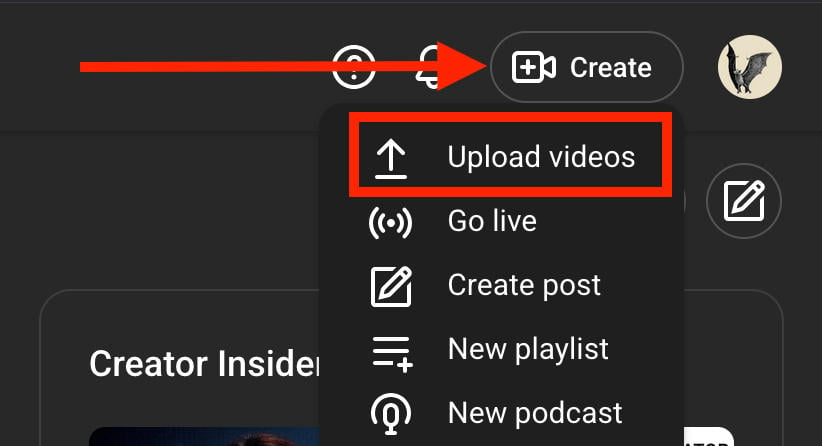
Click Create on the top right corner.
Click Upload Videos.
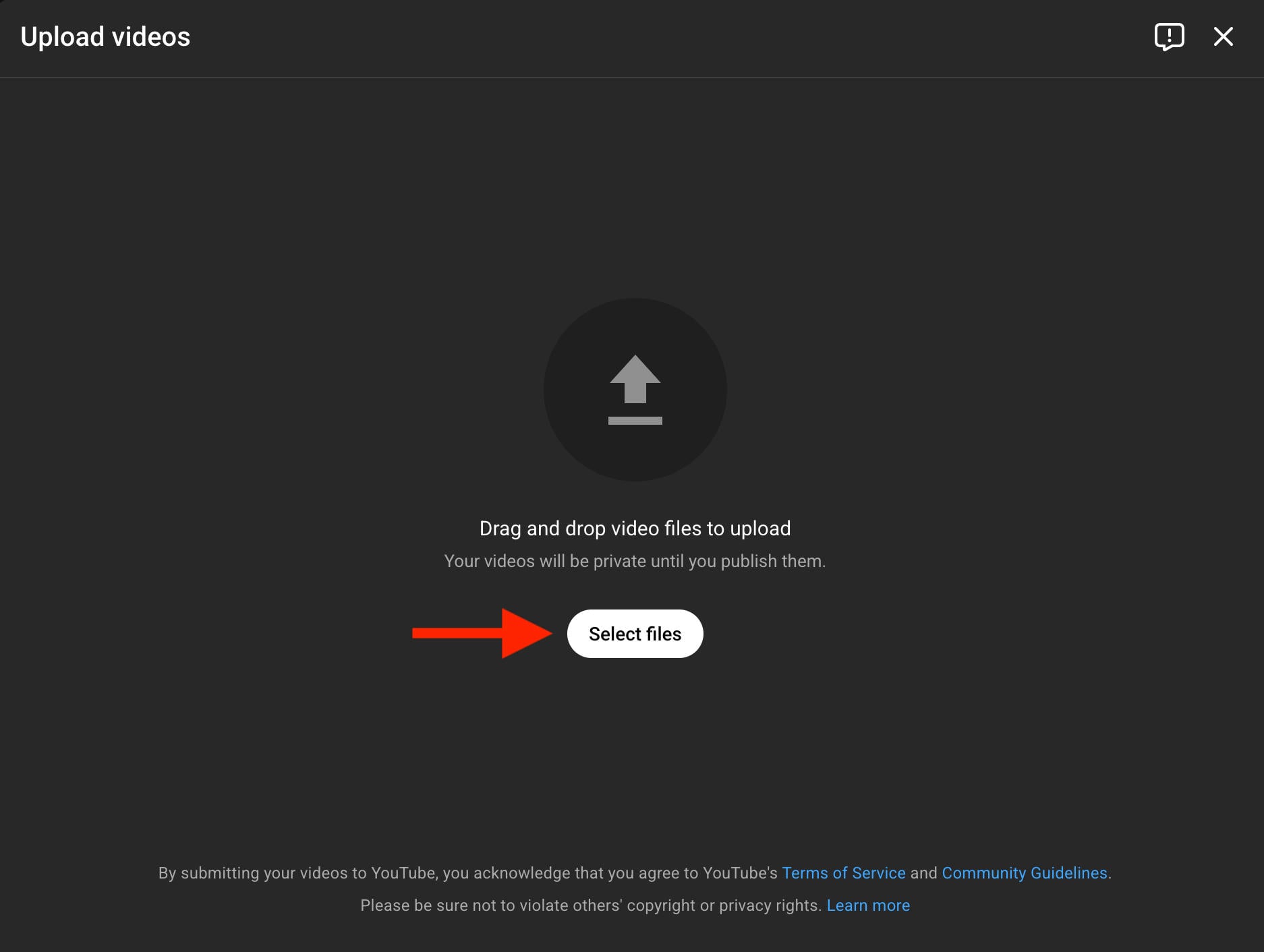
Click Select Files.
From here you can input the details of your video, including:
-
Title
-
Description
-
Thumbnail
-
Playlists you want to include it in
-
Audience details
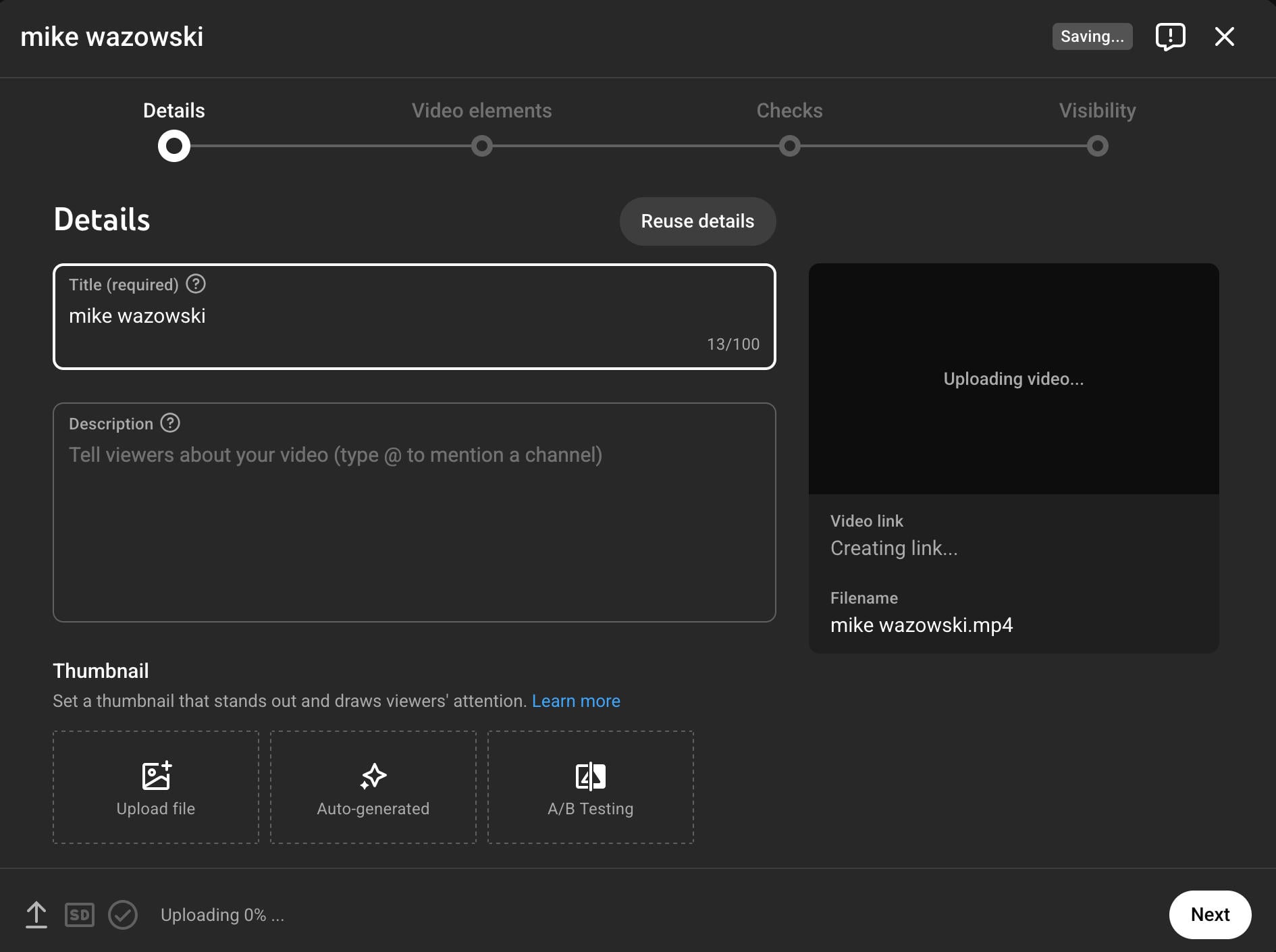
If you click Show More, you can make note of any of the following:
-
Paid promotions
-
Altered content
-
Collaborations
-
Tags
-
Embed permissions
-
Category
-
Comment settings
-
…and much more
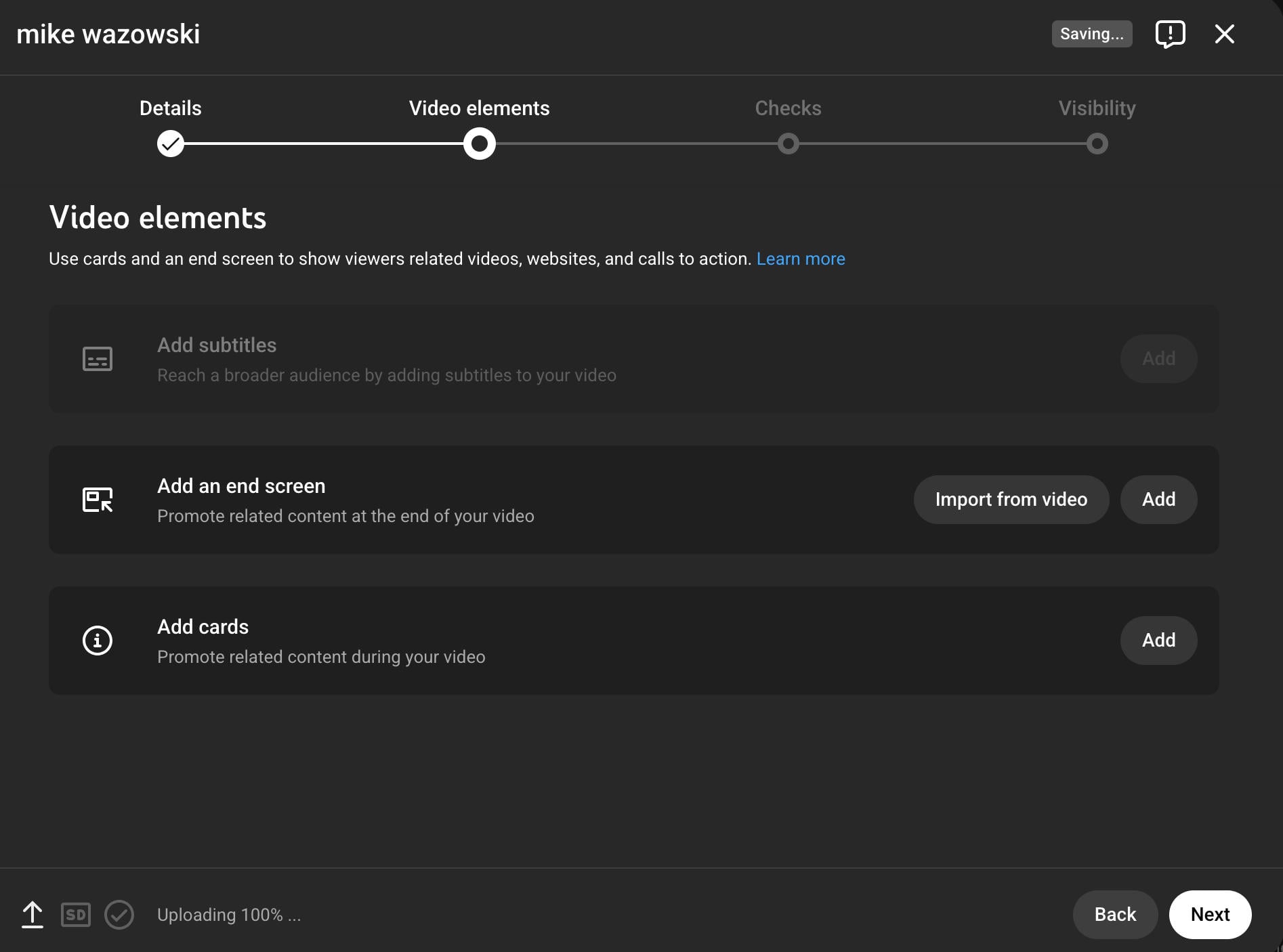
On the next page you can add subtitles, end screens, and video cards.
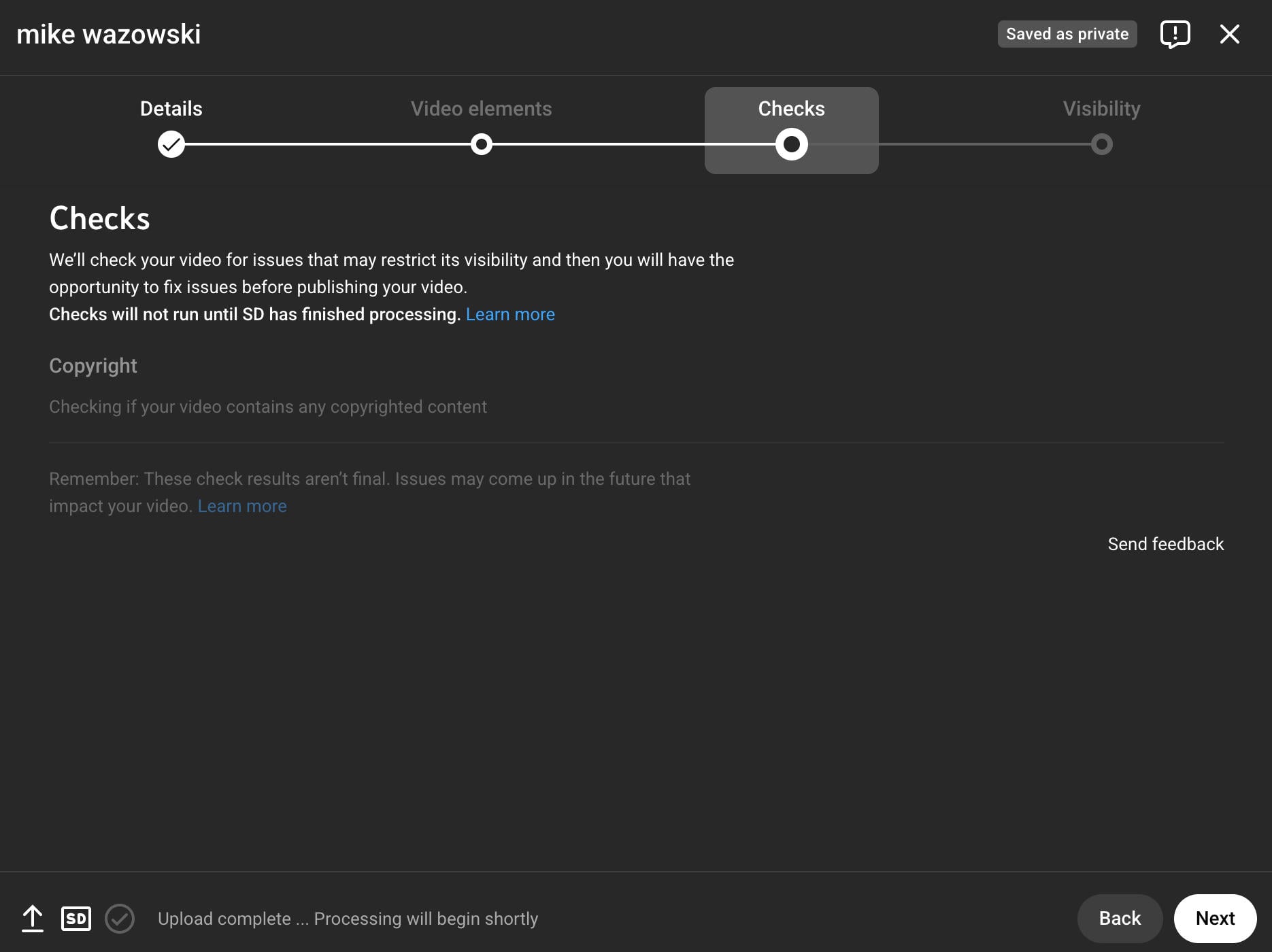
The third screen will notify you of any copyright issues.
The final screen is where you can adjust your video’s Visibility settings between Private, Unlisted, and Public.
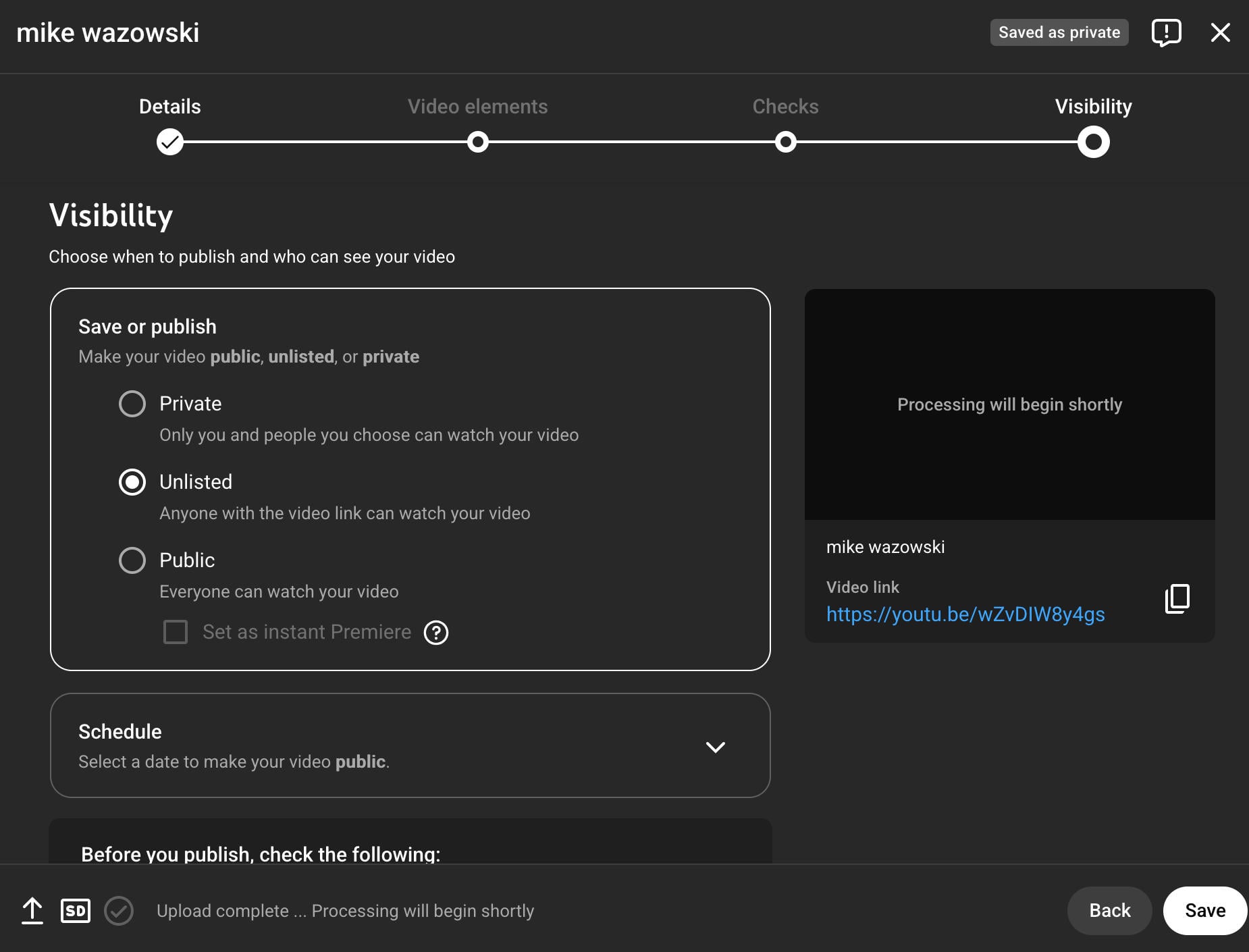
You can also schedule a video to go public at a specific date and time.
On Mobile
Open the YouTube app.
Tap the plus sign.

Tap Video.
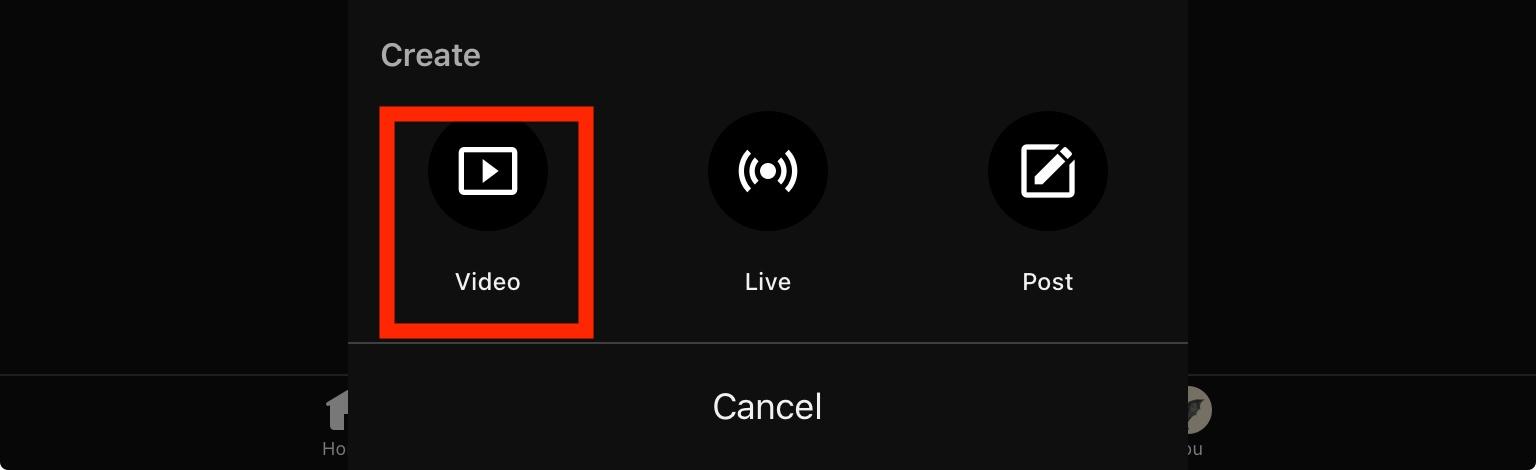
Select your video from your camera roll, or record it from your device.
From here you’ll be able to add details, including:
-
Video title
-
Visibility
-
Audience
-
Description
-
Location
-
Playlists
-
Paid promotions and brands
-
Collaborations
-
Comment settings
-
Video attributes, including tags
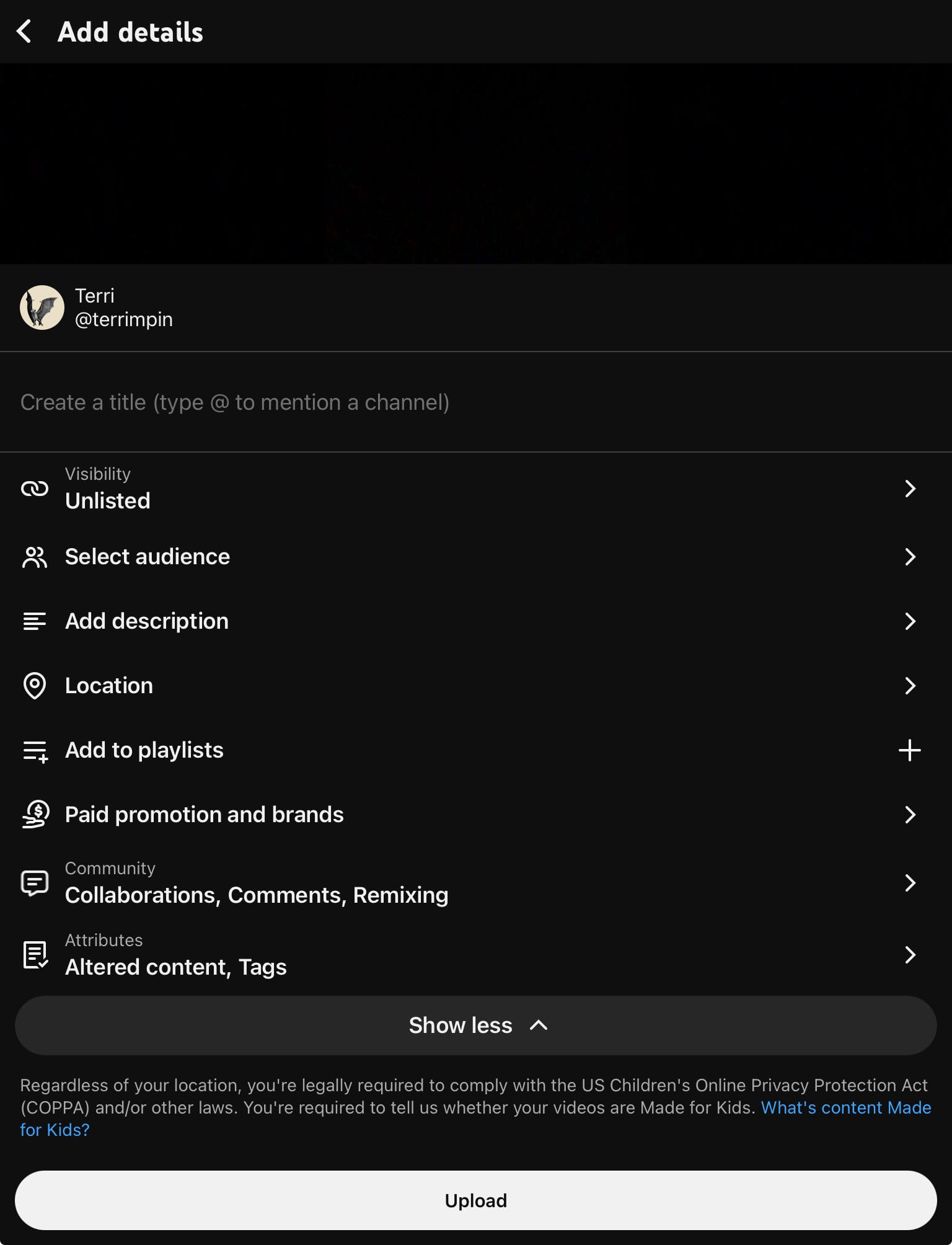
When you’re ready, tap Upload.
Troubleshooting Steps
Having trouble uploading your YouTube video? There are a few common issues that could be preventing things from running smoothly.
Your File Type Isn’t Compatible
YouTube only accepts specific video file types, so if your file isn’t one of the types listed here then you’ll have to convert it before uploading.
Your File Size Is Too Large
Files up to 256 GB in size can be uploaded to YouTube. Any larger and you’ll need to compress, edit, or decrease the quality in some way.
Your File Size Is Too Small
The minimum file size is 2 KB, so if your file is smaller than that you’ll have to bulk it up a bit before you can successfully upload it.
Your Internet Connection Isn’t Strong Enough
Depending on the device you’re uploading from, your internet connection might not be up to snuff.
Try uploading from a different device, getting closer to your router, or trying a different connection altogether.
It’s also worth noting that, due to the large file sizes of YouTube videos, uploading later at night during low-traffic hours can help increase the upload speed.
Update Your Browser
Outdated browsers are a common cause of YouTube upload errors. Make sure your browser is updated, or try uploading from a different browser or device altogether.
You’ve Reached Your Upload Limit
YouTube limits how many uploads a user can make within a 24 hour period, though this varies depending on region and the channel’s history.
If this is the case, you’ll receive a specific error about the upload limit.
YouTube Is Down
Sometimes it’s not just you! Check YouTube’s Downdetector page to make sure that you’re not the only one experiencing issues.
If the problem is on YouTube’s end, all you can do is wait it out.
Recommended Reading
Frequently Asked Questions
What file types can YouTube accept?
YouTube accepts a wide variety of video files. You can view the full list here.
What file format should I use for YouTube?
You have plenty of options when it comes to file formats on YouTube, but MP4 is the most widely compatible one.
Does YouTube accept MP4?
Yes, MP4 is accepted by YouTube.
Does YouTube accept .MOV files?
Yes, YouTube accepts MOV files.
Does YouTube prefer MP4 or MOV?
YouTube accepts both, but MP4 is more widely compatible.
Is it better to upload MP4 or MOV to YouTube?
Many users recommend uploading MP4 files to YouTube, even though MOV files are also compatible. If you have the choice, go with MP4.
Why won’t my MP4 file upload to YouTube?
There could be a variety of reasons behind the issue. Run through our troubleshooting steps to figure out the cause of your problem.
Is MOV Apple only?
Yes, MOV is Apple’s proprietary video file format.
Is YouTube MPEG or AAC?
YouTube uses AAC (Advanced Audio Coding) for its audio streaming.
Is QuickTime format good for YouTube?
QuickTime’s MOV format works with YouTube, but it’s not as compatible with other devices since it’s Apple’s own video file format. If possible, opt for MP4.
Is 720p ok for YouTube?
720p is alright if you can’t do anything better, but YouTube recommends using at least 1080p. Nowadays, with so many HD videos available, anything less than 1080p looks shoddy in comparison.


My account was locked, and I couldn’t access my own information until cyberspacetechexpert@gmail.com +447476618364 whats?app? helped me recover it. This lady hacker was kind and professional, but this experience showed me how risky account lockouts can be. If you’re facing the same problem, do not panic consult her A. S. A. P. Be careful with recovery agents outchea, and research their name, business, and reviews before sharing any details. Never send passwords, security codes, banking information, or copies of your ID unless you’ve confirmed who you’re dealing with. Be wary of promises that sound too good to be true, especially claims that require little information or guarantee instant access with outrageous fees.