Ever wondered who follows your Spotify playlists?
Learn how to see who has liked your playlist on Spotify - or who's following your content - on both the Spotify app and desktop site.
And if you want to know how you can increase your Spotify engagement fast, stick around until the end of the guide for our top tips.
Key Points:
How To See Who Liked Your Playlist On Spotify
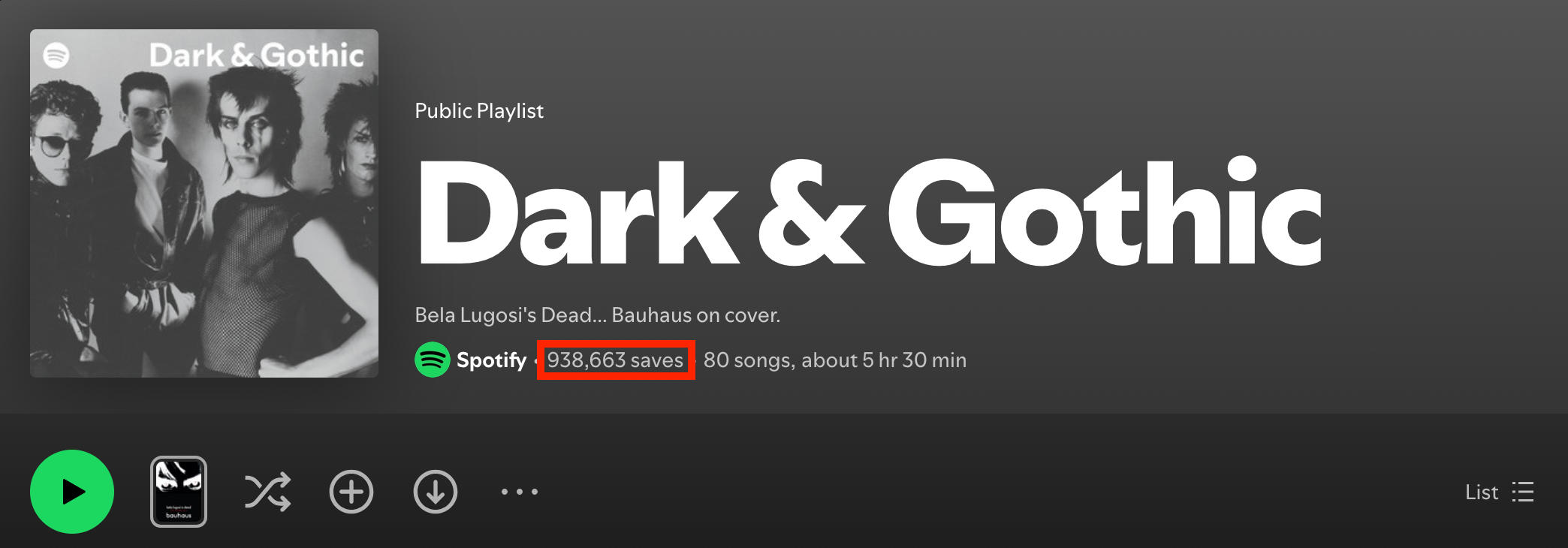
While you can't see exactly which users liked your Spotify playlist, you can view the number of followers/likes/saves that your public playlists have received by following the steps below via the Spotify desktop site.
Log into your Spotify account.
Click the playlist of your choice.
You will see the total number of saves/likes/followers to the right of your username beneath the playlist description.
How To See Saves On Spotify Playlist
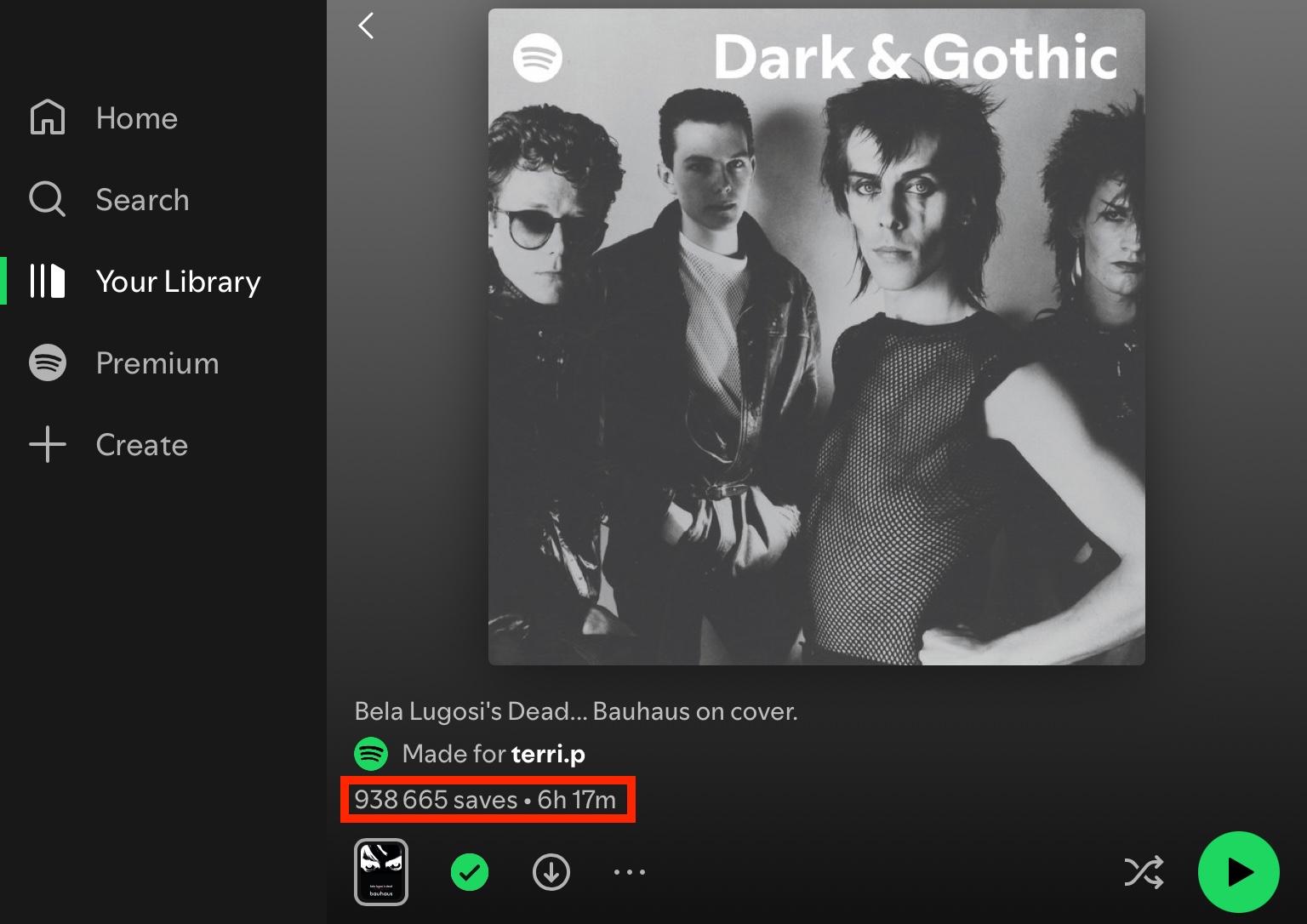
On Spotify mobile, the likes/followers count appears as saves, but it’s the same metric.
To view this, log into your Spotify account and tap the playlist of your choice.
You will see the total number of likes/followers below your username, beneath the playlist description.
NOTE: You will also be able to see the saves/likes/followers count beneath the playlist title from your Spotify profile page if you have added the playlist to your profile.
What's The Difference Between Followers, Likes, & Saves?
On Spotify playlists, Followers, Likes, and Saves are the same thing.
When Spotify users 'like' your playlist, they are effectively following it by saving it to their Spotify library.
It’s confusing, and many users wonder why Spotify doesn’t just stick to a consistent metric title but the bottom line is that these three forms of engagement all boil down to the same thing.
Can You See Who Views Your Spotify Playlist?
No, there’s currently no way to see specifically which users have viewed or engaged with your Spotify playlists.
However, if you have access to Spotify Artists analytics, you can view a variety of performance metrics based on engagement received on your Spotify Artist profile and related tracks.
Learn how to view and decipher Spotify Analytics in our guide here.
How To Hide Spotify Playlists
By default, playlists will appear publicly on your profile but you can adjust this via the desktop app by following the steps below:
In the desktop app, click your profile picture or the down arrow at the top and select Settings.
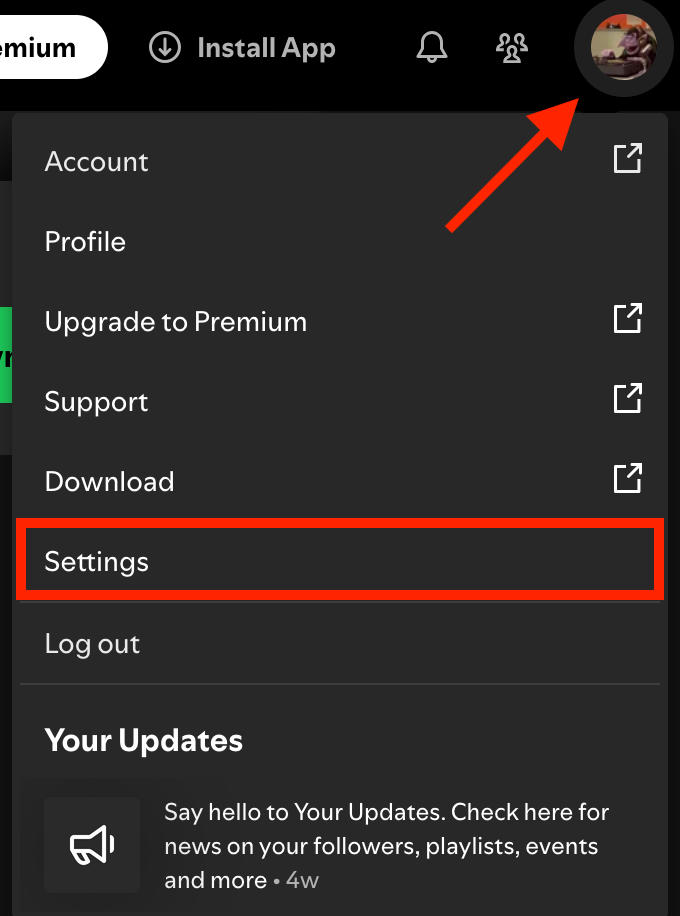
Under Social, toggle People Can See The Playlists You've Added To Your Profile to OFF.

Once this setting has been activated, playlists will not appear on your profile unless you manually choose them to.
You can share private playlists by either copying the desktop link, or tapping the playlist menu within the mobile app and selecting Share.
How To Add A Spotify Playlist To Your Profile
To make a Spotify playlist appear on your profile, follow the steps below:
On either desktop or mobile, visit the playlist of your choice.
Tap the three horizontal dots at the top of the playlist.
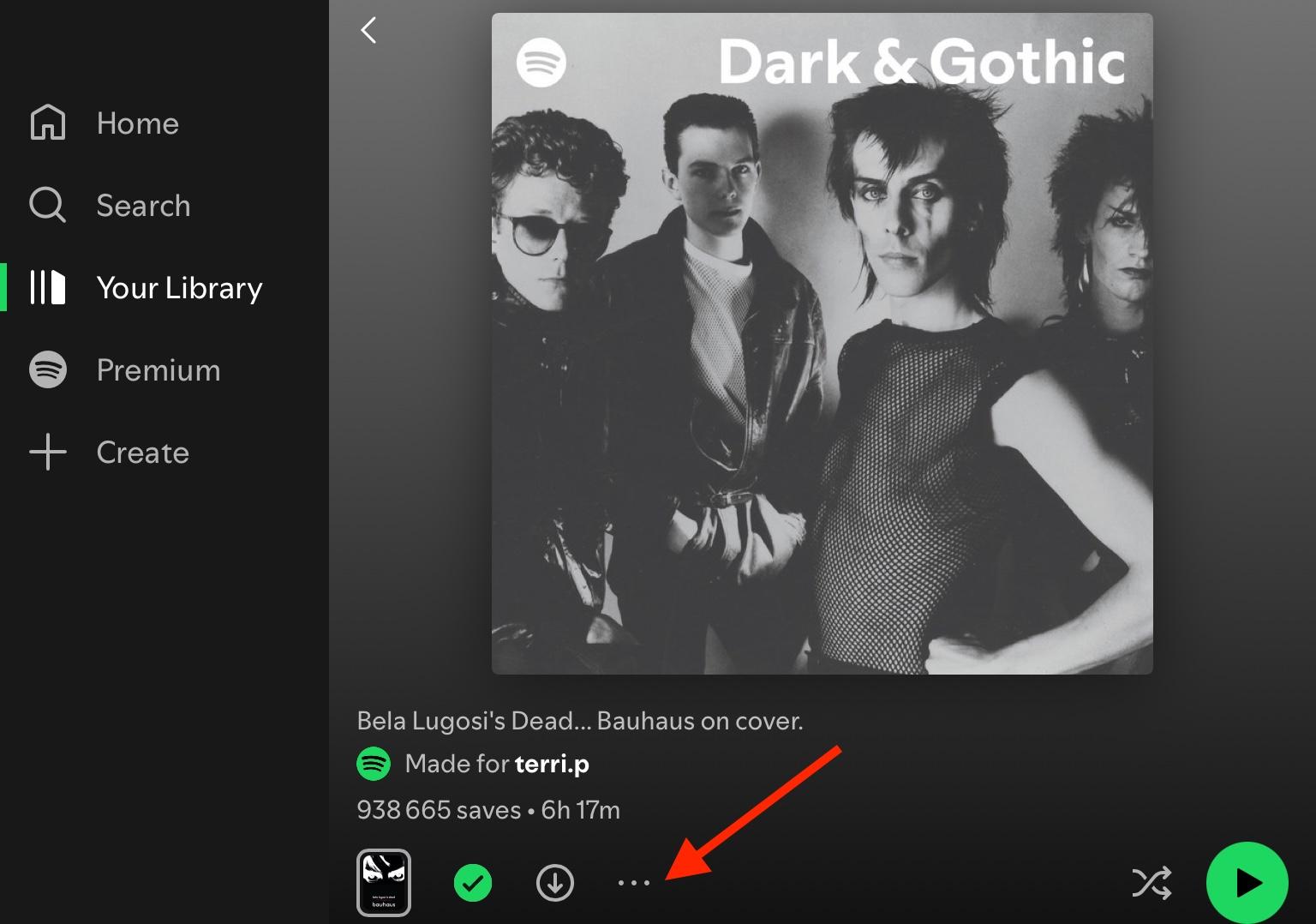
Select Add to Profile.
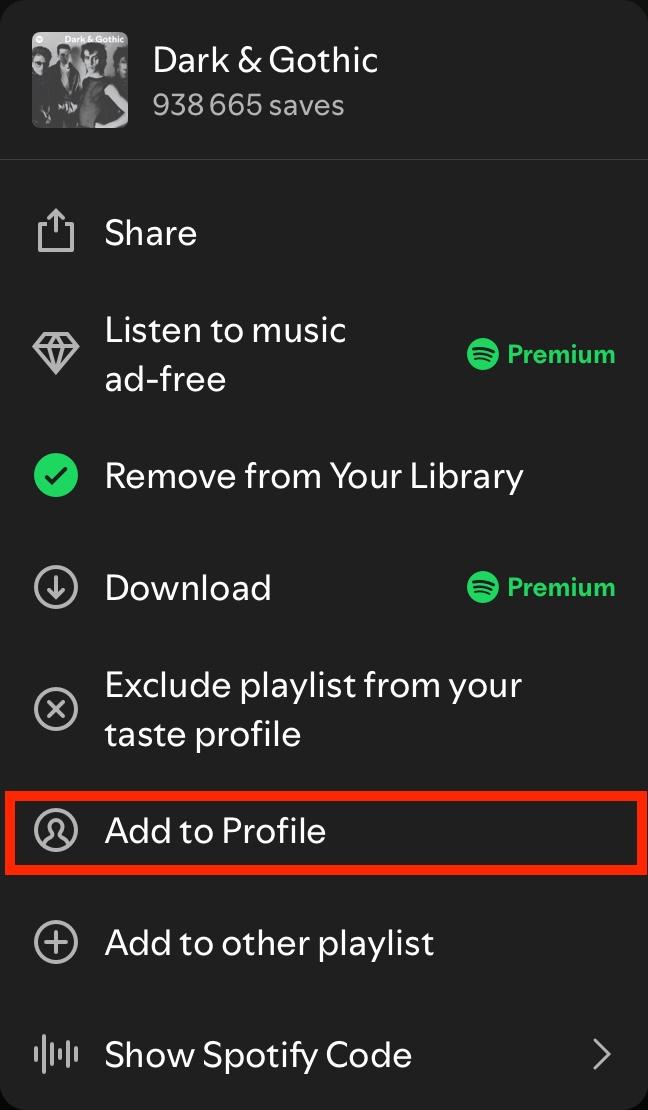
The playlist will now be publicly visible from your profile page.
You can undo this by following the same steps above.
How To Add Collaborators To Your Spotify Playlists
To add a collaborator to a Spotify playlist, visit the playlist of your choice. Keep in mind that it must be a playlist that you created.
Tap the three dot menu at the top of the playlist, or on mobile tap the person with a + sign icon.
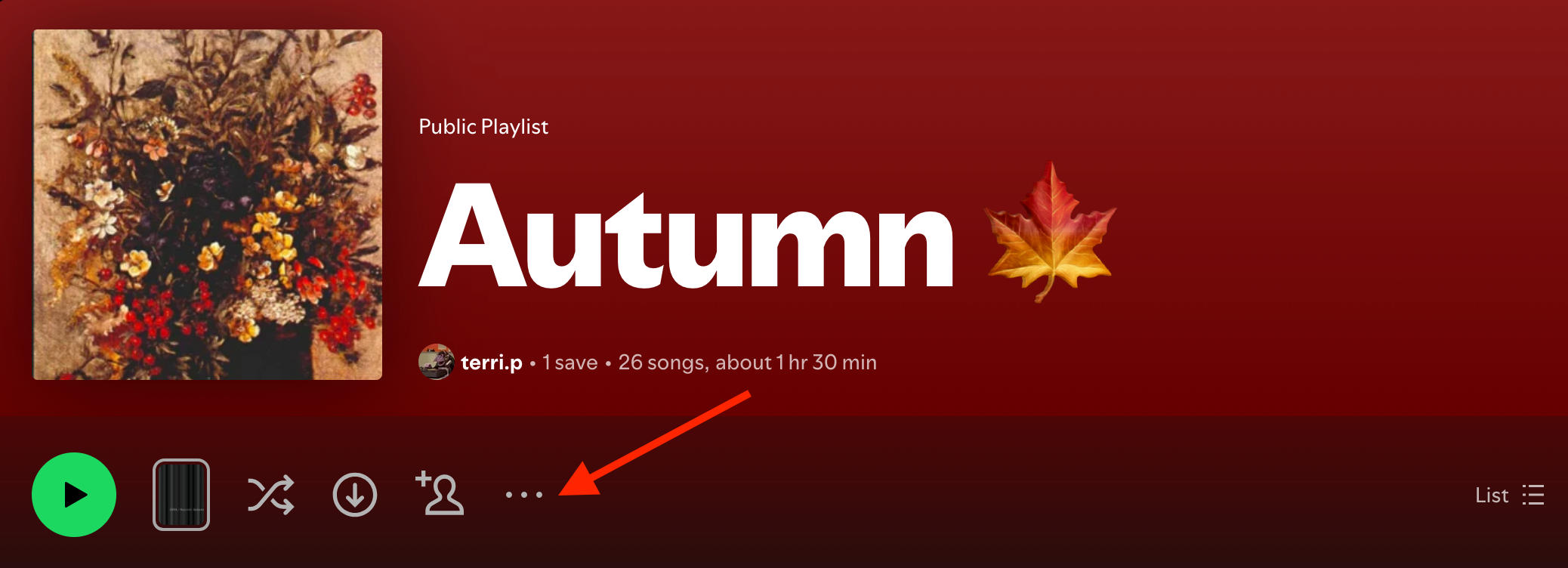
Tap Invite Collaborators.
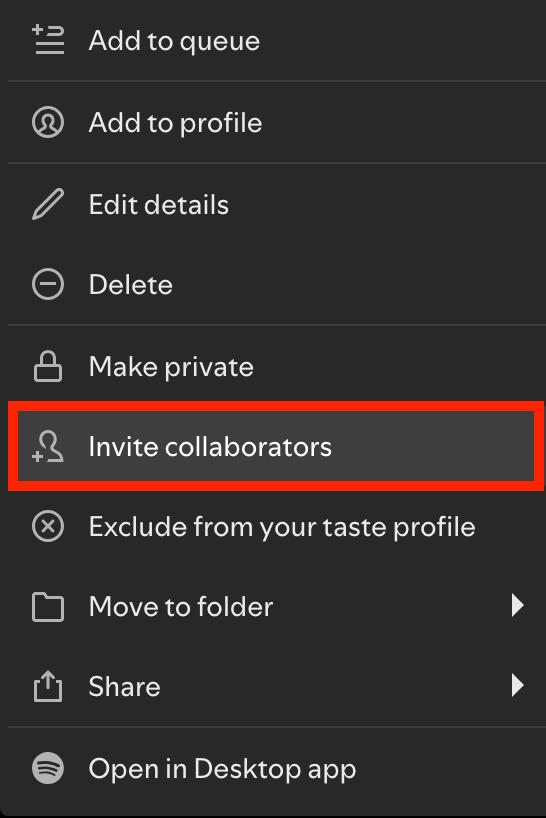
On desktop, the link will automatically be copied to your clipboard. On mobile, tap Copy Link or select your sharing method.
Any users who access your playlist via the collaborator link will be able to edit the playlist.
How To Get Saves On A Spotify Playlist
Whether you want more saves on your playlist or followers on your Spotify Artist profile, QQTube has everything you need to get started.
Just sign up for a free account here and browse our wide selection of high-quality Spotify services. All you need is the link to your track or profile - no login information needed!
Frequently Asked Questions
Why can't I see who liked my Spotify playlist?
Spotify keeps user identity private with most metrics, the only exception to this being followers.
Can you see who likes your songs on Spotify?
No - you can see the number of likes your track has but not specifically who liked it.
How to see who follows your playlist on Spotify hack?
You can view the number of follows/likes/saves your Spotify playlist has by following the steps here.
Can I see who follows my playlists?
No, but you can see the total number of followers below the playlist name.
What is the 30 second rule on Spotify?
The 30 second rule on Spotify states that you should aim to capture your listener’s attention within the first 30 seconds of the track.
Can someone hack your Spotify playlist?
Most online accounts carry some risk of being hacked, which is why it’s important to keep your data secure. Never give anyone your login information or personal data, and use two-factor authentication when available.
Can I check who liked my playlist?
No, but you can see the total number of likes. Learn how here.
Can you see who listened to your playlist on Spotify?
Spotify won’t show you the specific users who listened to your playlist or tracks but you can see additional metrics via Spotify for Artists analytics - learn how here.
How do you see your likes on Spotify?
You can see the likes count on your Spotify playlists by following the steps here.
Does Spotify notify who liked your playlist?
No, Spotify won’t tell you specifically who liked your playlist or tracks.