Dealing with an imposter account on Facebook? Learn what to do if someone makes a fake account of you on Facebook, and how to get it taken down fast.
Plus, additional tips on maintaining privacy on Facebook and decreasing your digital footprint.
Key Points:
How To Report A Fake Facebook Account
If you’ve found an account that’s pretending to be you, or someone you know (including a celebrity, public figure, or just a friend or family member), you can report it to Facebook’s admin team for review.
You can access Facebook’s help center for imposter accounts directly here, or follow the instructions outlined below depending on your device.
On Mobile
Open the profile or page via the Facebook app.
Tap the three dots on the top right.
Tap Report Page or Report Profile.
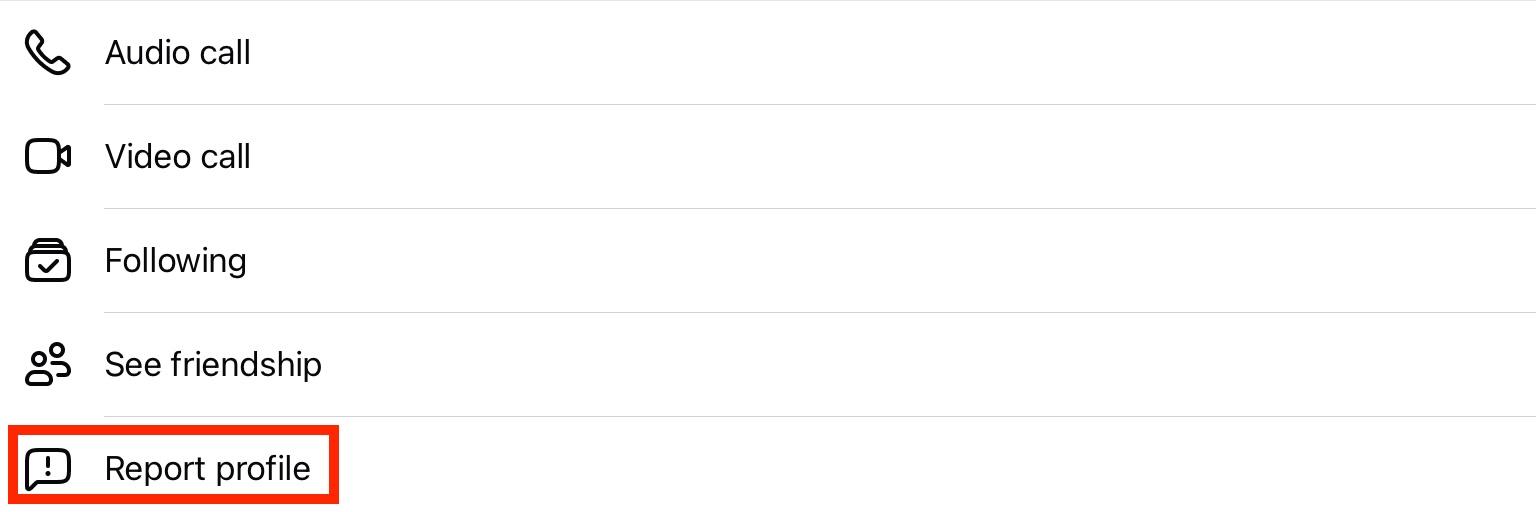
Tap Something About This Page or Something About This Profile.
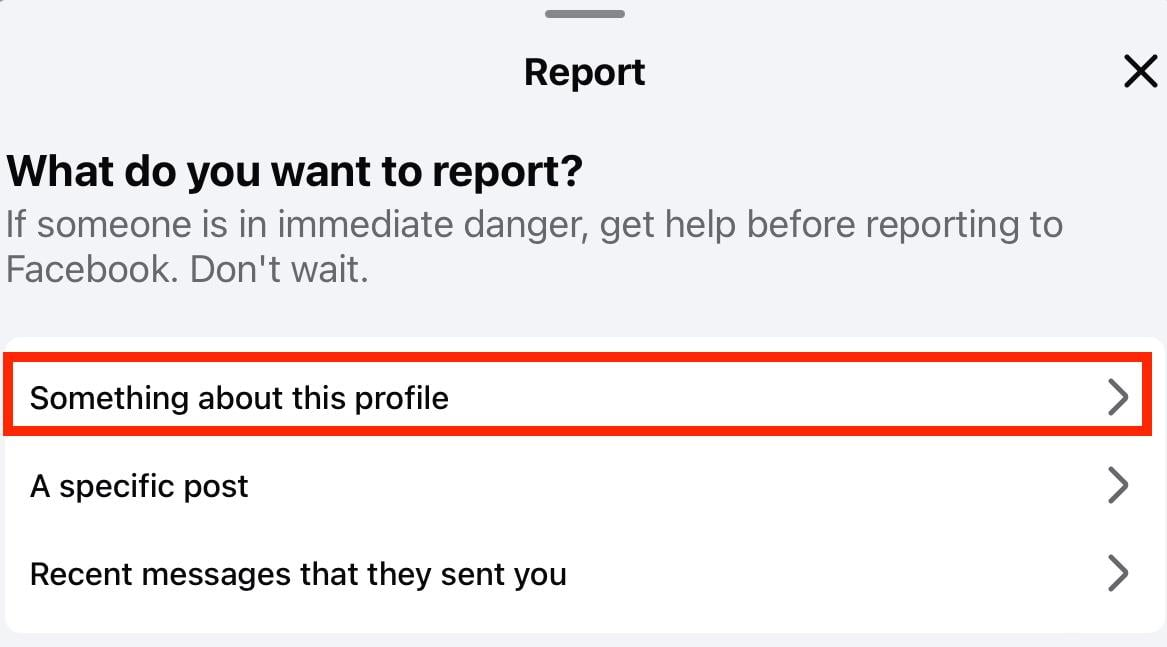
Tap Fake Page or Fake Profile.
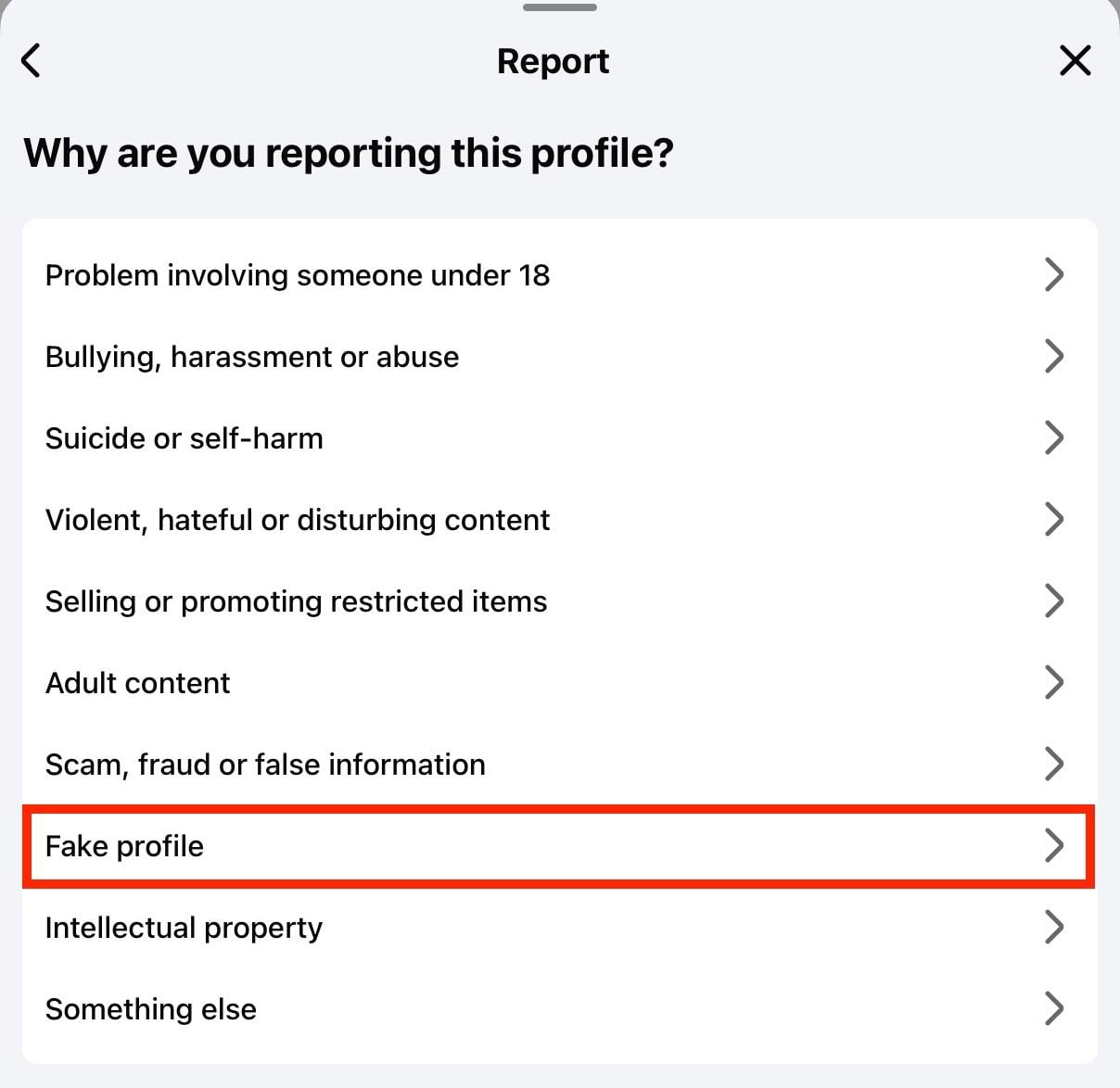
Choose the option that best suits the situation.
On Desktop
Open the profile or page.
Click the three dots that appear beneath the Message button.
Click Report Page or Report Profile.
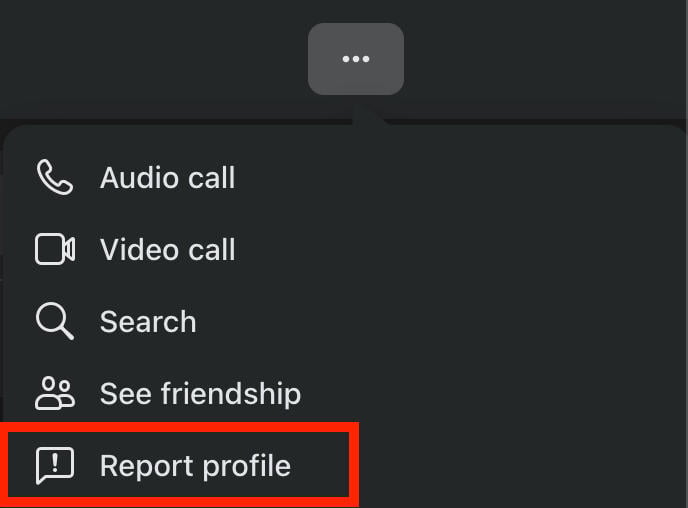
Click Something About This Page or Something About This Profile.
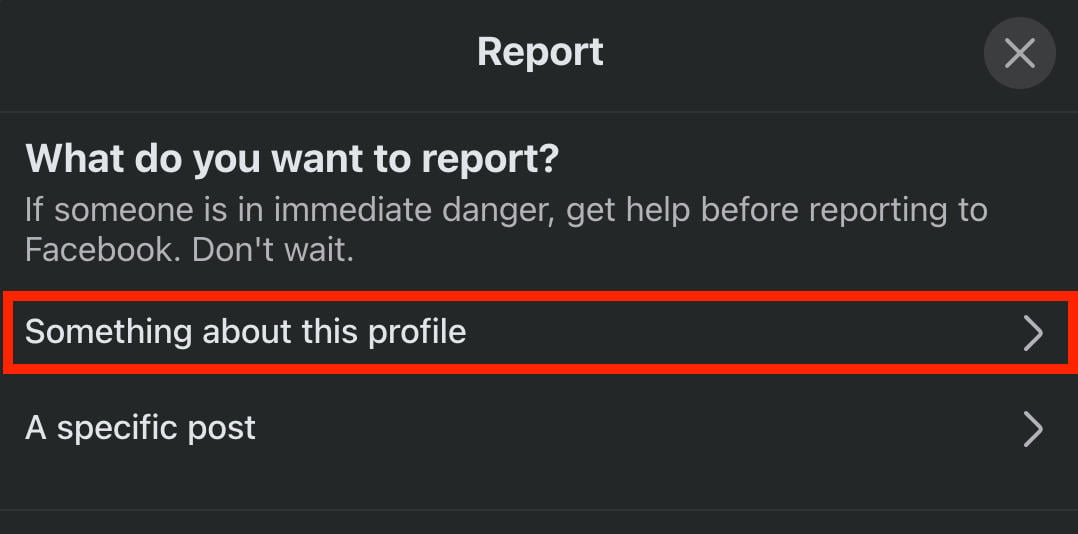
Click Fake Page or Fake Profile.
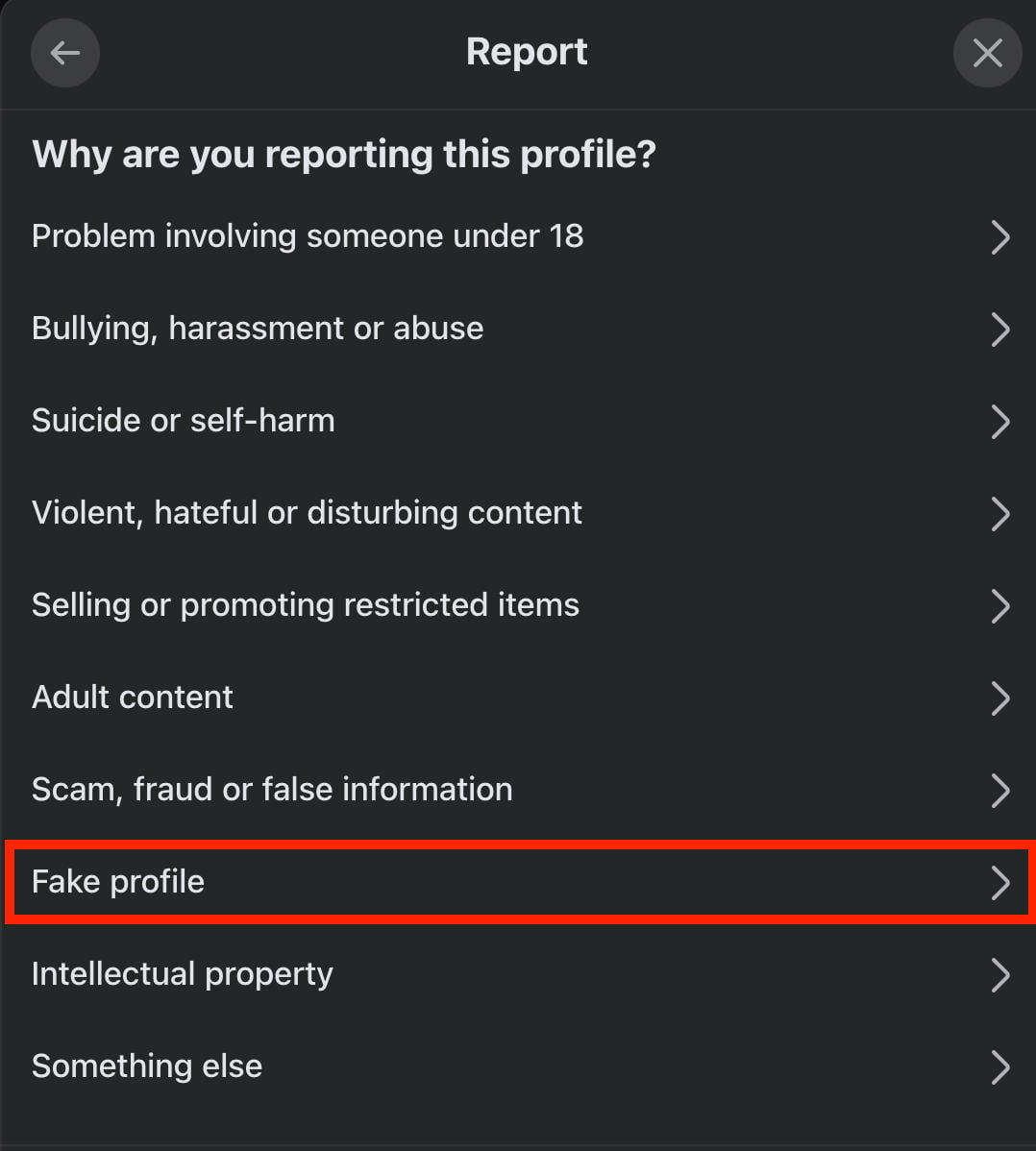
Choose the option that best suits the situation.
What To Do If Someone Is Pretending To Be You Online
If you’ve discovered an imposter account outside of Facebook, there are a few steps you can take depending on where the information is coming from.
First, report the account from within the platform. Whether it’s Facebook, Instagram, YouTube, or another social media site, there are always options for reporting fraudulent accounts.
If you’re dealing with an entire website that’s pretending to represent you, you may need to take legal action against the owner of the site.
Before you get to that point, here are a few actionable steps you can take.
Report The Site To Google
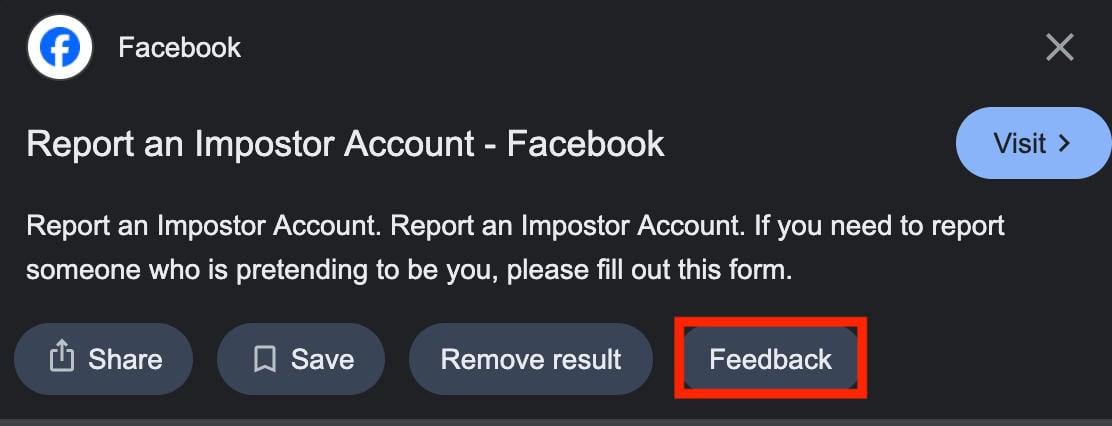
Click the three dots to the right of the search result and select Feedback.
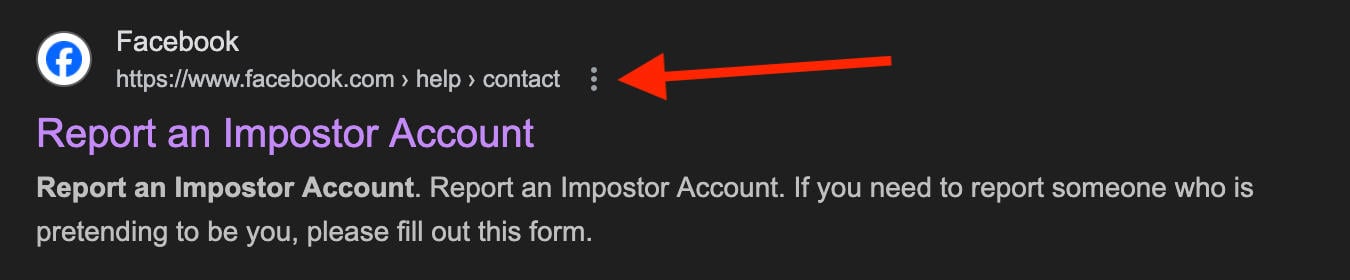
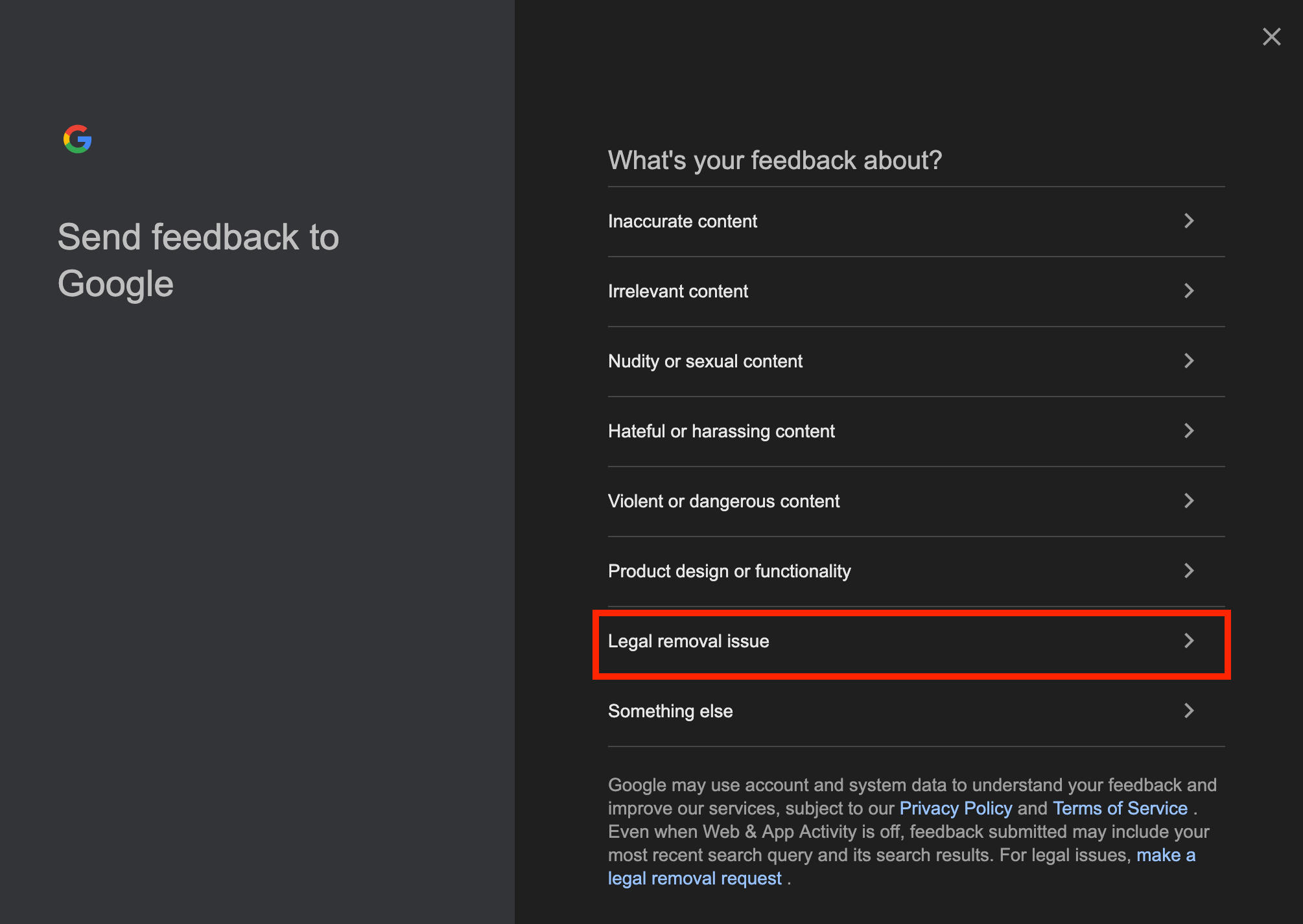
From here, select Legal Removal Issue.
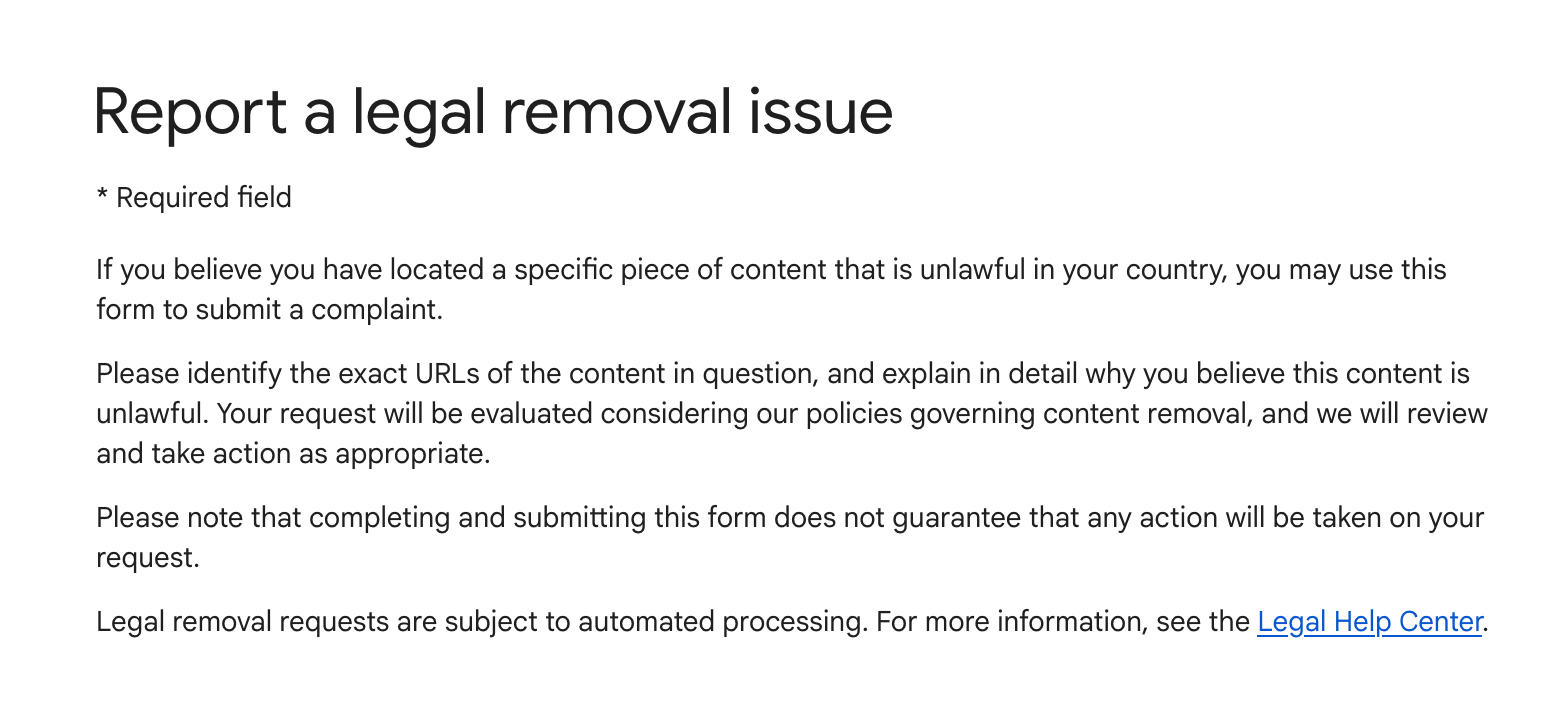
You’ll be redirected to Google’s contact page where you can input additional details for their legal team to look into.
Report The Site To The Web Host
Next, report the offending site to their web host.
You can determine who owns a site and where it’s being hosted by using a free tool like GoDaddy’s WHOIS Domain Lookup.
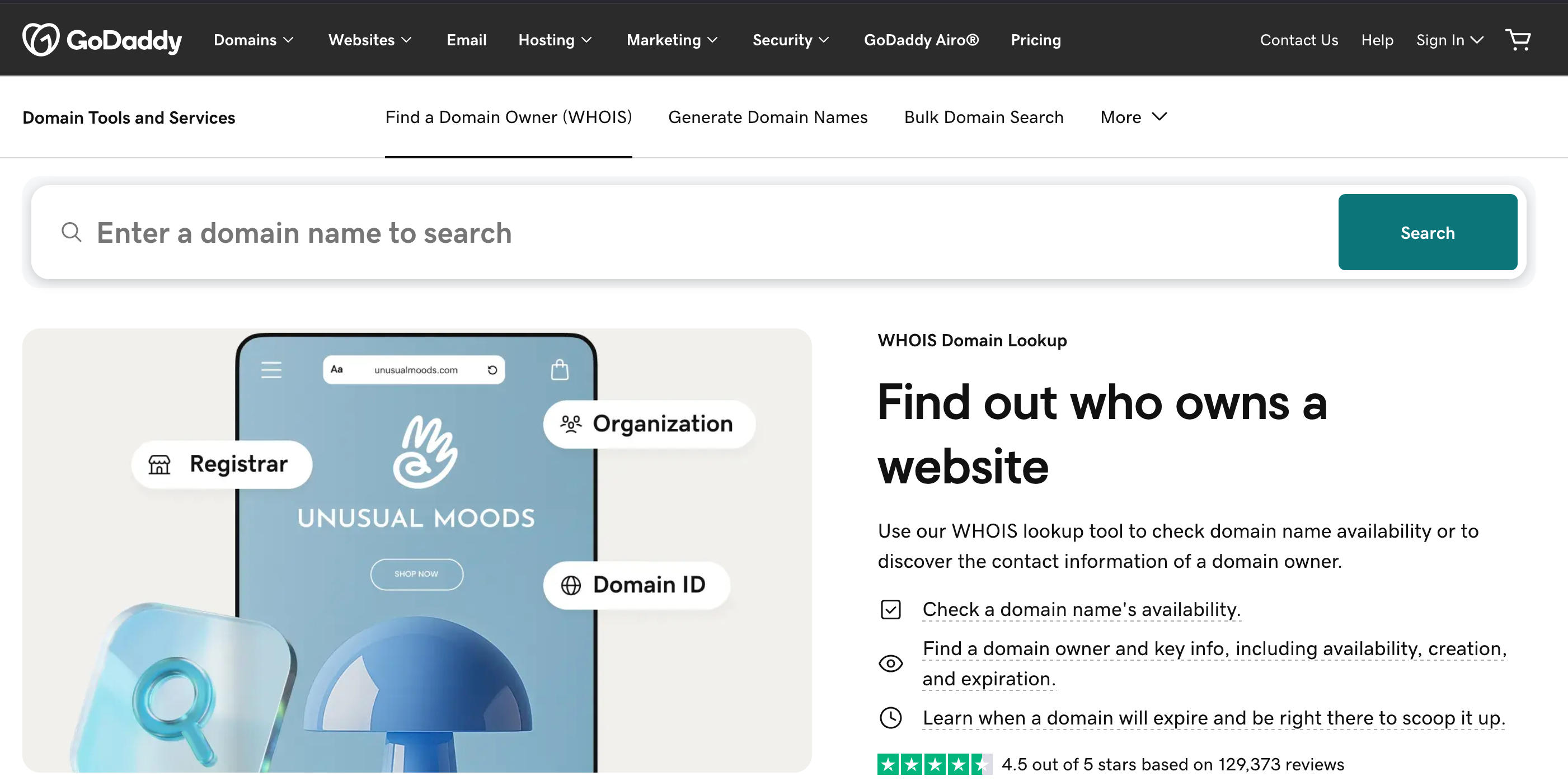
Input the site’s URL and you’ll be able to see the Registrar Information.
From here you should be able to see the Abuse Contact Information, including an email and phone number.
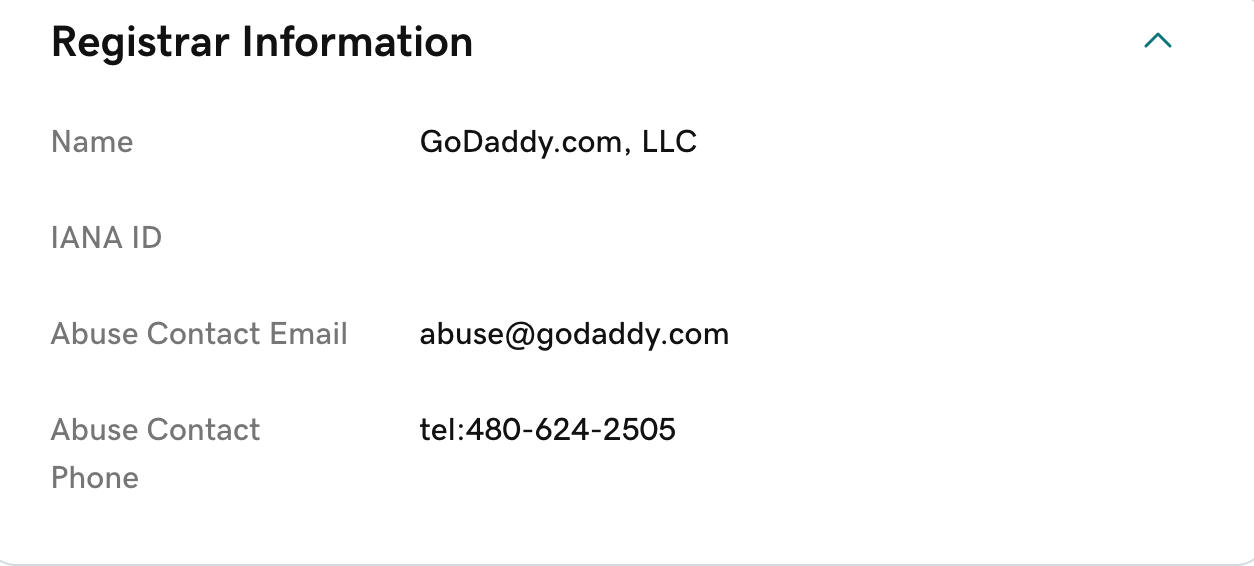
You can send this contact details regarding the fraudulent site.
What To Do When Someone Harasses You On Facebook
If you’re dealing with harassment on Facebook, but not impersonation, there are steps you can take to prevent it from continuing.
On Mobile
Open the profile or page via the Facebook app.
Tap the three dots on the top right.
Tap Report Page or Report Profile.
Tap Something About This Page or Something About This Profile.
Tap Bullying, Harassment, or Abuse.
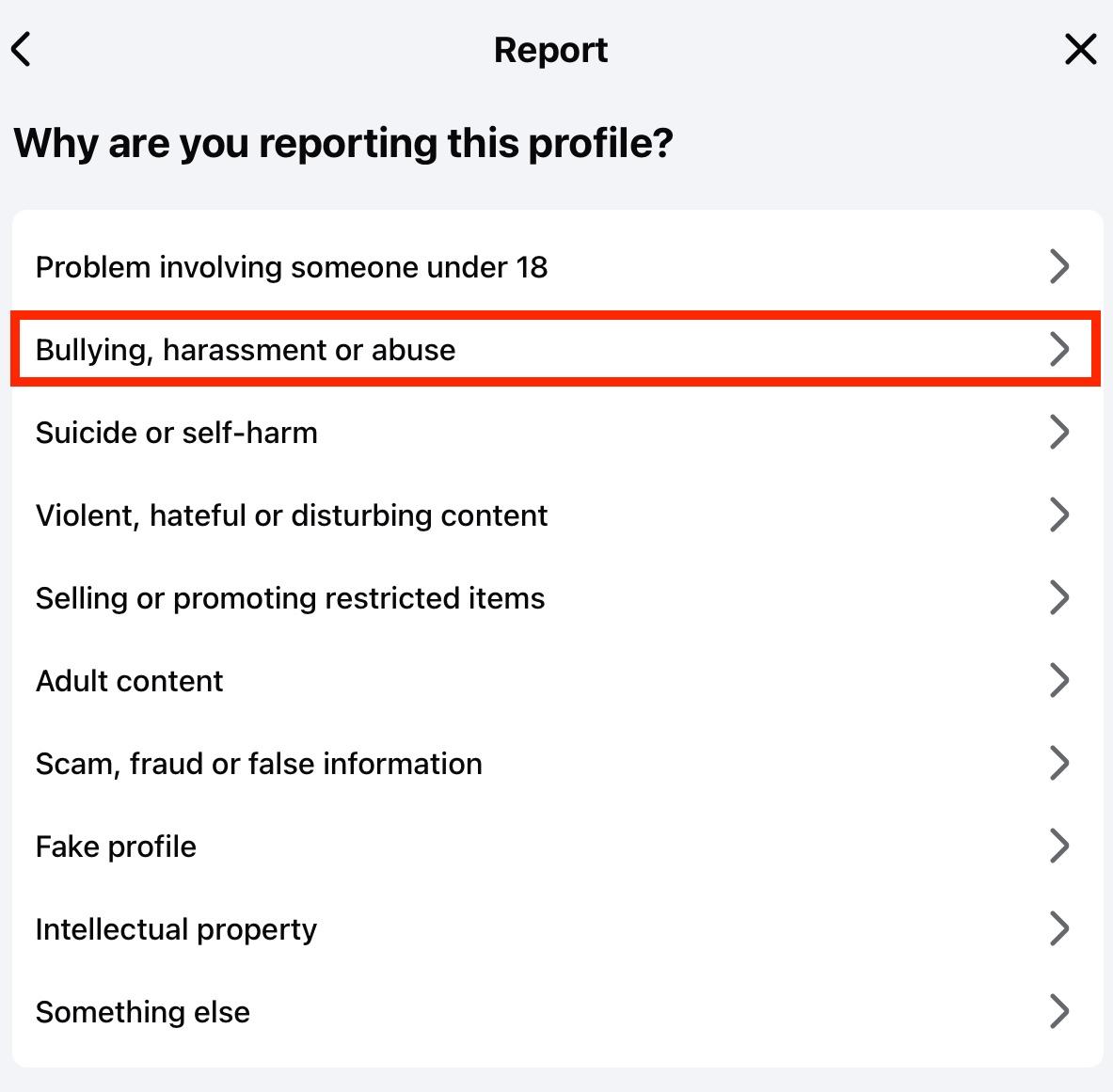
Choose the option that best suits the situation.
On Desktop
Open the profile or page.
Click the three dots that appear beneath the Message button.
Click Report Page or Report Profile.
Click Something About This Page or Something About This Profile.
Click Bullying, Harassment, or Abuse.
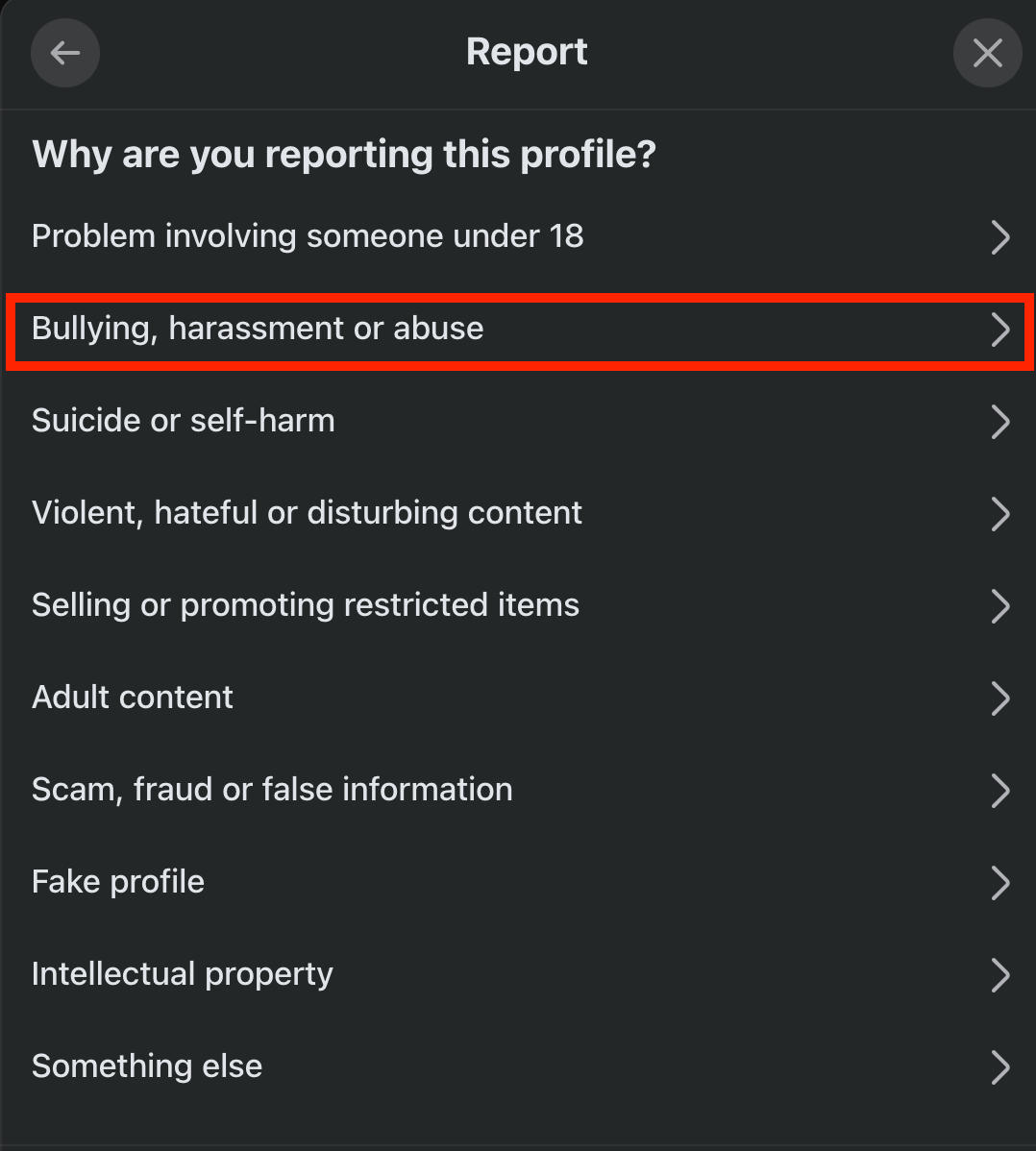
Choose the option that best suits the situation.
Reporting Messages
If you’ve received an inappropriate message, you can report it on either the Messenger mobile app or desktop site.
On the mobile app, tap the message sender’s name.
Scroll down and tap Report.
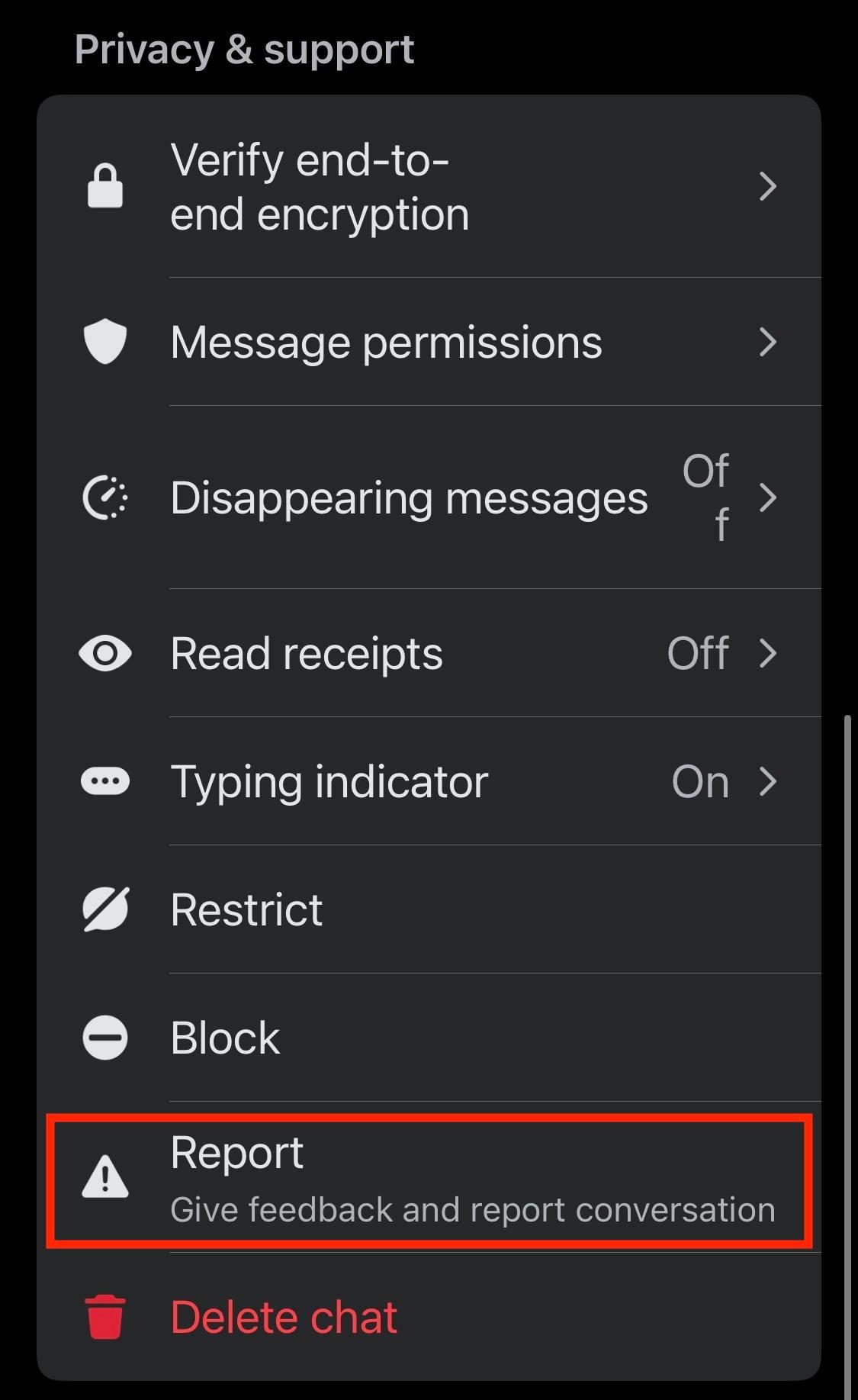
Complete the on-screen instructions.
On the desktop site, click the three dots to the right of the message.
Click Report.
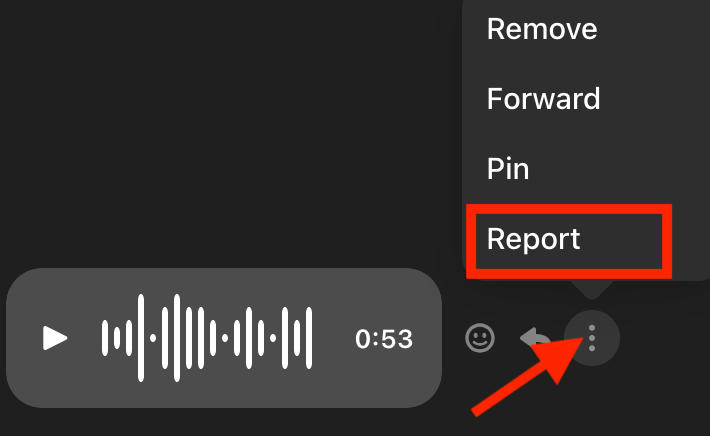
Complete the on-screen instructions.
Can You Find Out Who Is Behind A Fake Facebook Profile?
In most instances when you’ve reported a fake Facebook profile, Facebook admin will handle it on their own without giving you information as to the identity of the fake account owner.
However, if you take legal action against the account holder it may be possible for you to determine who created it, as long as your local law enforcement feels that it’s necessary for you to know.
Facebook Privacy Tips
One way to prevent fake accounts from cropping up is to keep your existing information as private as possible.
Below are a few actionable steps you can take to strengthen your Facebook privacy and keep your personal information between you and the people you trust.
Clearing Facebook Data
Go to Settings & Privacy > Settings.
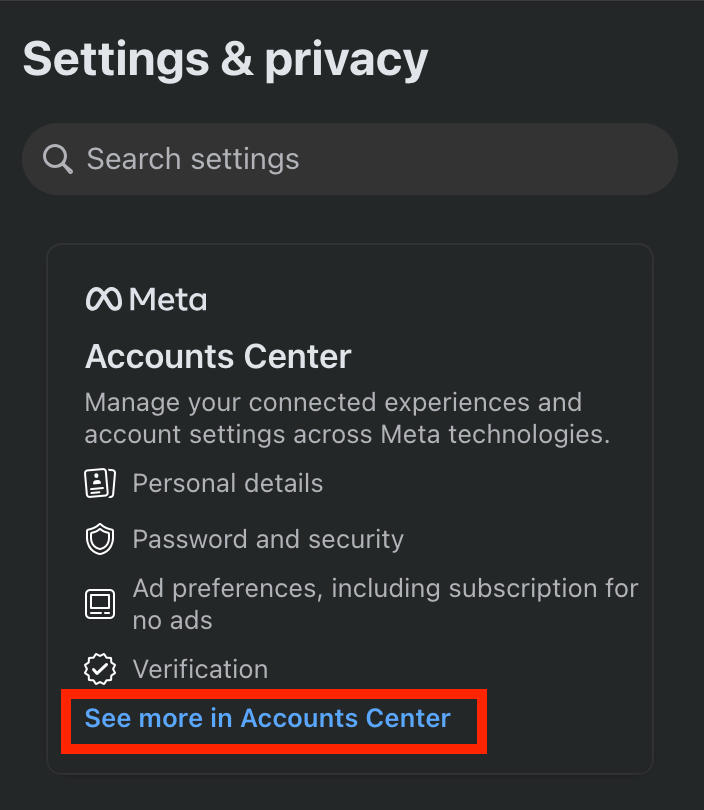
On the left-hand menu under Accounts Center, click See More In Accounts Center.
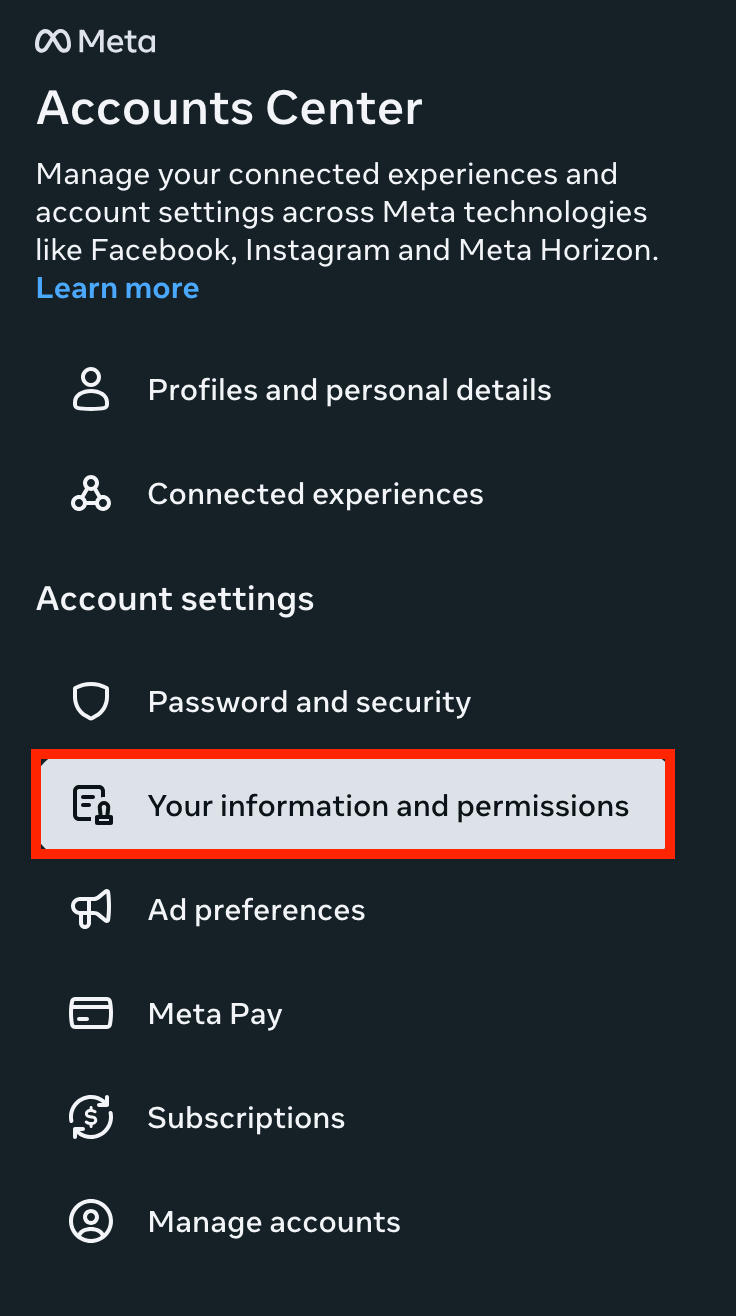
Under Account Settings, click Your Information And Permissions.
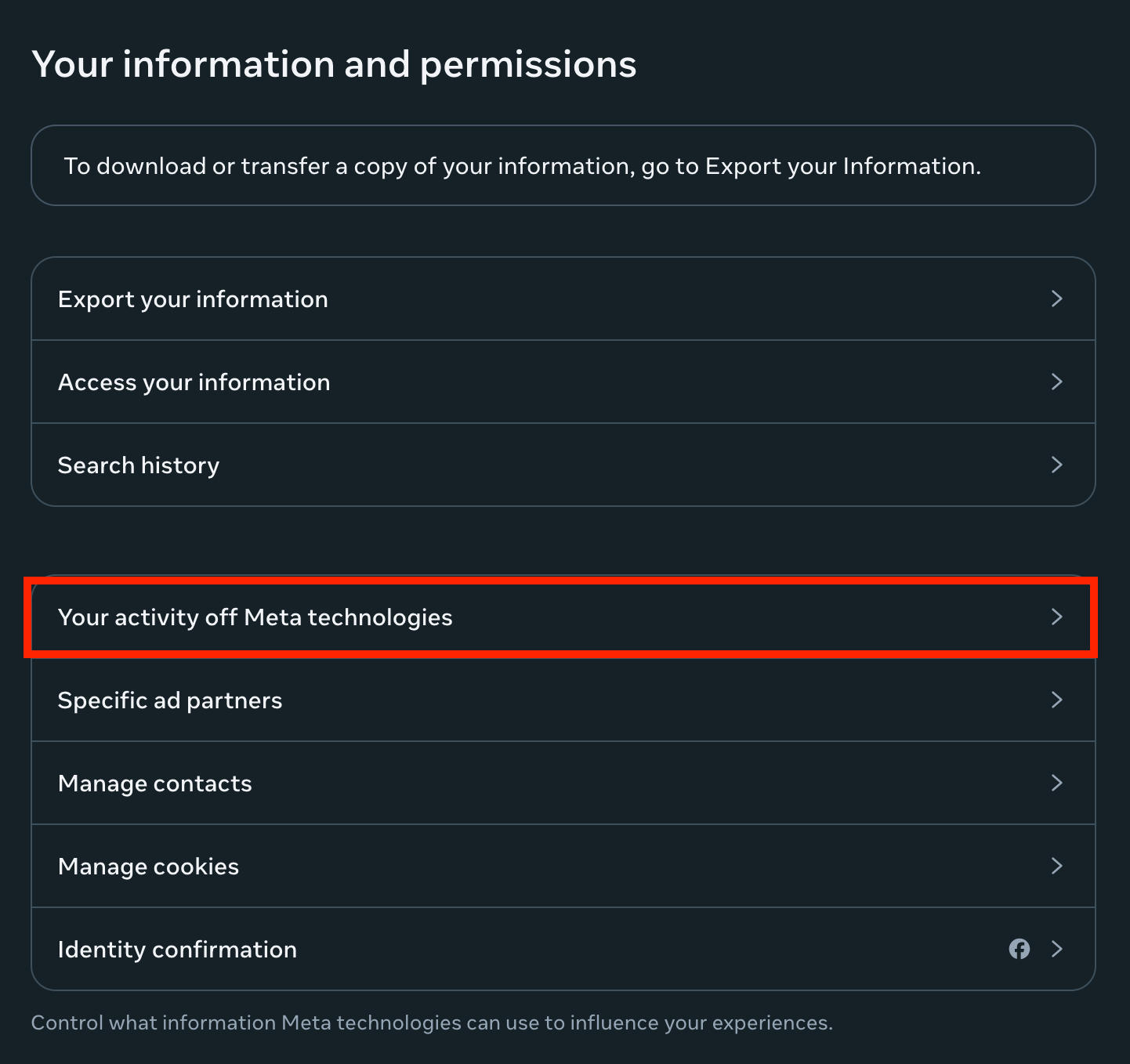
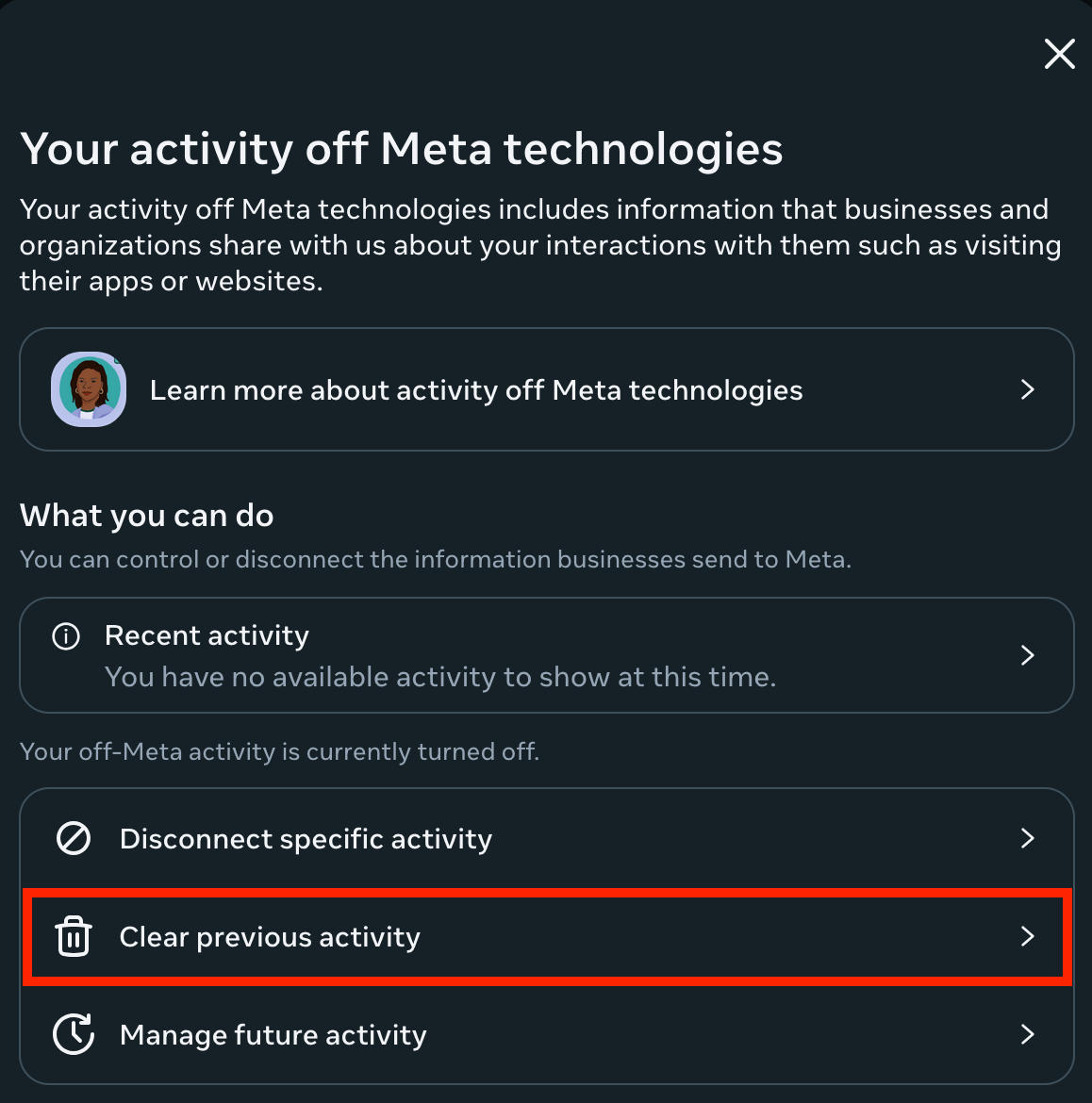
Click Your Activity Off Meta Technologies.
Click Clear Previous Activities.
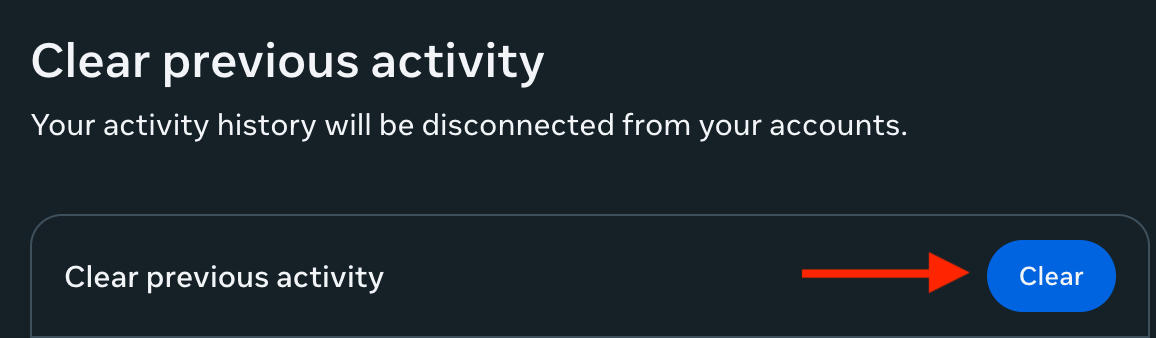
Click Clear.
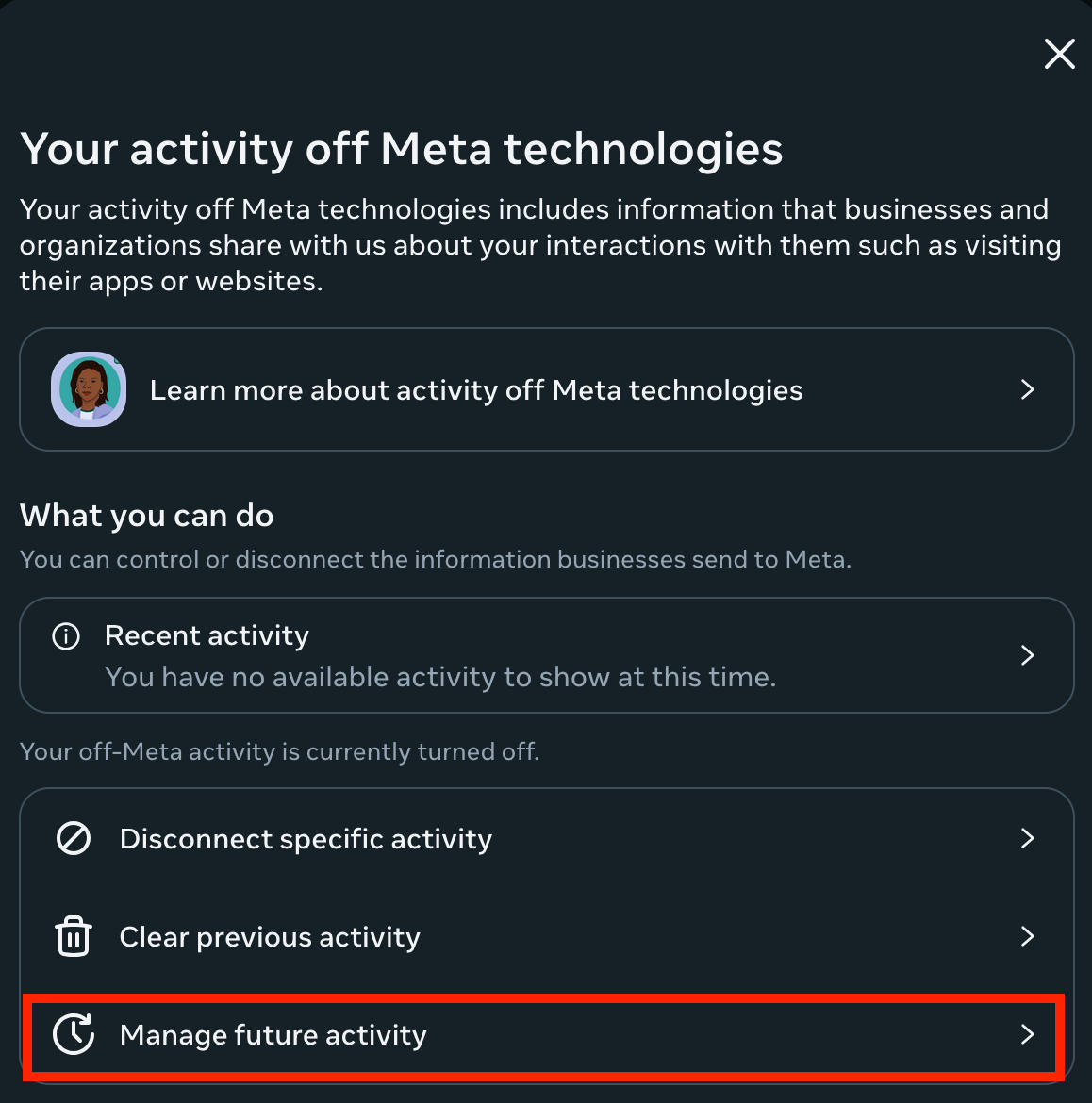
Go back and click Manage Future Activity.
Choose Disconnect Future Activity and click Continue.
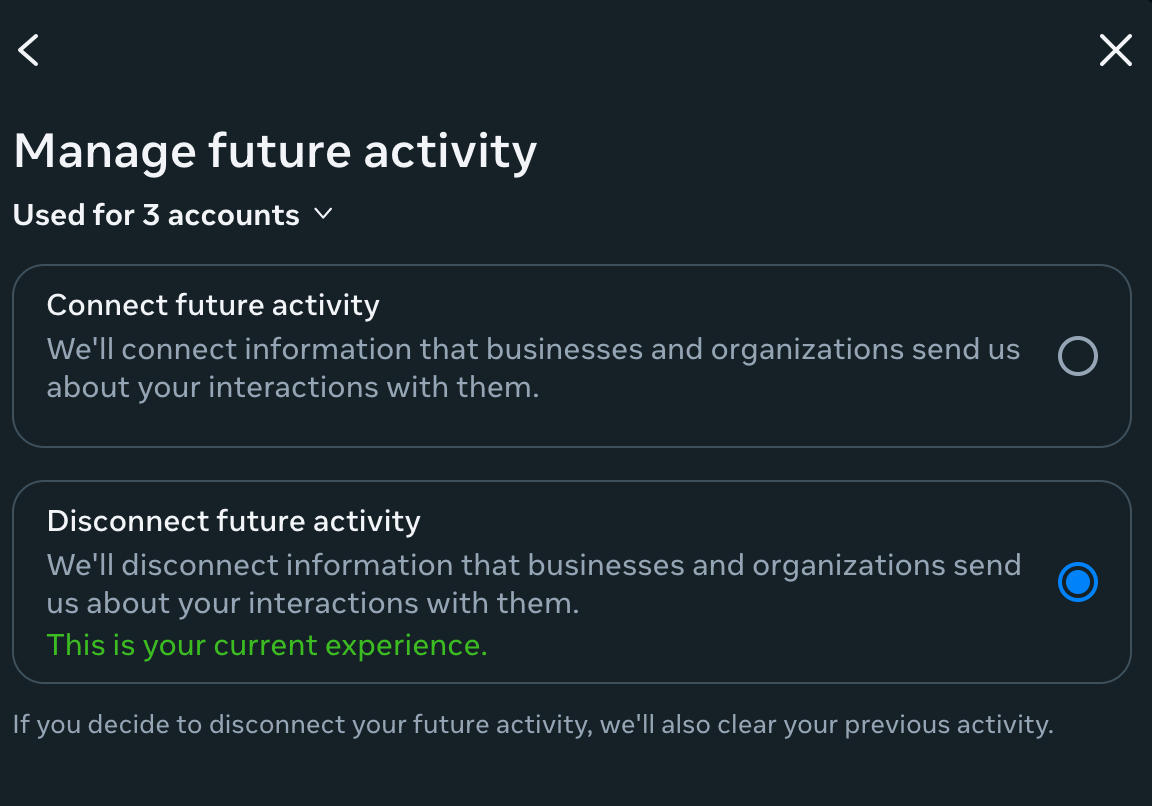
Confirm by clicking Disconnect Future Activity again.
Turning On 2FA
Turning on two factor authentication can secure your profile even further, and prevent hacking attempts.
To turn it on, go to Settings & Privacy > Settings.
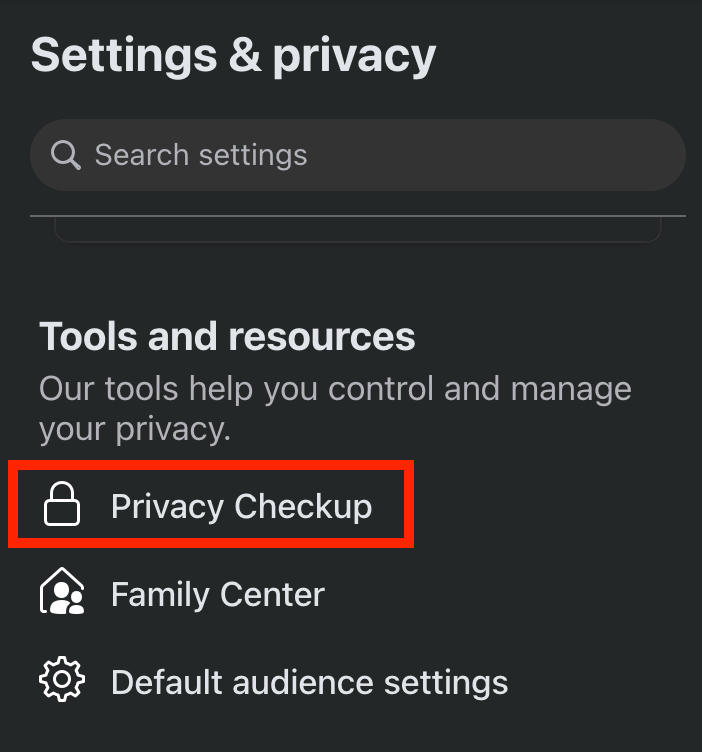
Under Tools & Resources click Privacy Checkup.
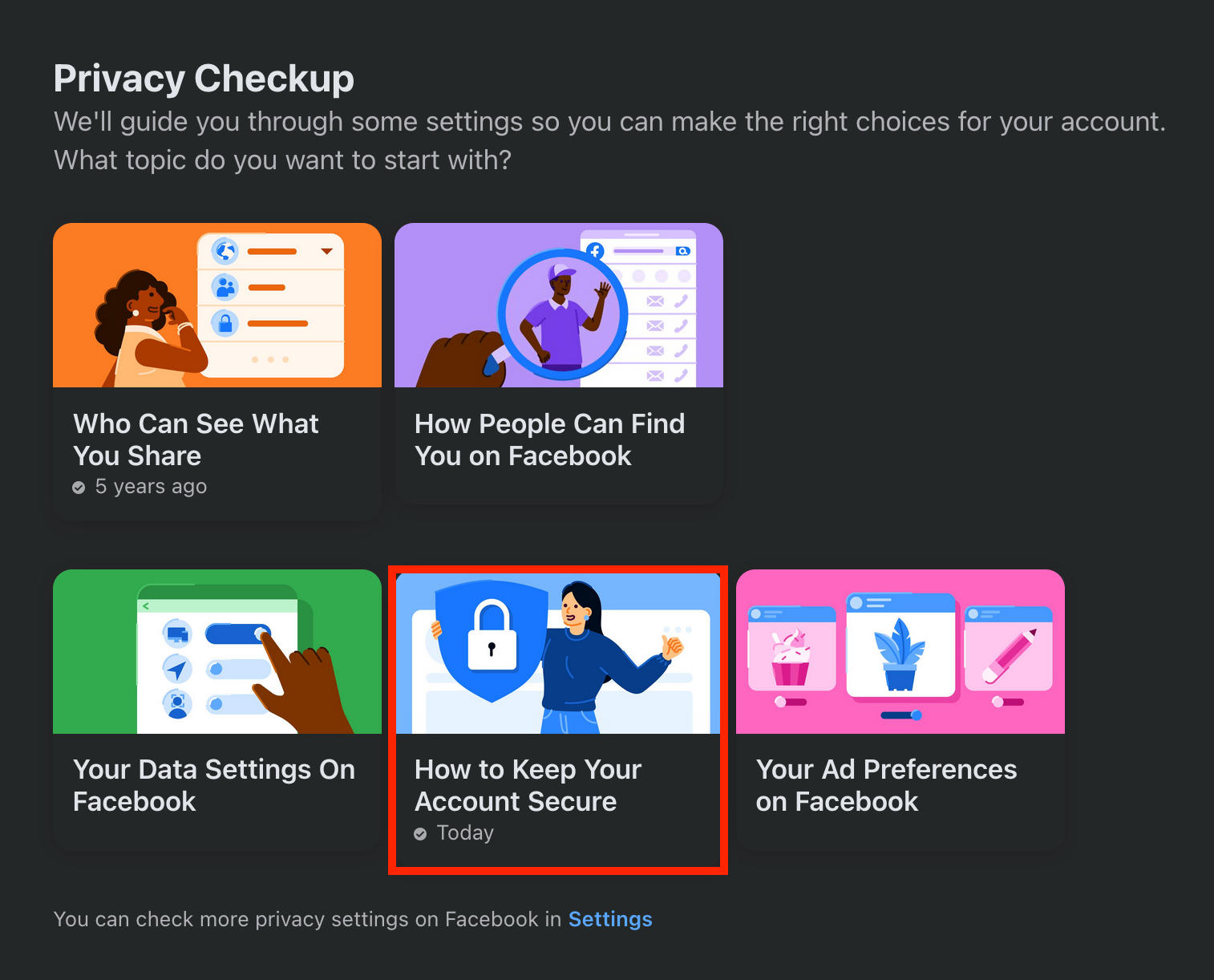
Click How To Keep Your Account Secure.
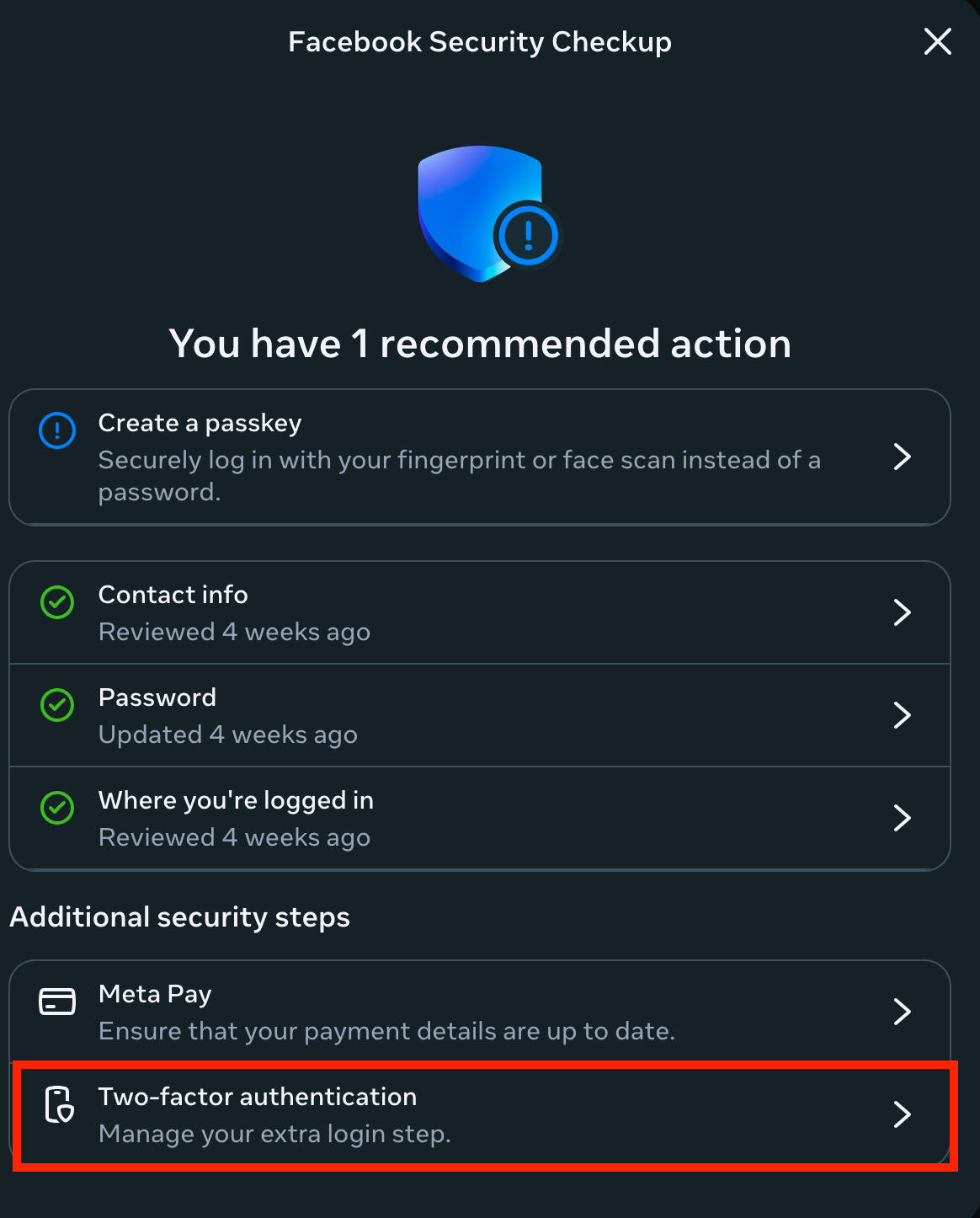
Click Two-factor Authentication.
Complete the on-screen steps to set it up.
Profile Privacy
Go to Settings & Privacy > Privacy Center.
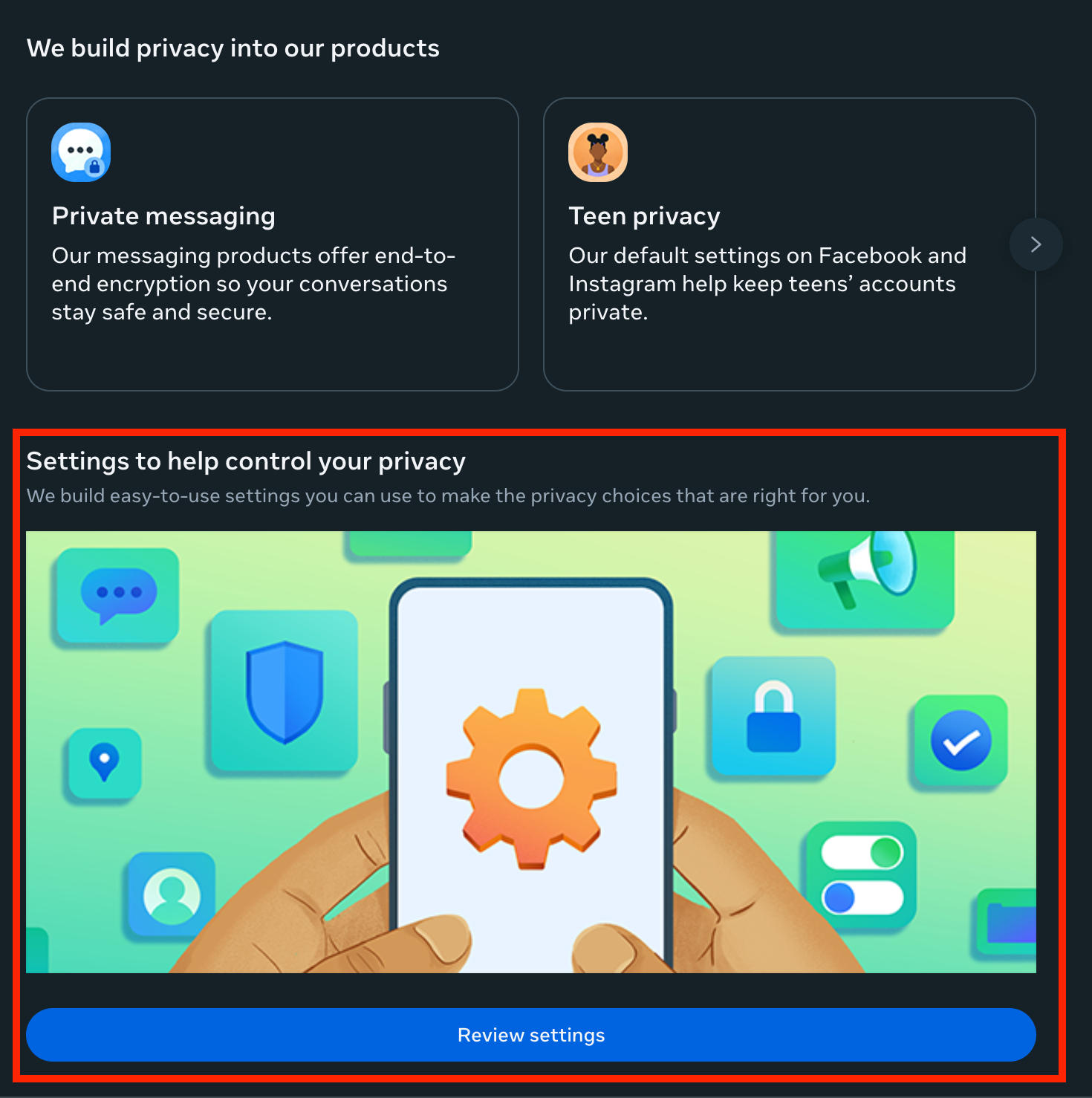
Scroll down and click Review Settings.
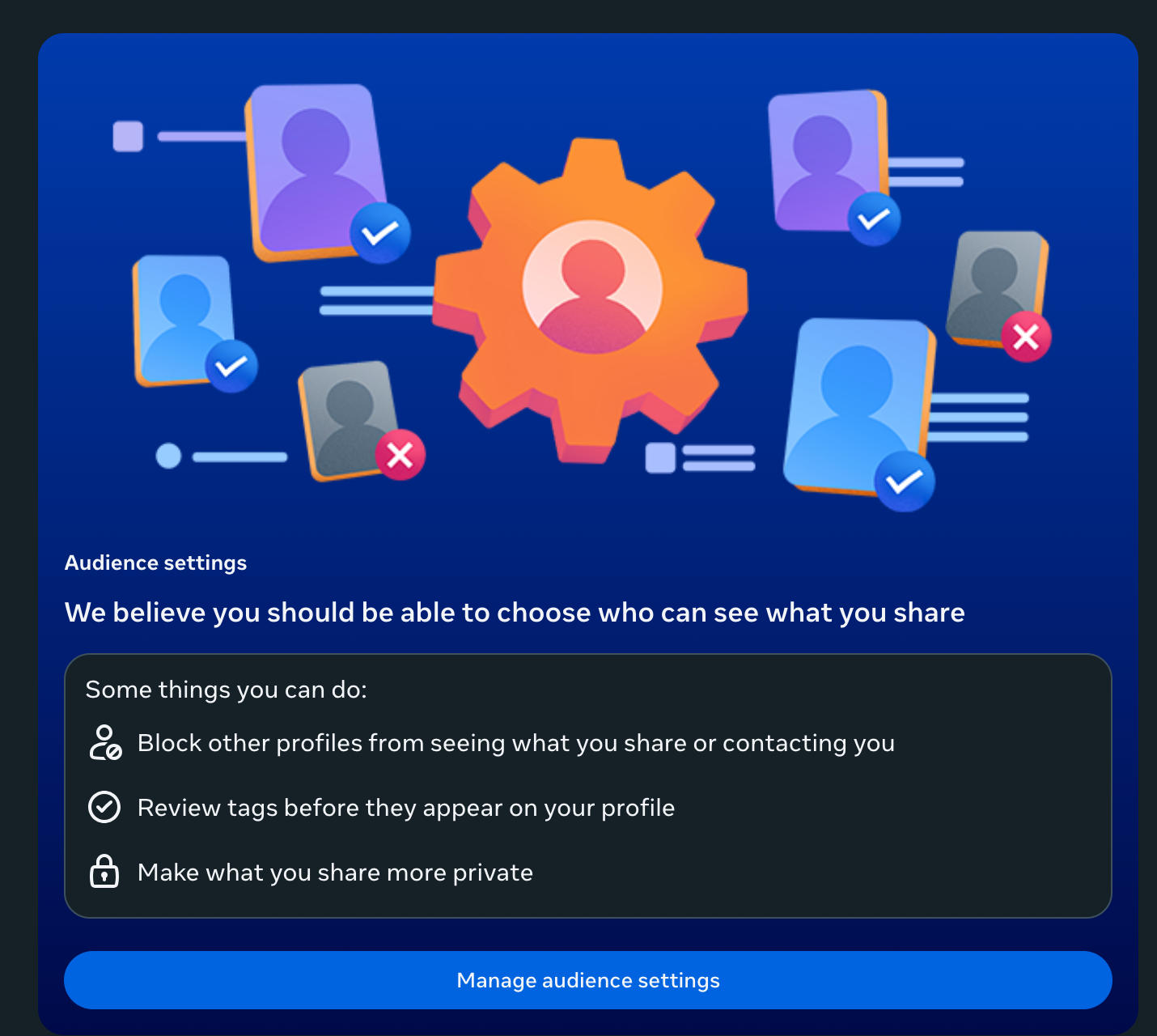
Scroll down and click Manage Audience Settings.
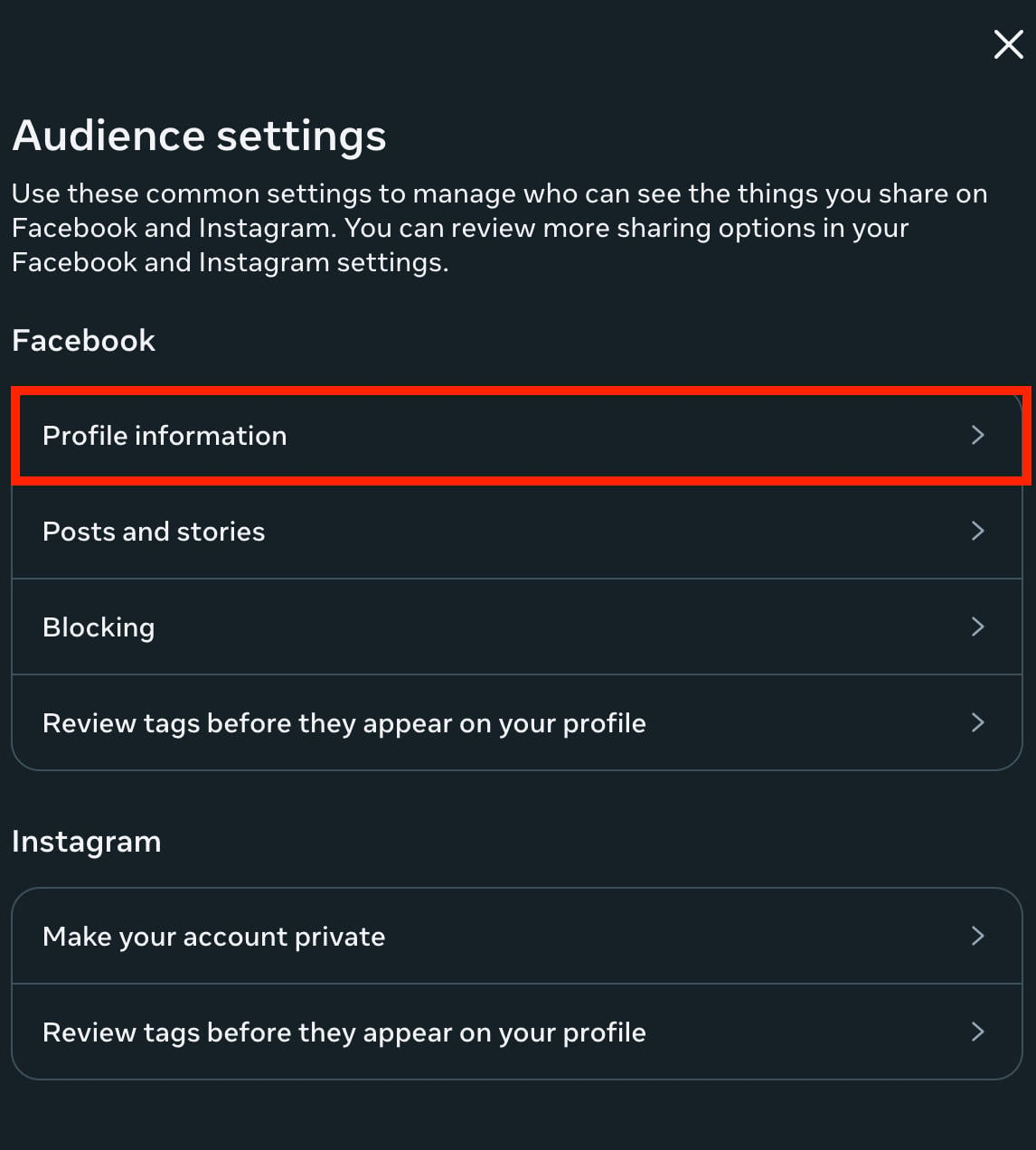
Under Facebook, click Profile Information and ensure each element is set to either Friends or Only Me for maximum privacy.
Post Audience
Go to Settings & Privacy > Privacy Center.
Scroll down and click Review Settings.
Scroll down and click Manage Audience Settings.
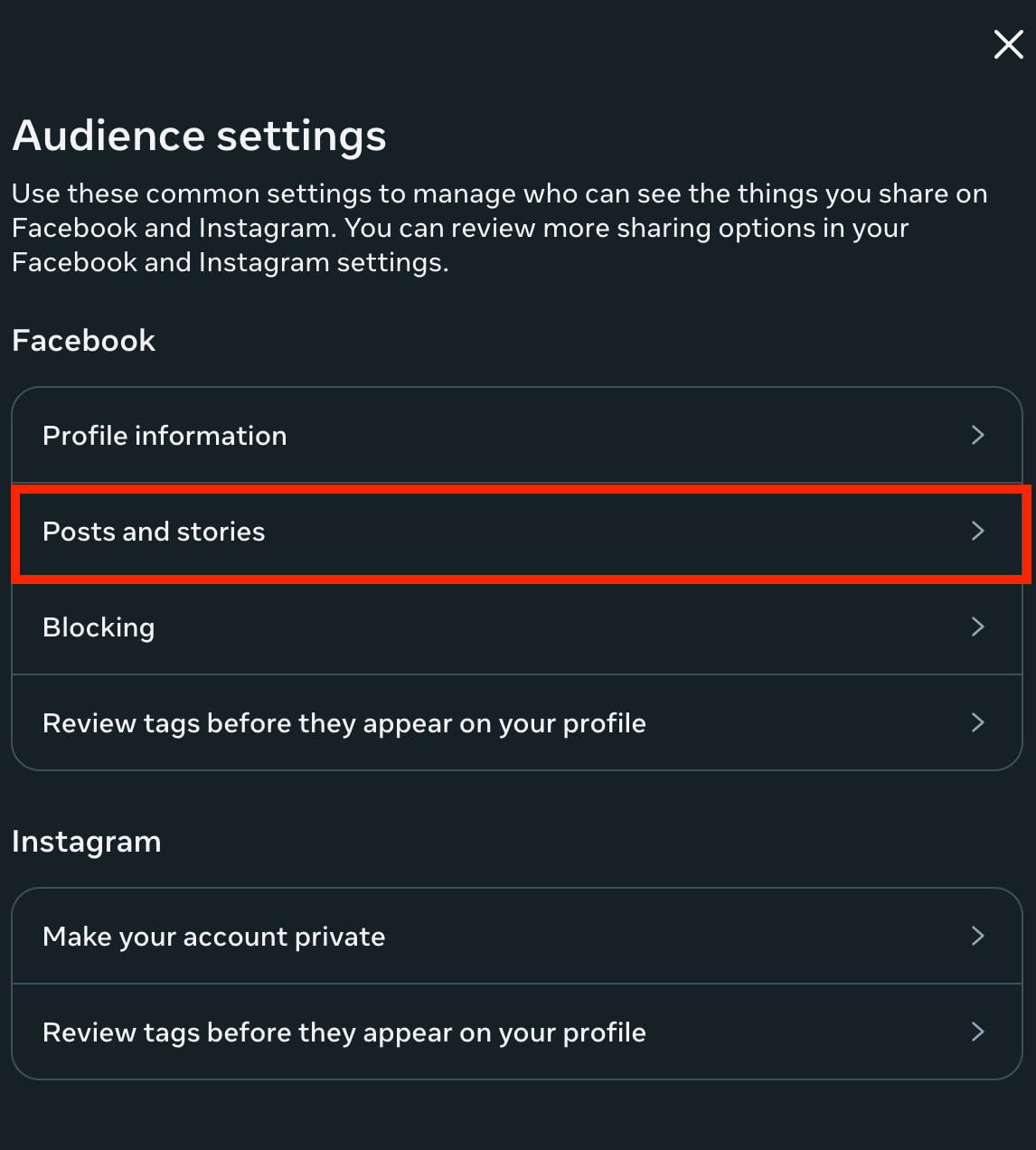
Click Posts & Stories.
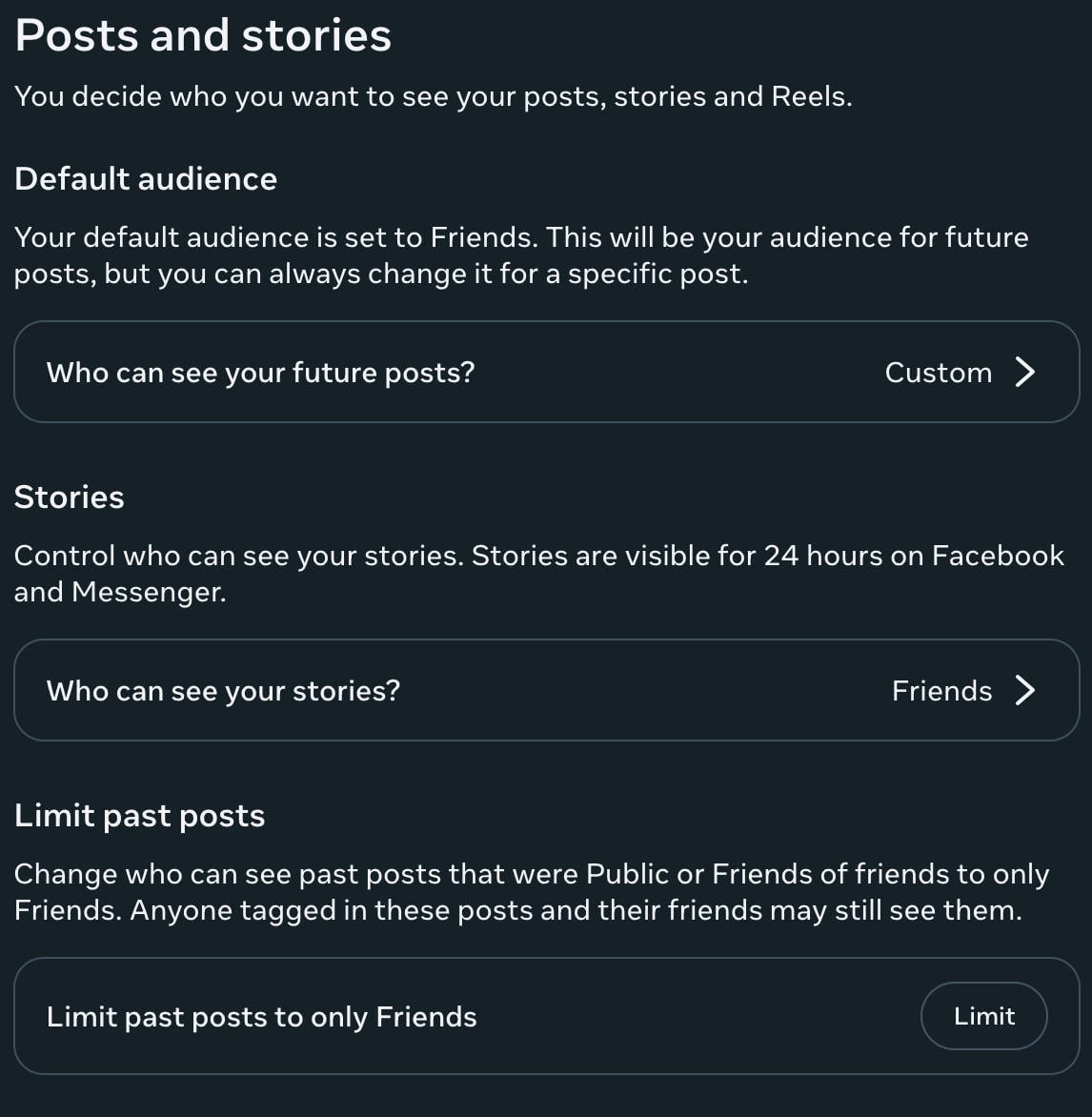
Under Default Audience and Stories, choose Friends.
Under Limit Past Posts, choose Limit.
Posting Anonymously
If you’re active in a group but don’t want all members to know who’s posting, you can post anonymously as long as the feature is turned on.
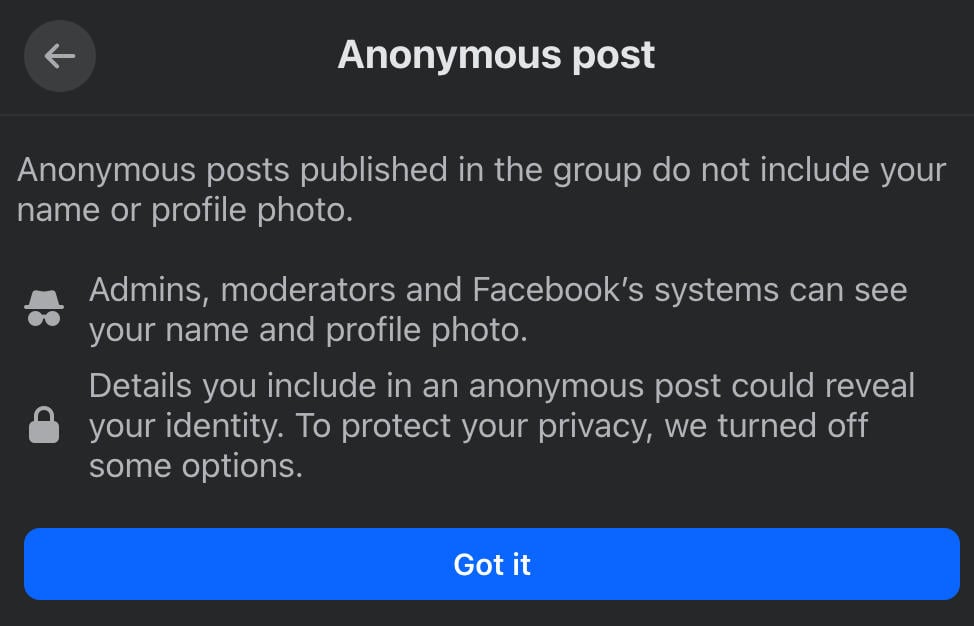
Keep in mind that the group admin and Facebook admin can still see your identity, but other group members can’t.
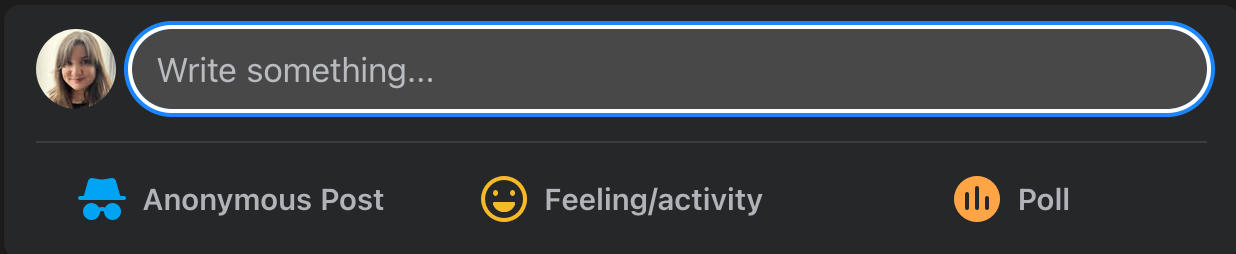
To create an anonymous post, open the post creator on the group of your choice by clicking Write something…
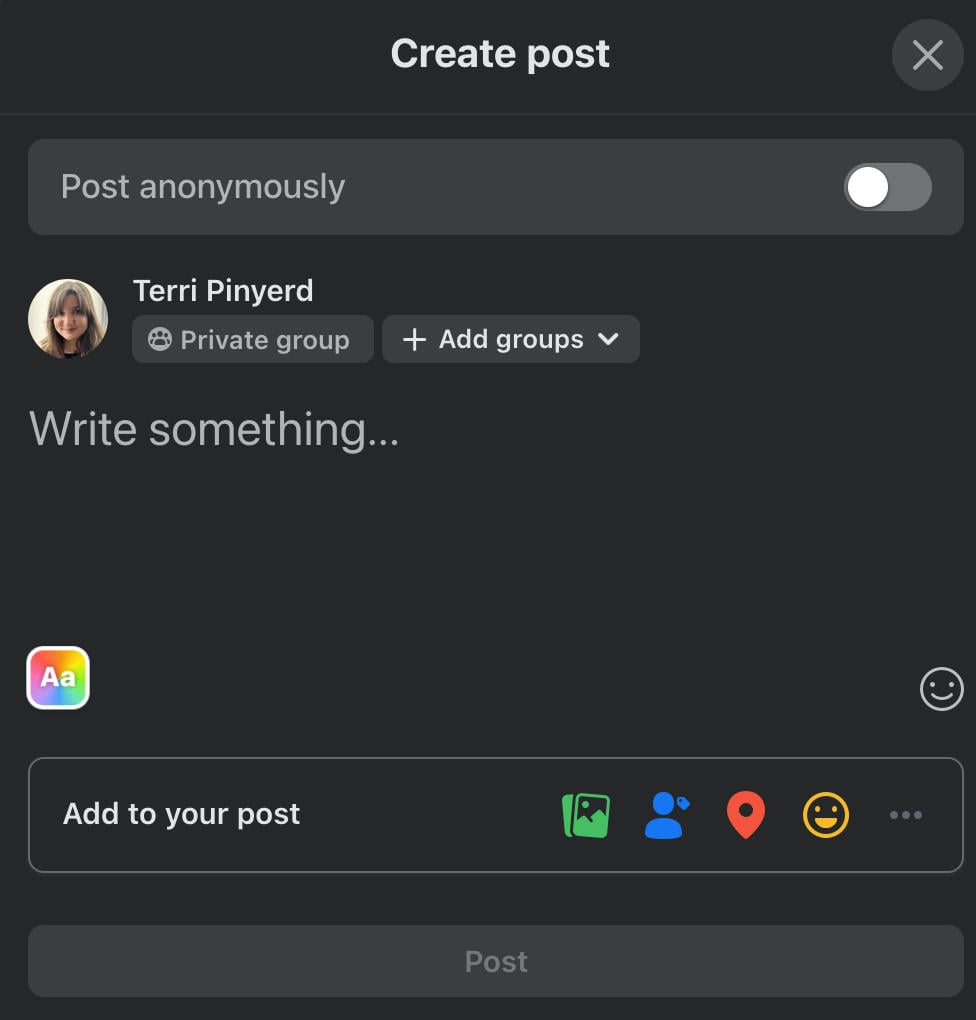
From here, you should see a toggle next to Post Anonymously, then confirm your choice by clicking Got It.
If you’re on the Facebook app you will have the ability to create a custom nickname. If this is available, you’ll have the ability to tap Create Custom Nickname during the creation process.
Write and publish your post as usual. When it’s published, you’ll see Anonymous User in place of your display name, and the default profile picture in place of your own photo.
Turn Off Search Engine Linking
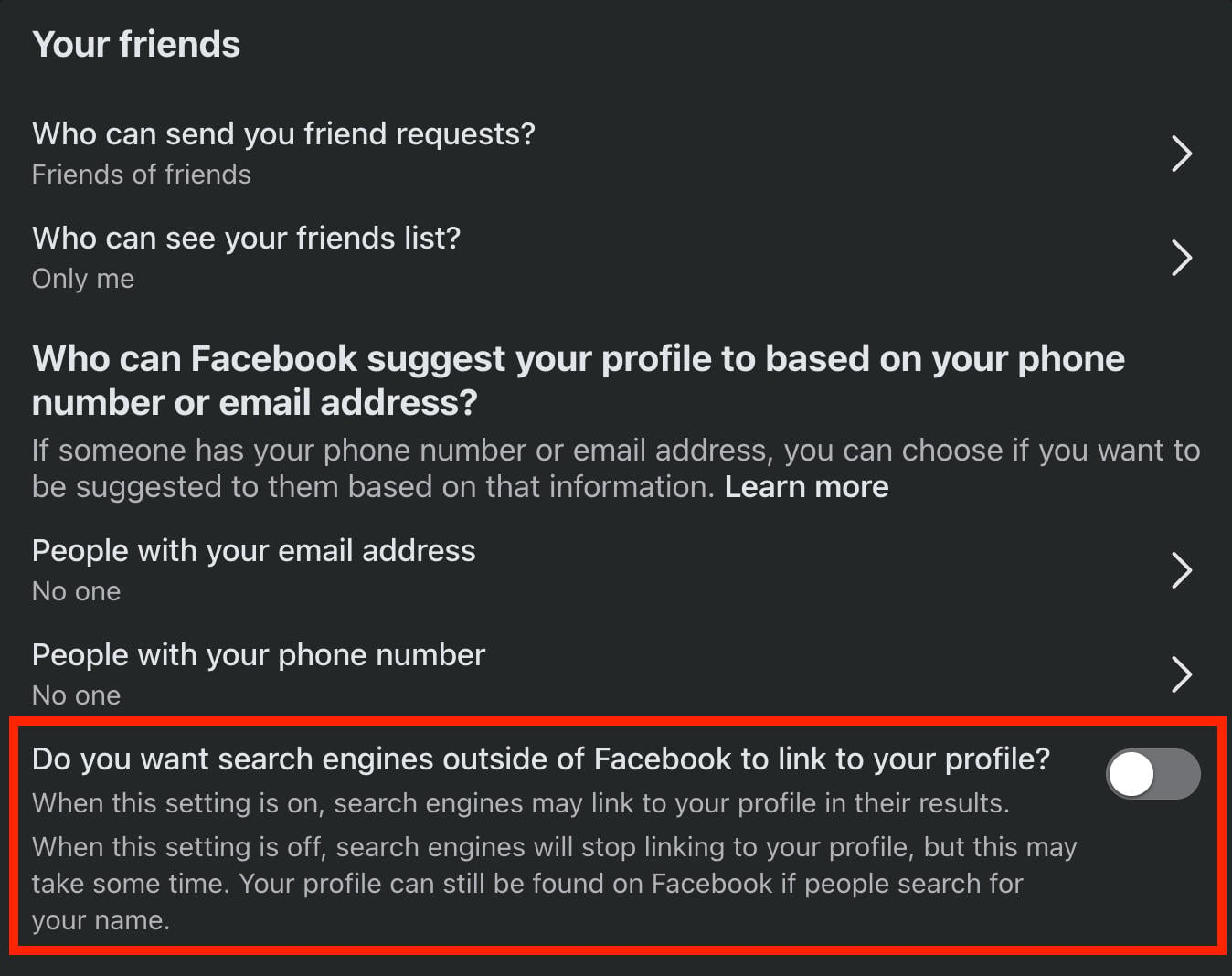
You can also prevent Google from listing your Facebook profile in the search results when someone looks up your name.
To do this, go to Facebook’s Privacy Settings page here.
Make sure Do You Want Search Engines Outside Of Facebook To Link To Your Profile is toggled OFF.
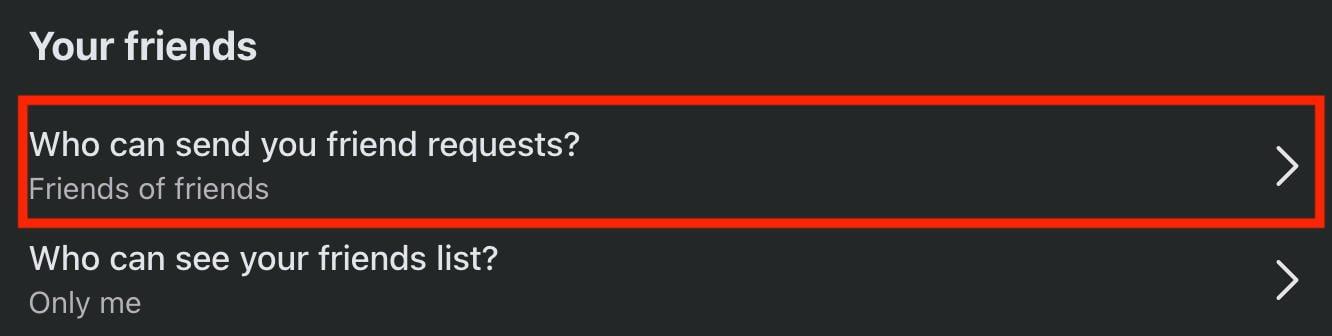
Friend Request Limitations
To prevent random strangers from sending you friend requests, go to Facebook’s Privacy Settings page here.
Click Who Can Send You Friend Requests? and select Friends Of Friends.
Messenger Limitations
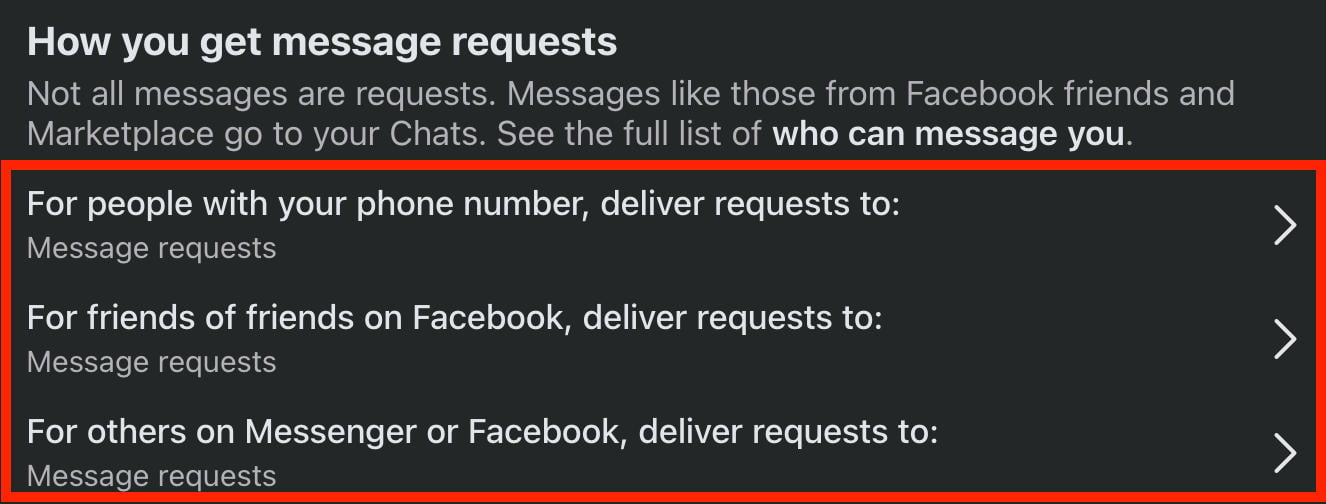
To prevent random strangers from sending you messages, go to Facebook’s Privacy Settings page here.
Click each of the three options below How You Get Message Requests and set them all to either Message Requests or Don’t Receive Requests.
Tagging Limitations
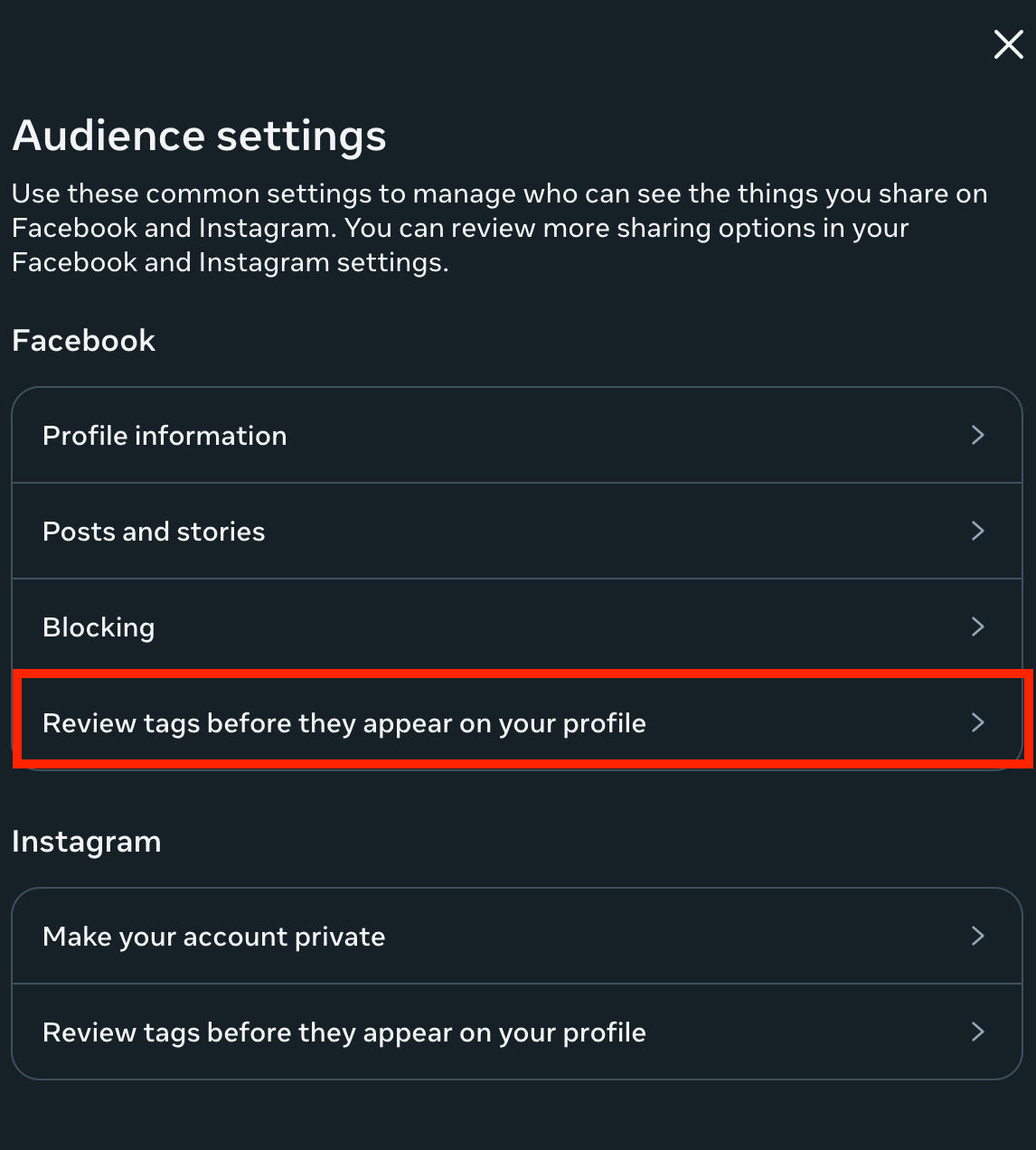
Go to Settings & Privacy > Privacy Center
Scroll down and click Review Settings.
Scroll down and click Manage Audience Settings.
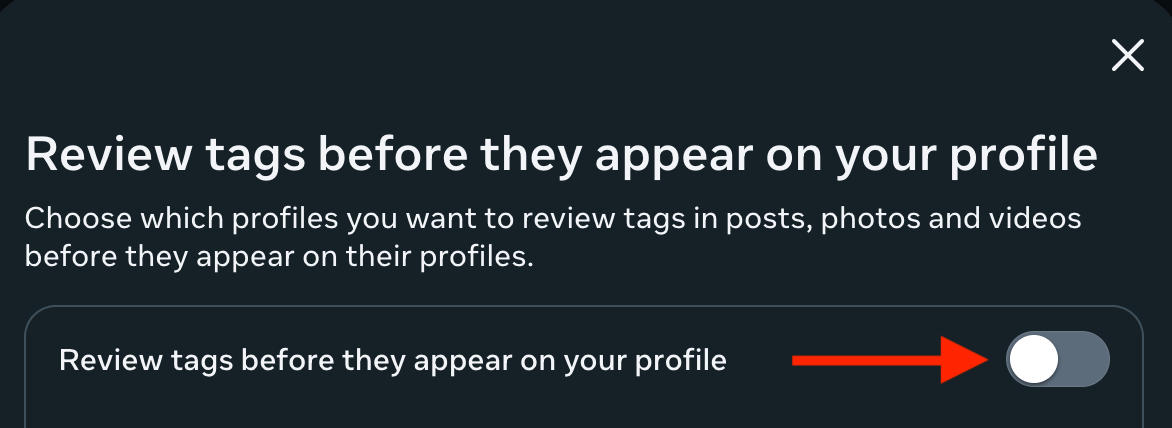
Click Review Tags Before They Appear On Your Profile.
Toggle it to ON and click Done.
Manage Your Friends List
Finally, make sure everyone on your friends list is someone that you trust with your personal information and photos.
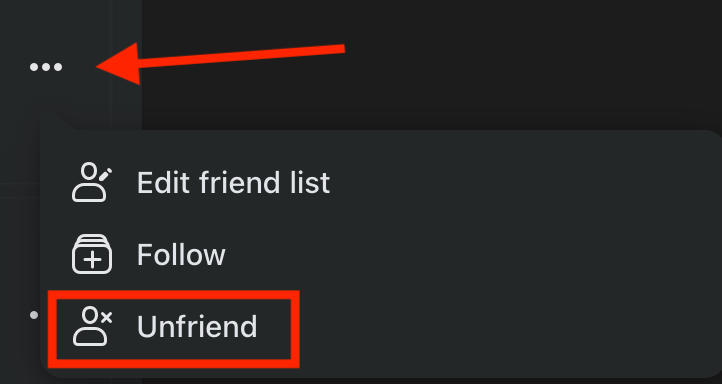
To clear out any unwanted users, go to your profile page and click Friends.
Click the three dots to the right of the user you want to remove.
Click Unfriend.
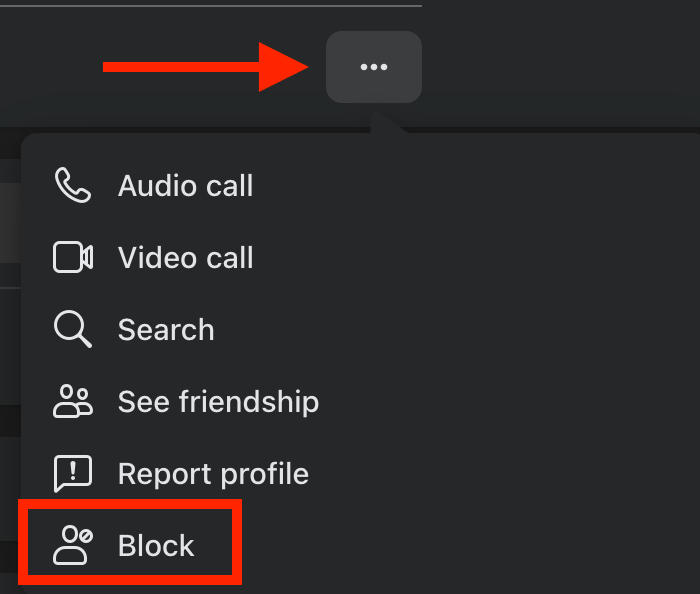
If you wish to block a user, visit their profile page and click the three dots on the top right.
Click Block and confirm your choice.
How To Decrease Your Digital Footprint
It’s easy to share more information than you realize, especially with social media.
While it may seem nearly impossible to decrease your digital footprint, there are a few things you can do to take control of the information you put out there.
Of course, there are some things that you should avoid doing, including sharing personally identifiable information like login information, social security numbers, and addresses.
For everything else, follow the steps below.
Search For Yourself
The first step is to search up your name on Google. Take note of any results that pop up.
If your full name is associated with any social media accounts, consider using a pseudonym for added privacy.
If your name is appearing in places that you’d rather it didn’t, contact the website administrator to request removal of your information.
If you see a photo or search result that’s inappropriate or fraudulent, follow the steps outlined here to report it to Google.
Check For Data Leaks
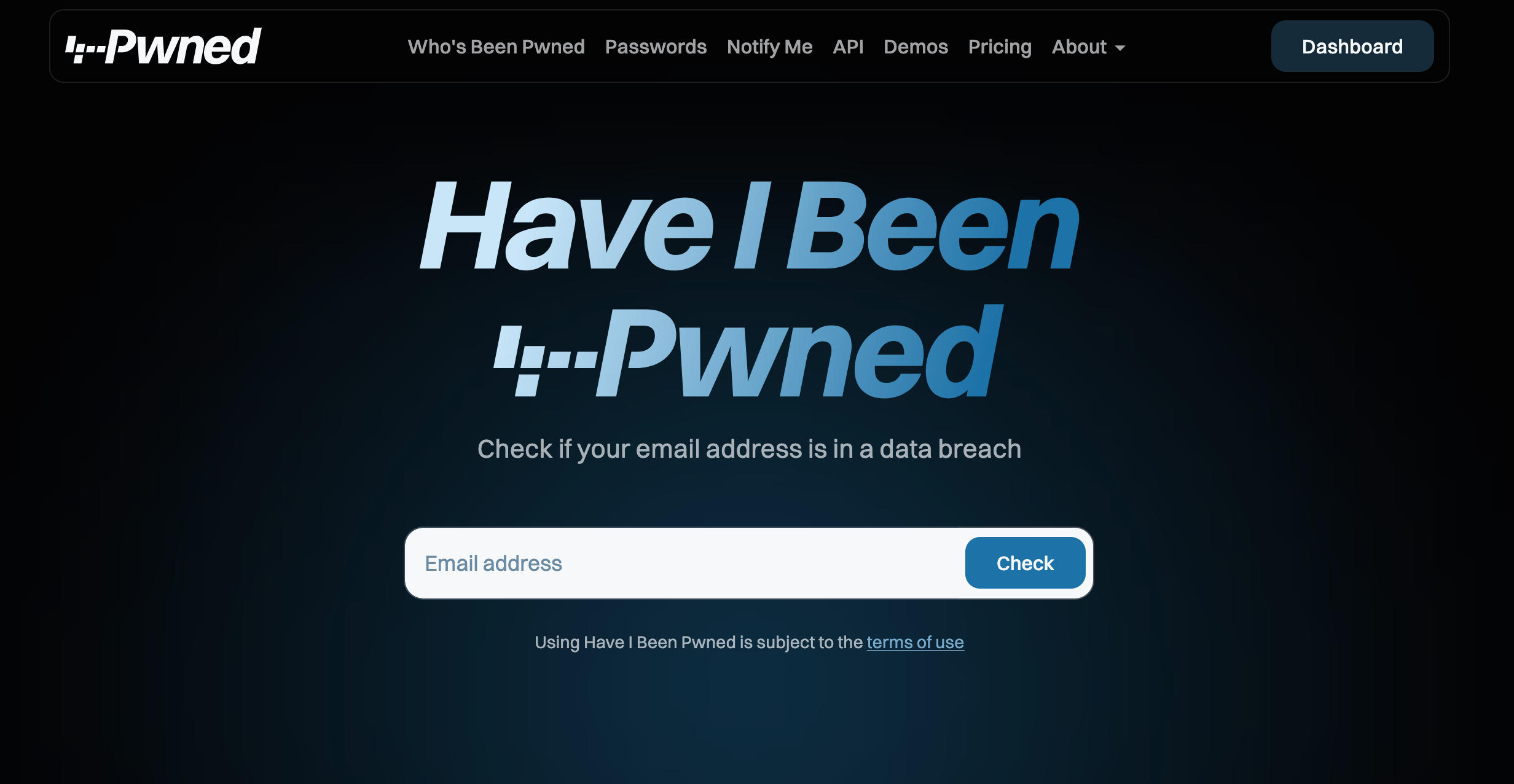
Next, check to see if your email address or other contact information has been leaked in a data breach.
Visit a website like HaveIBeenPwned and input your email address to get started.
If you have been a victim of a data breach, you’ll be given instructions on how to proceed.
Close Excess Accounts
If you know of any accounts that you’ve opened but haven’t used in a while, it’s a good idea to close them.
If you don’t have access anymore, request a reset of the login info or send a request to the site administrator to delete your account.
Remove Tags & Mentions
On certain social media sites, like Facebook, you can remove instances of tags and mentions on photos that you’d rather not be associated with.
To do this, go to the photo or post and click the three dots on the top right corner.
Click Remove Tag and confirm your choice.
Unsubscribe
Subscribing to mailing lists hands over more data than you might realize.
Go through your inbox and unsubscribe to any email newsletters that you no longer want to receive.
Scrub Comments
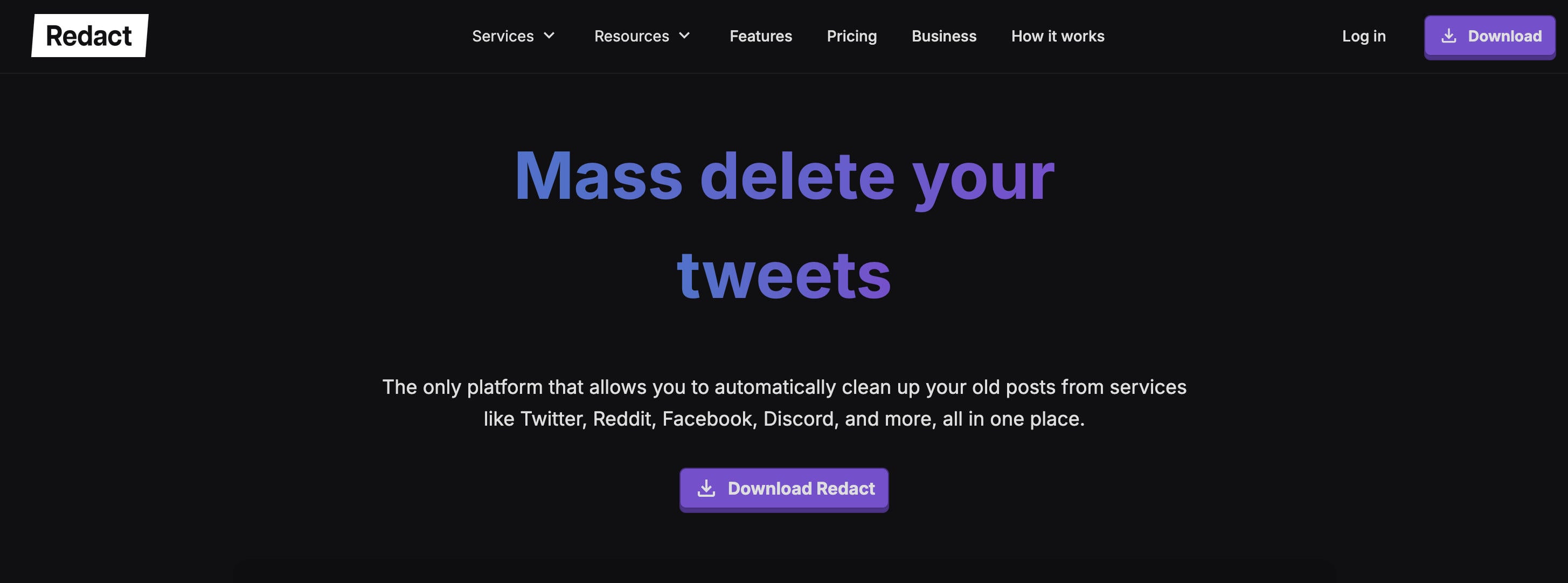
Certain services, like Redact, allow you to scrub comments and posts left on social media.
Rather than outright deleting the comments, Redact replaces your text with a random string of words.
Frequently Asked Questions
Why won't Facebook remove a fake account?
After reporting a fake account, Facebook admin has to verify that the account is in fact fraudulent. To prevent them from overlooking anything, be sure to provide as much detail as possible in your report.
Is it illegal to pretend to be someone else on Facebook?
Yes, it’s illegal to pose as a different person on Facebook especially if you’re using their identity for financial gain.
Can I sue someone for making a fake account of me?
That depends on the nature of the account and your local laws.
How many reports are needed to close any fake account on FB?
Usually one report with sufficient evidence is enough for Facebook’s admin to delete a fake account but you might need to escalate your report if you haven’t received a solution.
Why would someone create a fake account of me?
There are many reasons why someone would want to create a fake account. Some users do it simply as a joke, others for cyberbullying purposes. The most common reason is for phishing, where a user pretends to be you in order to contact friends or family members for money in fake “emergency” situations.
How to delete fake Facebook account created by others?
You can report a fraudulent Facebook account by following the steps outlined here.