The Instagram highlights section is valuable digital real estate, but unfortunately it’s often overlooked.
Learn how to use Instagram highlights properly, make them work for you, and improve your marketing strategy - all with just a few simple changes.
Key Points:
How Do Instagram Highlights Work?
Instagram Highlights are permanent Stories that appear at the bottom of a user’s profile bio.
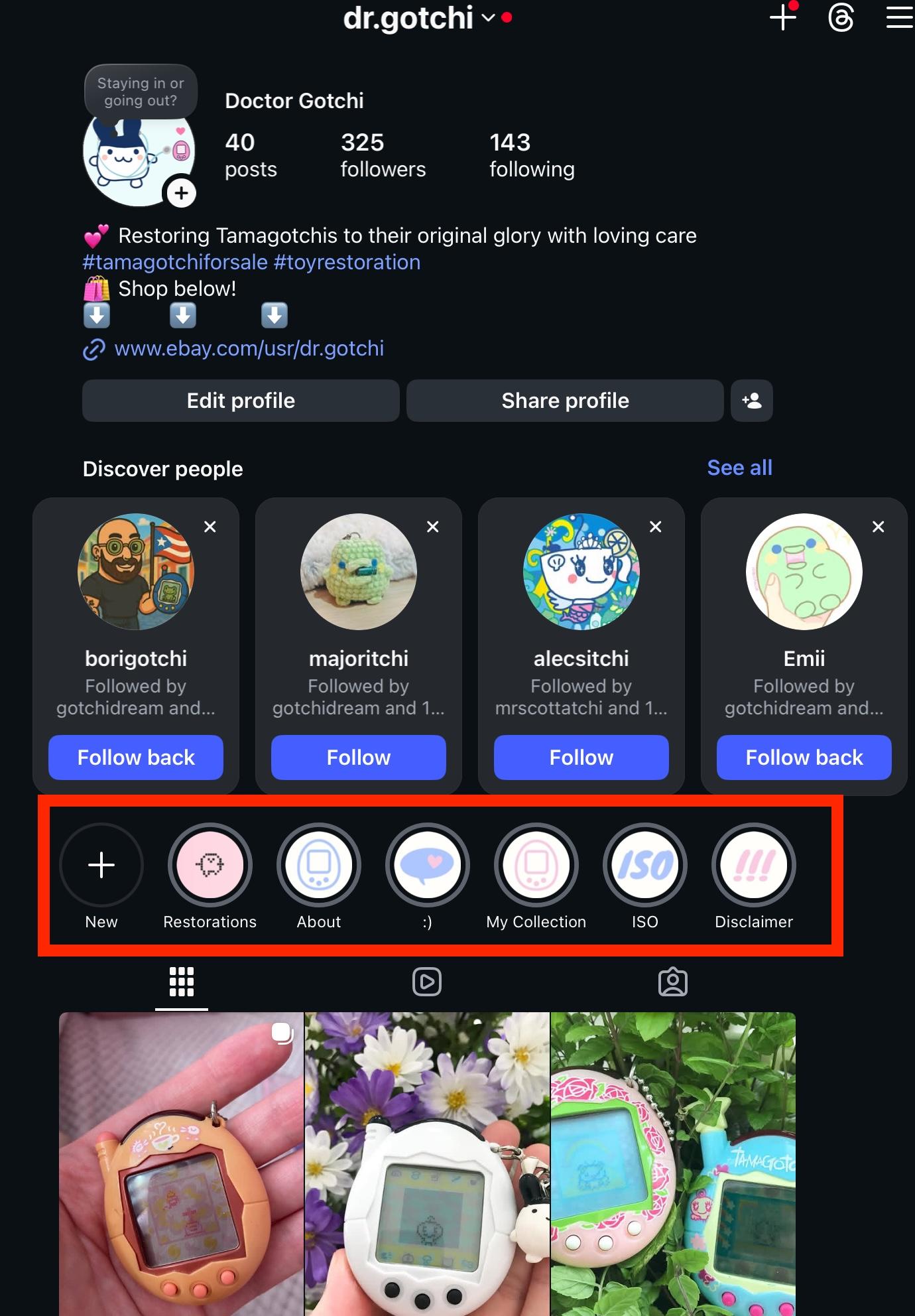
Highlights can be viewed on both the Instagram mobile app and desktop site, and given a unique name and cover image.
How Long Do Instagram Highlights Last?
Unlike regular Stories, Instagram highlights are permanent, which means they don’t expire after 24 hours.
They’ll stay beneath your profile bio until you manually remove them.
What Is The Difference Between Story And Story Highlight On Instagram?
Instagram Stories are temporary, lasting only 24 hours from the time they were posted.
Highlights, on the other hand, are permanent. Additionally, they can only be created from previously posted Stories. You can’t create a highlight from scratch, you have to post content as a Story first.
What Are The Benefits Of Highlights?
Because highlights never disappear and are easily customizable, they’re a great feature for influencers or businesses who want to draw attention to evergreen content such as frequently asked questions, “get to know me” content, customer testimonials, and examples of products or services.
How To Create A Highlight On Instagram
Creating a highlight can be done on either the Instagram app or desktop site.
Before you begin, make sure you’ve posted at least one Instagram Story before, even if it’s currently active.
You will not be able to create a highlight without posting an Instagram Story first.
On Mobile
Navigate to your profile page.
Tap the circle with the plus sign beneath your bio that says New.

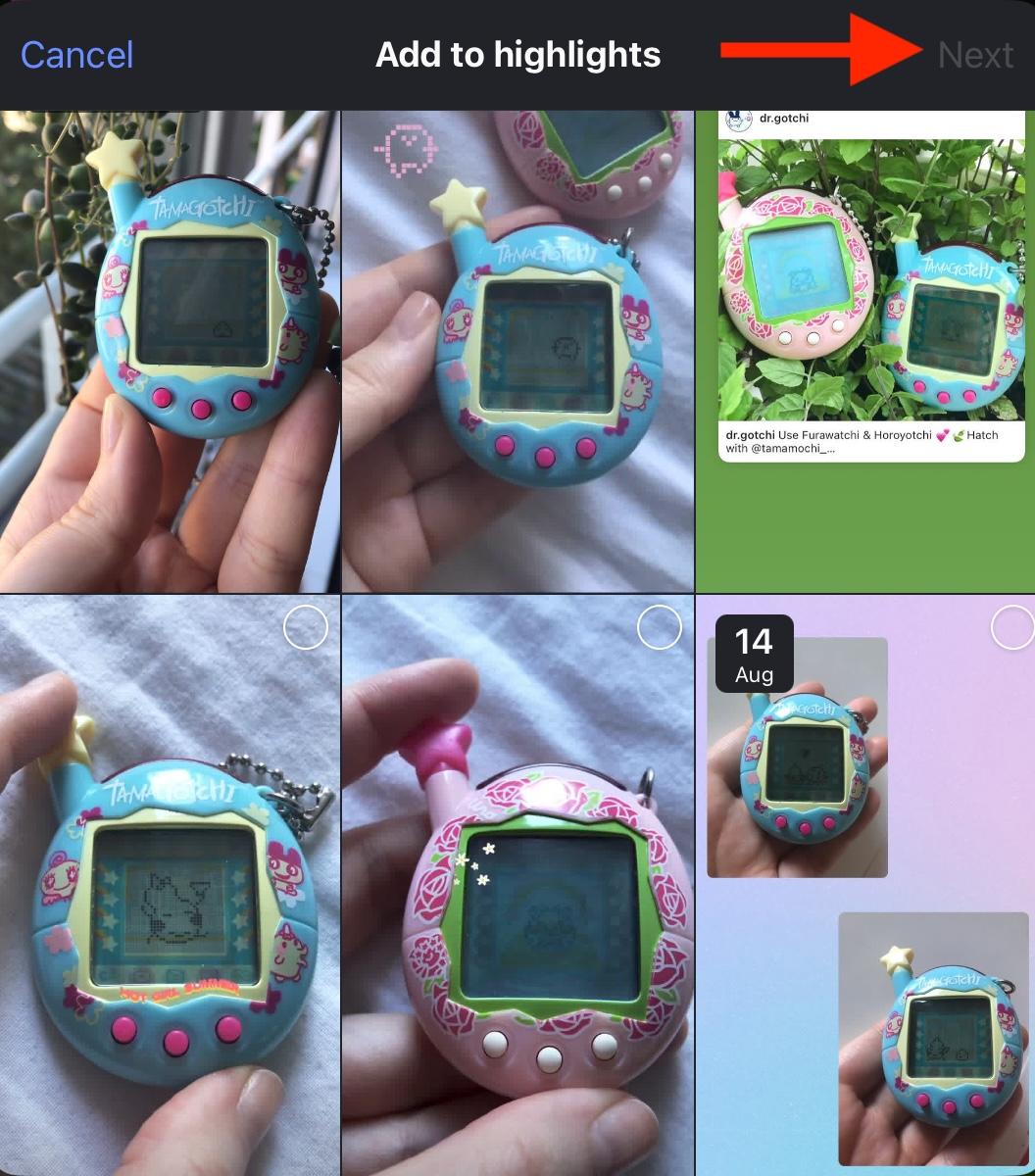
Select any Story slides that you’d like to include in your highlight, then tap Next.
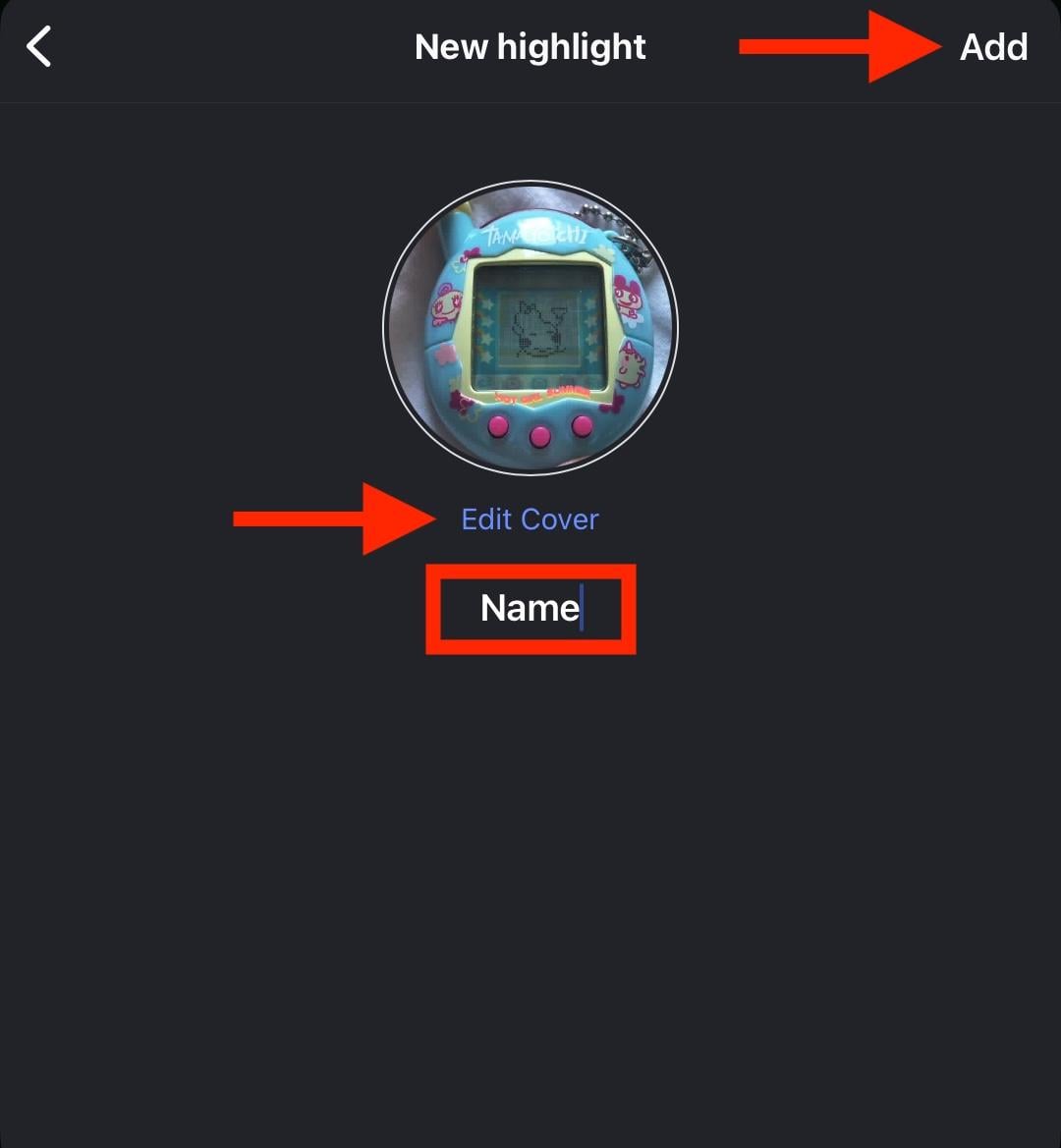
From here, name your highlight and tap Edit Cover to upload a custom highlight image.
When you’re ready, tap Add on the top right corner.
On Desktop
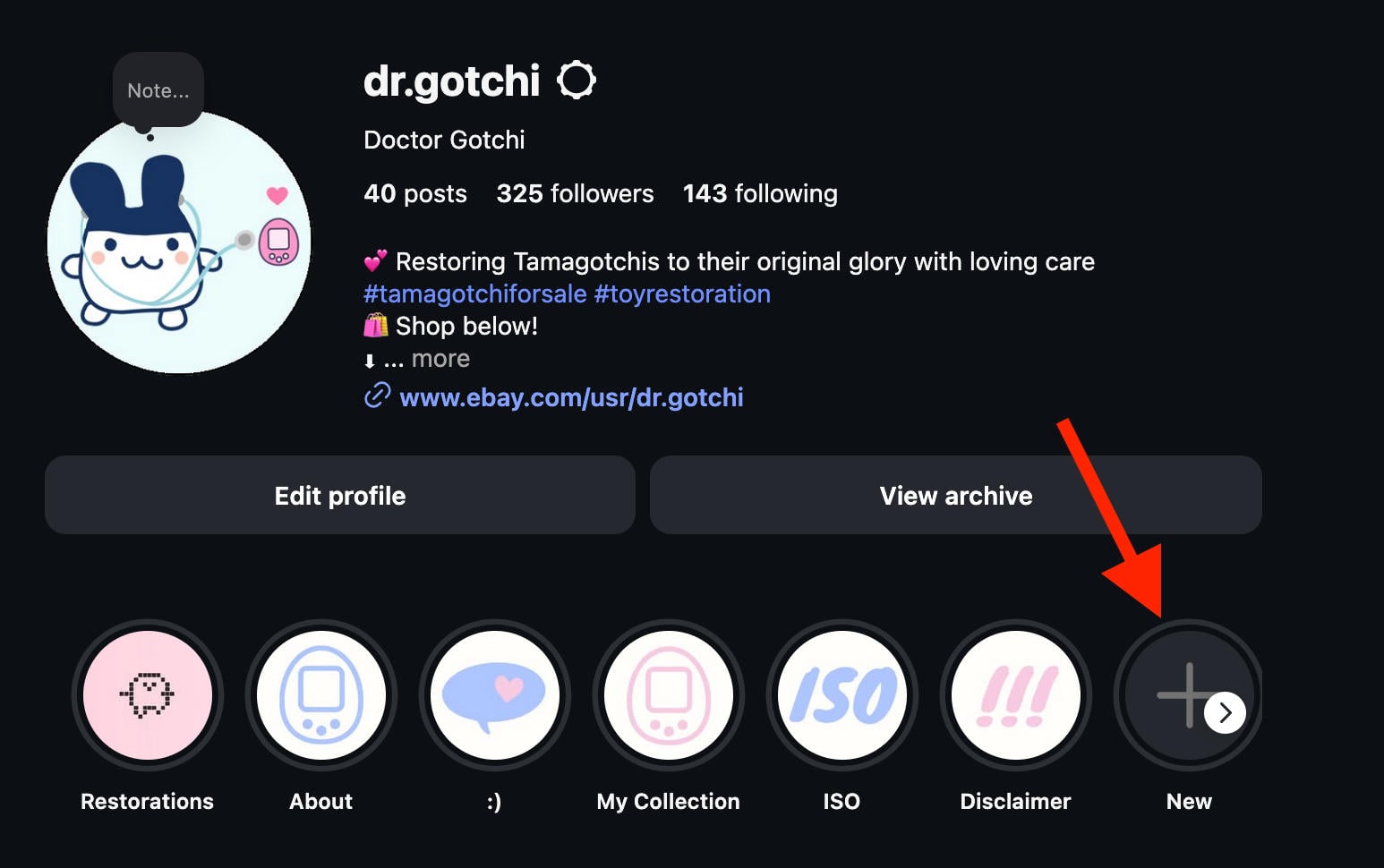
Navigate to your profile page.
Click the circle with the plus sign beneath your bio that says New.
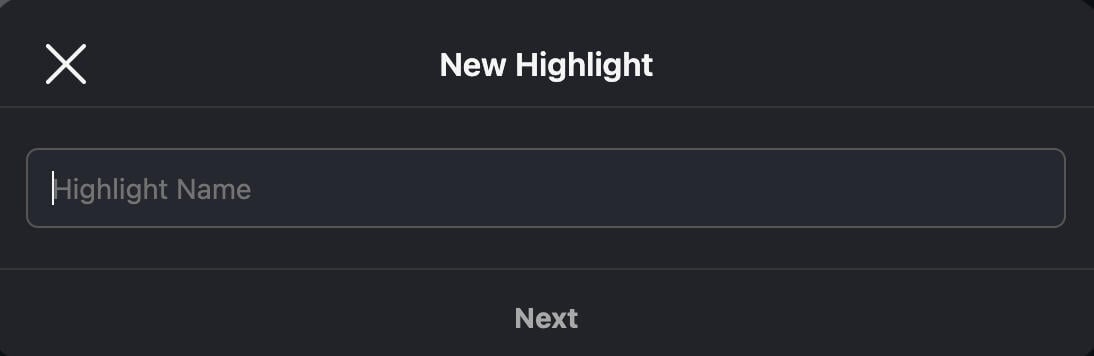
Name your highlight then click Next.
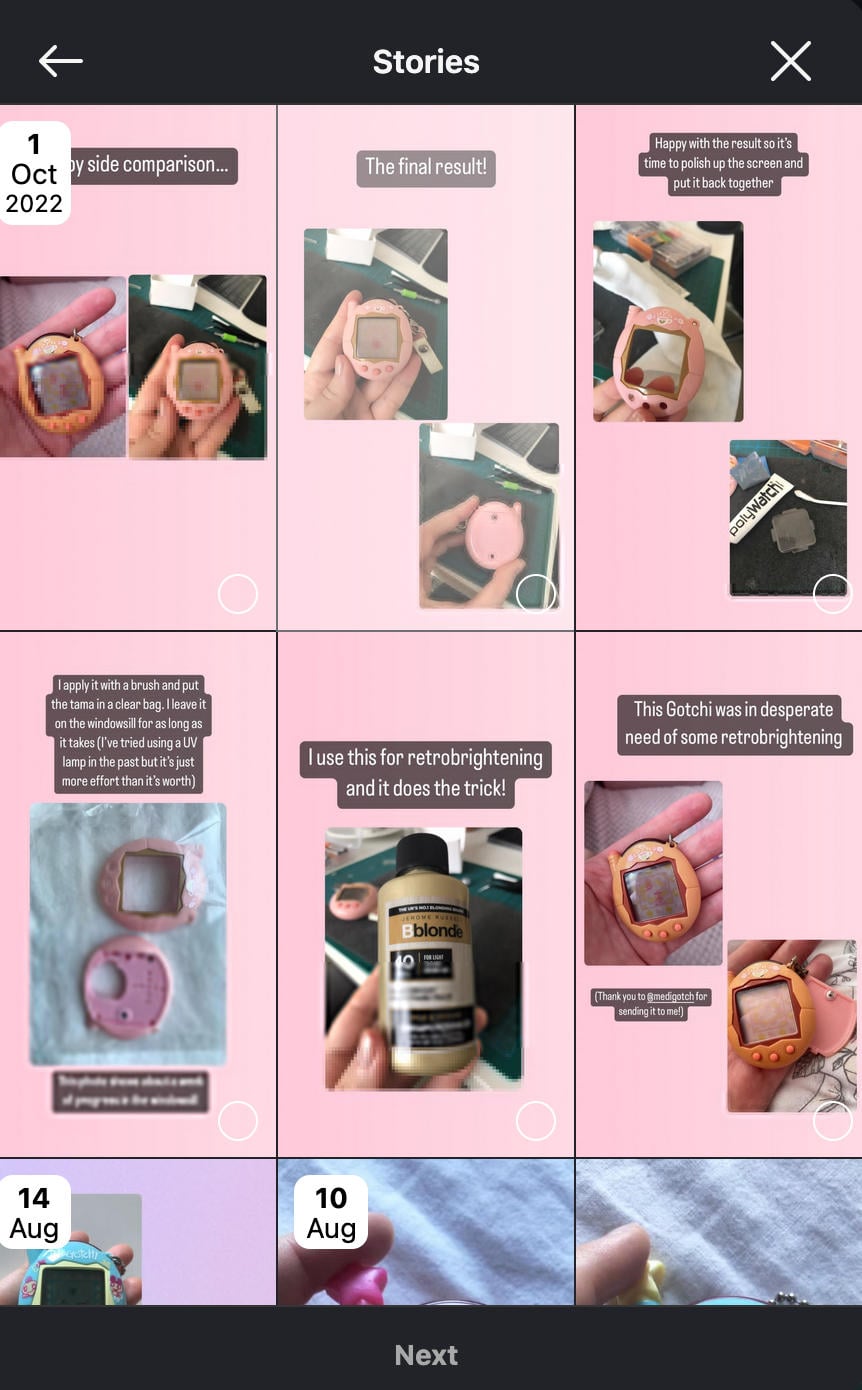
Select any Story slides that you’d like to include in your highlight, then click Next.
Select the cover image from the existing Story slides, then click Done.
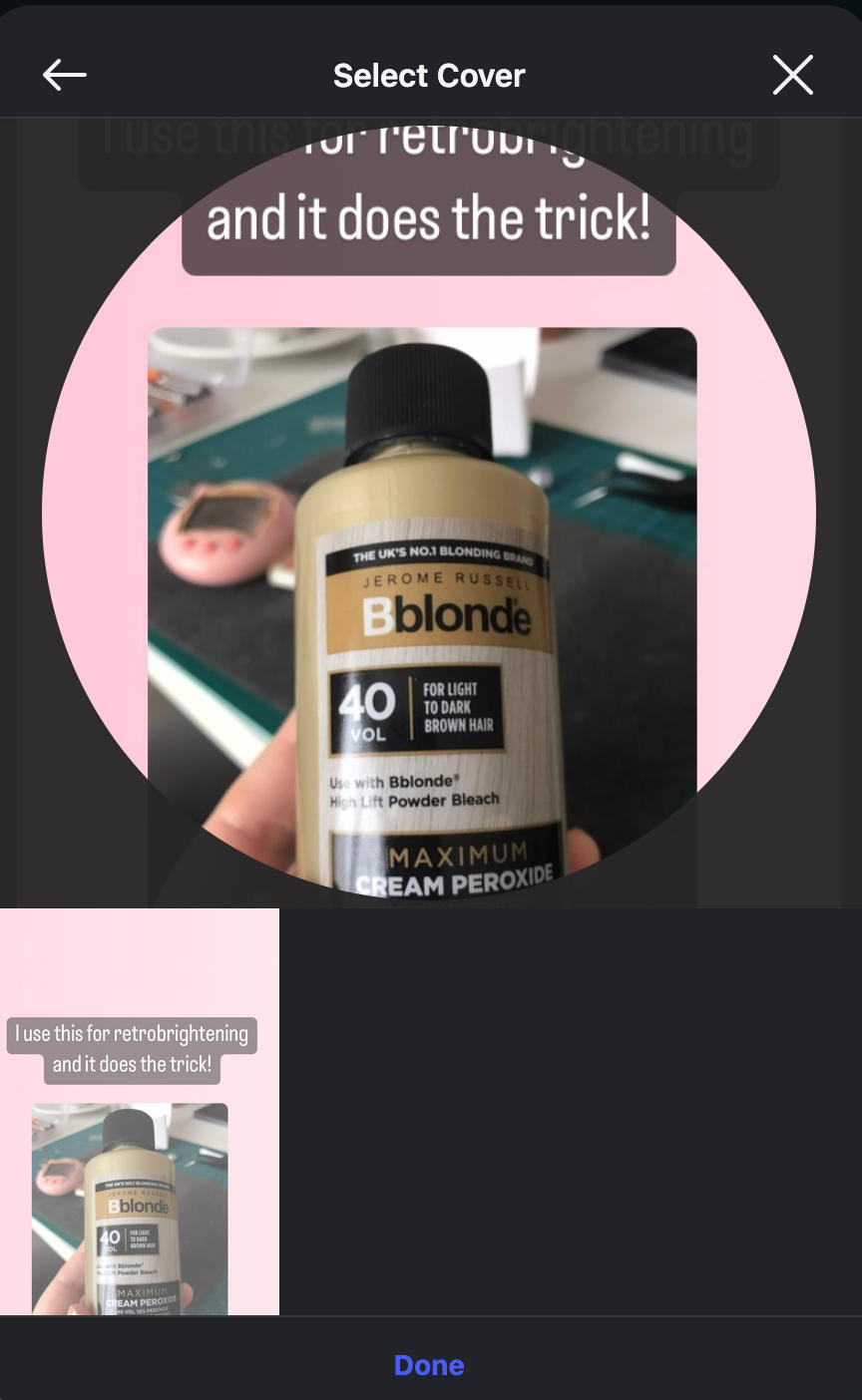
If you wish to choose a custom cover image, you’ll have to edit this via the mobile app.
How To Edit An Instagram Highlight
You can edit an Instagram highlights slides, name, and cover photo from either the mobile app or desktop site, but we recommend using the mobile app since it allows you to upload a custom cover image.
On Mobile
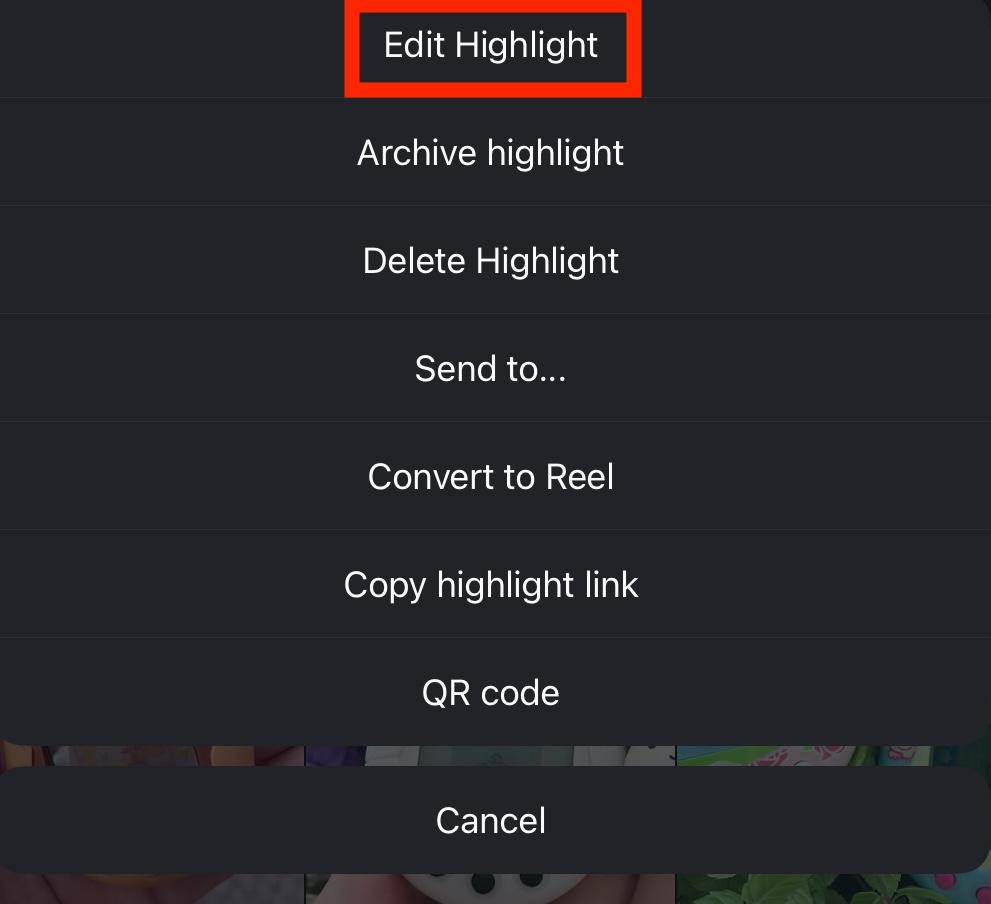
Navigate to your profile page and long-press the highlight you want to edit.
Tap Edit Highlight.
From here you can:
-
Tap Edit Cover to change the cover image.
-
Change the highlight name.
-
Select or deselect any Story slides.
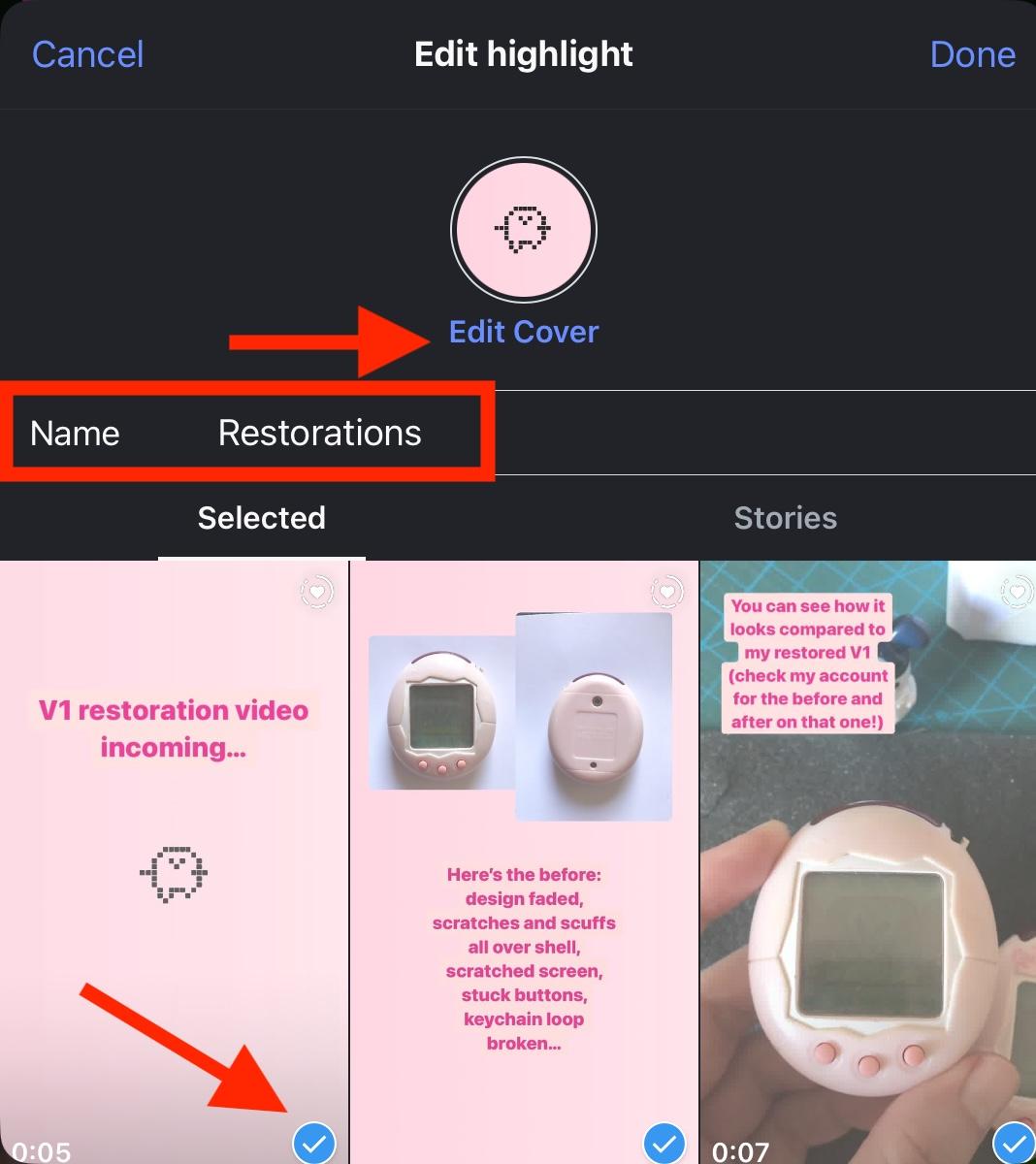
When you’re finished, tap Done on the top right.
On Desktop
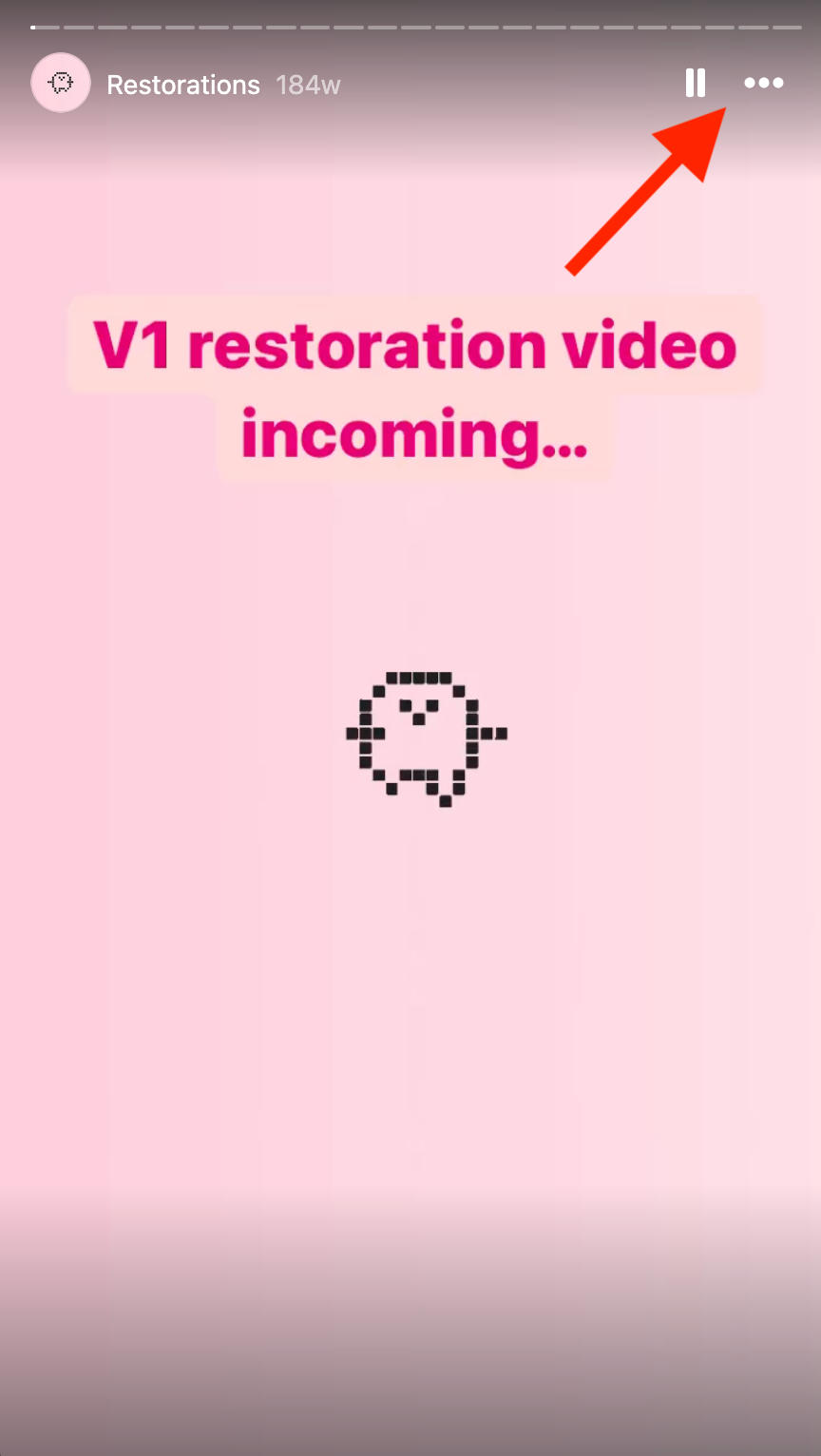
Navigate to your profile page and open the highlight you want to edit.
Click the three dots on the top right and select Edit.
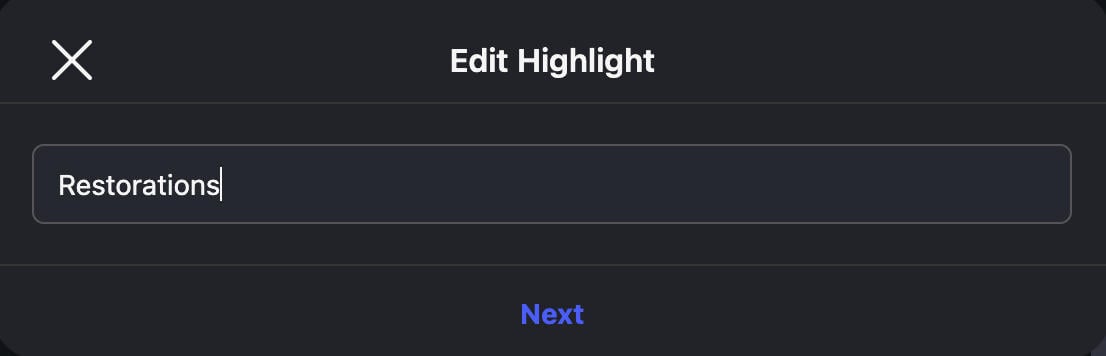
Change the name if you want, then click Next.
Select or deselect any additional Story slides, then click Next.
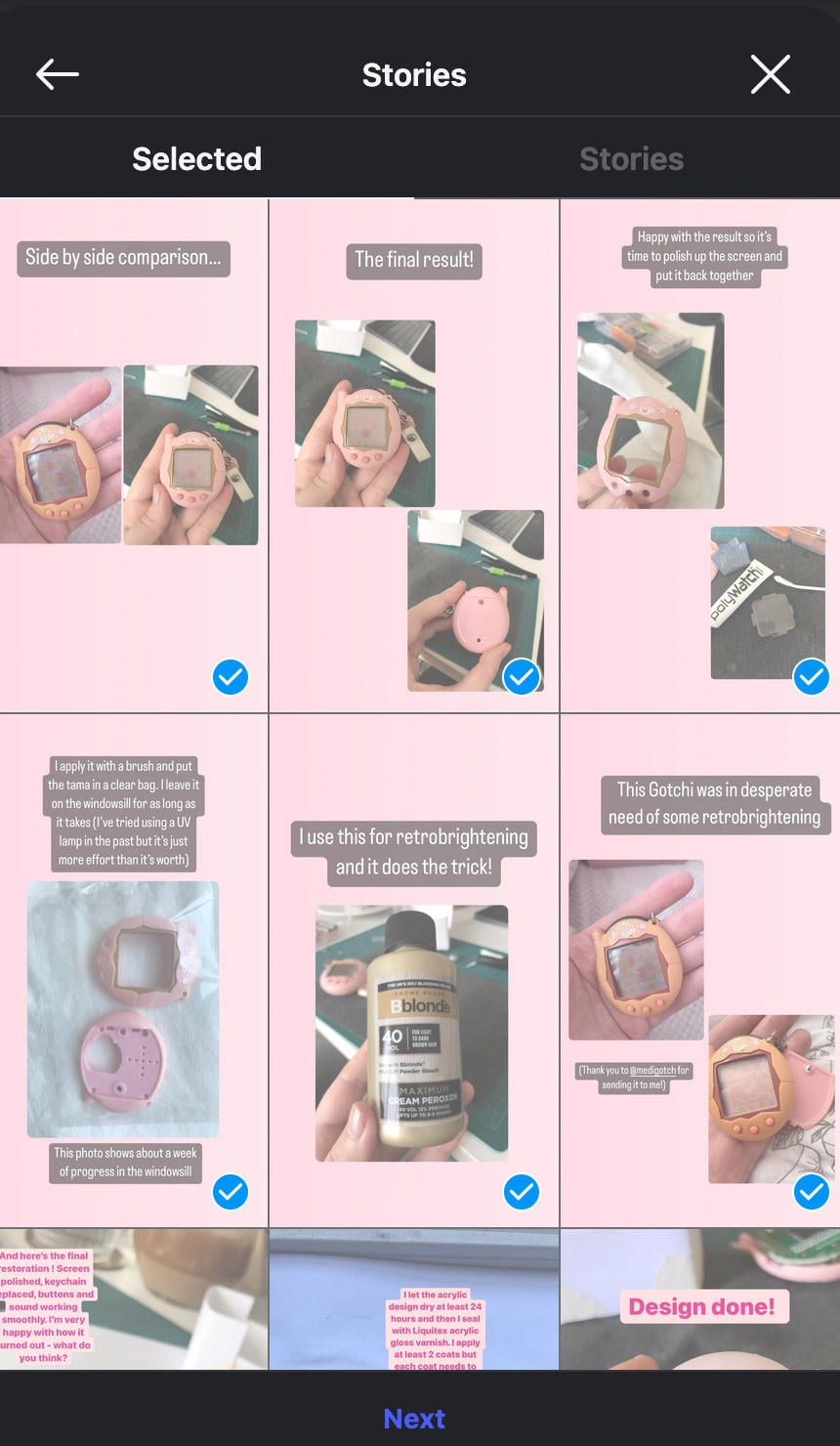
Change the cover image - on desktop you’ll only have the ability to select images from the existing highlight slides. To set a custom image, change the cover via the mobile app.
How To Use Instagram Highlights For Business
Since highlights never disappear and always appear front and center on your profile page, they’re a great resource for influencers and business owners alike.
With highlights, you can feature key information, drive sales, build trust and community with your audience, and form brand identity. The best part is, you don’t need to do much upkeep once the highlights are published.
Create A Consistent Aesthetic

Highlights differ from Stories in that they allow users to upload custom covers.
This is a great way to add to your brand identity and overall aesthetic by creating matching covers that include recognizable fonts, icons, and colors that align with your brand style.
You can use a free graphic design tool like Canva to edit pre-made templates or get creative and make them from scratch.
Make sure you’re sticking to a design that measures 1080×1920 pixels with a 9:16 aspect ratio.
Treat Them Like Navigation
Your highlights are one of the first things that new profile visitors see, so use them the way you would a website navigation menu.
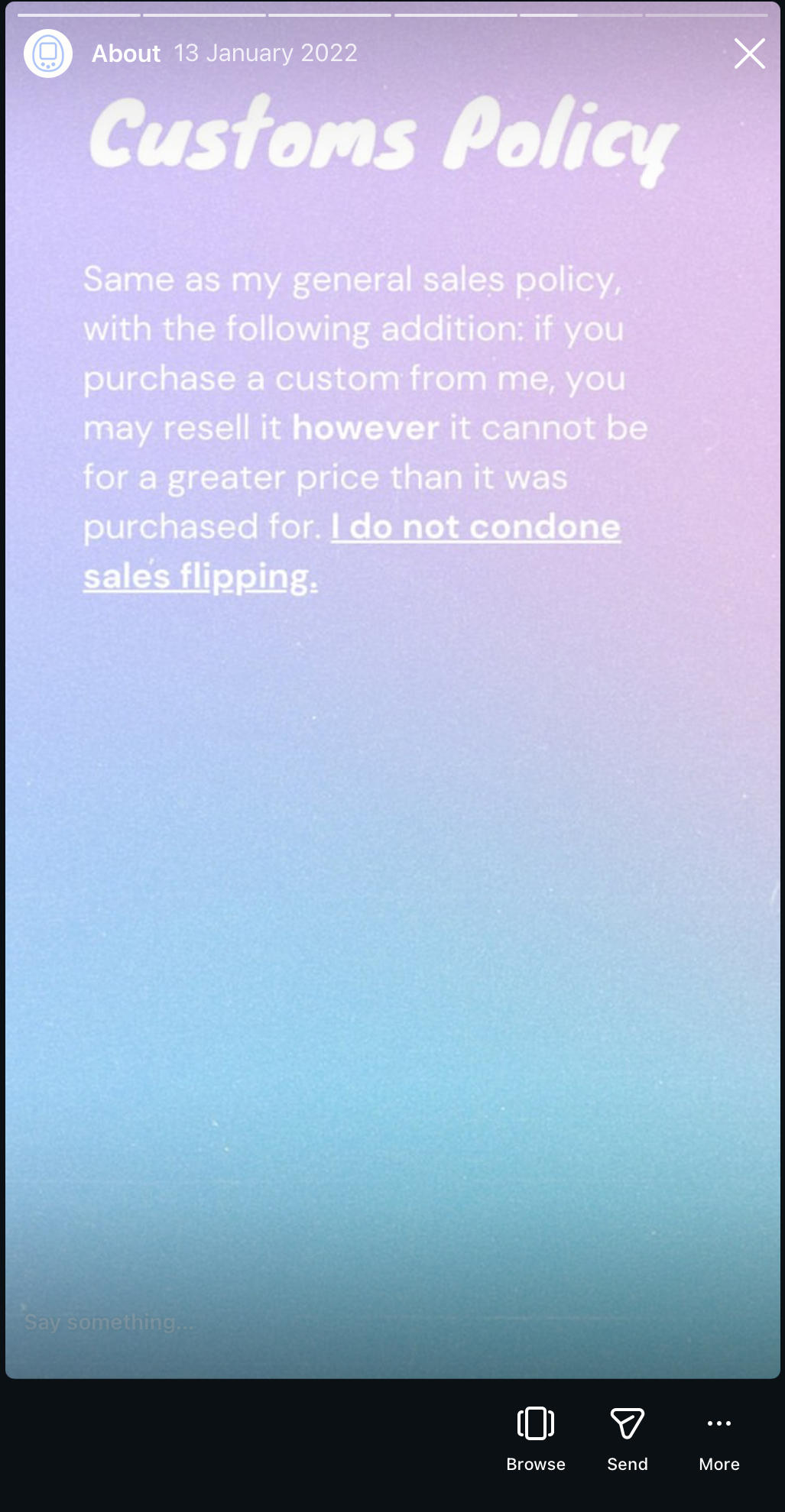
A few categories to consider for navigation purposes include:
-
About / Start Here
-
Examples of products or services
-
Customer reviews
-
FAQs
-
Behind the scenes looks
Curate Your Best Content
Not every Story is worthy of being turned into a highlight. Use highlights to prioritize the most valuable information you share.
If it’s something that you feel users could return to repeatedly, like frequently asked questions or Stories that received a high amount of engagement, it’s probably worth turning into a highlight.
Add Testimonials & User Generated Content
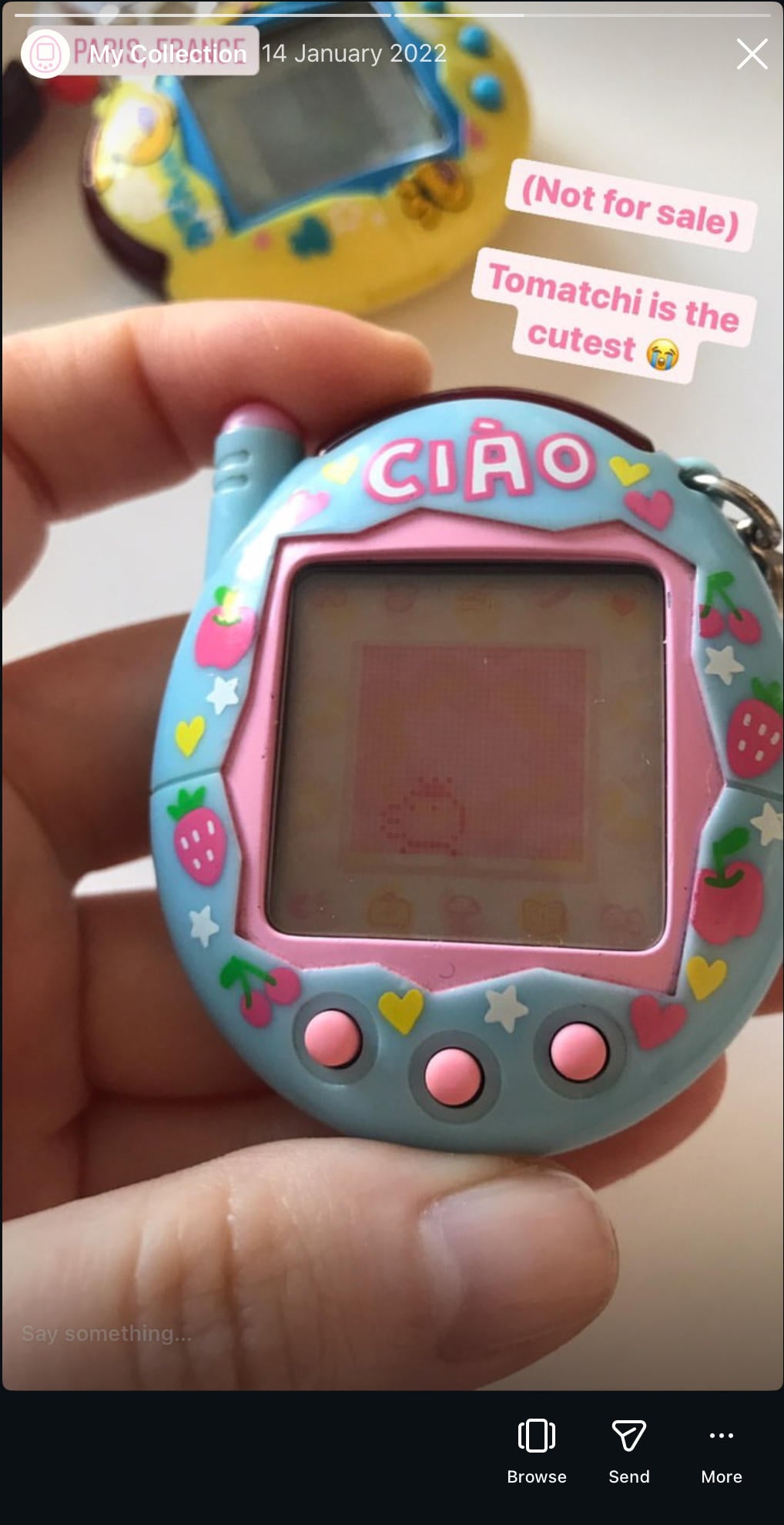
Customer testimonials or user generated content like photos of your product or reviews of your service are a great thing to add to highlights.
This shows that your product or service is worth talking about, without you having to pay for exposure.
It’s like a ready-made ad that builds even more trust with your audience.
If you don’t have any existing user generated content to pull from, consider sharing a Story and ask followers to share a photo of themselves with your product or a brief story about their experience for the chance to win a giveaway.
Introduce Yourself
Whether you work solo or with a team, people want to see the human side of your brand. Highlights are a great place to share behind the scenes looks and information on who the person behind the account is, without cluttering up your profile grid.
A few things you can share:
-
A few fun facts about yourself.
-
Why you got started in your field of business.
-
What you love most about what you do.
-
Pet photos - they might seem irrelevant but people love them.
Include FAQs
Not only does posting your frequently asked questions save time, it also builds trust with your audience because they know you’re willing to answer their most pressing questions.
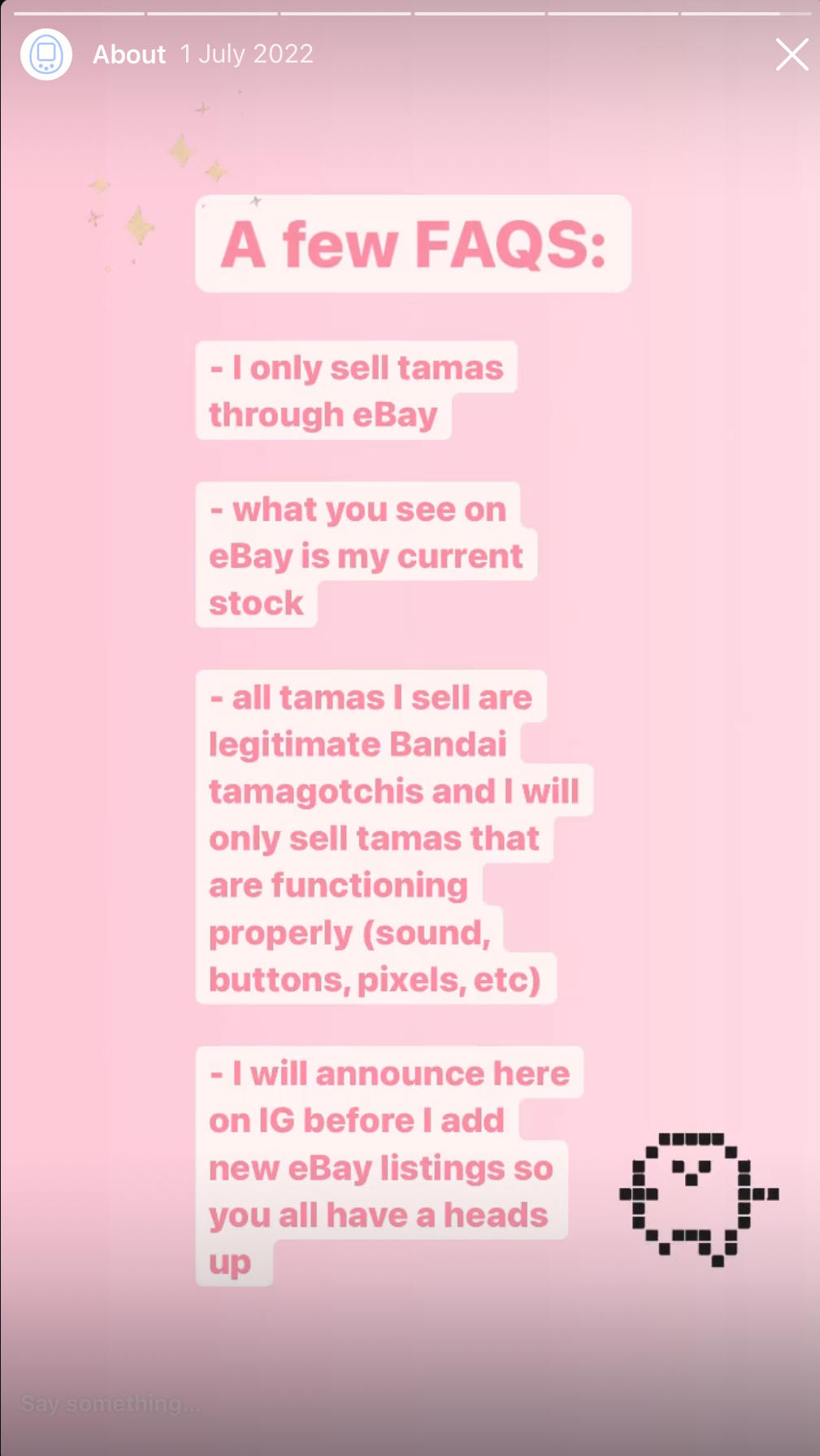
A few things to include in your FAQ highlights:
-
Pricing information
-
Policies (like shipping or returns)
-
Beginner questions
-
Communication related information (how quickly you respond, where to reach out, etc)
What Are Some Highlight Mistakes To Avoid?
Highlights can do a lot of work for your brand, but there are a few things you should avoid doing to make sure that they’re working as effectively as possible.
Saving Everything
Again, not every Story is worth highlighting.
Create intentional Story slides with captions, text, and stickers then save them to highlights as you see fit.
Highlights should feature useful, valuable, evergreen content; they’re not a dumping ground for every Story you’ve ever shared.
Pushing Sales Without Providing Value
You can definitely use highlights for conversion, but you need to approach this carefully. If every highlight is trying to sell something, it’s just an ad and users will dismiss it as such.
Use highlights to feature:
-
Before and afters
-
Behind the scenes looks
-
Case studies
-
Client testimonials
-
User generated content
Show, don’t tell, and the rest will follow.
Not Updating Them Regularly
Finally, one of the biggest mistakes people make is setting and forgetting highlights. Don’t just create them and let them gather dust; update your highlights regularly to include relevant new information.
Review your highlights monthly and remove any slides that are no longer relevant.
You should also refresh your covers occasionally to increase the chances of existing followers re-watching them the next time they visit your profile page.
Recommended Reading
Frequently Asked Questions
Is Instagram discontinuing highlights?
No, highlights are still a big feature on Instagram and there have been no official announcements about removing them from the platform.
How to put highlights on Instagram without Story?
You don’t need an active Story to add to a highlight, you can pull from the Archive. To do this, either long-press the existing highlight and tap Edit, or add a New highlight. You’ll automatically be shown your archived Stories to choose from.
Can someone tell if you screenshot a Story highlight?
Nope, any interactions on highlights are totally anonymous. Unlike active Stories, highlight views aren’t shown.
Does Instagram show how many times someone looks at your highlights?
No, views on highlights are anonymous as long as the Story is no longer active. Views accrued on an active Story will disappear after 48 hours from the original posting time.
How to add highlights on Instagram from Gallery?
You can only add content to an Instagram highlight if it was shared as a Story at some point.
How to add to existing highlights on Instagram?
To add more slides to an existing Instagram highlight, long-press the highlight and tap Edit. Select or deselect any slides you want to update, then tap Done.