Running low on storage?
Today’s guide will show you how to reduce Instagram storage on iPhone, iPad, and Android devices so you can save valuable space and keep things running smoothly.
Key Points:
Why Is Instagram Using So Much Space On My iPhone?
Instagram, like most other apps, stores certain files on your device to prevent you from having to reload them every time you open the app.
That means that certain images like profile pictures, icons, gifs, and certain videos, are always present rather than having to load every time you scroll. This is known as cache, and while it’s usually convenient it can sometimes take up more space than you’d like.
Additionally, Instagram sometimes requires access to your device location, camera, and microphone.
How To Decrease Instagram Data Storage
The quickest way to decrease the amount of storage that Instagram is taking up on your device is to clear the app cache.
Not only does this clear up storage space, but it can also improve app performance if you’re experiencing slow speeds or repeated glitches.
Clearing app cache won’t impact any important information, it’ll just clear up saved data that makes your app run faster over time, but this will be rebuilt as you continue using the app.
How To Clear Instagram Cache Files On iPhone
Unfortunately there’s no way to clear app cache on an iOS device without deleting the app.
Open your device’s Settings.
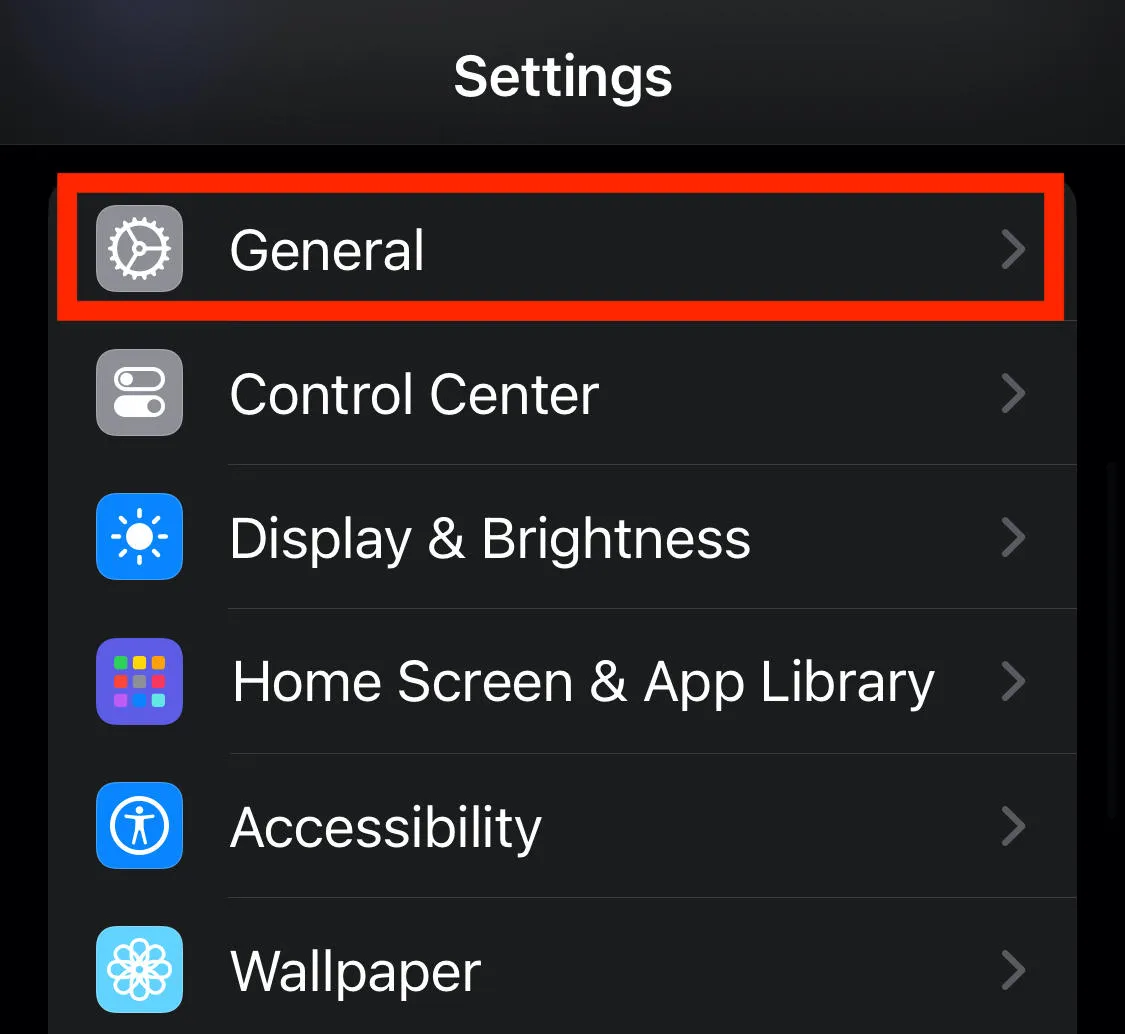
Scroll down and tap General.
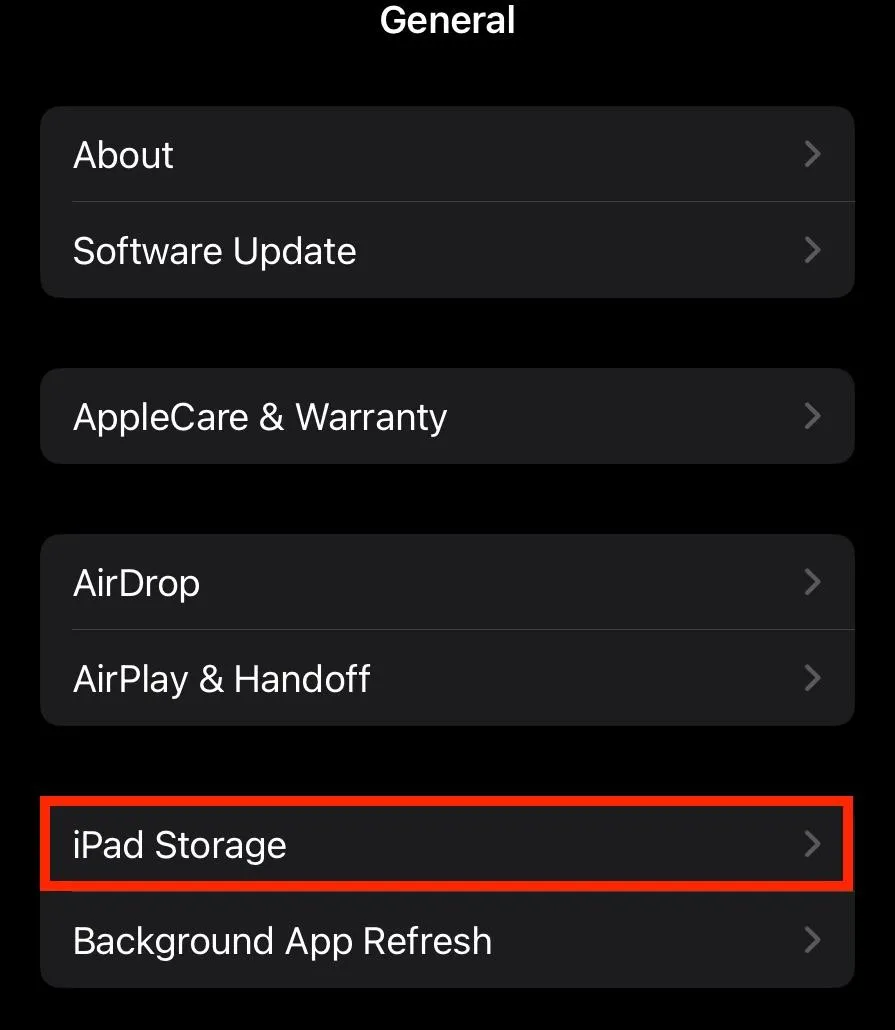
Tap iPhone/iPad Storage.
Scroll down and tap Instagram.
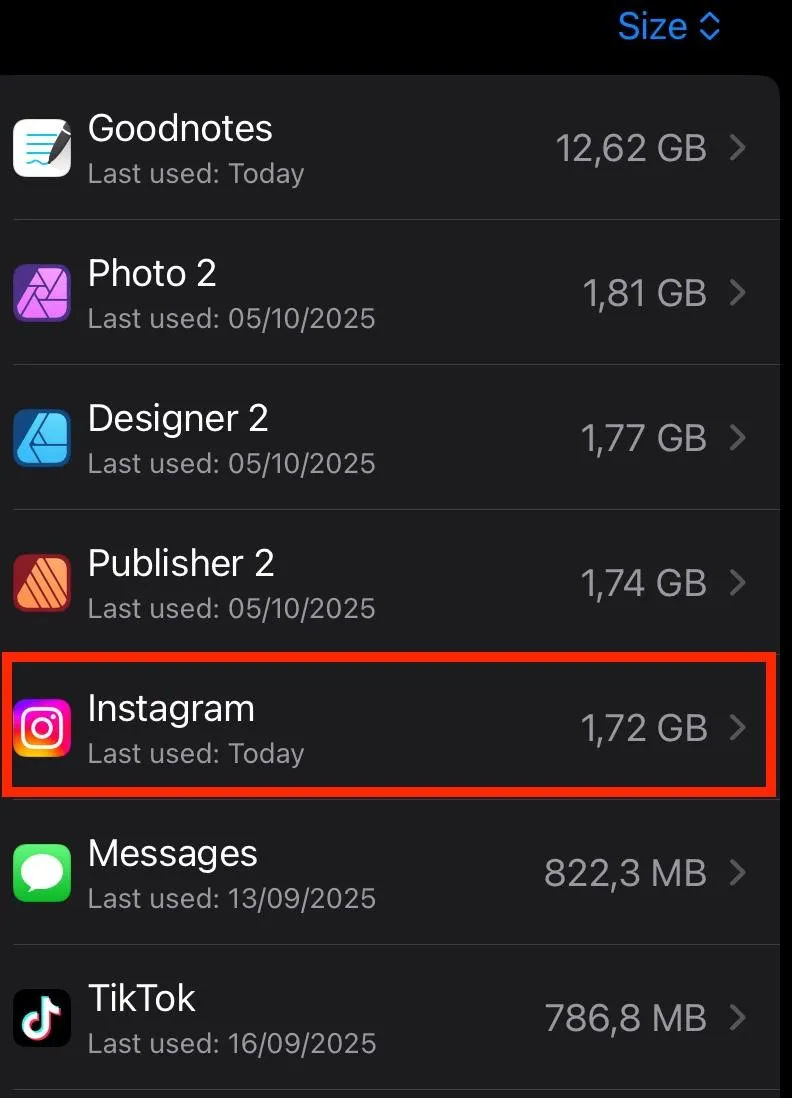
Tap either Offload/Delete App.
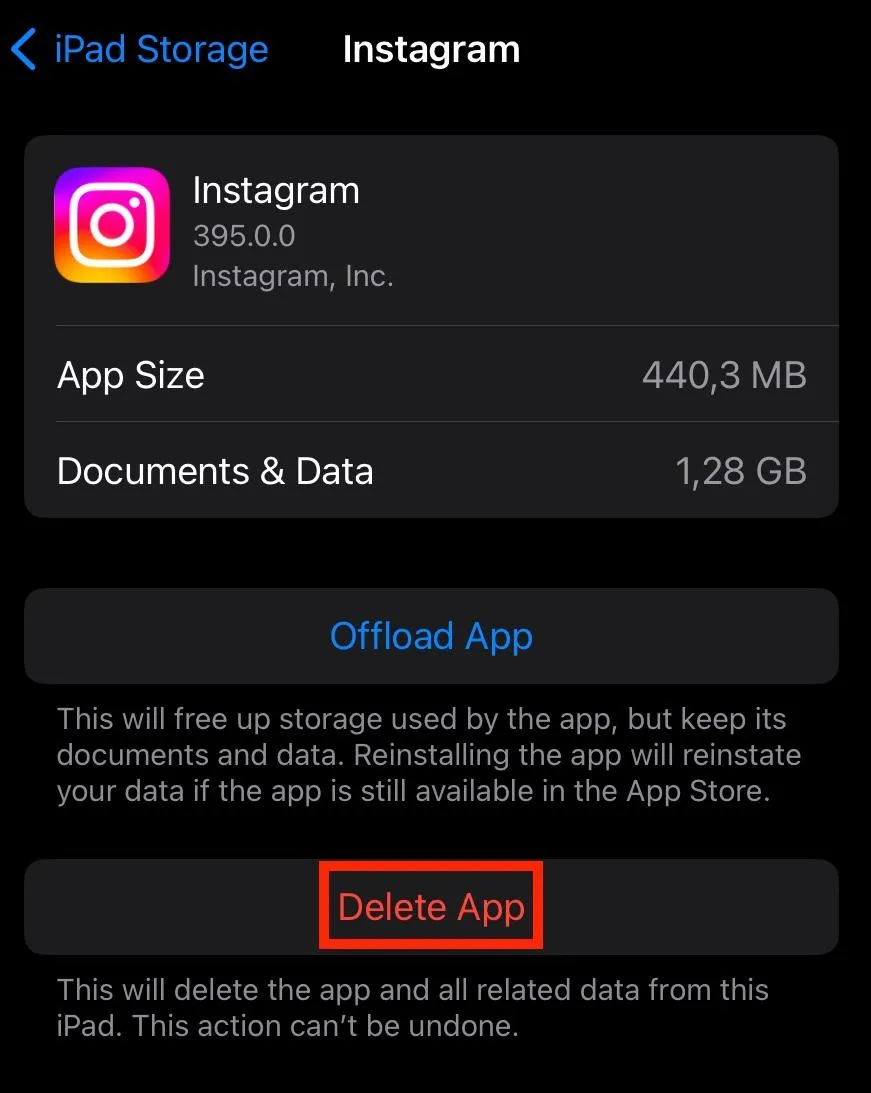
Tap Delete App again.
Open the App Store and reinstall Instagram.
How To Clear Cache In Instagram Android
Open your phone's Settings.
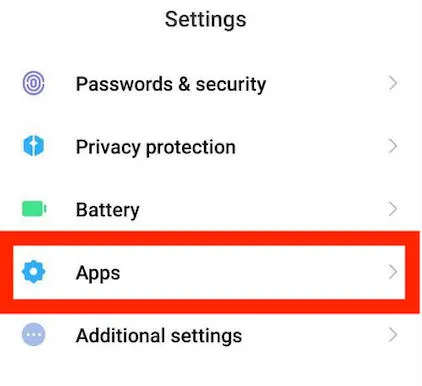
Scroll down and tap Apps/Application Manager.
Tap Instagram.
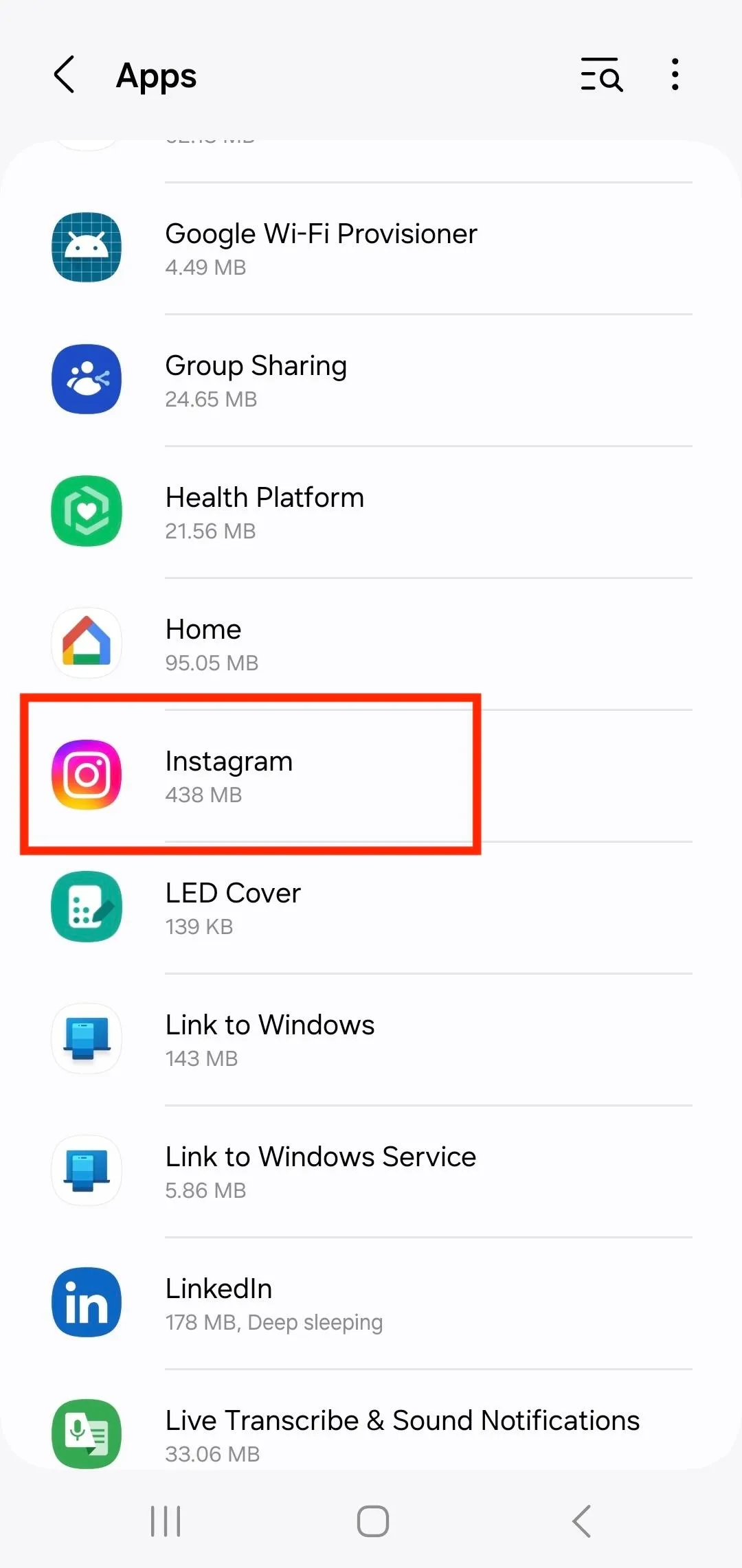
Tap Storage
Tap Clear Data.
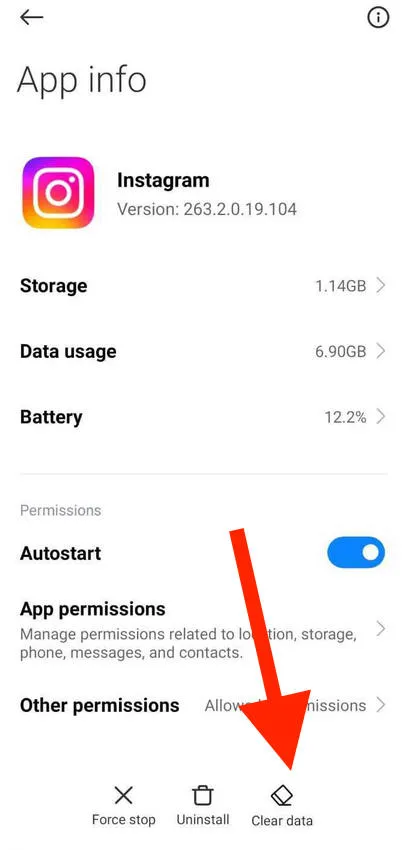
Confirm your choice.
How To Reduce Instagram Data Usage
If you’re struggling with rationing your cellular data, there are settings you can adjust to reduce the amount of data that the Instagram app uses.
To do this, open the Instagram app on your iPhone or Android device.
Visit your profile page, and tap the three lines on the top right corner.
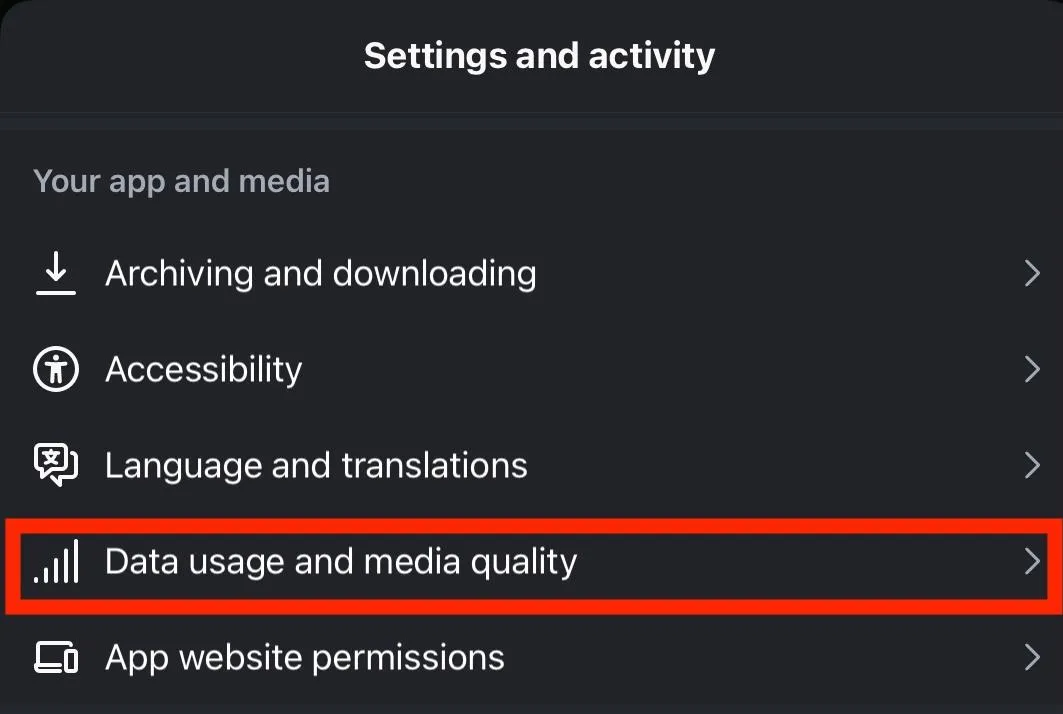
Tap Media Quality or Data Usage & Media Quality.
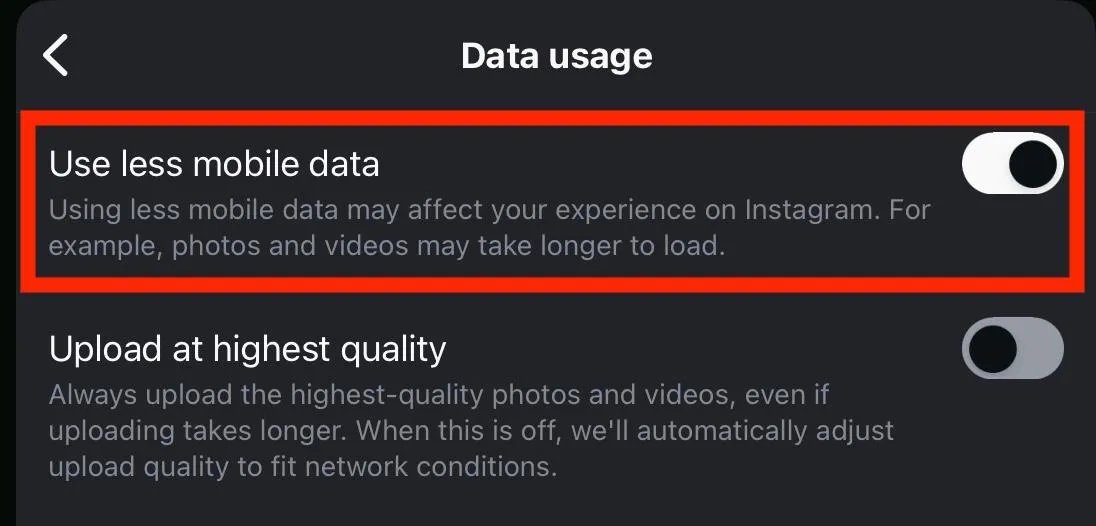
Toggle Data Saver / Use Less Cellular Data to ON.
Tips For Saving Space On Your Device
Aside from clearing individual app storage, there are a few things you can do to help save space on your device if you’re running low on storage. These tips apply to both Android and iOS devices.
Delete Unused Apps
The most effective way to save space on your device is to review your list of apps and delete any that you’re not actively using. Don’t worry - you can always reinstall an app later if you change your mind, and most apps save your profile information so you won’t lose anything.
If you have an iPhone device you can also offload apps, which keeps the app icon on your device but removes the bulk of the storage.
To do this, open your phone’s Settings app.
Tap General.
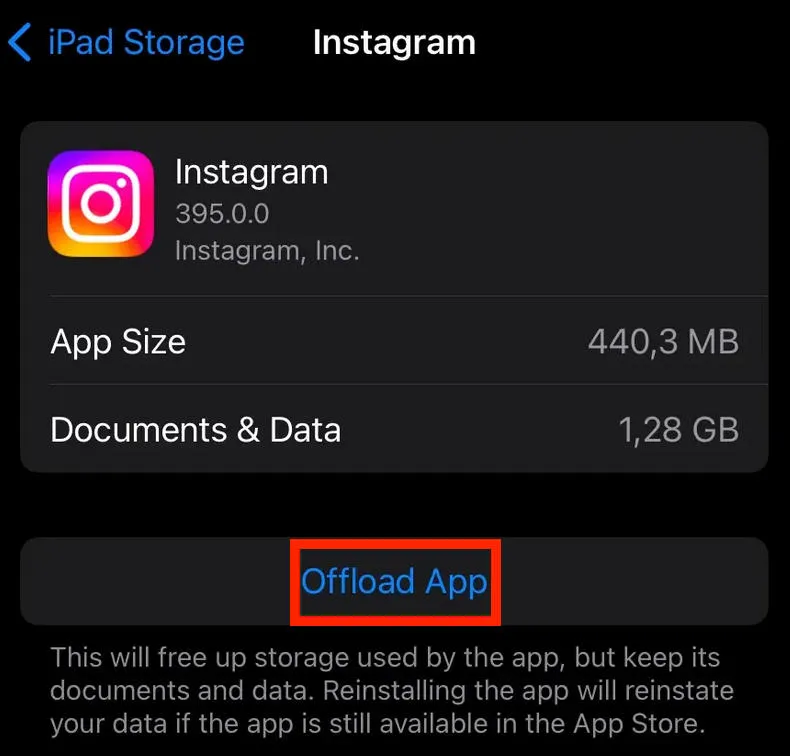
Tap iPhone/iPad Storage.
Apps will appear in order of the amount of storage space they’re taking up.
Tap the app you want to offload, then tap Offload App and confirm.
Clear App Cache
For any apps you want to keep, consider clearing the app cache to save space.
You can follow the instructions outlined here depending on your device type.
Clean Out Your Camera Roll
Next, go through your camera roll and delete any screenshots or photos that you no longer need or want to keep.
Images can take up more space than you’d realize, so taking the time to complete this step can make a huge difference.
Use External Photo Storage
For any images that you want to save, consider using external photo storage like Google Photos.
This allows you to select the images that you want to upload to the cloud or you can have them automatically uploaded as they’re saved to your camera roll. You can then delete the image from your device while keeping it stored elsewhere.
Some devices also support using an SD card, which can be a helpful way to increase storage space without sacrificing apps and images.
Decrease Widget Usage
Widgets are useful, but they can take up a lot of storage space and deplete your battery much faster than you might realize.
Review the widgets you keep on your device and use only the necessary ones. Your battery will thank you.
Delete Trash
If you have an Android device, review your recycle bin and clear it out periodically to save space.
Turn Off Auto-Updates
Both the App Store and Google Play Store support automatic app updates, but if you’re low on space consider turning this feature off and manually updating only the most important apps.
Keep in mind that this should only be done as a last resort, as keeping your apps updated is important for your device’s security and overall wellbeing.
Don't Use The Instagram App
A final alternative and storage-saving method is to opt for using Instagram and other social media platforms via your phone's mobile browser, rather than through a dedicated app.
While this might be less convenient, it also uses much less storage and depending on the browser you use it can cut down on in-platform ads.
Frequently Asked Questions
Why is Instagram using 2GB of storage?
Instagram uses a certain amount of storage by default, with additional storage being taken up as app cache is saved.
How to clean Insta cache on iPhone?
The only way to clear an app’s cache on an iOS device is to delete the app and reinstall it.
What if I clear the storage of Instagram?
If you clear Instagram storage you’ll only be removing stored cache - your profile will not be deleted and the content you have saved on your account will also be safe.
Will clearing the cache improve Instagram's speed?
Yes and no - clearing cache can improve speed to a certain extent but it might also run slightly slower at first after clearing cache, while the app rebuilds its cache.
Why is Instagram taking so much storage on iPhone?
Instagram stores images and preloads videos to help the app run faster when you scroll, which takes up a lot of storage. You can learn how to clear up storage space here.
How to reduce Instagram storage on Android?
You can learn how to clear Instagram cache on your Android device here.
How to clear Instagram cache iPhone?
To clear Instagram cache on an iPhone, simply delete the app and reinstall it. You can learn more here.