Tired of cropping every image before you publish it on Instagram?
Whether you want to split a single photo into several for a striking Instagram grid design, or create seamless Carousels, today’s guide will show you how to make photos fit on Instagram immediately, without having to make last minute adjustments.
Key Points:
What Size Image Looks Best On Instagram?
The best way to make your photos instantly fit on Instagram is to format them in the ideal size from the beginning.
Below you’ll find the ideal dimensions and ratios for each type of image-based content on the Instagram app, so you can ensure that all of the important details of your content are included right from the get go.
Regular Posts
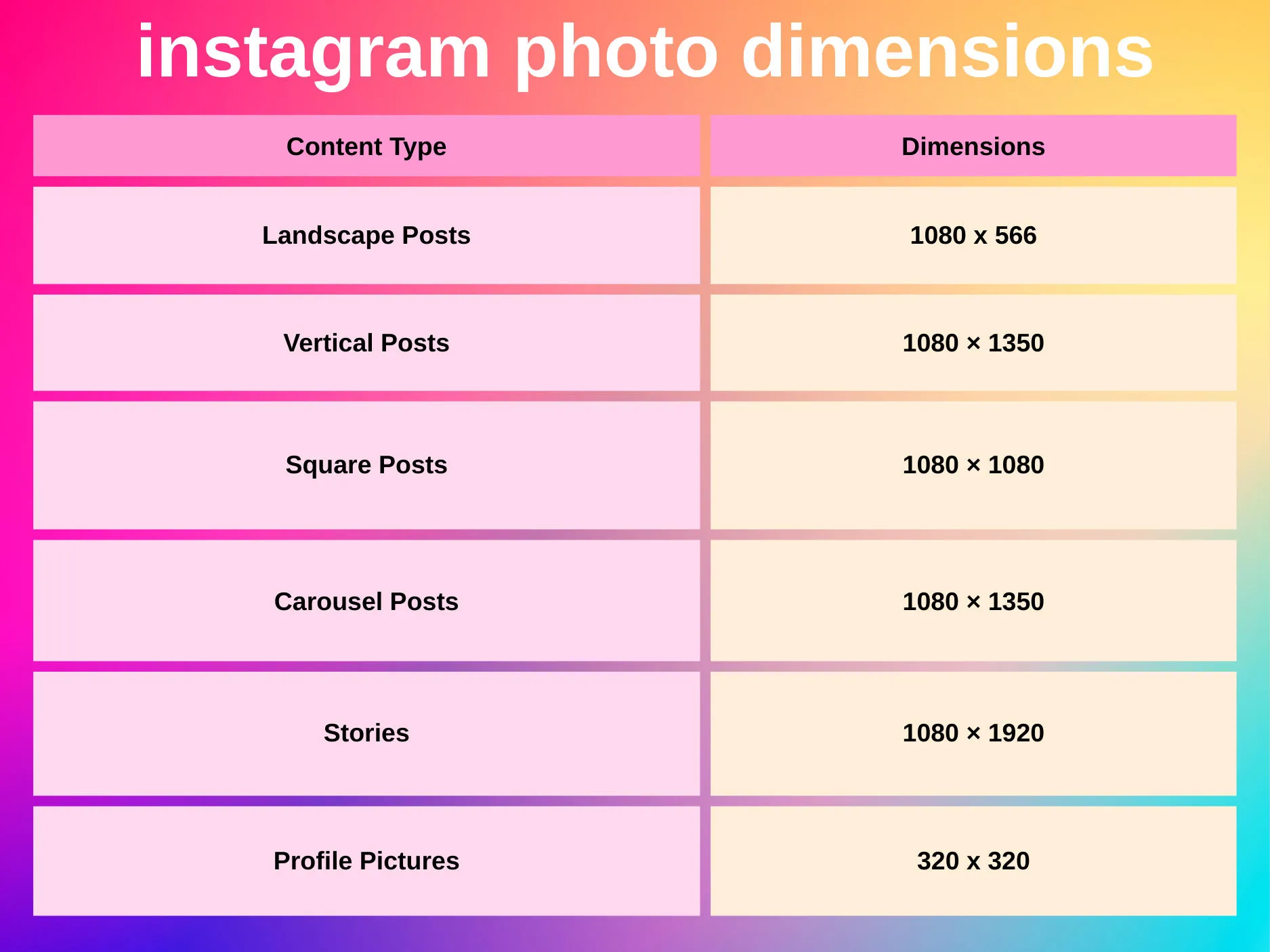
Regular photo posts on Instagram should be formatted with one of the following sizes in mind:
-
Landscape: 1080 x 566
-
Vertical: 1080 × 1350
-
Square: 1080 × 1080
Carousel Posts
Carousel posts can have a maximum dimension of 1080 × 1350.
Stories
Images on Instagram Stories can have a maximum dimension of 1080 × 1920.
Profile Picture
Your profile picture should be 320 x 320 for best results.
What Size Are Instagram Images Cropped In The Grid?
Regardless of what size the individual image or video is in the feed or on its individual page, they’ll be cropped to 1012 × 1350 when viewed in the Instagram profile page grid.
What Size Video Looks Best On Instagram?
Formatting video content properly is even more important, since unappealing video thumbnails can prevent users from engaging with your content.
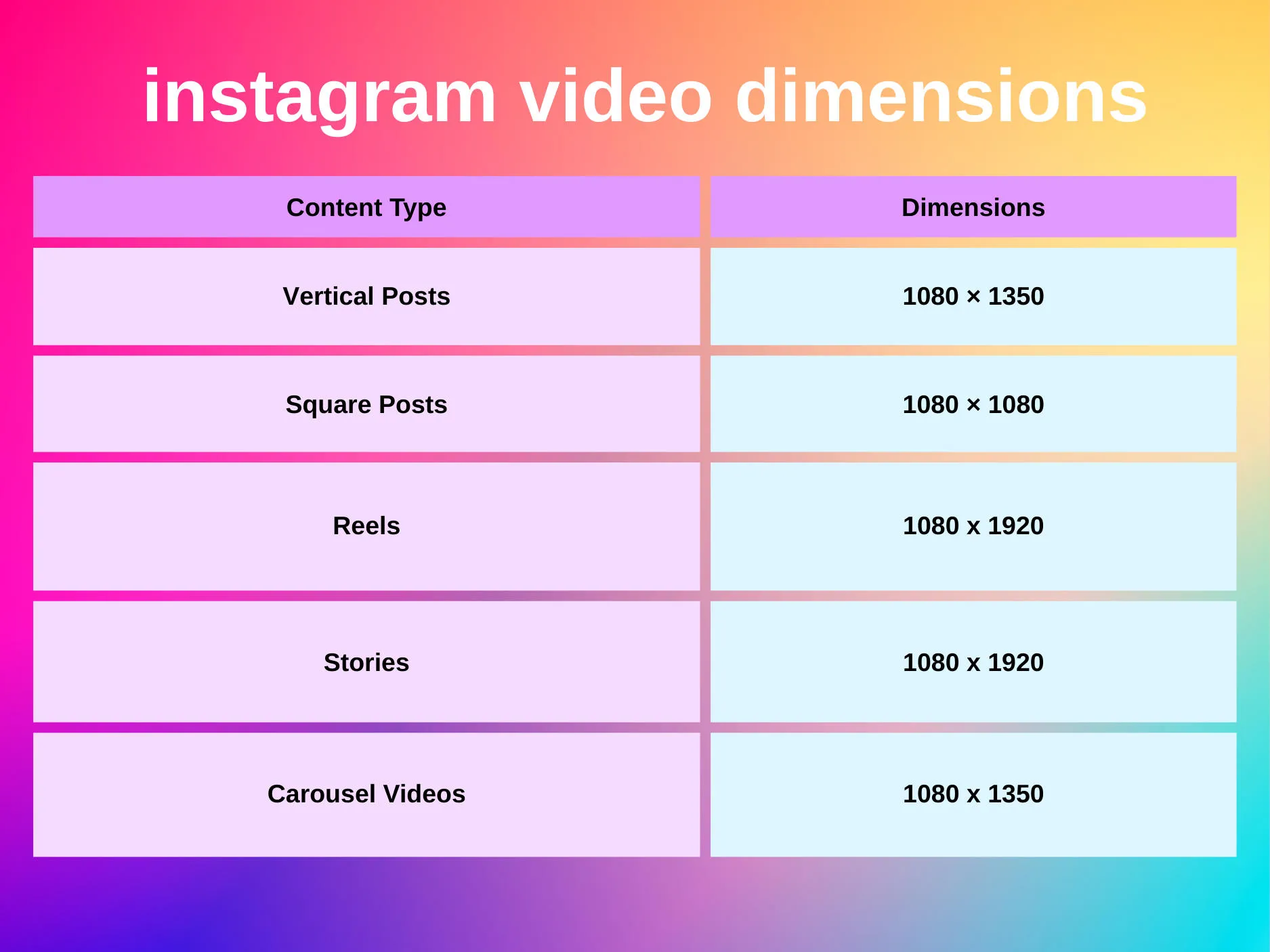
Below are the ideal sizes for each type of video content on Instagram.
Video Posts
Feed video posts should fit one of the following dimensions:
-
Vertical: 1080 × 1350
-
Square: 1080 × 1080
Reels
Reels should have a maximum dimension of 1080 x 1920.
Stories
Video content on Stories should have a maximum dimension of 1080 x 1920.
Carousel Videos
Carousel posts that include videos should have a maximum dimension of 1080 x 1350 per video.
How To Make Pictures Fit On Instagram Without Cropping
Depending on what your image looks like before you upload it, there are ways to adjust the aspect ratio on your post to ensure that the full image, or at least the majority of it, is visible when you publish it.
What Is The Instagram Image Size Ratio?
Instagram’s official guidelines state that the ideal aspect ratio for images is either 1.91:1 or 3:4.
If the aspect ratio of your photo isn't supported, it’ll be automatically cropped to fit a supported ratio.
Many users state that a 1:1 or 5:4 ratio also works, or 16:9 for landscape images.
Selecting The Right Aspect Ratio
You can automatically adjust the aspect ratio when posting on Instagram.
To do this, tap New Post on the Instagram app, then select the image you want to post from your camera roll.
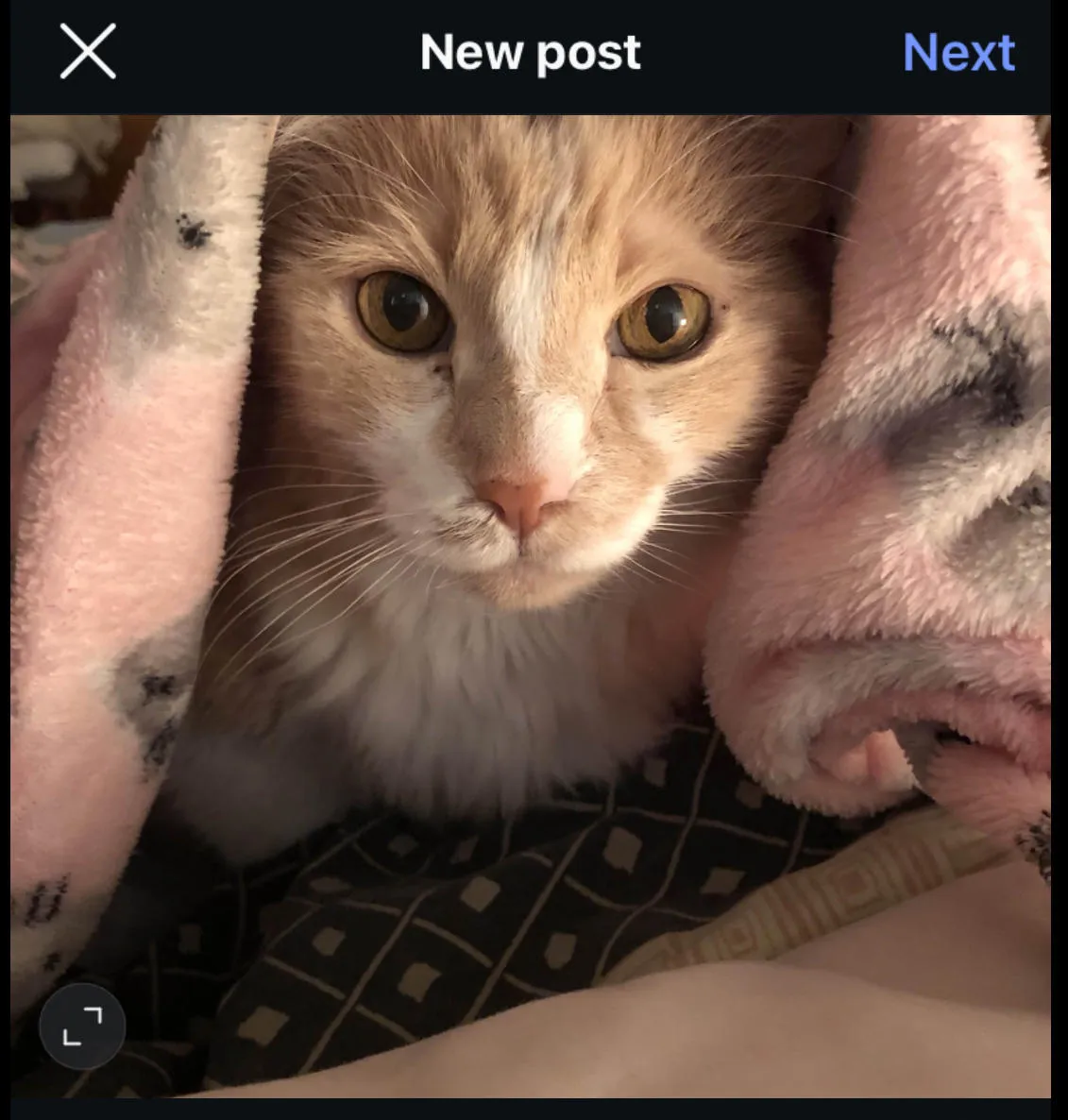
On the bottom left corner tap the circle with two arrows in it to adjust the aspect ratio.
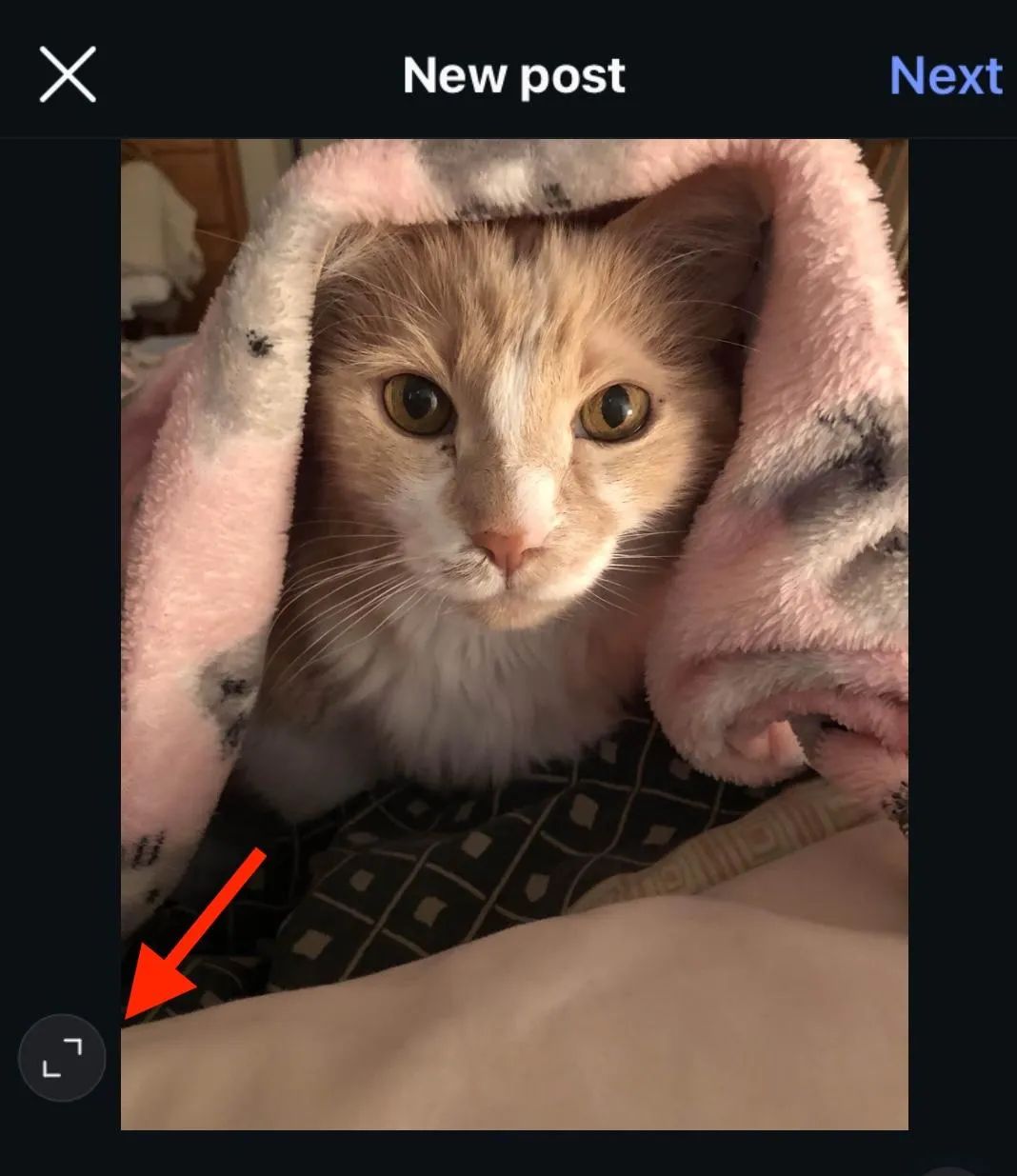
Rather than cropping your image, it’ll simply zoom in or out.
How Do I Resize An Image To Fit My Instagram Profile?
If you already have an image prepared and it’s not the right size for posting, there are a few ways you can resize it, including cropping or resizing entirely using third party tools.
Cropping
To crop an Instagram photo, create a new post and select the image you wish to publish.
Tap next, then tap Edit on the bottom menu.
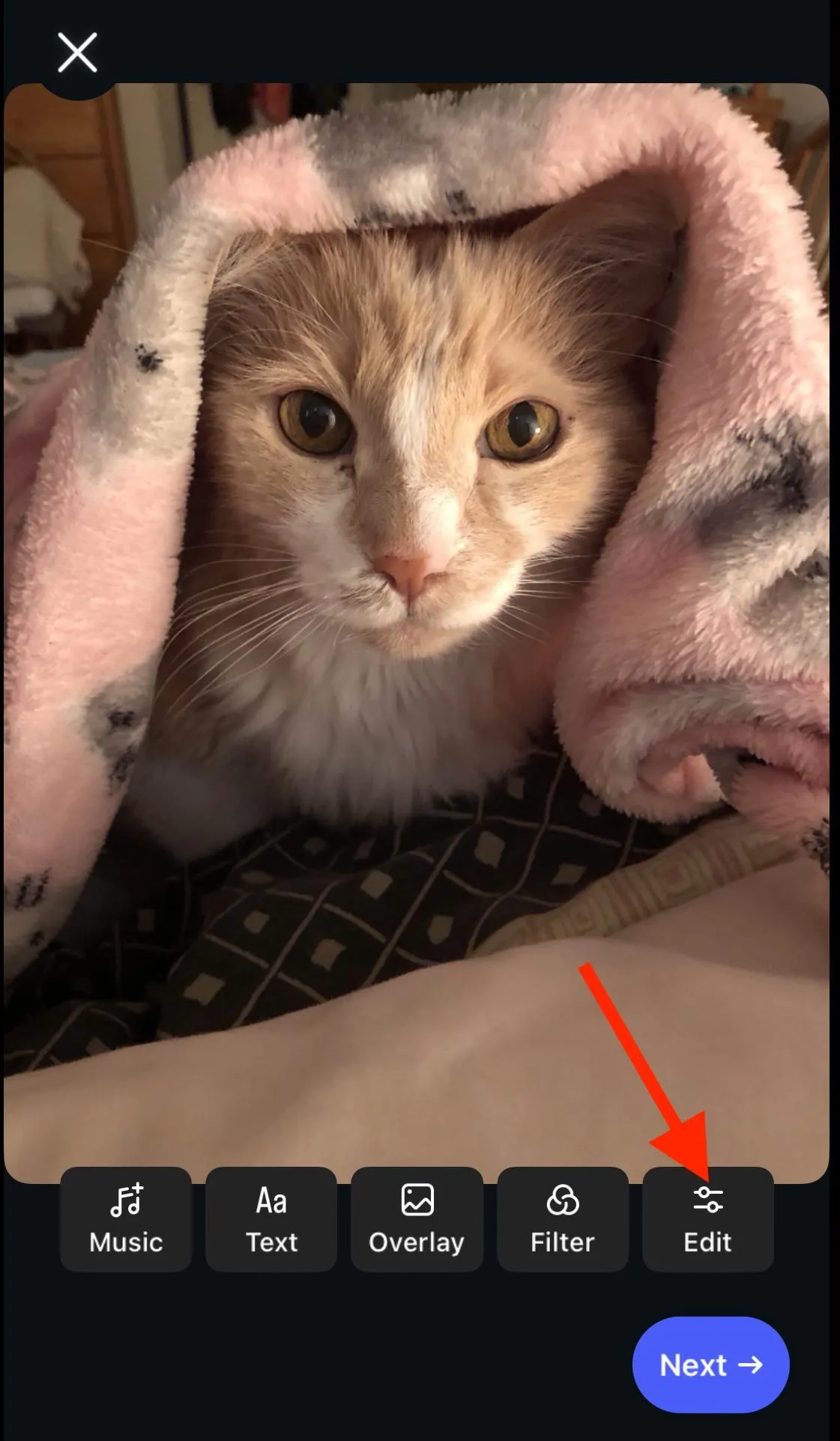
From here, zoom in to crop your image accordingly.
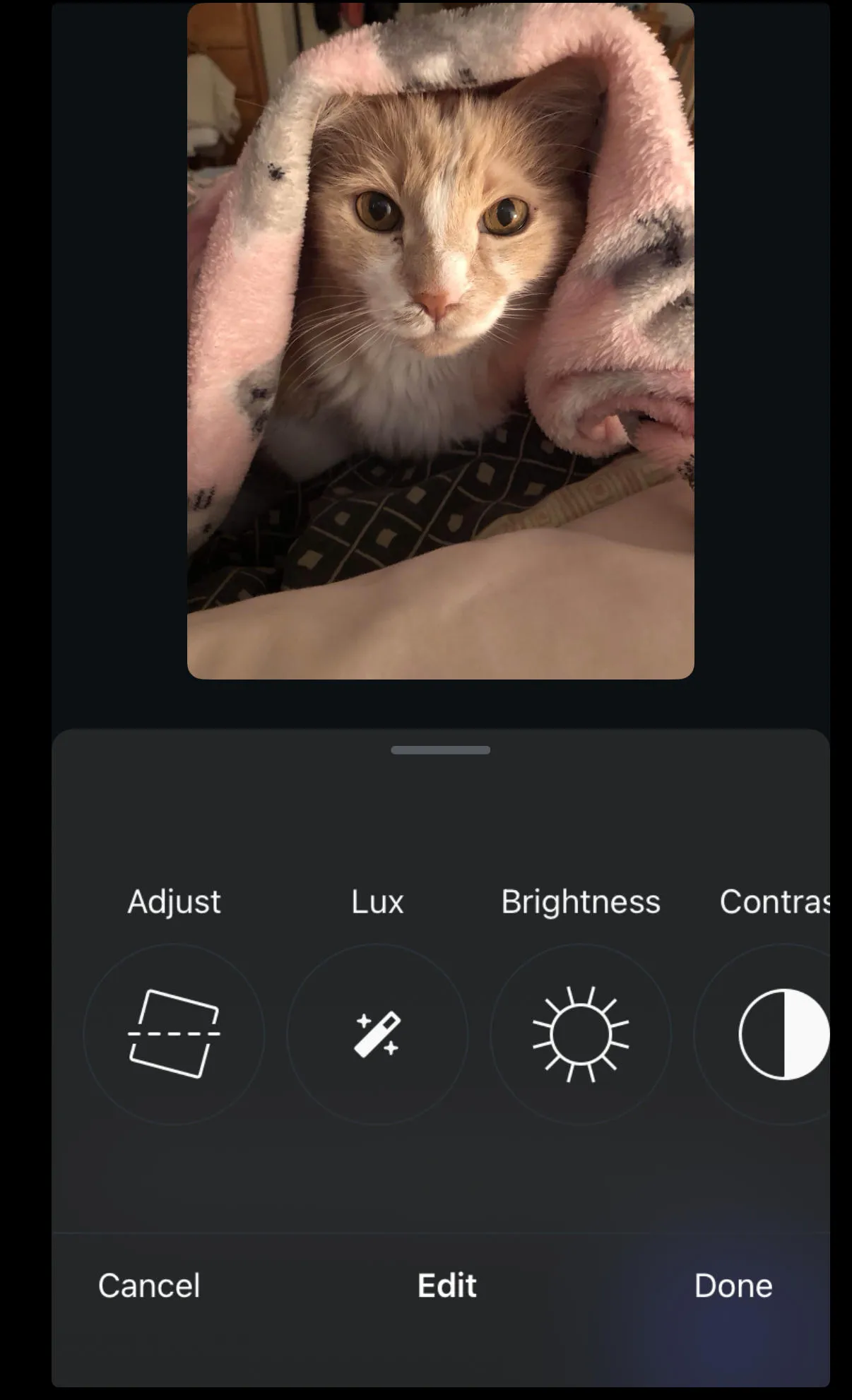
When you’re ready, tap Done and complete your post as usual.
Snapseed
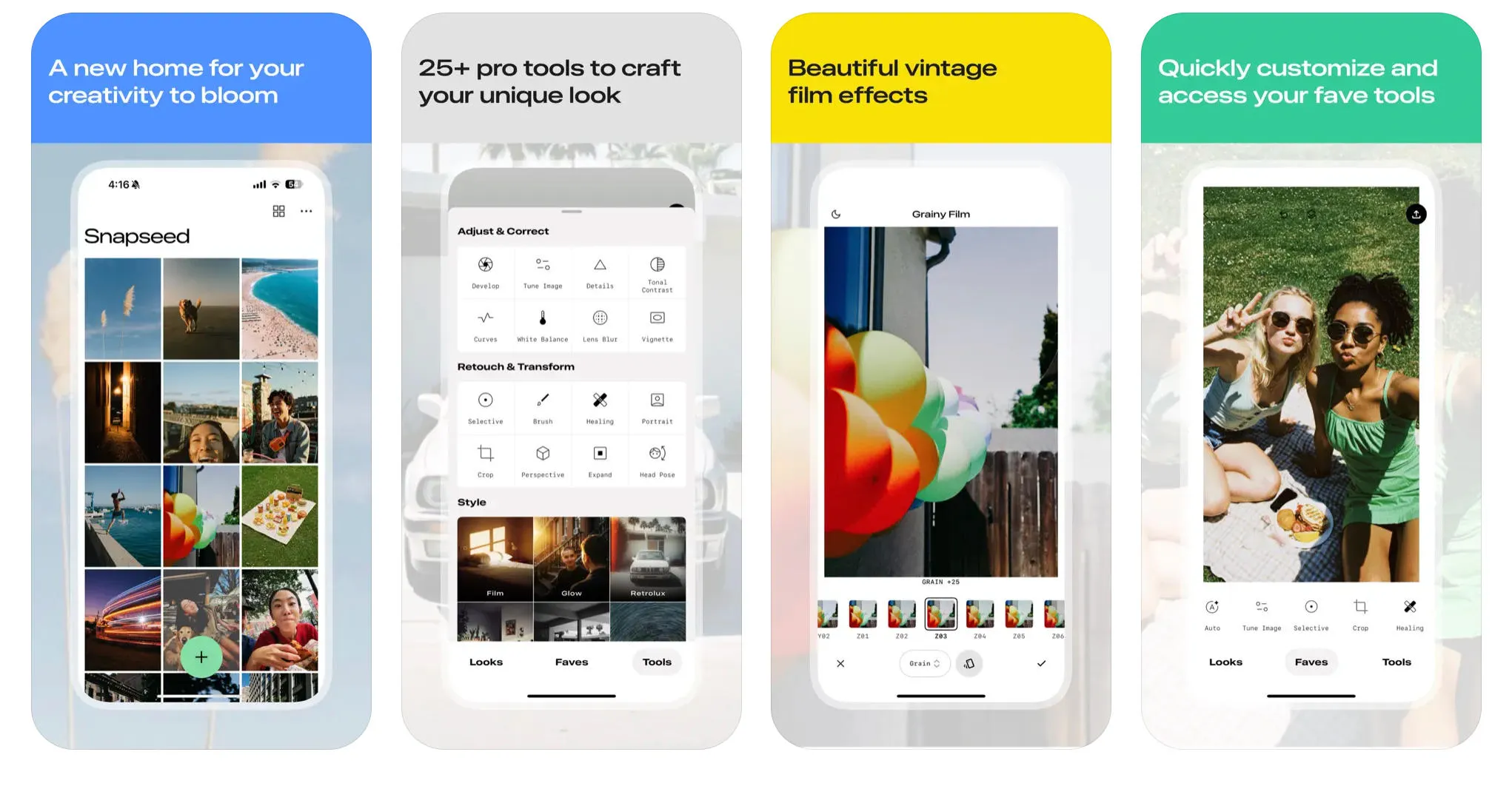
Apps like Snapseed allow you adjust the aspect ratio of the photo without having to crop it at all.
To do this, follow the steps below:
-
Open Snapseed and upload your photo from your camera roll.
-
Tap the Tools bar, then select Expand.
-
From here, choose the Smart Expand feature.
-
Drag your photo to get close to the ratio you’re aiming for.
-
Export the image to your camera roll, then crop accordingly.
Instasize
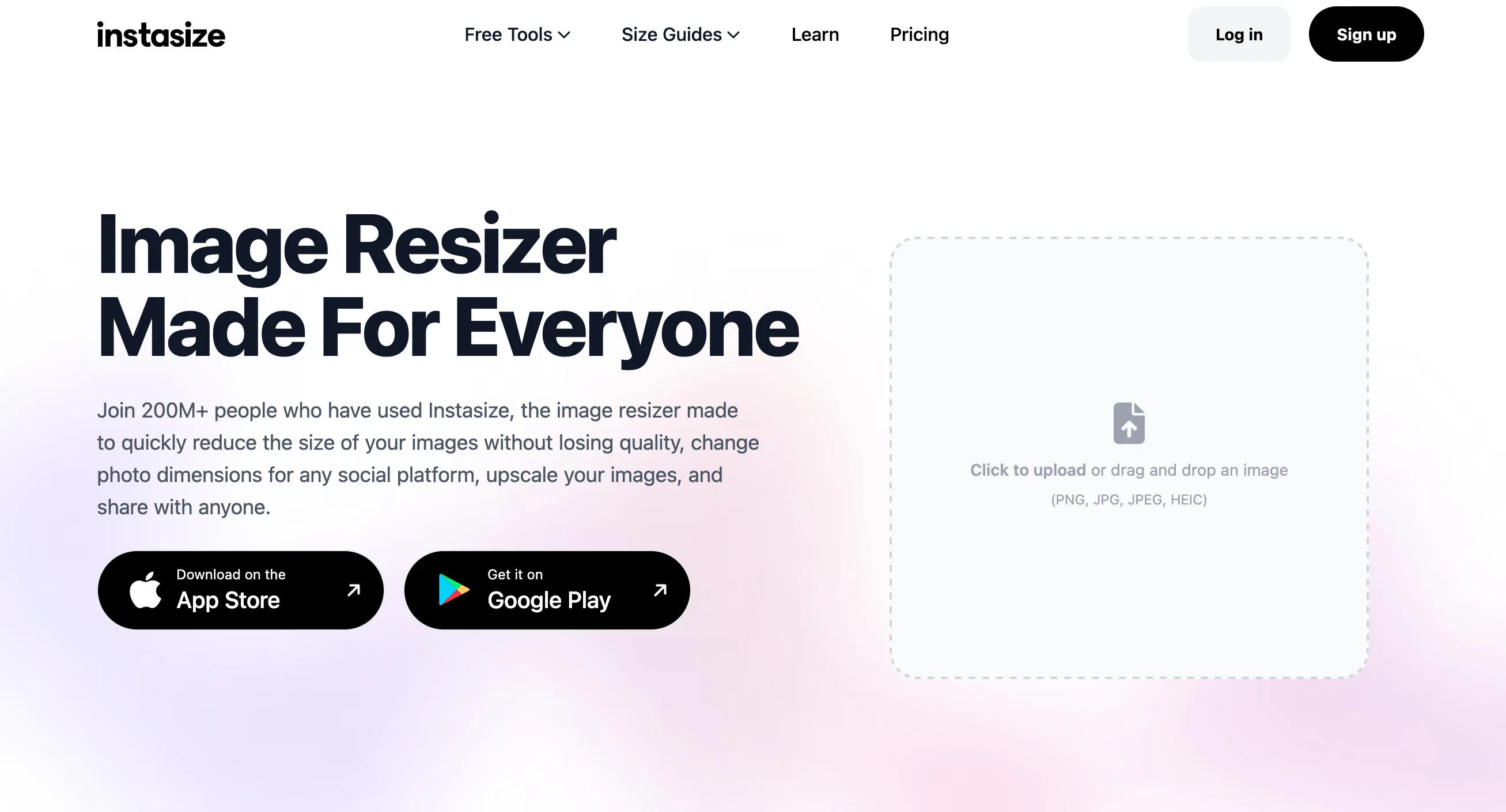
Another helpful app is Instasize, which allows you to adjust the dimensions of your images and reduce the size of images if they’re too heavy duty for the app to support.
Image Resizer For Instagram
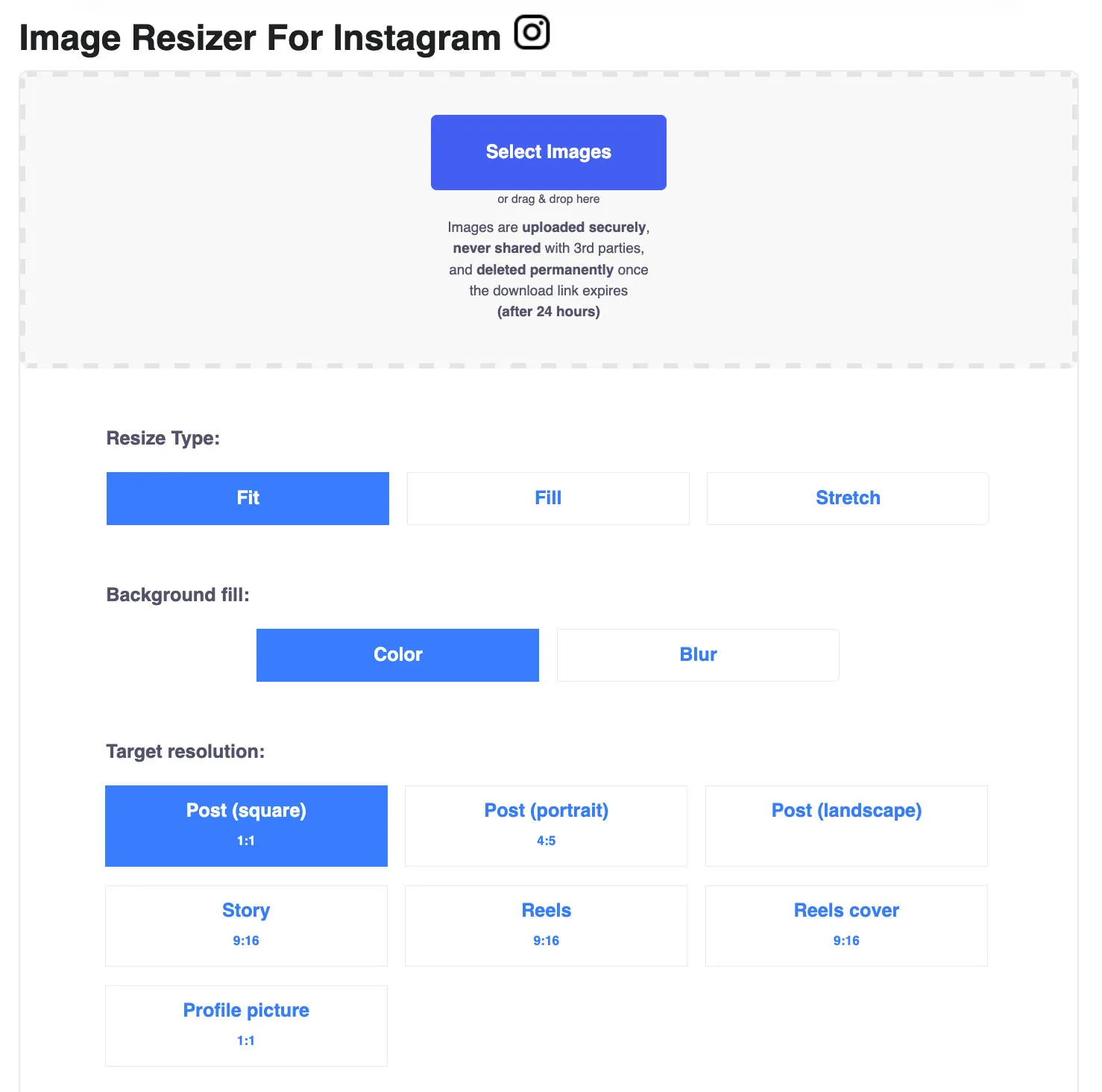
If you prefer a desktop tool, Simple Image Resizer offers an image resizer for Instagram that allows you to upload a photo and choose your target resolution depending on the content type.
How Can I Fit My Whole Picture On My Instagram Profile Pic?
If you want to change your profile picture without having important elements of it cropped out, you should first resize your photo.
Instagram profile pictures should measure 320 x 320, so follow the instructions outlined here to resize your image accordingly, then upload it as usual.
How To View An Image In Full Size?
While you can’t access full size images from the Instagram app, you can view them on the desktop version of the site.
First, open Instagram on your desktop browser and navigate to the profile that has the photo you want to view. You won’t be able to view a full size photo from your feed, so make sure you’re on the profile page directly, then open the image.
In the address bar, add the following to the end of the URL that leads to the photo: media/?size=l
The URL should look something like this: https://www.instagram.com/p/a1b2c3d4/media/?size=l
Press enter, and then save the image.
What Is The New Instagram Grid Layout?
Instagram’s grid used to be comprised of square images with a 1:1 ratio, but this has since changed to a 3:4 format with rectangular images.
These images can be up to 1080 × 1440 px in size.
How Do I Adjust A Photo In My Instagram Layout?
Instagram now allows users the ability to change the layout of their post grid via their profile settings.
This can only be done via the Instagram mobile app.
Open Instagram and visit your profile page.
Tap Edit Profile.
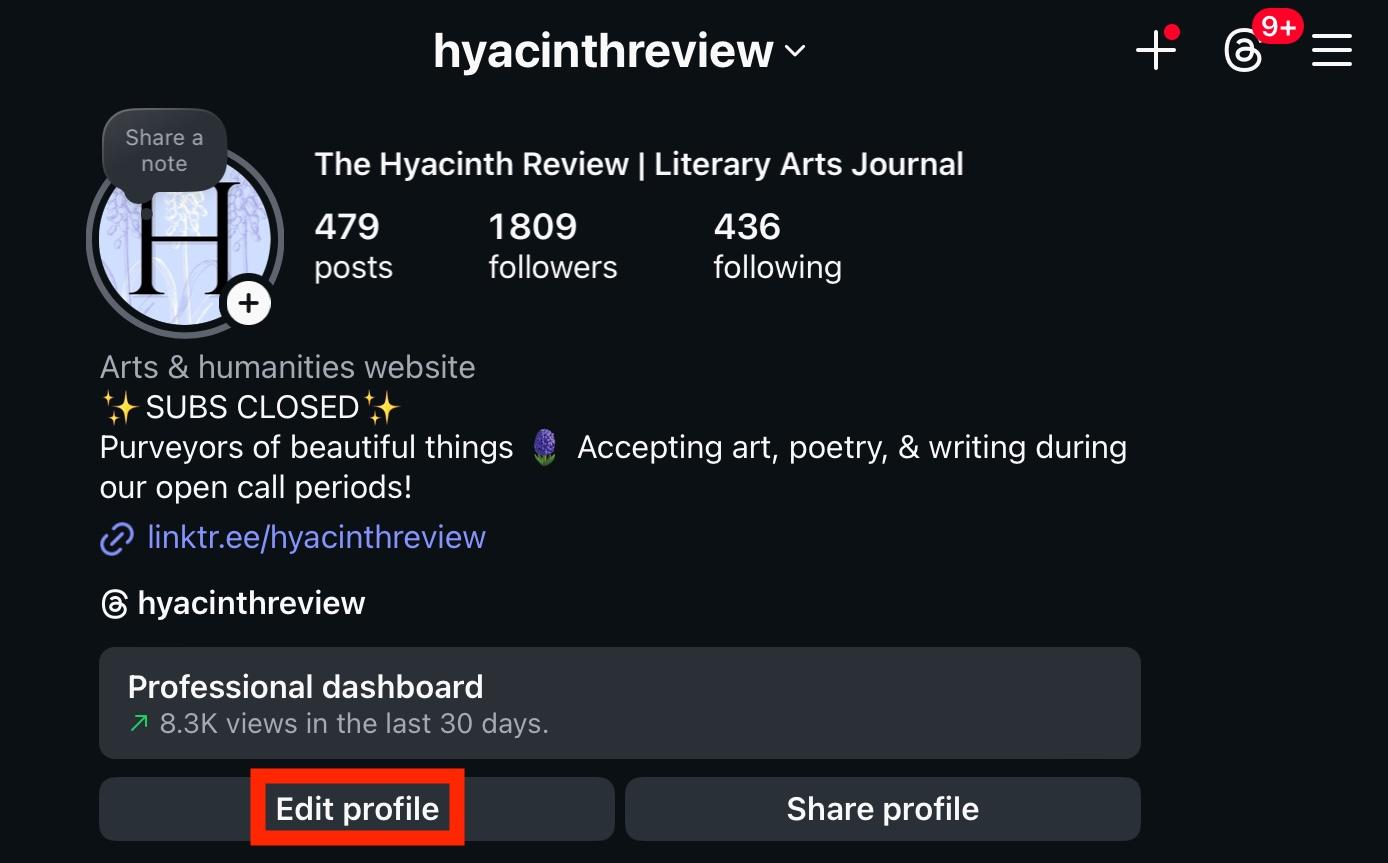
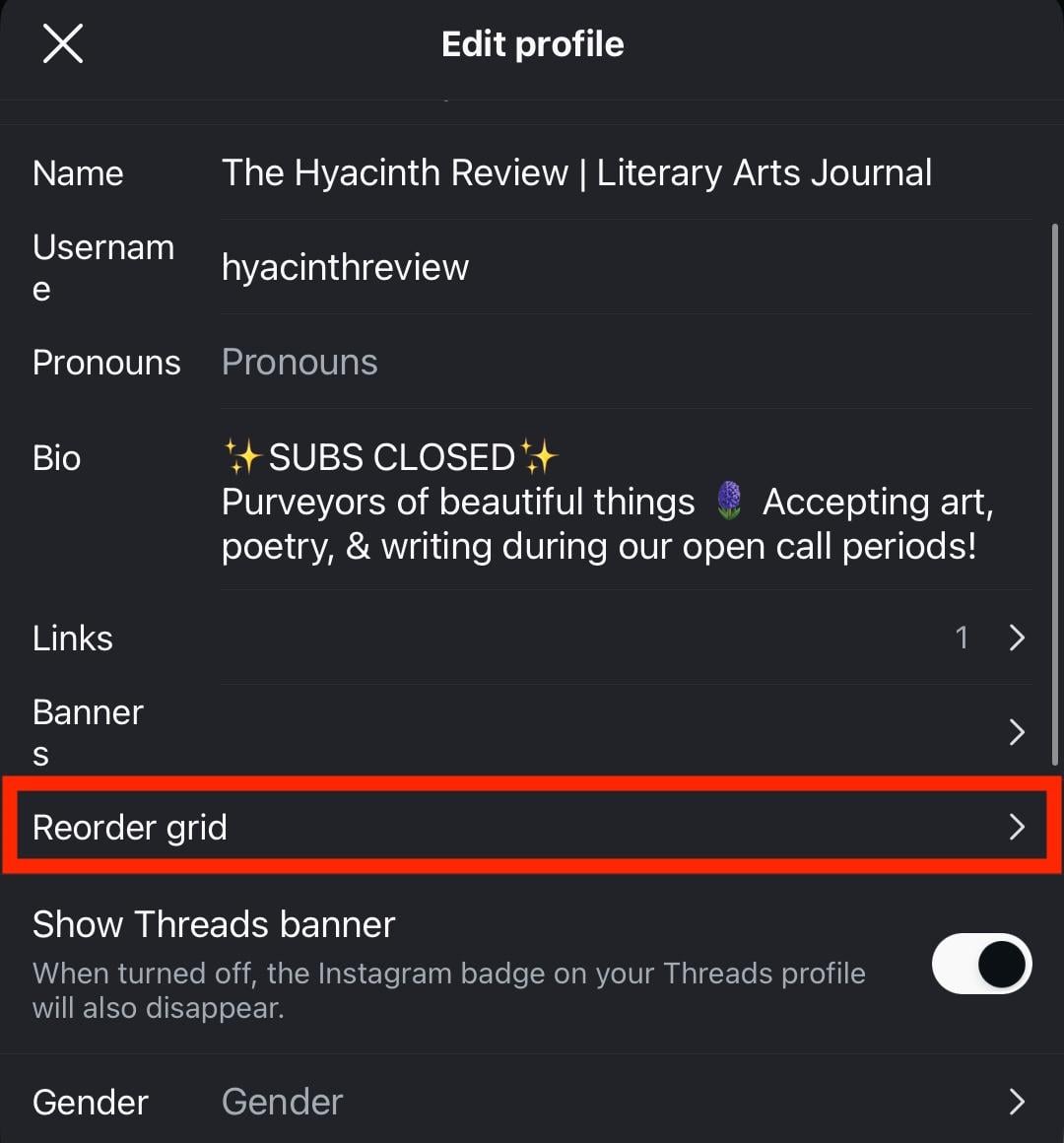
Scroll down and tap Reorder Grid.
Drag and drop the images to their new order.
If you make a mistake, tap Undo on the top right corner.
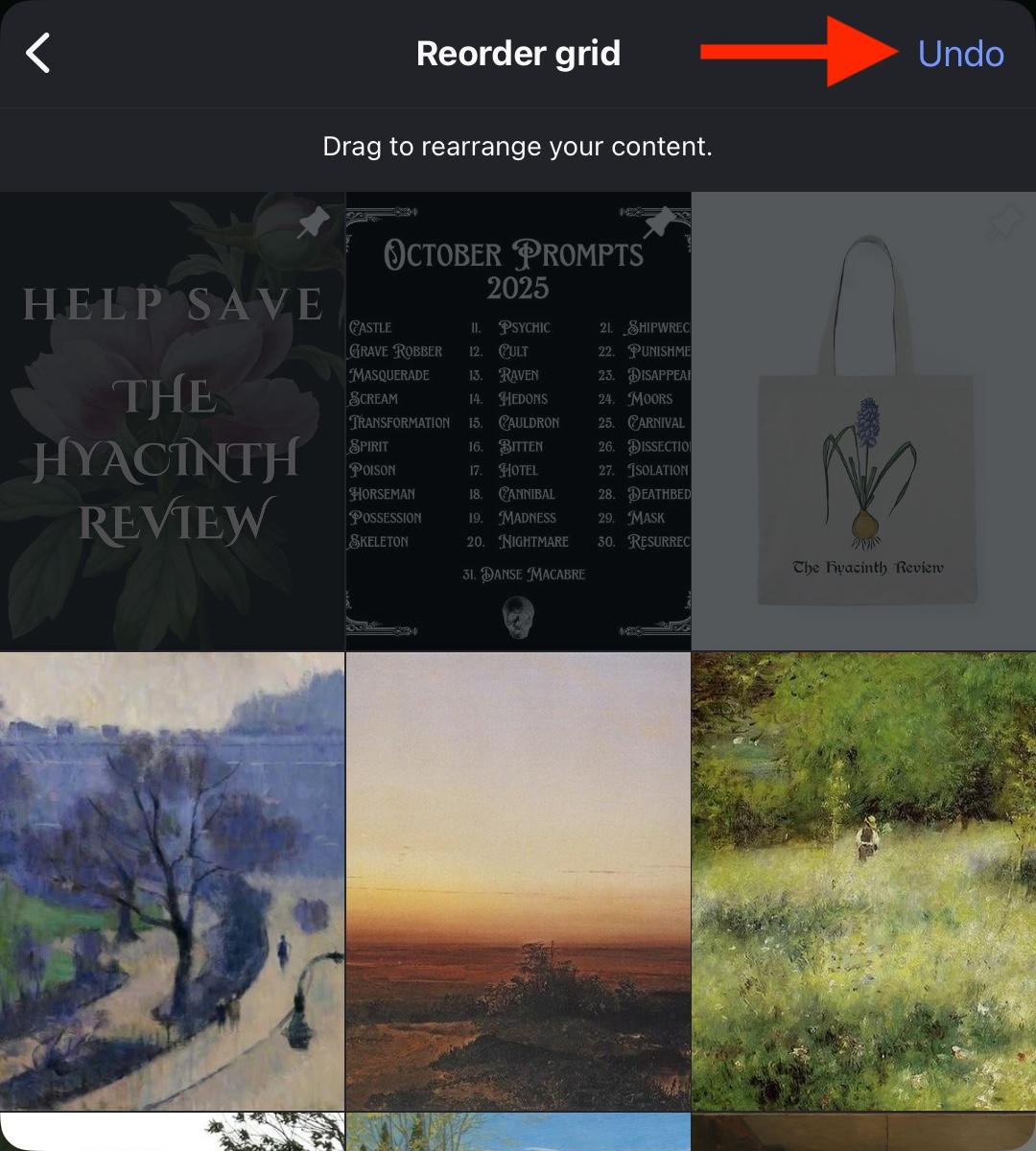
Any changes you make will be automatically saved.
Why Split Images For Instagram?

Splitting images on your Instagram feed can be a great way to highlight the same photo multiple times in your follower’s feeds.
It’s also eye-catching, so when someone visits your profile for the first time it’ll be the first thing they see and could increase the chances that they stick around for more content.
Because of this, many professional and high-end brands use this technique to highlight new products or collaborations.
How To Split Photos Into Grid For Instagram
Before you get started, make sure you have a high quality image that can hold up after being zoomed into several times. Low quality or smaller images run the risk of looking grainy or pixelated if you attempt this technique.
IMPORTANT: The order in which you upload each image for your grid matters! Start with the last images first, since the most recent images will appear at the top of your grid.
Are Instagram Grid Makers Free?
Yes, all of the Instagram grid maker apps and sites mentioned in this guide are free to use. There may be paid versions out there, but since this process is pretty straightforward there’s no need to opt for anything else.
Image2Grid
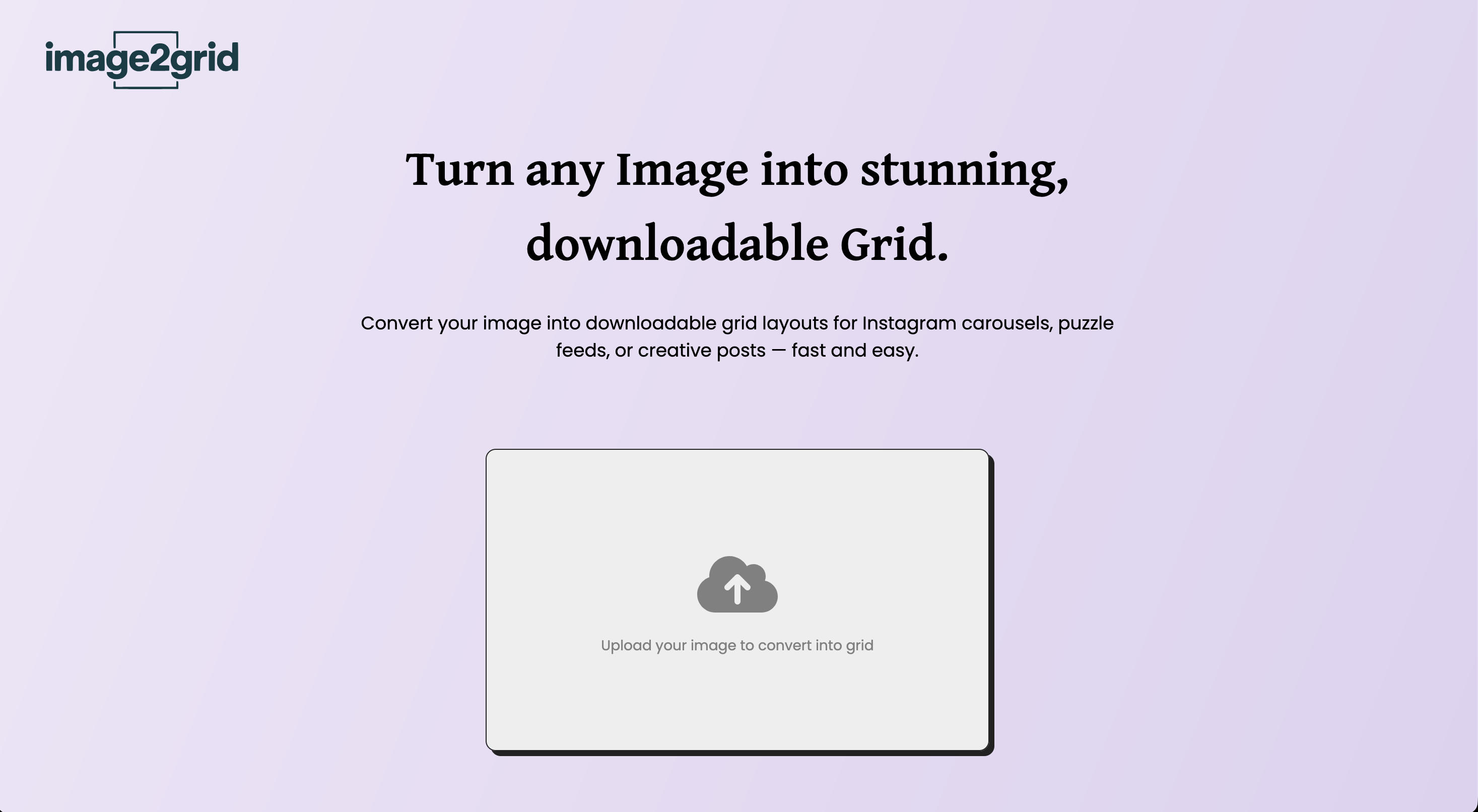
Image2Grid is a simple drag-and-drop option for creating a grid of several images from a single one.
Start by clicking the Upload button and selecting your image.
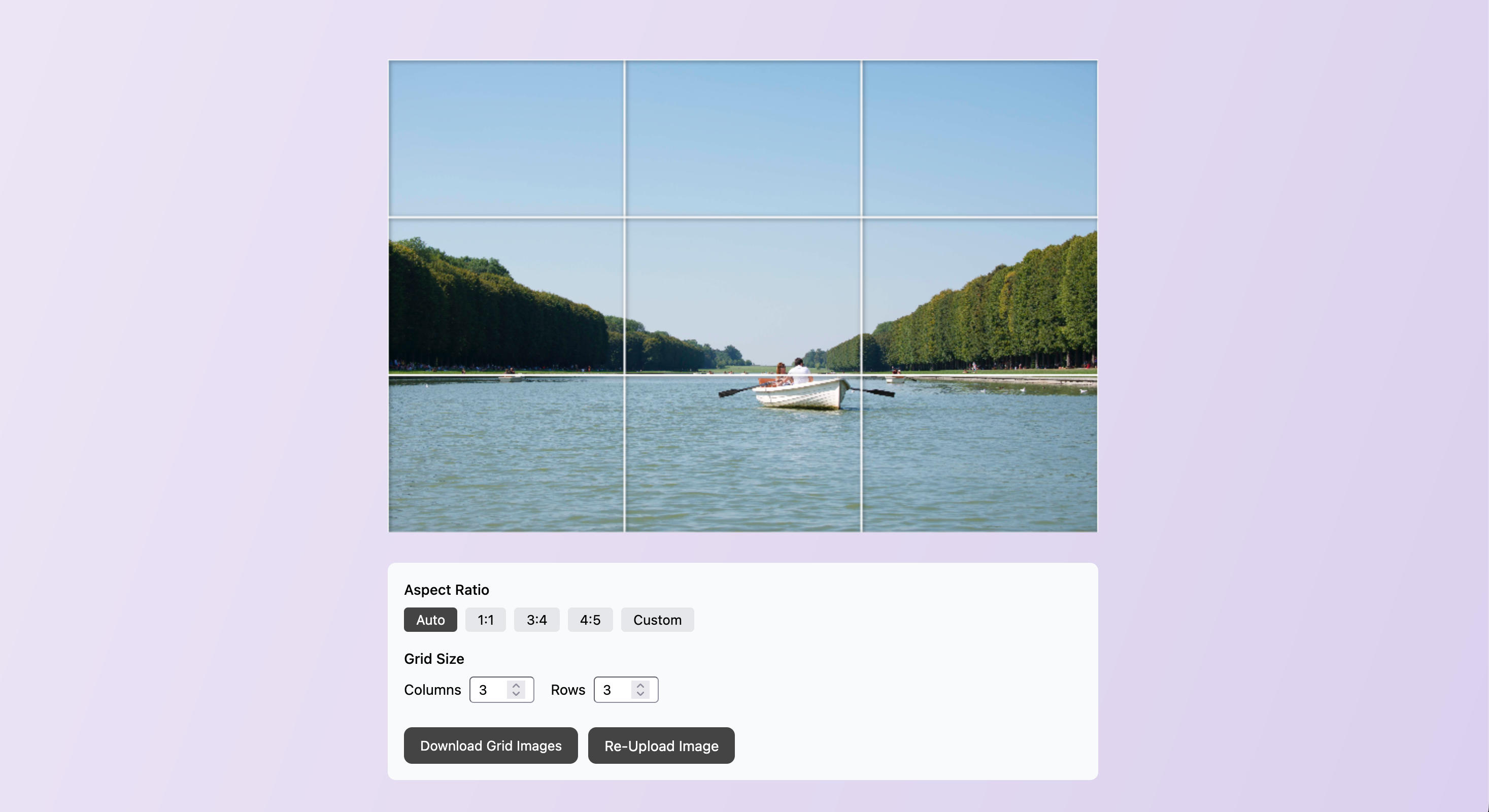
From here you can select the aspect ratio as well as the number of columns and rows you want.
You can use the slider to adjust where the grid overlays the image.
When you’re ready, click Download Grid Images and you’ll receive a zip folder containing each of the separate images.
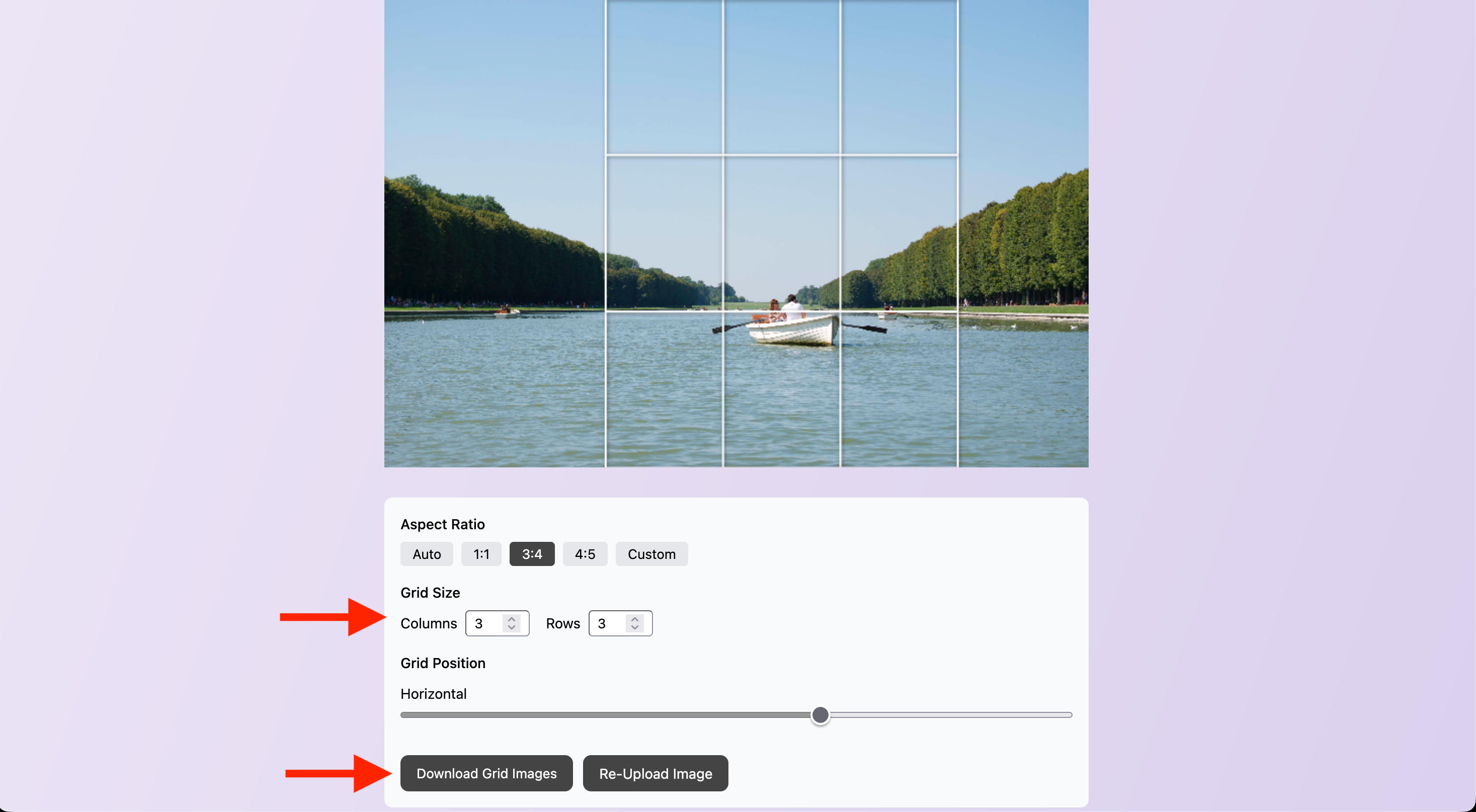
Don’t forget to upload them in reverse order, so that the bottom photos of the grid are posted first.
Carouselmaker.co
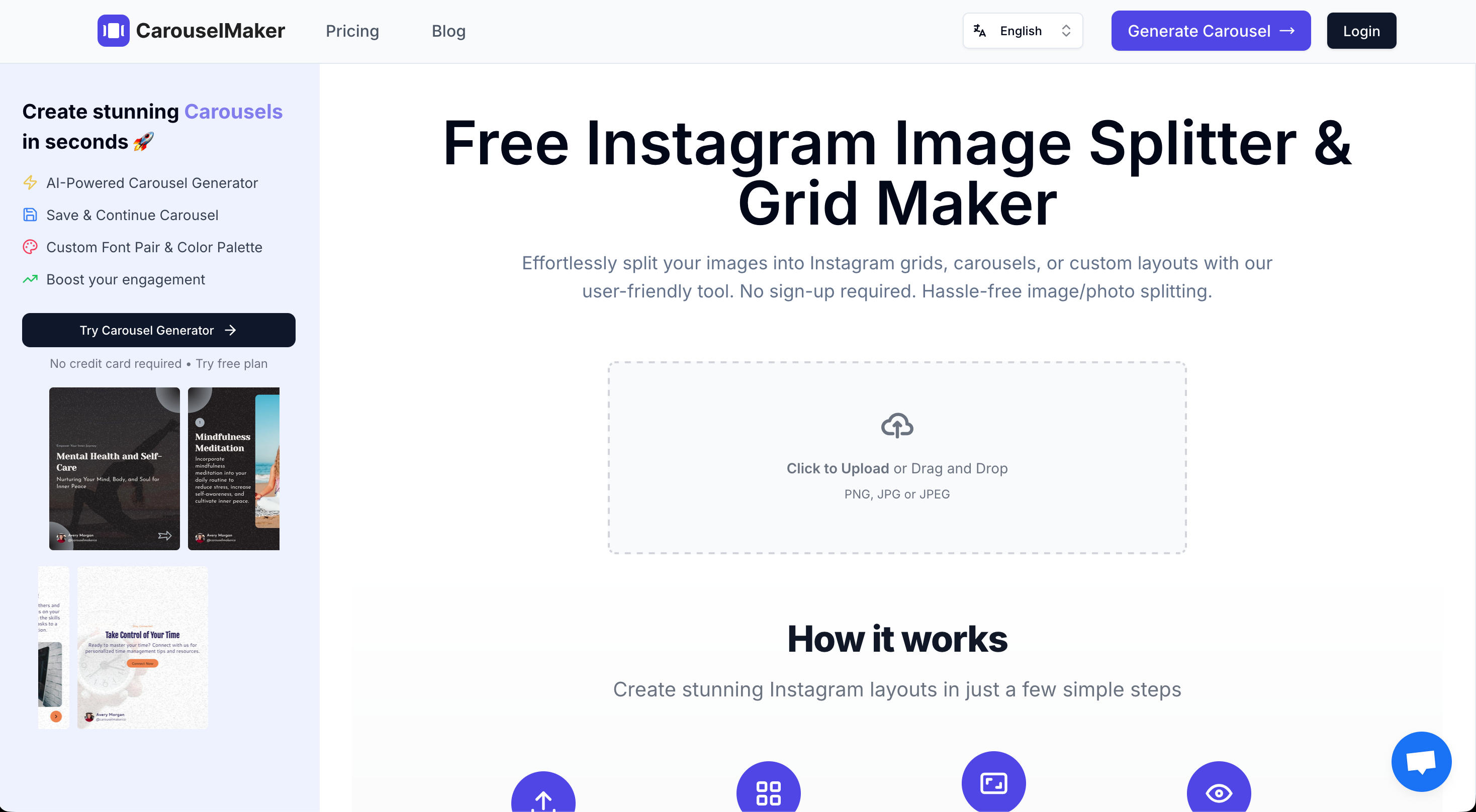
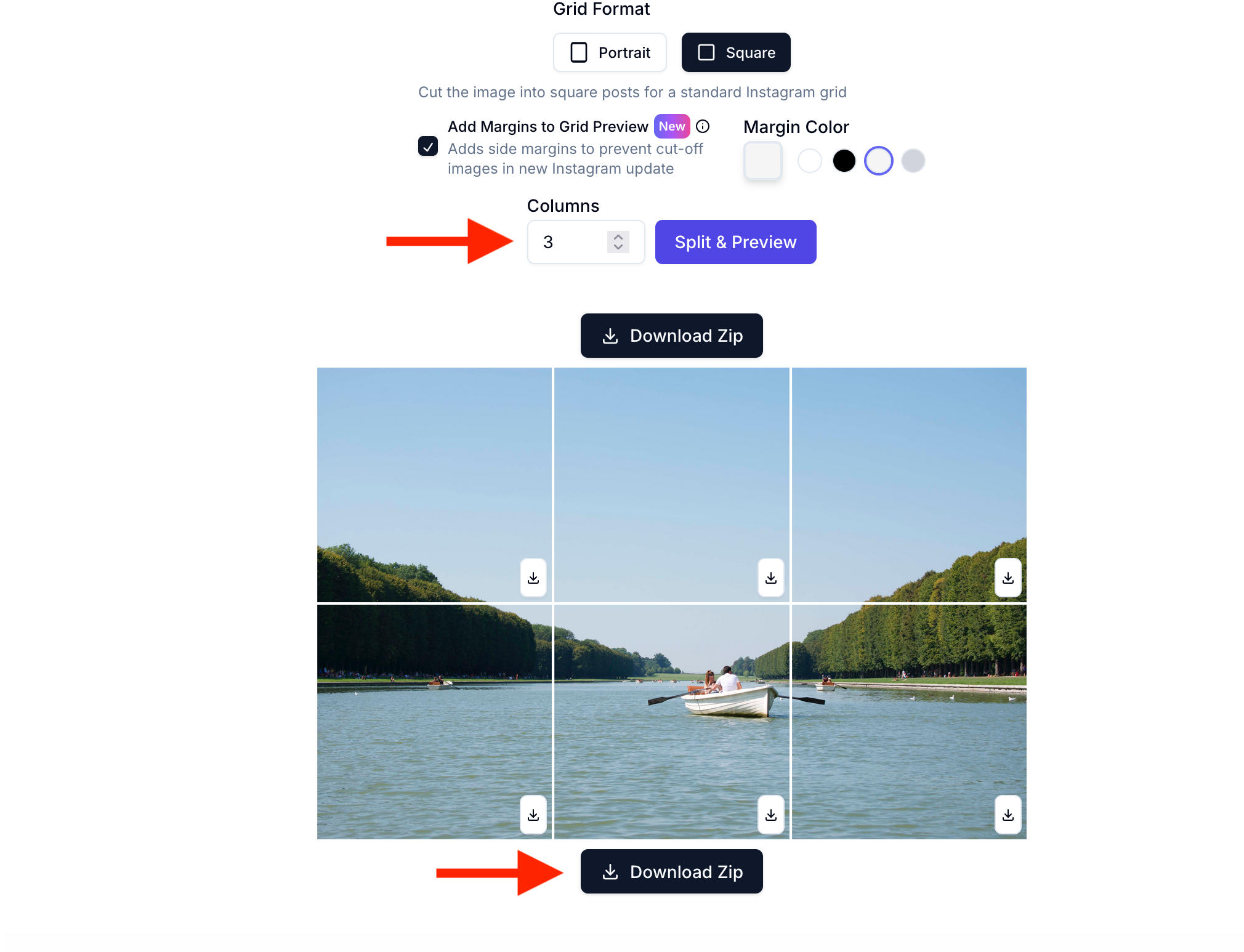
Carouselmaker.co is another solid free option for creating both Instagram grids and carousel posts.
Start by uploading your image and selecting Grid.
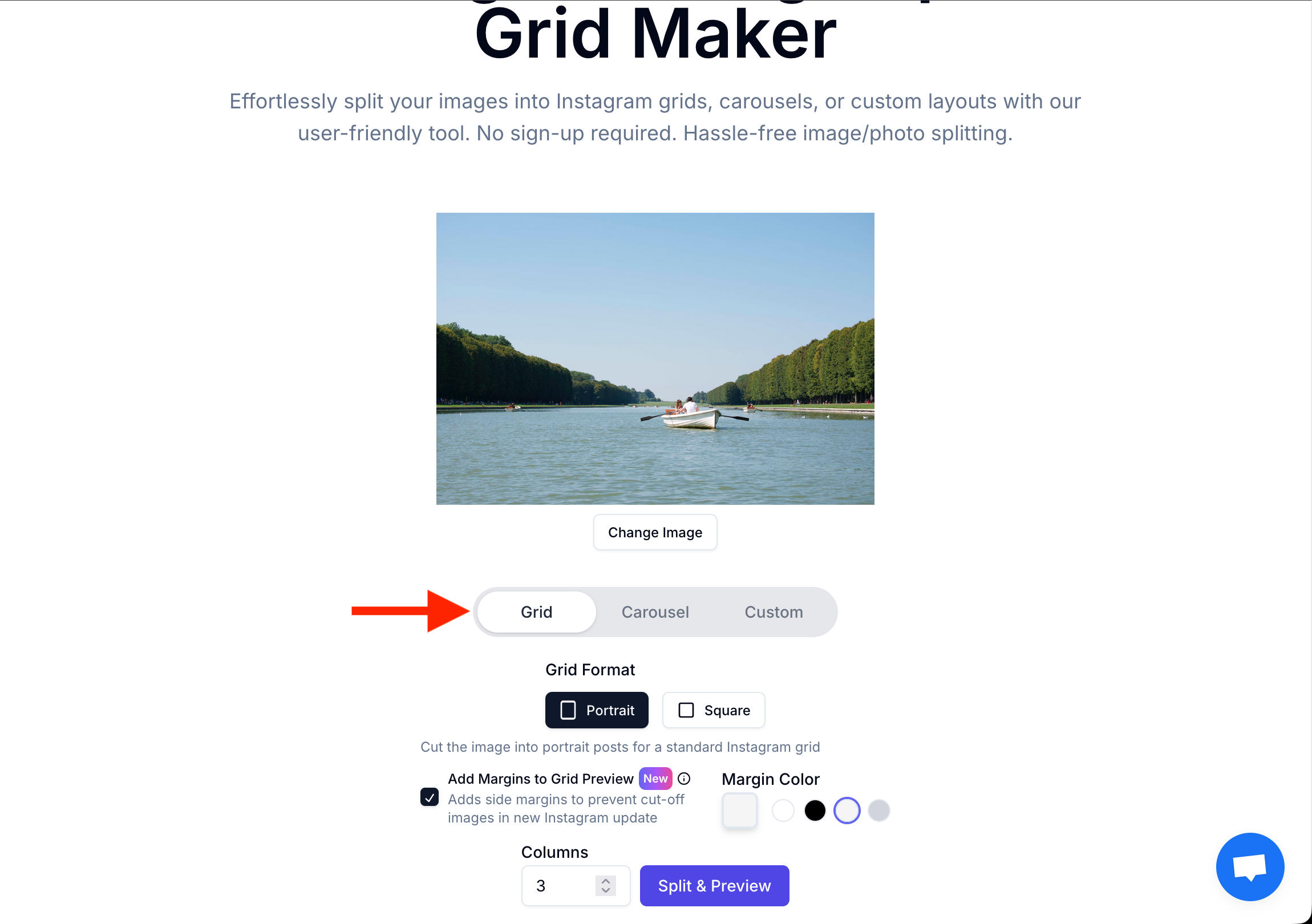
You can also choose the number of columns you want, the grid format, and the margin colors.
When you’re ready click Split & Preview, then scroll down.
If you’re happy with the results click Download Zip and you’ll receive a ZIP folder containing each of the separate images.
Imagy.app
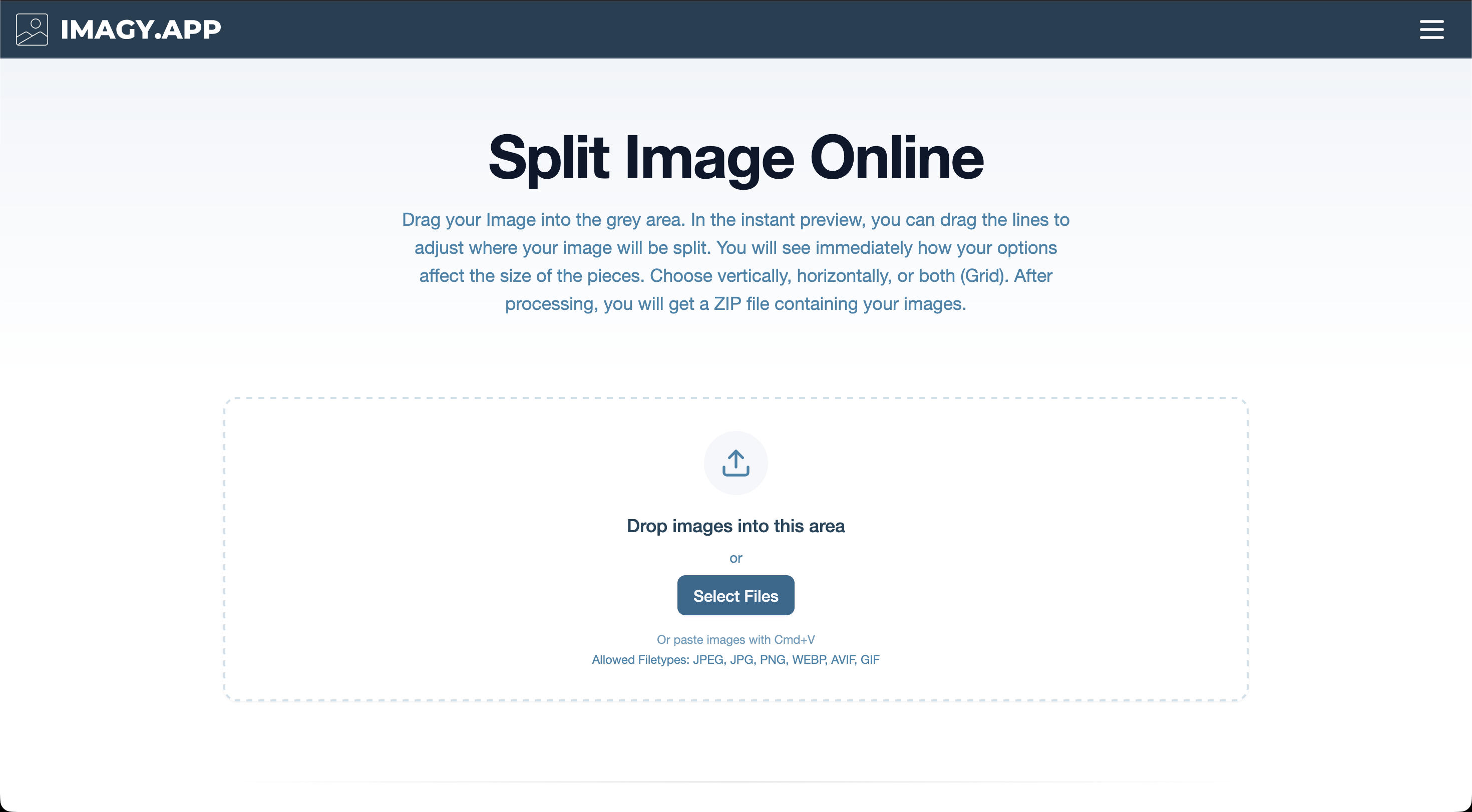
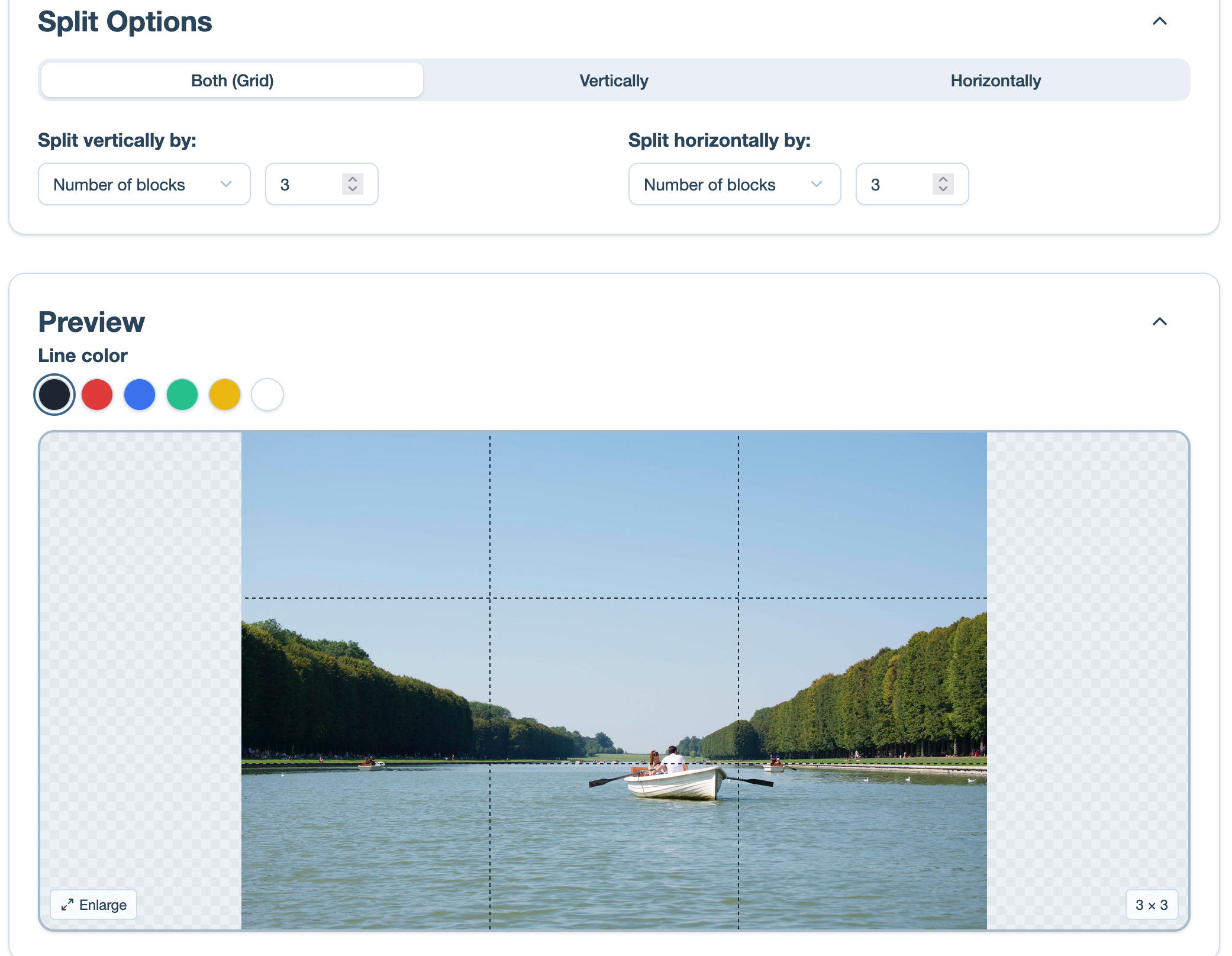
You can also use Imagy’s image splitter the same way you would any drag and drop site.
Upload your image and select the number of rows and columns you want in your grid. You can adjust the width and height of the lines manually.
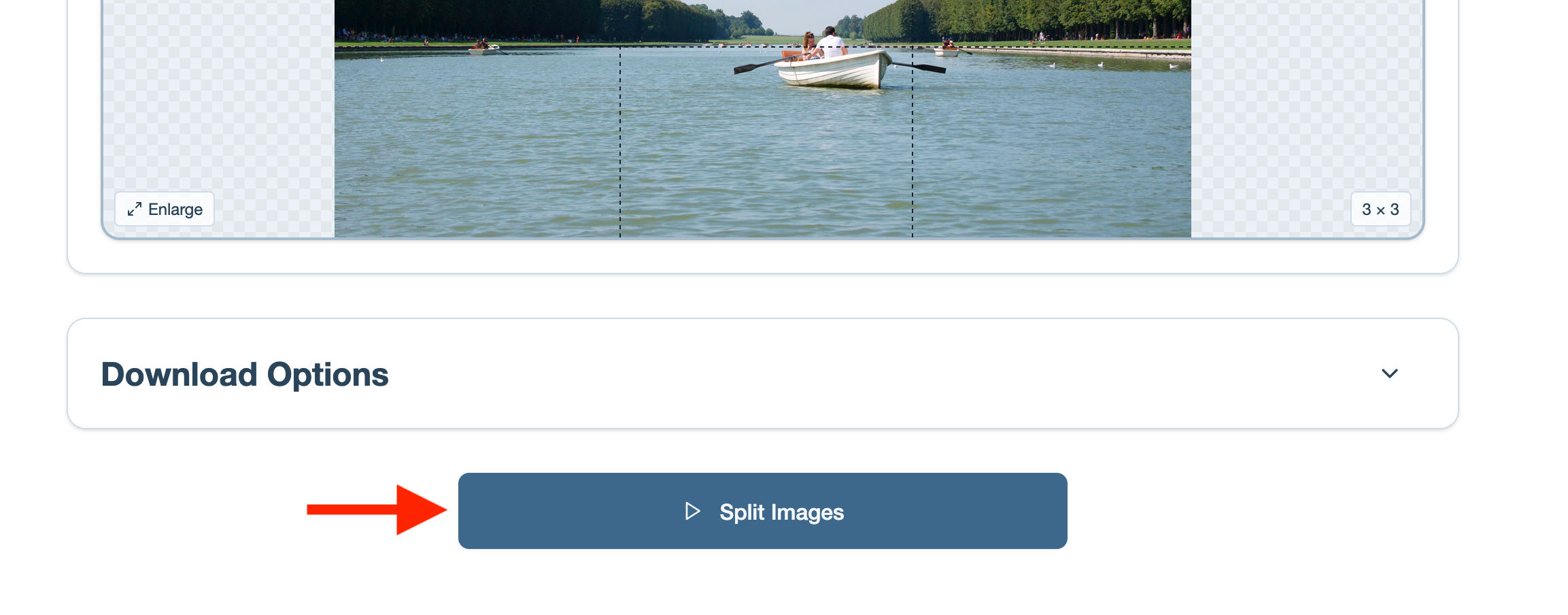
When you’re ready, click Split Images and you’ll receive a ZIP file with each image for your grid.
PhotoSplit
If you prefer a mobile option, check out PhotoSplit. There’s a free trial for new users, so you can get a few grids out of it before it prompts you to pay.
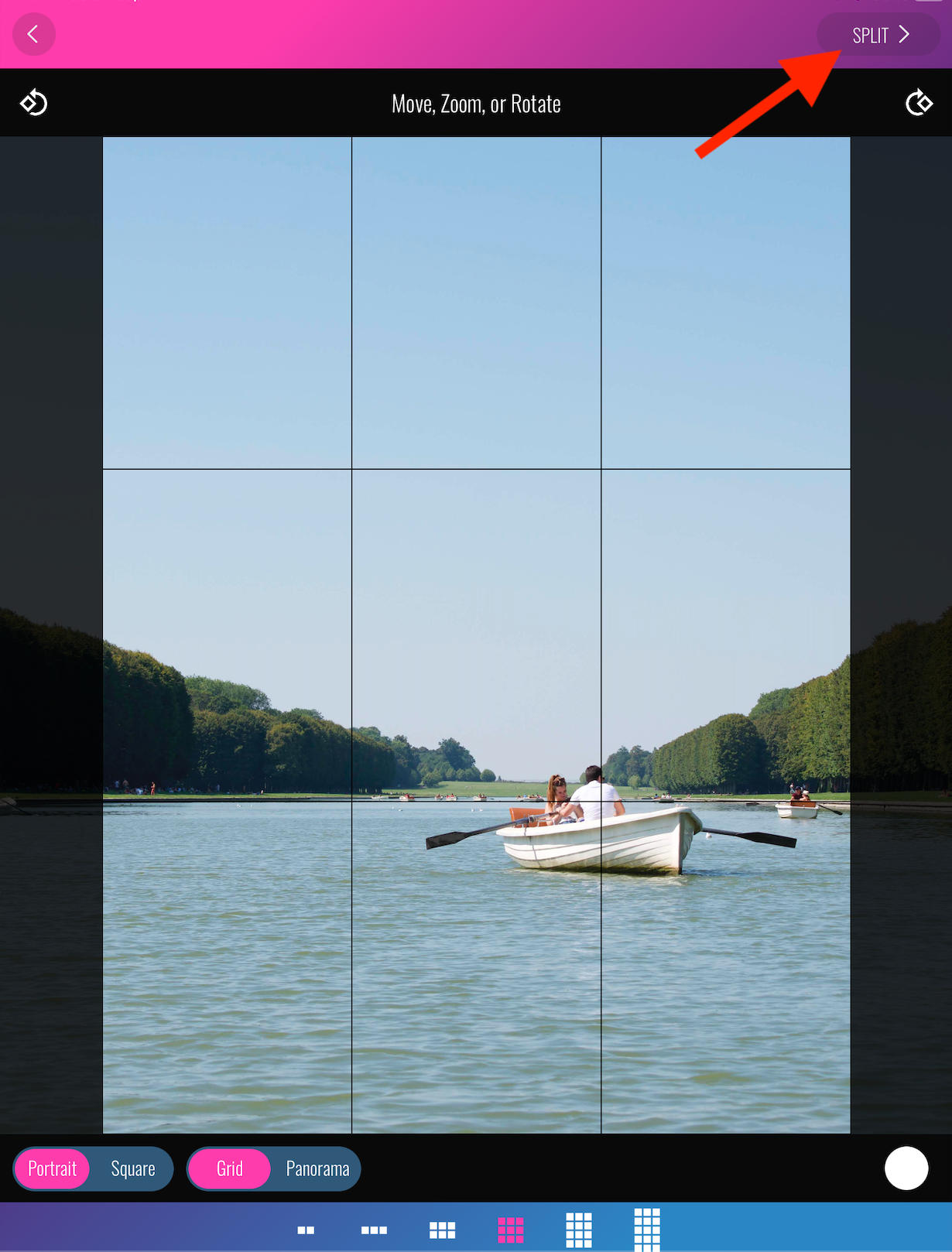
Start by choosing your photo.
From here, select either Portrait/Square or Grid/Panorama.
At the bottom you can choose the grid size and layout that you want.
You can also drag the image around, zoom in or out, and rotate it depending on how you want it to look in the grid.
When you’re ready, tap Split at the top right.
Canva
Another free option for either desktop or mobile is Canva.
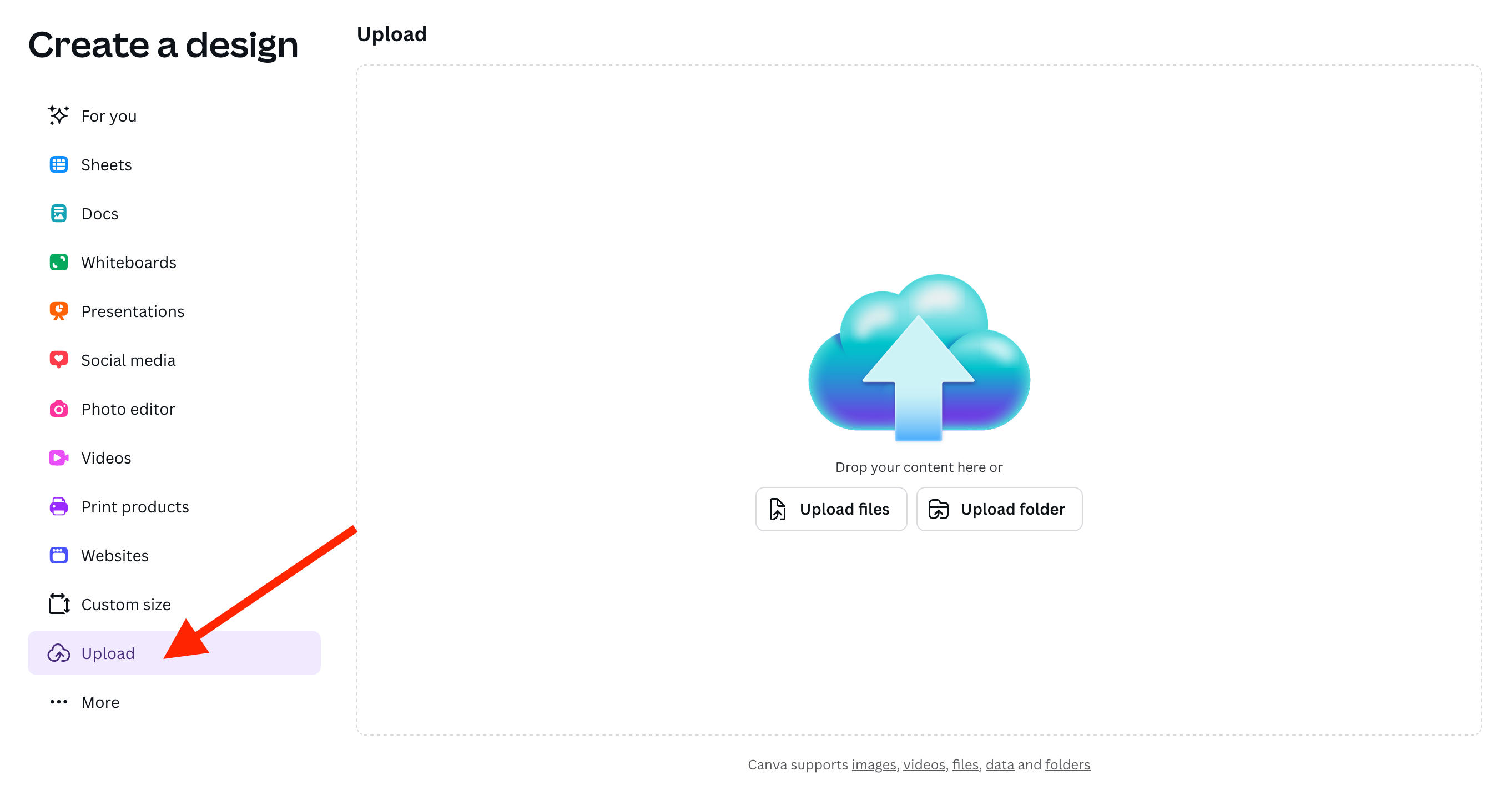
To create a grid of your images, start by clicking Create Design and uploading your photo.
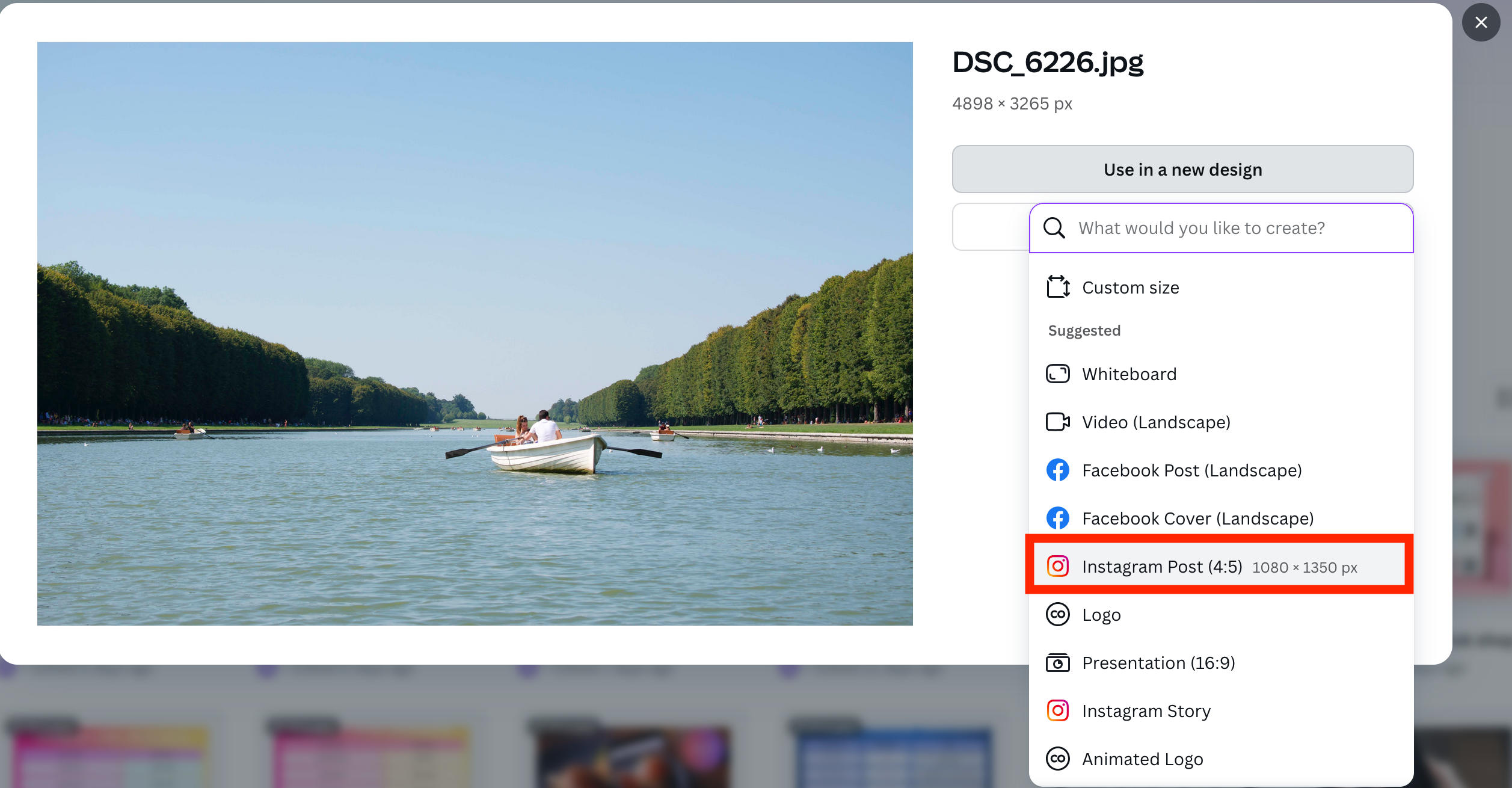
From here, select Use In A New Design then select the Instagram Post (4:5) option to generate a template for an image 1080 x 1350 px in dimension.
Once the image is ready, resize it to fill up the entire canvas.
Click Share, then click Download > Download.
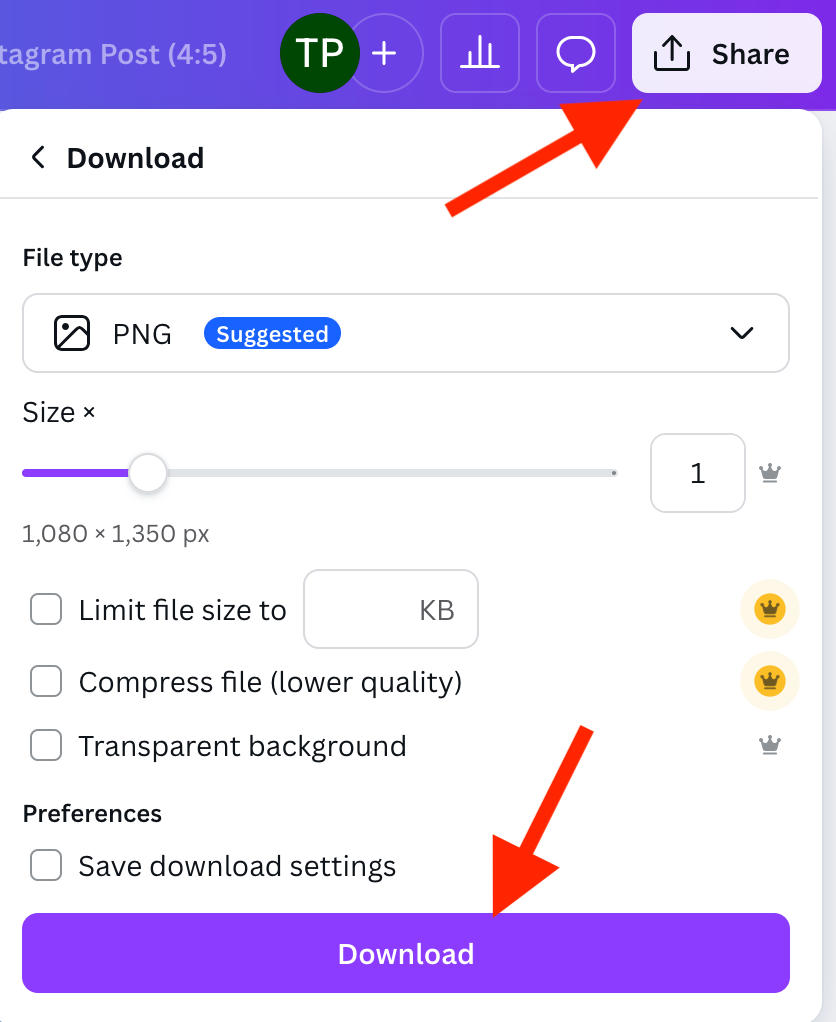
From here, click on Apps and search for Image Splitter then click Open.
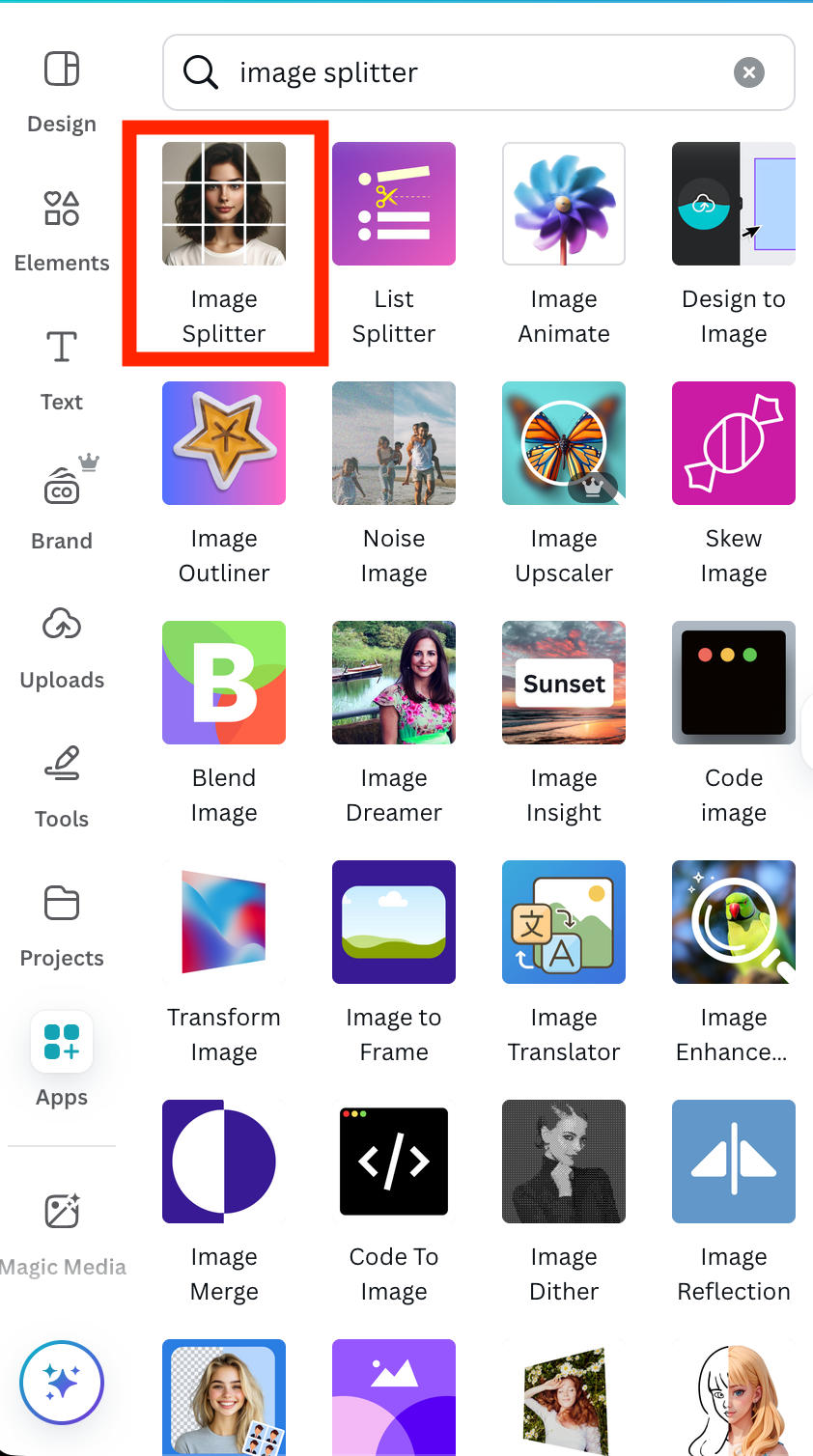
Click Choose File, then select the image you just downloaded.
You can adjust the number of columns and rows, and when you’re ready click Split Image.
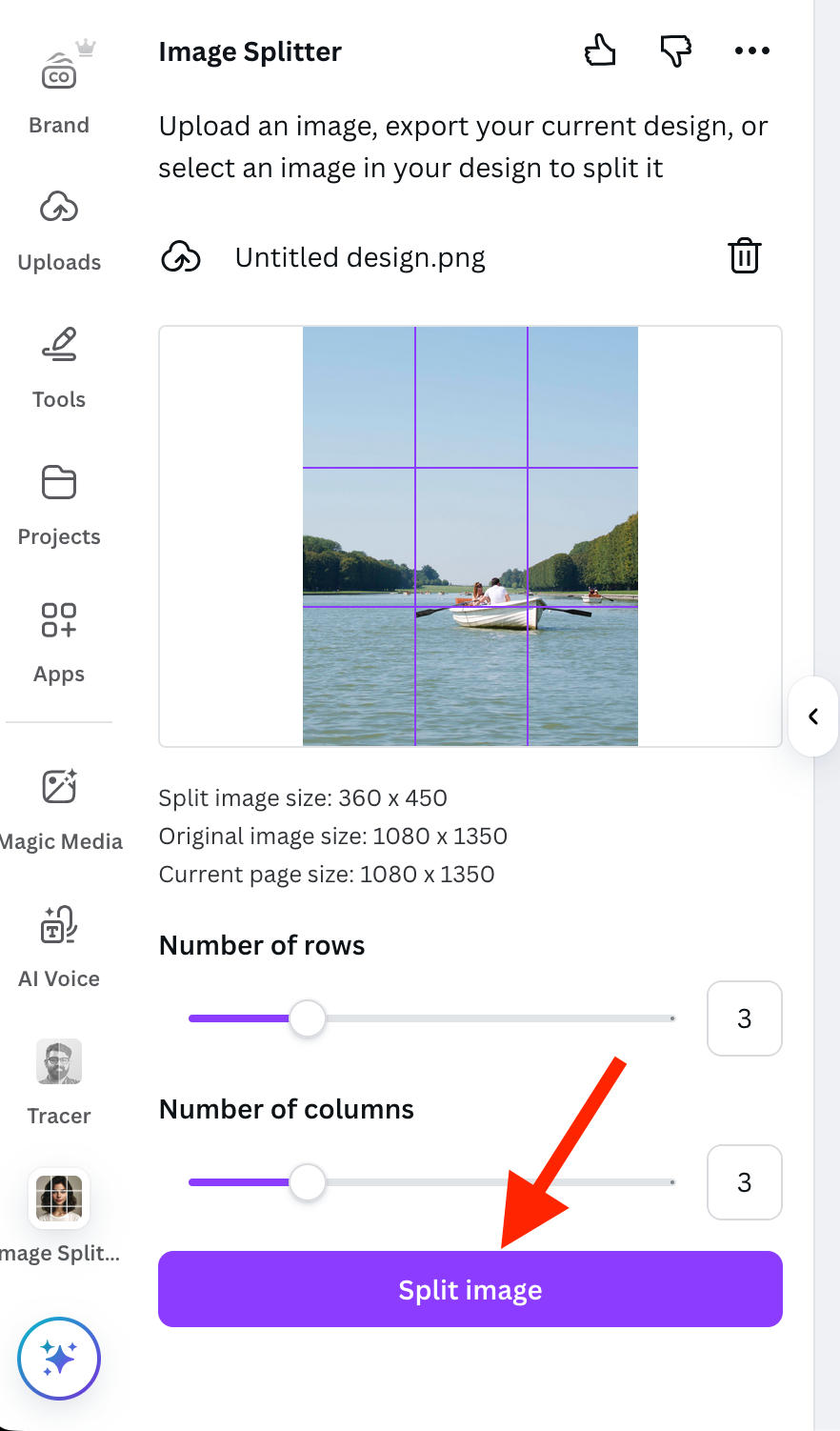
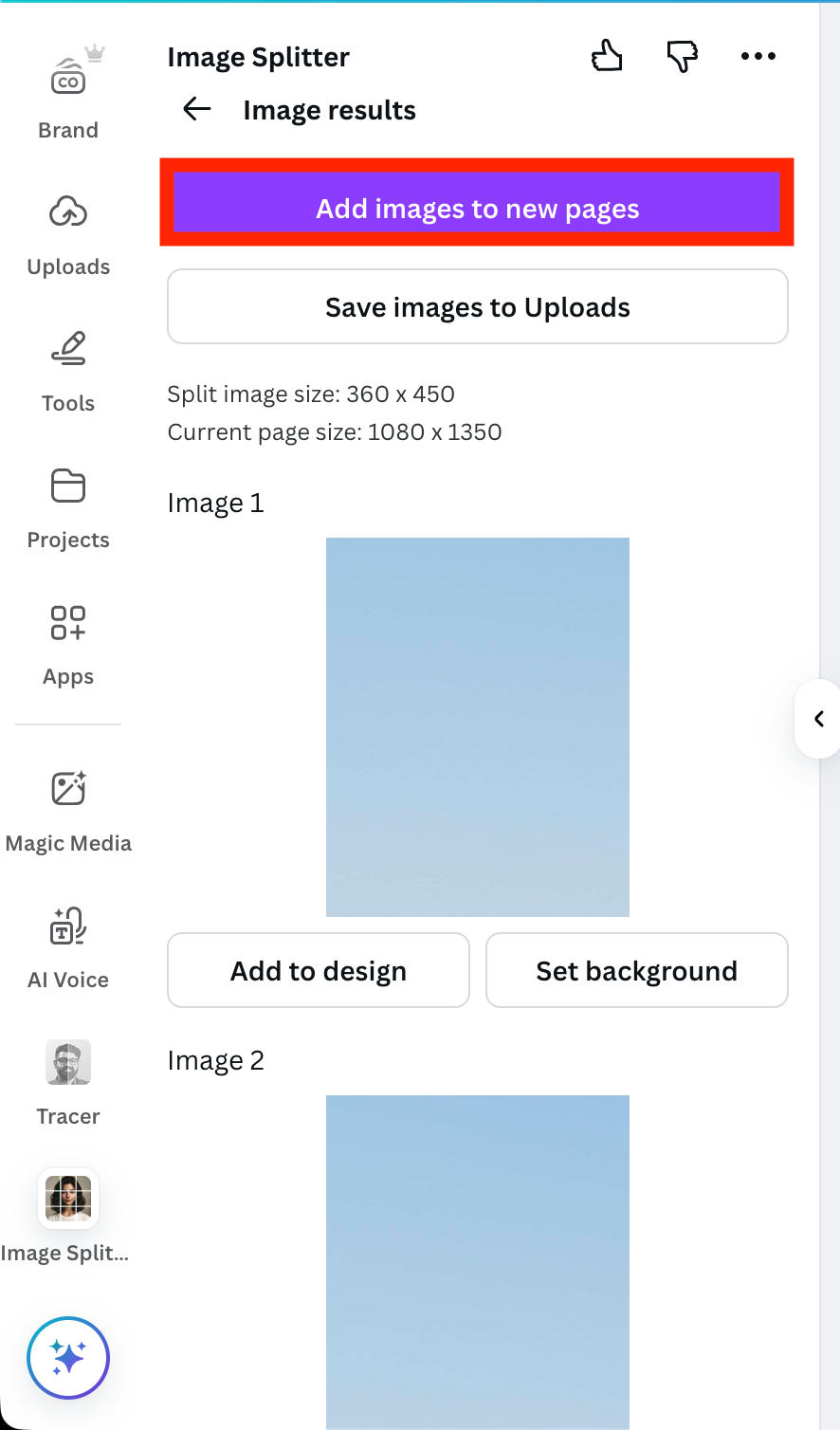
Next click Add Images To New Pages. They will be added beneath the main image.
Click Share > Download > Download again, and you’ll receive a ZIP file with all of the split images.
Can I Split Images Directly In Instagram?
No, there is currently no way to split images directly within the Instagram app, so you’ll have to opt for one of the third party apps or sites mentioned above.
You can also manually split an image using a photo editing tool, but this might be more labor intensive.
How To Make A Seamless Panorama Carousel On Instagram
Have you ever seen a carousel post that seems to seamlessly slide between sections of the same image?
You can easily make one of these yourself using Canva.
First, click Create and choose the Custom Size option on the bottom left.
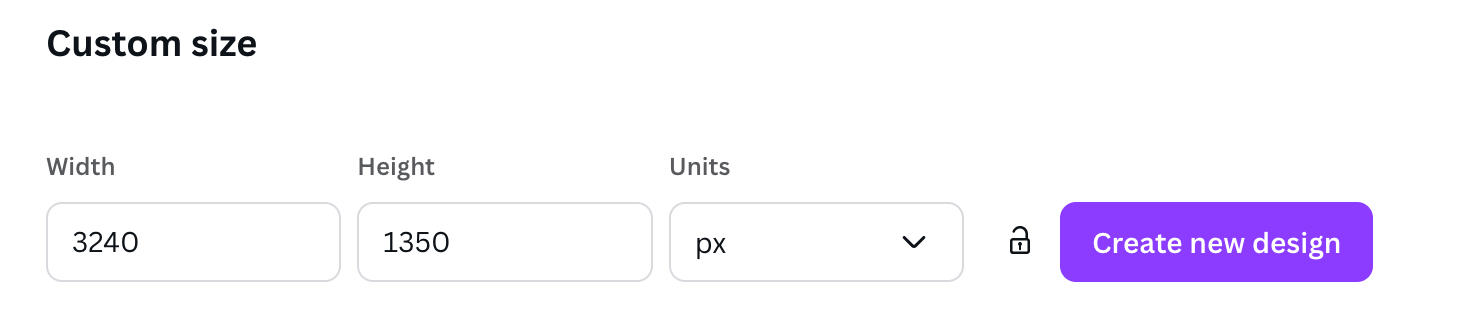
From here, input a width of 3240 px and a height of 1350 px, then click Create New Design.
Upload your image and stretch it to fit the canvas.
From here, click Share > Download > Download to save the image.
Then, click Apps and search for Image Splitter, if you don’t have it already.
From here, upload the photo you just saved and change the number of rows to 1 and the number of columns to 3.
Click Split Image, then click Save Images To Uploads.
Go back to the Canva homepage and click Create and search for Instagram Post. Select the option that’s 4:5 and measures 1080 x 1350.
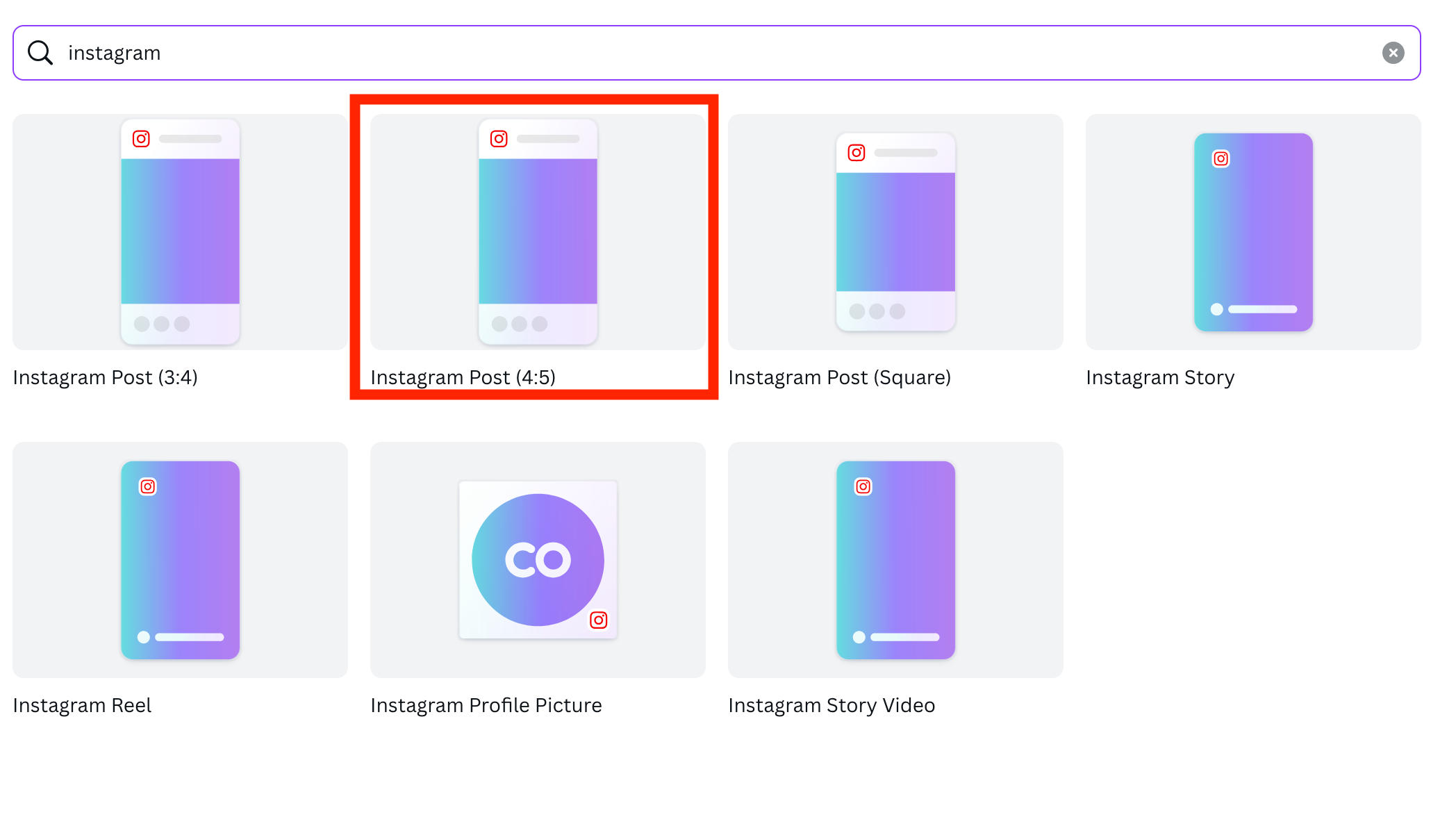
From here, click Uploads and select the first part of the image, then add a new page and repeat until you have all the slides in order.
Click Share > Download > Download to get a ZIP file with the images.
Then go on Instagram and create a new post and upload the three images in order.
When your post is published, you will be able to seamlessly slide between images as if it was one long panoramic image.
How To Create A Multi Photo Collage On Instagram
Instagram Stories also have some interesting layout options, namely multi-photo collages.
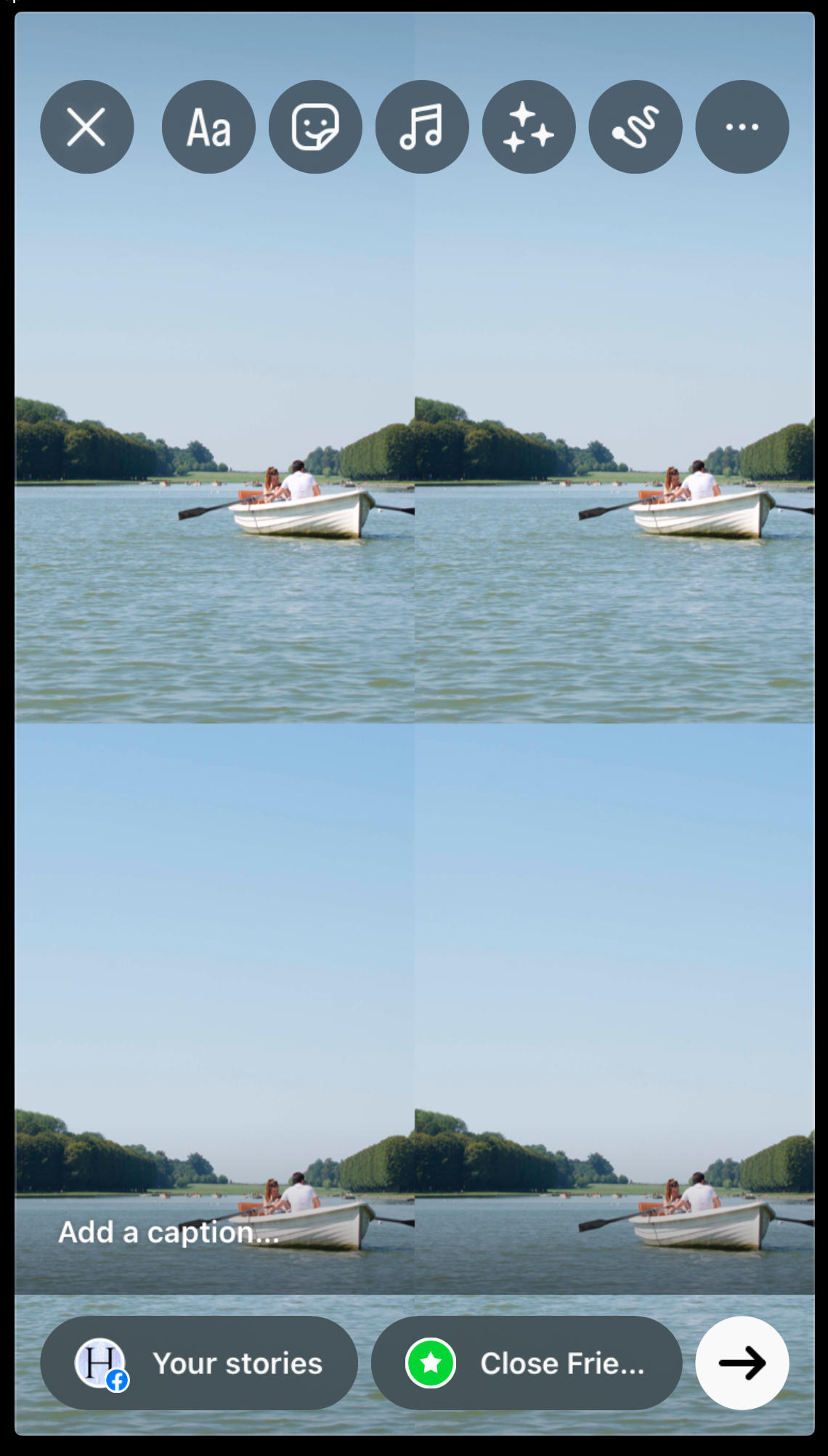
To create one, tap the New Post button at the bottom of the app.
Swipe right to Story, then tap Layout.
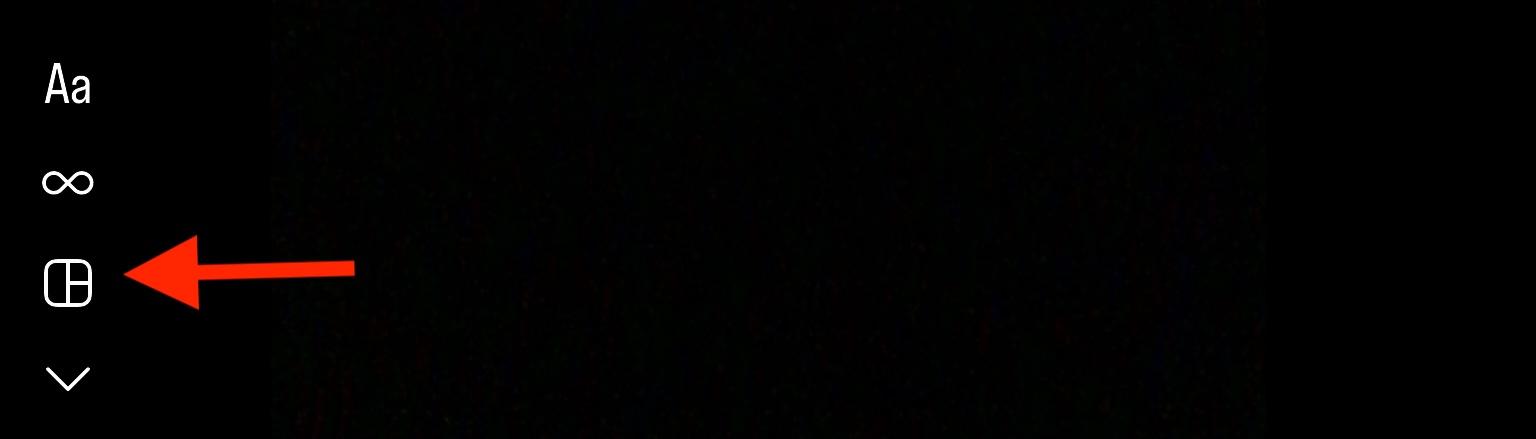
Choose your preferred layout design, then either snap a photo or tap the Gallery icon on the bottom left to select a photo from your device.
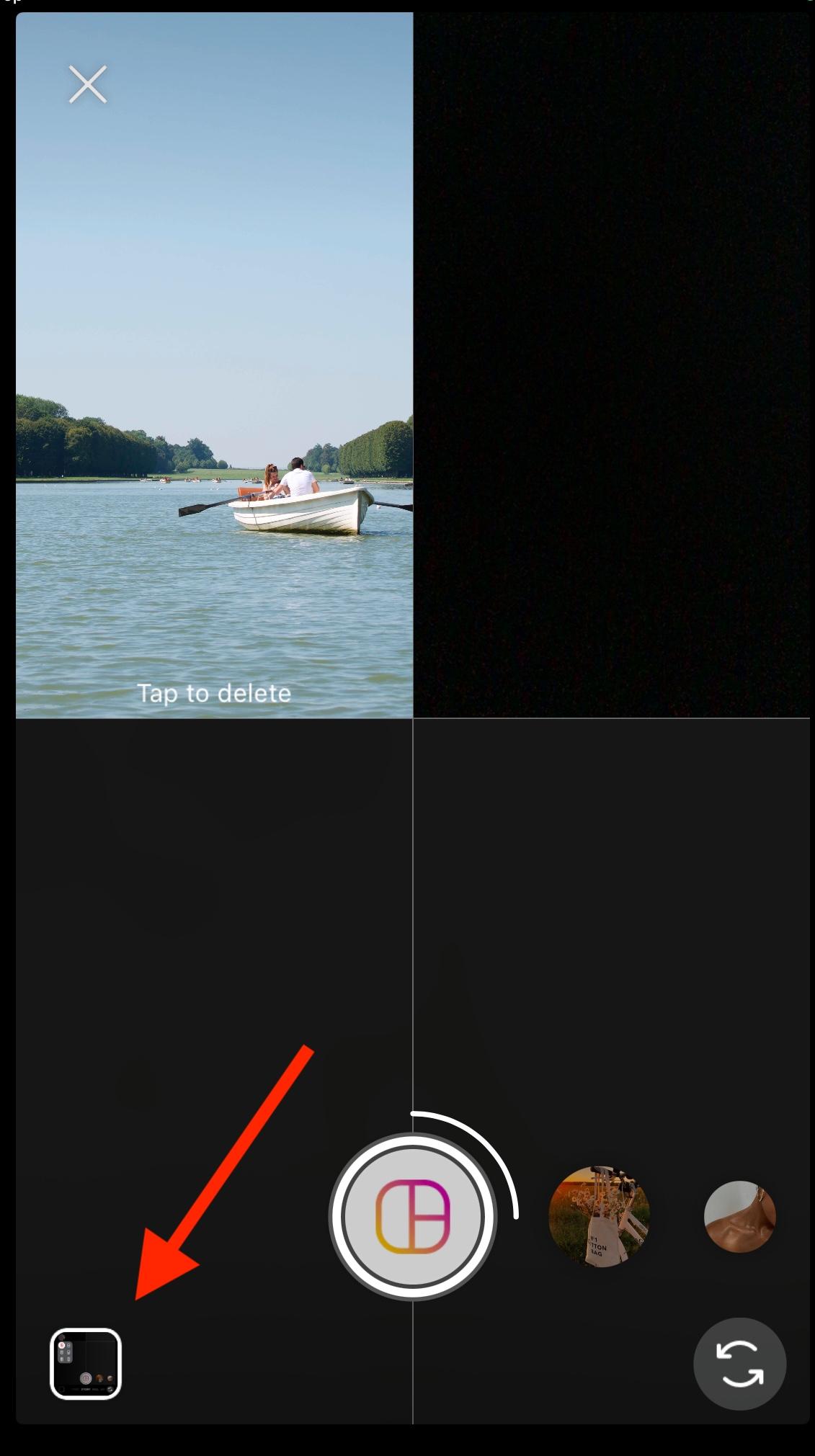
Repeat this as many times as needed to complete the collage and when you’re ready, click the checkmark to move on to add additional features to your Story, such as tags, gifs, drawings, and stickers.
Frequently Asked Questions
How do you resize photos for an Instagram post?
You can resize photos for your Instagram content by cropping it or using a resizer tool. Learn how to do this here.
Why do my pictures not fit in my Instagram post?
Every Instagram post type has its own size limitations, which you can learn about here. Make sure your image meets these requirements before you post it.
How to get the entire picture on Instagram with multiple pictures?
Learn how to create a split photo grid here.
How to make landscape photos fit on Instagram post?
Landscape photos can fit in an Instagram post, but you can make a bigger impact by creating a seamless carousel. Learn how here.
How to make full picture fit on Instagram profile from phone?
Learn how to resize any Instagram image from your phone here.
How do I split images into a box for an Instagram post?
Check out our guide here on how to split a single image into multiple posts.
How to make multilayered pics in Instagram?
Seamless carousel posts are a great way to highlight panoramic images. You can learn how to make them easily here.
How to make a puzzle Instagram feed?
Puzzle feeds, or split grids, can be made using a free photo splitter tool. Check out our recommendations here.
How to divide photos into squares for Instagram feed?
You can use Canva or a tool like Image2Grid, Imagy, PhotoSplit, or Carouselmaker to split up a single image into multiple Instagram posts.
Is there a collage option on Instagram?
Yes, but only for Instagram Stories. To create a regular photo post collage you’ll need to use a third party editing tool like Canva to create your collage post and then manually upload it to Instagram.
How to resize an image for Instagram without cropping?
You can use a variety of third party tools for this, like Snapseed or Instasize, depending on your preferences.
Is there an easy way to resize photos?
You can either crop the image on Instagram before you publish it, or you can use a website like Simple Image Resizer, or an app like Snapseed or Instasize.
How to share full size images?
Instagram will compress any large images that you share, to optimize them for the app’s feed. The maximum dimensions for an Instagram photo are 1080x1350px.
How do I post extra large images on Instagram?
You’ll either have to crop the image before posting, or compress it before you can upload it to Instagram.