Whether you want to prevent new users from finding your page or just put your group on hold for a while, today’s guide has everything you need.
Learn how to hide a Facebook page, group, or profile in just a few clicks. Plus, privacy tips and advice on how to increase quality engagement fast.
Key Points:
Facebook Pages
On Facebook, there are two ways to hide a page: deactivating or unpublishing. Learn how to deactivate a Facebook Business Page or unpublish it by following the steps outlined below.
How To Hide A Facebook Page On Mobile
Switch into the page profile via the Facebook mobile app and tap your profile picture.
Tap Settings & Privacy > Settings.
Scroll down to Your Information and tap Access And Control.
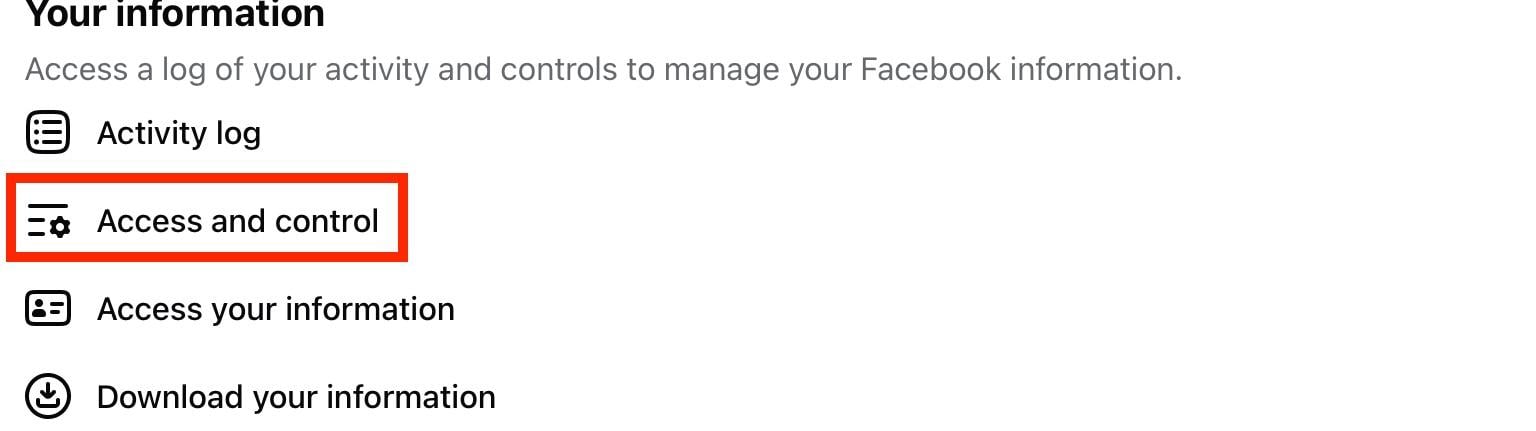
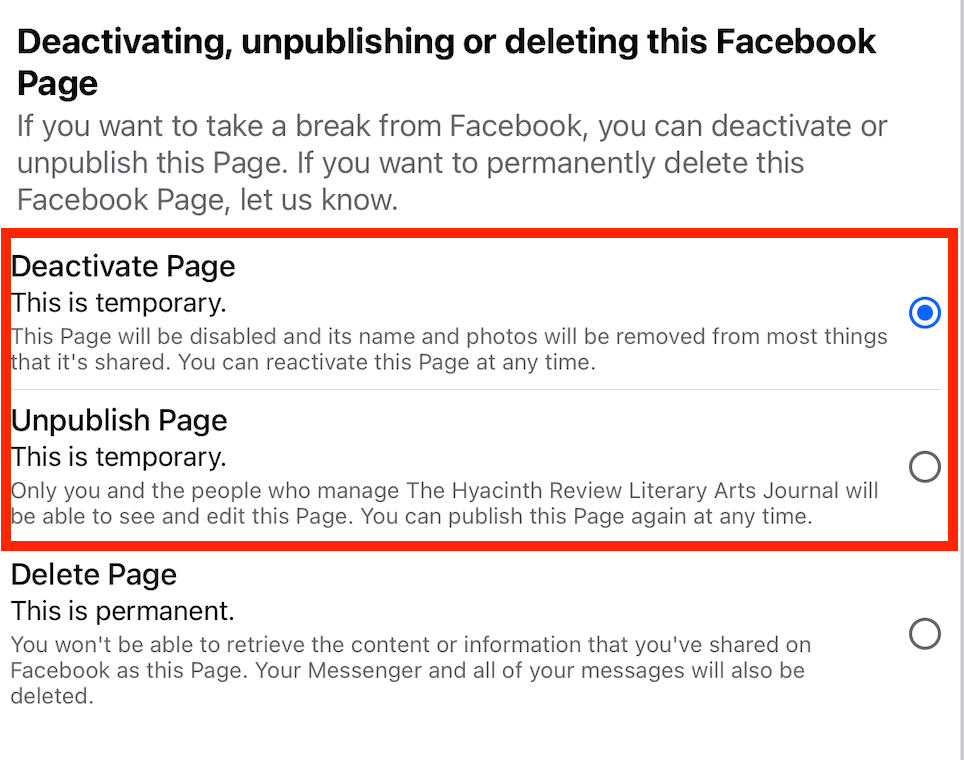
Choose either Deactivate Page or Unpublish Page, then tap Continue.
How To Hide A Facebook Page On Desktop
Switch into the page profile via the Facebook desktop site.
Click Settings & Privacy > Settings.
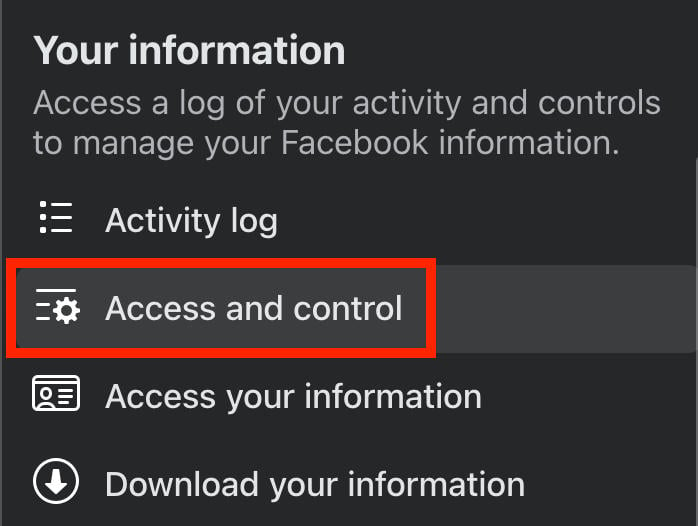
Scroll down to Your Information and click Access And Control.
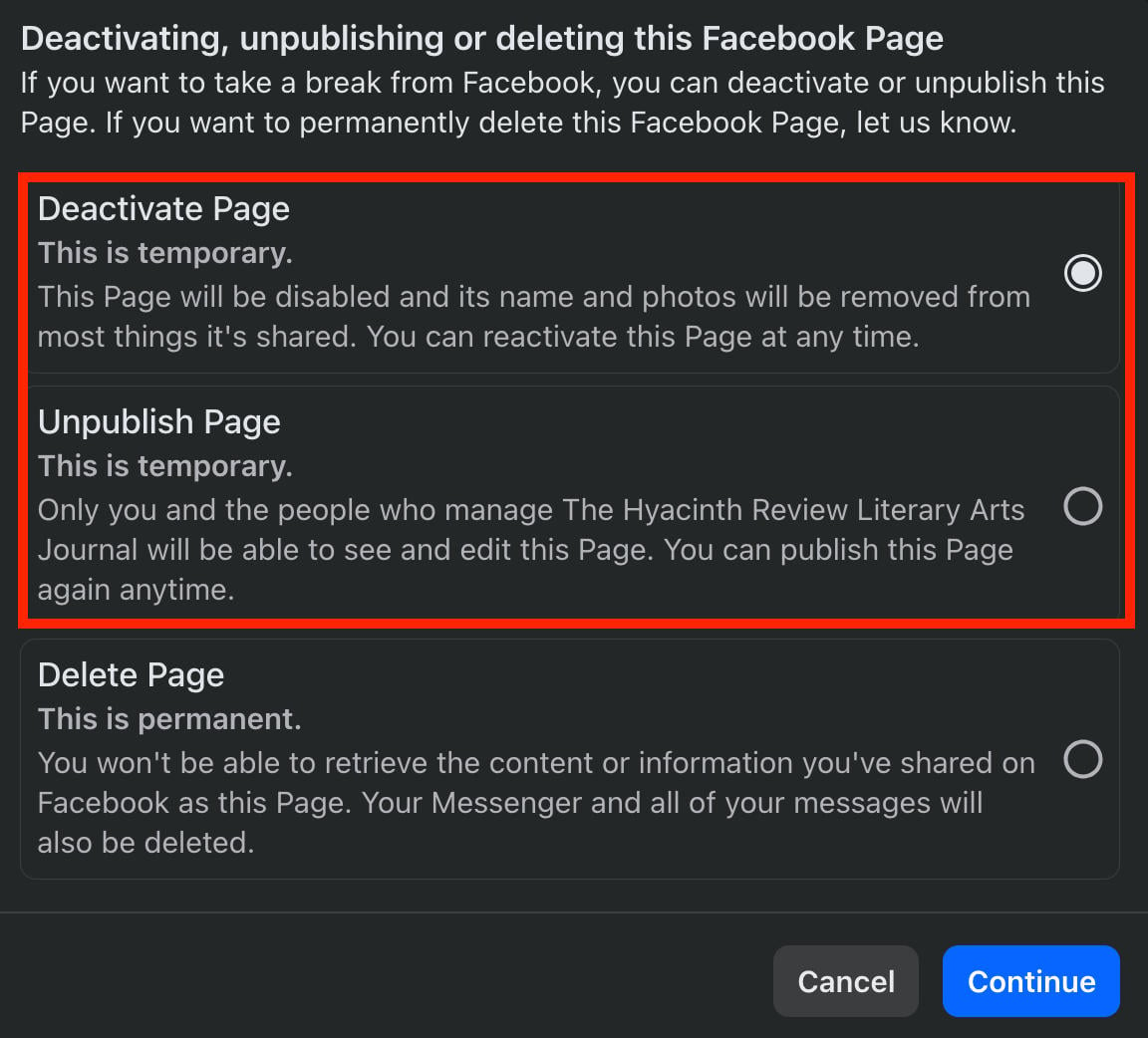
Choose either Deactivate Page or Unpublish Page, then click Continue.
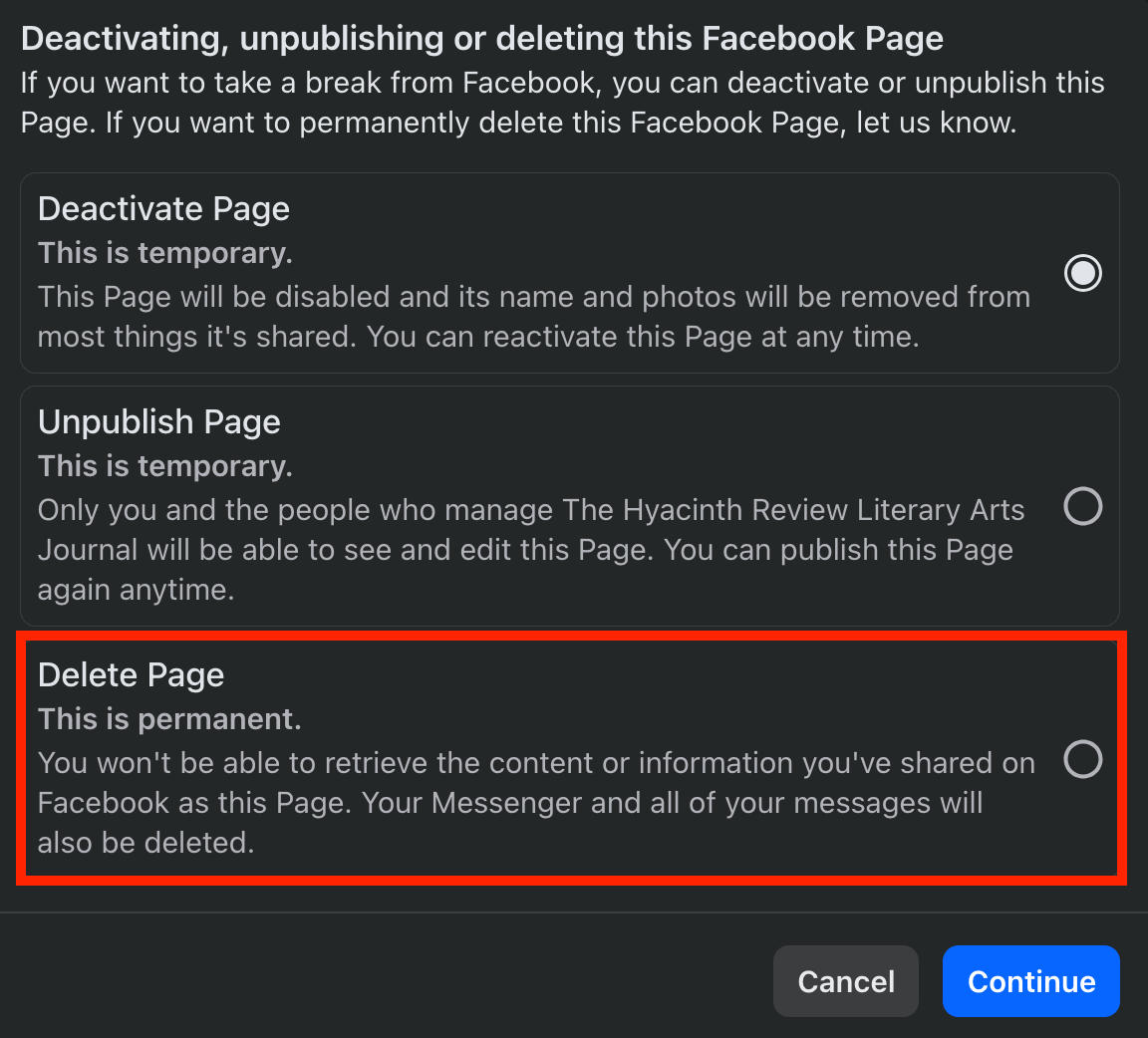
How To Delete A Facebook Page On Mobile
Switch into the page profile via the Facebook mobile app and tap your profile picture.
Tap Settings & Privacy > Settings.
Scroll down to Your Information and tap Access And Control.
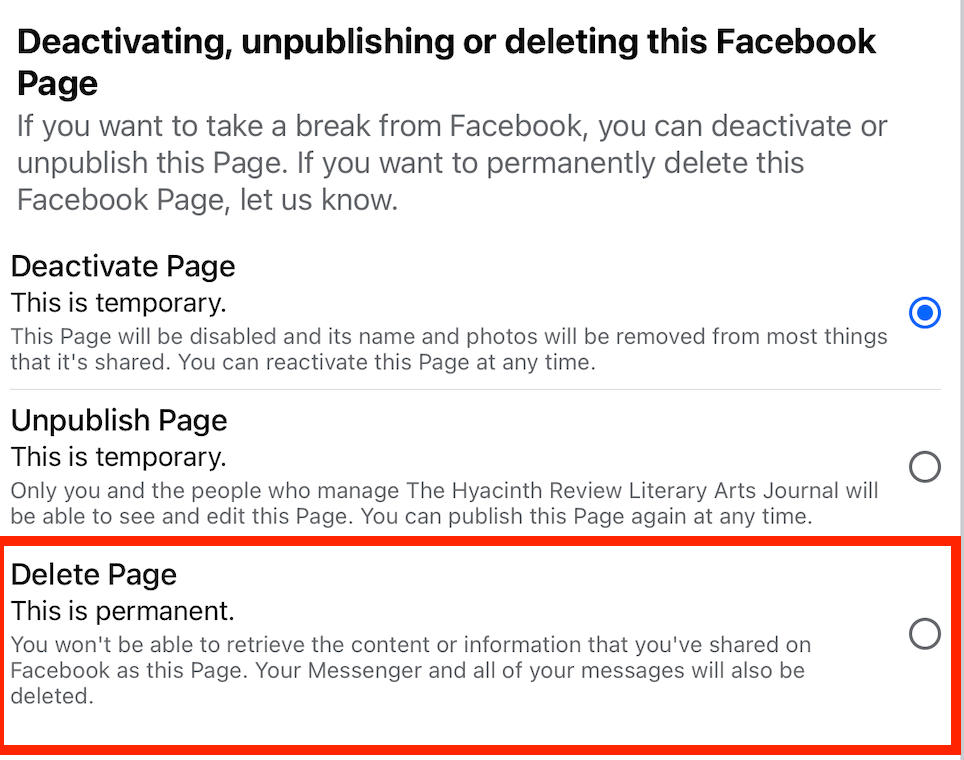
Choose Delete Page, then tap Continue.
How To Delete A Facebook Page On Desktop
Switch into the page profile via the Facebook desktop site.
Click Settings & Privacy > Settings.
Scroll down to Your Information and click Access And Control.
Choose Delete Page, then click Continue.
Facebook Groups
Facebook groups are a great way to build community around a brand or hobby, but if you're overwhelmed by the number of users posting in the group or if you just want to keep things a little more exclusive, you can hide your group or delete it outright.
How To Hide A Facebook Group On Mobile
Open the group page on the Facebook mobile app.
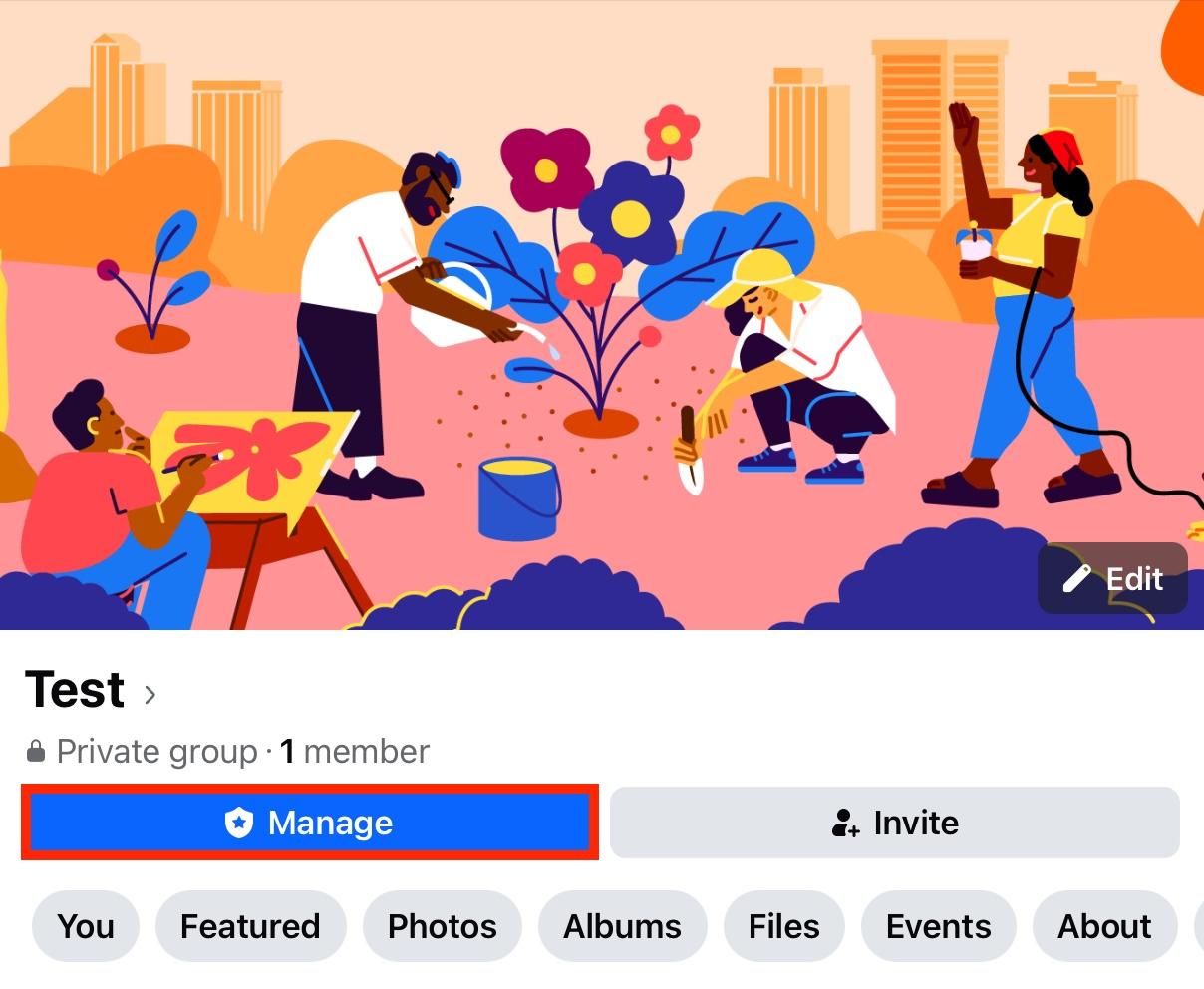
Tap Manage beneath the cover photo.
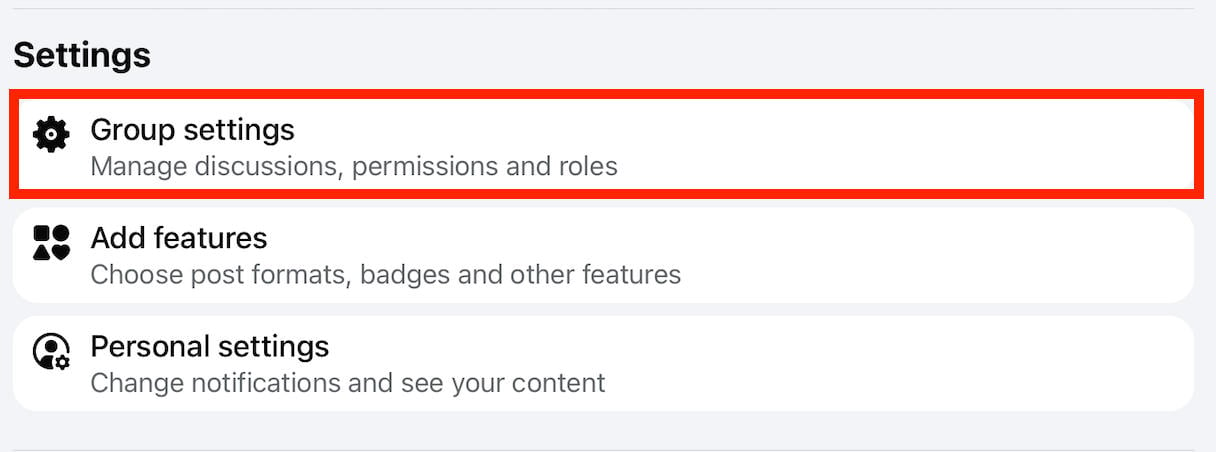
Scroll down to Settings and tap Group Settings.
Tap Hide Group.
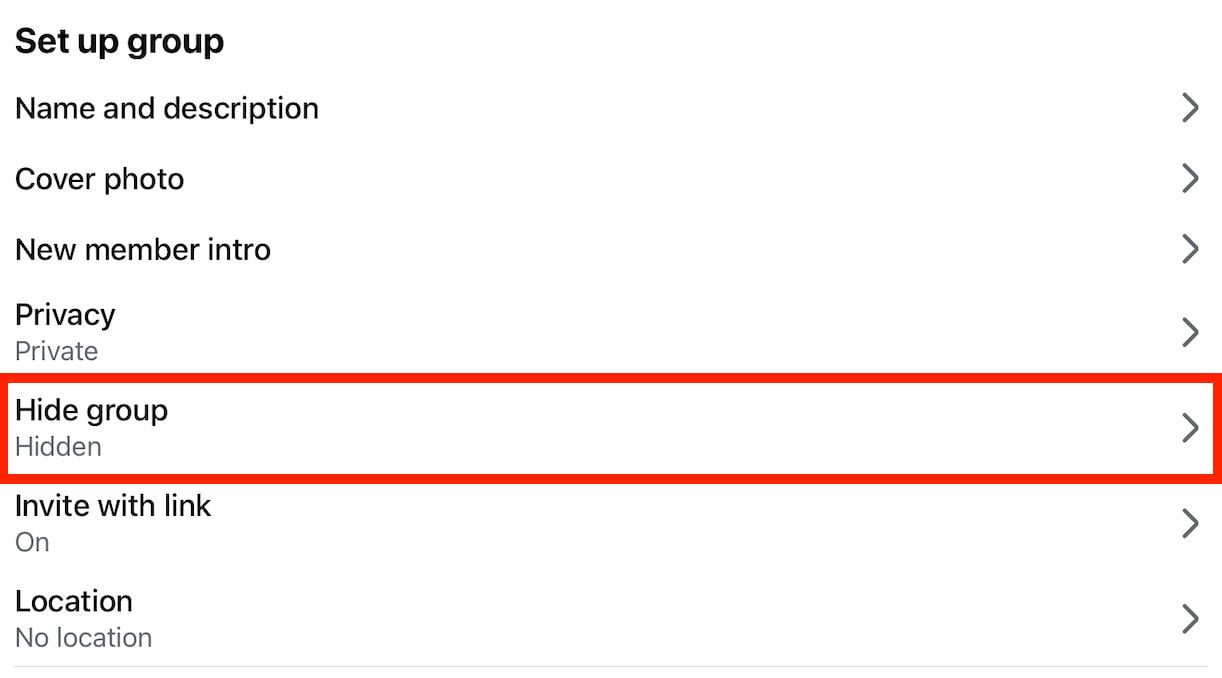
Select Hidden then tap Save.
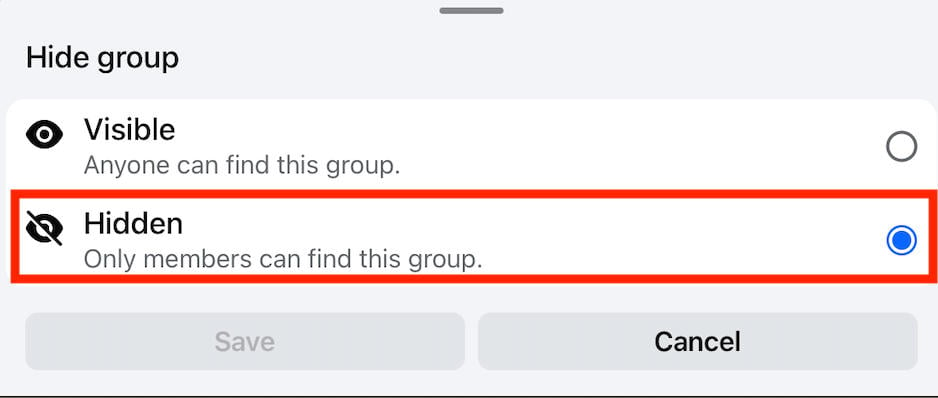
Once the change is confirmed, only existing members of the group can find it, or users who have been given an invite link.
How To Hide A Facebook Group On Desktop
Open the group page.
On the left-hand menu, scroll down to Settings and click Group Settings.
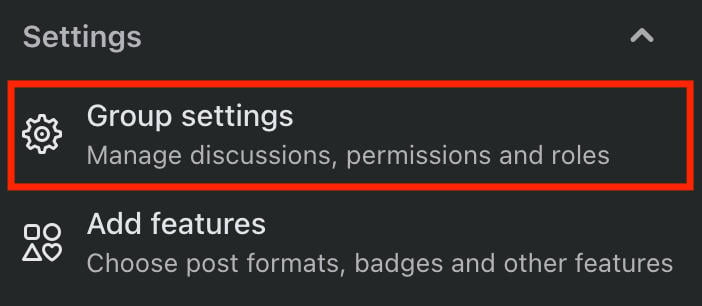
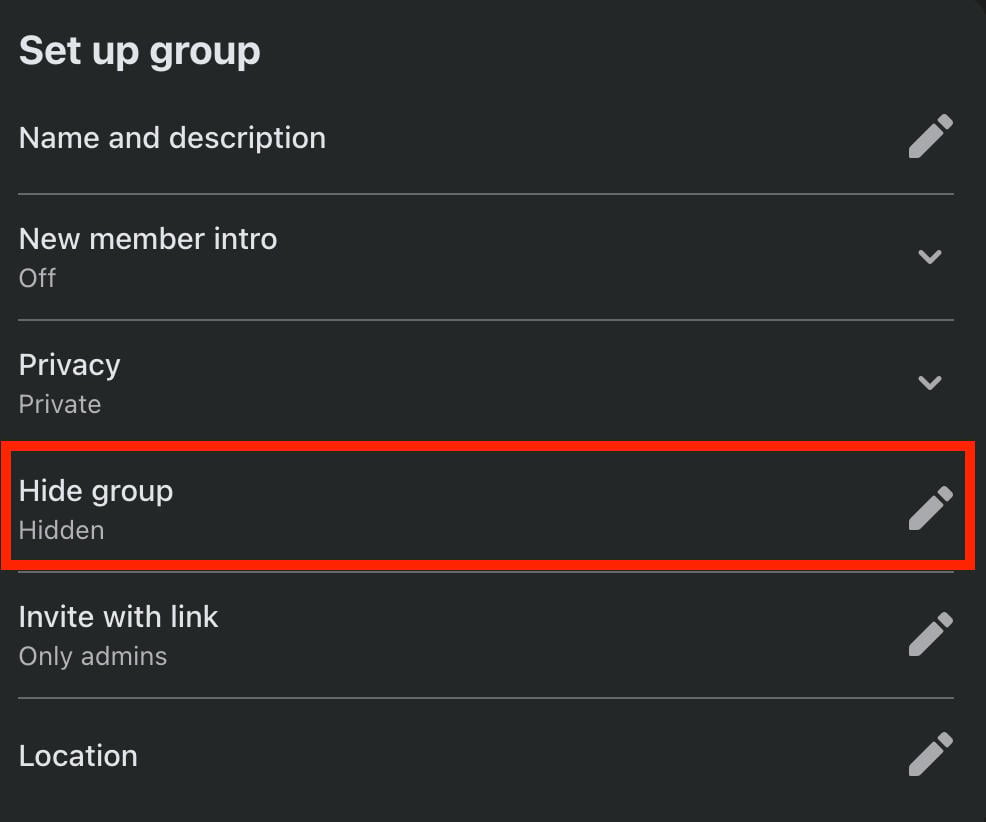
Click Hide Group.
Select Hidden then click Save.
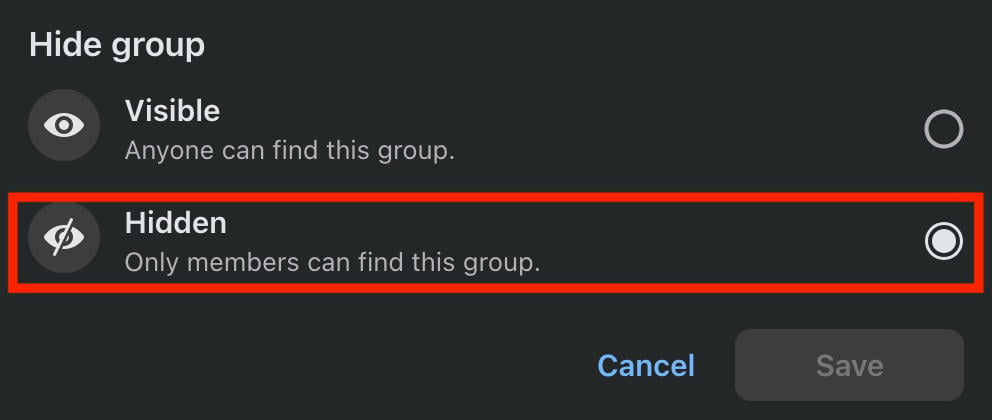
Once the change is confirmed, only existing members of the group can find it, or users who have been given an invite link.
How To Delete A Facebook Group On Mobile
To delete a Facebook group, you’ll first have to remove each member and then leave the group yourself.
To do this, open the group page on the Facebook mobile app.
Tap Manage beneath the cover photo.
Scroll down to Tool Shortcuts and tap People.
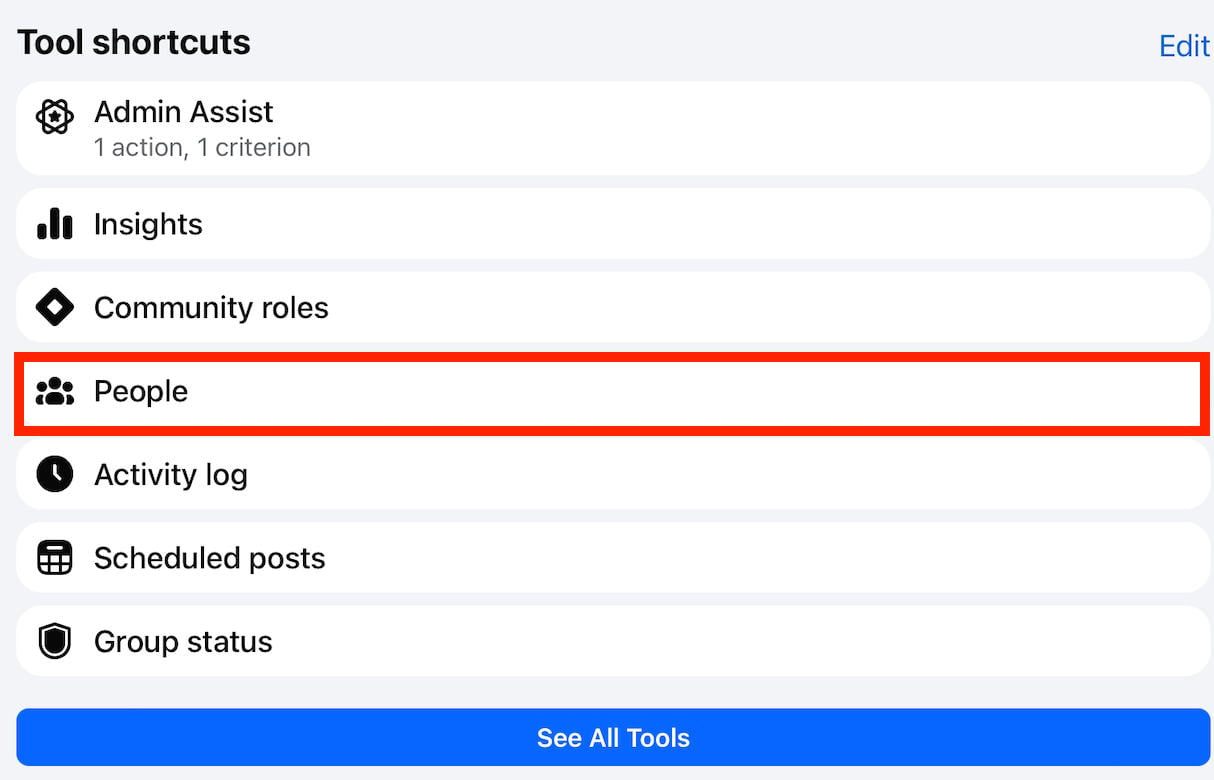
Tap the person you wish to remove and select Remove then confirm.
Repeat until you’ve removed every member.
Return to the main group page.
Beneath the group name, tap Joined.
Tap Leave Group and confirm.
How To Delete A Facebook Group On Desktop
To delete a Facebook group, you’ll first have to remove each member and then leave the group yourself.
To do this, open the group page.
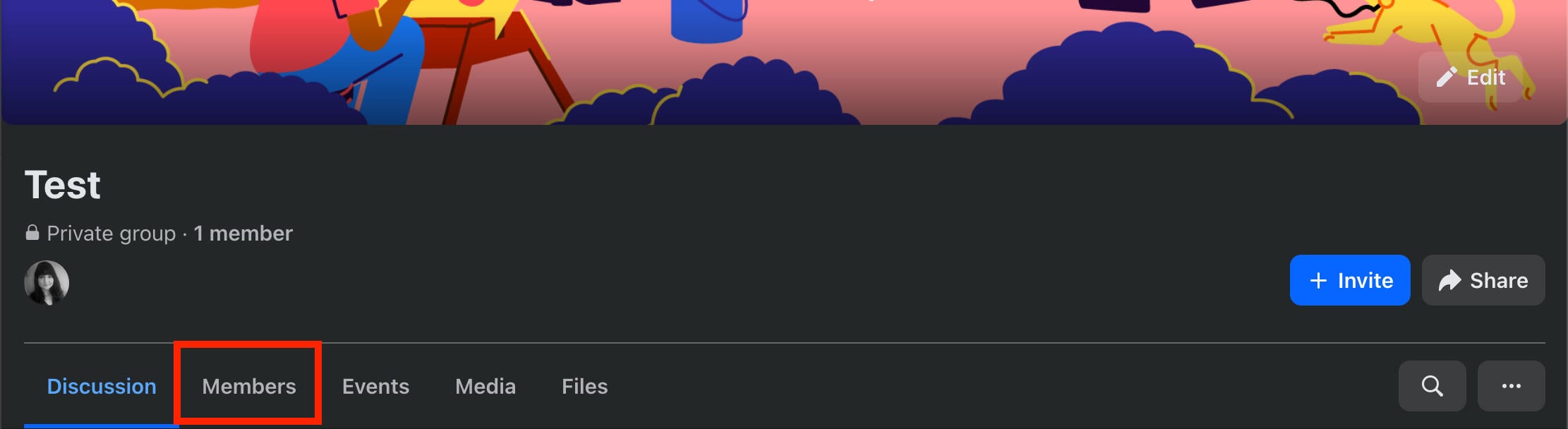
Click Members beneath the cover photo.
Click the three dots to the right of each members’ name and select Remove From Group.
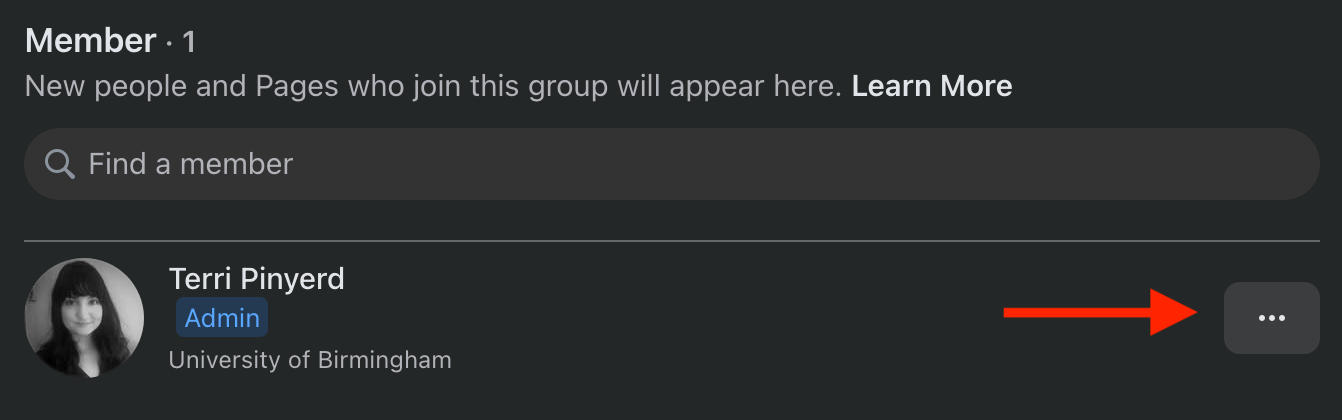
Repeat until you’ve removed every member.
Once you’re the last remaining member, click the three dots to the right of your own name and choose Leave Group.
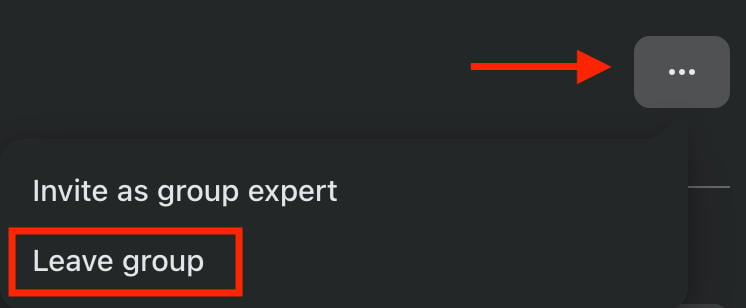
Confirm your choice.
Can I Deactivate Instead Of Deleting?
Facebook groups, unlike pages, don’t have a deactivate option.
Instead, you can either hide the page and stop posting which will effectively pause the group from new activity, or you can remove all members and leave the group which will delete it.
Facebook Profiles
Facebook profiles are your first point of contact within the platform, so if you’re trying to decrease your digital footprint you might want to limit who can find you on Facebook.
How To Hide Your Facebook Profile
You can easily hide your Facebook profile by doing two things: making your profile private, and limiting who can send you friend requests.
Here’s how to do both:
Go to Settings & Privacy > Privacy Center.
Scroll down and click Review Settings.
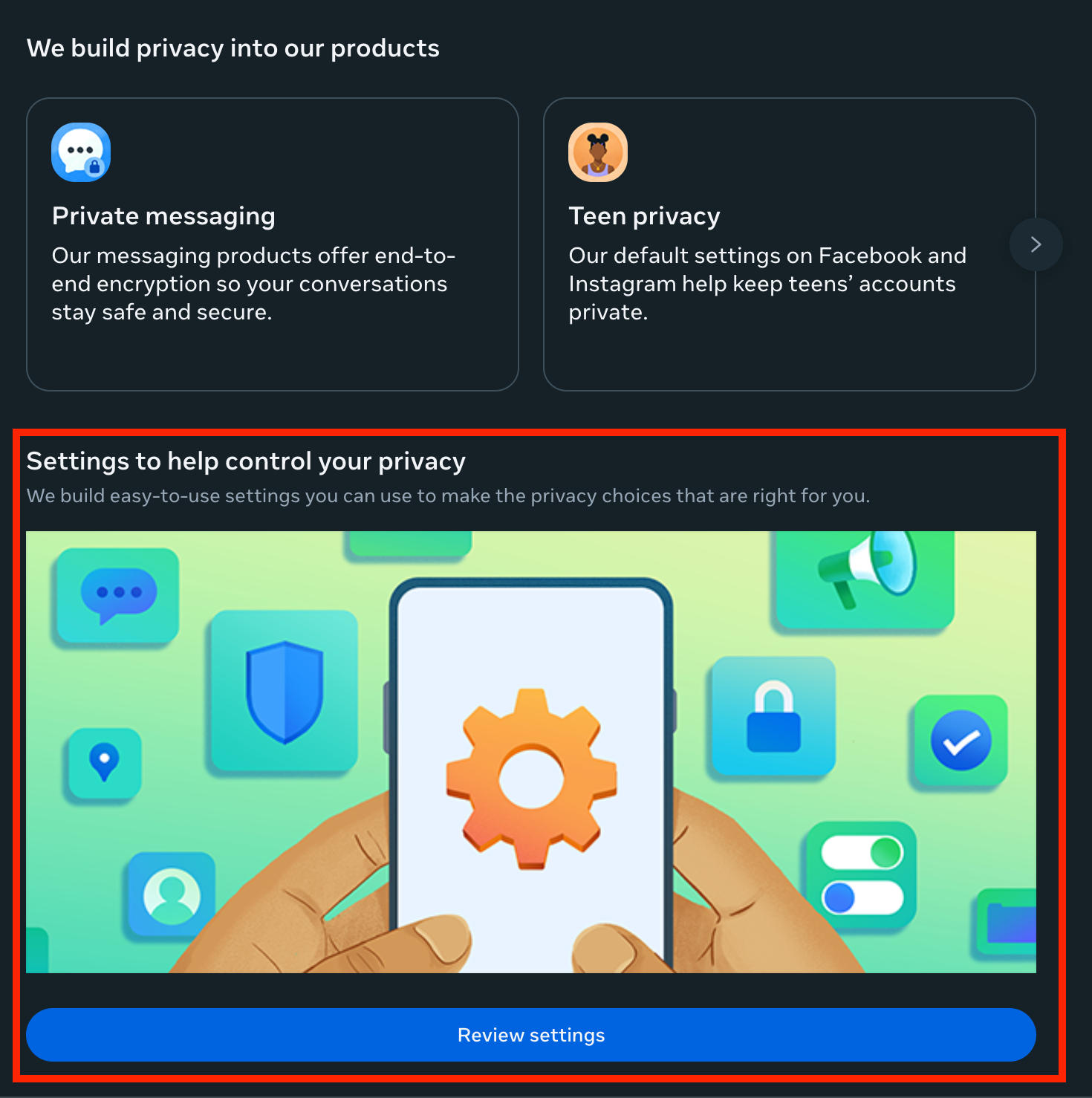
Scroll down and click Manage Audience Settings.
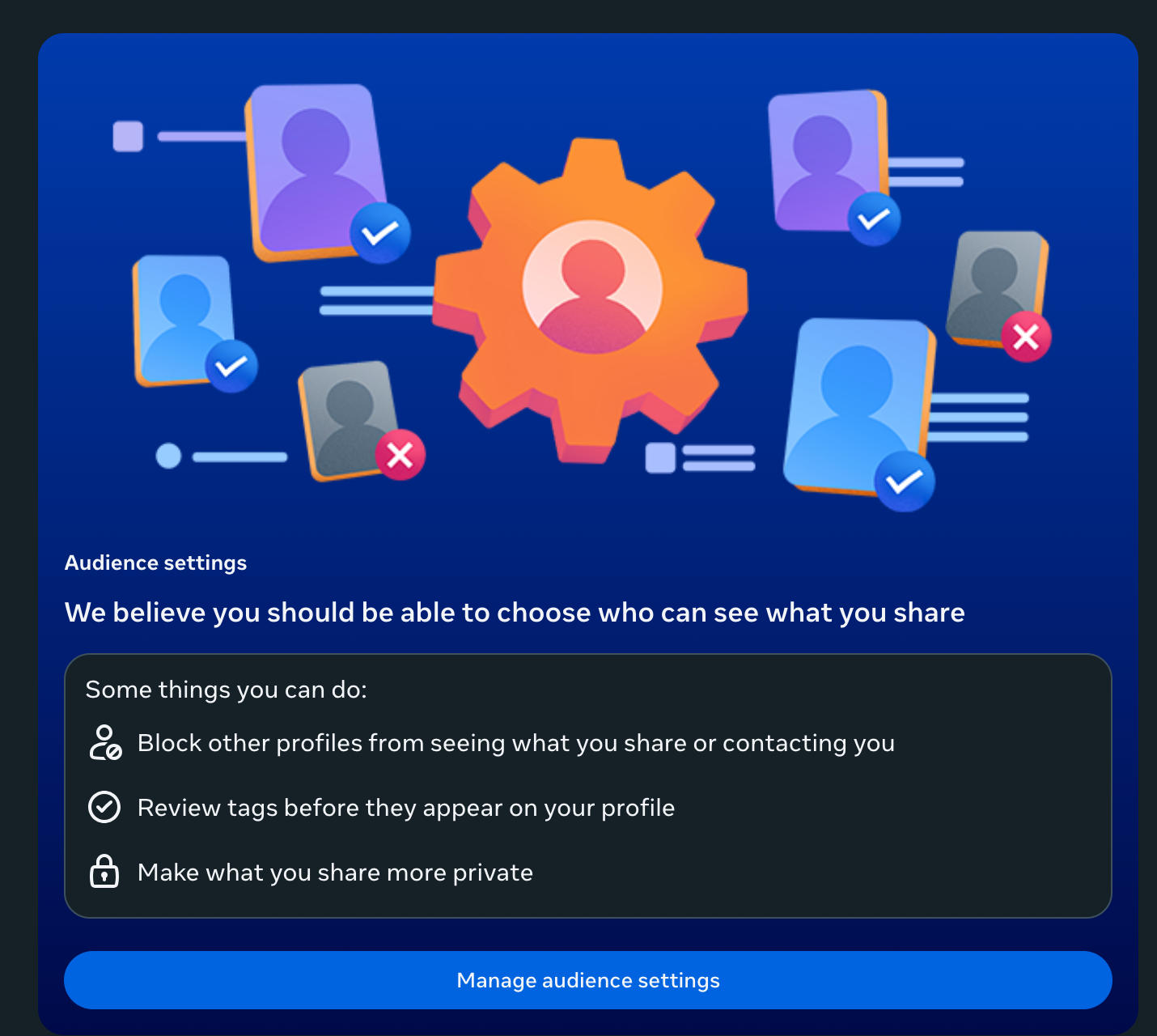
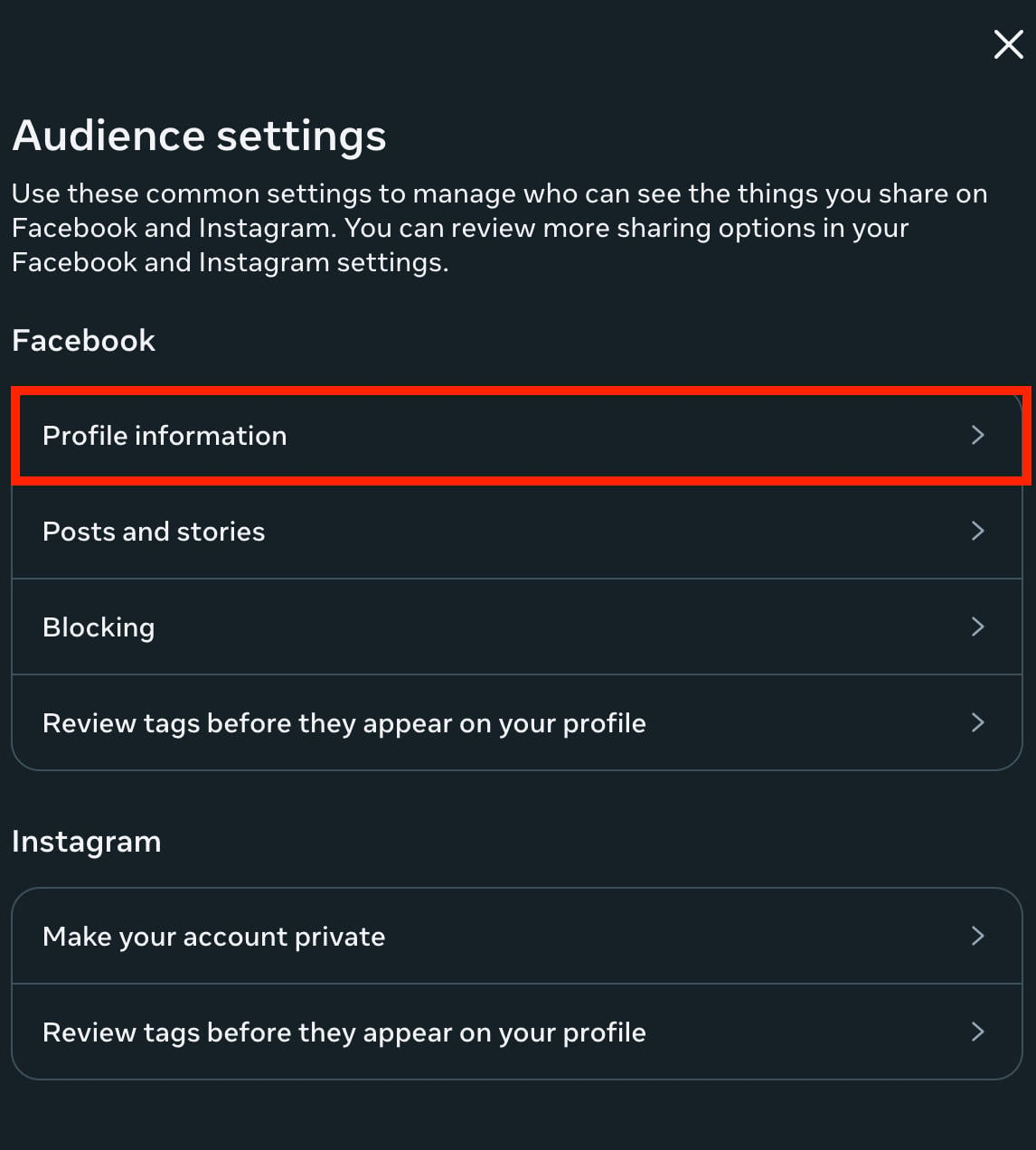
Under Facebook, click Profile Information and ensure each element is set to either Friends or Only Me for maximum privacy.
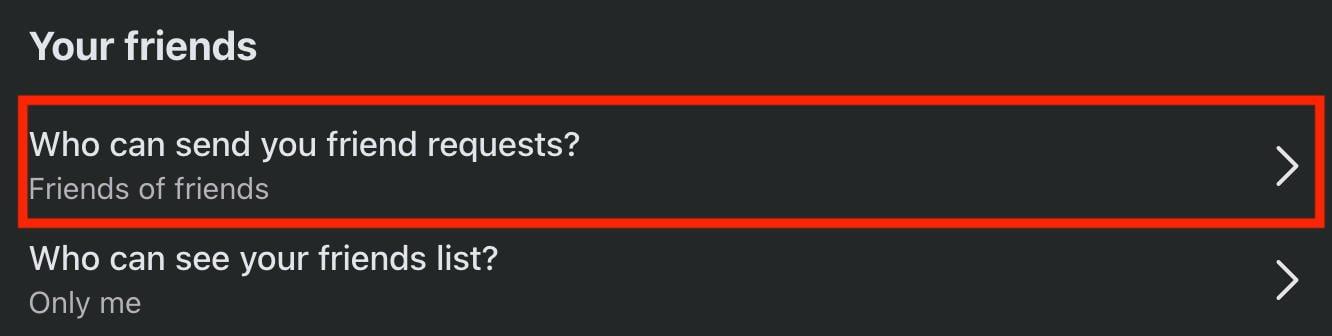
Next, to prevent random strangers from sending you friend requests, go to Facebook’s Privacy Settings page here.
Click Who Can Send You Friend Requests? and select Friends Of Friends.
How To Deactivate Or Delete Your Facebook Account
If you’re tired of Facebook and want to deactivate or delete your profile for good, you can easily do so by following the steps below.
Click Settings & Privacy > Settings.
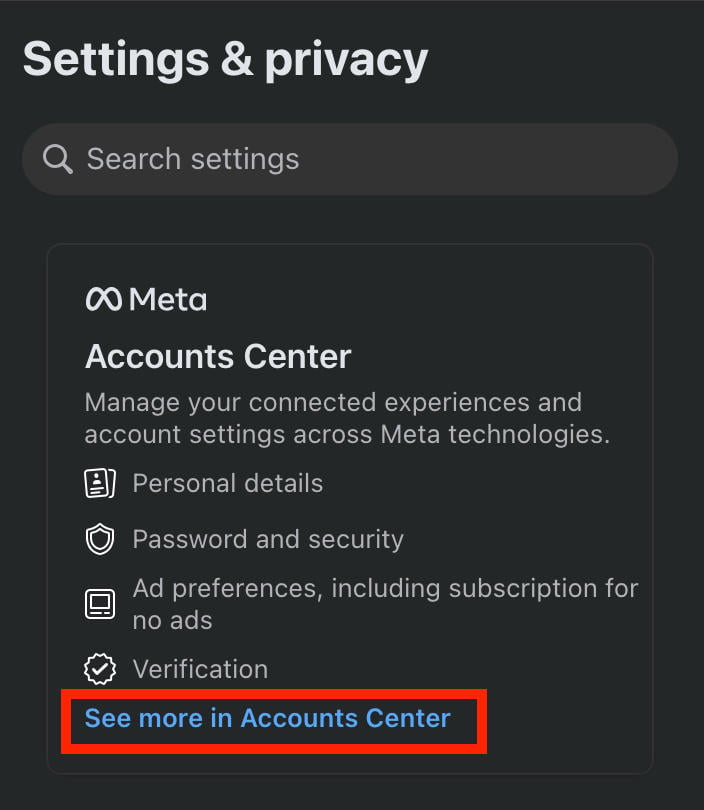
Click See More In Accounts Center.
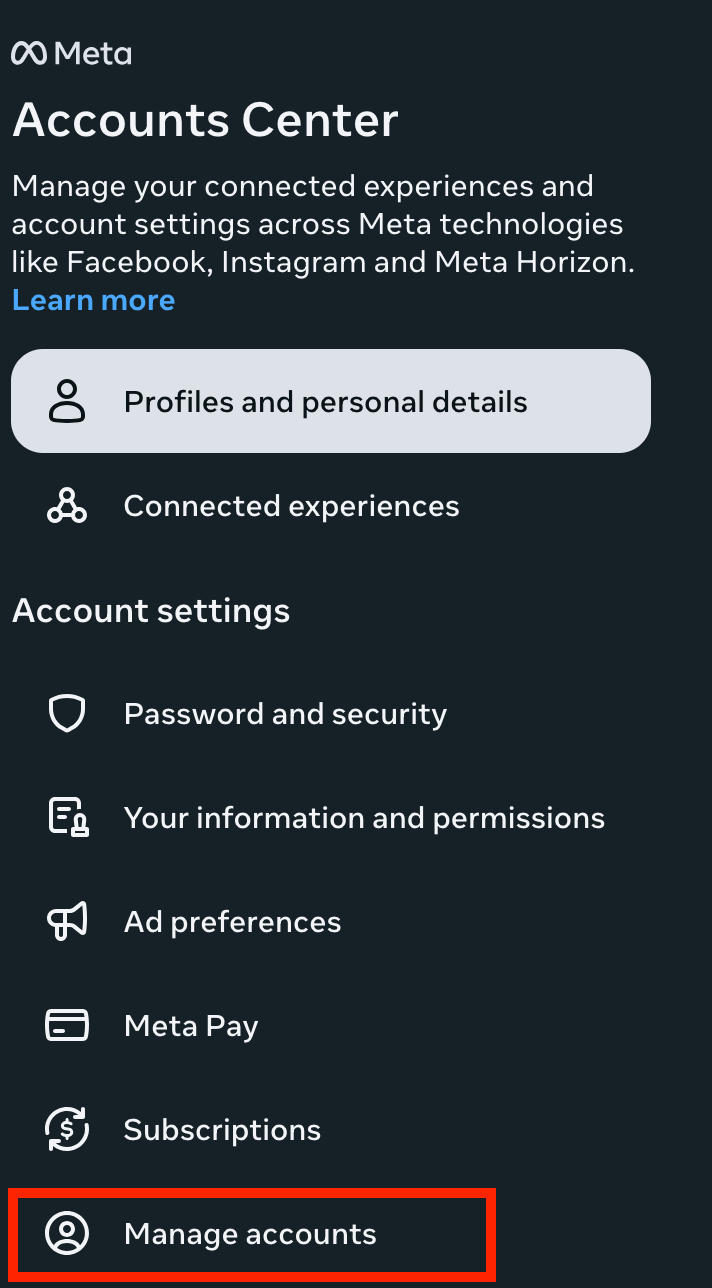
Under Account Settings click Manage Accounts.
Under More Ways To Manage, click Account Ownership And Control.

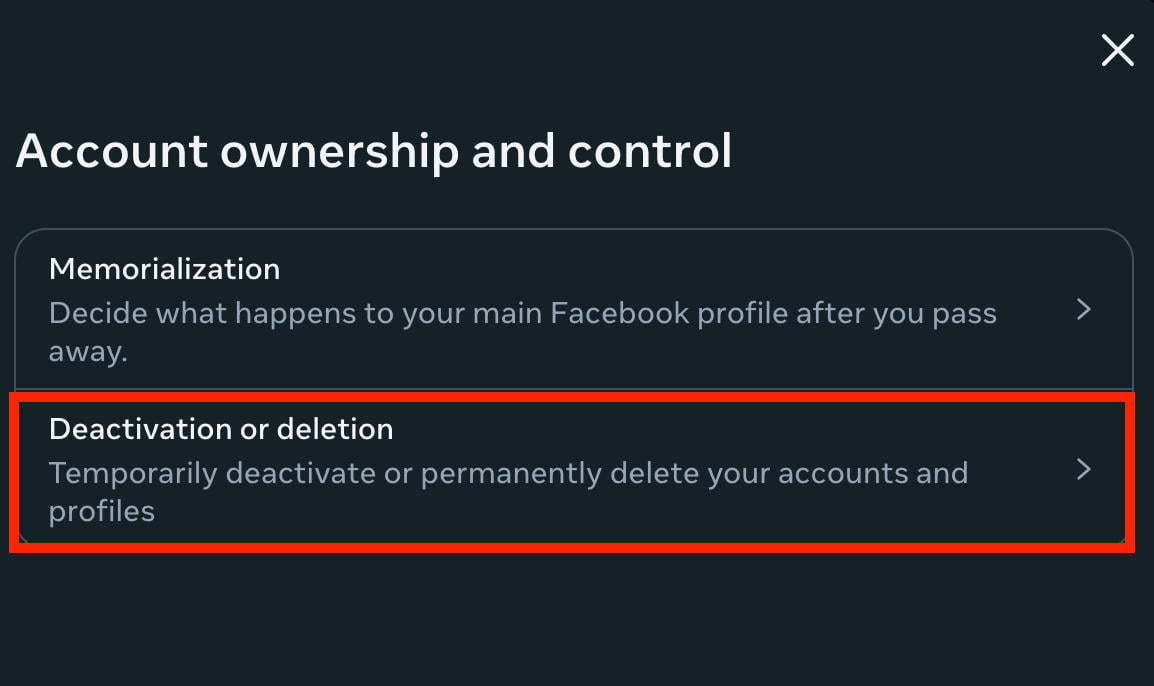
Click Deactivation Or Deletion.
Click the account you wish to deactivate or delete.
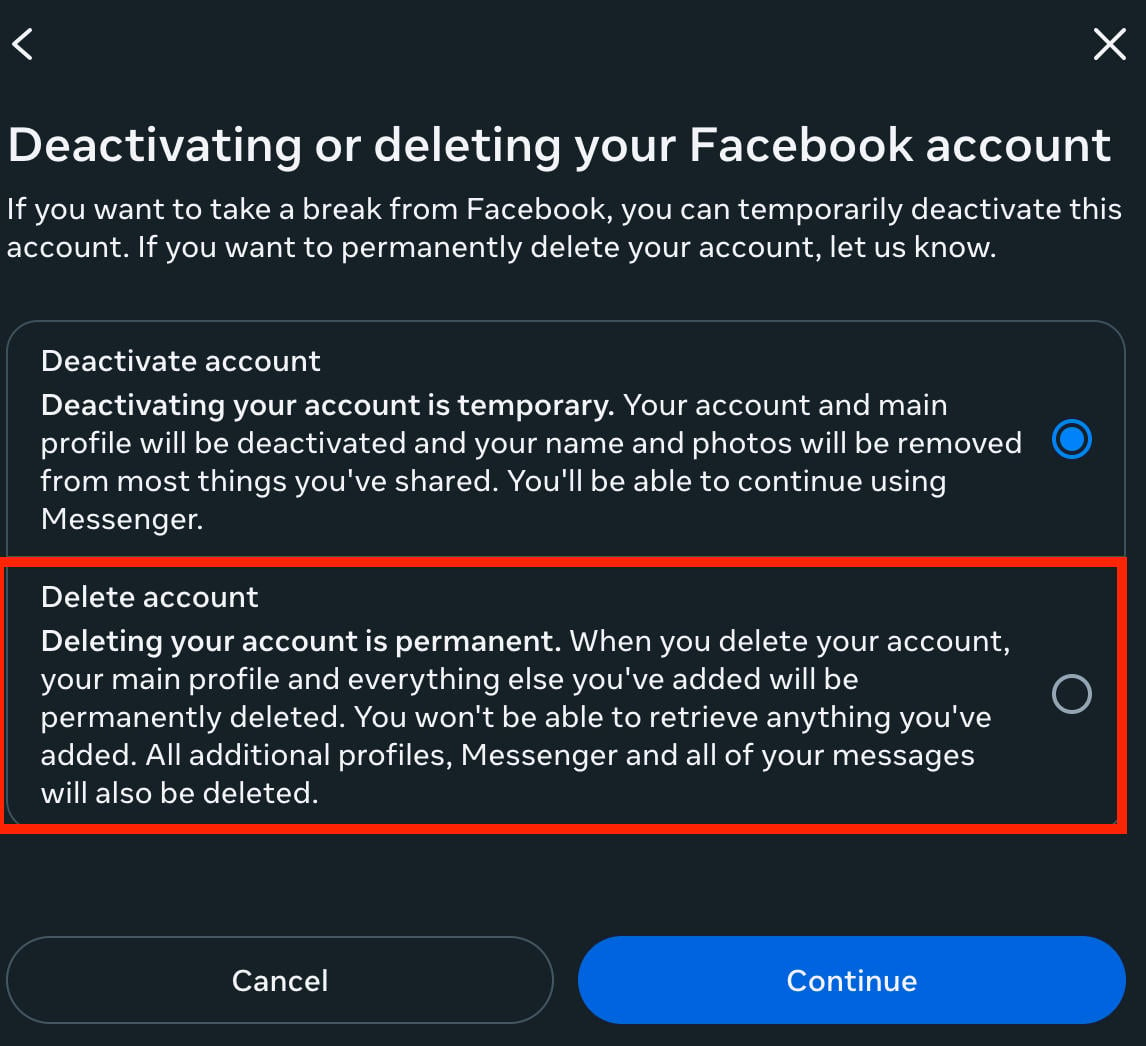
Choose Deactivate or Delete, then click Continue to complete the process.
Facebook Privacy Tips
If you’re not interested in deleting your Facebook account but want to decrease your digital footprint, there are a few ways you can effectively increase your privacy on the platform.
Adjusting Your Profile Privacy
Go to Settings & Privacy > Privacy Center.
Scroll down and click Review Settings.
Scroll down and click Manage Audience Settings.
Under Facebook, click Profile Information and ensure each element is set to either Friends or Only Me for maximum privacy.
Adjusting Your Post Privacy
Go to Settings & Privacy > Privacy Center.
Scroll down and click Review Settings.
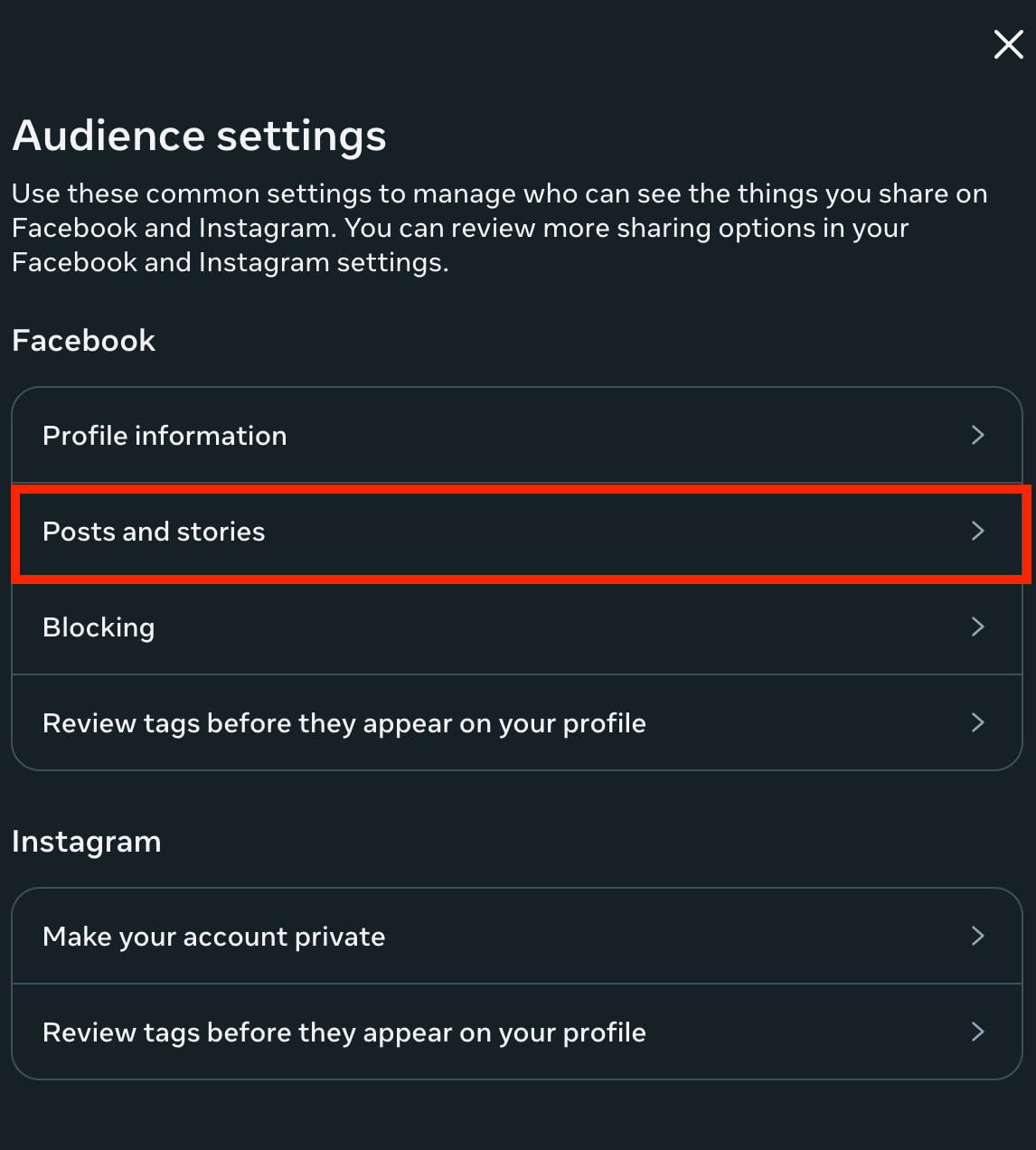
Scroll down and click Manage Audience Settings.
Click Posts & Stories.
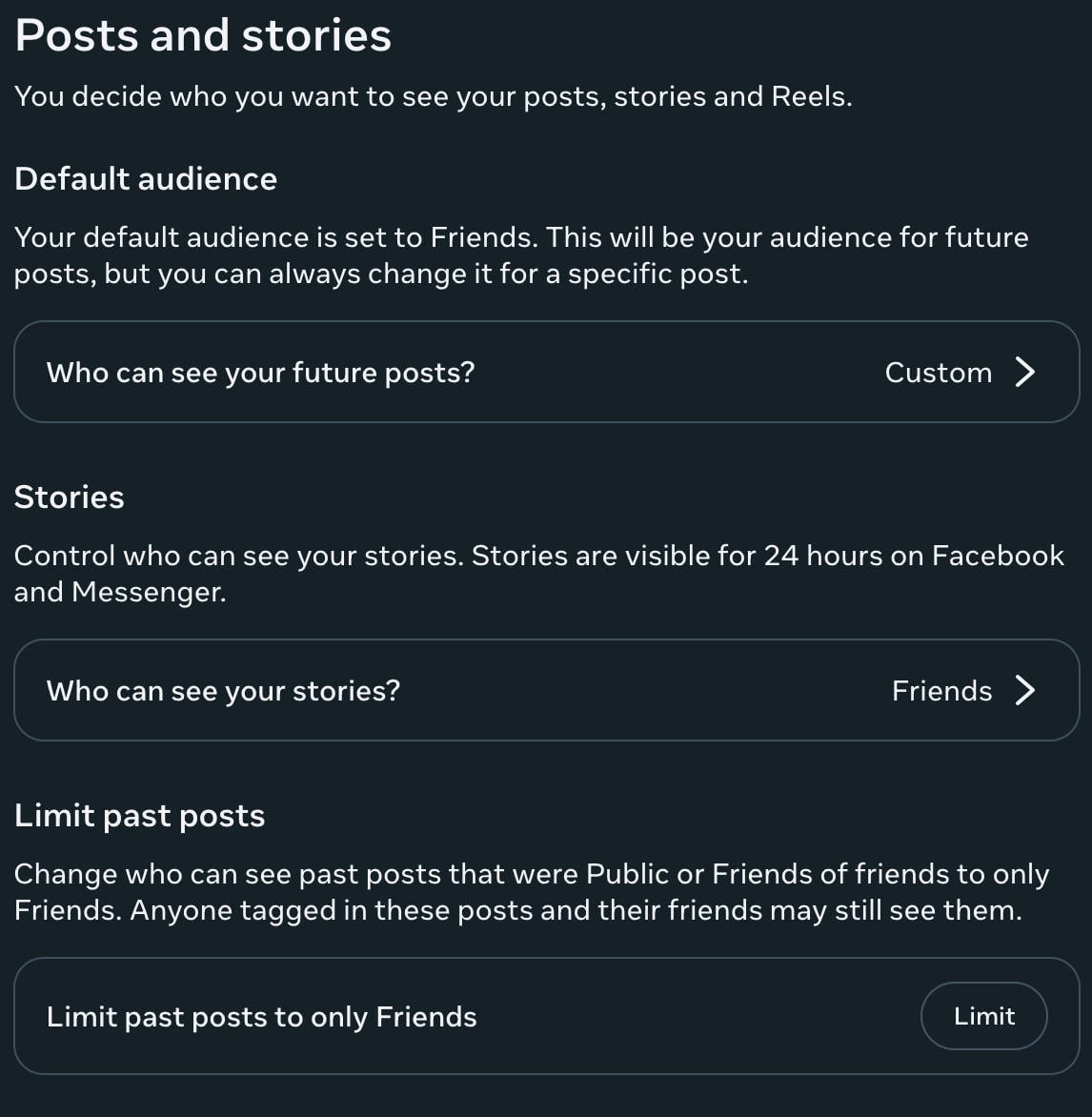
Under Default Audience and Stories, choose Friends.
Under Limit Past Posts, choose Limit.
How To Post Anonymously
You can post anonymously in groups as long as the feature is enabled by admin. Just remember that group admin and Facebook admin can still see your identity, but other group members can’t.
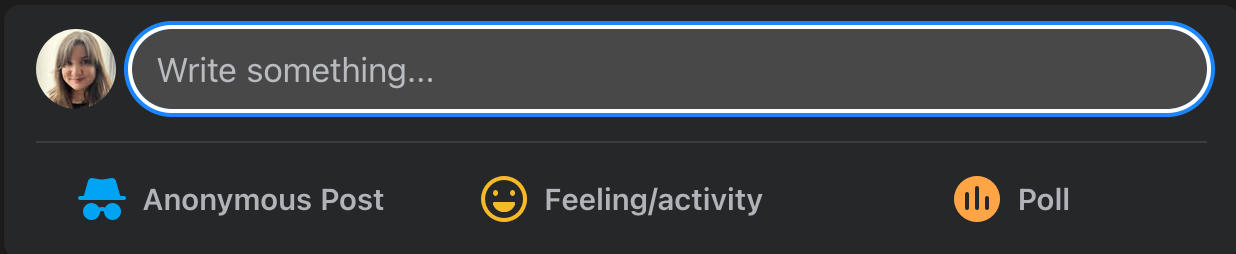
To create an anonymous post, open the post creator on the group of your choice by clicking Write something…
From here, you should see a toggle next to Post Anonymously, then confirm your choice by clicking Got It.
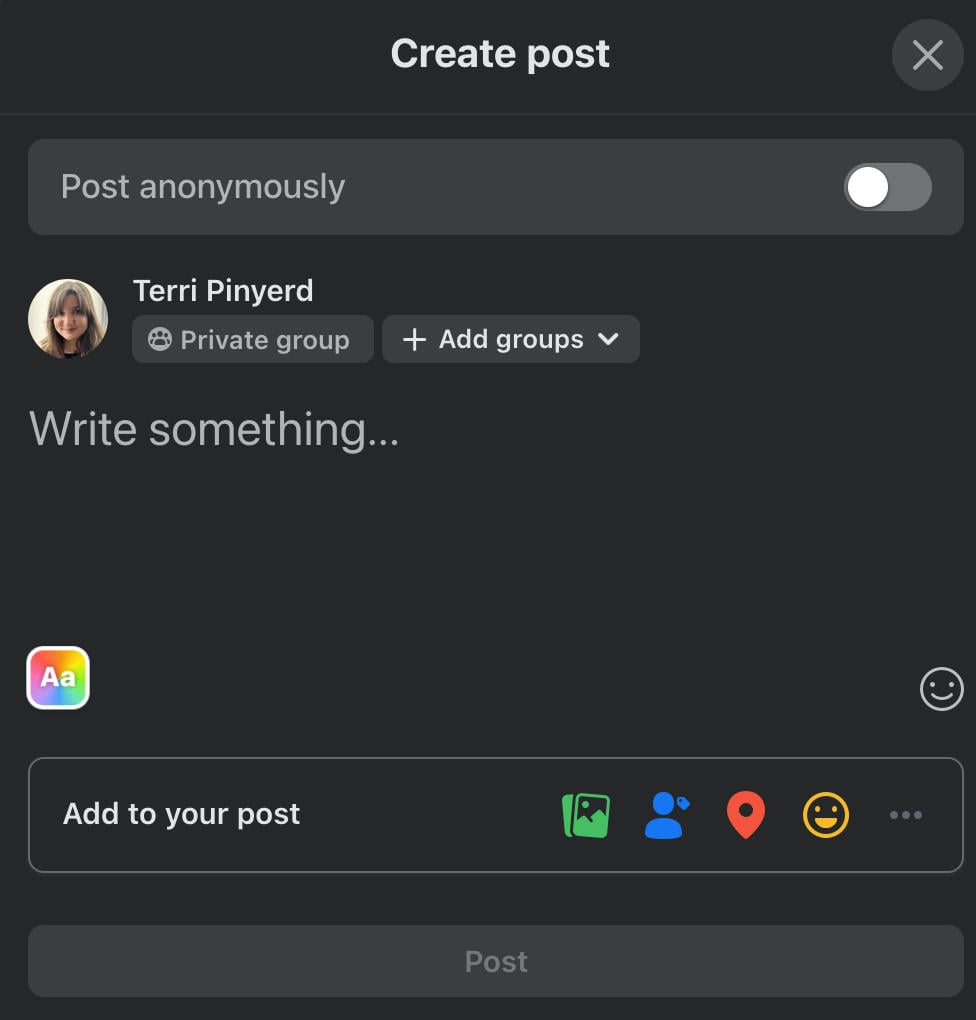
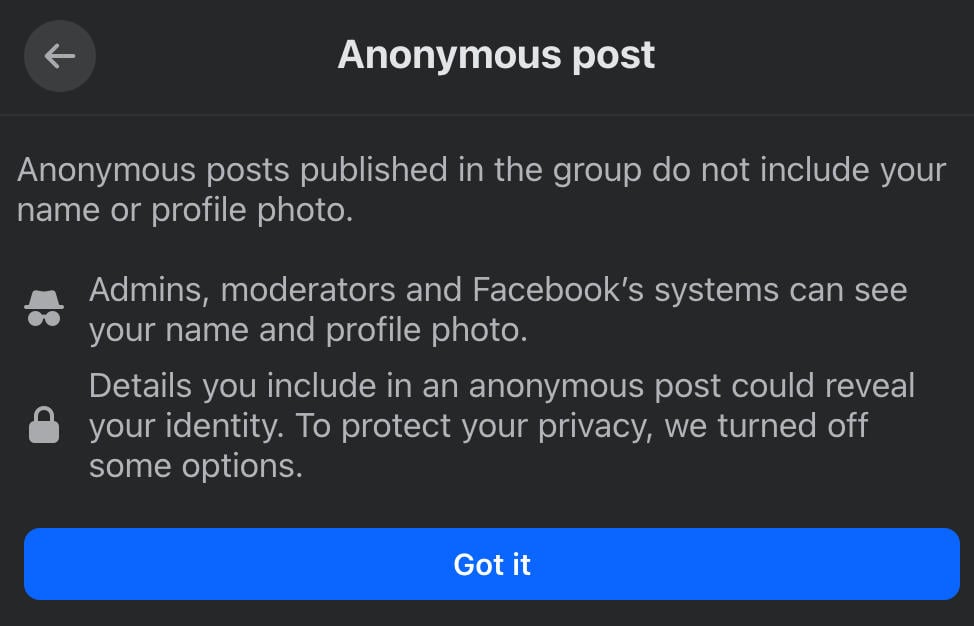
If you’re on the Facebook app you will have the ability to create a custom nickname. If this is available, you’ll have the ability to tap Create Custom Nickname during the creation process.
Once your post is published, you’ll see Anonymous User in place of your display name, and the default profile picture in place of your own photo.
How To Limit Friend Requests
Go to Facebook’s Privacy Settings page here.
Click Who Can Send You Friend Requests? and select Friends Of Friends.
How To Limit Messages
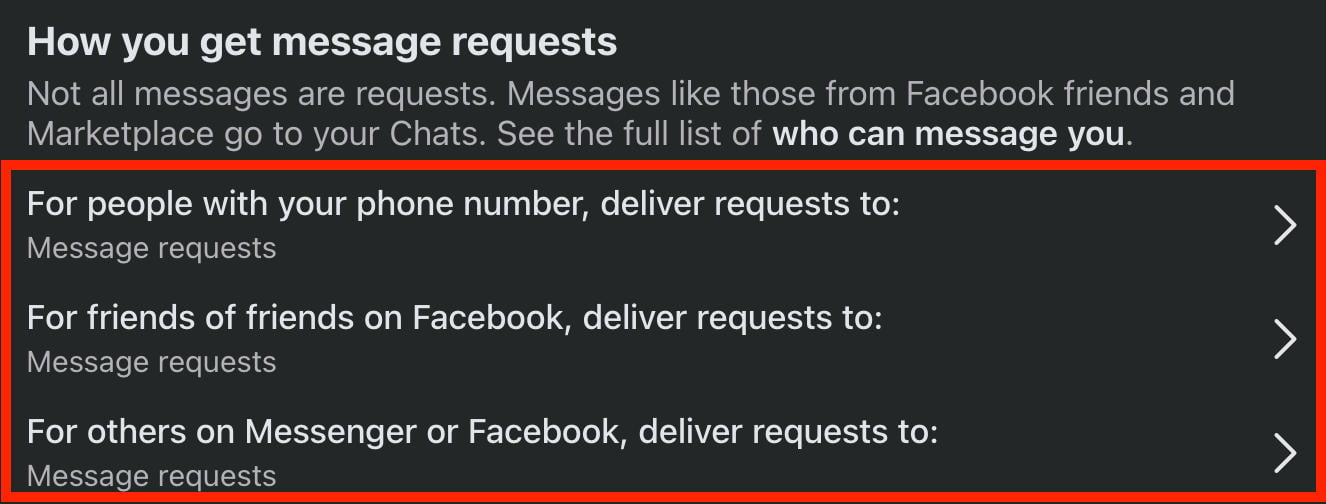
Go to Facebook’s Privacy Settings page here.
Click each of the three options below How You Get Message Requests and set them all to either Message Requests or Don’t Receive Requests.
How To Prevent People From Tagging You
Go to Settings & Privacy > Privacy Center
Scroll down and click Review Settings.
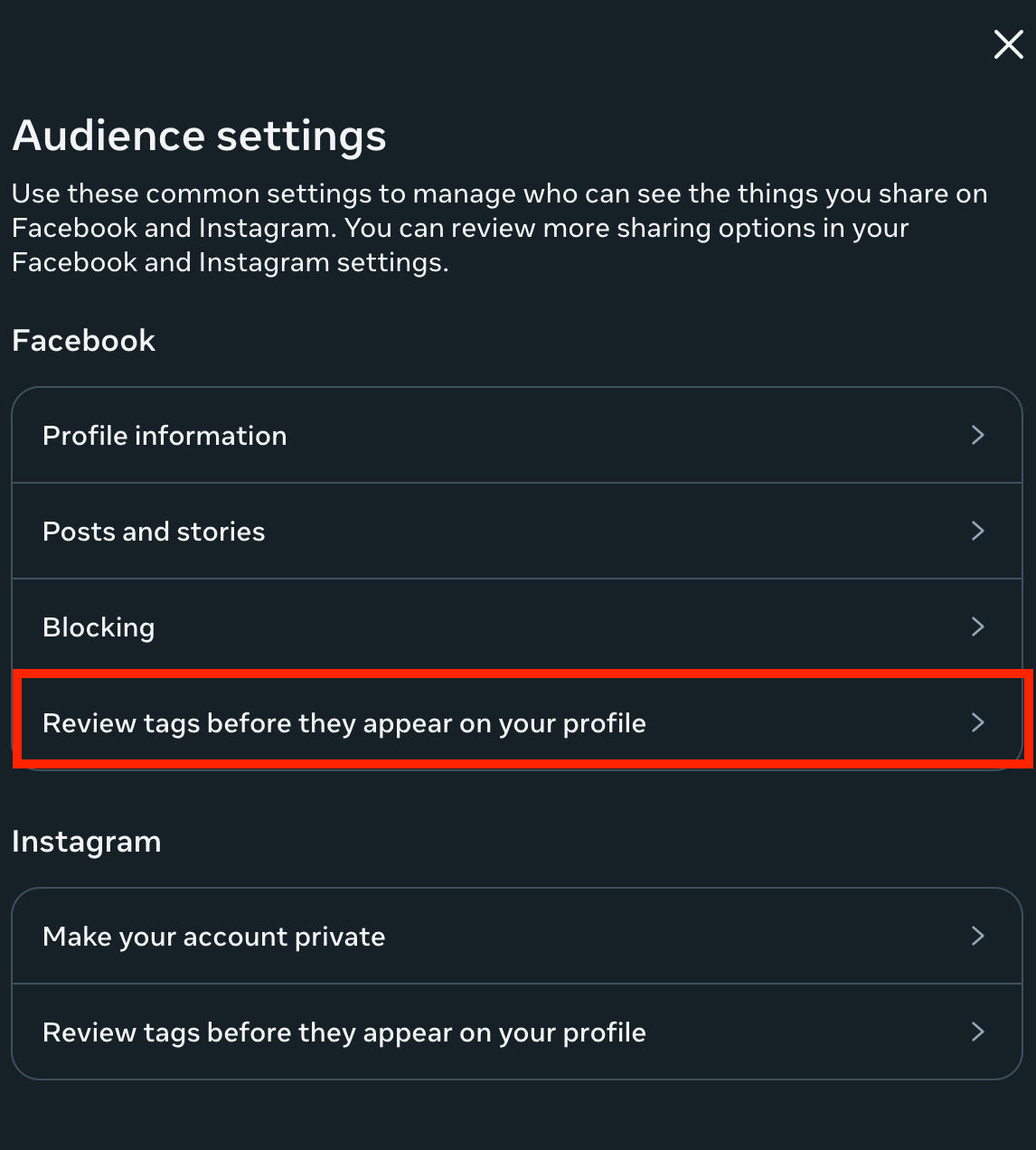
Scroll down and click Manage Audience Settings.
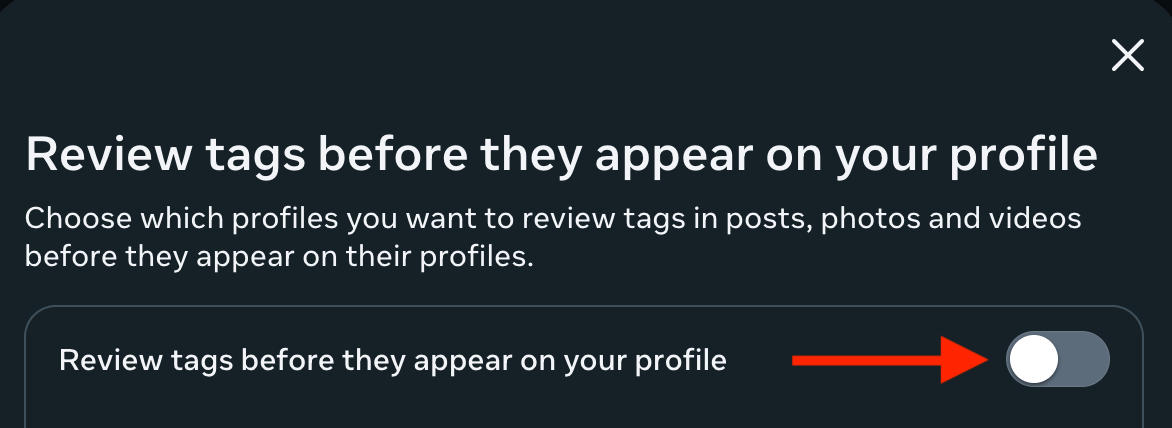
Click Review Tags Before They Appear On Your Profile.
Toggle it to ON and click Done.
Who Can Find You On Facebook
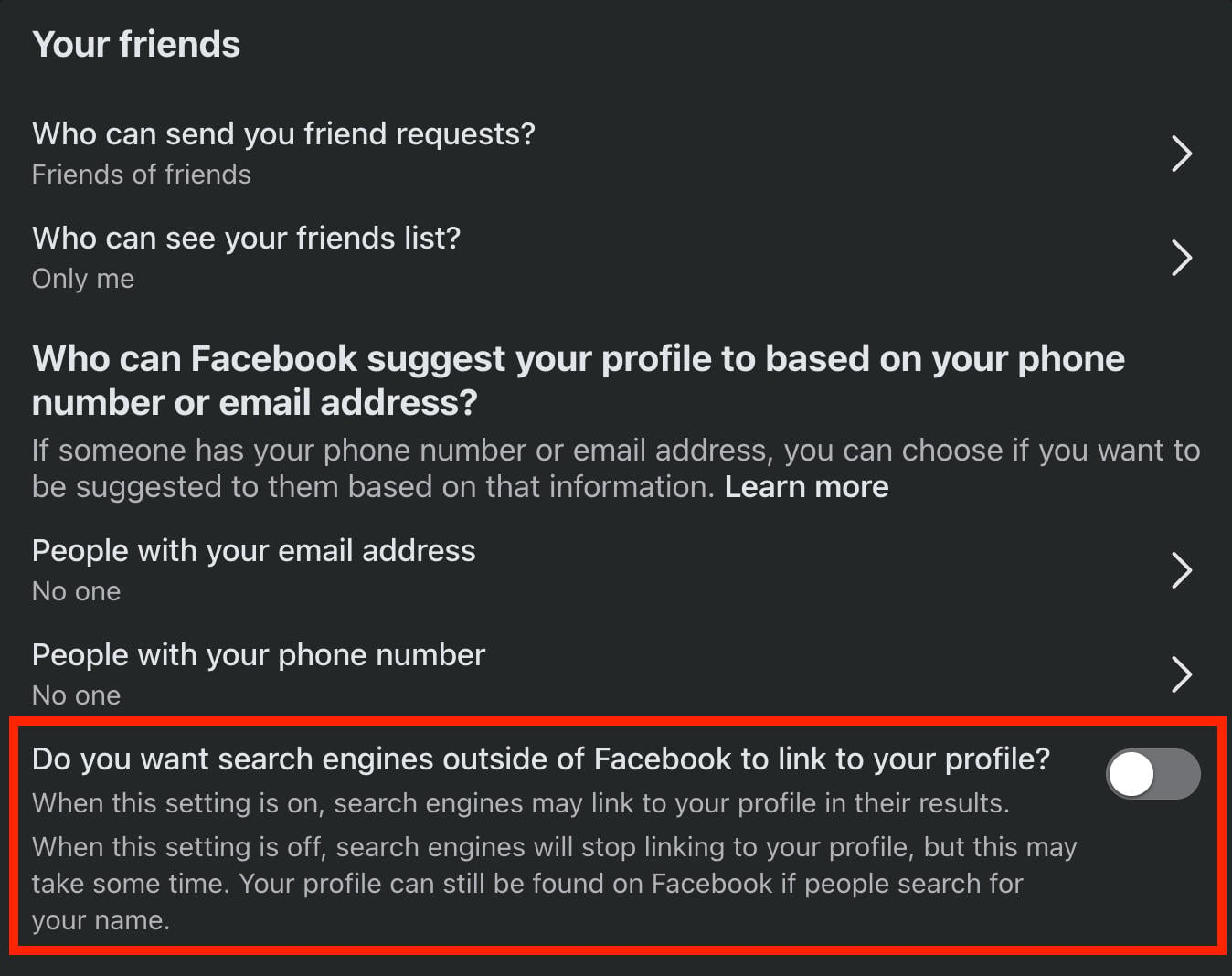
You can also prevent Google from listing your Facebook profile in the search results when someone looks up your name.
To do this, go to Facebook’s Privacy Settings page here.
Make sure Do You Want Search Engines Outside Of Facebook To Link To Your Profile is toggled OFF.
How To Get More Engagement On Facebook
While there are many reasons why someone would want to hide a Facebook page or group, one common reason is a lack of engagement. Not seeing enough followers or post likes can be discouraging, and many page admins give up on their content before they really have the chance to be seen by the right audience.
Don’t give up on your page or group - boost it with QQTube!
All you need is a free QQTube account and the link to your page or group. There are no passwords needed, and with our bot-free guarantee you can be sure you’ll only receive engagement from real, active Facebook users.
To get started, click the Sign Up button here and create your free account.

Once you’re logged in, click Go To Account.
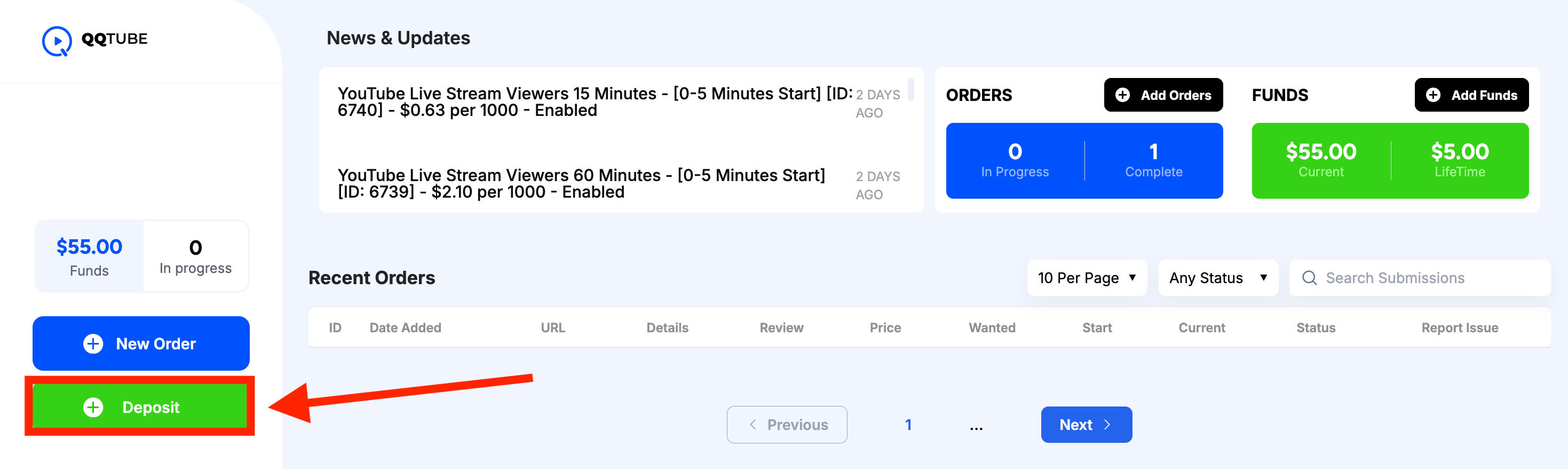
From your customer dashboard, click Deposit to add funds to your account.
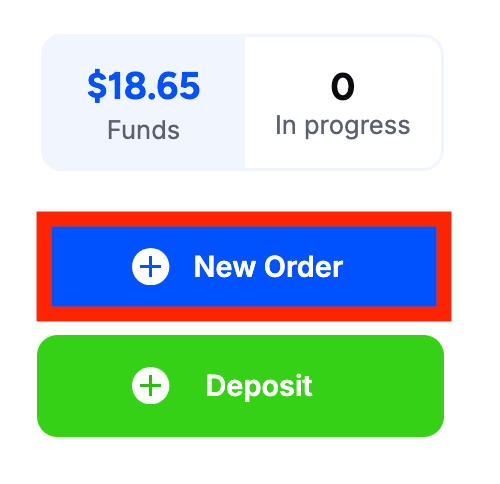
Then click New Order.
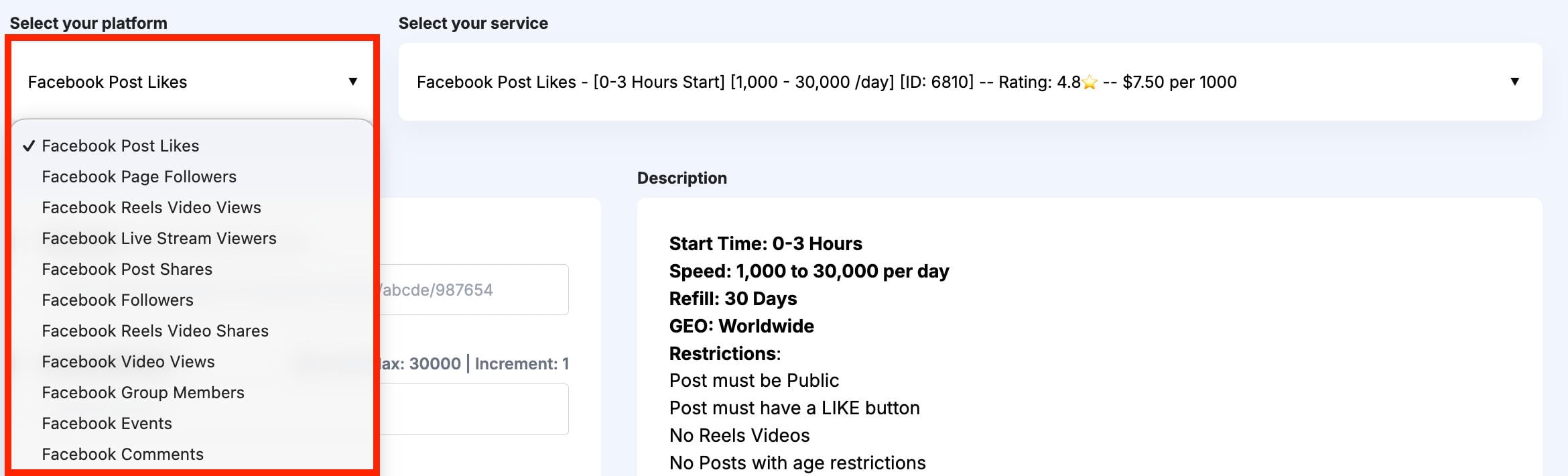
In the first drop-down menu, select the Facebook service of your choice. We offer Facebook page followers, group members, post likes, comments, shares, and much more!
In the second drop-down menu, select the specific service you wish to browse.

You can compare services by customer review, start time, delivery speed, price, and more.
The service description box will provide additional information about each service.
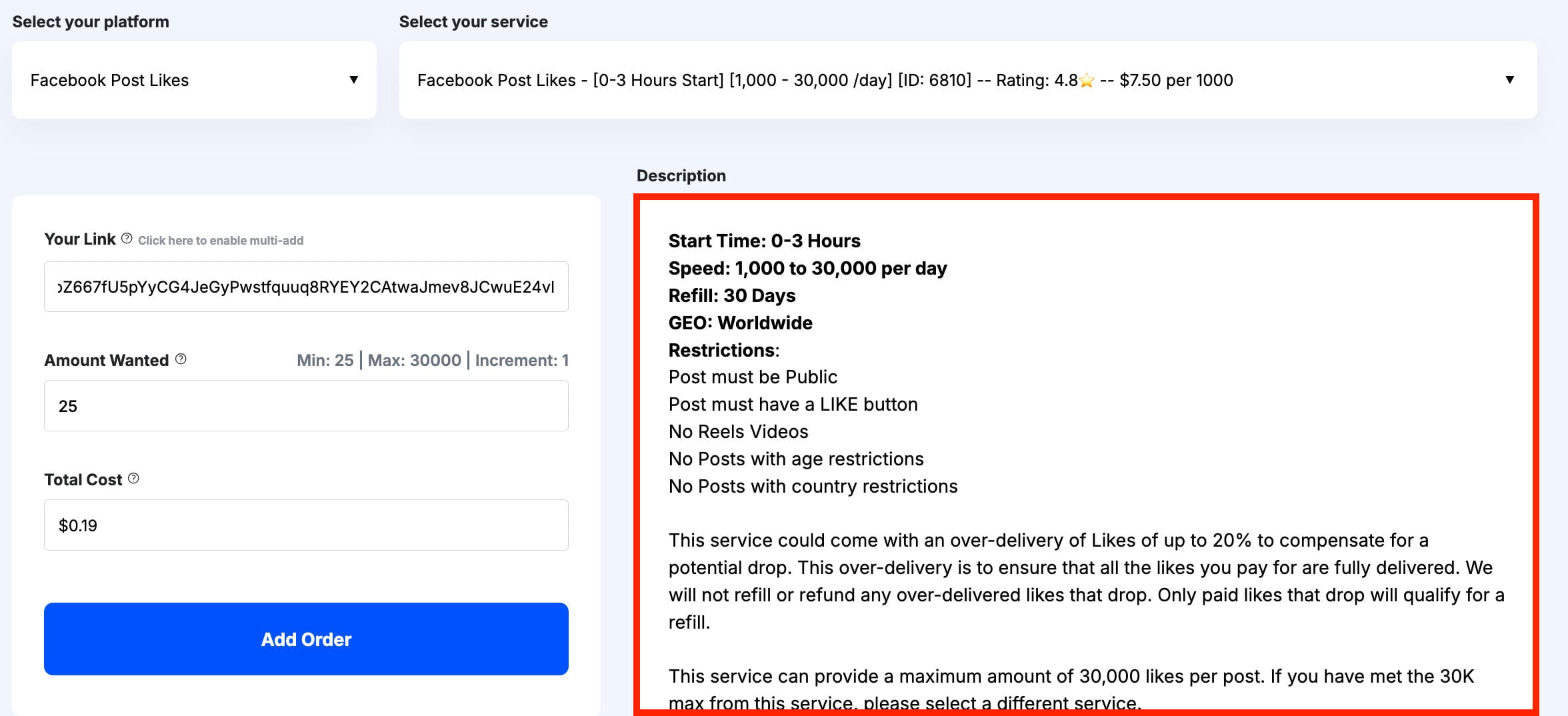
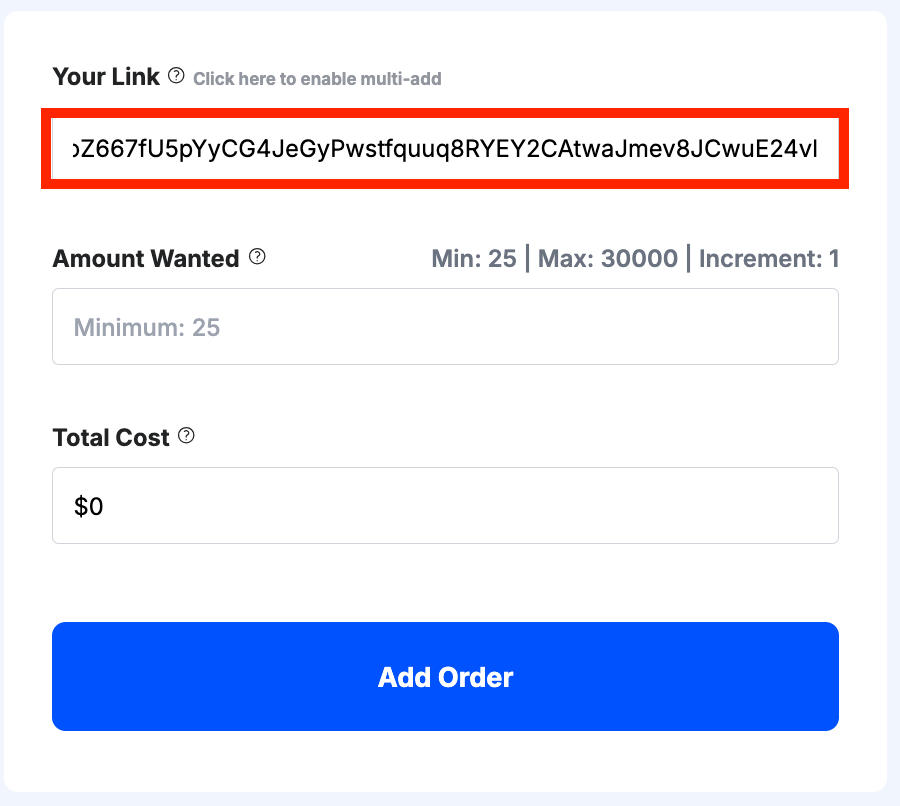
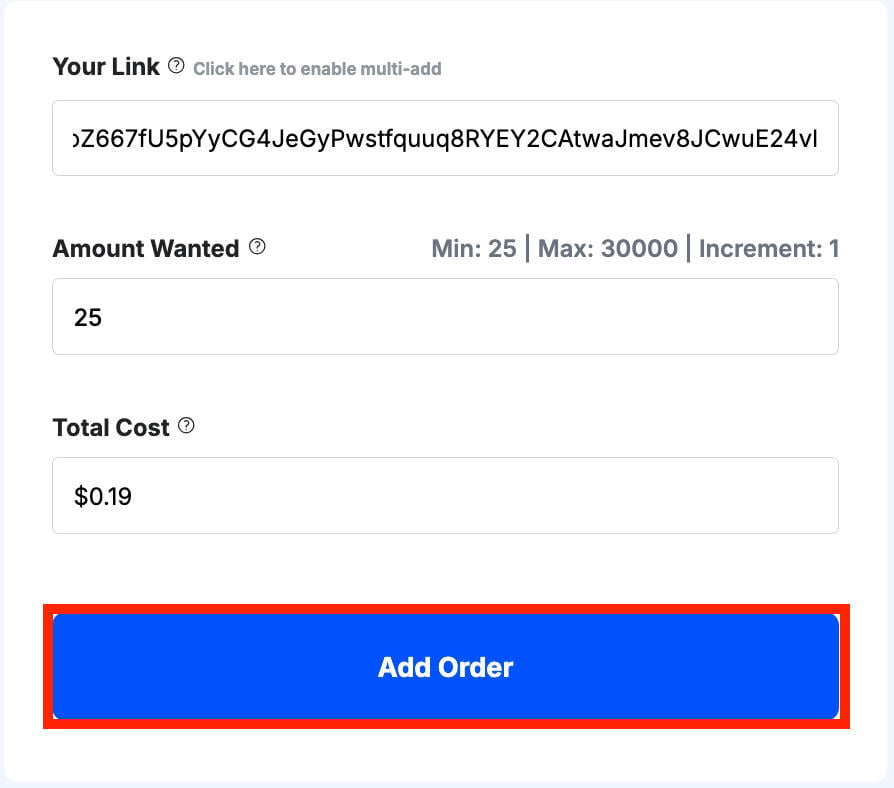
When you’re ready, input the link to your Facebook page, group, or post in the URL box.
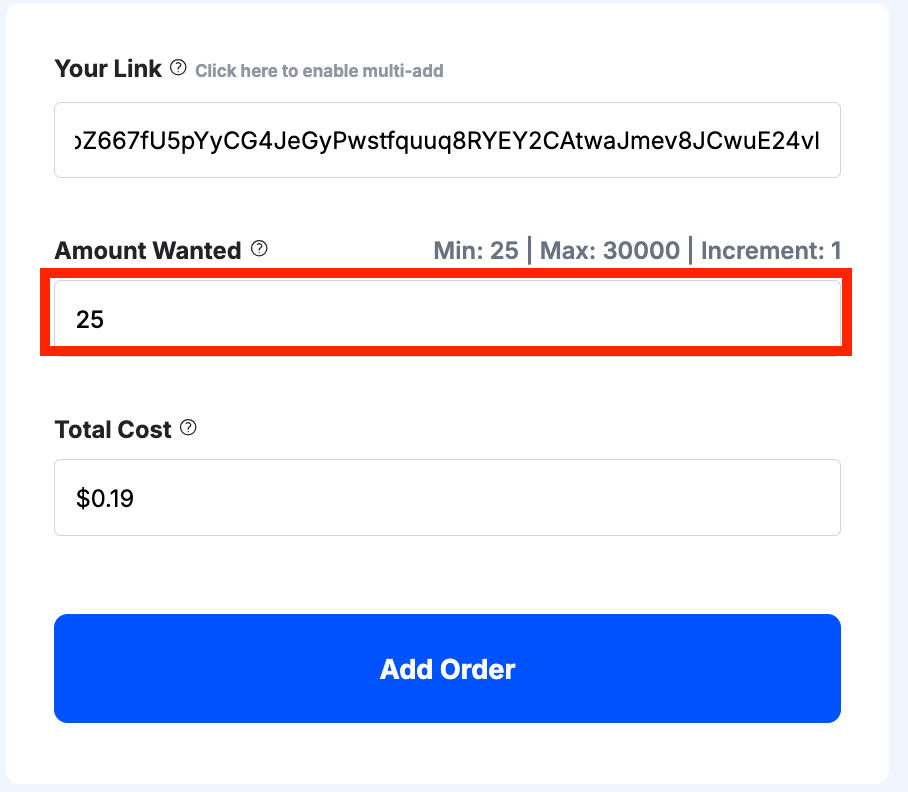
Then input the desired quantity of engagement.
Your price will be automatically calculated for you before you submit your order.
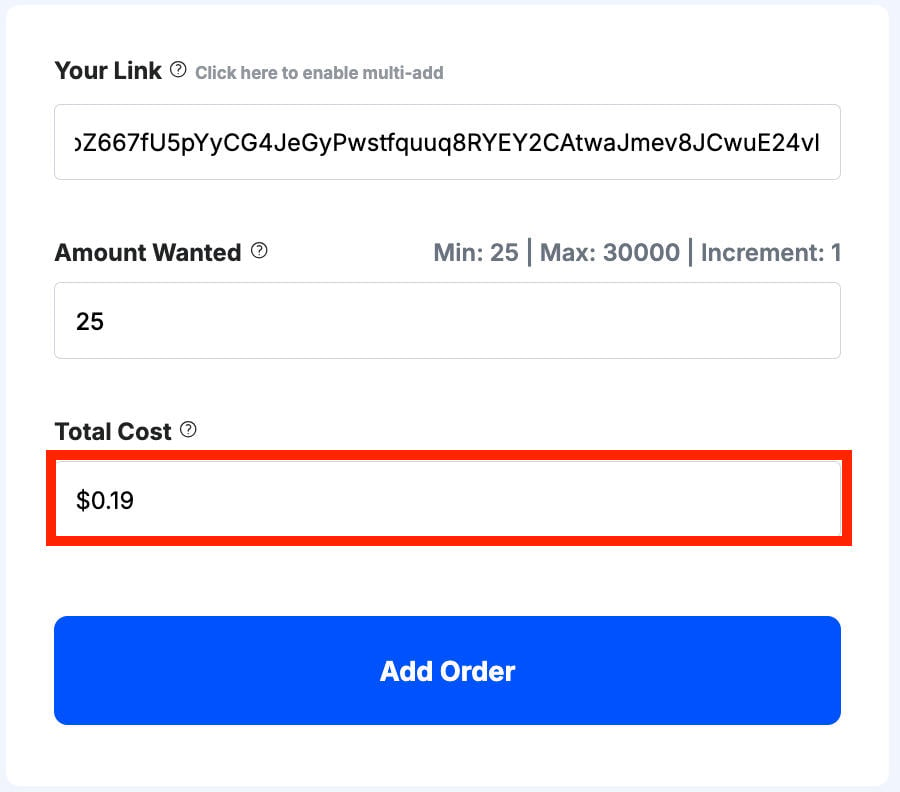
Once you’re satisfied with the order information, click Add Order.
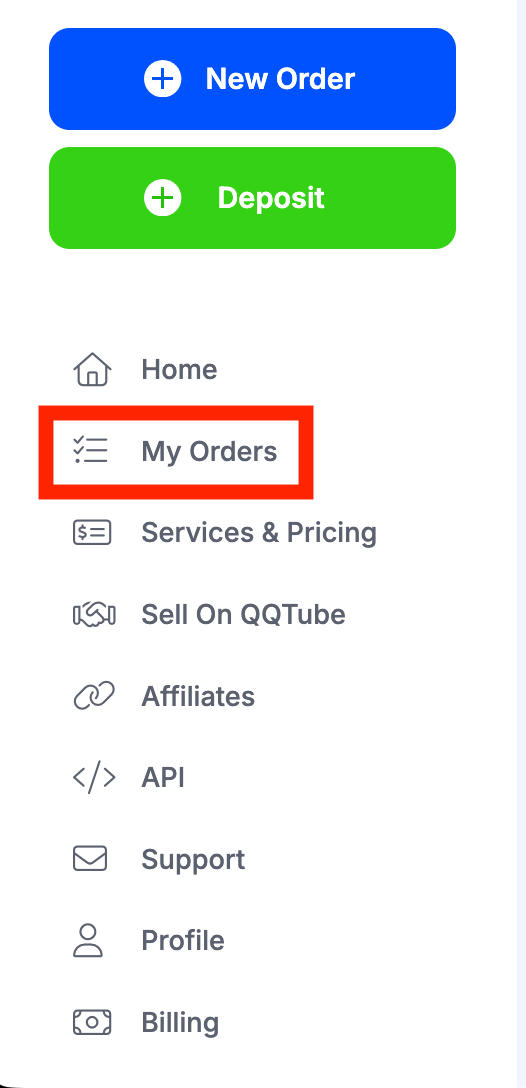
You can monitor and manage your full order history from your dashboard by clicking My Orders in the left-hand menu.
Frequently Asked Questions
Can I hide a Facebook page without deleting it?
Yes, Facebook now offers an unpublish option but you can also temporarily deactivate a page. Learn how to do both here.
How to make a Facebook page not visible?
You can either unpublish or deactivate a Facebook page by following the steps here.
Can you make your Facebook page hidden?
Yup, Facebook allows admin to unpublish or deactivate their pages via page settings.
How do I make a Facebook page disappear?
You can delete it, or if you don’t want a permanent solution you can deactivate or unpublish it. All three options are available via the page settings, as long as you’re the admin and have the necessary permissions.
Is it better to unpublish or close a page?
Unpublishing is temporary, while closing or deleting a page is permanent and cannot be undone. If you’re not sure about the future of your page, deactivating or unpublishing it is probably best.
How do I temporarily disable a Facebook page?
You can temporarily deactivate or unpublish your Facebook page via the page settings by following the instructions here.
What is a ghost profile on Facebook?
A ghost profile is an account that has little to no engagement or personal information on it. Sometimes users create ghost profiles as a way to browse content without sharing their personal information.
What is a shadow profile on Facebook?
Shadow profiles are created by social networks using information from a persons’ contacts, even if that person doesn’t have an account with them and never agreed to their terms and conditions.
What does a grey Facebook profile mean?
If you see a grey profile picture, it either means someone hasn’t updated their profile picture from the default or they've temporarily deactivate their Facebook profile.