Not seeing the likes count on your Facebook posts or in your newsfeed?
Learn how to enable likes on Facebook via the desktop site or mobile app in just a few quick steps.
Plus, tips on how to get more likes on your Facebook posts!
Key Points:
Why Is My Facebook Not Showing Likes?
If you’re not seeing the likes or reactions feature on your own Facebook posts, or in posts within your newsfeed, it’s most likely because you chose to hide likes and reactions via your Facebook settings.
Luckily, it’s a quick fix and you can undo this on either the Facebook mobile app or desktop site by following the instructions outlined below.
How To Unhide Likes On Facebook
There are two areas where you can hide or unhide the likes/reactions count on Facebook: your own posts and other people’s posts in your feed.
How To Enable Likes On Facebook Mobile
Tap the menu icon.
Tap Settings & Privacy > Settings.
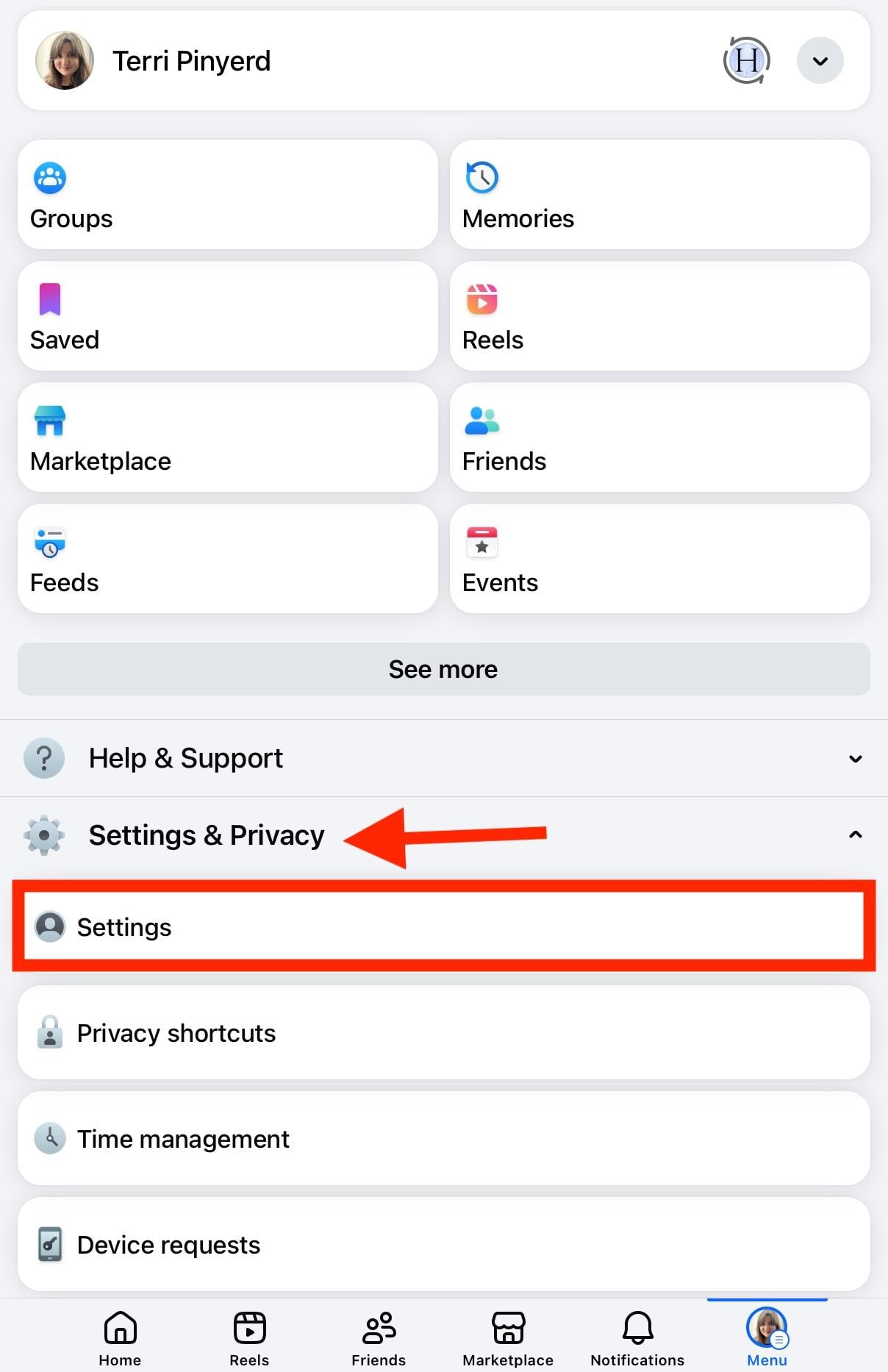
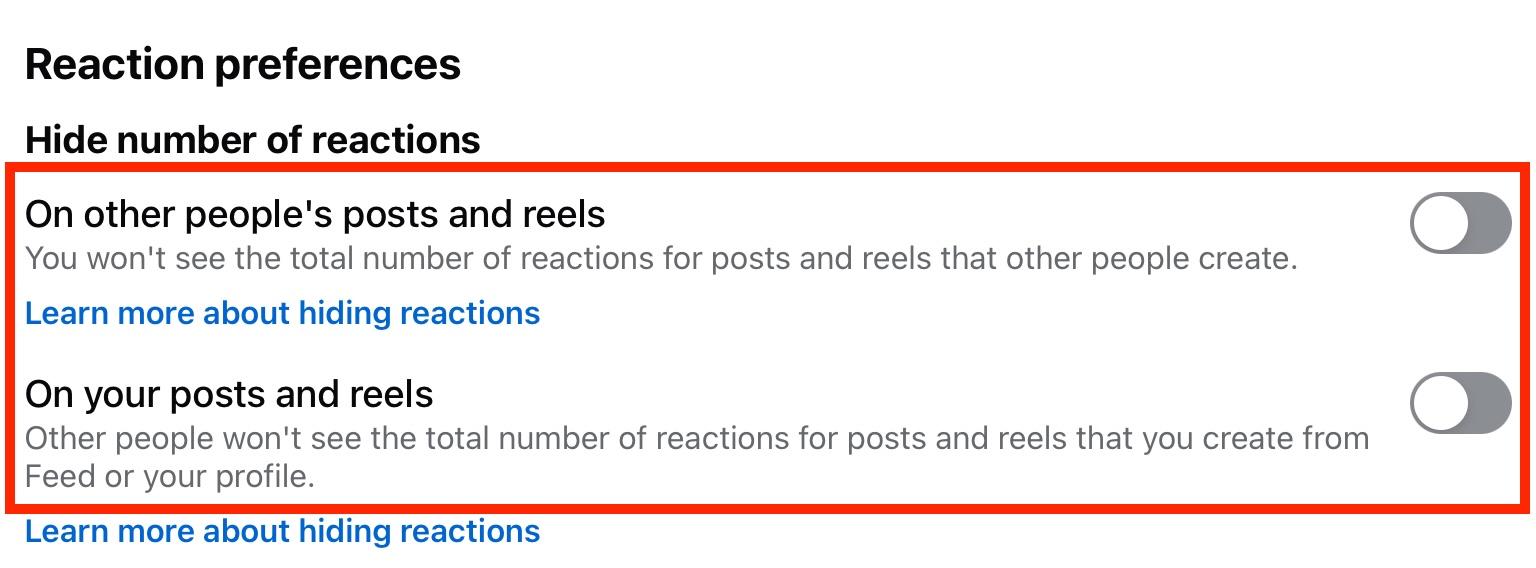
Scroll down to Preferences and tap Reaction Preferences.
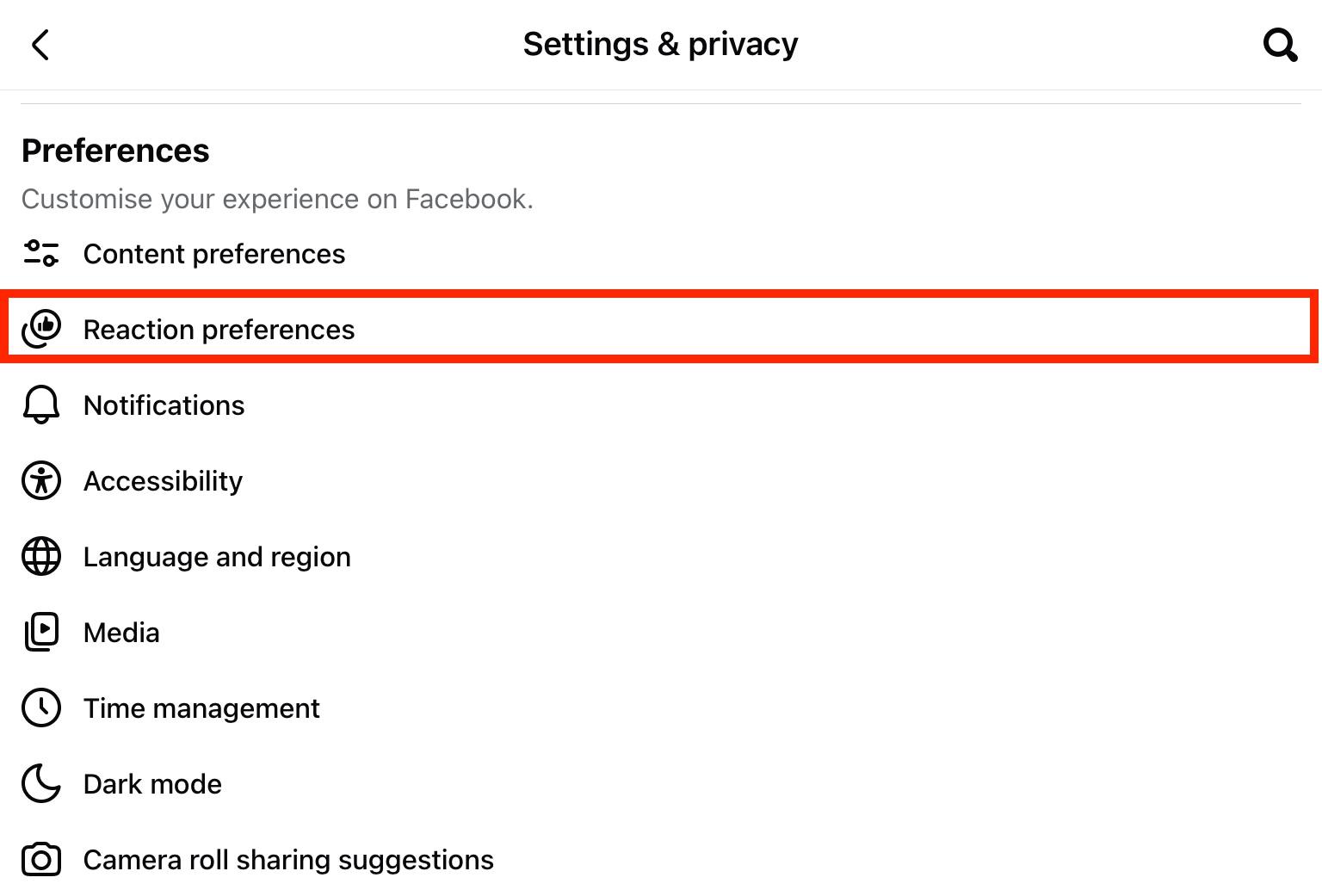
From here, make sure that both toggles for Hide Number Of Reactions are toggled OFF.
How To Enable Likes On Facebook Desktop
Click your profile picture on the top right corner.
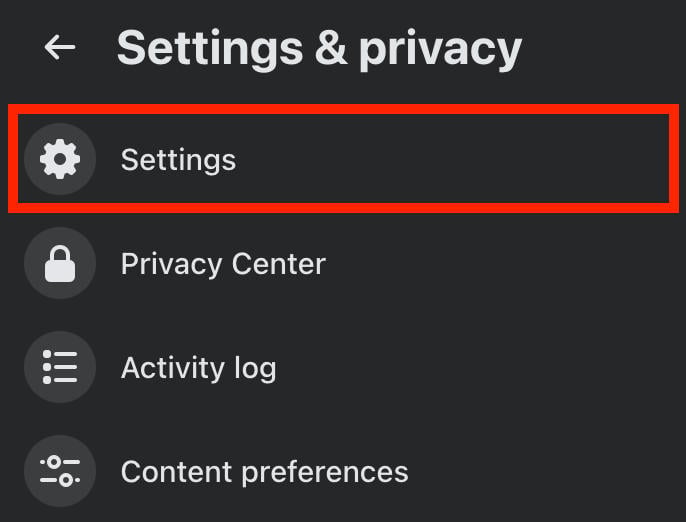
Click Settings & Privacy > Settings.
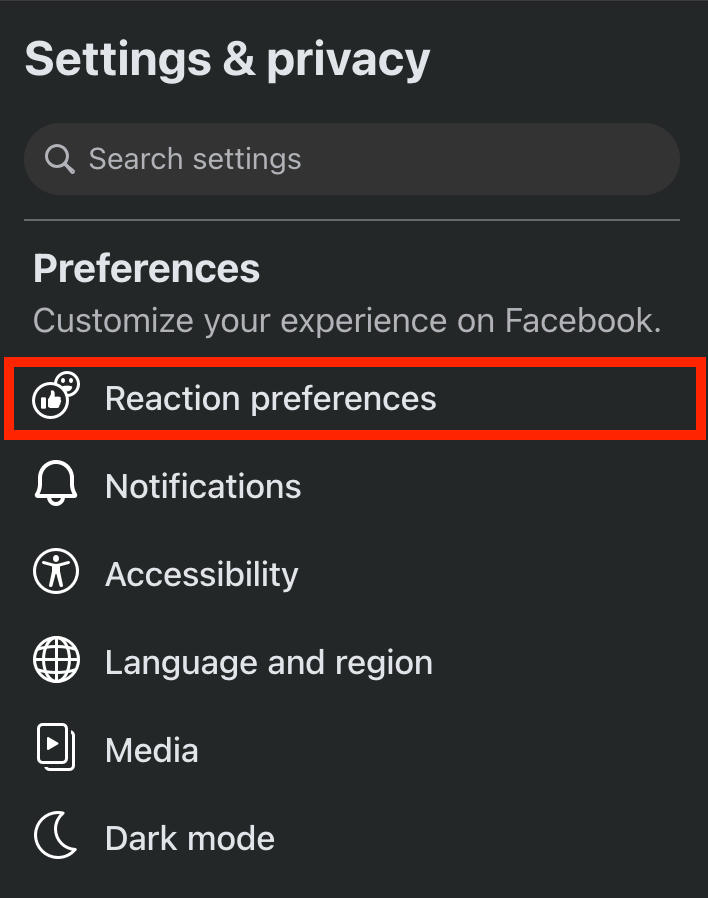
In the left-hand menu under Preferences, click Reaction Preferences.
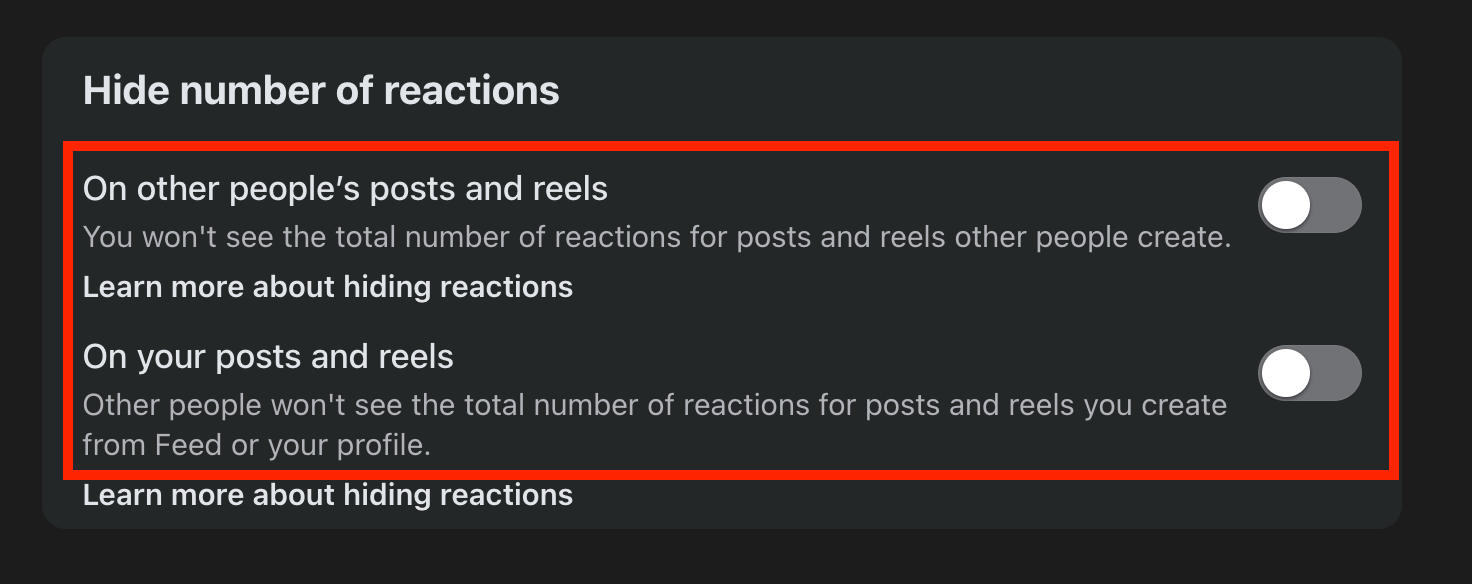
From here, make sure that both toggles for Hide Number Of Reactions are toggled OFF.
How Do I Turn Off The Like Button?
If you currently can see the likes or reactions count on your posts or posts in your newsfeed, but you want to hide them, you can do so via the Facebook app or desktop site.
How To Disable Likes On Facebook Mobile
Tap the menu icon.
Tap Settings & Privacy > Settings.
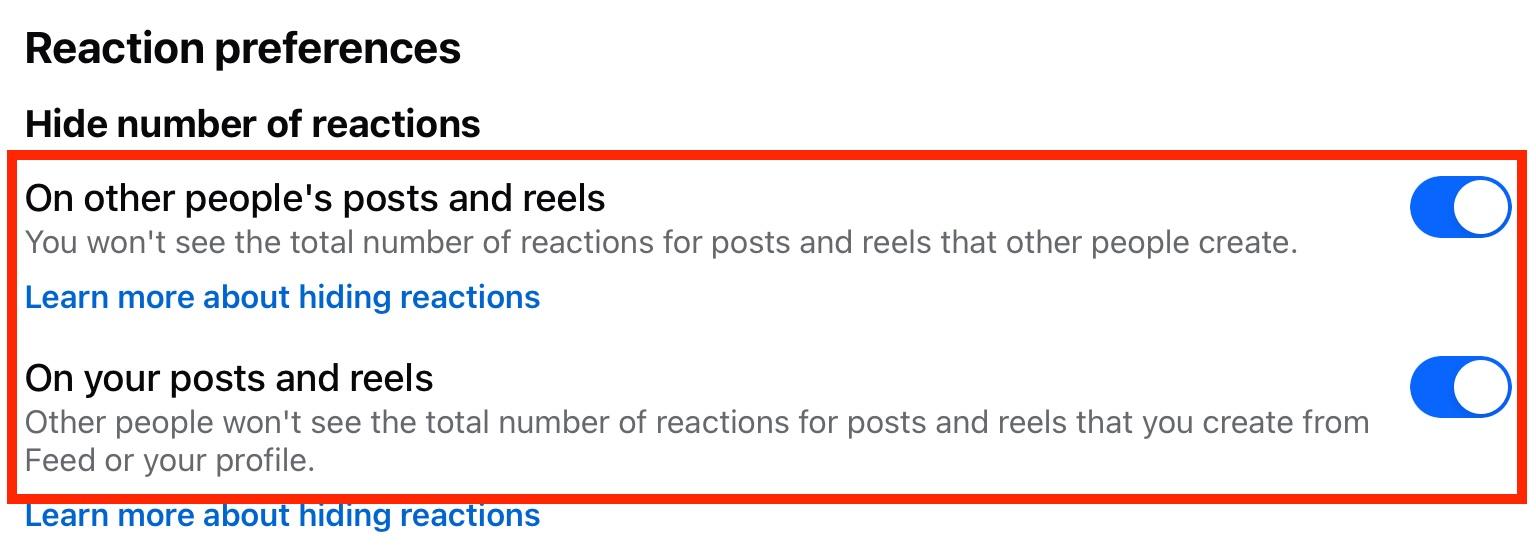
Scroll down to Preferences and tap Reaction Preferences.
Toggle both toggles in Hide Number Of Reactions ON.
How To Disable Likes On Facebook Desktop
Click your profile picture on the top right corner.
Click Settings & Privacy > Settings.
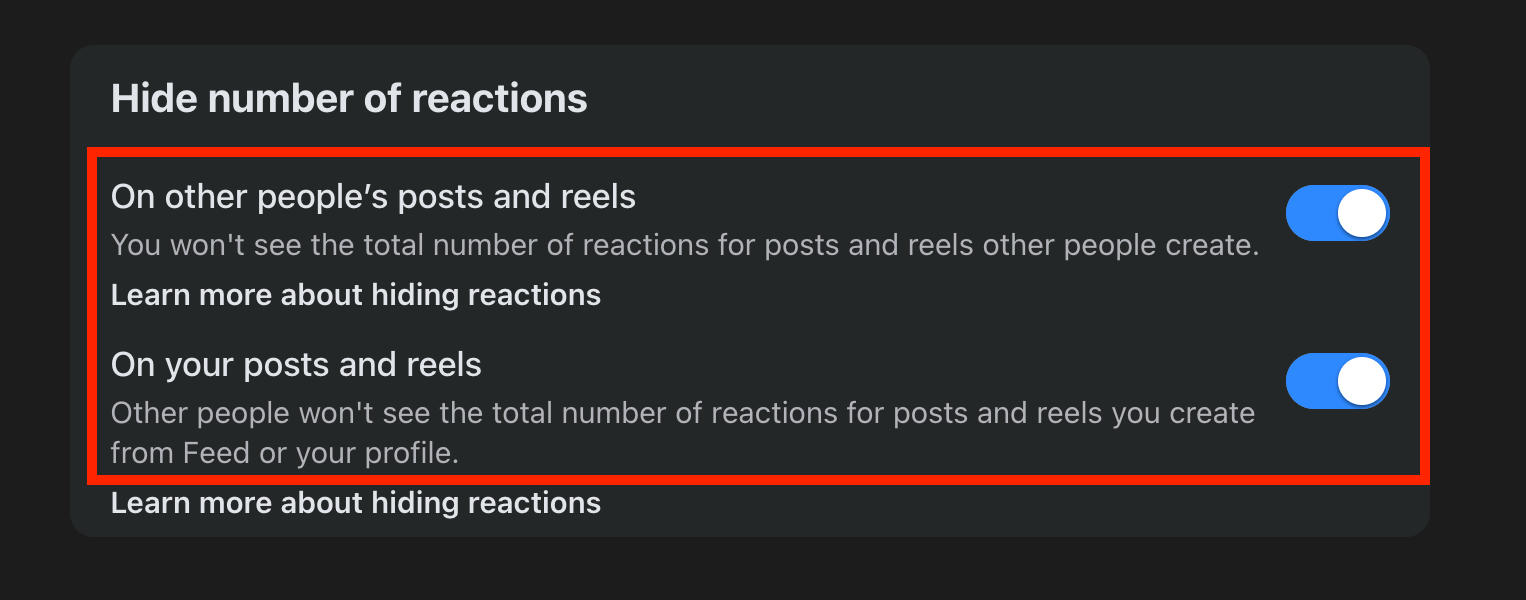
In the left-hand menu under Preferences, click Reaction Preferences.
Toggle both toggles in Hide Number Of Reactions ON.
How To Change Who Can See My Likes On Facebook
Every Facebook profile has a section where users can view the recent pages, profiles, and posts that someone has liked.
However, you can adjust the audience of each section to keep things more private.
Why Hide Likes On Facebook?
Hiding your profile likes is a smart way to maintain privacy on Facebook, especially if you don’t want everyone to see pages or events that you’ve recently liked.
This can be a smart way of hiding your activity from prying eyes, or just a precaution for privacy-conscious users.
How To Hide Likes On Facebook Mobile
Currently there’s no way to view or hide the profile likes section on the Facebook mobile app, but you can adjust these settings via the desktop site.
How To Hide Likes On Facebook Desktop
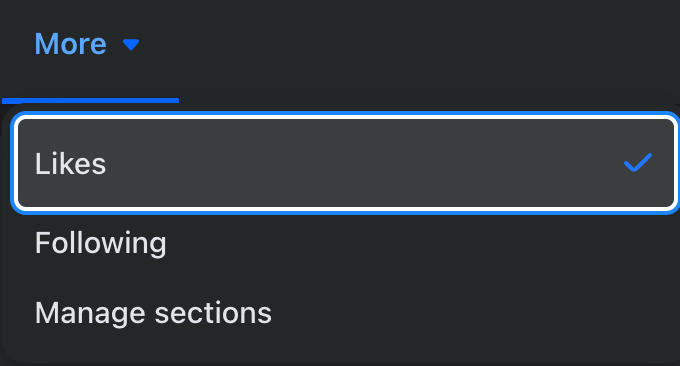
Open your profile page and click More > Likes on the menu below your cover photo.
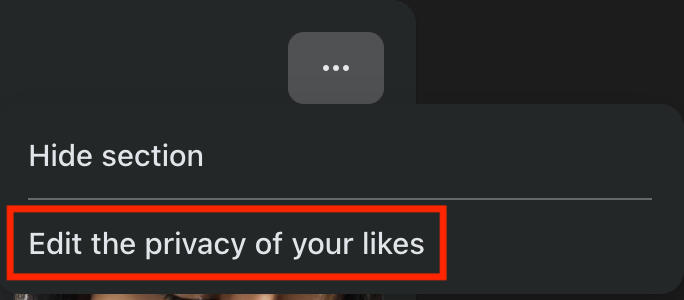
From here, click the three dots on the top right corner.

Click Edit The Privacy Of Your Likes.
Click the globe icon next to each section to adjust its audience.
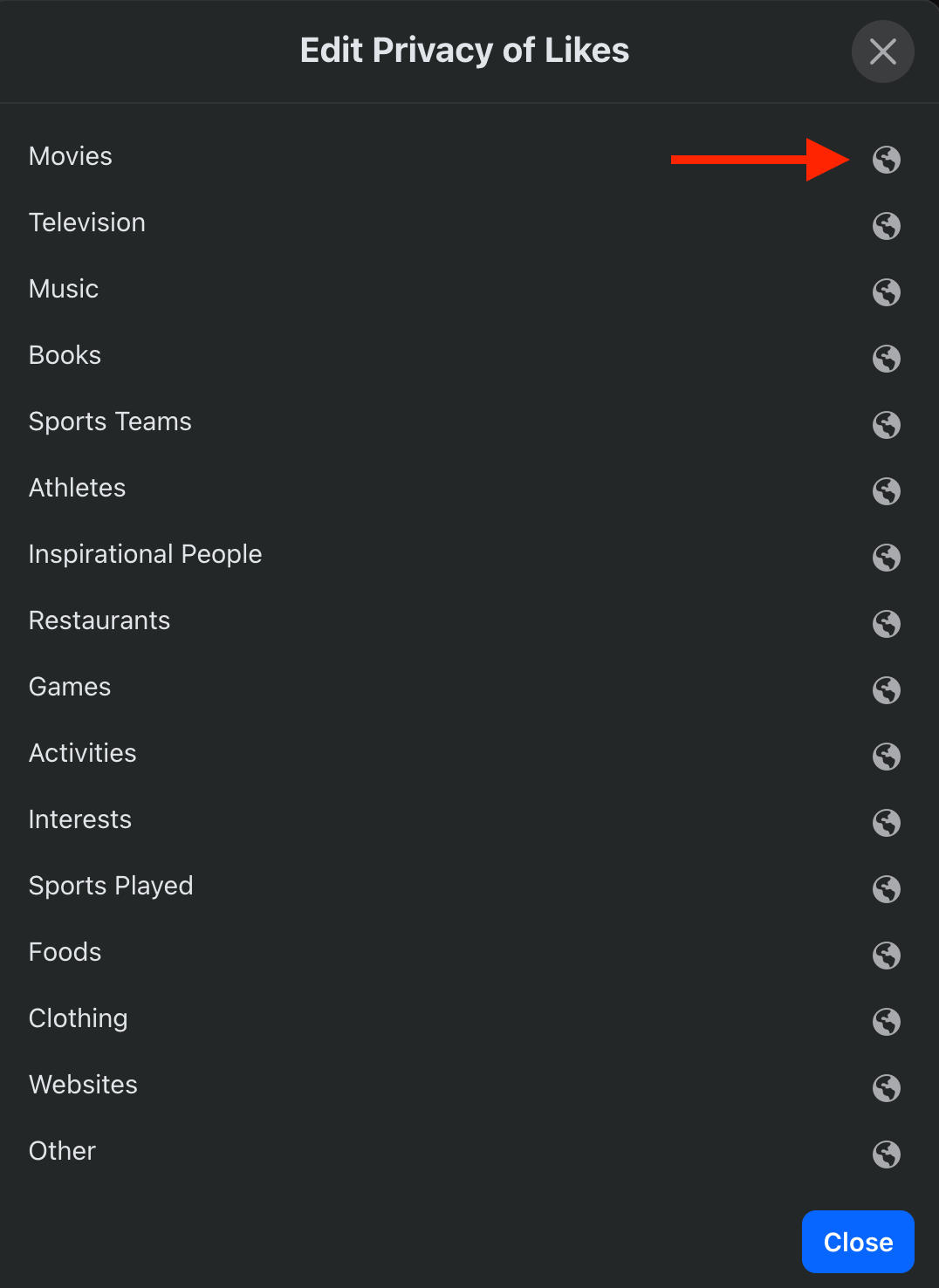
You can choose from Public, Friends of Friends, Friends, or Only Me.
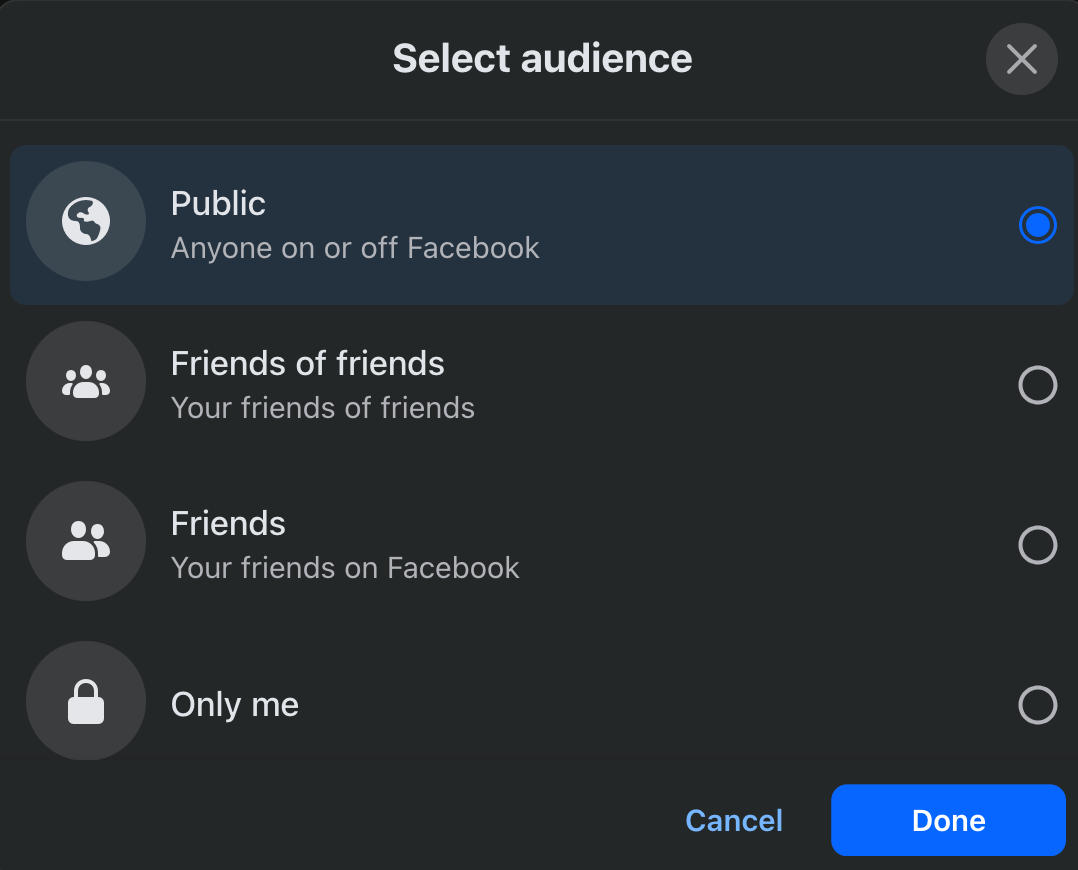
Save your choice by clicking Done.
How Do You Stop Someone From Liking Your Posts?
The most effective way to prevent a user from liking your Facebook posts is to block them.
To do this, visit their profile page and click or tap the three dots on the top right corner.
Select Block and confirm your choice.
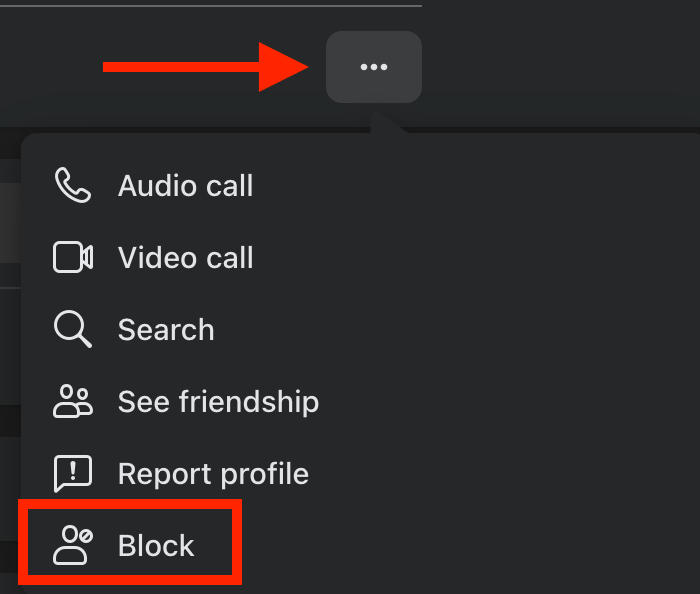
The user will no longer be able to find your profile or interact with your content. If you’ve commented or liked a public post that they have access to, your name will not appear.
How To Get Likes On Facebook Quickly
Sometimes users hide the likes count on their posts in order to avoid seeing a low engagement count.
Luckily there’s a smart way to get likes on Facebook without having to struggle early on in your social media career. With QQTube’s high-quality Facebook likes services, you can boost the likes count on your posts instantly and enjoy engagement from real, active Facebook users.
To get started, sign up for a free QQTube account here.
Frequently Asked Questions
Is Facebook hiding likes?
Facebook won’t hide likes unless you’ve manually chosen to hide them via your Settings.
Why can't I see all the likes on my post?
If you’ve turned off the likes and reactions count, you won’t be able to see the likes on your post. Learn how to turn it back on here.
Can you turn off likes on a post?
Yes, you can turn off likes or reactions via your Facebook settings. Learn how here.
Can I remove the like button on Facebook?
You can’t remove the like button from a Facebook page, but you can turn off the likes count of your posts by following the steps outlined here.
How do I control who can like my photos on Facebook?
You can adjust the audience of your post and therefore which users can engage with it by clicking the three dots on the top right corner and and choosing Edit Audience.
Is it possible to hide likes permanently?
Yes, you can turn off likes on your Facebook account by following the steps outlined here. Once they’re turned off they’ll stay off until you turn them back on.
How to remove likes on Facebook from a specific person?
The only effective way to remove likes from a specific person on Facebook is by blocking them, which you can learn how to do here.
How to turn off likes and comments on Facebook profile picture?
There’s no way to turn off likes and comments entirely, but you can adjust the permissions by clicking the three dots on the top right corner and selecting Who Can Comment On Your Post.