Learn how to clip on Twitch as a viewer or streamer, so you can save your favorite moments from any stream you want quickly and conveniently.
Plus, tips on how to get more Twitch clip views fast!
Key Points:
How To Clip On Twitch As A Viewer
Clips are brief snippets of a stream taken by the streamer, their moderation team, and even viewers. They’re a popular way to feature key moments from a stream and encourage new viewers to join in on future events.
If you’d like to clip a Twitch stream as a viewer, you can do so easily from the Twitch desktop site or mobile app by following the instructions outlined below.
NOTE: If you don’t see the Clips option on a stream, it’s likely because Clips have been disabled by the creator, or they’ve been limited to followers or subscribers.
How To Make Clips On Twitch Mobile
Open the livestream or past broadcast that you wish to clip.
Tap the stream window.
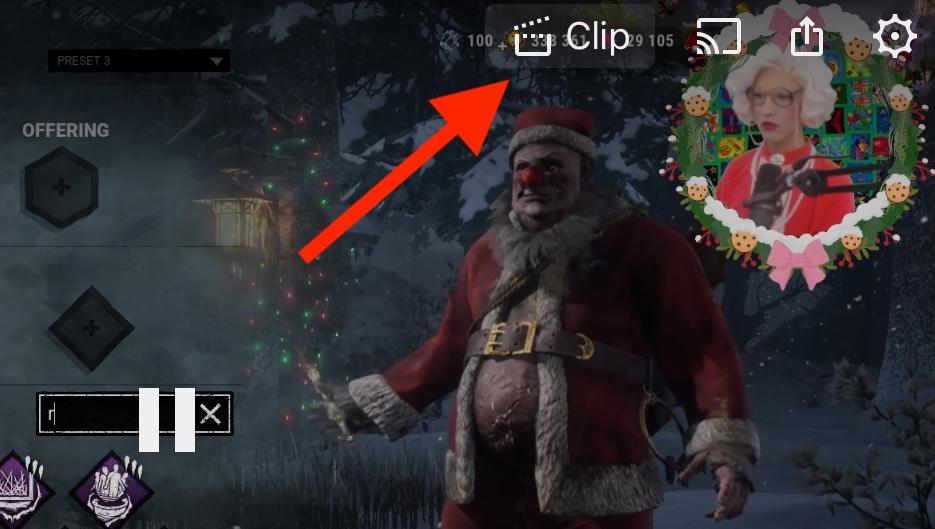
Tap the Clip option that appears on the top right corner.
From the pop-up menu, tap Edit to adjust the length of your clip.
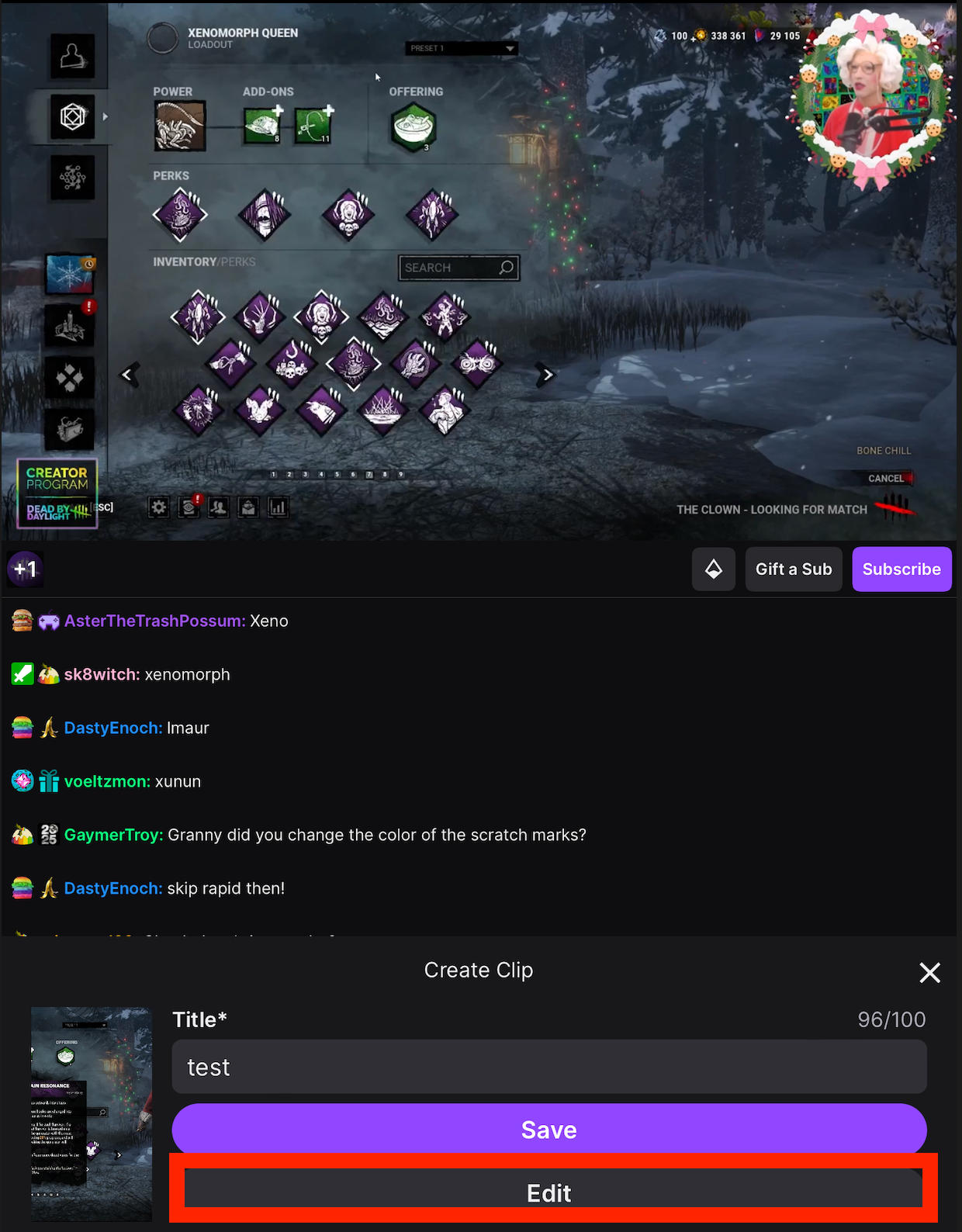
When you’re ready, tap Save Clip.
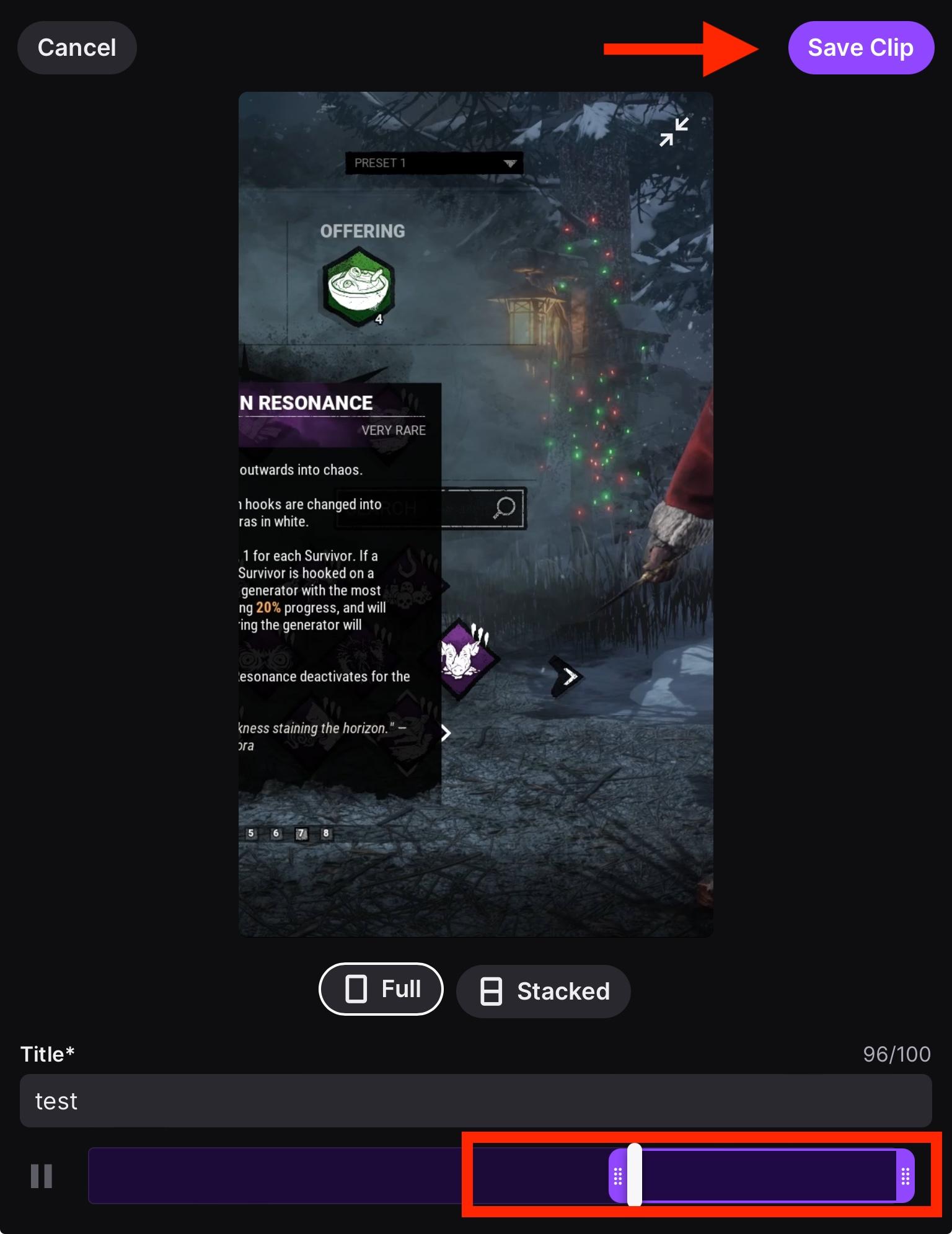
Give it a title, then tap Save.
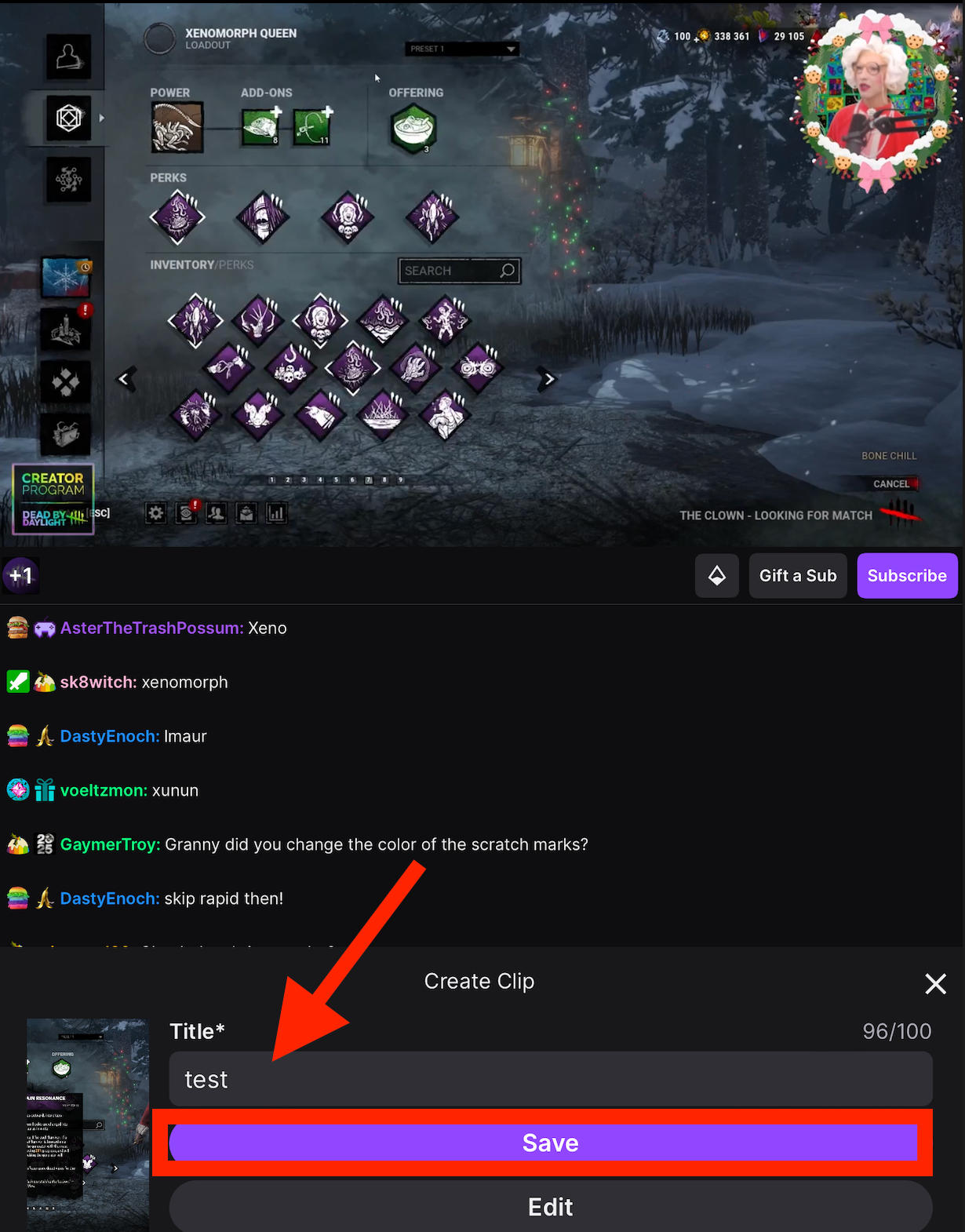
You’ll receive a link that you can use to distribute your clip, or you can choose to share it directly to a platform of your choice.
How To Make Clips On Twitch.tv
Open the livestream or past broadcast that you wish to clip.
Hover over the stream window.
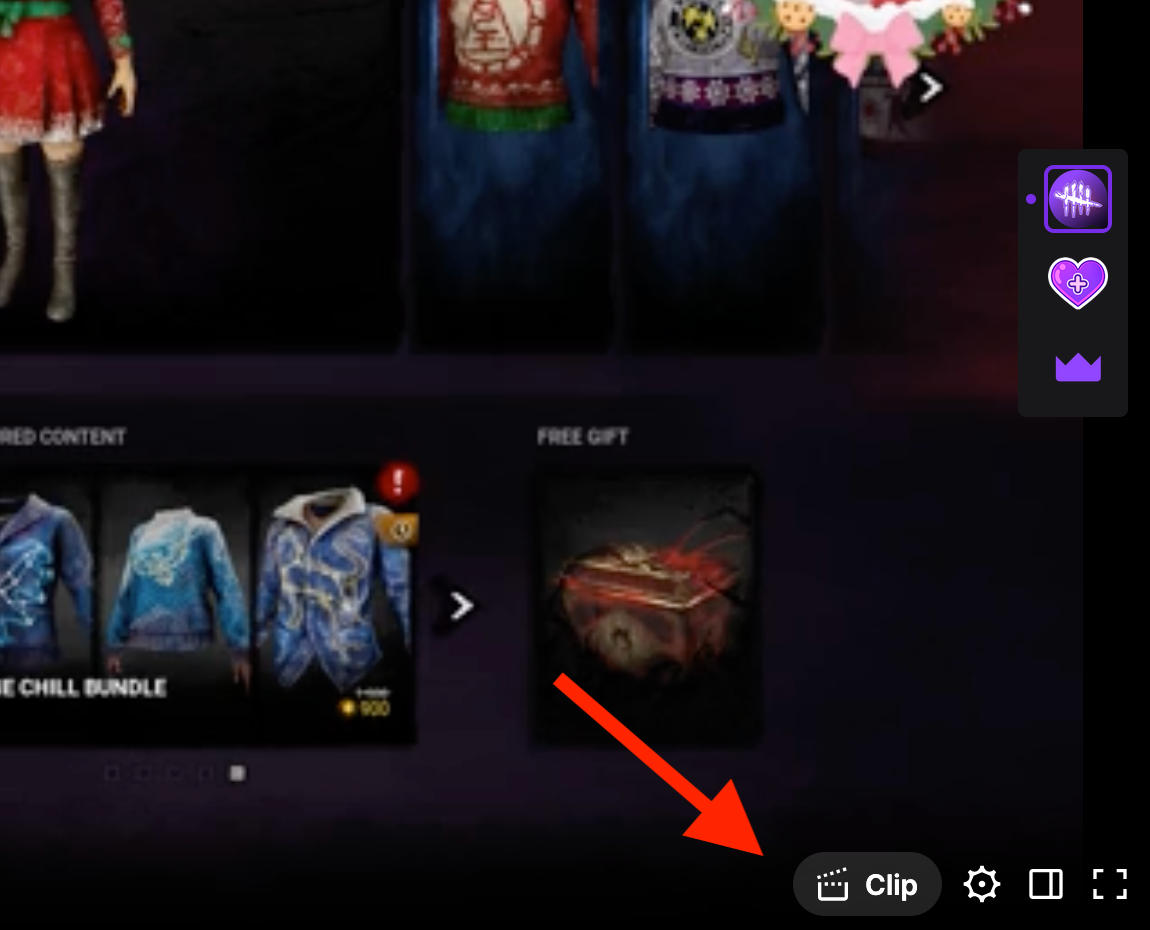
Click the Clip option that appears on the bottom right corner.
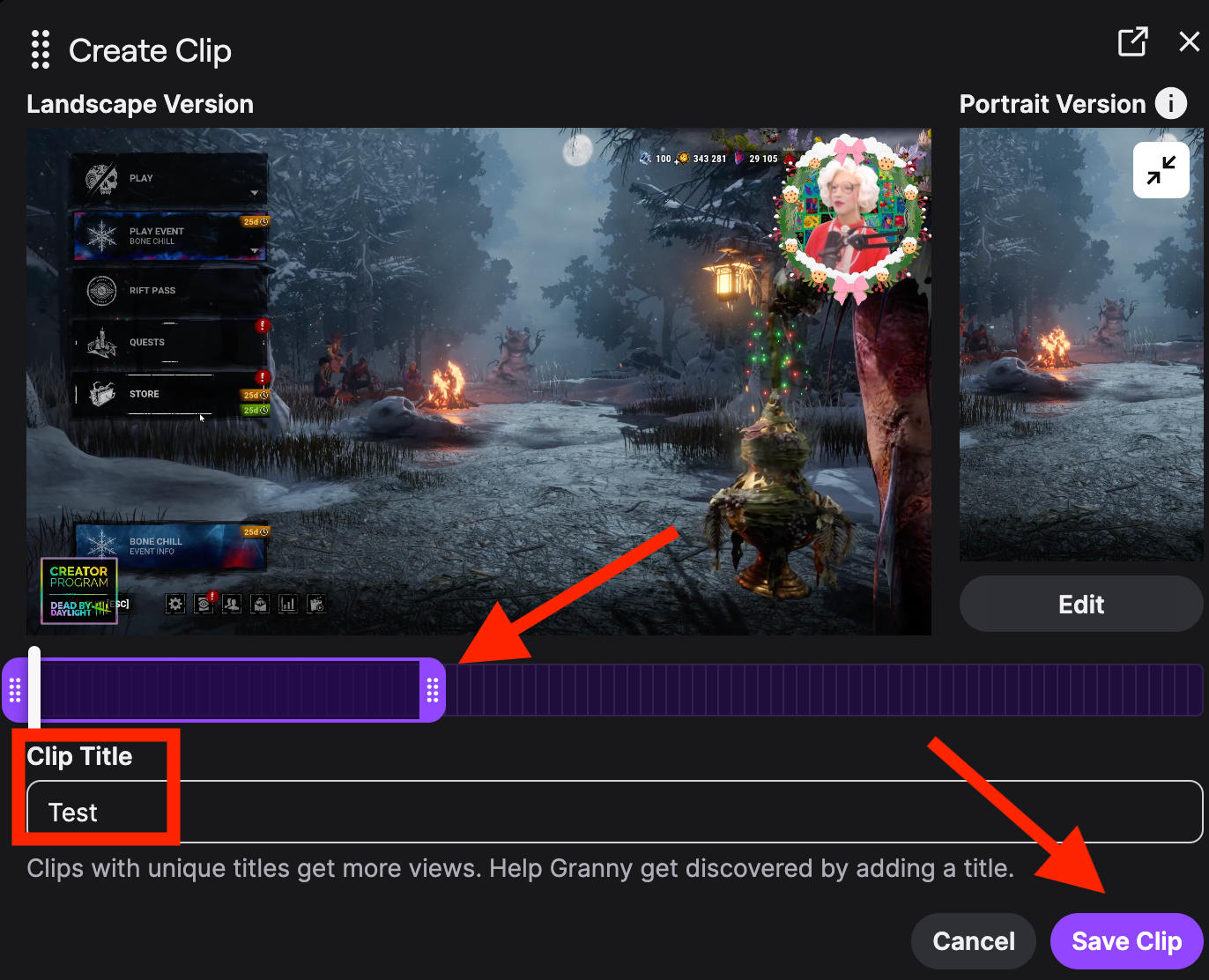
From the pop-up menu, adjust the length of your clip and give it a title.
When you’re ready, click Save Clip.
You’ll receive a link that you can use to distribute your clip, or you can choose to share it directly to a platform of your choice.
Keep In Mind
-
Clips can be up to 60 seconds long
-
The creator of the stream can see any clips created.
-
Viewers can be banned from creating clips if they abuse the feature.
Is Clipping Streamers Illegal?
No, taking clips of streamers isn’t illegal if you simply intend to share their content to your social media as a way to promote your favorite creator.
However, using someone else’s content to make money through a monetization program on another platform, such as YouTube, is prohibited.
How To Clip Further Back
While you won’t be able to clip further back on a live stream, if you click the Videos tab on a channel you can access past broadcasts, scroll to the specific time you’d like to clip, and follow the usual steps to create a Clip depending on your device type.
How Do I Enable Clipping On Twitch?
Clips are enabled by default for all channels, so if you haven’t previously disabled them, there’s nothing you need to change.
How To Enable Clips On Twitch
If you did previously disable Clips, you can enable them by toggling the Enable Clips setting to ON via your Stream Settings here or by following the instructions below.
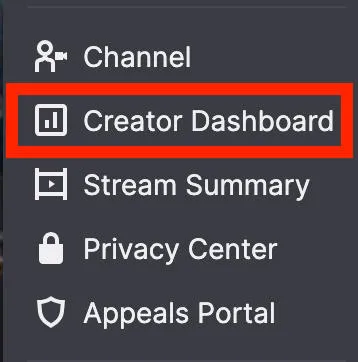
Click your profile picture on the top right and click Creator Dashboard.
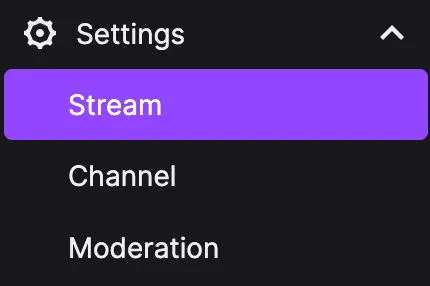
From the left hand menu, click Settings > Stream.
Scroll down to Clips Settings and make sure that Enable Clips is toggled ON.

How To Make Clips Subs Only On Twitch
If you want added privacy without limiting your existing audience, you can make Clips a feature for just your followers or subscribers.
To do this, access your Stream Settings here.
Scroll down to Enable Clips.
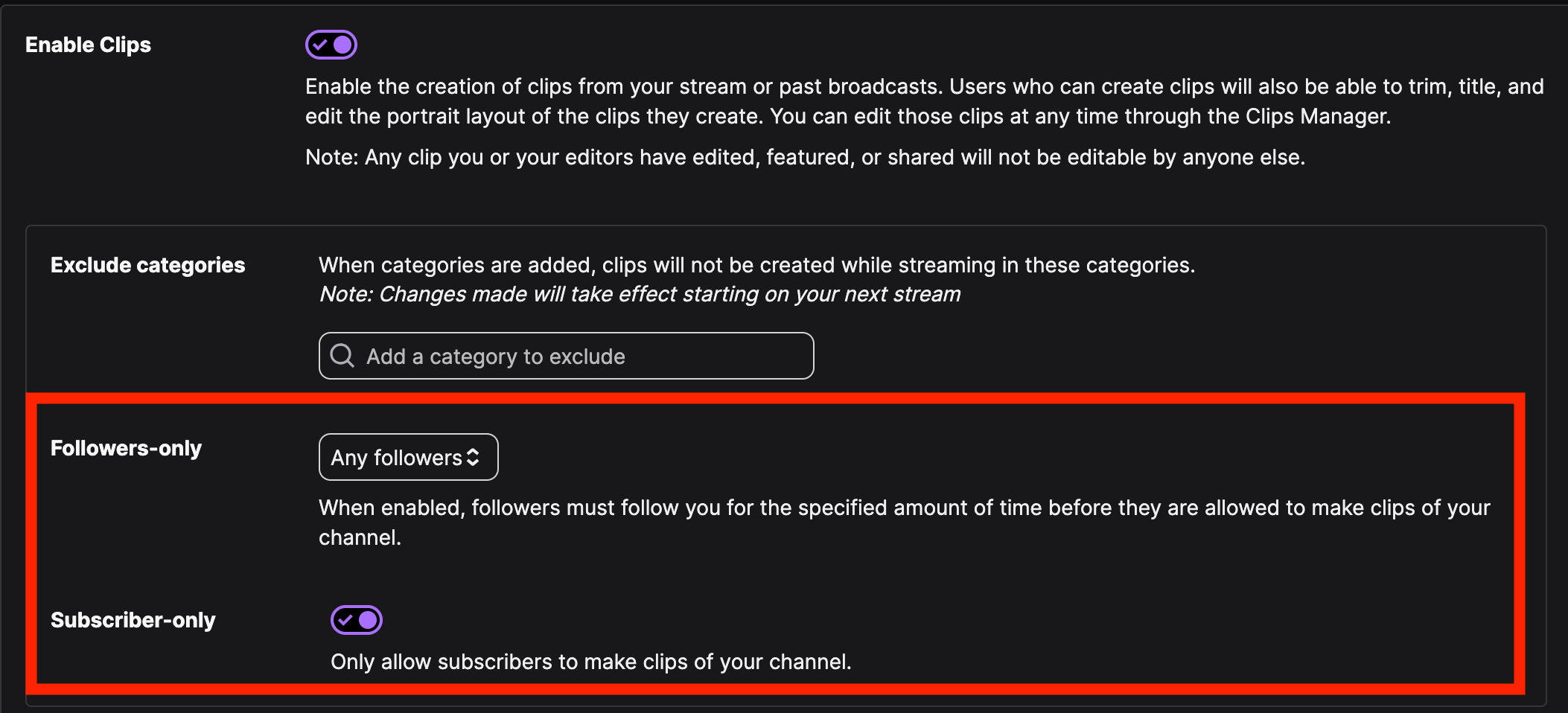
Click the drop-down menu next to Followers-Only and select your choice.
You can also toggle Subscribers-Only to ON if you want to limit it further.
How To Save Clips On Twitch While Streaming?
If you’d like to save clips on Twitch while actively streaming, the most convenient method is to store past broadcasts then return to them after you’ve finished streaming and create your desired clips.
To do this, click on your profile picture on the top right and select Creator Dashboard.
From the left hand menu, click Settings > Stream.
Scroll down to VOD Settings and toggle Store Past Broadcasts to ON.
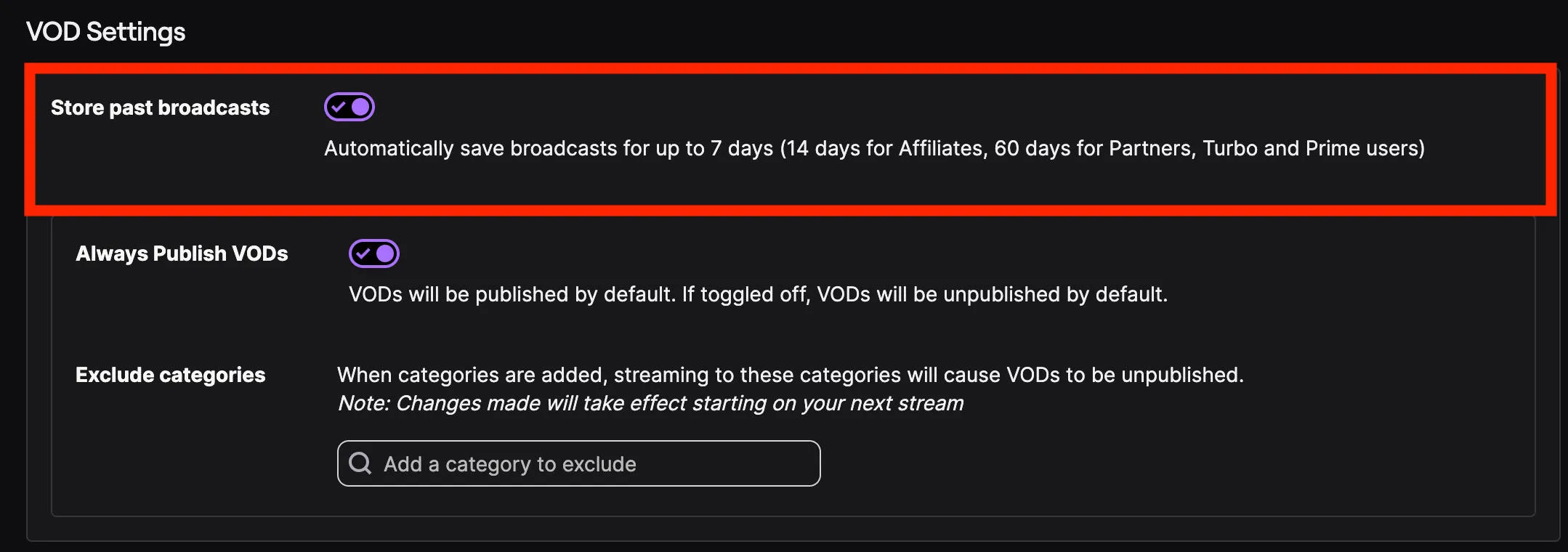
Beneath that, Always Publish VODs should be toggled ON by default.
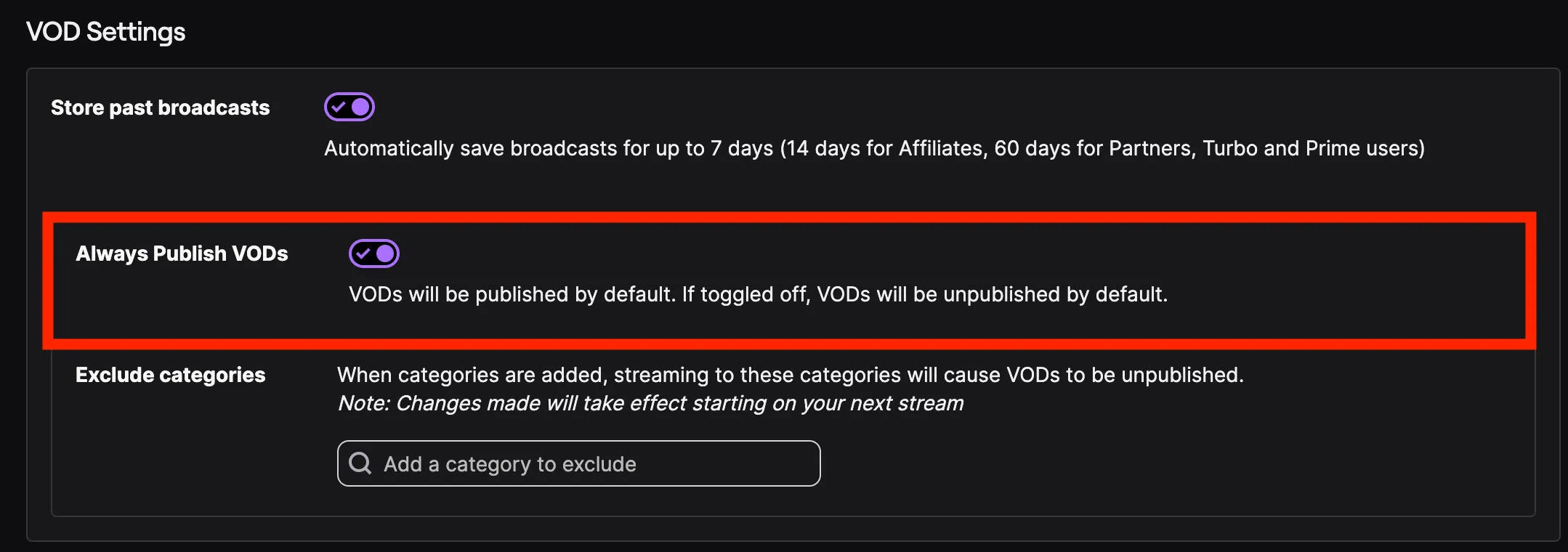
After you’ve finished streaming, return to your channel and click the Video tab to access past broadcasts and create your Clips.
Is There A Clip Command On Twitch?
While Twitch doesn’t have a built-in Clip command on its platform, there are certain third-party Twitch bots, such as Nightbot, that allow creators to use a quick command (such as !clip) to instantly create a clip of a moment while streaming.
As with any third-party app or bot, always do your research before granting access to your accounts.
What Does The Clip Command Do?
This depends on the way you set up your command with your bot of choice.
Usually you’d type in a quick command, such as !clip or /clip and the bot would automatically generate a clip for you - or pull up the Clip menu so that you could create a clip manually.
How To Automatically Clip On Twitch
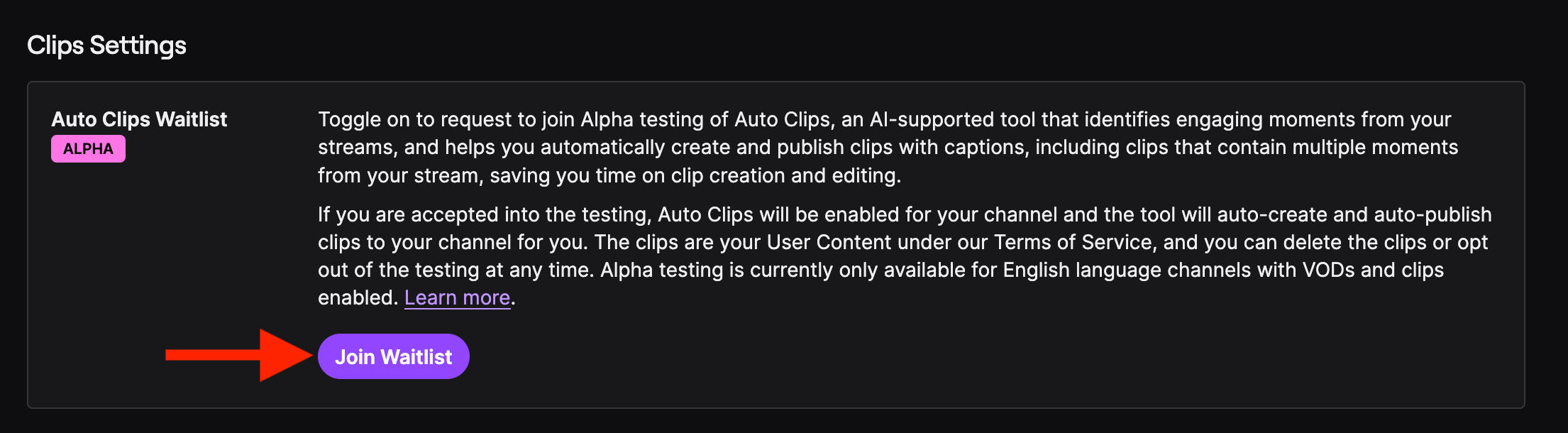
Twitch is currently testing out a new feature called Auto Clips, which allows streamers to automatically generate a clip by giving a voice command while streaming.
While Auto Clips is invite-only, you can sign up for the waitlist by opening your Stream Settings here.
Scroll down to Clips Settings and click Join Waitlist next to Auto Clips Waitlist.
How To Manage All Your Clips
You can view and manage all of your clips via the Creator Dashboard. This includes the title, channel name, streaming category, date created, and number of views that the Clip has received.
You can also sort between clips you have created yourself, and clips that other users have created of your channel from past broadcasts.
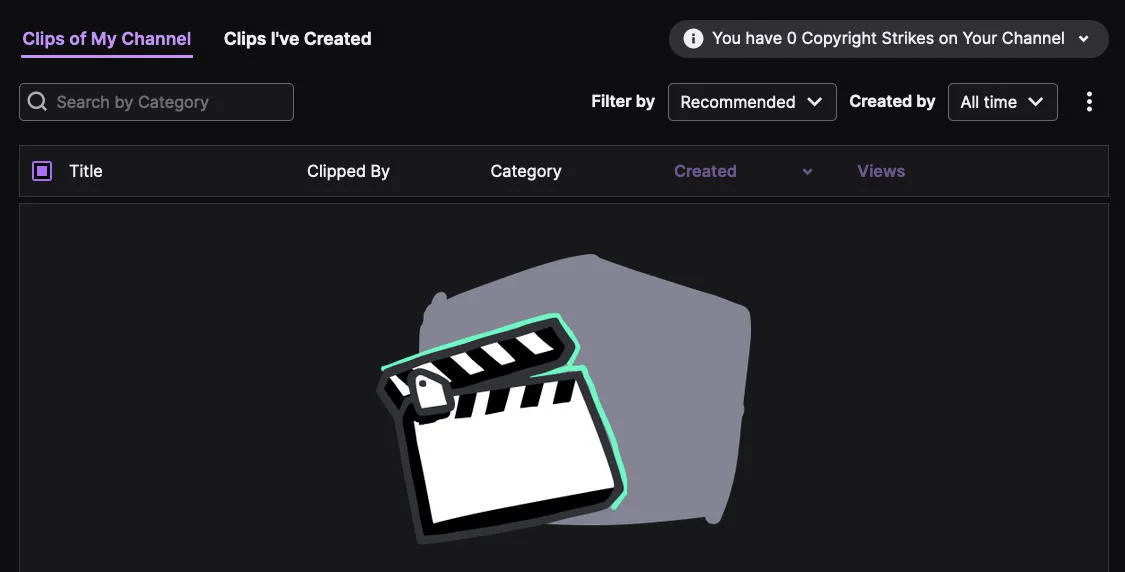
To access your Clip Manager, visit your Creator Dashboard. Click Content > Clips.
How To Delete Clips On Twitch
To delete a clip of Twitch highlights, first access your Clips Manager from your Creator Dashboard > Content > Clips.
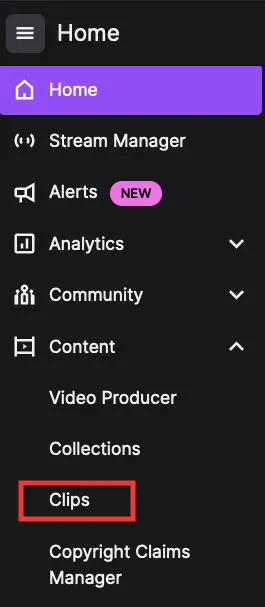
- Click on the clip you wish to delete, then click the trashcan icon.
- Confirm the deletion.
You can delete multiple clips by selecting the checkbox to select specific clips, the confirm by clicking Delete Selected.
You can delete all clips of your channel - or created by you - by tapping the three stacked dots on the upper right corner, then click Delete All Clips of My Channel from the drop down menu.
How To Get More Twitch Clip Views
If you want to help your Clips stand out, increasing your view count is a surefire way to gain more exposure.
Here at QQTube we offer a variety of high-quality Twitch Clip Viewers services, so you can boost your Clips instantly and help them rise to the top of the homepage. Whether you’re trying to grow your own channel or want to support your favorite creator, all you need is the URL to the Clip and you can get started!
Frequently Asked Questions
How do I clip part of a Twitch stream?
Follow the instructions here depending on your device type. You can then adjust the time bar to select the specific part of the stream you want to clip.
How do I clip something on a stream?
You can clip a stream depending on your device type by following the instructions outlined here.
How to capture a Twitch stream?
If you’re trying to create a Clip, learn how to do so here.
Can you trim videos on stream?
You can’t edit streams while they’re live.
What is the shortcut for clip on Twitch?
There’s no built-in Clip command on Twitch, but common bot commands for clipping include !clip or /clip.