
Want to edit existing page roles? Learn how to give Facebook access to any user on your Facebook business page or personal page to help with your Facebook marketing workload. All you need is Facebook admin access to get started.
Plus, learn how to instantly gain more followers on your Facebook page and get your content recommended across the platform.
Key Points:
How To Add Another Manager To A Facebook Page
You can add a new admin to a Facebook page via your page settings, whether it's a business page or a personal page. You can opt to give the user the same permissions as you (full control) or partial control.
This can be done via the specific FB page, or from the Meta Business Suite by following the steps outlined below.
Via Your Facebook Page
From the Facebook app or desktop site, click your profile picture on the top right corner of your Facebook feed.
Click See All Profiles, then select the Facebook page you want to adjust page roles for in the drop down menu.
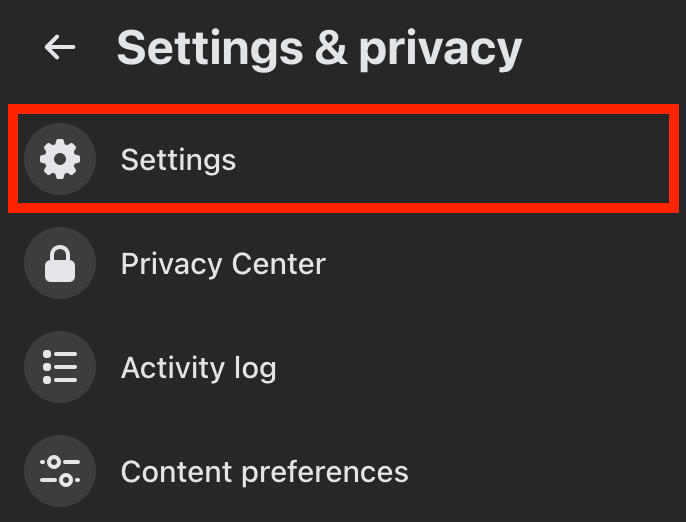
Click Settings & Privacy then select the Settings menu.
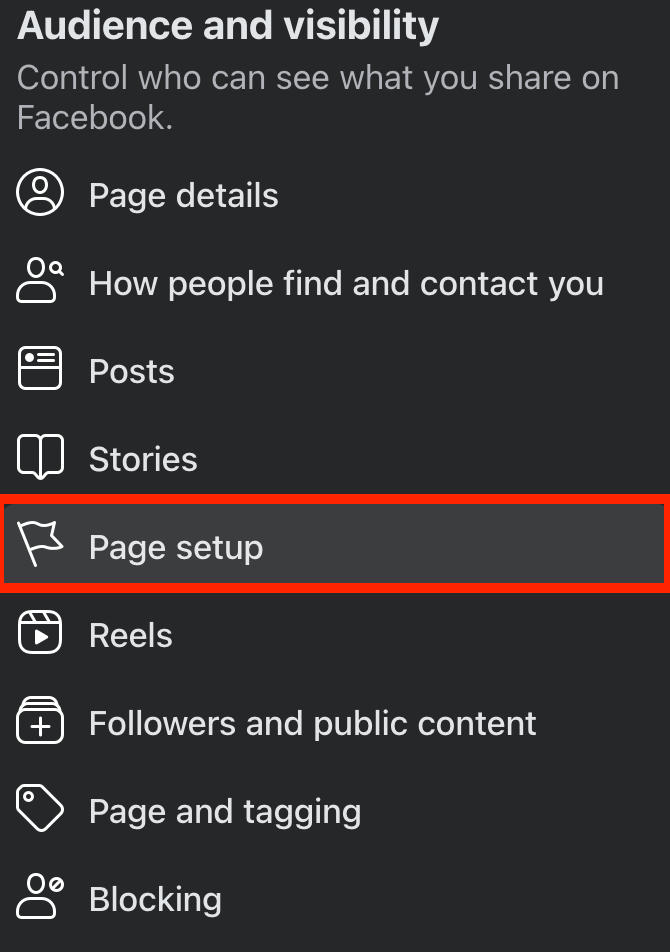
Under Audience & Visibility, click Page Setup > Page Access.
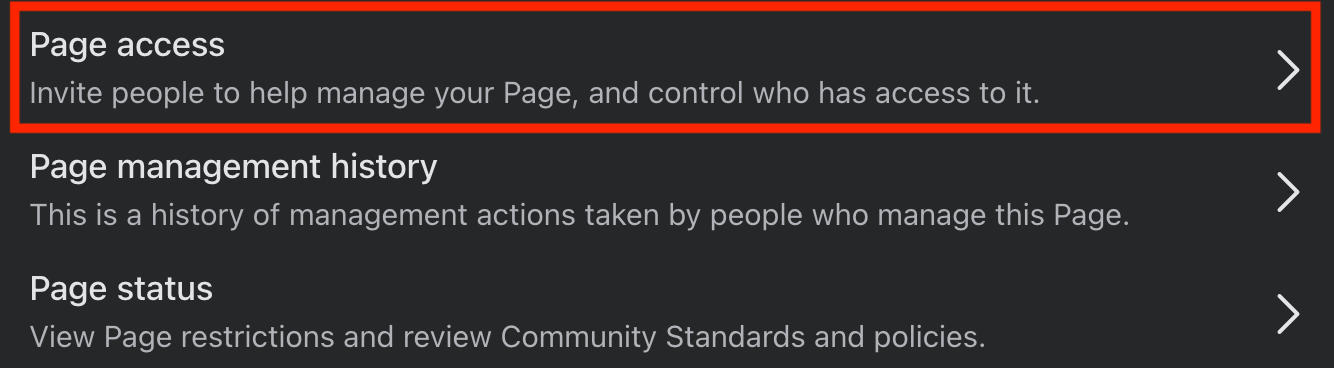
Next to People With Facebook Access, click Add New.

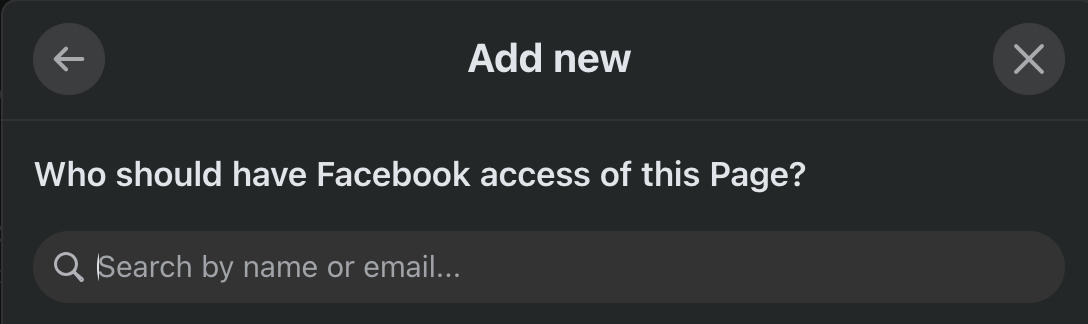
Click Next. From here, input the name or email address of the person you want to give page access to, then select the user.
Choose either full control or partial control from the dropdown menu.
Scroll down and click Give Access.
You may be prompted to input your Facebook password to confirm the change.
Via The Meta Business Suite
You can also manage pages via the Meta Business Suite.
Click Settings.

Under Accounts, click Pages.
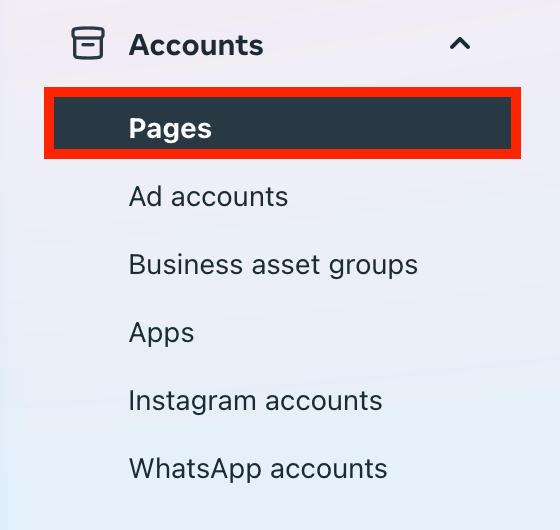
Select the page you wish to adjust permissions for.
Click Assign People.

Scroll down and click Add Person.
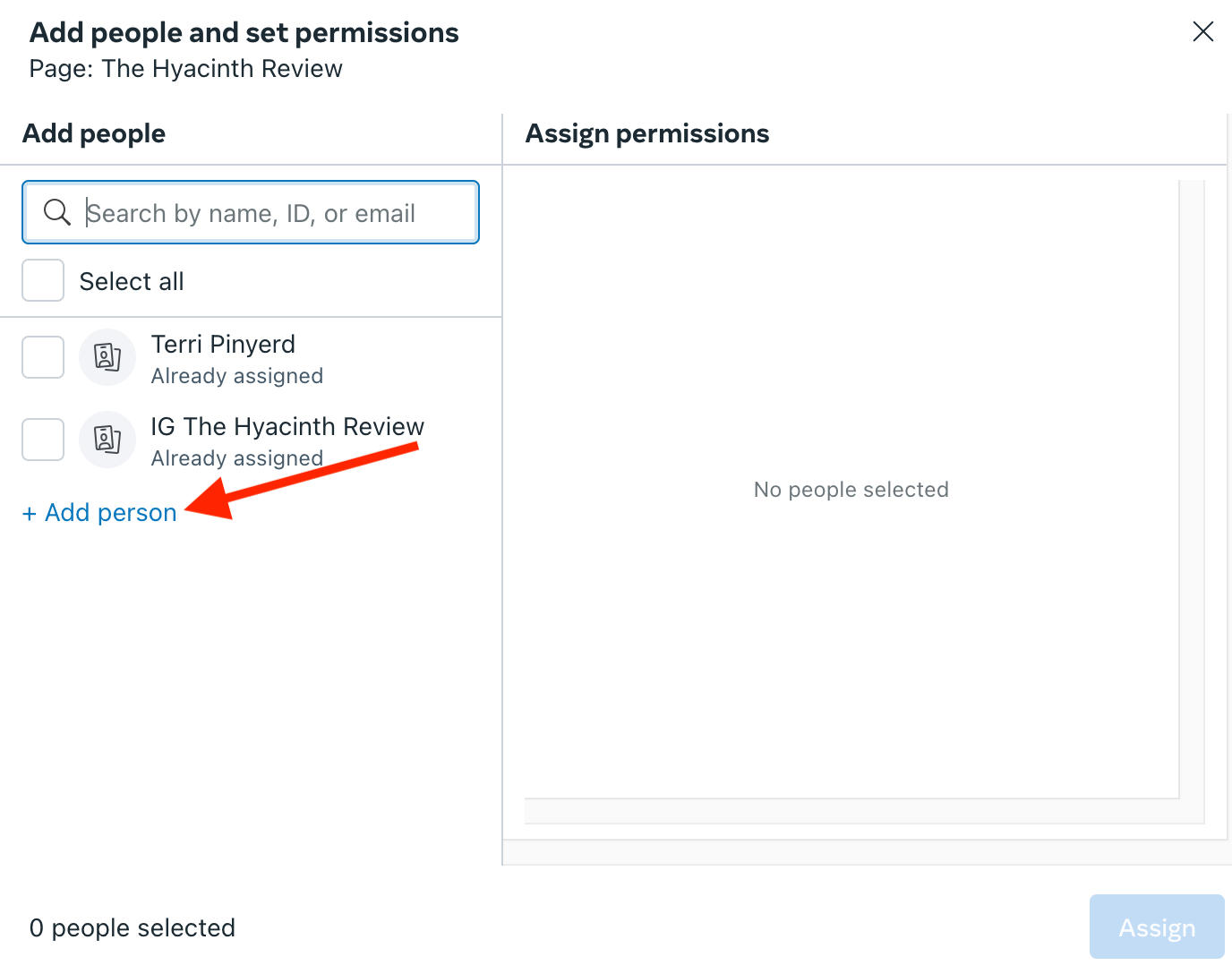
Enter the email of the person you want to send your admin invitation to.
Click Next.
Select the permissions you want to give the user and click Next.
Cilck Send Invitation.
The user will have to accept the invitation before the have full administrative access to the page.
What Admin Privileges Do Users Have Access To?
When you assign a new page role, you have the option to allow full control or partial control, depending on your needs.
Partial Control
Users with partial control have the ability to:
-
Create, manage, or delete content (including posts and Stories)
-
Access page monetization options
-
Reply to messages
-
Respond to, edit, and delete comments on the page.
-
Add, manage or remove linked accounts.
-
Create, manage, and delete ads.
-
Access page Insights.
-
Remove or ban people from the page
Full Or Complete Control
Users with complete administrative control have the same permissions as you, including the ability to delete posts, delete the Page, assign a new page role to other users, and remove users from the page (including yourself).
How To Add A Community Manager To A Facebook Page
Log into your Facebook account and click your profile picture on the upper right hand corner.
Click See All Profiles, then select the Facebook page you want to adjust page roles for in the drop down menu.
Click Settings & Privacy then select the Settings menu.
Under Audience & Visibility, click Page Setup > Page Access.
Next to Community Managers, click Manage.

Click Next. From here, input the name or email address of the person you want to give page access to, then select the user.
Click Toggle to select the features you want to grant access to.
Click Give Access.
Type in your Facebook password, then click Confirm.
The user will receive an email invitation that they will then have to accept.
What Can Community Managers Do On Facebook?
Community managers are essentially moderators for the Page's livestreams.
They do not have the ability to switch into the Page or manage it from Facebook.
Community managers can do the following:
-
Delete or report comments.
-
Suspend users from live chat for 15 minutes.
-
Ban users from the current live stream or from all live streams on the page.
-
Pin comments to the top of the live chat.
How To Give Someone Task Access On A Facebook Page
Log into your Facebook account and click your profile picture on the upper right hand corner.
Click See All Profiles, then select the Facebook page you want to adjust page roles for in the drop down menu.
Click Settings & Privacy then select the Settings menu.
Under Audience & Visibility, click Page Setup > Page Access.
Next to Task Access, click Add New.

Click Next. From here, input the name or email address of the person you want to give page access to, then select the user.
Click Toggle to select the features you want to grant access to.
Click Give Access.
Type in your Facebook password, then click Confirm.
The user will receive an email invitation that they will then have to accept.
What Can Users With Task Access Do On Facebook?
Users with task access can manage pages from page management tools including:
-
Meta Business Suite
-
Creator Studio
-
Ads Manager
-
Business Manager
They can't switch into the page or manage it from Facebook.
Task managers have the following abilities:
-
Create, manage, or delete content on the page.
-
Access monetization options.
-
Respond to direct messages
-
Comment, manage comments, and report activity on the page.
-
Create, manage, and delete ads.
-
Access Insights.
How To Add Someone To Your Facebook Business Manager
If you’d like to add someone to your Meta Business Suite business portfolio, you can do so via the Meta Business Suite settings.
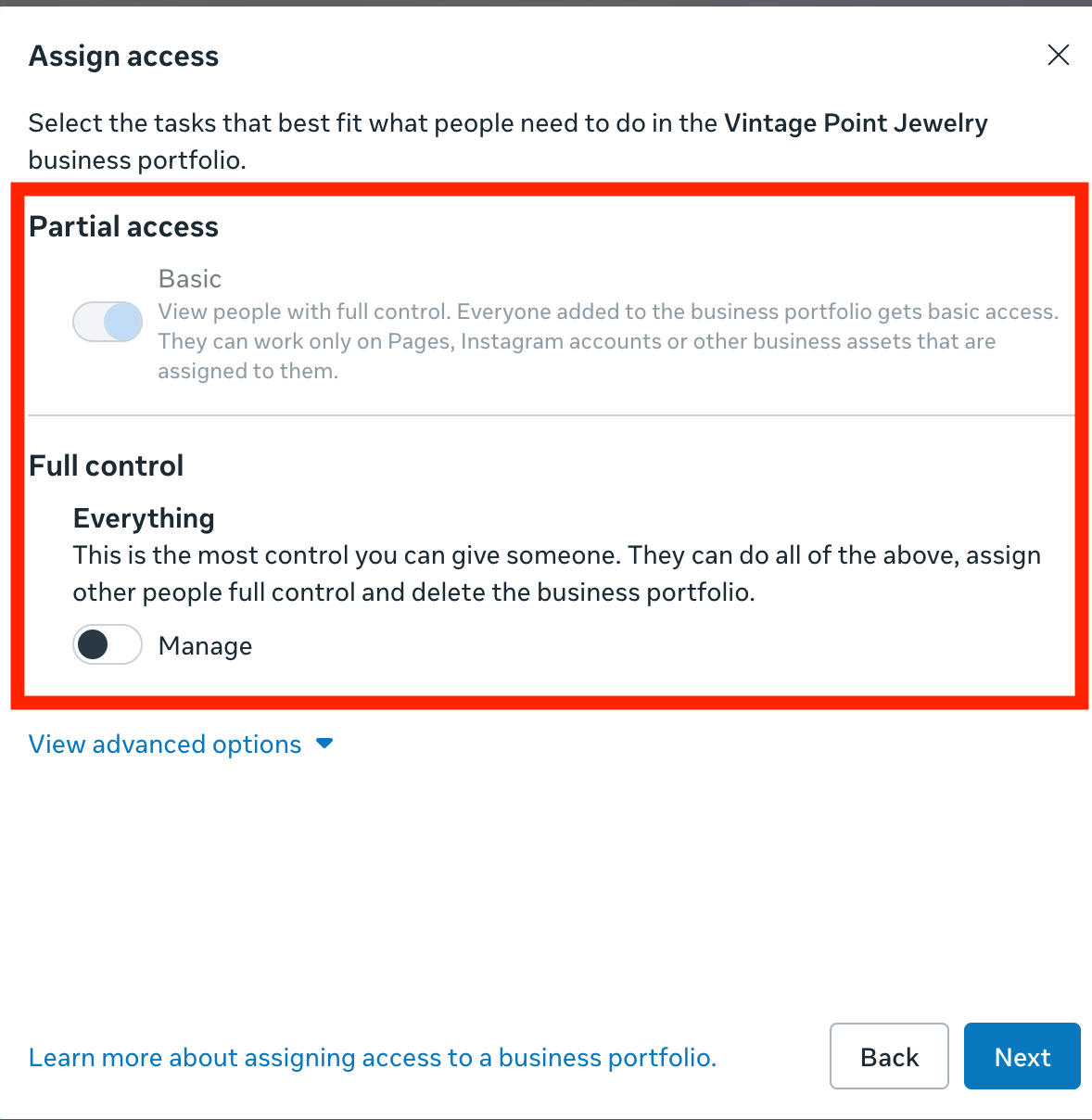
Keep in mind that when adding a user to your business portfolio, they’ll be granted basic access by default. However, you can adjust this based on the permissions you’d like to give them for their role.
First, visit the Meta Business Suite settings page here.
In the left-hand menu under Users, click People.
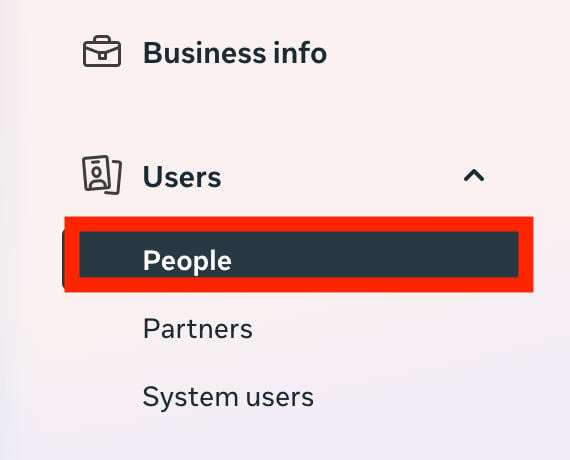
On the top right corner, click Invite People.

Input the email address of the person you’d like to add, then click Next.
Adjust the access you’d like to grant the user. Basic is the default, but if you want them to have the same permissions as you, toggle Everything to ON.
On the next page, select the business asset you want to give the user access to. You can select more than one.
Finally, review your decision and click Invite to complete the process.
How To Remove An Admin Role
Log into your Facebook account and click your profile picture on the upper right hand corner.
Click See All Profiles, then select the Facebook page you want to adjust page roles for in the drop down menu.
Click Settings & Privacy then select the Settings menu.
Under Audience & Visibility, click Page Setup > Page Access.
Click the three dots next to the user you want to remove, then click Remove Access.

The user will receive an email notifying them that they've been removed as an admin.
How To Get More Facebook Page Followers
Gaining followers on your Facebook page is more than just a vanity metric, it unlocks key features. For example, pages with at least 100 followers can set a unique page URL.
It also helps your page gain more exposure - the more followers your page has the more likely it is to be recommended to additional users in their feeds or Recommended Pages section.
No matter what your goals are, you can instantly gain Facebook Page followers from real users thanks to our selection of high-quality services. And if you have a question, don’t hesitate to reach out to our 24/7 customer support team!
Frequently Asked Questions
How do I allow someone else to manage my Facebook business page?
Depending on the page roles you want to grant other admins, you can assign a new page role from your page settings by following our guide:
How do I give a Business Manager access to a Facebook page?
Click here to learn how to give full control to new admin.
How to set up a Facebook manager?
You can learn how to add a manager to your Facebook page via page settings here.
Where to find add manager on Facebook?
You can manage all page roles by following our guide here.
Can two people manage one Facebook page?
Yes, you can add as many admin to a Facebook page as you want.
How do I give admin access on my Facebook business page?
You can learn how to grant admin privileges here.
How do I add a second owner to a Facebook page?
While you can only have one owner of a page, you can add multiple admin who have the same privileges as you by following the instructions outlined here.