Early users of Facebook may remember the platform’s poke feature, which allowed users to send a virtual nudge to their friends.
But did you know that you can still poke friends on Facebook?
That’s right, the feature never actually went away - it’s just hidden.
Today’s guide will show you how to access Facebook’s poke feature on both mobile and desktop devices, plus a few additional features the platform offers that you may not be familiar with.
Key Points:
How To Poke On Facebook
While the poke feature isn’t front and center anymore, it’s still possible to send your friends a virtual poke on both mobile and desktop devices.
On Mobile
Visit your friend’s profile page.
Tap the Poke button to the right of the Message button.

If you don’t see the poke button, open the Facebook app and tap the search bar.
Search poke.
Tap Pokes - it should be the first result.

From here you’ll be able to view the Poke page.
Tap Poke to the right of the friend you want to poke.
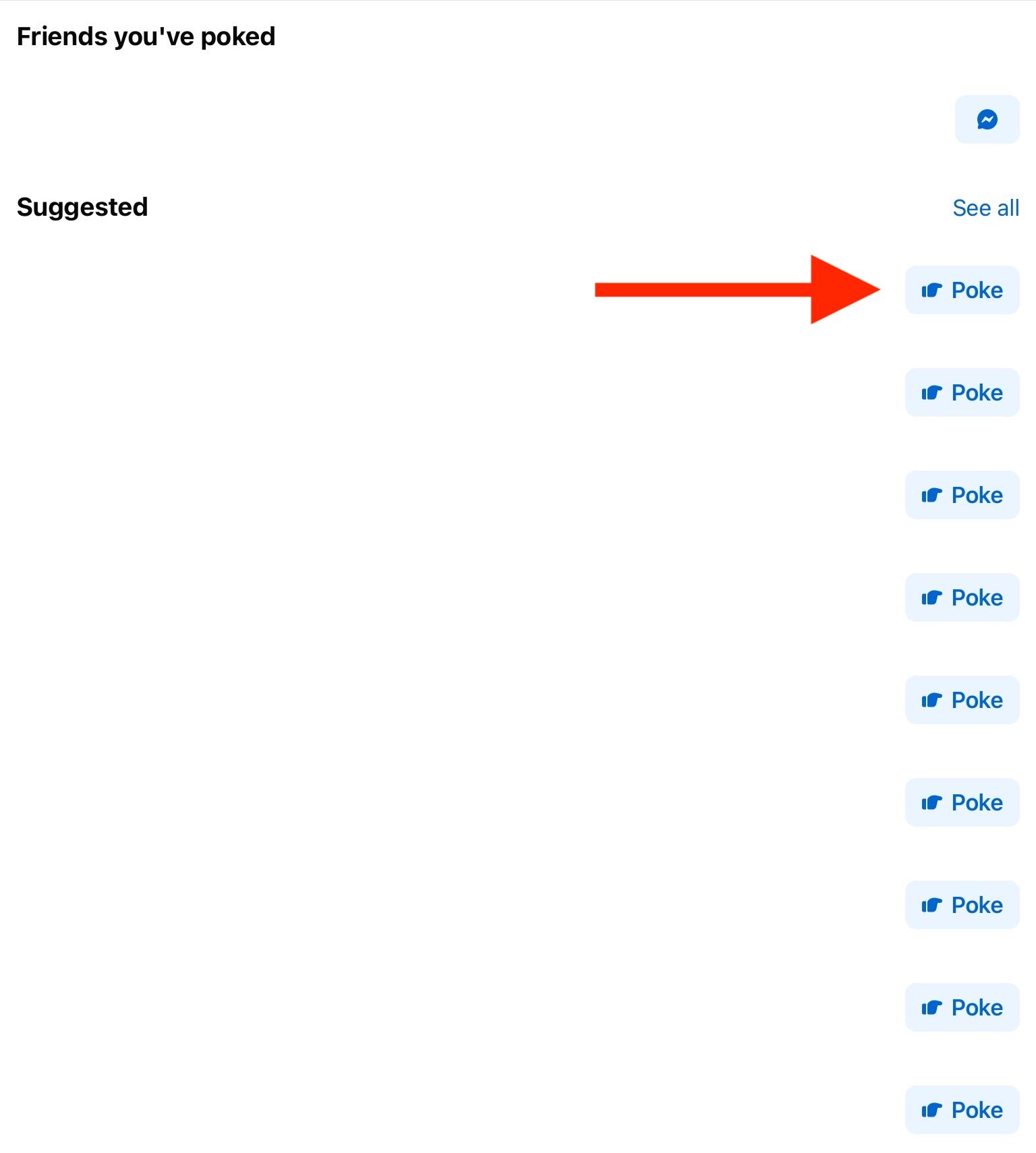
To see your entire friends’ list, tap See All on the top right.
On Desktop
Visit Facebook’s Poke page directly here, or click the search bar.
Search poke.
Click Pokes - it should be the first result.
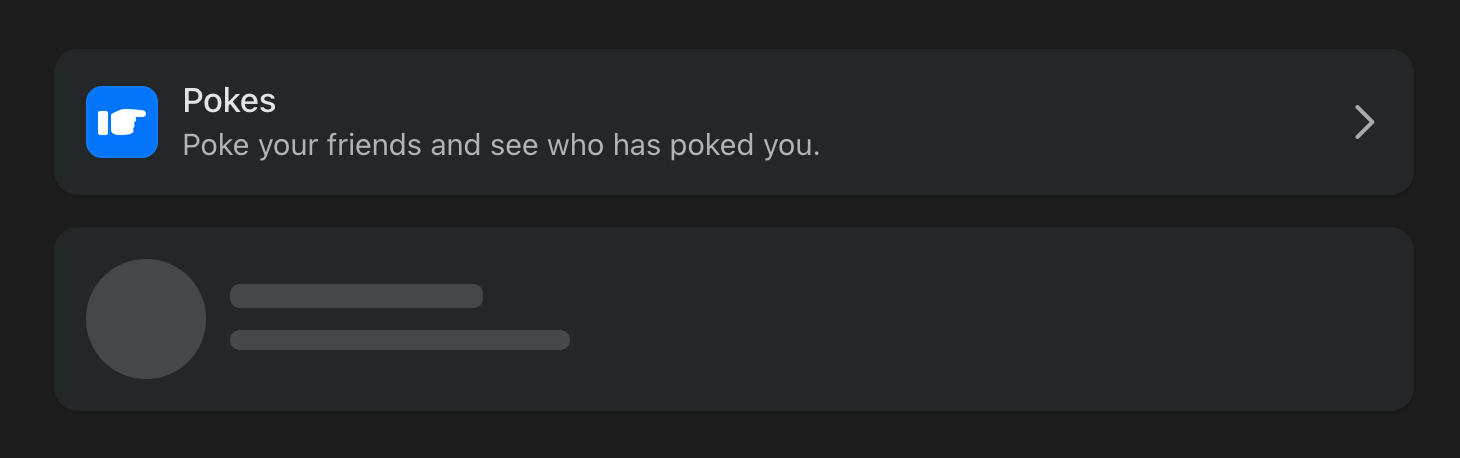
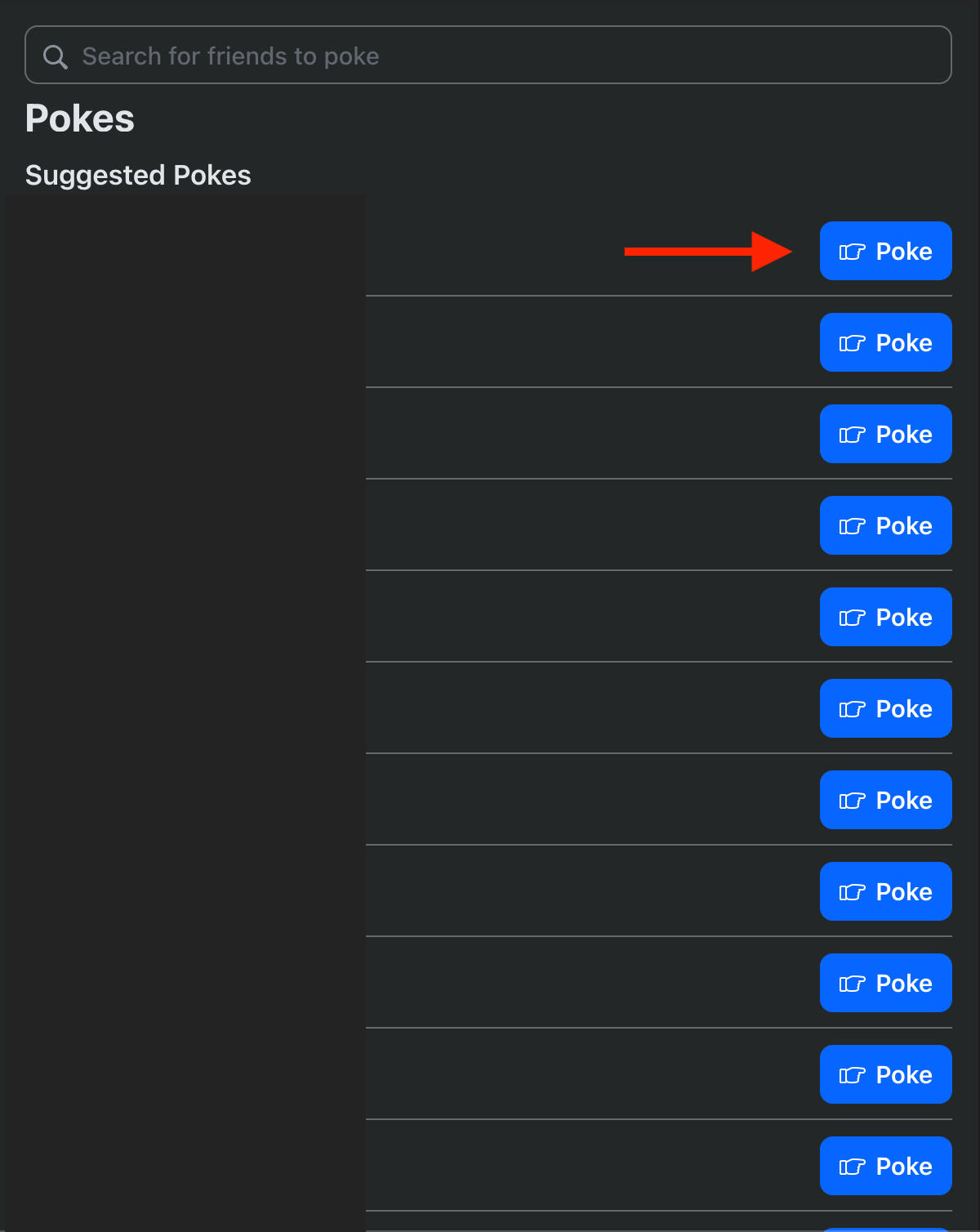
From here you’ll be able to view the Poke page.
Search for a friend to poke or choose from the suggested friends list.
Click Poke to the right of the friend you want to poke.
Can You Still Poke On Facebook Messenger?
Currently there’s no way to a poke a user through the Messenger app or the Messenger desktop site.
To poke someone you’ll have to be accessing the main Facebook platform on either the desktop site or mobile app.
How To Remove A Poke On Facebook
There’s no way to remove a poke that you sent someone else, but you can dismiss a poke that you’ve received from a friend.
On Mobile
Open the Facebook app and tap the search bar.
Search poke.
Tap Pokes - it should be the first result.
From here you’ll be able to view the Poke page.
Beneath the section titled Friends Who Poked You, locate the poke you want to dismiss.
Tap and hold their name, then tap Dismiss Poke.
On Desktop
Visit Facebook’s Poke page directly here, or click the search bar.
Search poke.
Click Pokes - it should be the first result.
From here you’ll be able to view the Poke page.
Beneath the section titled Friends Who Poked You, locate the poke you want to dismiss.
Click Dismiss Poke.
Is A Poke On Facebook Flirting?
Back in the day, poking someone on Facebook was definitely considered flirting.
Nowadays, however, it’s more of a nostalgic feature and most users who rediscover it use it for platonic fun.
Additional Hidden Facebook Features
Besides the hidden poke feature, Facebook has a ton of useful hidden features that you may not be aware of.
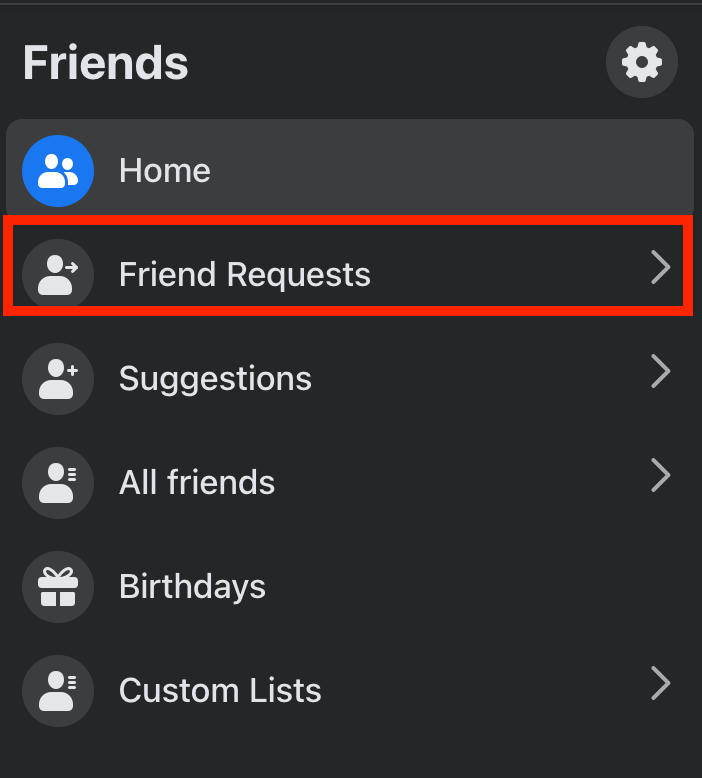
The Friend Request List
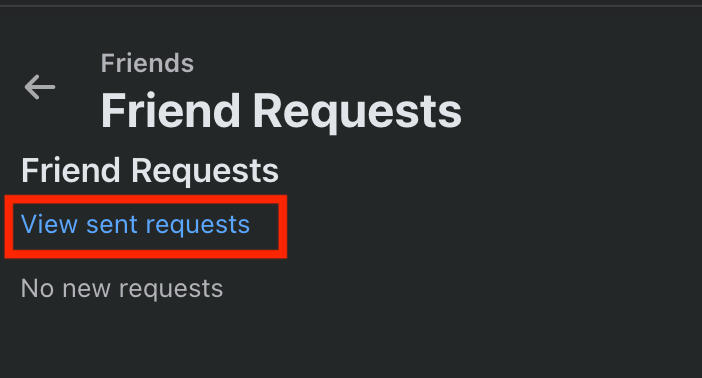
The Friend Request list allows you to view a list of users that sent you a friend request, and users that you sent a friend request to.
This is a great way to keep an eye on any pending requests or to delete them if you’ve changed your mind.
To access it, click the Friends menu icon from the top of the newsfeed or in the left-hand menu.

From here, click Friend Requests. This is where you’ll see received requests.
To view sent requests, click View Sent Requests in the left-hand menu.
The Birthday List
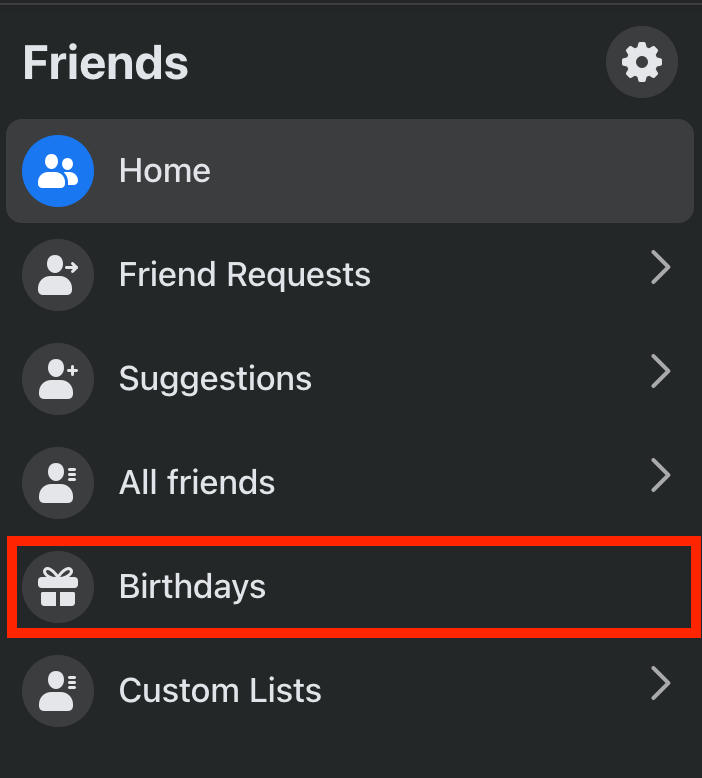
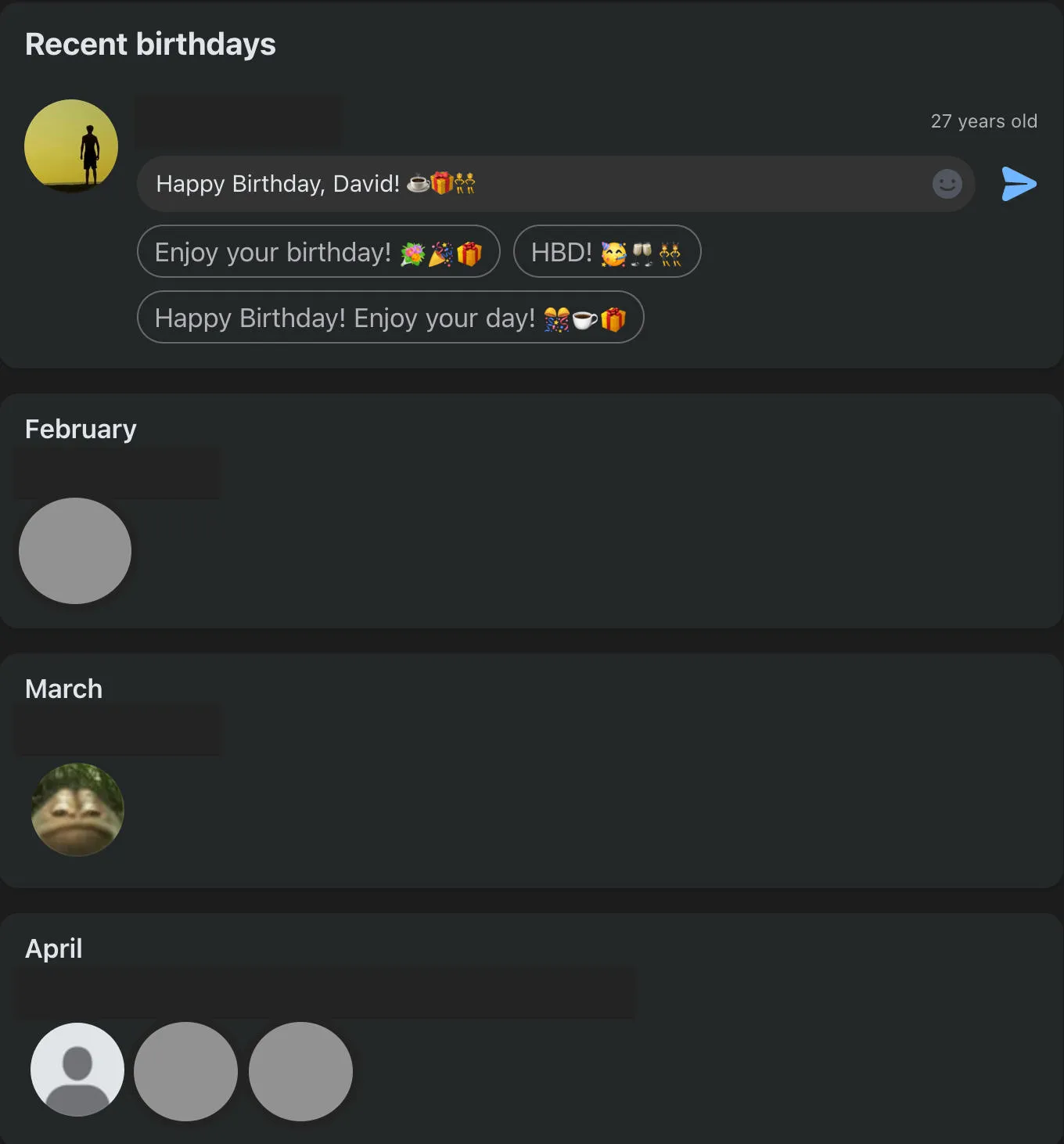
To view a full list of your friends’ upcoming birthdays, click the Friends menu icon from the top of the newsfeed or in the left-hand menu.
From here, click Birthdays.
You’ll see your friends’ birthdays laid out in chronological order.
The Close Friends List
If you prefer to share content with just a select group of people, you can use Facebook’s Close Friends list.
This feature is similar to the one on Instagram, which allows you to share posts and Stories with the users on your list and no one else.
To create your Close Friends list, click the Friends menu icon from the top of the newsfeed or in the left-hand menu.
From here, click Custom Lists.
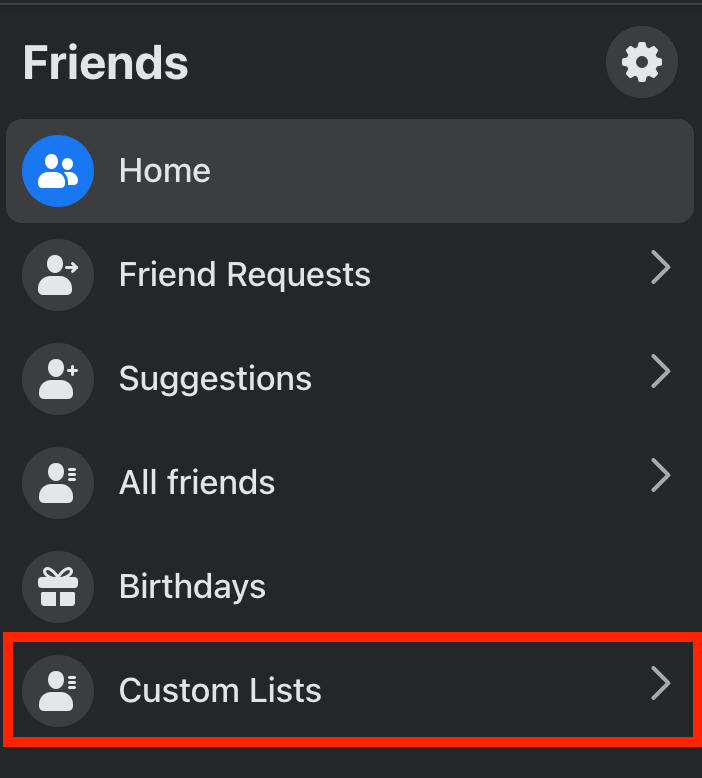
Click Close Friends.
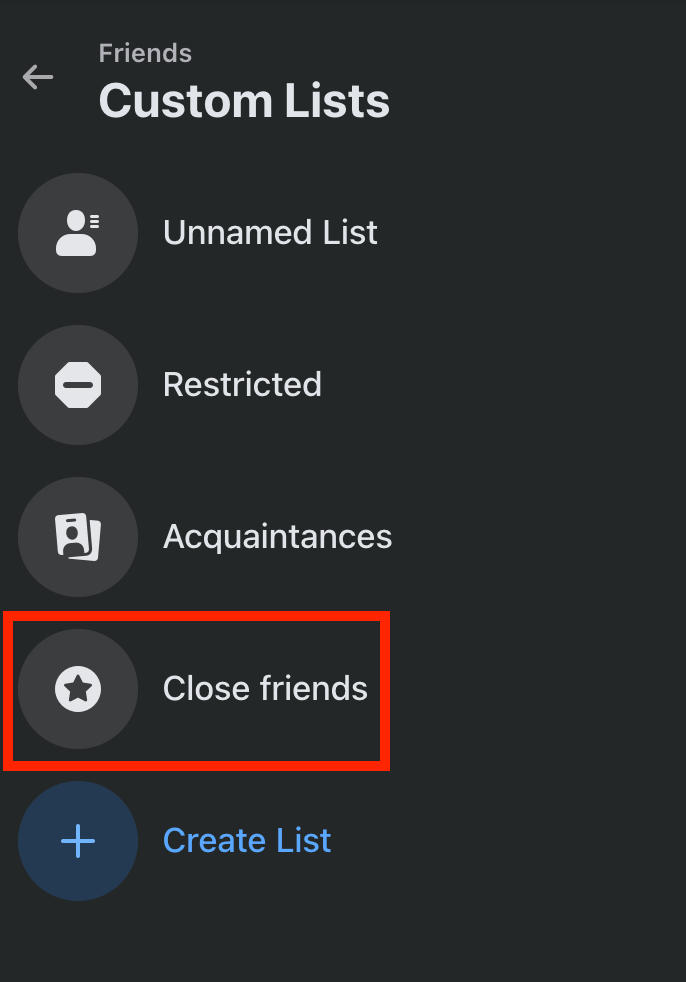
Click Add Friends if you haven’t added anyone yet, or Manage to edit the list.

The next time you create a post, click Friends beneath your name.
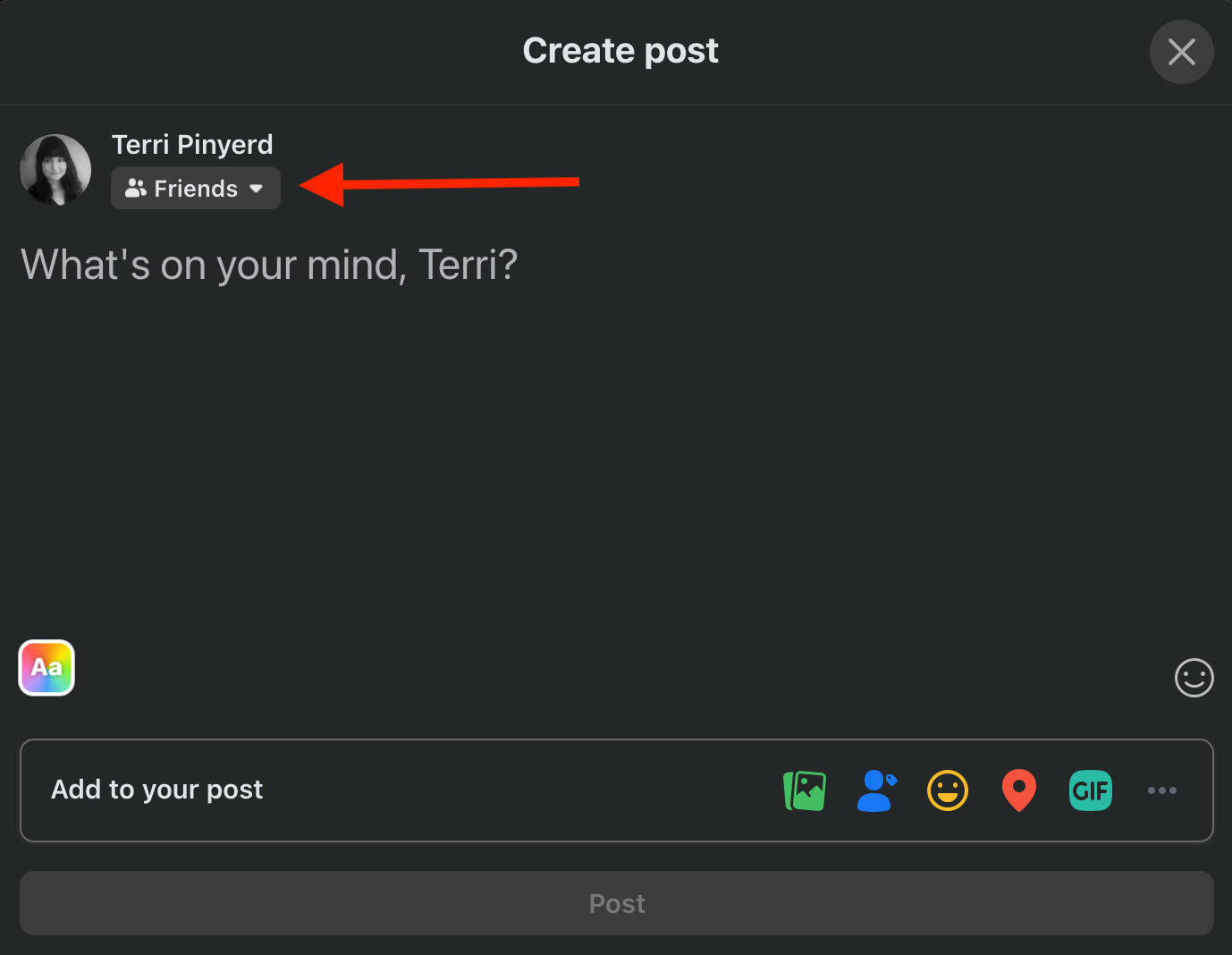
Scroll down and click Close Friends.
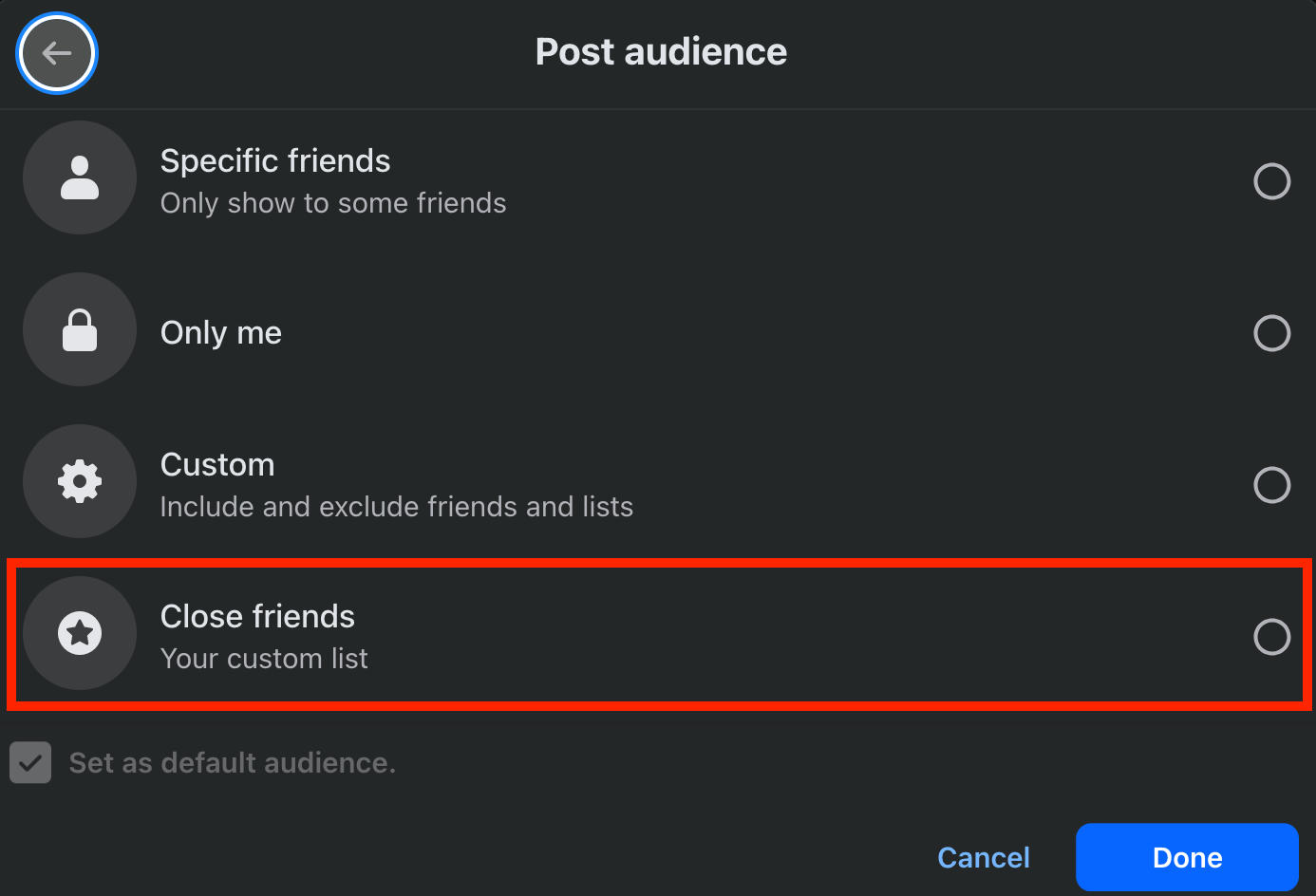
NOTE: The Close Friends option won’t appear in post audience settings until you’ve added users to the list. Users will not be notified when they’re added or removed from your Close Friends list.
Spotify Miniplayer
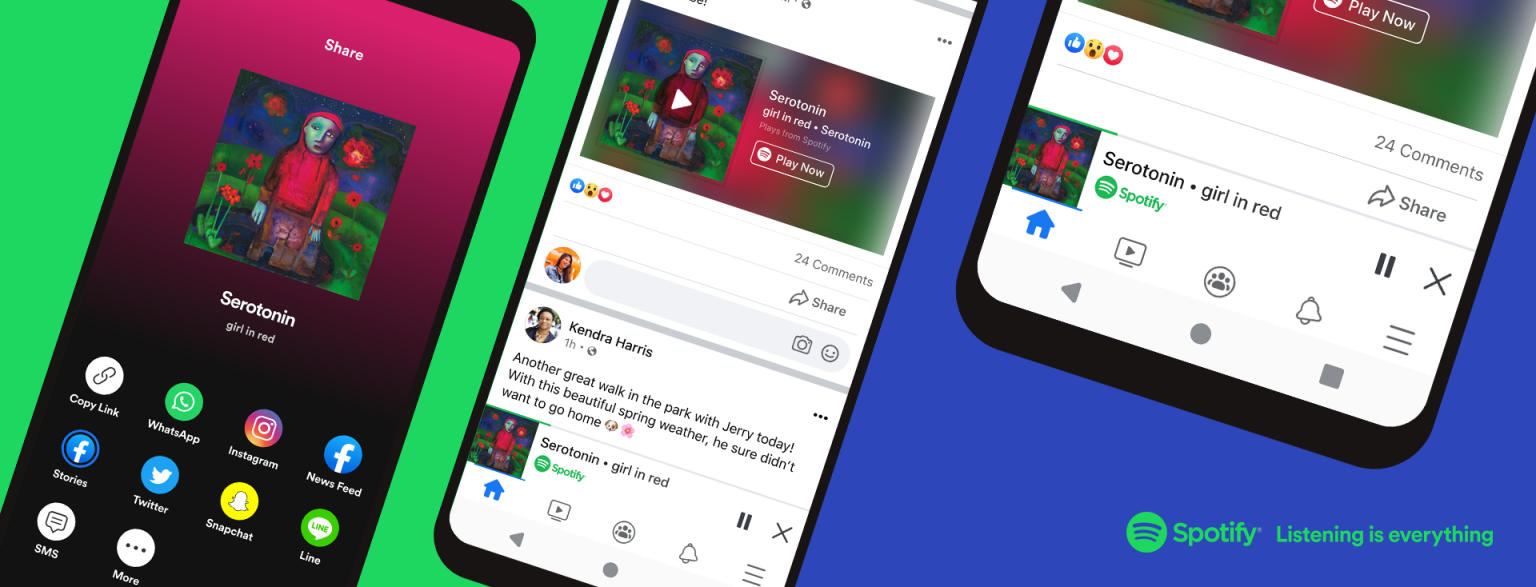
If you’re using Facebook from the iOS or Android app, you can listen to music using the Spotify miniplayer.
This feature only works for Spotify Premium users in certain regions.
To activate the Spotify miniplayer, open Spotify and tap to share the track you want to listen to.
Tap Facebook to share the song. This will trigger the miniplayer at the bottom of the app.
You will now be able to play the track while you scroll Facebook, regardless of whether you post your shared track or not.
Turn Off Autoplay
If you’re sick of videos playing as you scroll, you can turn off autoplay in just a few seconds.
Click Settings > Settings & Privacy.
Under Preferences, tap Media.
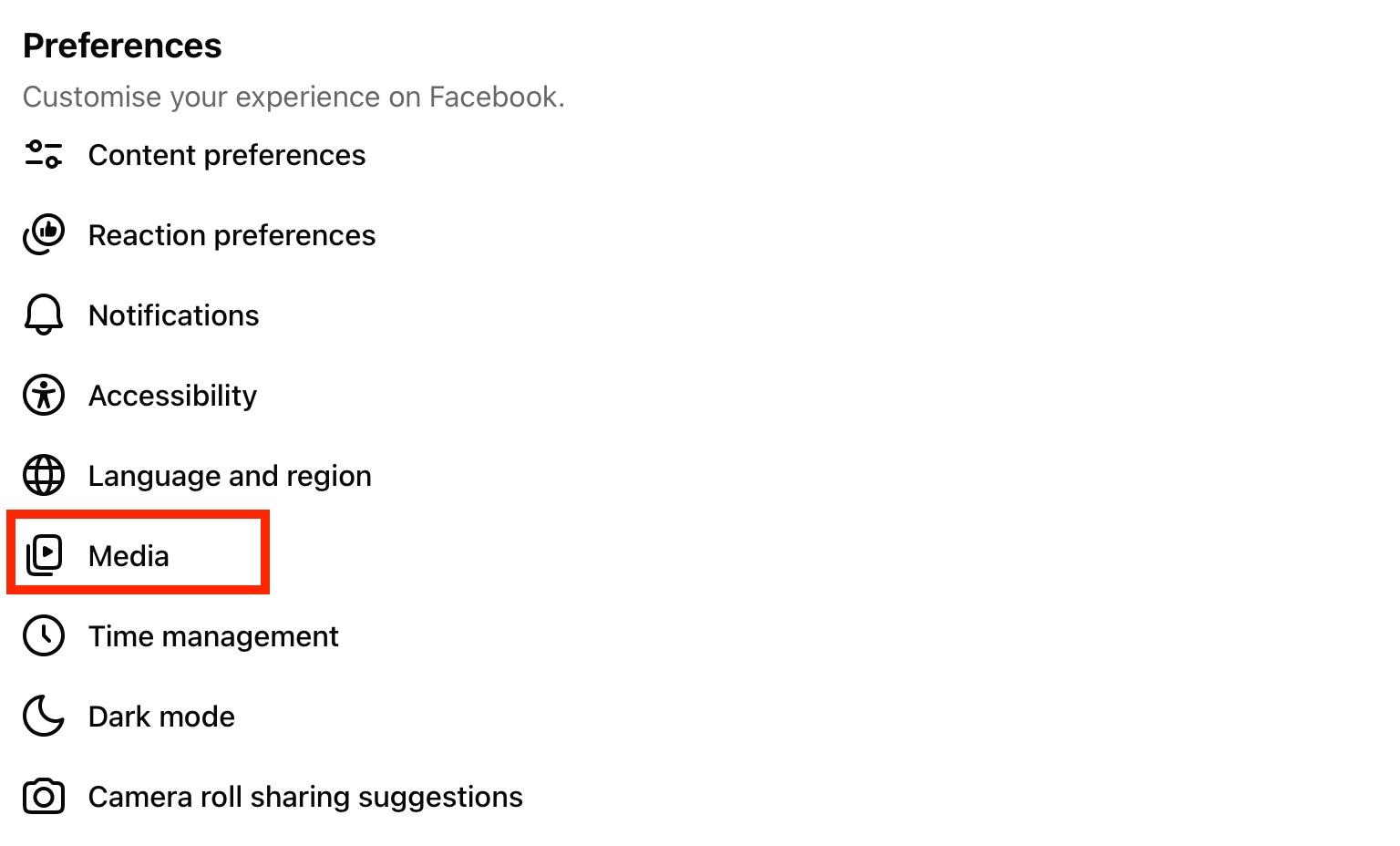
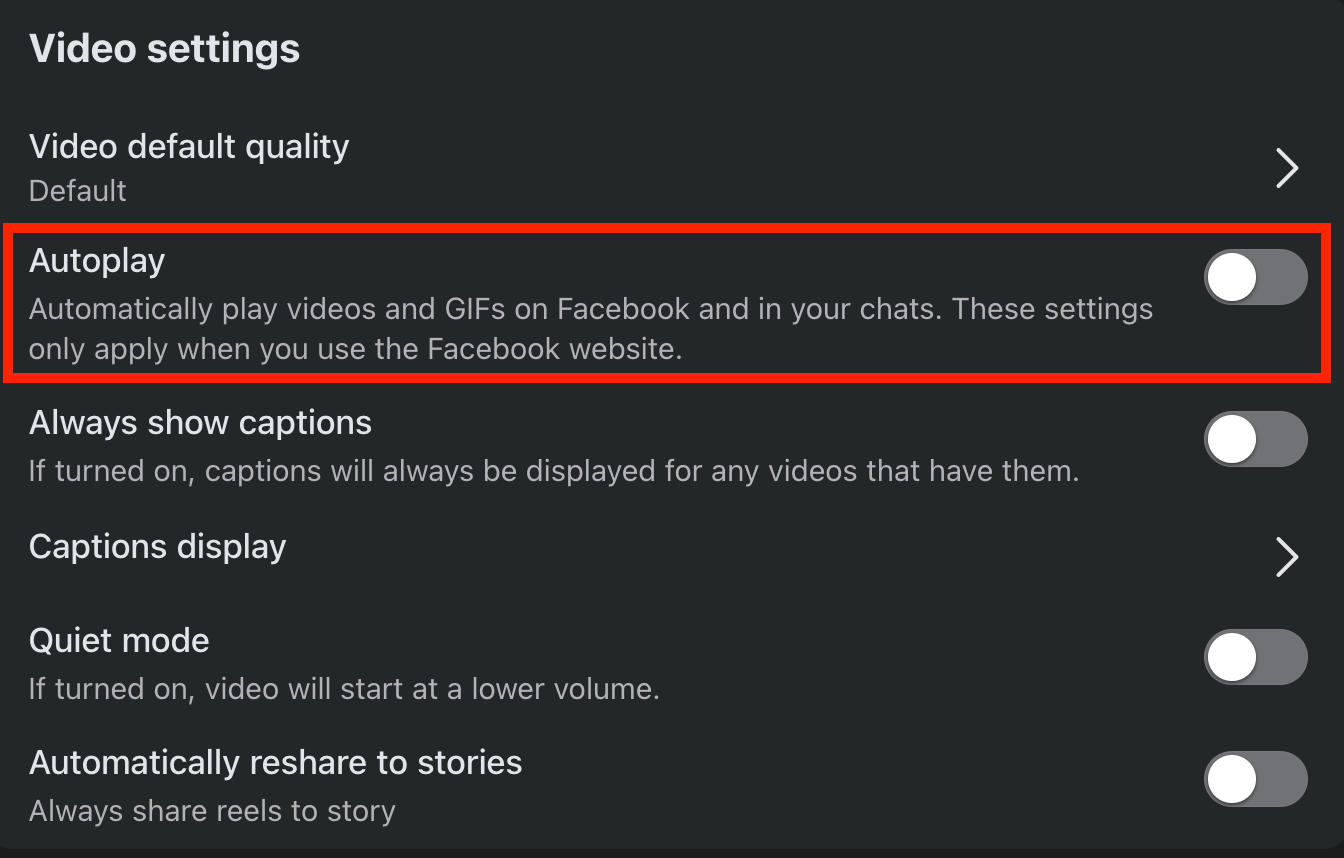
On desktop, make sure Autoplay is toggled OFF.
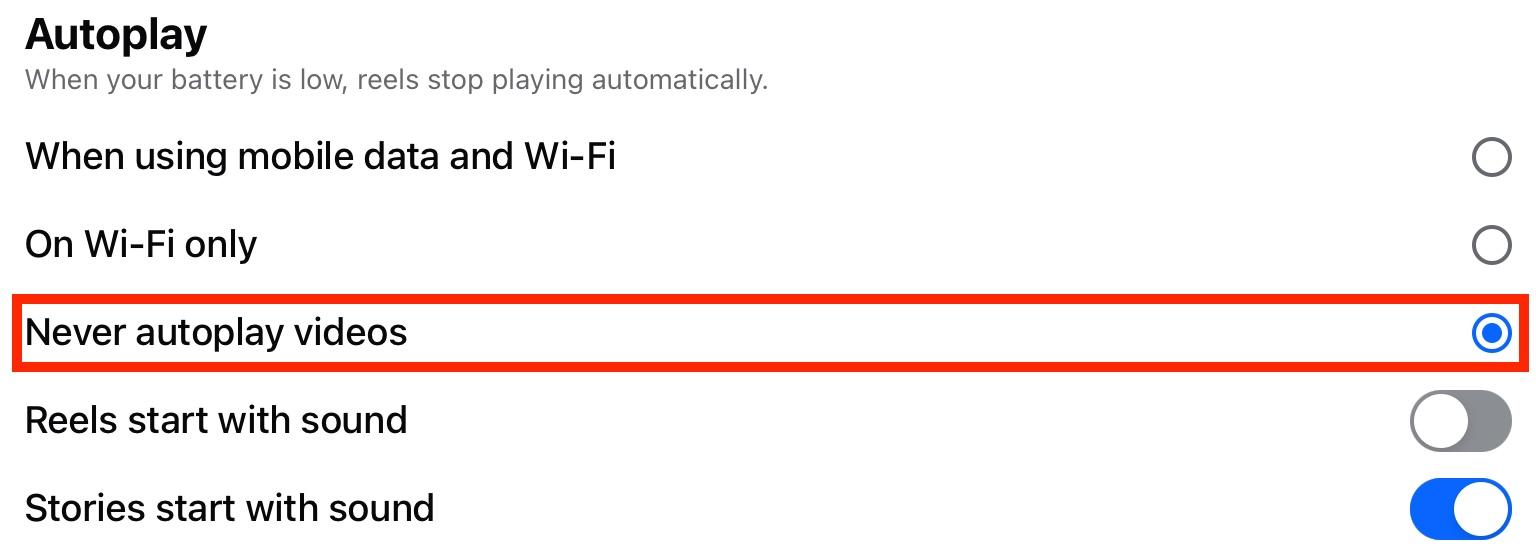
On mobile devices, make sure Never Autoplay Videos is selected.
Save Content
Did you know that you can save posts and videos for later? Just like Instagram’s Saves feature, Facebook offers users a way to bookmark content within the platform.
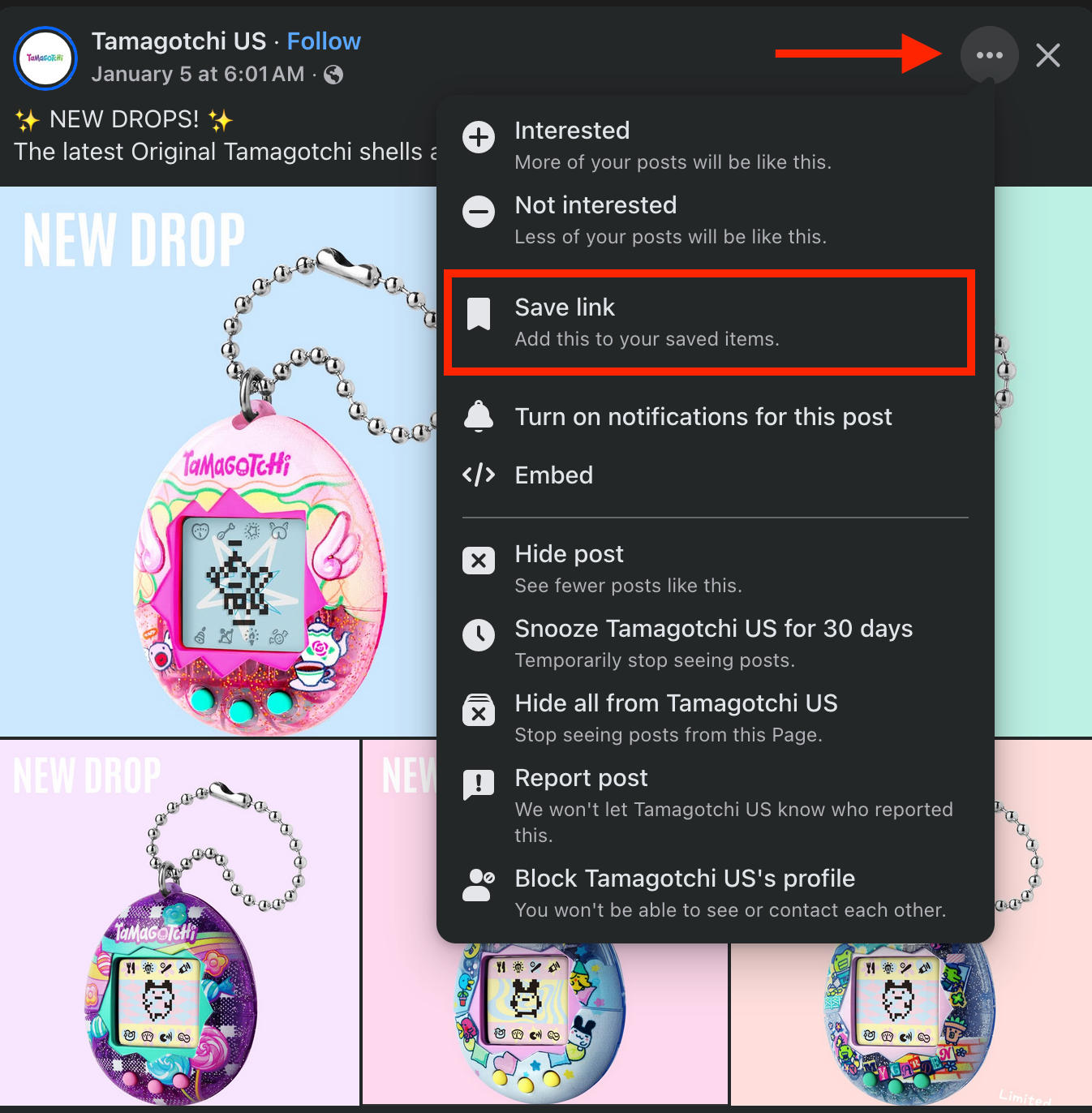
To save a post, tap or click the three dots on the top right corner.
Select Save Post.
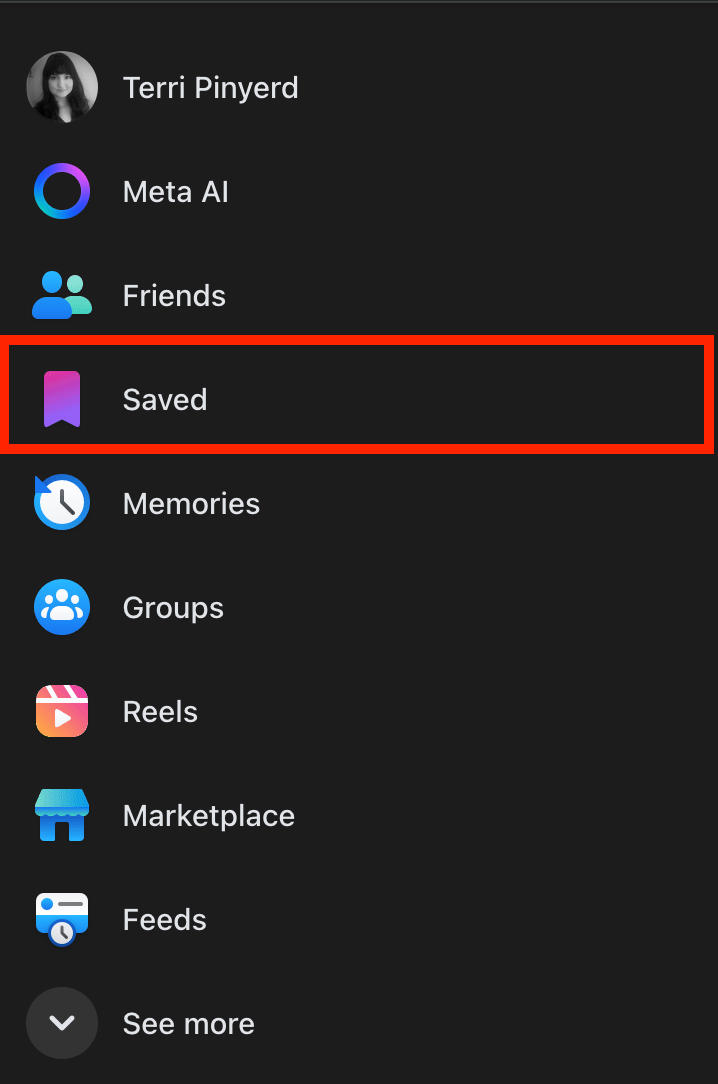
To view saved posts, tap Saved from the Facebook menu.
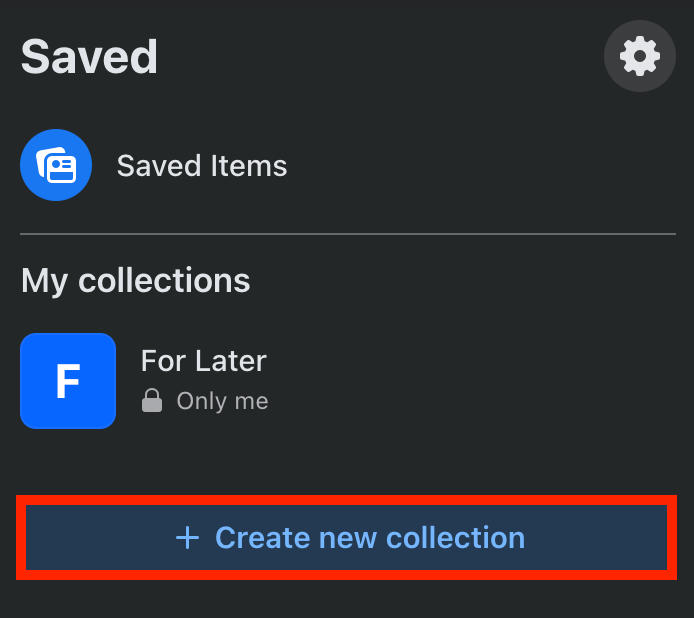
You can organize saved posts into Collections by tapping Create.
Memories
Want to walk down memory lane with a specific friend?
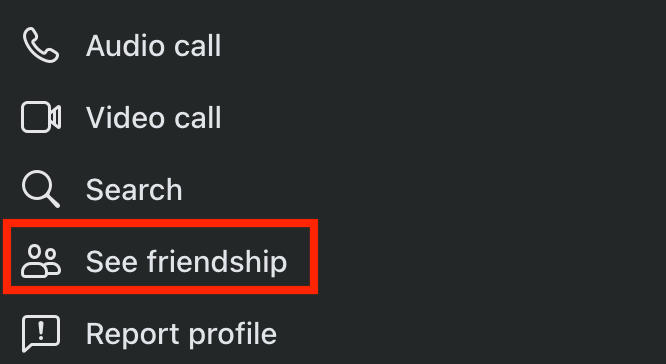
Visit their profile page on mobile or desktop and tap the three dots on the top right corner.
Tap See Friendship.
From here you’ll be able to see the following:
-
When you became friends.
-
Mutual friends.
-
Common interests.
-
Photos you’ve both been tagged in.
-
Posts either of you shared to the others’ profile.
Create Your Avatar
You can create a custom avatar that looks just like you. This will be featured when you wish friends a happy birthday or when you comment on certain posts.
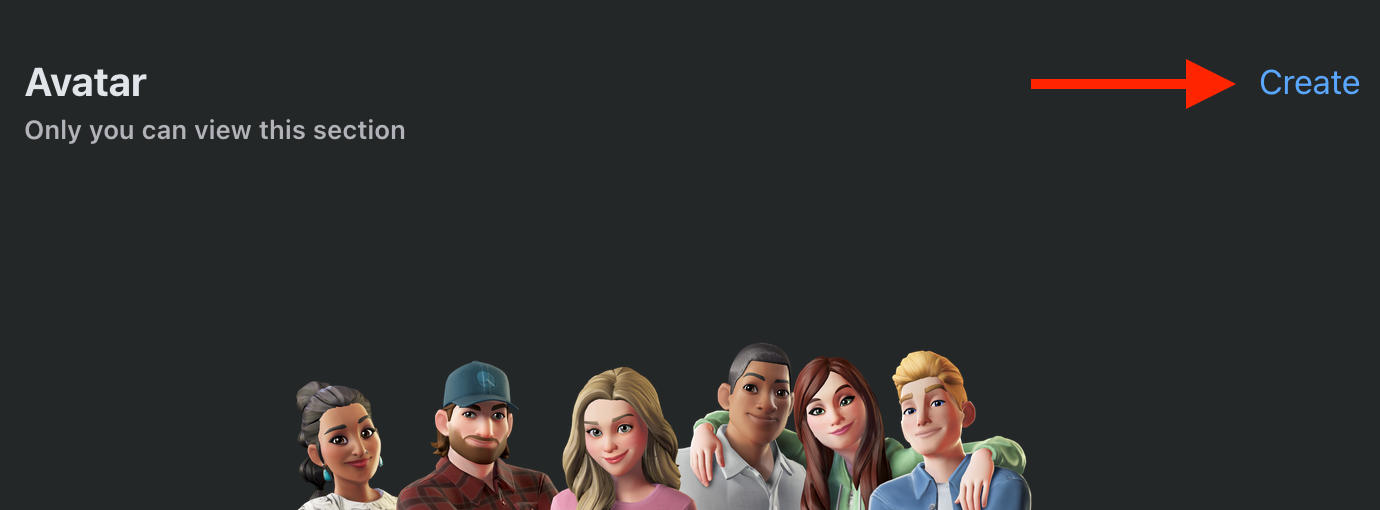
To create your avatar, visit your profile page and select Edit Profile.

Scroll down to Avatar and select Create.
From here you can customize your avatar.
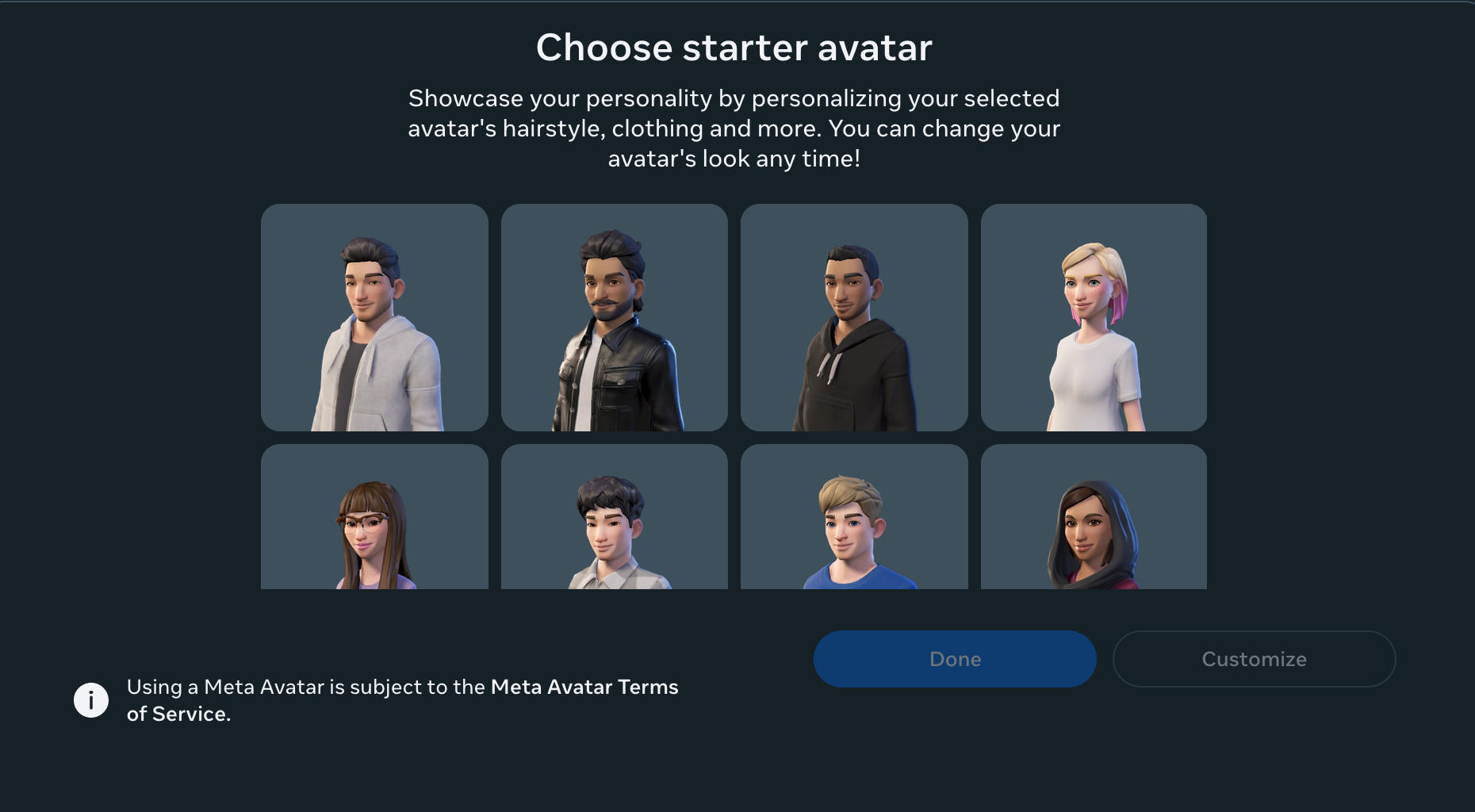
When you’re ready, click Done.
Facebook Screentime
Curious about how long you’ve spent on Facebook?
Access your Facebook screentime stats by opening the Facebook mobile app.
Then go to Settings > Settings & Privacy.
Under Preferences, tap Time Management.
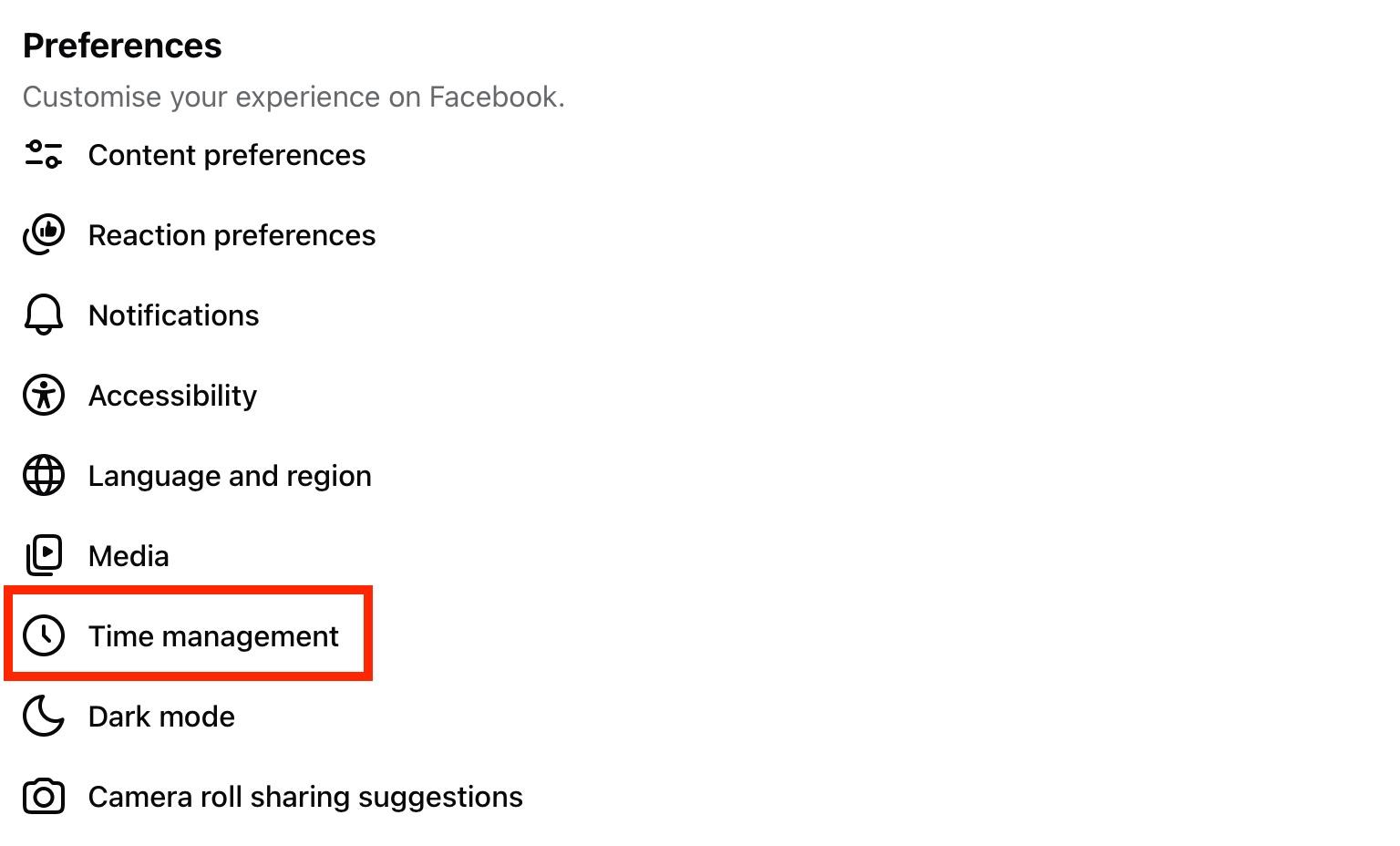
From here you’ll be able to see how much time you spend on Facebook and set any daily limits.
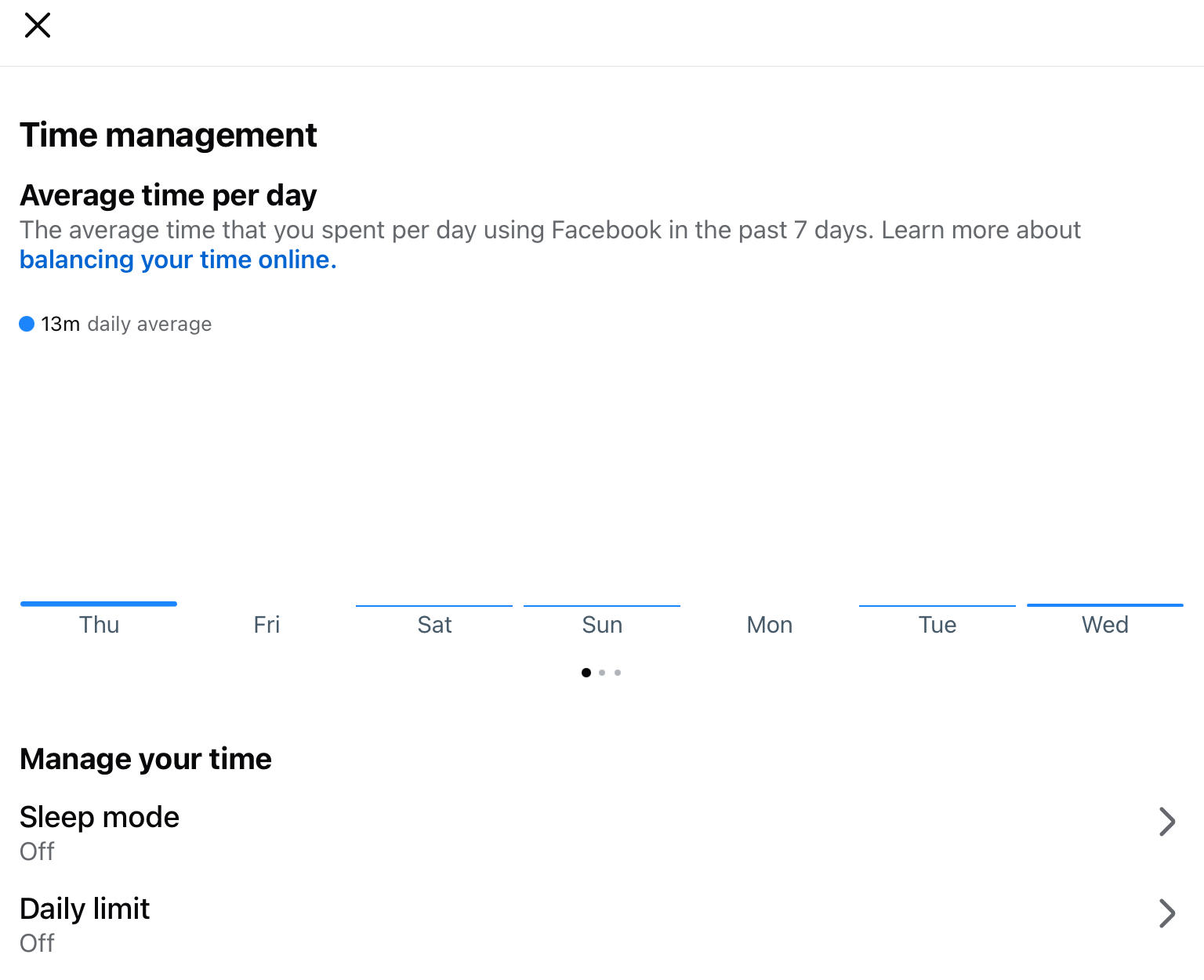
Message Requests
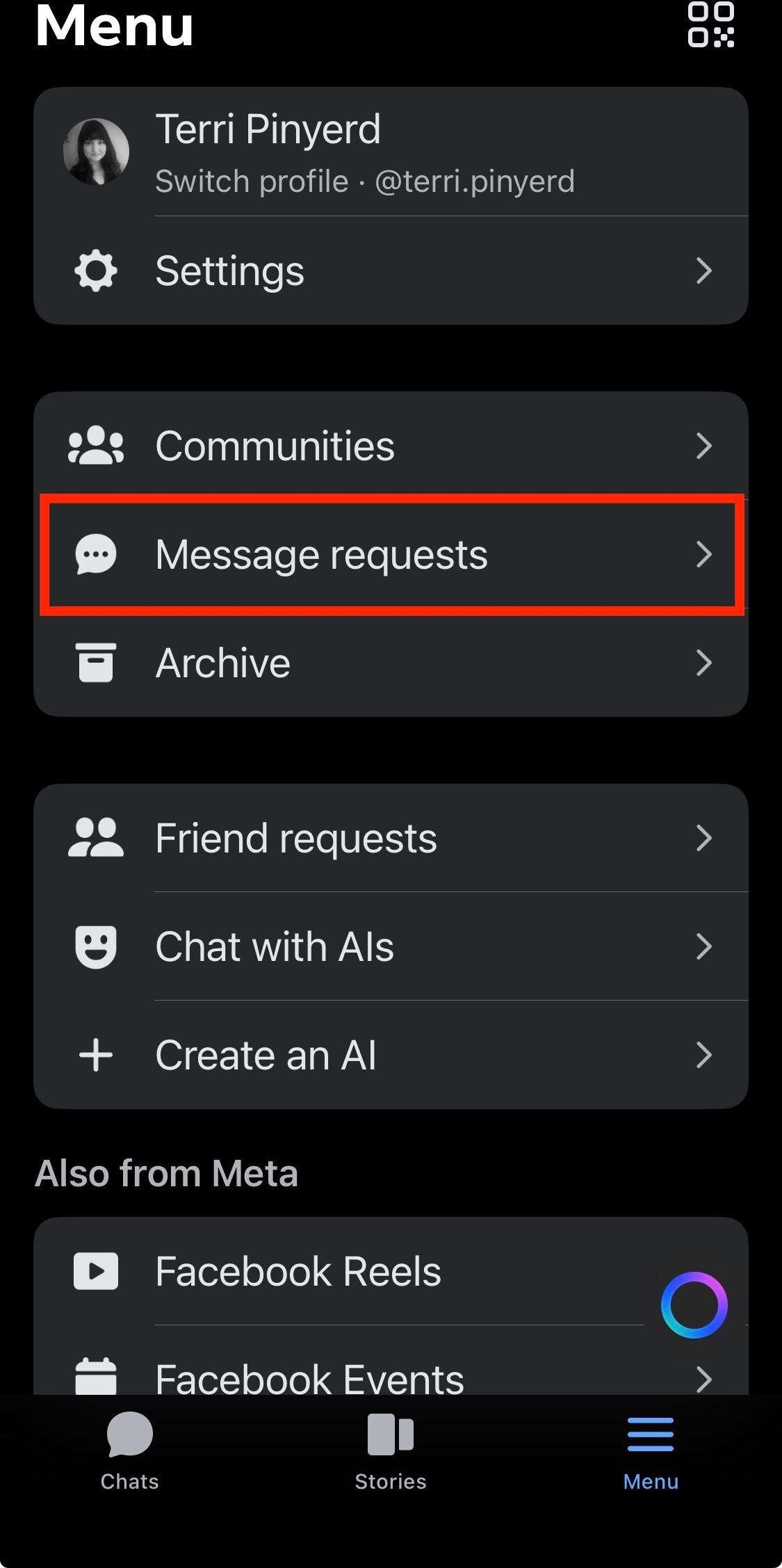
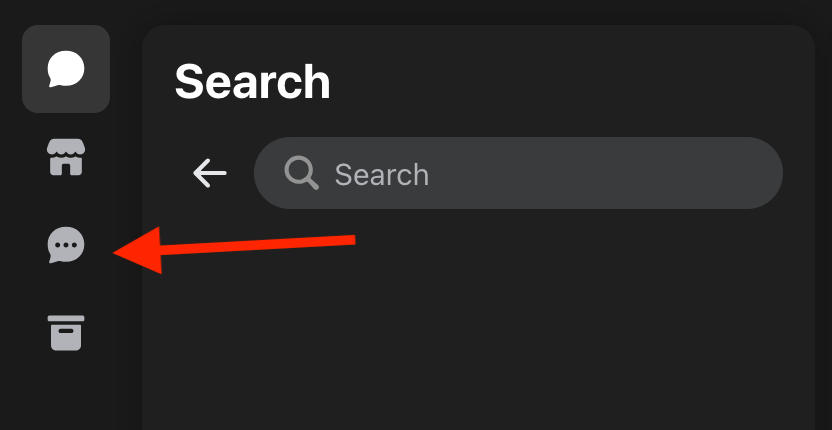
Depending on your privacy settings, users who aren’t on your friends list can still send you messages but these won’t appear in your regular inbox.
To view message requests from non-friends, open Messenger.
On the mobile app, tap Menu.
From here, tap Message Requests.
On the desktop site, click the Requests icon on the top left corner.
Disappearing Messages
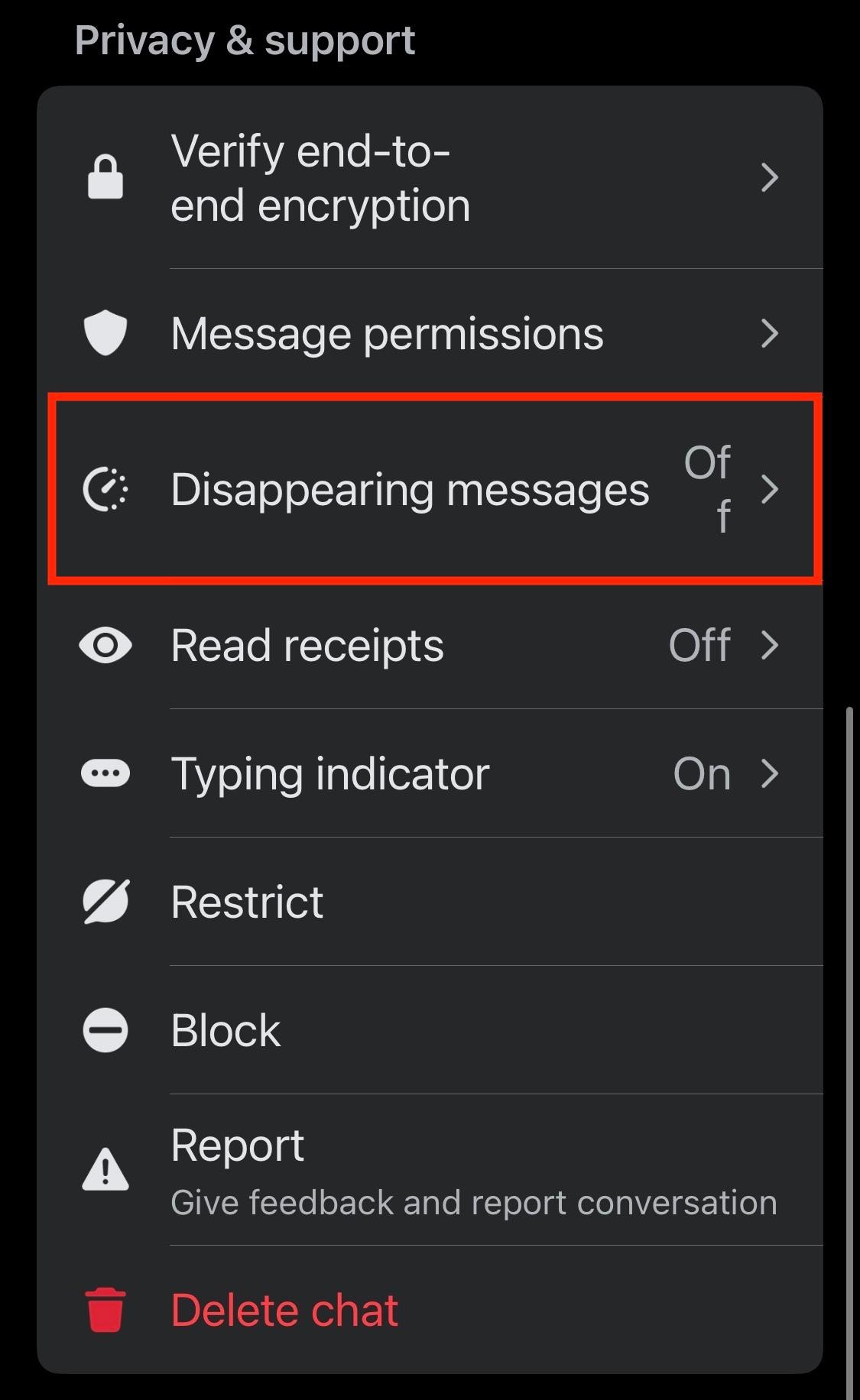
For an added layer of security and privacy, you can enable disappearing messages on Facebook Messenger.
To set this up, open the specific chat of your choice.
Click or tap the users’ name at the top of the chat.
From here, select Disappearing Messages to toggle them ON or OFF.
Facebook Pay
You can send funds to anyone in your contacts list using Facebook Pay.
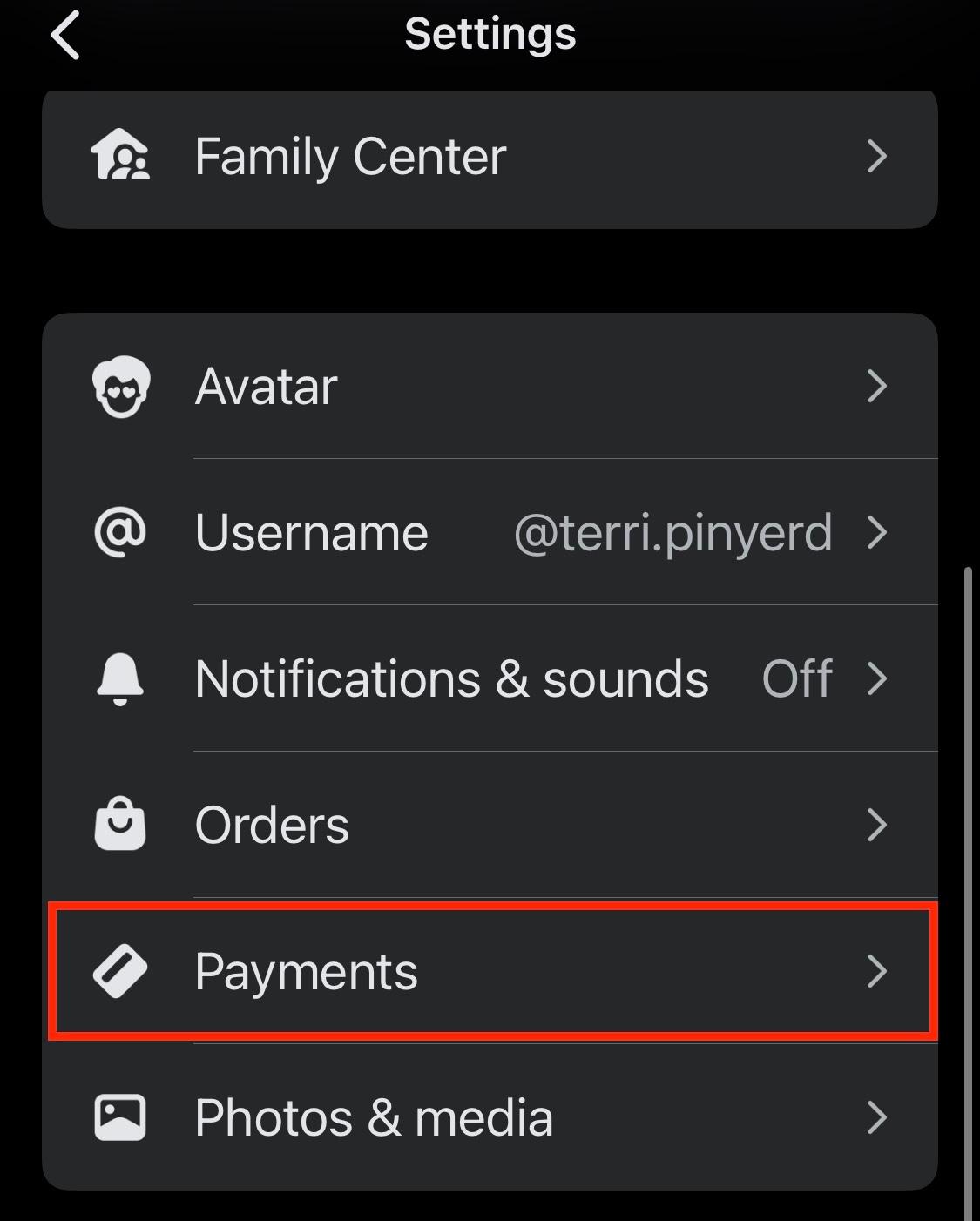
On the Messenger app, tap Menu > Settings.
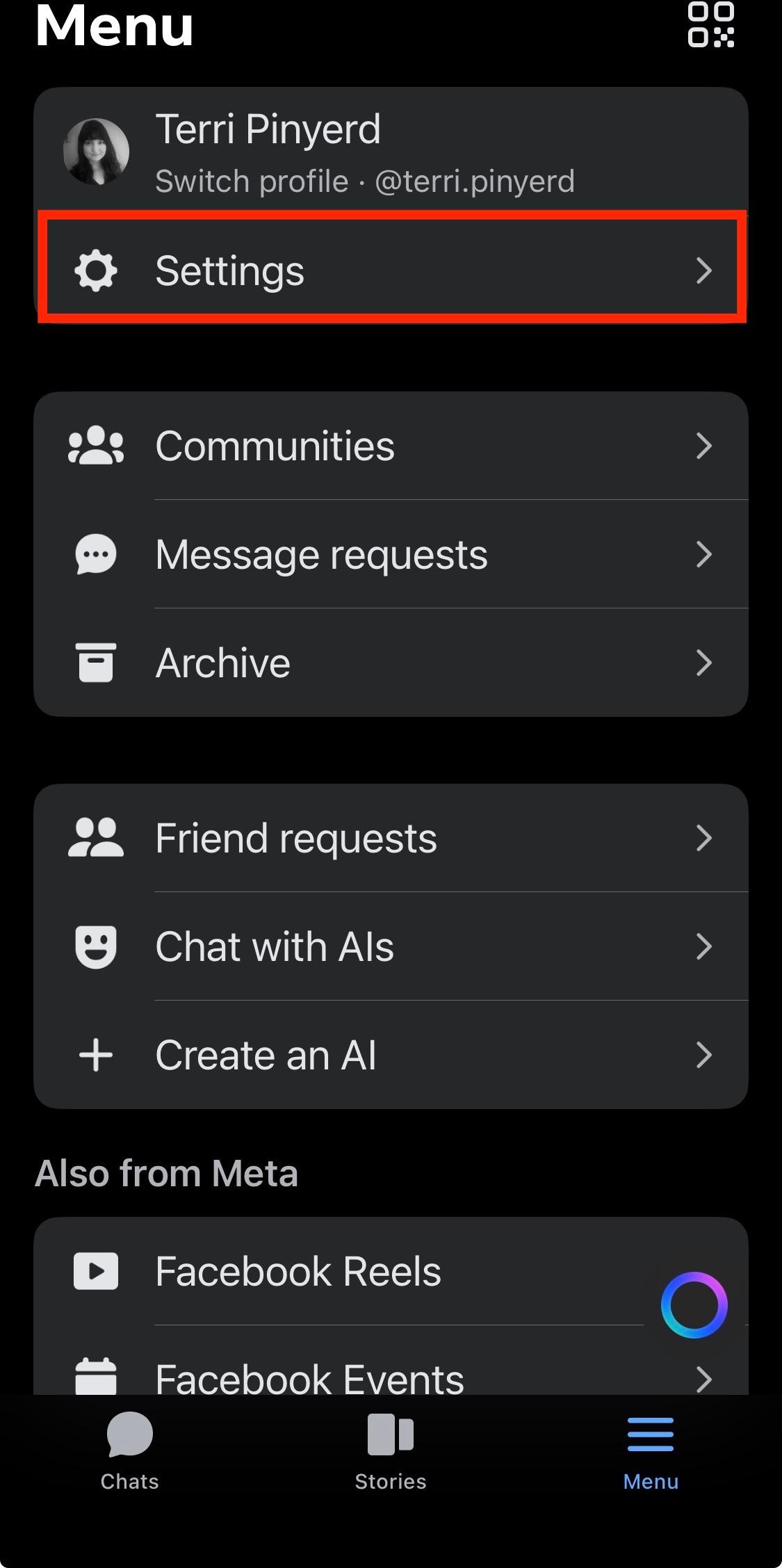
Scroll down and tap Payments to set up the feature.
On the desktop site, click your profile picture and click Preferences.
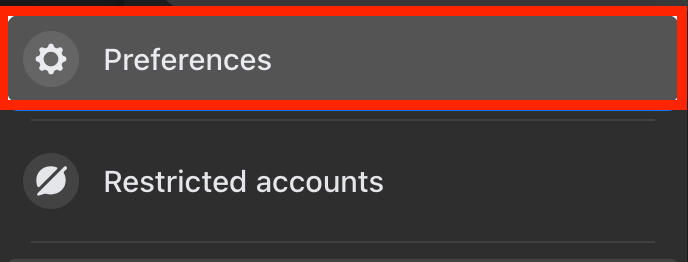
Scroll down and click Manage Payments. You’ll be directed to the Meta Pay site to set up the feature.

Messenger Customization
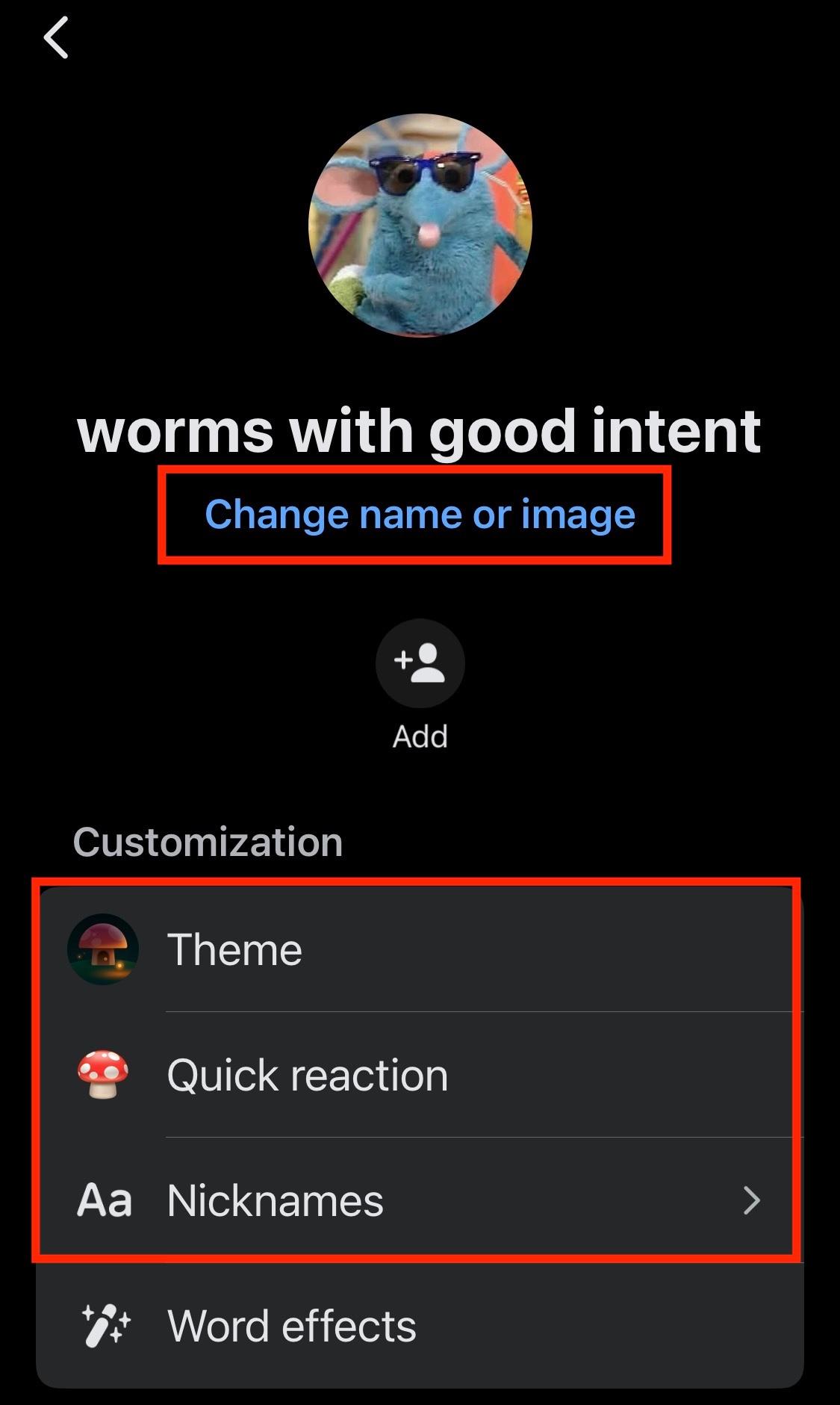
You can customize any chat on Messenger, including the background, chat bubble colors, default emoji, chat name, user nicknames, and group chat photo.
To do this open the chat and click the user or group name at the top.
Click Customize Chat, or look under Customization to select the theme, quick reaction, and nicknames.
For group chats, you can also tap Change Name or Image beneath the profile picture.
Frequently Asked Questions
Is Facebook trying to make pokes happen again?
They never went away! You can still poke your friends on Facebook on either the mobile app or desktop site.
What is the new Facebook poke update?
Pokes haven’t been updated, they’re just harder to find. On mobile you can still see the poke feature on a user’s profile page but on desktop simply search for poke to view the Poke Page.
How to beat Facebook algorithm 2026?
If you’re struggling to get your content seen, check out QQTube’s high-quality Facebook promotion services to help boost engagement and your page following fast.
Is poking still a thing?
Yup, you can still poke friends on Facebook! Learn how to do it here.