Instagram allows users to unsend messages within a DM, but did you know that you can also mark a message as unread?
Today’s guide will show you how to mark Instagram messages as unread, unsend a message within a DM, turn on Vanish Mode for private messages, and much more.
Key Points:
How To Mark Instagram Messages As Unread
If you’ve opened an Instagram DM but aren’t ready to reply just yet, you can mark your message as unread in just a few steps.
On Mobile
Open your Instagram inbox and swipe left on the DM of your choice.
Tap Unread.

That’s it!
On Desktop
You can’t mark messages as unread on the Instagram desktop site.
How To Turn Off Read Receipts On Instagram
If you’d prefer to have complete control over when you read your DMs, you can turn off read receipts. This way, the other user will have no idea when you’ve actually read their message and you won’t feel pressured to answer immediately after reading it.
To do this, open the Instagram app - this won’t work on the desktop site.
Open a DM and tap the user’s name at the top of the chat.
Tap Privacy And Safety.
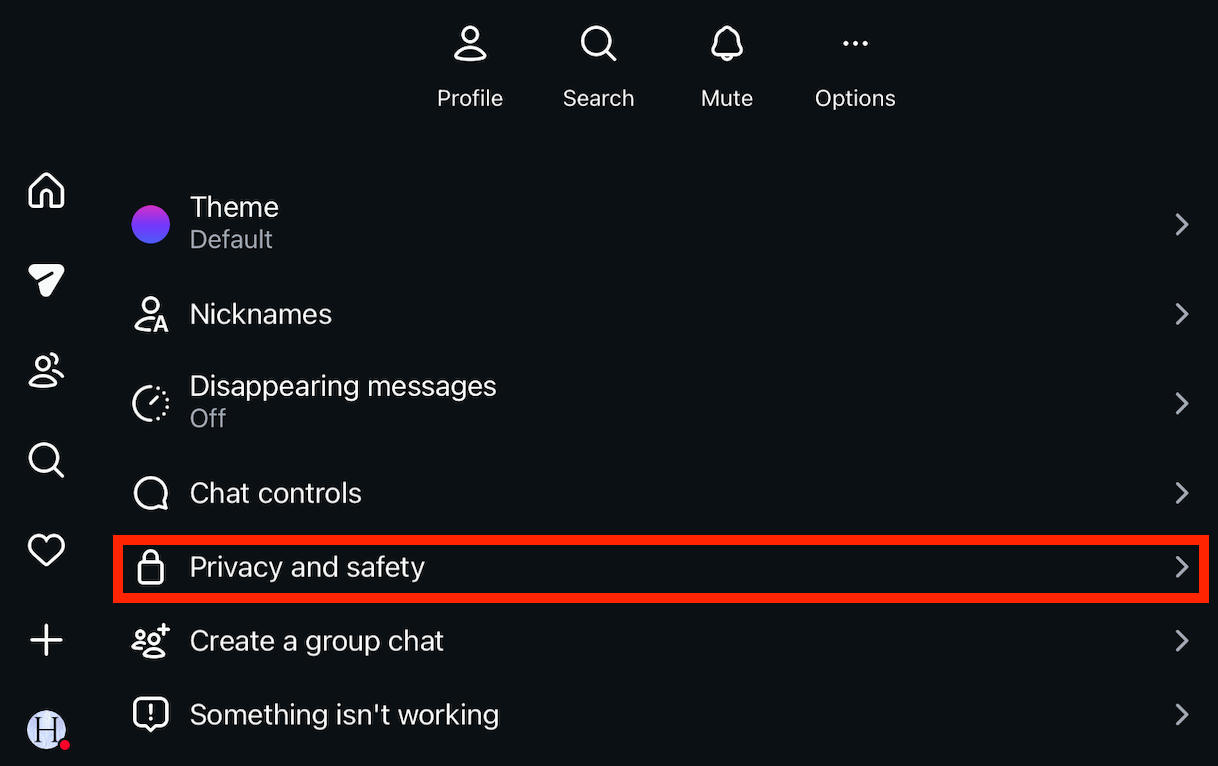
Toggle Read Receipts to OFF.
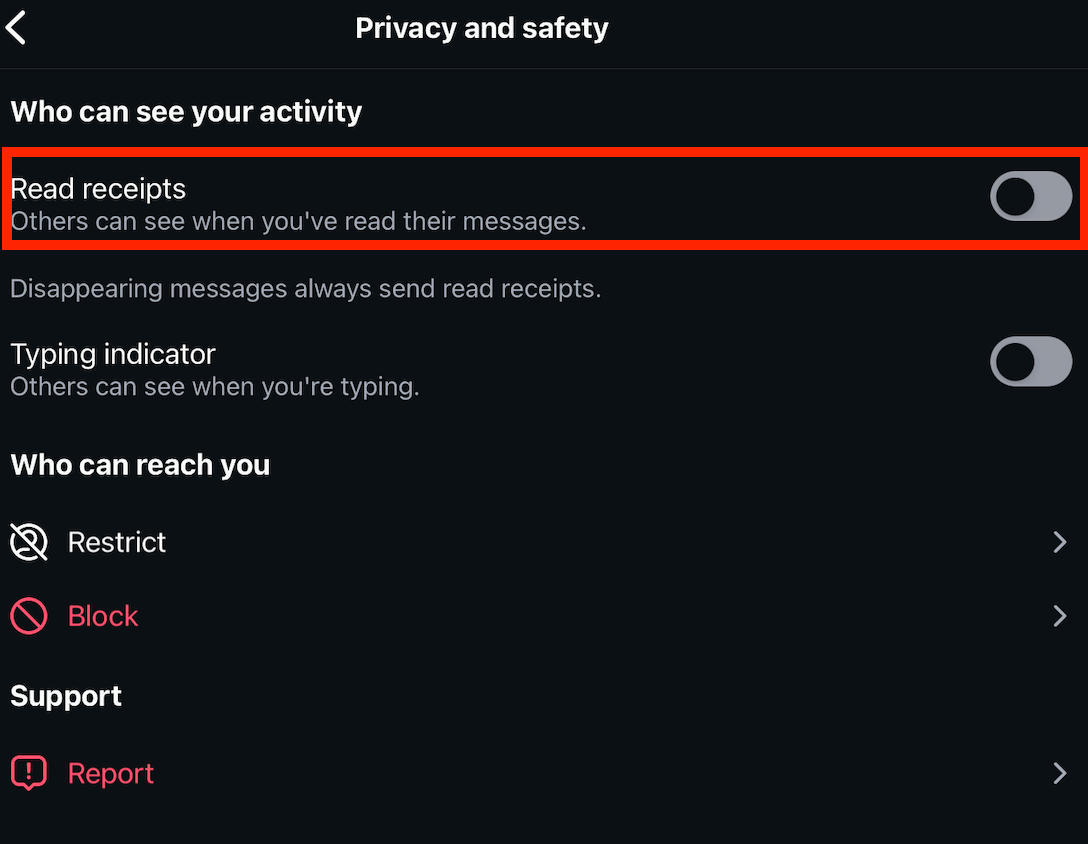
These settings will have to be repeated for each DM.
How To Delete Instagram Chats From Both Sides
If you regret sending a message and want to delete it from both your side of the thread and the recipient’s end, you can do so by unsending a message.
On Mobile
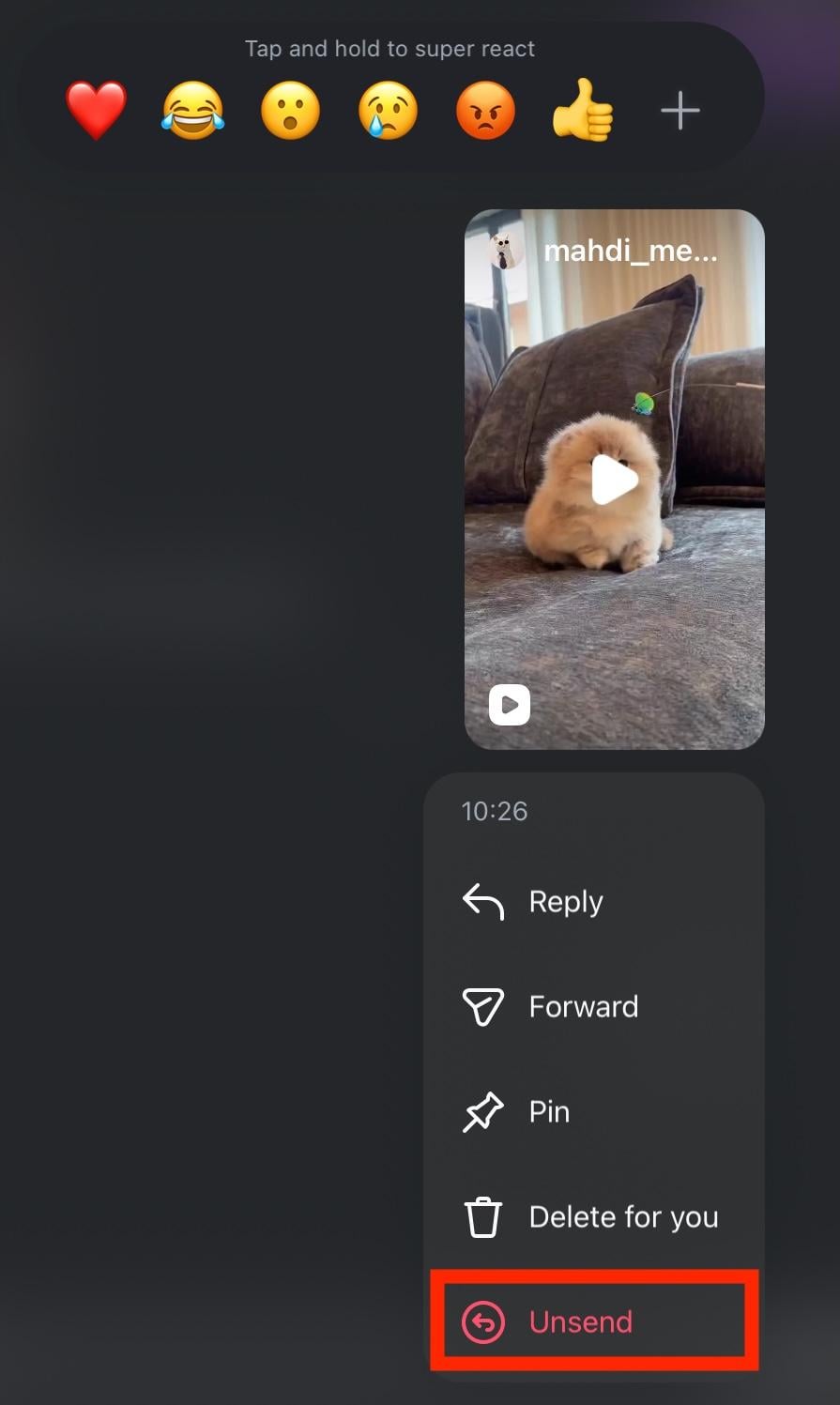
Open the DM and long-press the message you wish to unsend.
Tap Unsend.
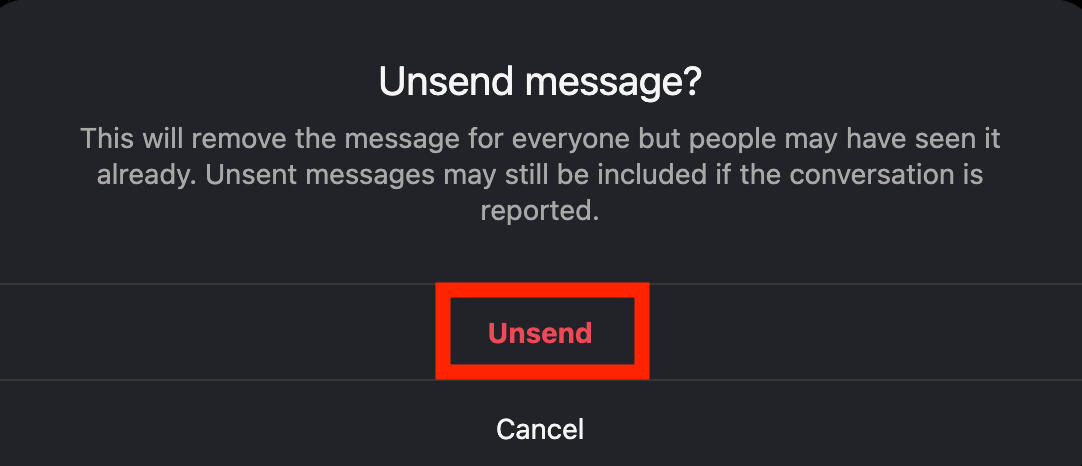
Confirm by tapping Unsend again.
There’s no way to mass-unsend messages, so you’ll have to do this individually.
On Desktop
Open the DM and click the three dots to the left of the message you wish to unsend.
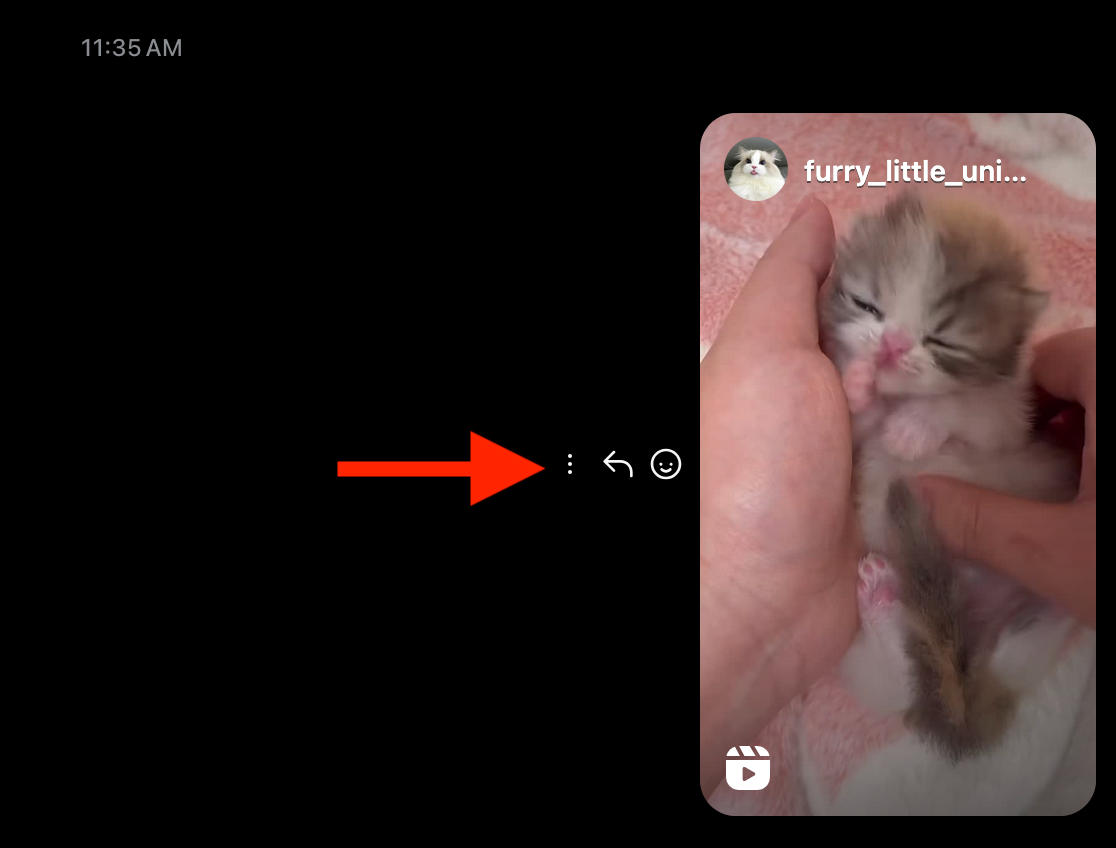
Click Unsend.
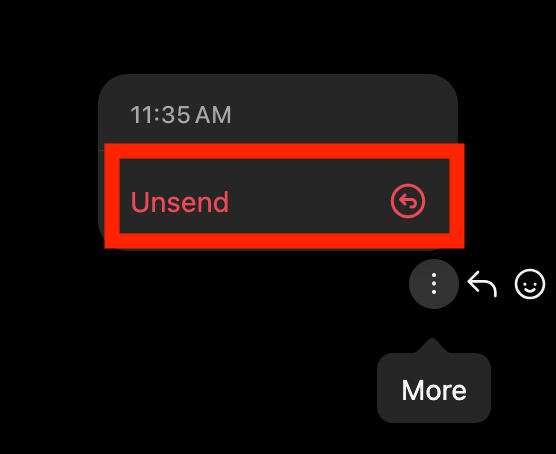
Confirm by clicking Unsend again.
How To Delete An Individual Instagram Message
Deleting individual messages will only delete it from your side of the thread. If you want to delete it from both sides, use the unsend feature here.
On Mobile
To delete a single message within a thread, open the Instagram app and navigate to the DM.
Long-press the message you want to delete.
Tap Delete For You.
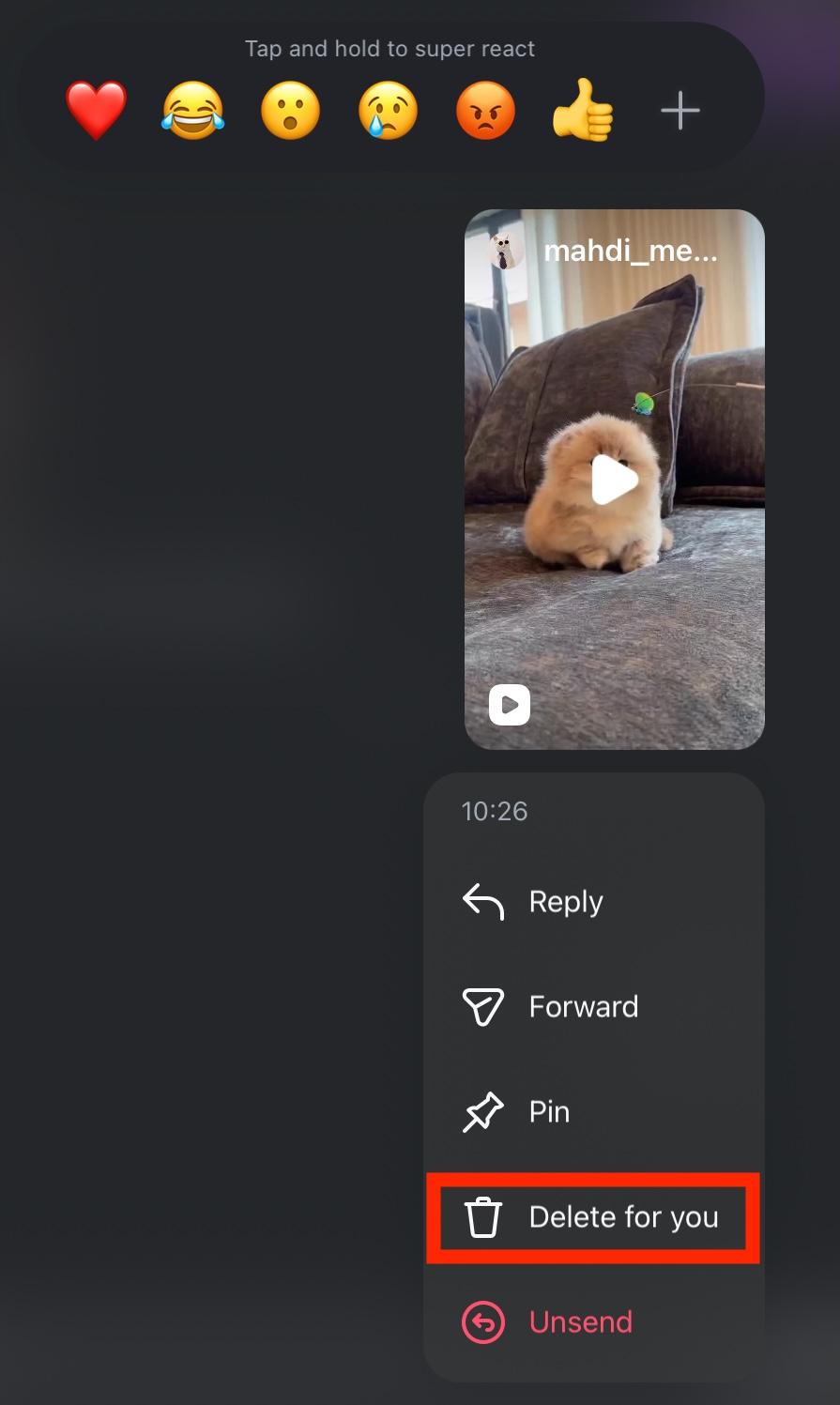
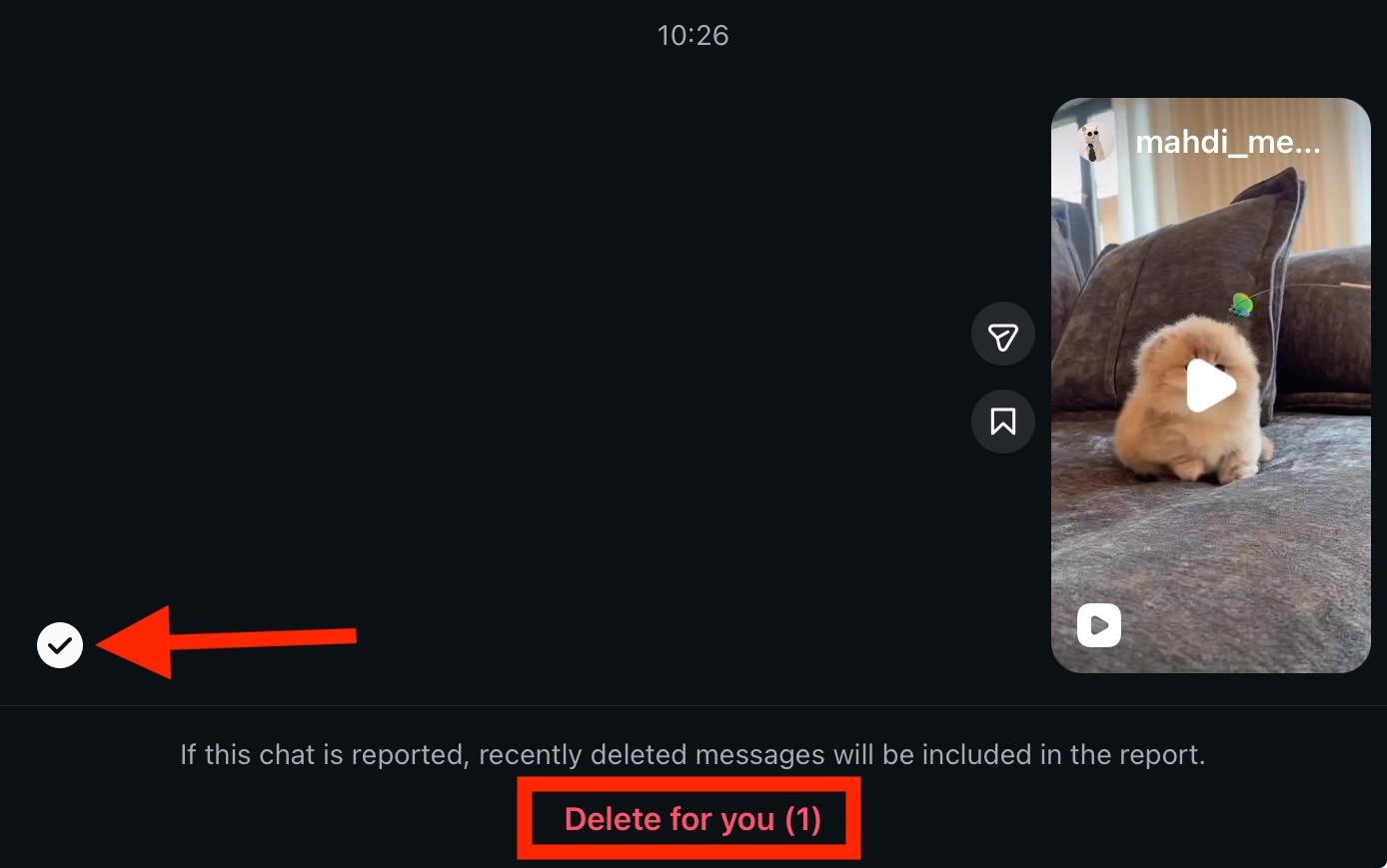
You can select additional messages if you wish by tapping the circle to the left of the message.
Confirm your choice by tapping Delete For You again at the bottom.
On Desktop
You can't delete individual Instagram messages from the desktop site, but you can unsend them.
How To Delete An Entire Instagram DM
If you want to delete an entire DM, including the full chat history with someone, you can. However, keep in mind that this won’t delete the chat on their end, only unsending individual messages will do that.
On Mobile
To delete an entire message thread, open the Instagram app and navigate to your inbox.
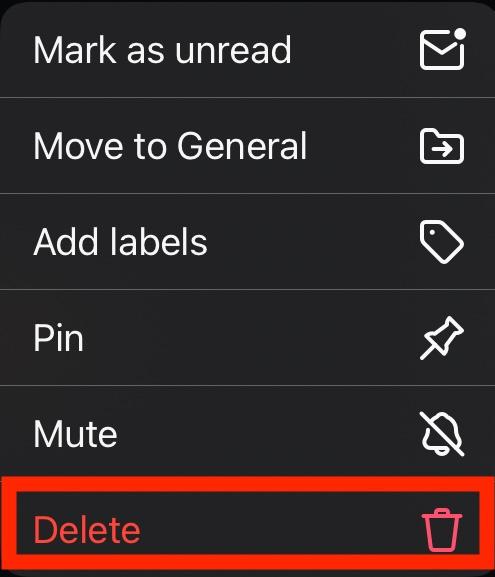
Long-press the message or swipe left and tap More.

Tap Delete and confirm your choice.
On Desktop
The delete feature is only available on the Instagram app. While you can unsend messages via the desktop site, you can’t delete them there.
How To Edit A Message On Instagram
You can also edit messages that you’ve sent, whether it’s to correct a typo or to rewrite the entire DM.
On Mobile
Long-press the message you wish to edit.
Tap Edit.
Update your message, then tap Send when you’re ready to confirm the change.
On Desktop
Click the three dots to the right of the message you wish to edit.
Click Edit.
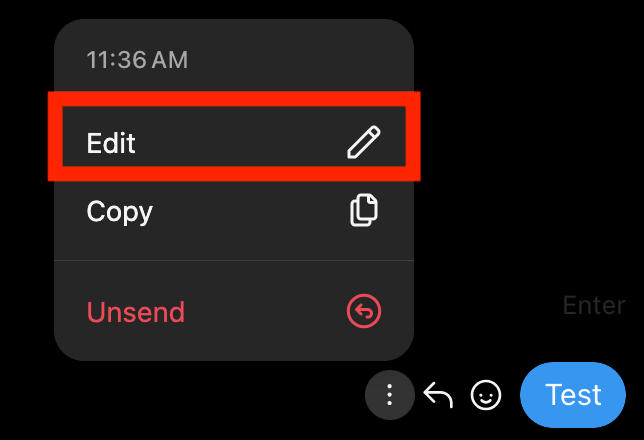
Update your message, then click Send when you’re ready to confirm the change.
How To Turn On Vanish Mode On Instagram
Vanish mode is a great privacy feature which makes messages disappear after they’ve been read. Additionally when you leave the chat screen the entire chat history will disappear.
Plus, while in vanish mode, Instagram notifies users of any screenshots taken of the conversation.
To enable vanish mode, users can swipe up from an existing chat.
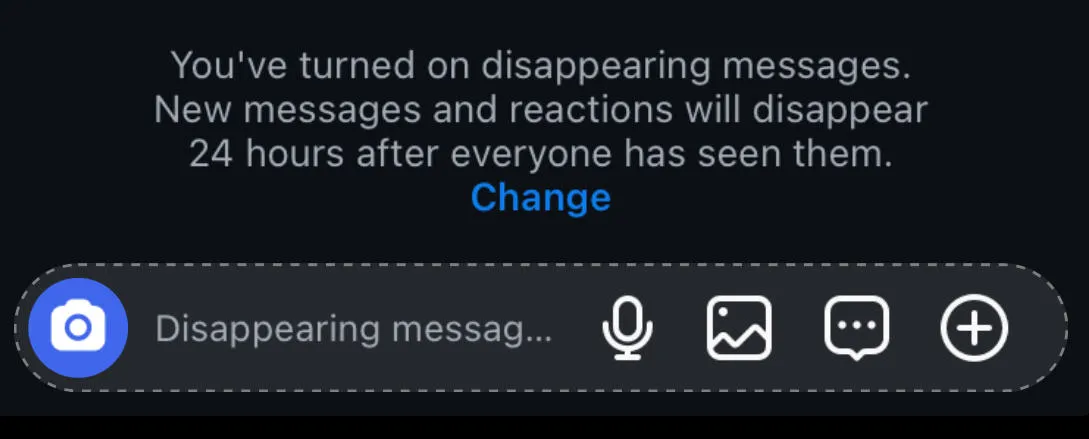
This will enable vanish mode individually - it doesn't apply to all messages sent from a specific account.
How To Manage Your Instagram DMs
Managing your Instagram DMs is about more than just editing messages - there are a ton of useful features you can use to keep your inbox free from spam and organized so that you can see the most important messages first.
Organizing Your DMs
Instagram Business accounts can use three separate inboxes to organize their DMs, including primary, general, and requests.
You can choose where to sort certain messages by long-pressing the DM in your inbox, then selecting Move to [category].
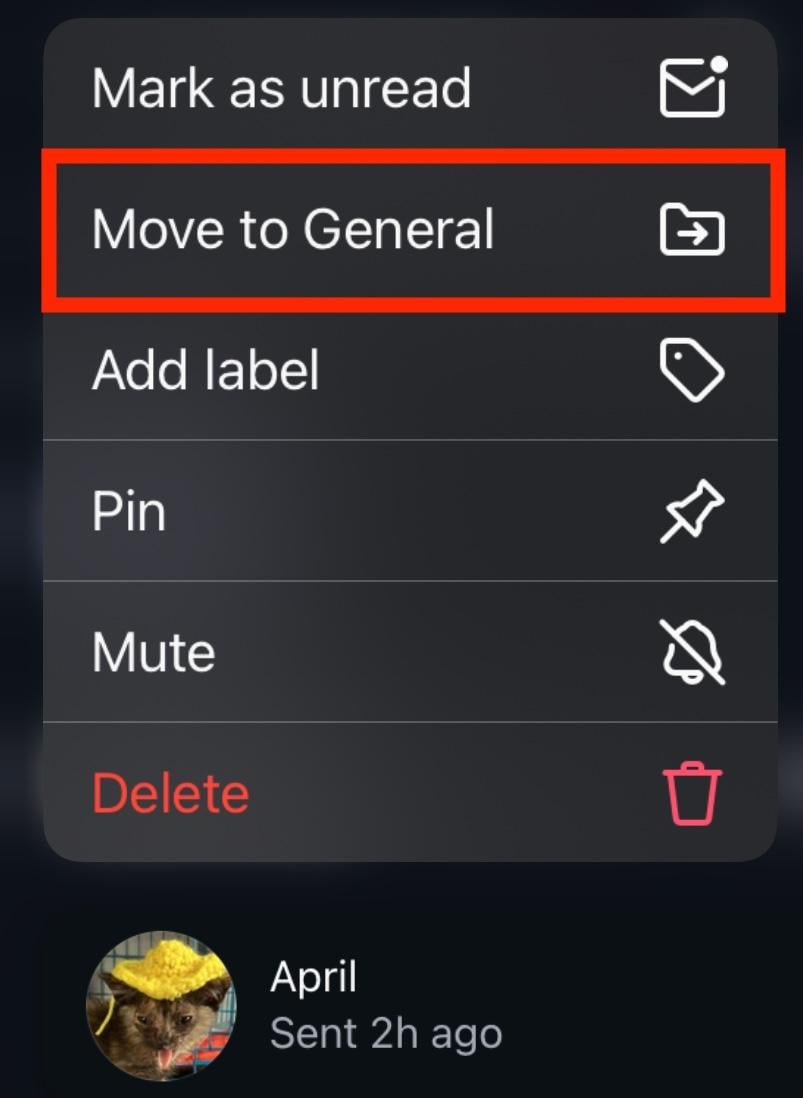
When you view message requests, you’ll see an option at the bottom of the message to move it to either Primary or General, or to delete it outright.
Setting Message Filters
You can also filter your messages to prevent common spam keywords from getting through to your inbox. You can even set custom filters if you have unique issues you need to deal with, which will send filtered messages to the Hidden Messages inbox, where you can review them later.
To set message filters, open the Instagram app (you won’t be able to do this via desktop).
Tap the three lines on the top right corner of your profile page.
Scroll down to How Others Can Interact With You and tap Hidden Words.
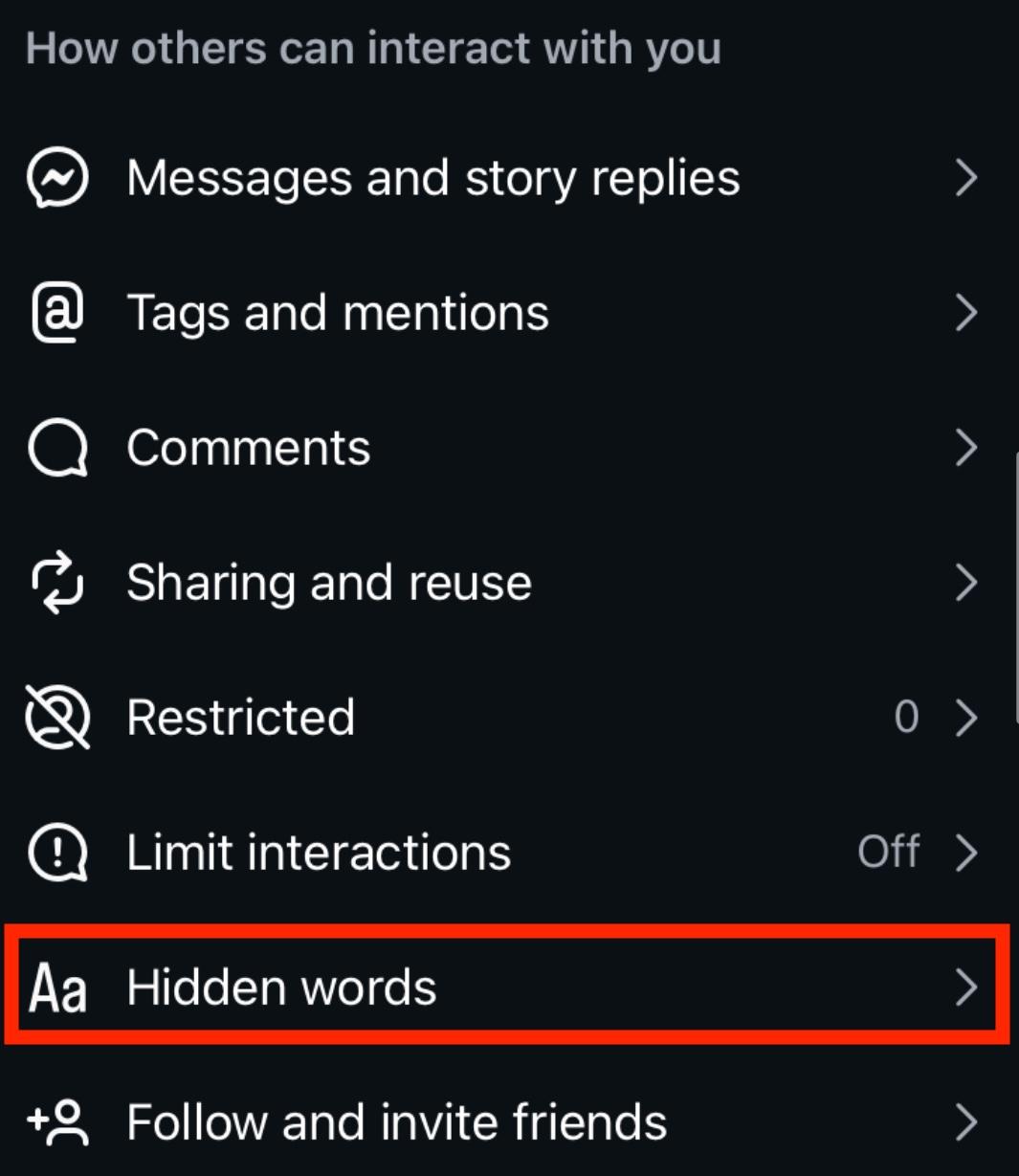
From here, toggle on Hide Message Requests.
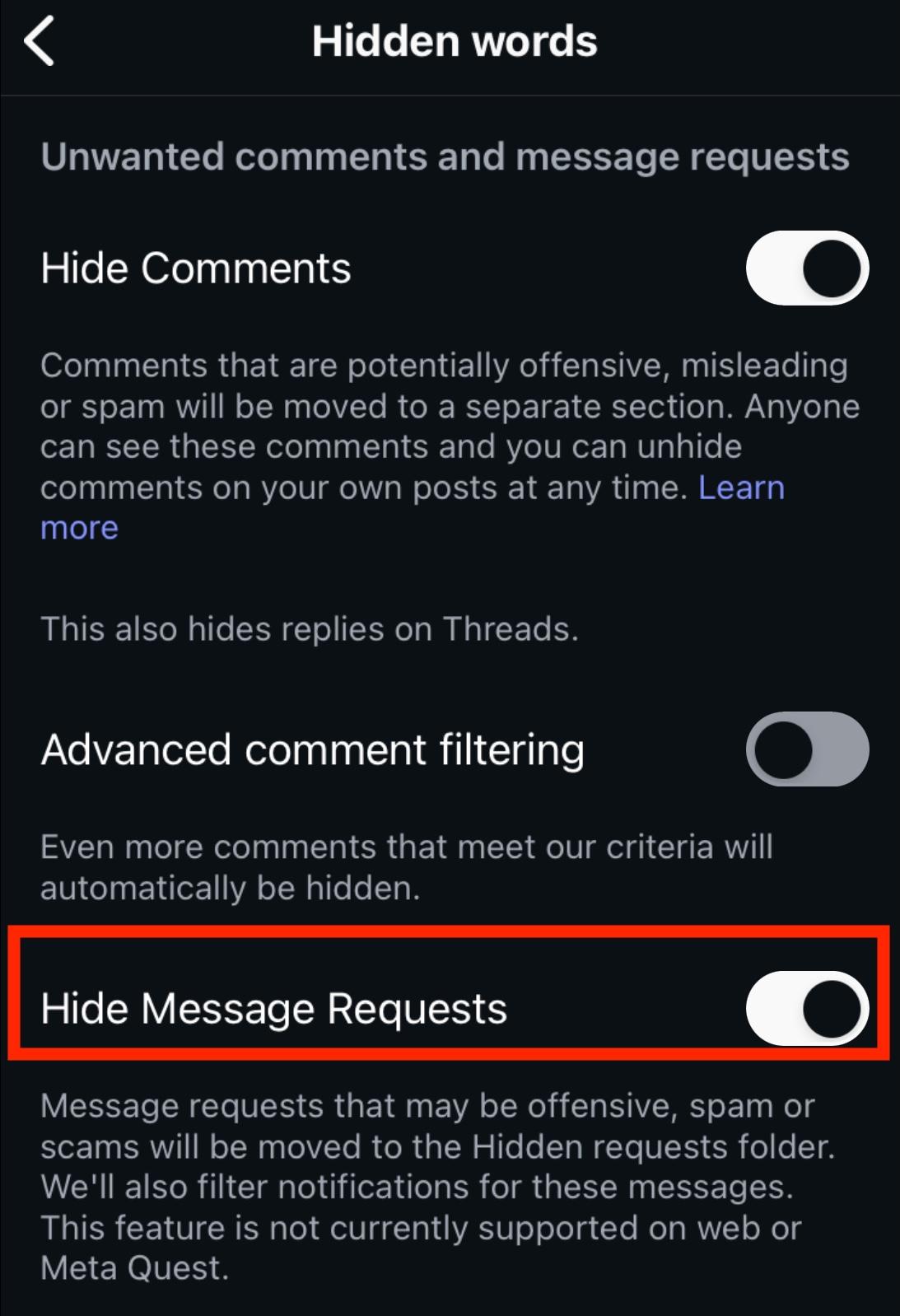
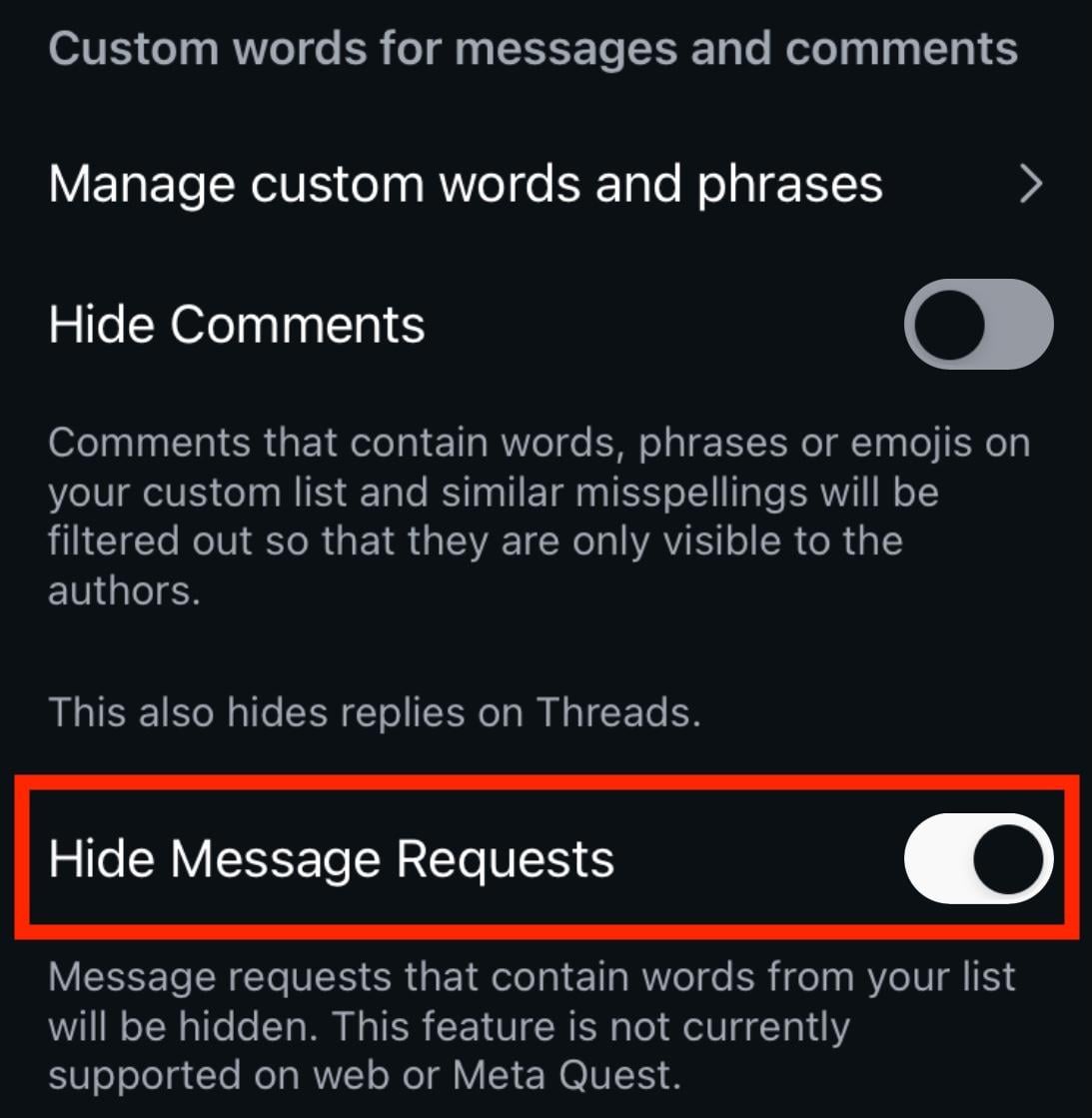
Scroll down to Custom Words For Messages And Comments and make sure Hide Message Requests is toggled on there as well.
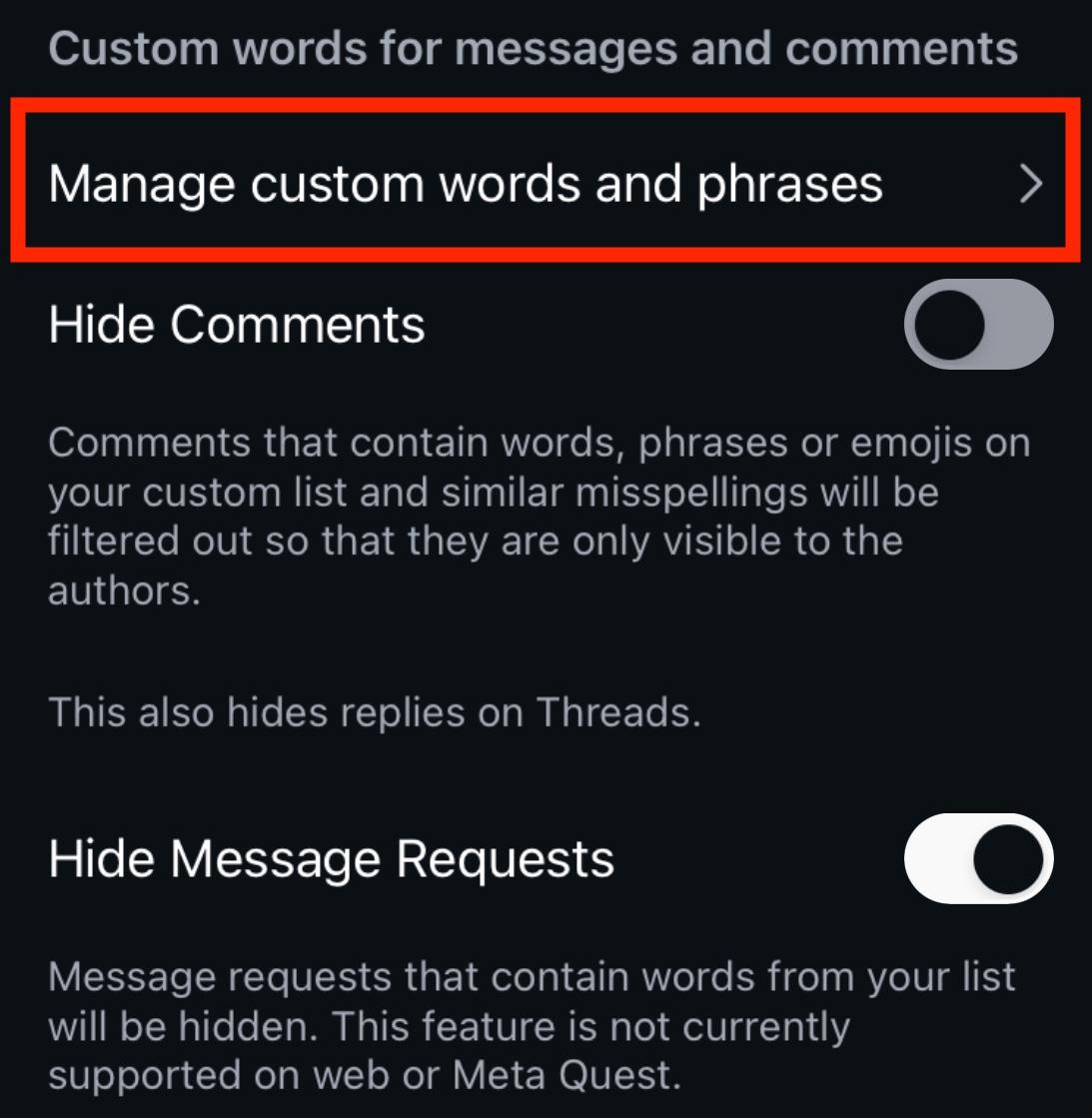
Then tap Manage Custom Words And Phrases.
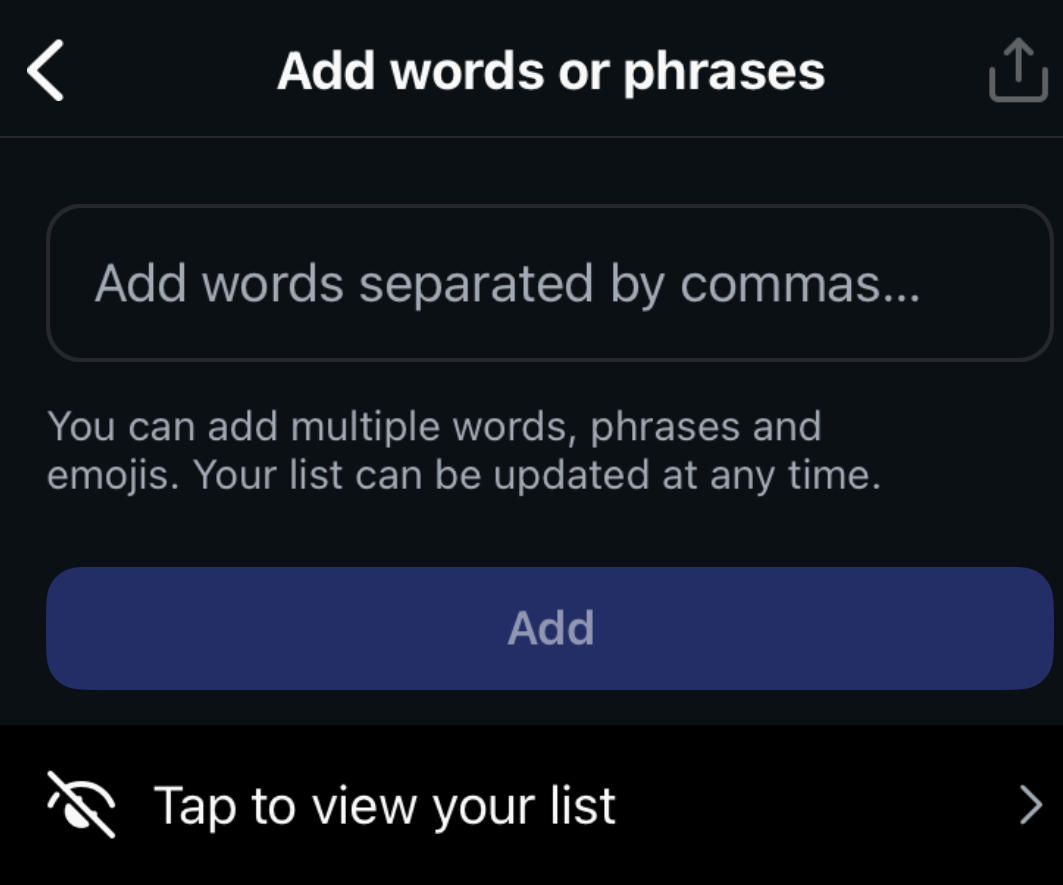
Input the words, phrases, or emojis that you want to filter.
Mute Notifications
Tired of receiving notifications from a specific user or group? No problem! You can mute notifications easily.
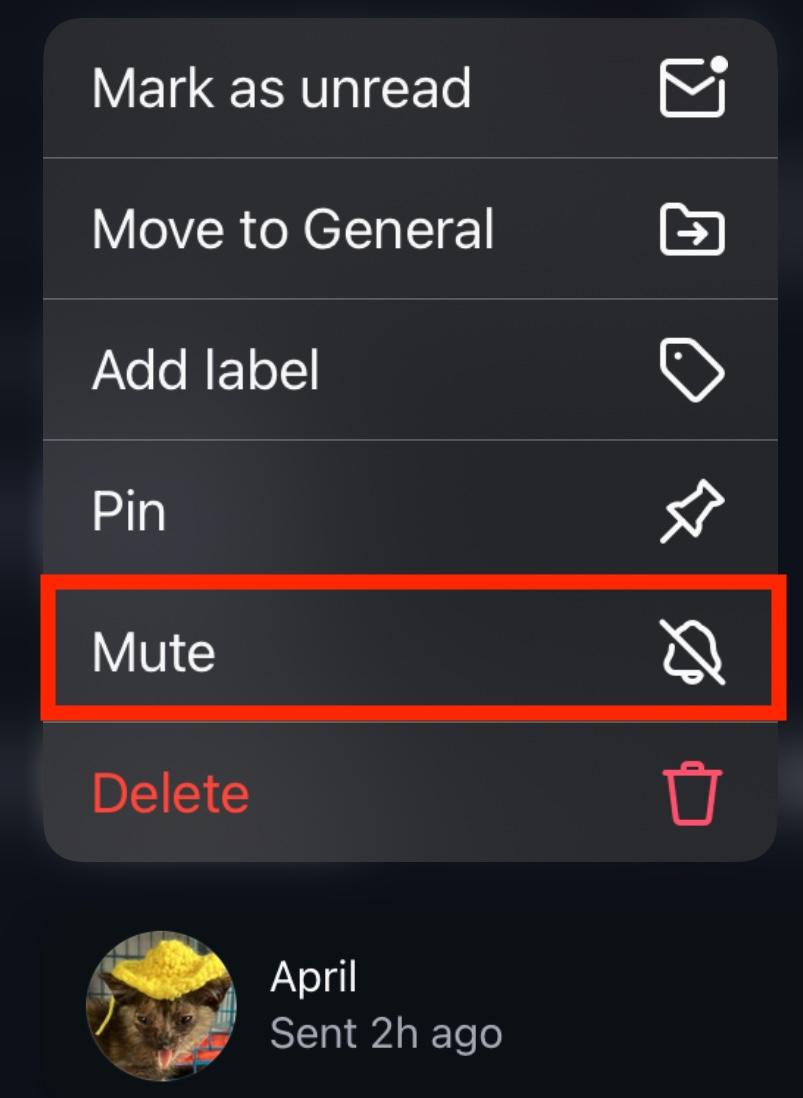
On the mobile app, go to your Instagram inbox, swipe to the left and tap More.

Tap Mute and confirm your choice.
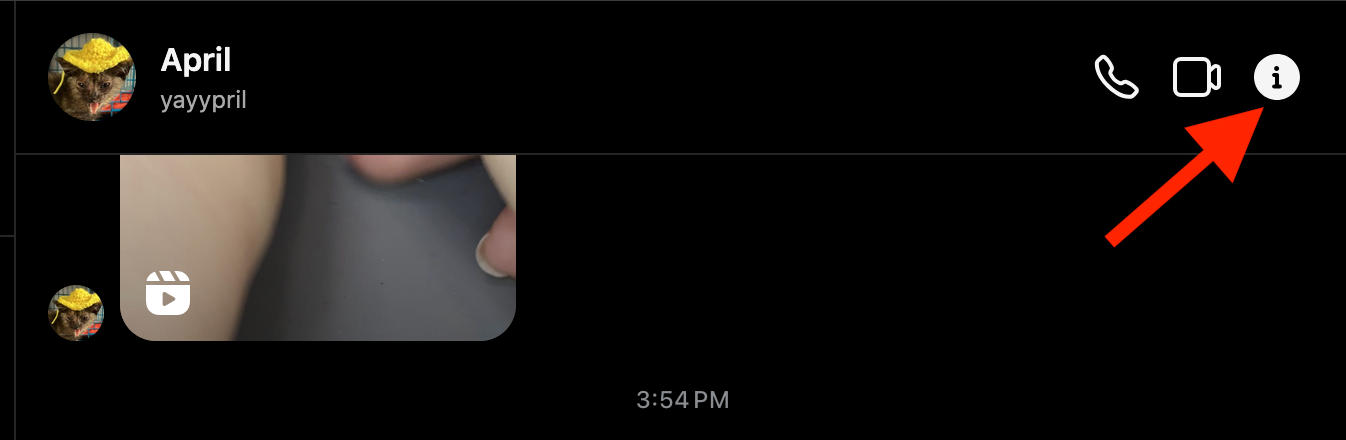
On the Instagram desktop site, open the DM you wish to mute.
Click the information icon on the top right corner.
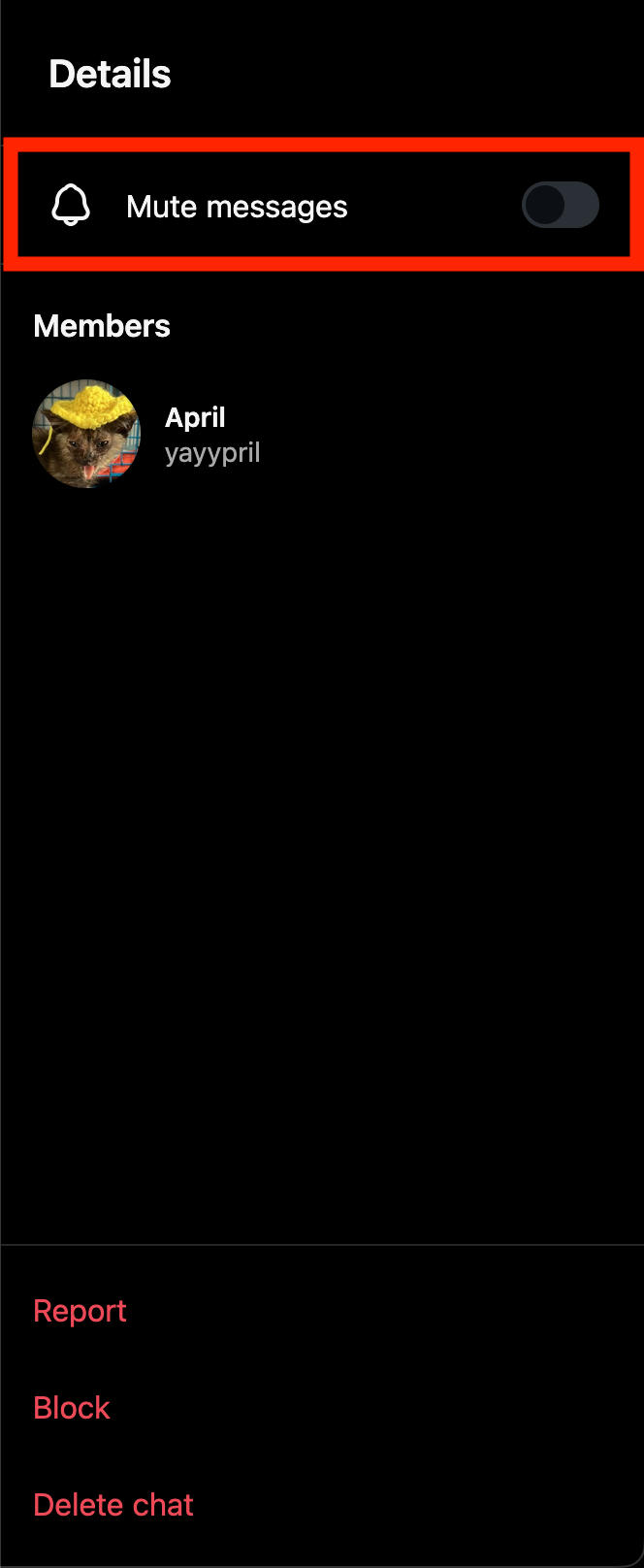
Toggle Mute Messages to ON.
Set Custom Reactions
Did you know that you can also set a custom selection of emoji reactions within your DMs?
Open the Instagram mobile app and long press the message of your choice. Tap the + sign to the right of the emoji options.
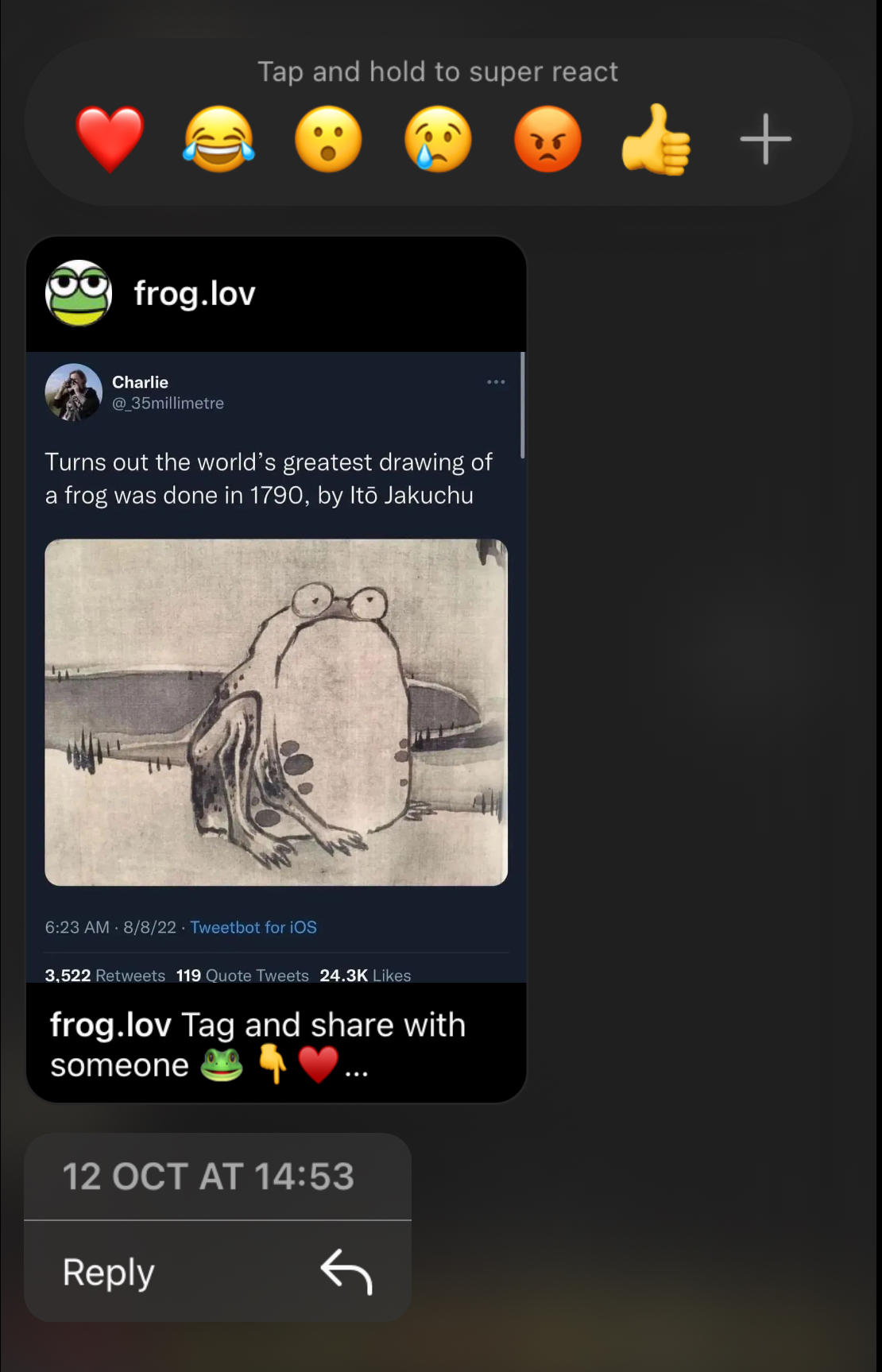
You can select an emoji from the available list for a quick, one-time reaction. Or, you can click Customize on the top right corner to select your personal reaction emoji selection.
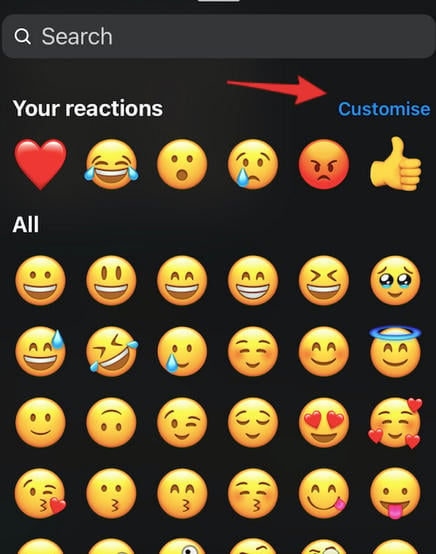
This selection will apply to all DMs within your profile and can be changed at any point.
Tap each of the default reactions and then select the emoji you wish to replace it with.
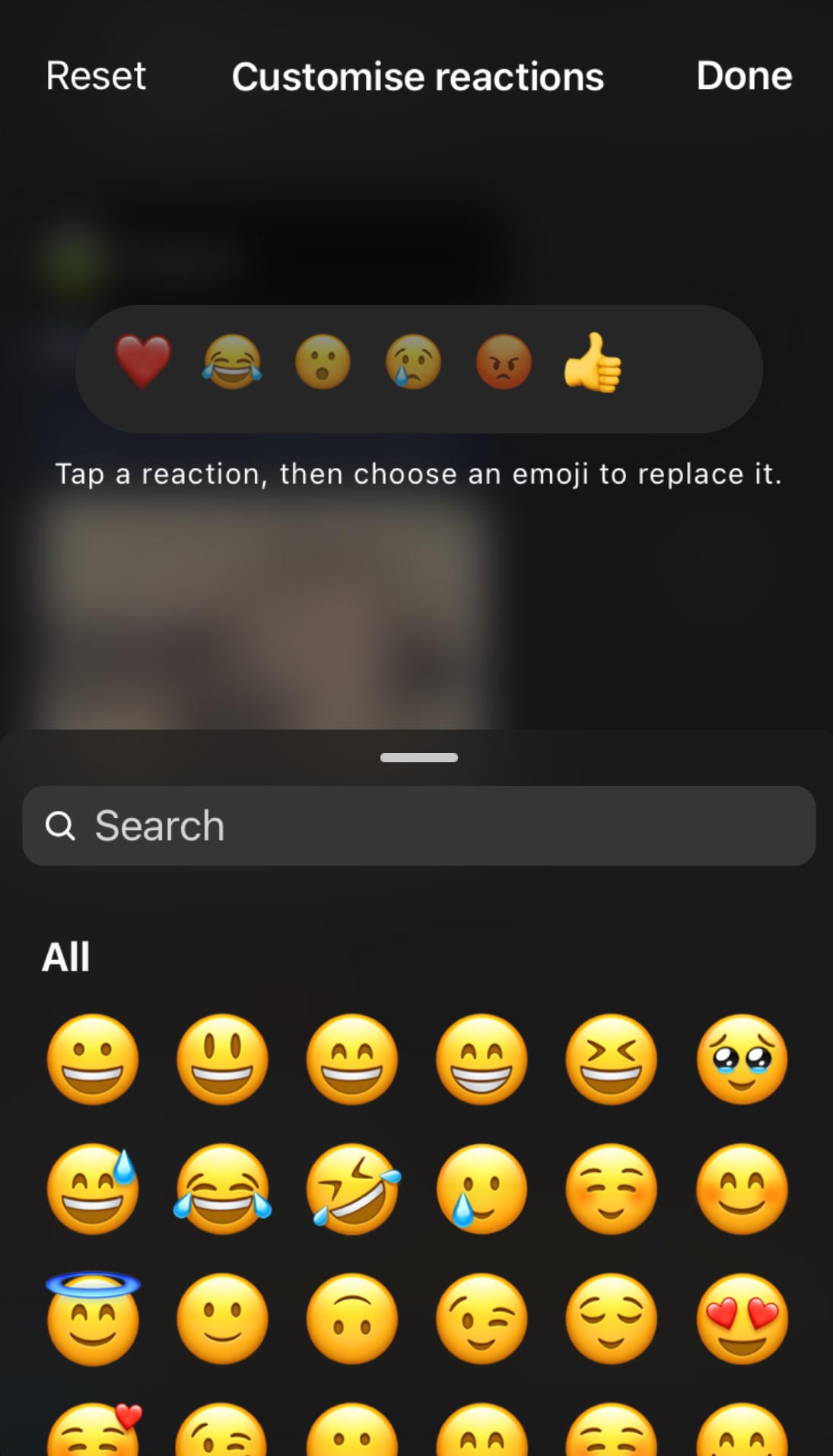
When you're done, tap Done on the top right corner. You can also Reset to the default icons from the top left corner.
Blocking & Reporting
For severe cases of harassment or spam, you can block and report users within your inbox.
Open the DM.
Tap the sender’s username at the top.
Tap the three dot Options menu on the top right.
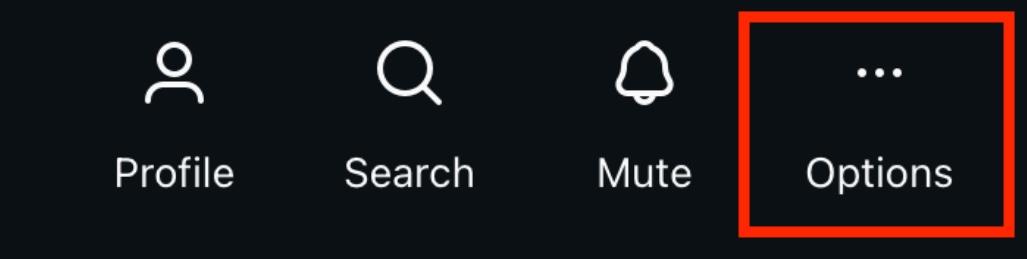
Tap either Report or Block.
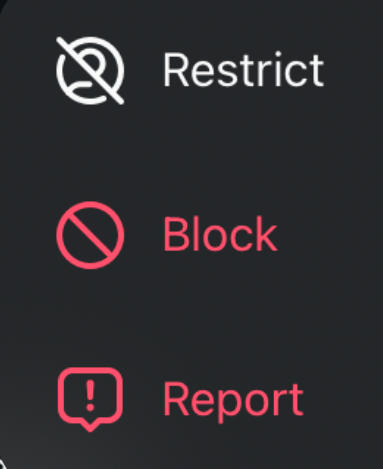
Choosing Report may prompt you to block the user after the report is sent.
Downloading Your Chats
If you’d like to delete your chat history to clear up your inbox, but want a record of the DM just in case, you can download your chat for later.
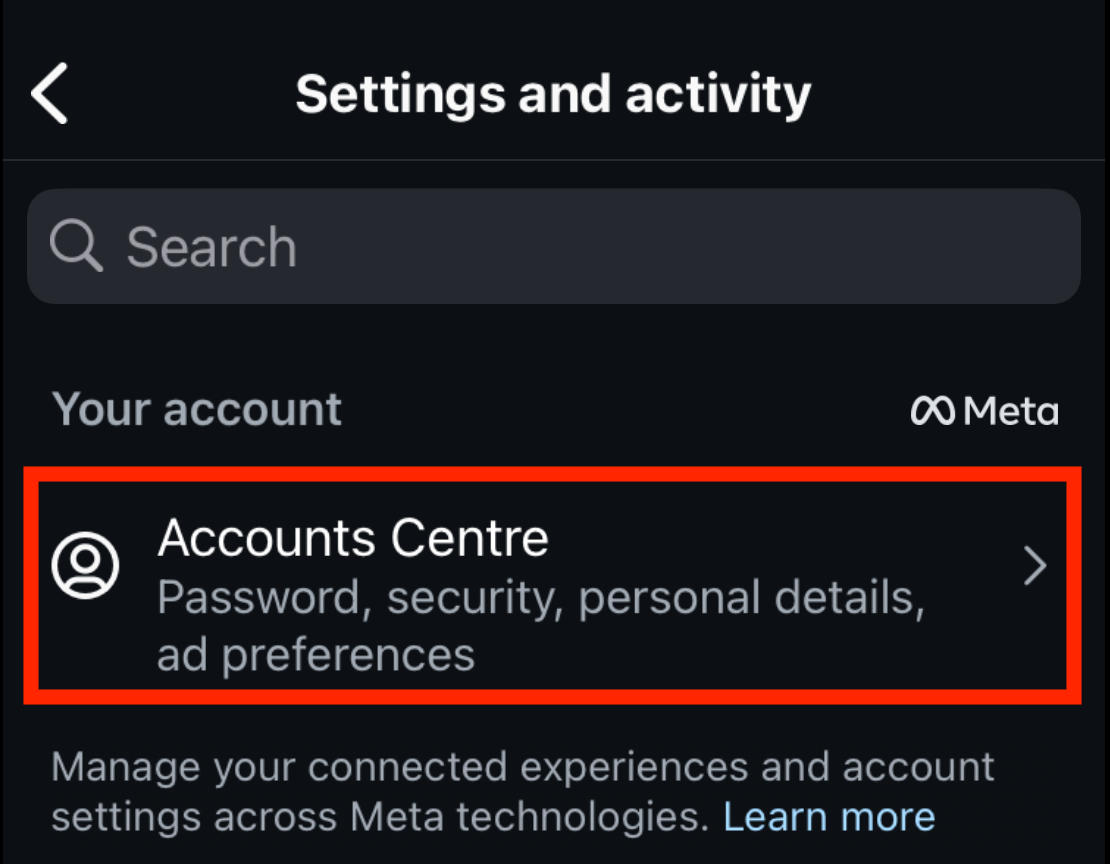
Tap the three lines on the top right corner of your profile page.
Tap Accounts Center.
Tap Your Information And Permissions.
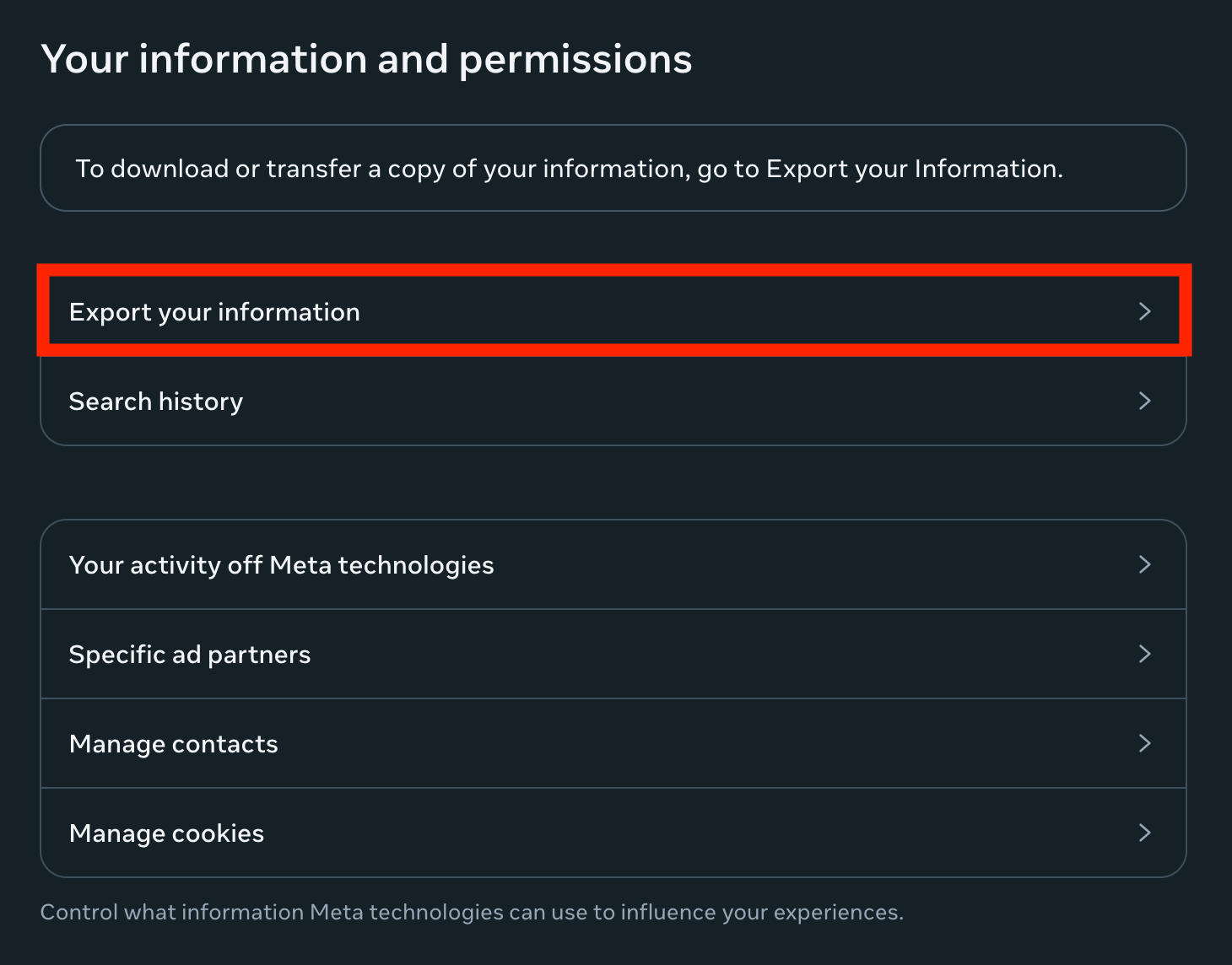
Tap Export Your Information and follow the on-screen steps to receive your data.
Frequently Asked Questions
Does marking a message as unread remove seen?
No, marking a message will not remove the read receipts. However, you can turn read receipts off for individual DMs here.
Can you read a message on Instagram without it showing seen?
Yes, by turning off read receipts for that DM. Learn how to do that here.
Can you mark an entire chat as unread?
Yes, learn how to mark your DM as unread here.
How to not mark messages as seen on Instagram?
You’ll have to turn off read receipts to prevent messages from being marked as seen. This only works via the Instagram mobile app. Learn how to do that here.
Can you mark Instagram messages as unread on iphone?
Yes, the unread feature works on the Instagram mobile app on any mobile device including the iPad version.
How to mark message as unread on Instagram desktop?
Unfortunately, there’s no way to mark a message as unread via the Instagram desktop site. You’ll have to open the Instagram app to do this.
When you unread a message on Instagram does it still say seen?
Yes, if you mark a message as unread it’ll still appear as being seen if you have read receipts turned on for that specific DM.
Are users notified when you screenshot an Instagram DM?
Only if you’re in Vanish Mode. Otherwise screenshots are totally anonymous. Learn how to turn on Vanish Mode here.