Instagram Insights allow creators to view analytics on post performance, profile views, and much more.
Today we’ll walk you through the steps required to unlock the Insights feature, which areas of Instagram offer Insights, and much more.
Key Points:
Can You See Instagram Insights On A Personal Account?
Unfortunately, the answer is no. Instagram Insights are only available to users who have swapped to a Professional account, either Business or Creator.
Personal Instagram accounts do not have access to Insights or the Business Dashboard as a whole.
Fortunately, it’s very easy to swap to a Professional account and it’s completely free so there’s no real downside to switching.
Can A Private Account Have Insights?
No. That’s because Instagram Insights are only available to Professional accounts, which don’t have the option to go private.
One option would be to temporarily swap to a Professional account to view Insights, then switch back to a Personal account and make your account private again.
How To Unlock Instagram Insights
All you need to do to unlock Instagram Insights is to switch to a Professional account. You can opt for a Business or Creator profile and it’s completely free. Plus, you can switch back to a Personal account at any time.
Tap the three lines on the top right corner of your Instagram profile.
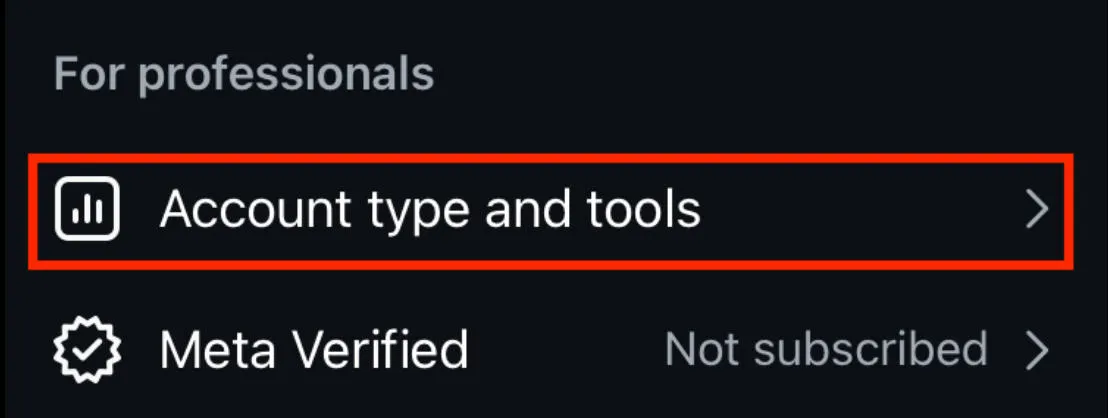
Scroll down to For Professionals and tap Account Type And Tools.
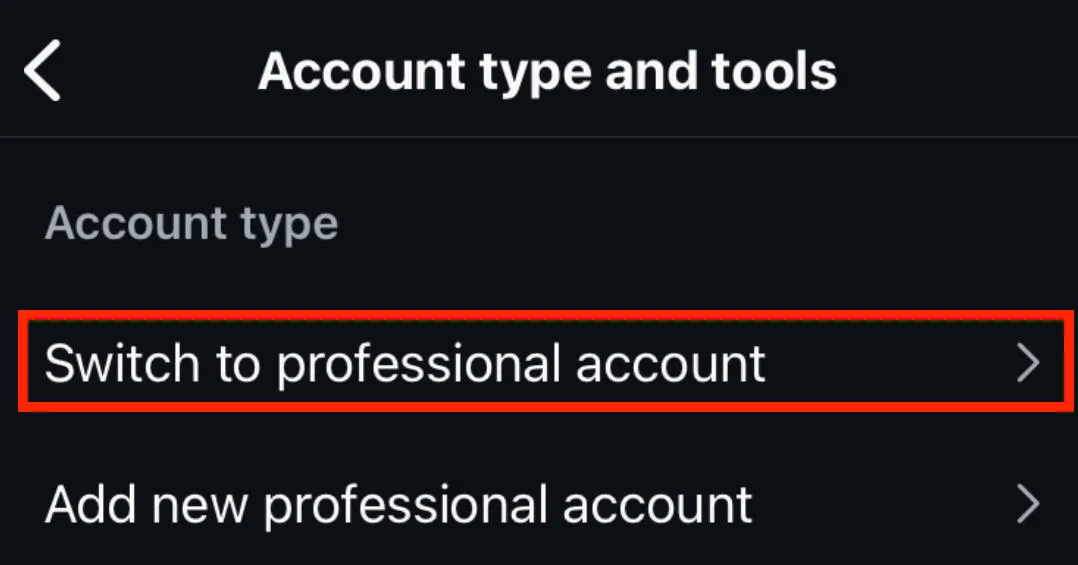
Tap Switch To Professional Account.
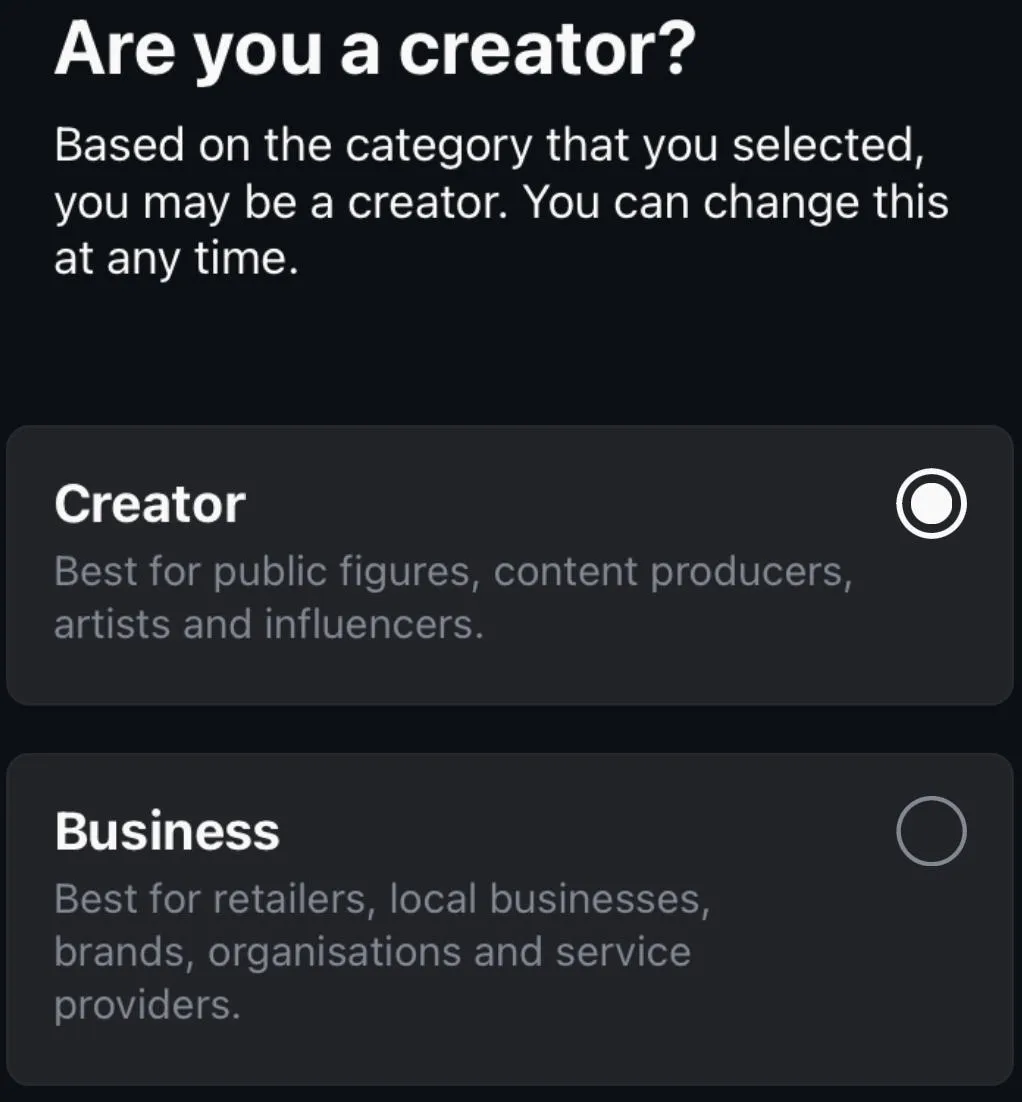
Follow the on-screen prompts depending on your account type.
Select either Creator or Business (either option will let you view insights).
Complete the on-screen prompts to finish set up.
Where To View Instagram Insights
You can access Insights directly via the Instagram mobile app and desktop site, thanks to a recent update. Additionally, you can use the Meta Business Suite to view Insights if you’ve linked your Instagram to a Facebook page.
Via Mobile
Tap the three lines on the top right corner of your Instagram profile.
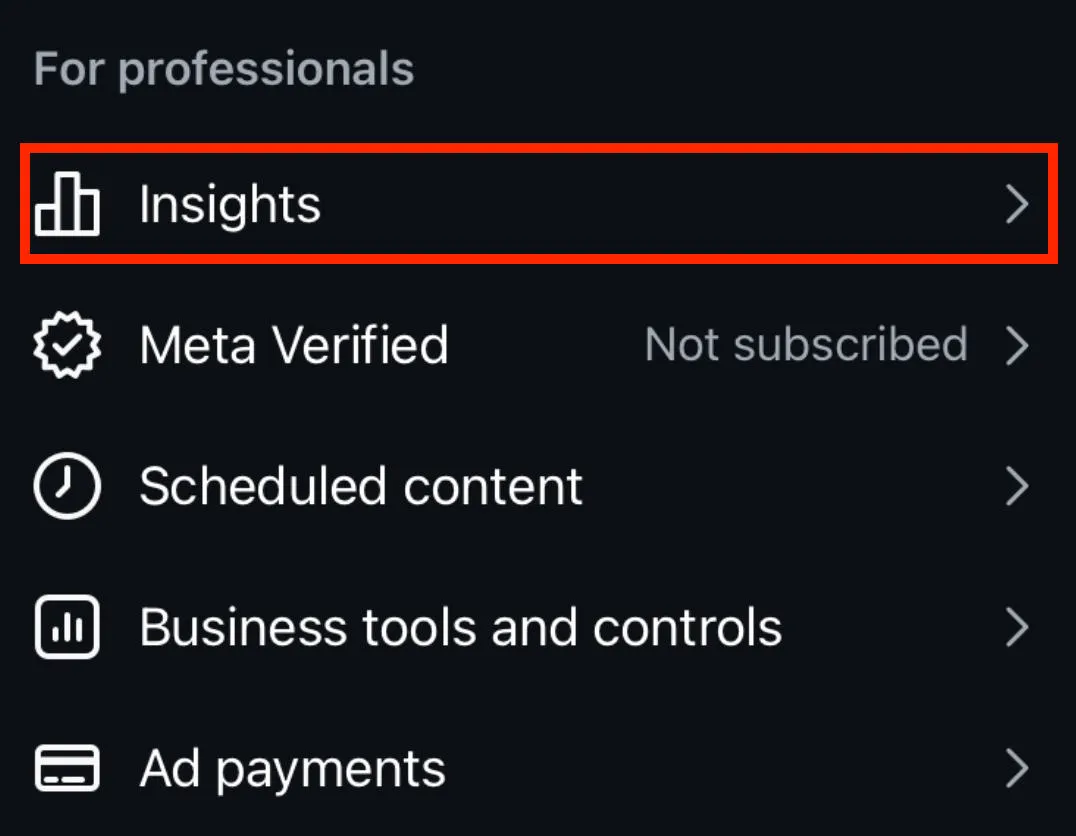
Scroll down to For Professionals and tap Insights.
Via Desktop
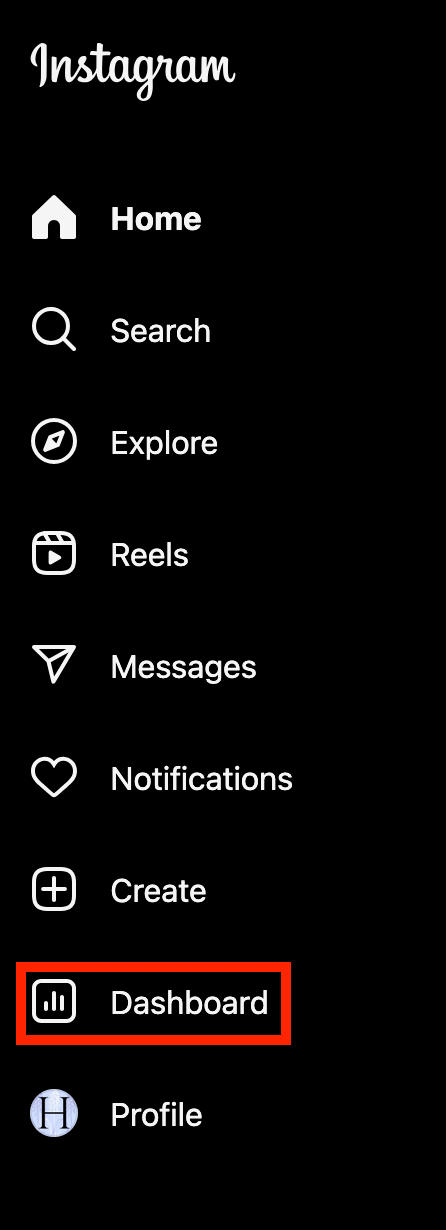
In the left-hand menu, click Dashboard.
Click Insights in the drop-down menu. Select either Account or Content.
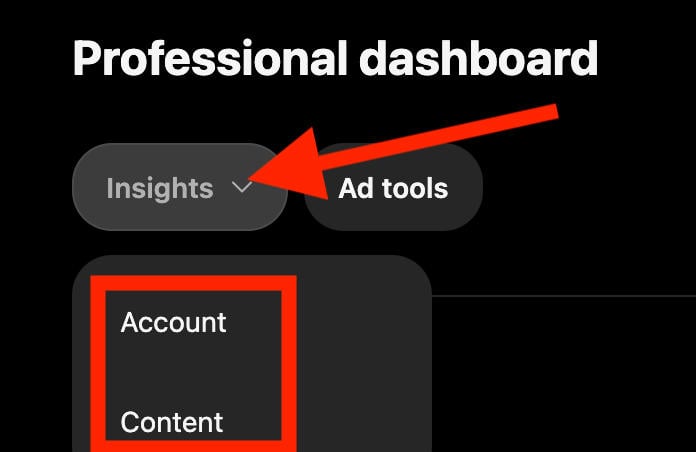
Account will show you general account Insights.
Content will show you Insights for specific posts, Stories, and Reels.
Meta Business Suite
Open the Facebook page linked to your Instagram account.
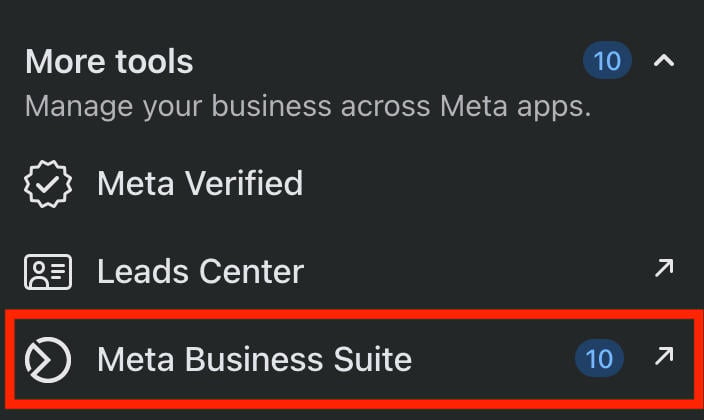
In the left side menu under More Tools, click Meta Business Suite.
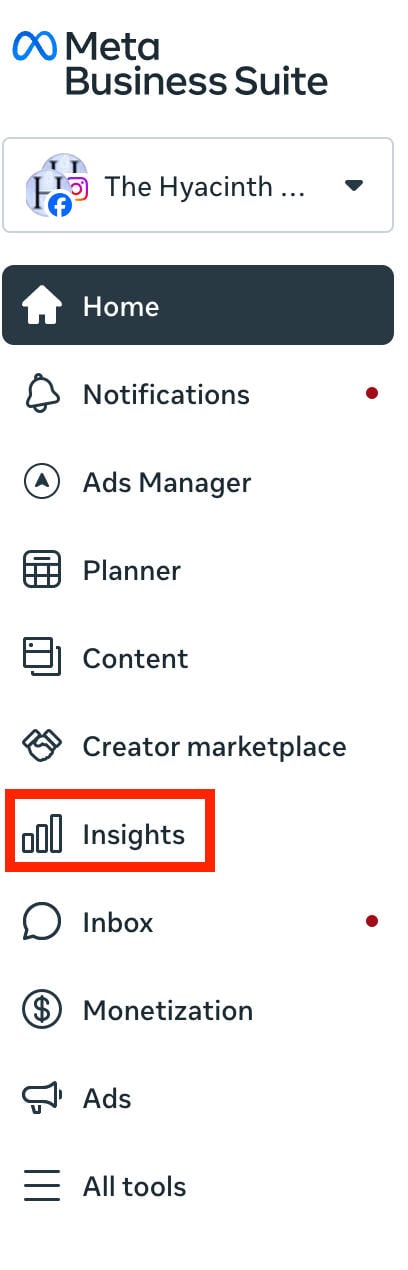
On the left hand menu click Insights.
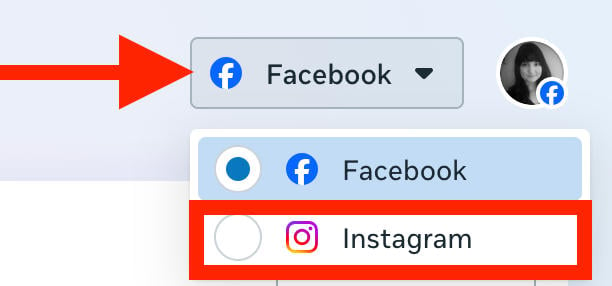
On the top right hand side click the drop down menu that says Facebook and select Instagram.
Adjust the timeframe to suit your needs.
How Often Do Instagram Insights Update?
Instagram Insights data is updated every 24 hours. However, weekly data summaries take 7 days to be generated.
How Do I See My Post Insights On Instagram?
You can view Insights for a specific post through the Insights dashboard or by accessing Insights directly from the post menu itself.
Through Insights
Tap the three lines on the top right of your profile page.
Scroll down to For Professionals and tap Insights.
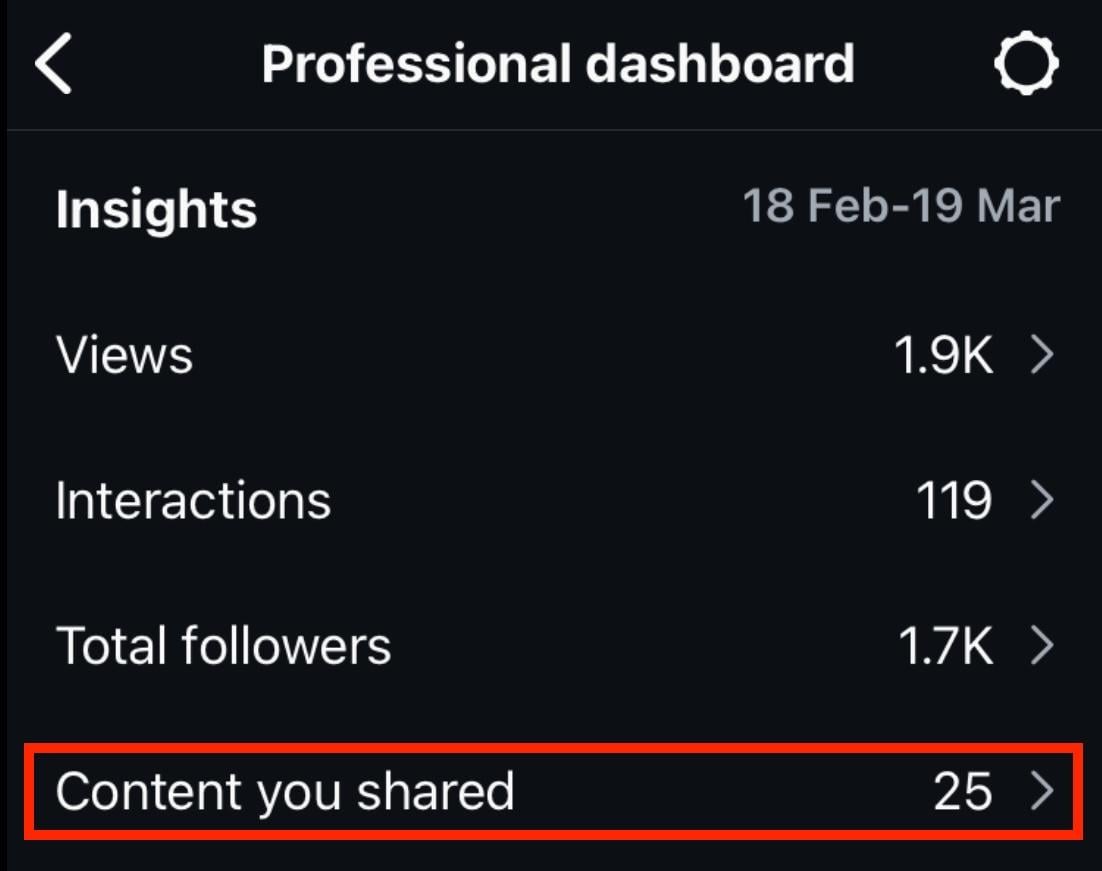
Tap Content You Shared.
Locate and tap the post you want to see Insights for. You can filter by post type and time using the drop down menus.
From here you’ll be able to see the number of engagements the post received including views, likes, reposts, saves, comments, and shares.
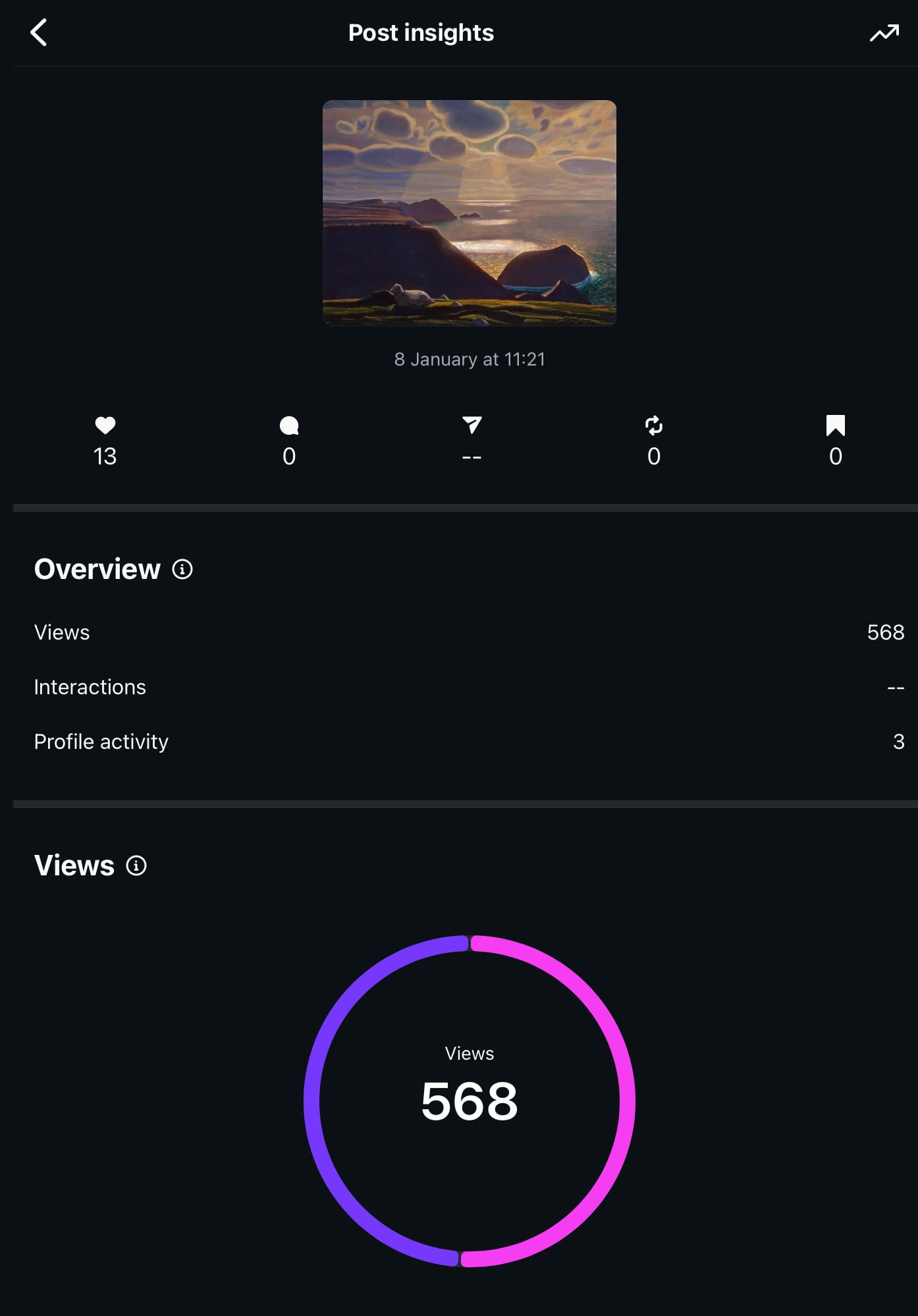
Additionally, you’ll be able to see the sources of your post views and the percentage of followers to non-followers.
The Post Menu Method
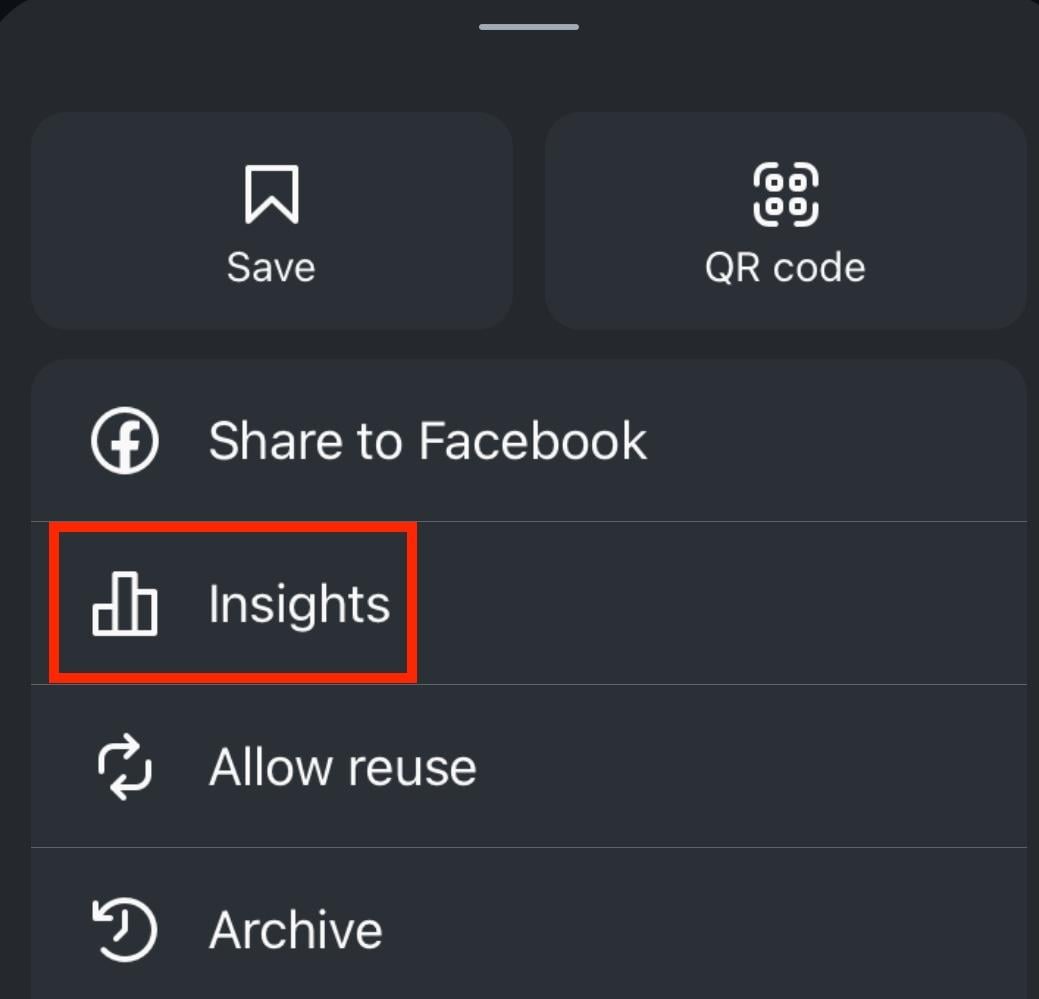
Tap the three dots on the top right of the post and tap Insights.
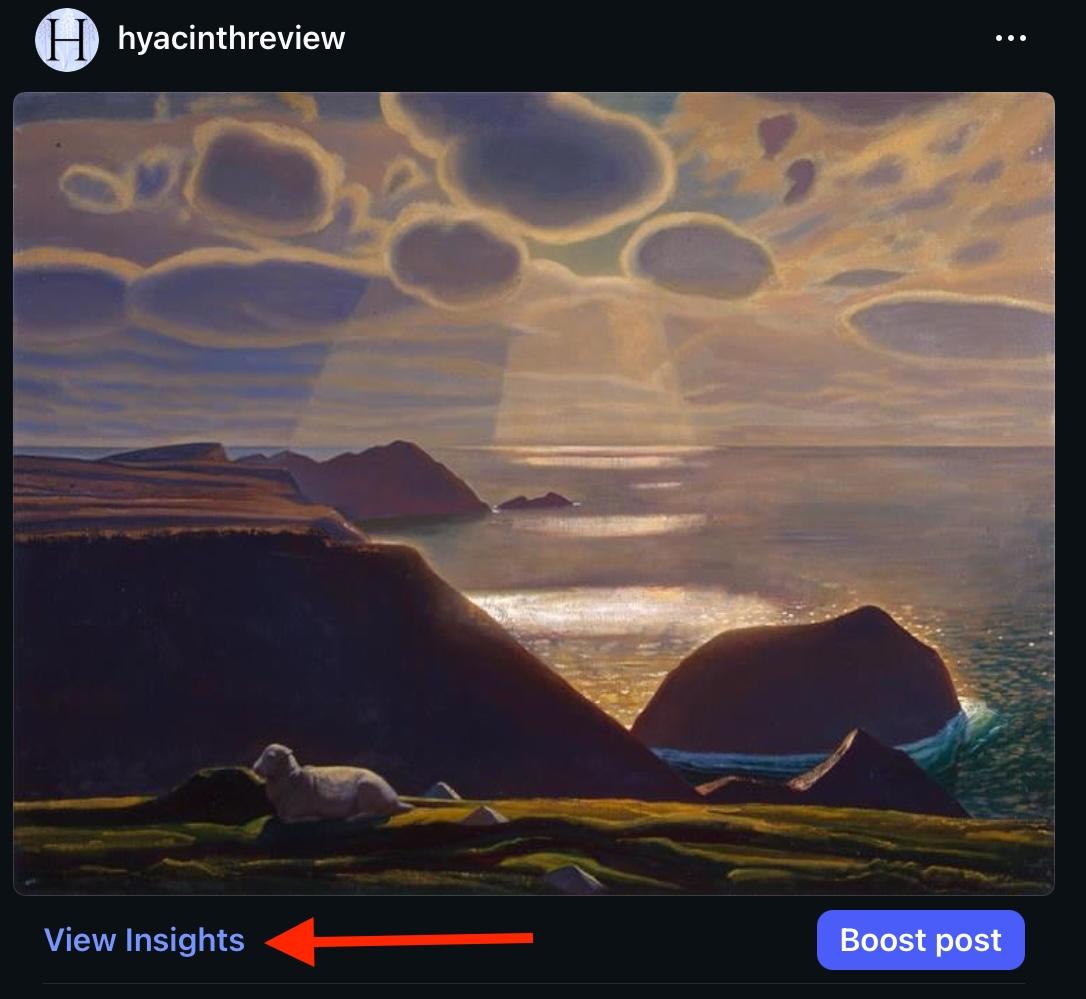
Alternatively, tap View Insights on the bottom left of the post.
From here you’ll be able to see the number of engagements the post received including views, likes, reposts, saves, comments, and shares.
Additionally, you’ll be able to see the sources of your post views and the percentage of followers to non-followers.
How To View Insights On Instagram Reels
Reels Insights can be accessed just like regular post Insights; either via the post itself or through the Insights dashboard.
Through Insights
Tap the three lines on the top right of your profile page.
Scroll down to For Professionals and tap Insights.
Tap Content You Shared.
Locate and tap the post you want to see Insights for. You can filter by post type and time using the drop down menus.
From here you’ll be able to see the number of engagements the post received including views, likes, reposts, saves, comments, and shares.
Additionally, you’ll be able to see the sources of your post views and the percentage of followers to non-followers.
The Post Menu Method
Tap the three dots on the top right of the post and tap Insights.
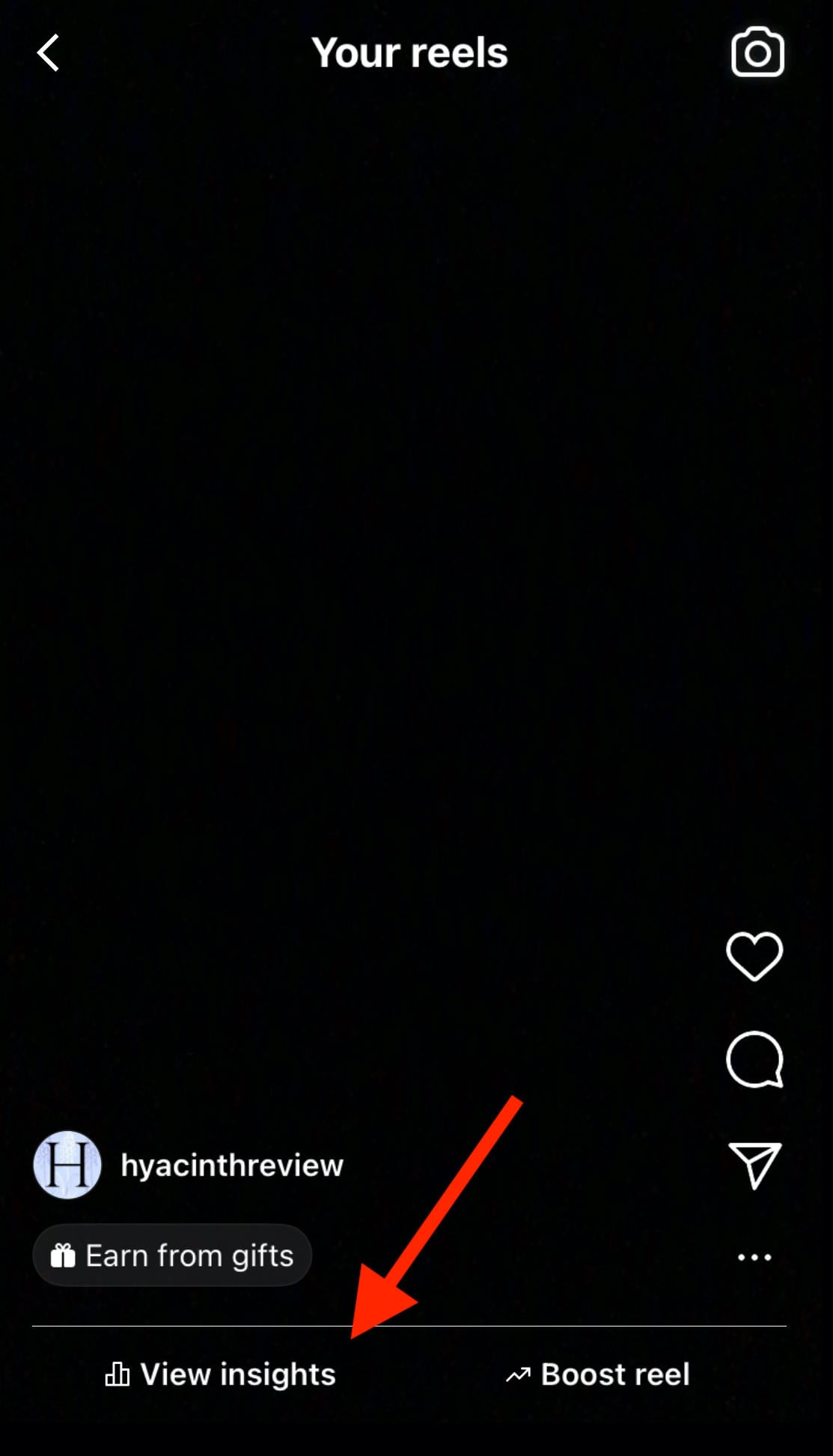
Alternatively, tap View Insights on the bottom left of the post.
From here you’ll be able to see the number of engagements the post received including views, likes, reposts, saves, comments, and shares.
Additionally, you’ll be able to see the sources of your post views and the percentage of followers to non-followers.
How To View Insights On Instagram Stories
Stories are slightly different when it comes to Insights. You can view Story Insights from the Insights dashboard, from the Archive, or from the Story itself while it’s active.
Through Insights
Tap the three lines on the top right of your profile page.
Scroll down to For Professionals and tap Insights.
Tap Content You Shared.
Locate and tap the Story you want to see Insights for. You can filter by post type and time using the drop down menus.
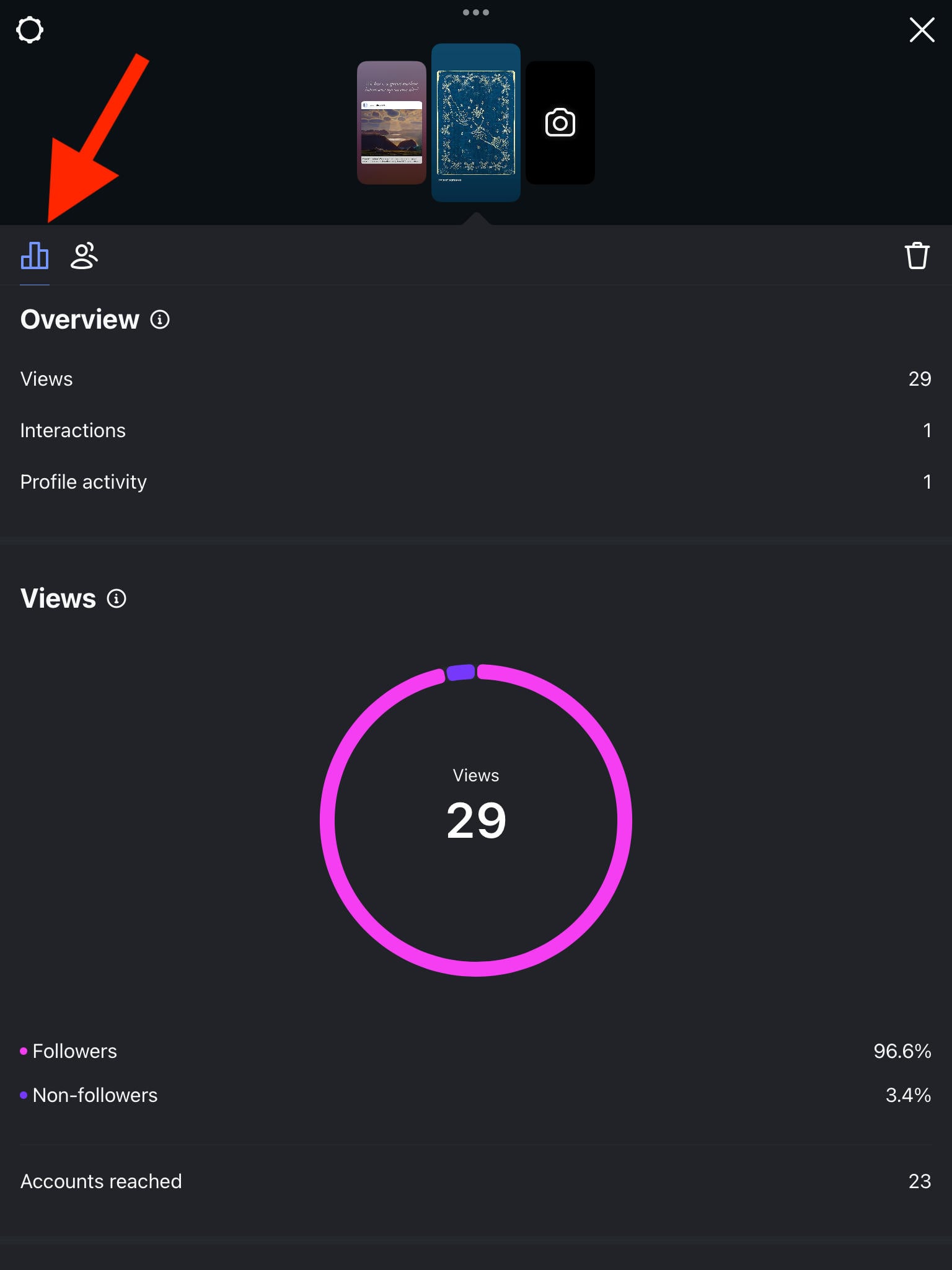
From here you’ll be able to see the number of views and interactions your Story received, as well as navigation Insights, and whether or not engagement came from your followers or non-followers.
Via The Archive
Tap the three lines on the top right corner of your profile page.
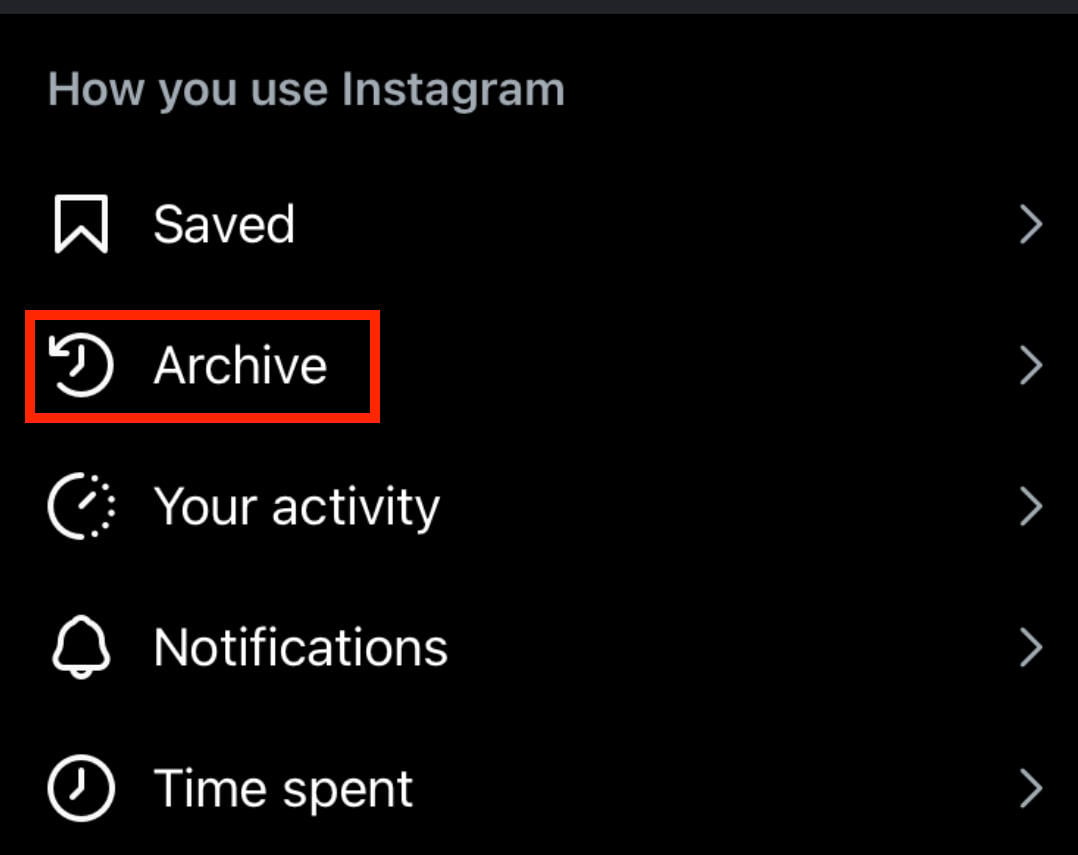
Under How You Use Instagram tap Archive.
From the drop-down menu at the top, choose Stories Archive.
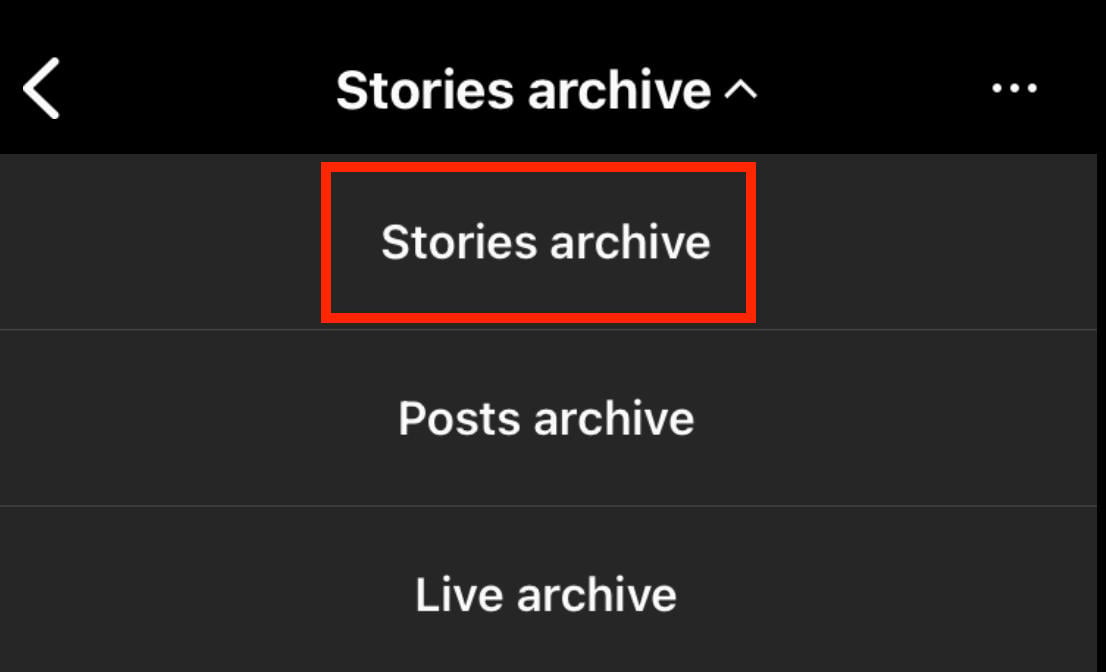
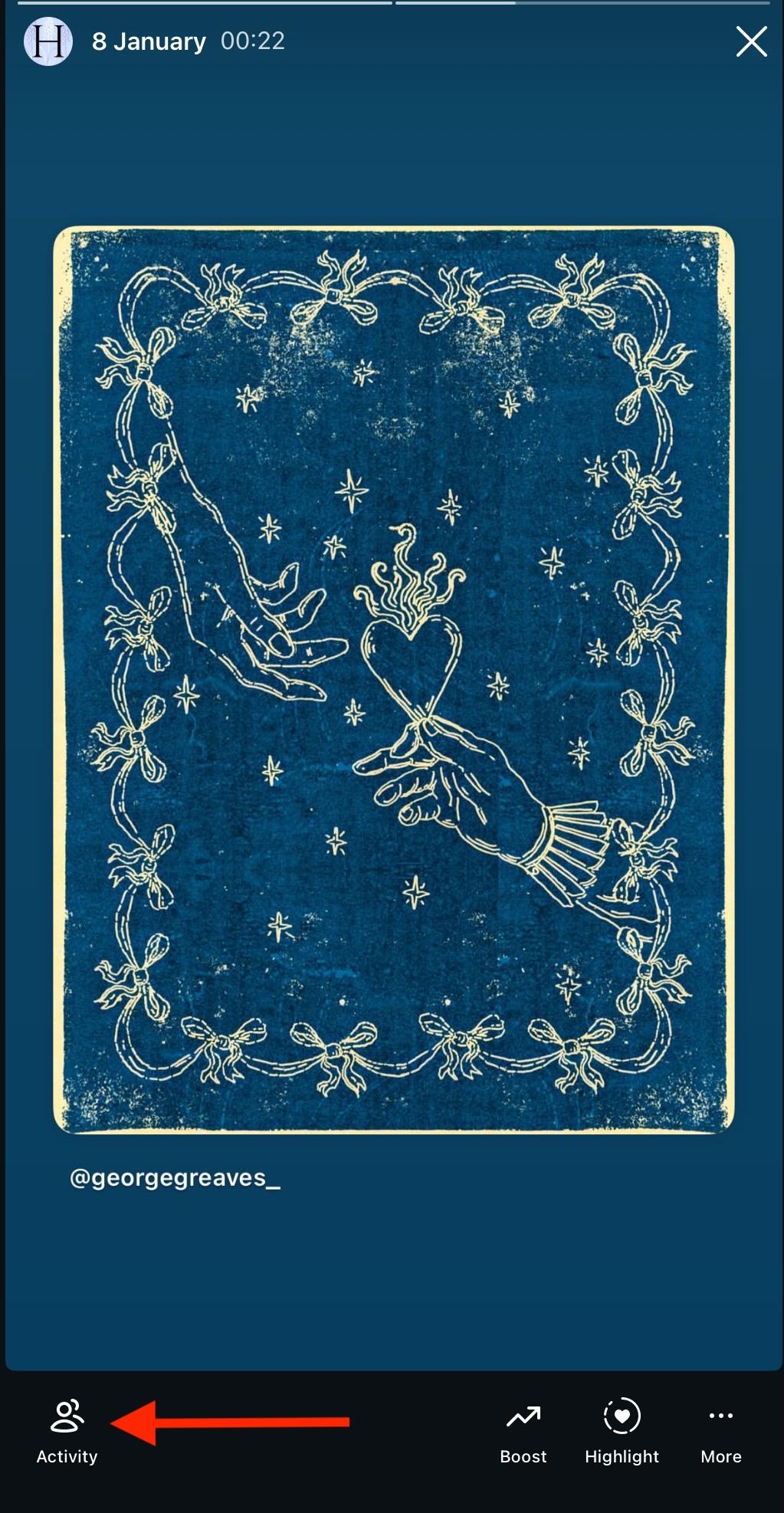
Tap the Story you want to view Insights for.
Tap Activity on the bottom left corner.
Tap the graph icon on the left.
Via The Story
Open the Story and navigate to the slide you want to view Insights for.
Tap Activity on the bottom left corner.
Tap the graph icon on the left.
How To See When To Post On Instagram Insights
One of the most useful features offered within Insights is a graph of your current followers most active days and times.
To view this, open Insights and tap New Followers.
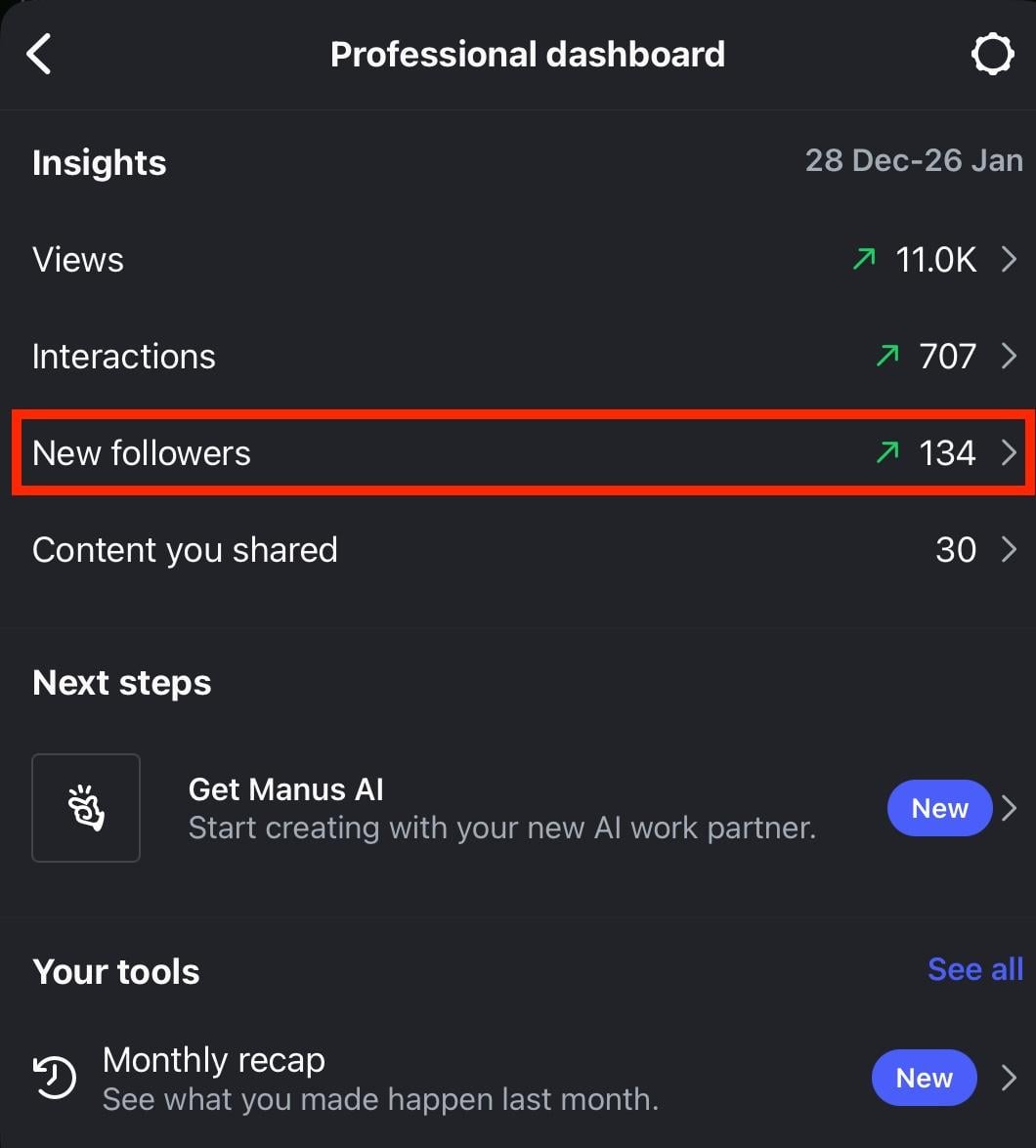
Scroll down to Most Active Times.
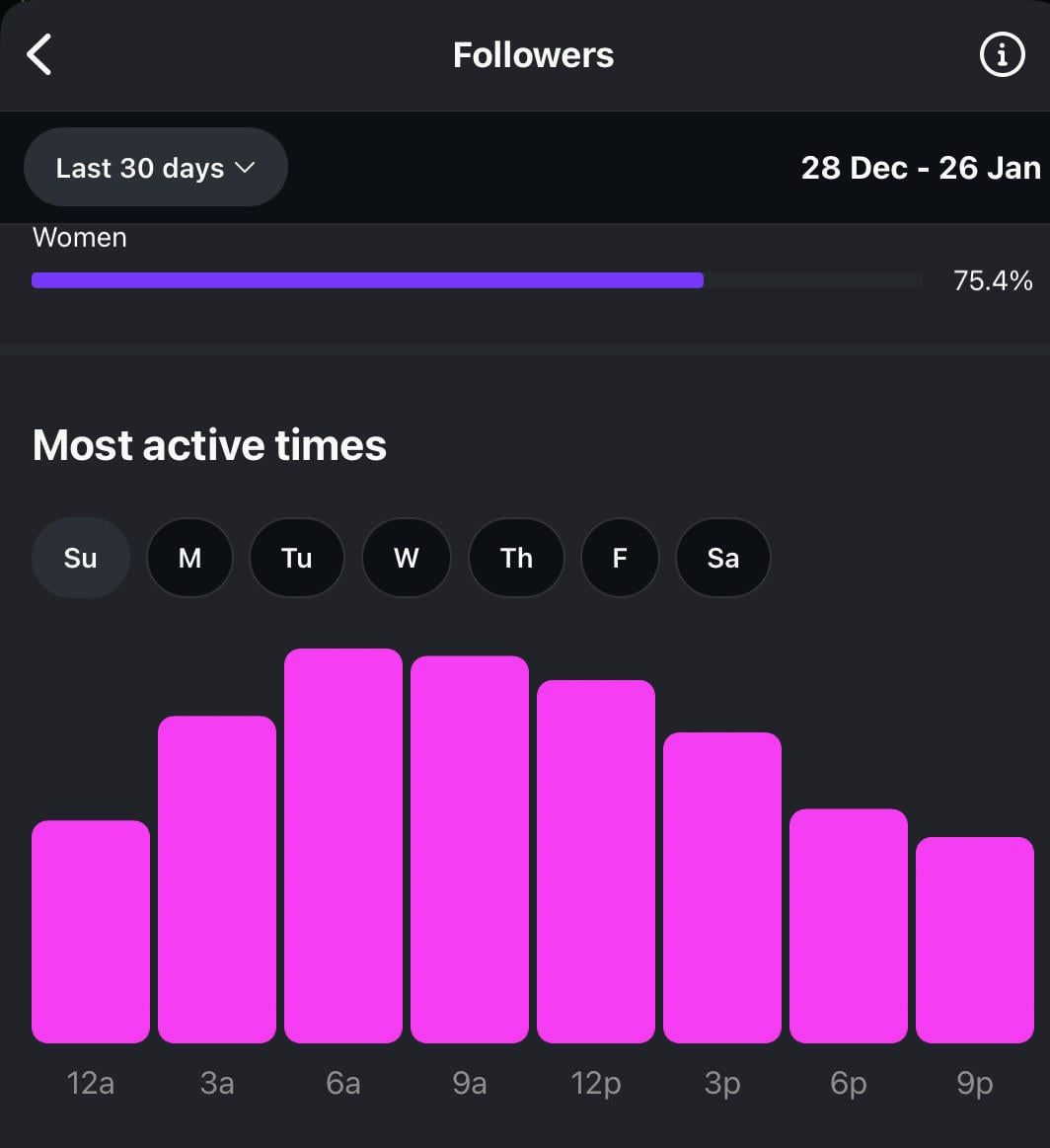
From here you can tap each day of the week to see which times your followers are most active on those days.
For more tips, view our guide on the best time to post on Instagram.
Troubleshooting: I Can't See Insights On Instagram
If you can’t see Insights on Instagram, there could be a few culprits.
Let’s run through some basic troubleshooting steps.
You Have The Wrong Account Type
The most common issue is trying to view Insights from a Personal account. Only Professional accounts can view Insights.
Learn how to switch your account type here.
Learn how to access Insights here.
Your App Is Outdated
Sometimes Instagram updates and changes the location of certain features in the account menu.
Make sure Instagram is updated via the app store. Alternatively, uninstall and reinstall the app before trying again.
Instagram’s Server Is Down
You can check a site like DownDetector to see whether or not Instagram is experiencing platform-wide issues.
Sometimes glitches, bugs, and server troubles can result in certain features going missing.
Contact Instagram Support
If you’ve run through the steps above and still can’t find your Insights section, contact Instagram via their Help Center here.
How Do You See Your Instagram Algorithm?
Algorithms aren’t something you can really see, at least not in the way many people think.
Additionally, Instagram (and most other platforms) don’t just have one all-powerful algorithm.
Instead, each area of the platform has its own algorithm. This includes the homefeed, Explore page, and Reels feed.
What you see in these feeds is based on your existing browsing history within Instagram, the types of accounts you follow, and the type of content that the platform thinks you might like based on information it learns about you like your age, gender, demographic, and other preferences.
Recommended Reading:
Frequently Asked Questions
How to see post views on Instagram Personal account?
Unfortunately there’s no way to see the number of post views you’ve accrued on a Personal account. However, you can swap to a Professional account to see Insights, then switch back.
How to get Insights on Instagram without a Professional account?
Insights are only available on Professional Instagram accounts. These are free, and you can switch at any time.
Why can I see Insights on my Personal account?
If you’re able to see Insights on a personal Instagram account, it could be because you recently switched back from a Professional account and the app hasn’t refreshed yet.
Additionally, sometimes Instagram launches test features for a select number of users without announcing it, so you might be one of the lucky few.
Is Instagram Insights only for public?
Yes, private Instagram accounts won’t be able to access Insights because they’re only available for Professional accounts which can’t be private.
Did they take Insights off Instagram?
Insights are still on Instagram, just for Professional accounts.
How do I add Insights to my personal Instagram account?
You’ll have to switch to a Professional account first. You can learn how to do that here.
How to see impressions on an Instagram post?
You can view impressions from the Insights dashboard or the post menu. Learn how to do that here.
How to see Insights on Instagram private account?
Insights are only available for Professional accounts, which are public by default.
How to see view count on Instagram post?
Tap the three dots on the top right and click Insights.
How to see who viewed your Instagram post not story?
You can only see the number of views a post received, not the specific users who viewed it. Specific user data is only available for Stories.