Did you know that you can share the same content across both Facebook and Instagram instantly?
Whether you want to share Instagram Stories to your Facebook page, or share Reels with your entire audience, today’s guide will show you how to crosspost from Facebook to Instagram and vice versa, so you never have to make double posts again.
Key Points:
How To Link Facebook To Instagram
Before you can crosspost content between Facebook and Instagram, you’ll first need to link your Facebook Page to your Instagram account.
In order to do this, you’ll need to have both a Facebook Business page and an Instagram account set to either Business or Creator.
How To Switch Your Instagram Account Type
Tap the three lines on the top right corner of your Instagram profile.
Scroll down to For Professionals and tap Account Type And Tools.
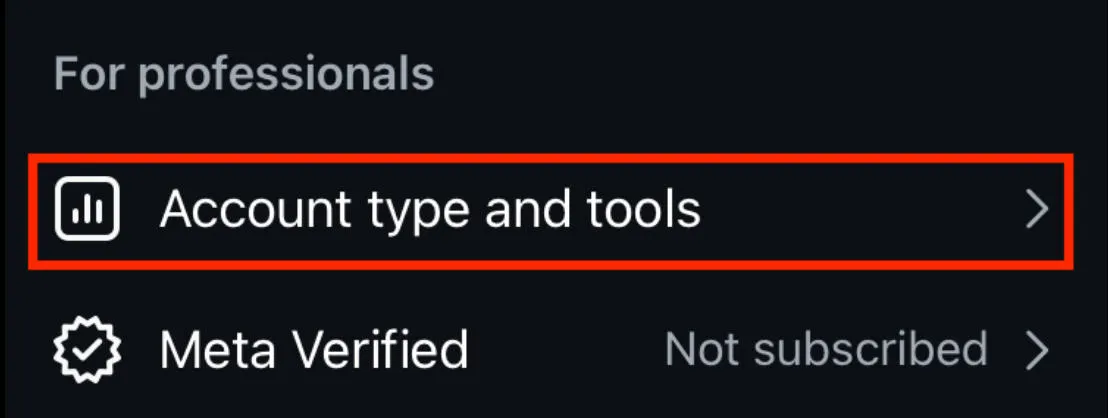
Tap Switch To Professional Account.
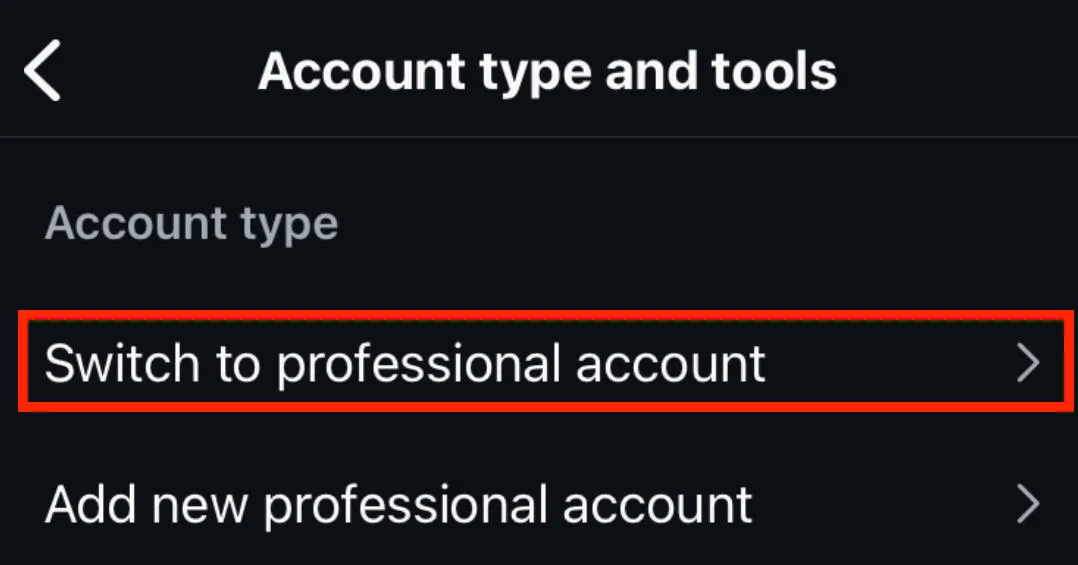
Follow the on-screen prompts depending on your account type.
Select Business or Creator.
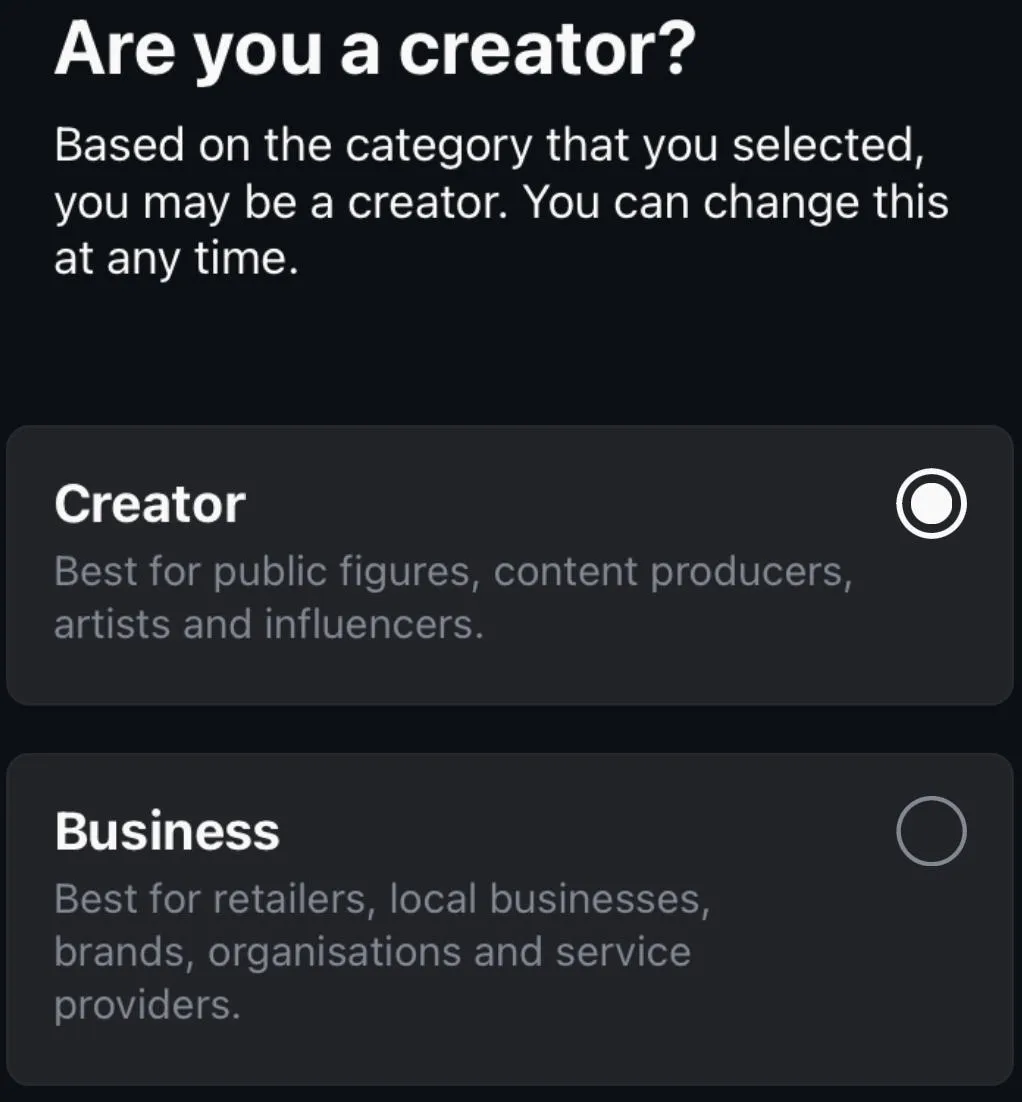
Complete the on-screen prompts to finish set up.
How To Link Your Facebook & Instagram Accounts
To link Instagram to Facebook, open your Instagram profile and tap the three lines on the top right corner.
Scroll down to Who Can See Your Content and tap Crossposting.
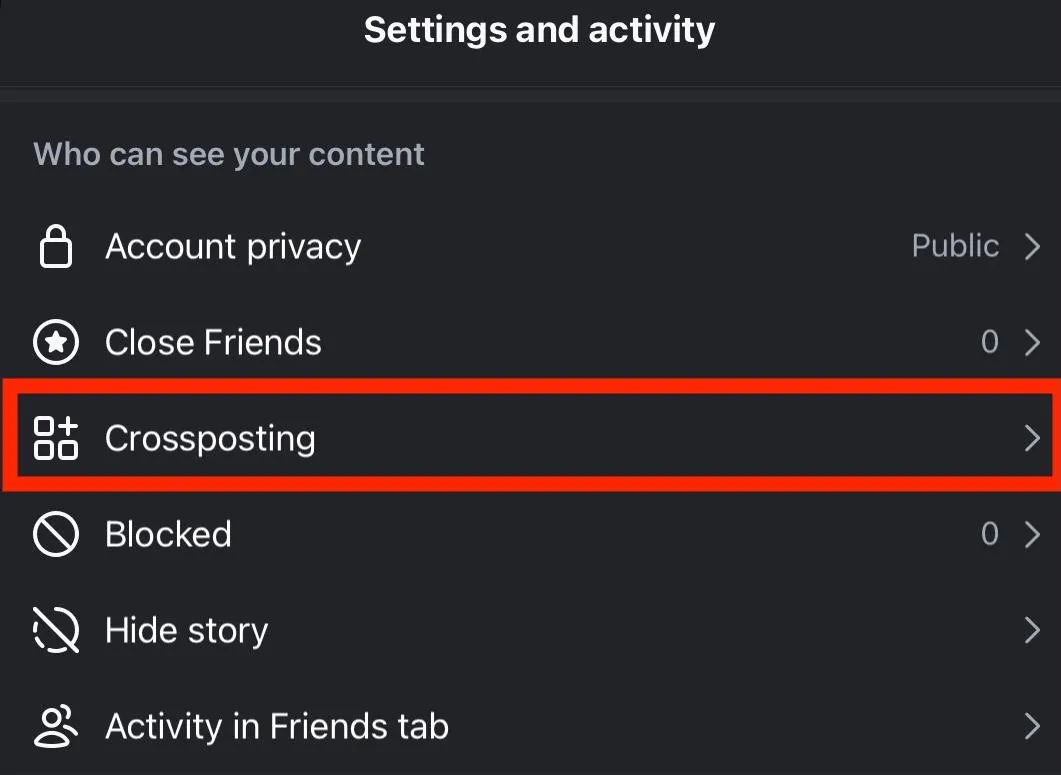
Under Other Options tap Share To A Facebook Page.
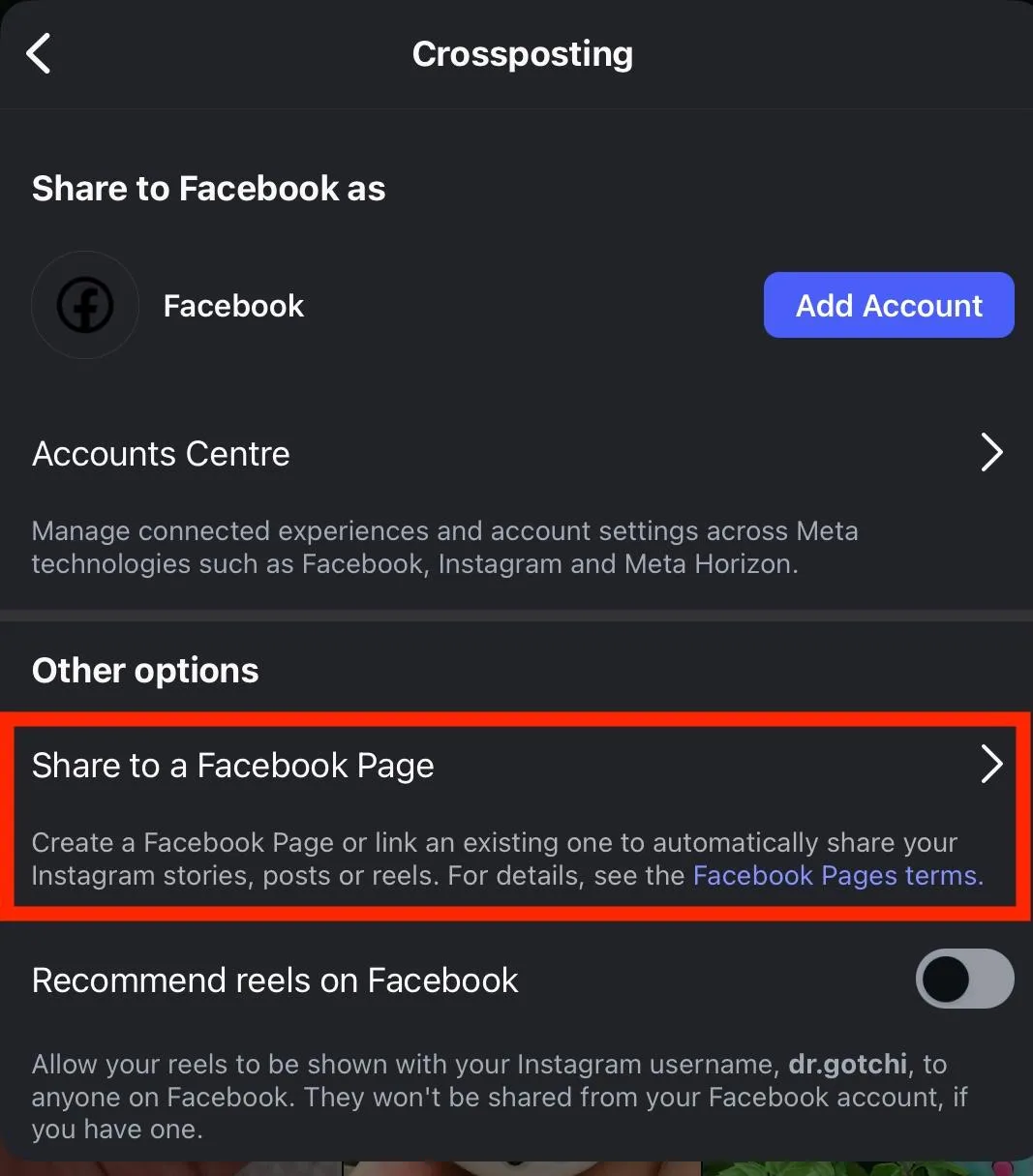
Tap Next.
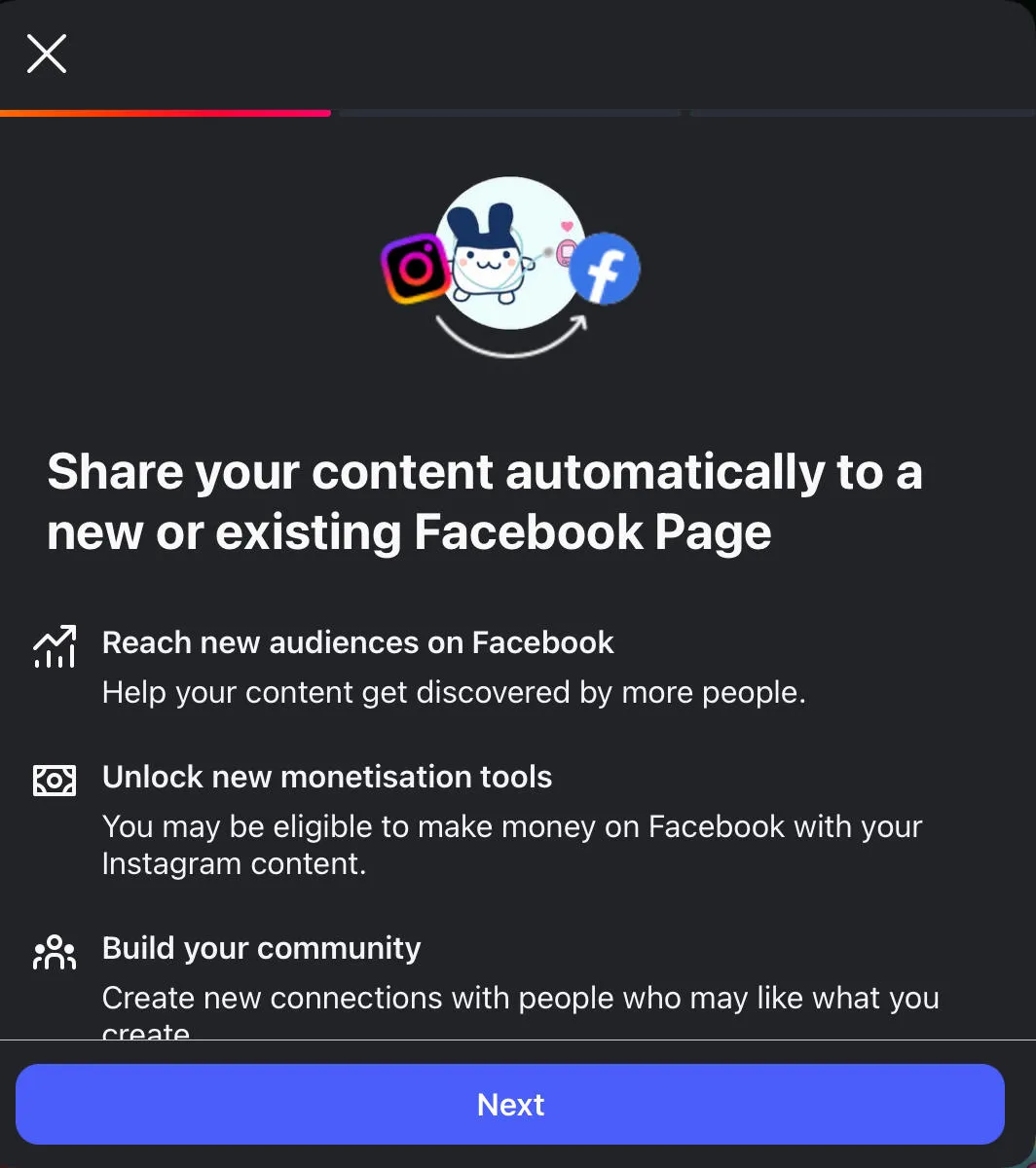
Follow the on-screen instructions to complete the process.
To link Facebook to Instagram, open Facebook on your desktop browser and navigate to your Facebook page.
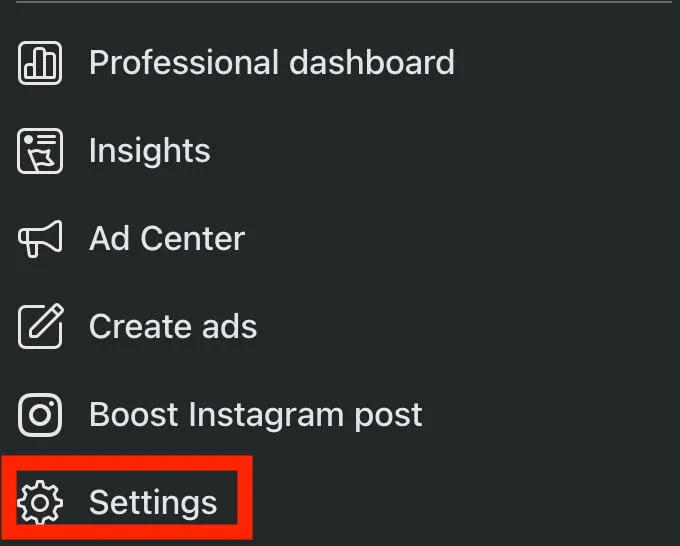
Click Settings in the left-hand menu.
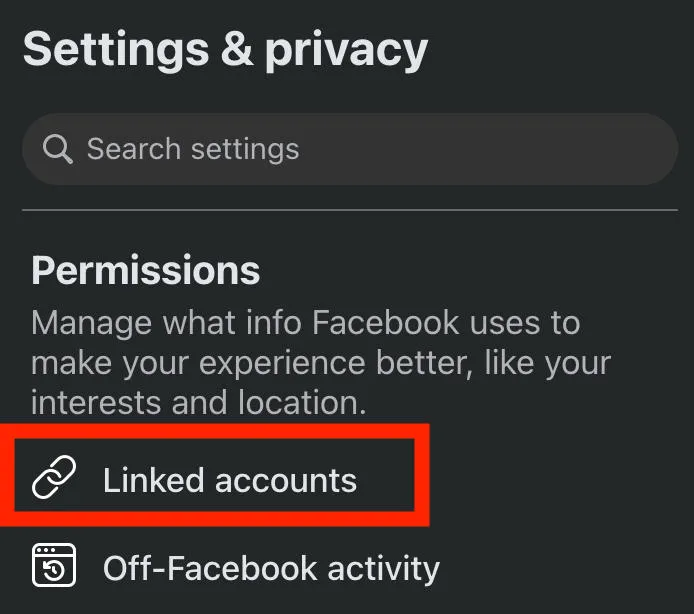
Scroll down to Permissions and click Linked Accounts.
Click Instagram.
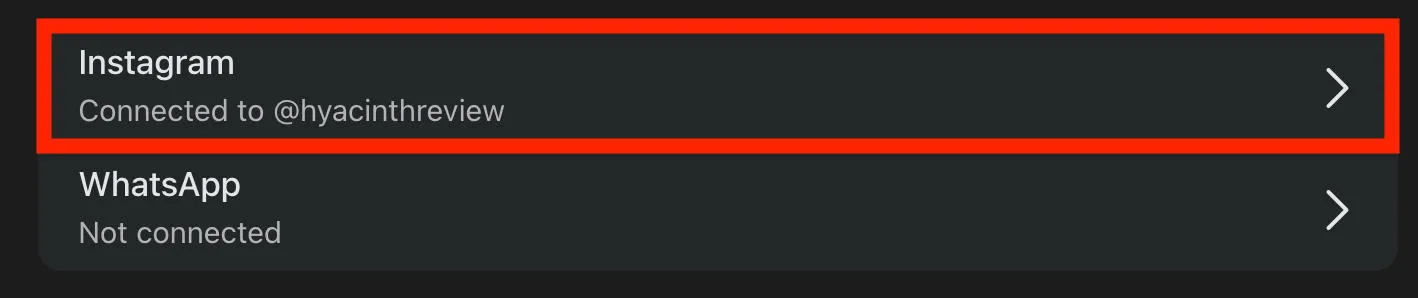
Follow the on-screen instructions to link your Instagram account.
How To Post From Facebook To Instagram
You will only be able to crosspost from Facebook to Instagram via the Facebook app.
Additionally, only certain types of Facebook posts can be crossposted to Instagram.
The following post types cannot be shared on Instagram:
-
Posts with multiple videos
-
Posts with more than 10 photos
-
Posts with photos of different sizes
-
Photos that are too tall/wide for Instagram
-
Facebook posts with features that aren’t available on Instagram
How Do I Automatically Post From Facebook To Instagram?
To automatically share regular Facebook posts to Instagram, follow the steps below:
-
From the Facebook app, tap What’s On Your Mind?
-
Tap Instagram below your name.
-
From here you can toggle on/off one-time sharing to Instagram.
-
Close the window, then publish your post.
Facebook Stories
You can also automatically share your Facebook Stories to your Instagram account.
Open the Facebook app from your mobile device.
Tap Create Story.
Create your Story. Keep in mind that not every feature is eligible for crossposting.
When you’re ready, tap Settings on the bottom left.
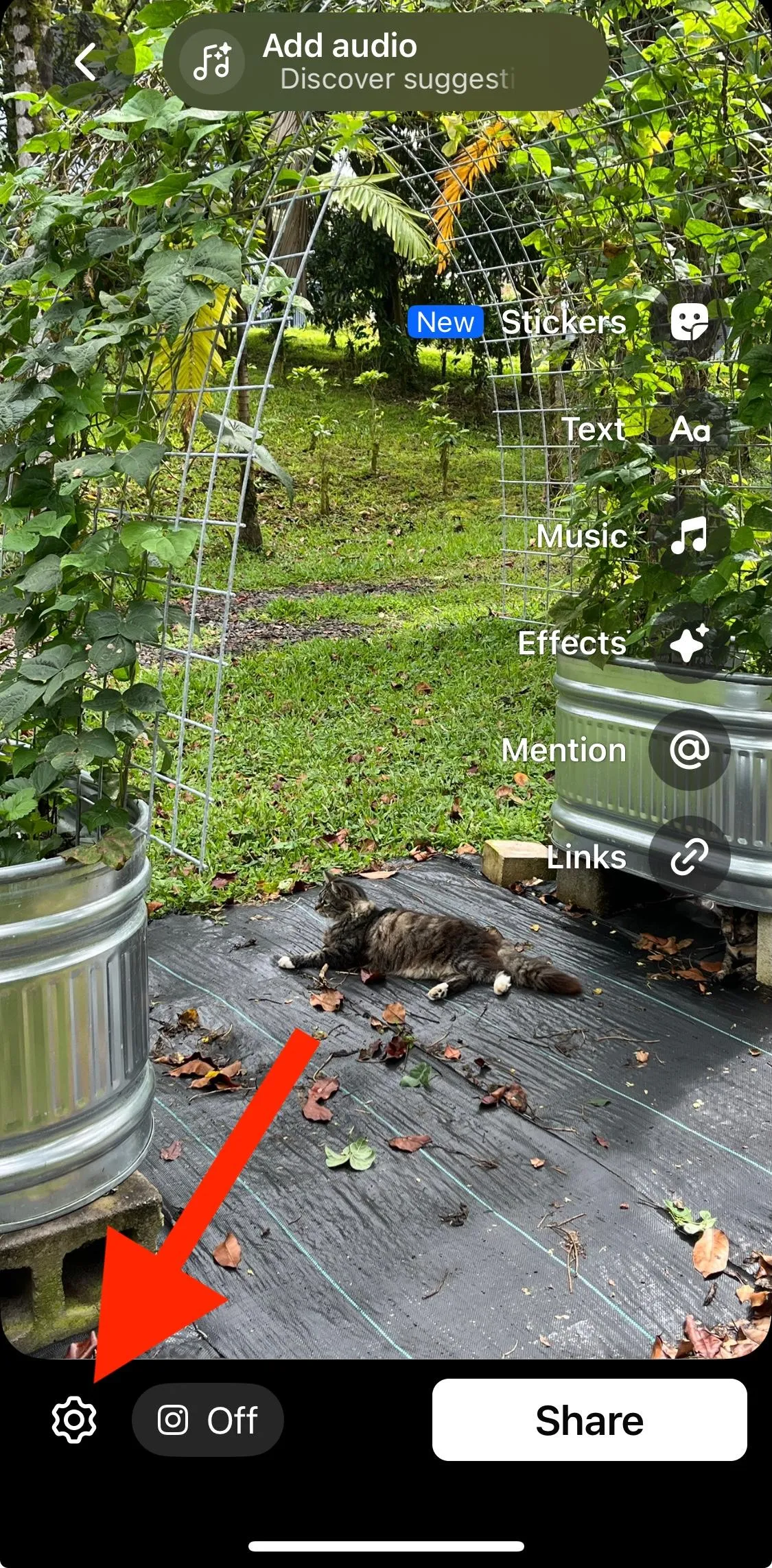
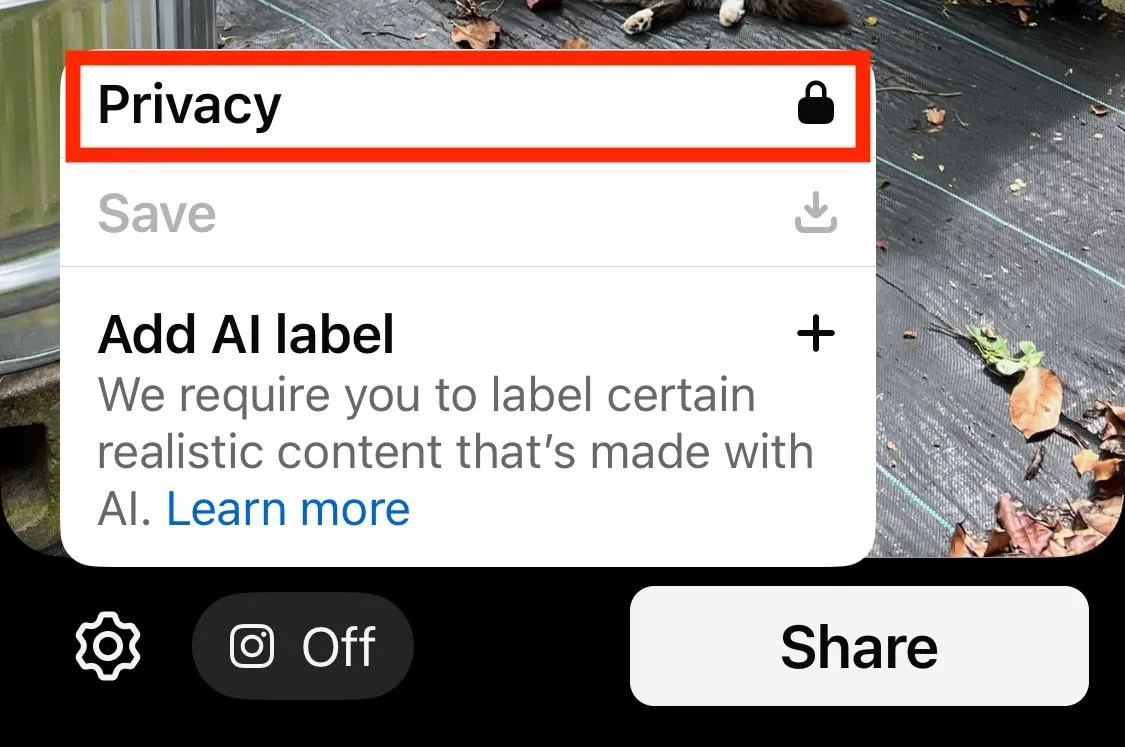
Tap Privacy.
Tap Share to Instagram.
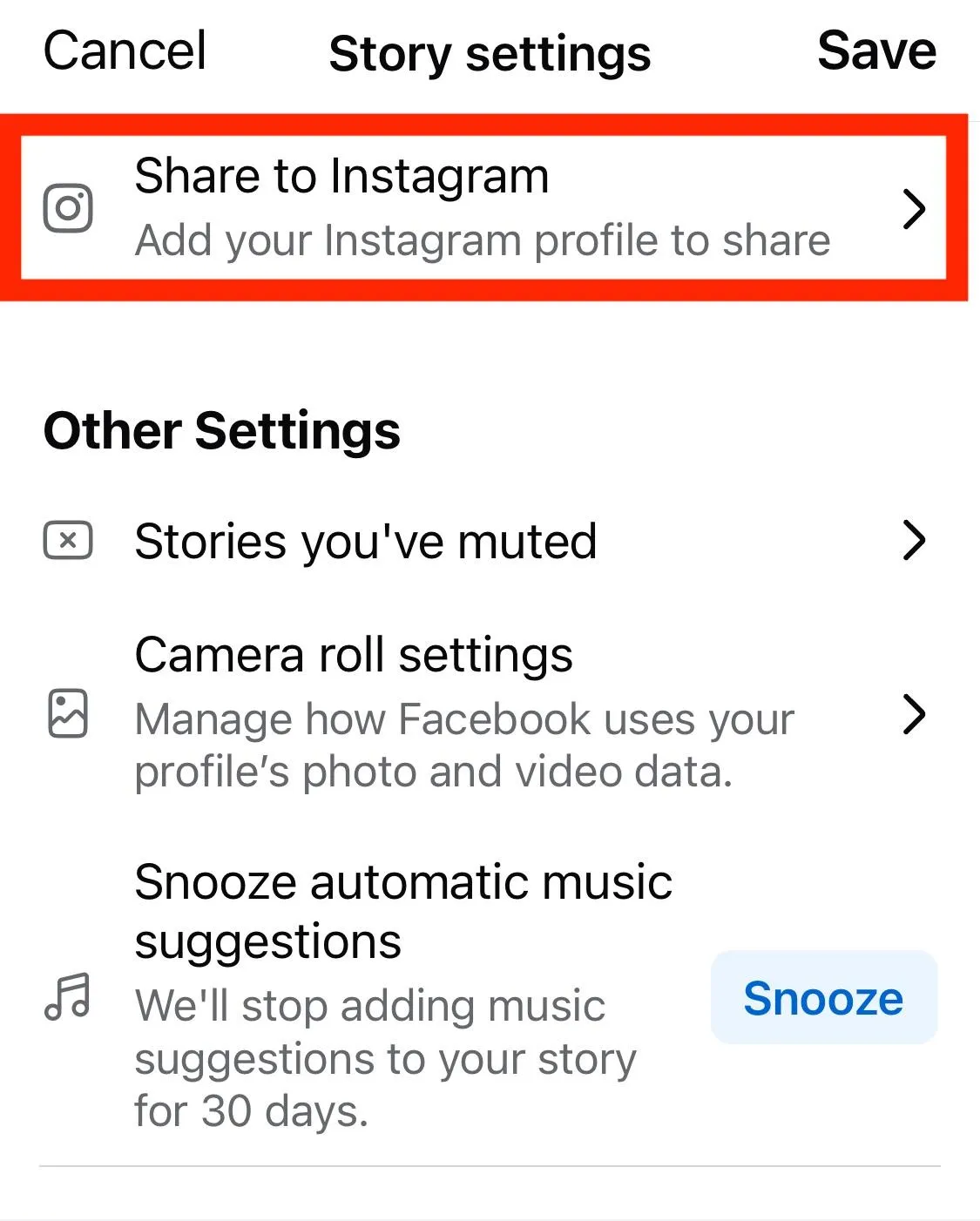
Toggle Instagram ON.
Save your changes, then return to the Story page.
Tap Share.
How To Share A Facebook Post On Instagram Reels
If the post is a Facebook Reel or video post, it will be shared to Instagram as a Reel. All you need to do is follow the steps outlined here.
How To Post From Instagram To Facebook
It’s also possible to share Instagram content directly to Facebook, including regular posts, Reels, and Stories.
You will only be able to do this via the Instagram mobile app.
Regular Instagram Posts
Open the Instagram app and create your new post.
On the final page, input your caption and hashtags then tap Also Share On.
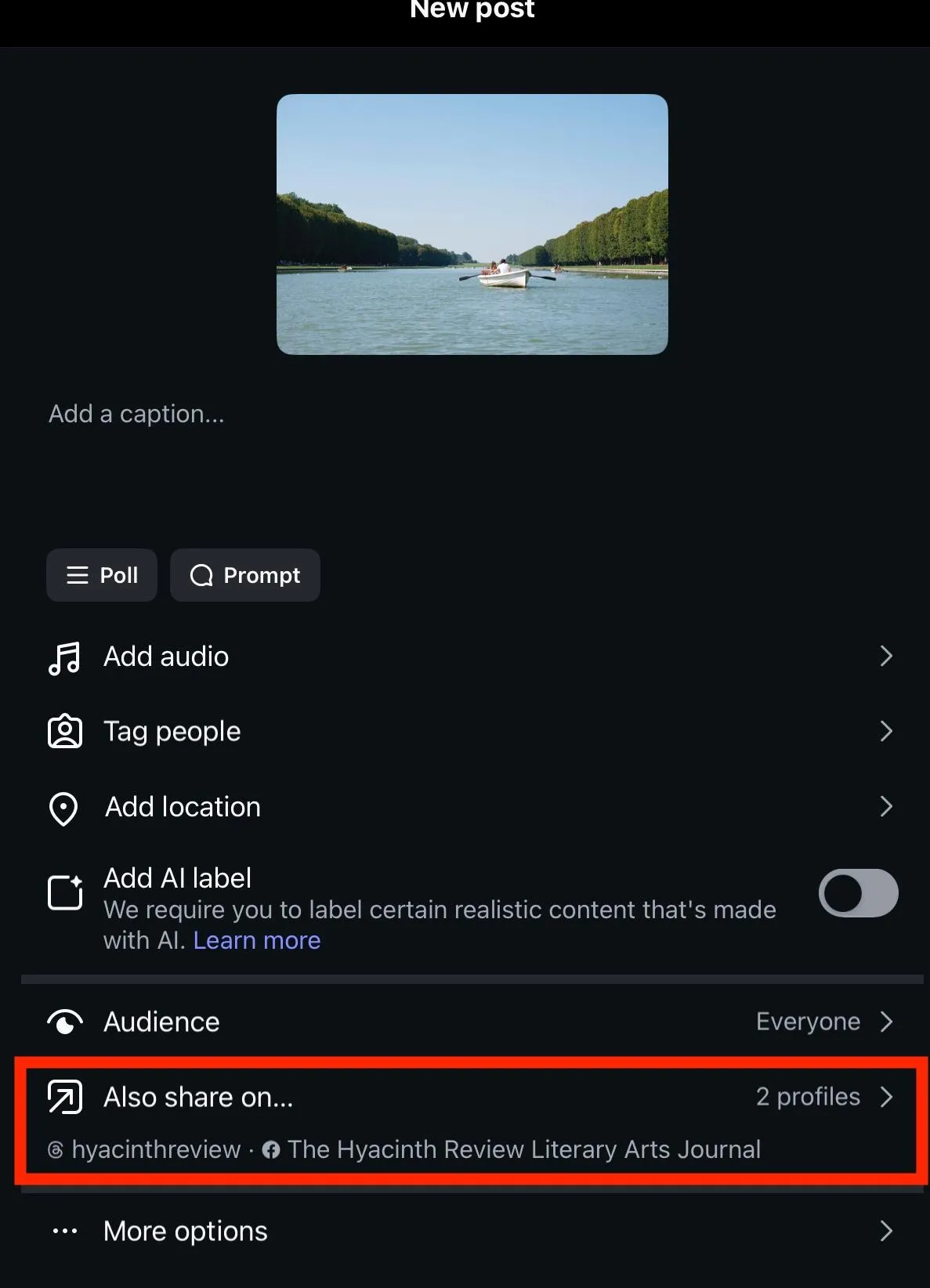
Toggle Facebook to ON.
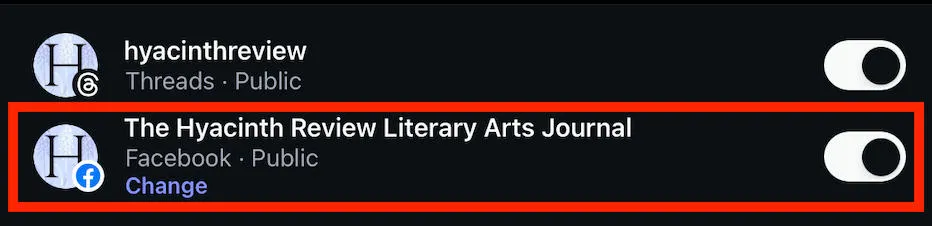
How To Post A Story On Facebook And Instagram At The Same Time
Open the Instagram app and create your Story.
Tap the Your Stories button with the Facebook icon on the bottom left.
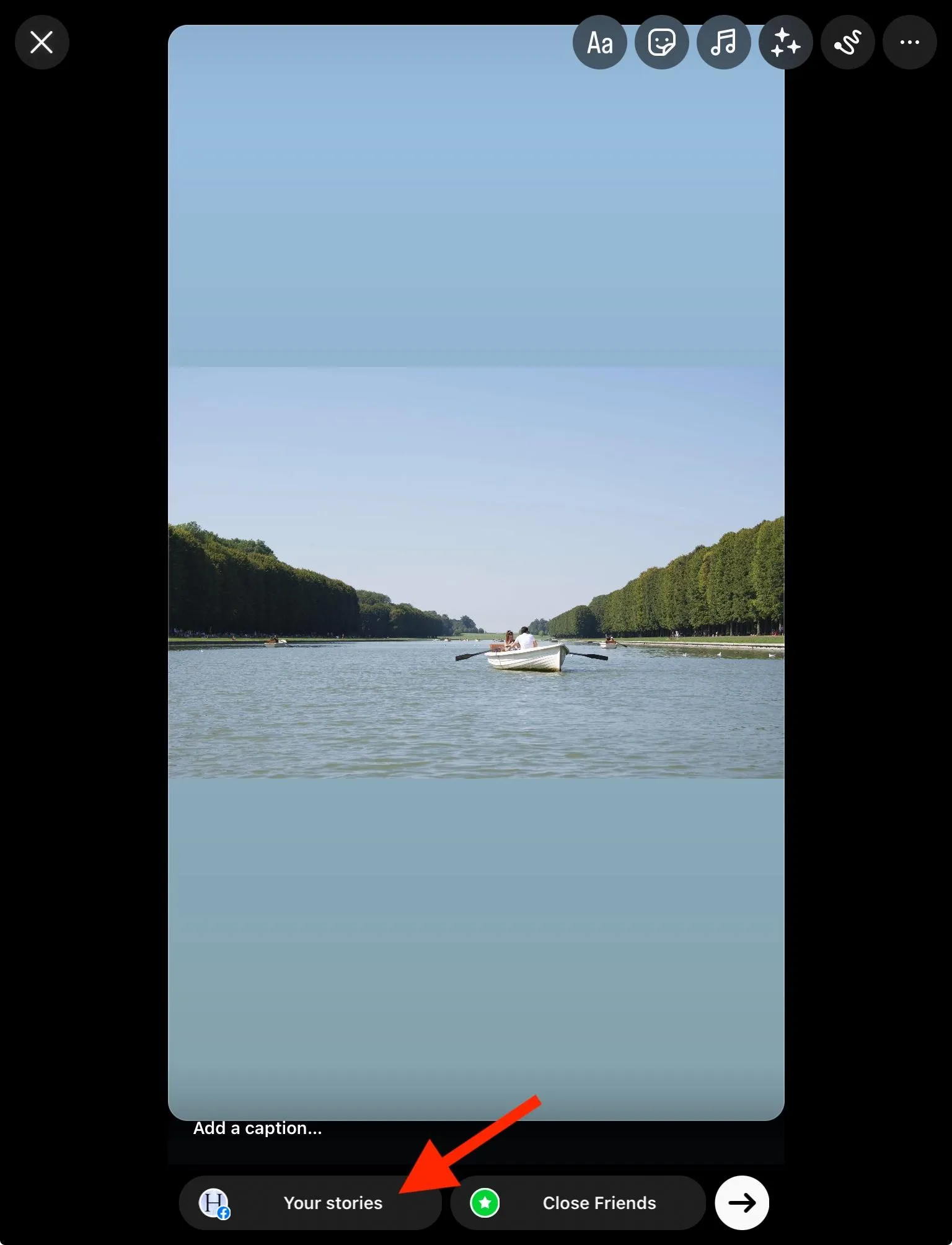
This will share your Story to both Instagram and Facebook.
How To Post Reels On Facebook And Instagram At The Same Time
The instructions for crossposting regular Instagram posts also applies to Reels. Learn how to post them to Facebook automatically here.
The Benefits Of Crossposting Content
Crossposting content not only saves you valuable time and energy sharing individual posts, but it streamlines your content strategy overall. By sharing the same content on both Facebook and Instagram, you don’t have to worry about planning unique content for each platform.
Additionally, you’re maximizing your reach by staying active on both platforms simultaneously.
Plus, with Meta Business Suite you can monitor and manage your DMs and comments across both Instagram and Facebook so that you don’t have to log in to each one separately.
Creating Content That Succeeds On Both Platforms
Before you start crossposting every photo in your camera roll, take a moment to consider the best dimensions, captions, and hashtags that will work across both platforms.
On Instagram, for example, photos with a dimension of 1080px by 1080px are ideal.
On Facebook, however, you have more flexibility but if you’re going to be crossposting it’s probably wise to stick with Instagram’s limitations to ensure that your posts look best on both platforms.
Additionally, Instagram captions are limited to 2,200 characters while Facebook has a much more lenient limit of 5,000 characters - so aiming to meet Instagram’s limit is also your best bet here.
Finally, try not to overdo it when it comes to hashtags. While Instagram allows up to 30 hashtags per post, the feature isn’t as prominent on Facebook and can often be distracting to your audience.
Troubleshooting
Because crossposting relies on two separate platforms, it can often run into snags. Below are a few common scenarios and reasons why you might not be able to crosspost your content.
Instagram Post Says Shared To Facebook But It’s Not Showing
If you shared your post from Instagram to Facebook but you’re not seeing it, first make sure you’re checking your Facebook page - not profile.
Next, view the page from a different account or while logged out.
If you’re still not seeing it, turn off crossposting and re-enable it before trying again.
Why Can’t I Post On Facebook And Instagram At The Same Time?
You can only crosspost from Instagram to Facebook if you’ve linked your Instagram account to a Facebook page. Learn how to do so here.
How To Share An Instagram Post To A Facebook Page Not A Profile
Crossposting only works between an Instagram account and Facebook page - not profile. If you follow the crossposting setup steps outlined here, your Instagram posts will automatically be shared to the linked Facebook page rather than your personal profile.
You’re Using The Wrong Device Type
Crossposting between Facebook and Instagram currently only works on mobile devices, specifically from the Facebook or Instagram app.
If you’re trying to crosspost on the desktop version of either site, or from your mobile browser try it out from one of the apps instead.
You Don’t Have The Right Instagram Account Type
Only Instagram Business or Creator accounts can crosspost to Facebook (and receive Facebook posts in turn).
If you still have a Personal Instagram account, switch your account type by following the instructions here.
Your Account Linking Didn’t Work
Something may have gone wrong when you attempted to link your Facebook Page to your Instagram account, or vice versa.
Run through the steps here to make sure your accounts are actually linked from both sides before trying again.
Facebook Or Instagram Is Having Issues
Sometimes it’s not your fault! Check out the DownDetector status page for both Facebook and Instagram to see if there are any site-wide issues that could be impeding your crossposting attempts.
Your Internet Connection Isn’t Strong Enough
Spotty data or weak Wifi can prevent your posts from being sent to both platforms. Try again when you have a stronger connection or swap from one to the other to see if it solves the problem.
Frequently Asked Questions
How to post from Facebook to Instagram on iPhone?
The only way to crosspost Facebook and Instagram content is via the mobile app, so there’s nothing special you need to do with an iPhone. Learn how to crosspost here.
How to share a post from Instagram to Facebook Story?
You can only automatically post Instagram Stories to Facebook Stories, however you can share an Instagram post in a Facebook Story by copying the URL and linking it within your Story.
How to share a Facebook post to Instagram after posting on iPhone?
Once your Facebook post is published, you can share it to Instagram by copying the link and sharing it as a DM or in your Instagram Story. However, there’s no valid way to crosspost once the post has been published.
Can I post to both platforms at once?
Yes, you can learn how to turn on Facebook and Instagram crossposting here.
Can I post on Facebook and have it posted on Instagram?
Yes, learn how to automatically post your Facebook content to Instagram here.
What is the 30 30 30 rule for social media?
The 30/30/30 rule states that you should use 30% of your posts to talk about yourself, 30% to talk about others, and 30% to post entertaining content. This ensures that your posting strategy is varied and maintains user interest.
Can I share my FB post to Instagram?
Yes, learn how to automatically share your Facebook posts to Instagram here.
Why aren't my Facebook posts posting to Instagram?
Run through our troubleshooting guide here to learn more.
Why won't Instagram let me cross post?
First make sure you’ve linked your Instagram account to a valid Facebook page. Then run through our troubleshooting guide here.
How do I manage crosspost settings?
You can decide whether or not to crosspost an Instagram or Facebook post in the post settings before you hit publish. Learn more here.
Why are my posts not posting on Instagram?
That depends on a variety of factors. Run through our troubleshooting guide here to learn more.
Why is my post not sharing on Instagram?
There are several reasons why you might be experiencing this issue. Run through our troubleshooting guide here to learn more.
What is the 5-3-1 rule on Instagram?
The 5-3-1 rule states that if you like 5 posts and comment on 3 posts, you’ll receive 1 new follower.