Make your Twitch channel stand out from the crowd with the help of a custom Twitch banner, unique profile accent color, helpful links, and more.
Today’s guide will show you how to create each element and set it up on your channel page so that you can capture the attention of your target audience and gain more followers than ever before!
Key Points:
How To Make A Banner For Twitch
Twitch banners are the first thing that your channel visitors will see, and are important for setting the overall tone of your stream.
Tips For Creating Your Banner
The recommended size for a Twitch banner is 1200 x 480px.
Your banner should ideally represent your channel’s brand, and include useful information like social media handles, stream categories, or even a brief bio. And of course, it should always comply with Twitch’s Community Guidelines, which means no graphic images or hate symbols.
You can use Canva’s free, pre-made template for Twitch banners here.
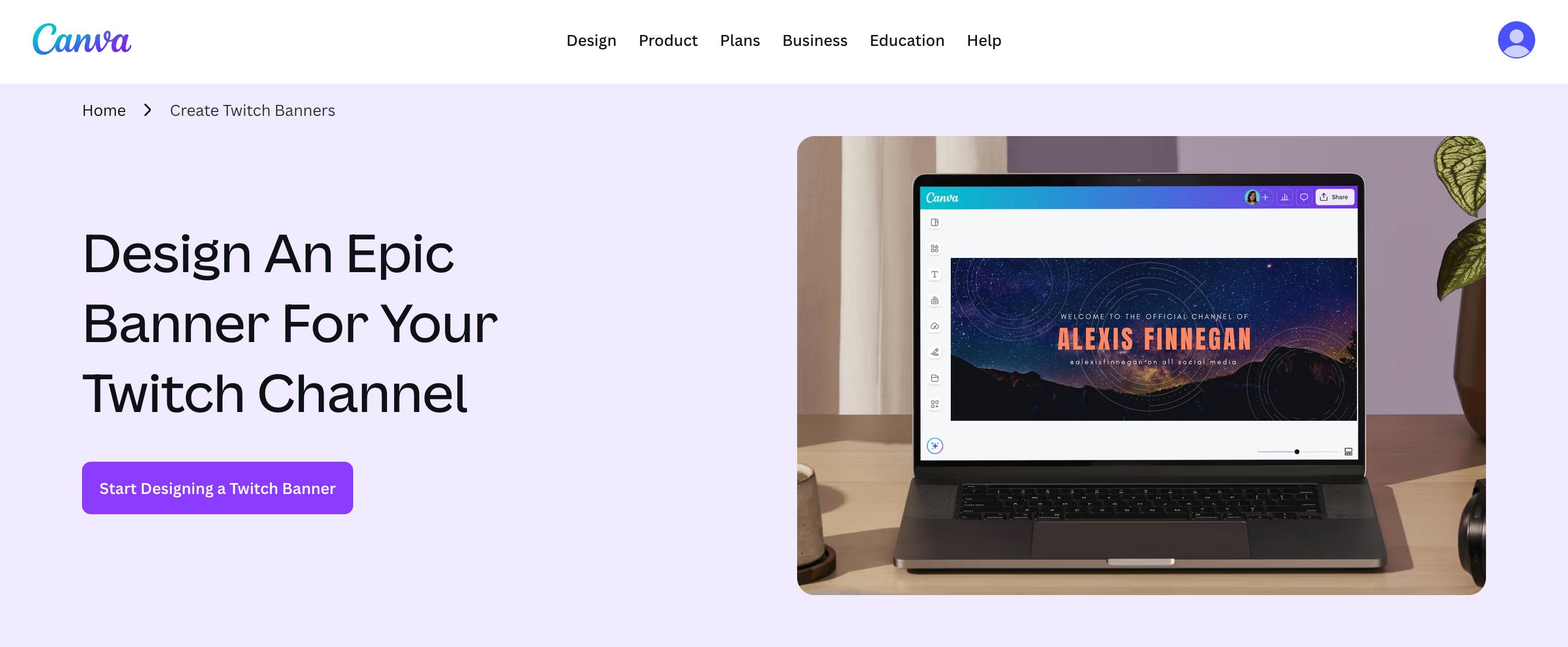
Make sure you save your file as a PNG or JPEG and ensure that it’s no larger than 10MB.
How To Update Your Channel Banner
From the Twitch homepage, click your profile picture and select Creator Dashboard.
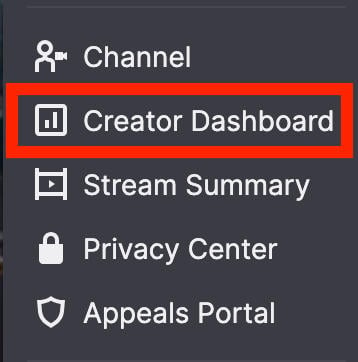
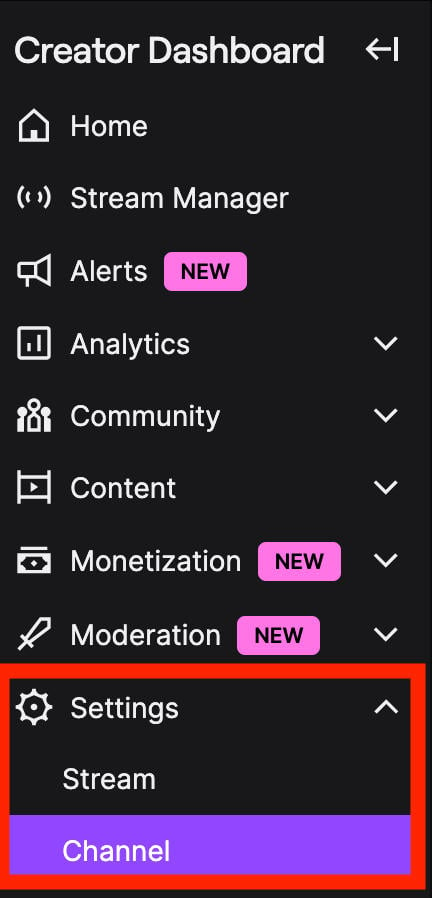
From the left-hand menu, click Settings > Channel.
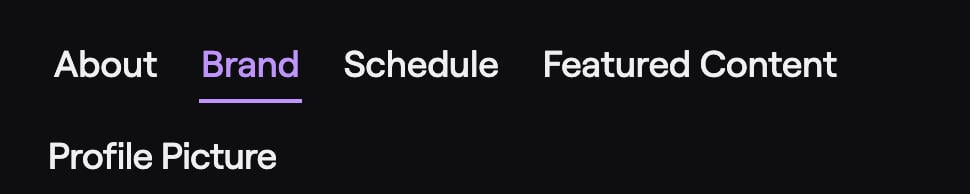
Click the Brand tab.
Scroll down to Profile Banner and check the Custom Image bubble.
Click Upload and select your banner from your computer.
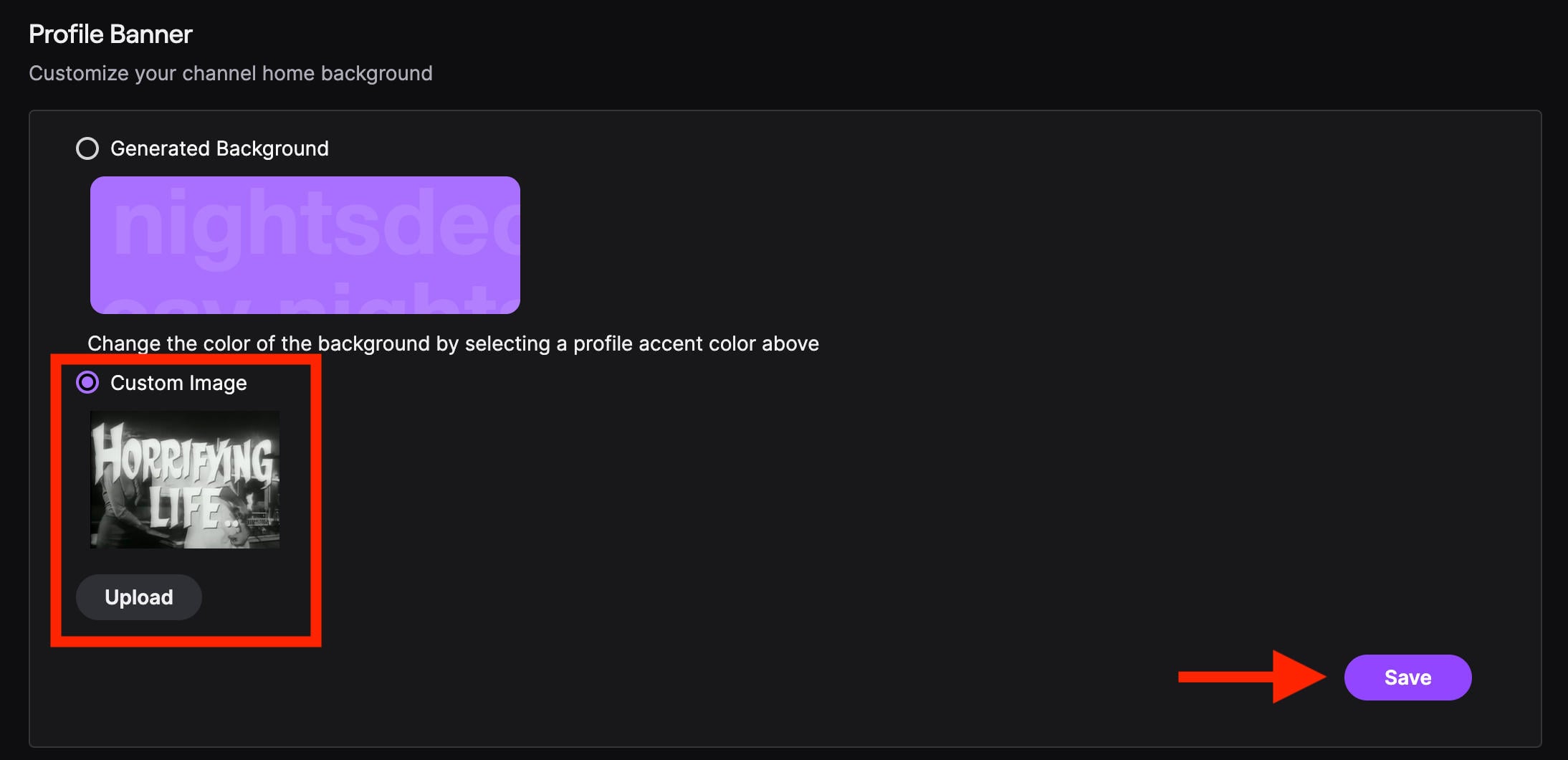
Click Save on the bottom right.
How Do I Add A Twitch Panel Banner?
Twitch panels are curated Info panels that can provide additional information on the channel’s About page. You can edit them via the About section of your channel page while offline.
From your Twitch channel, click the About tab.

Toggle Edit Panels to ON.
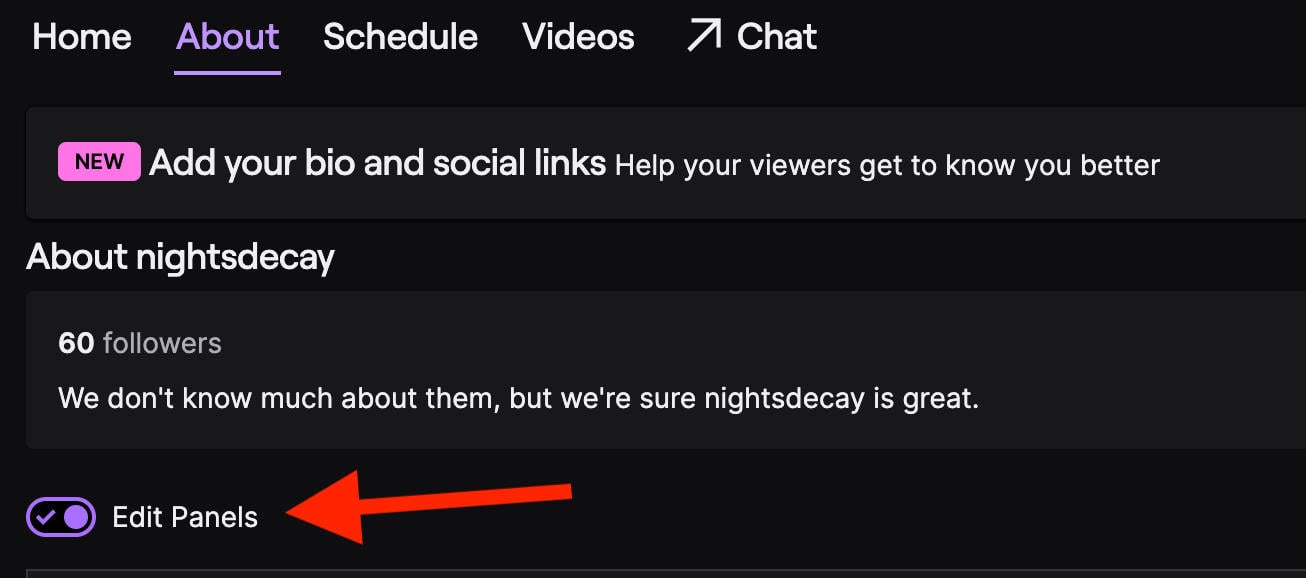
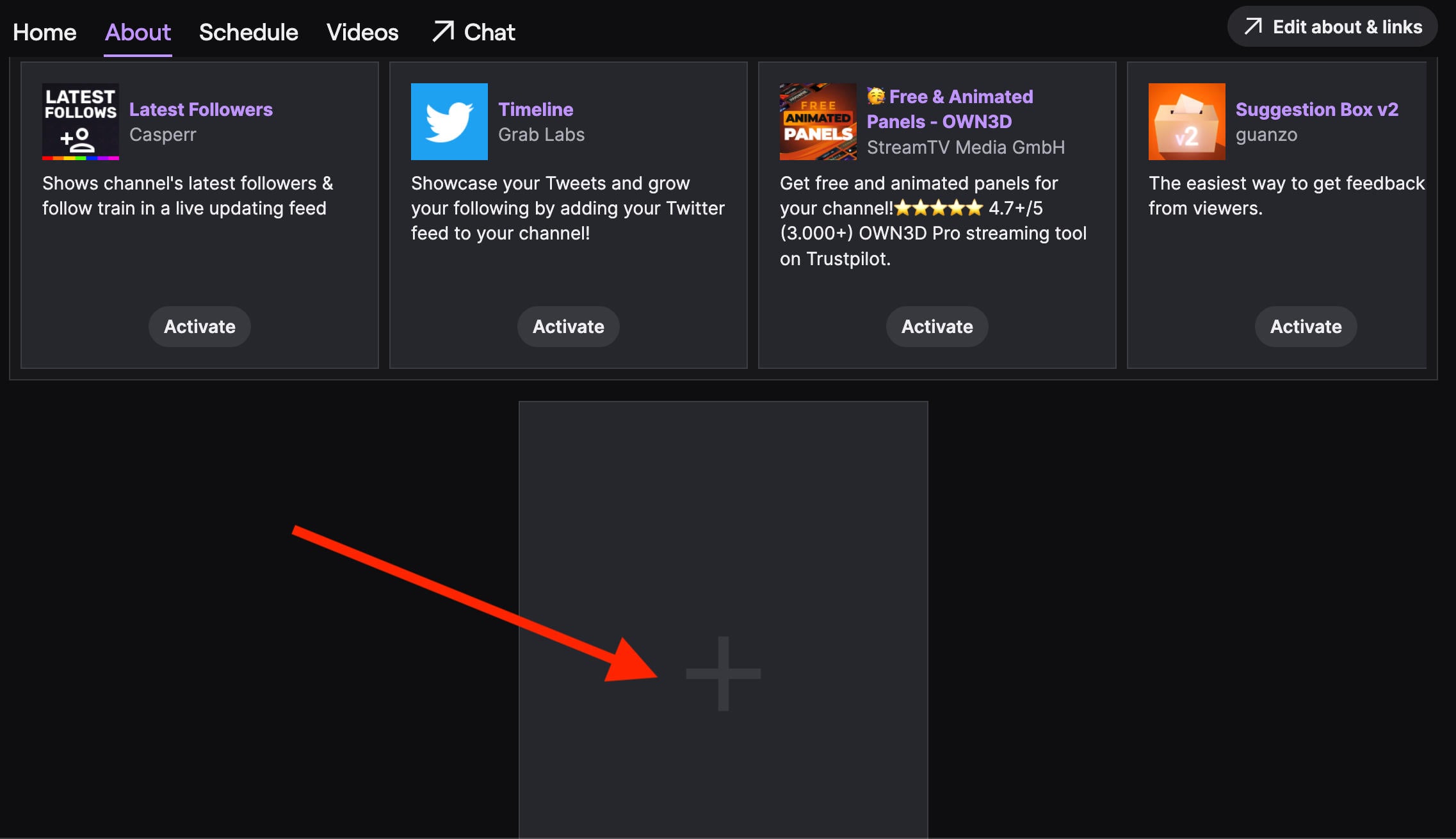
You can active any of the pre-made panels, or scroll down and click the large box with the plus sign to add your own.
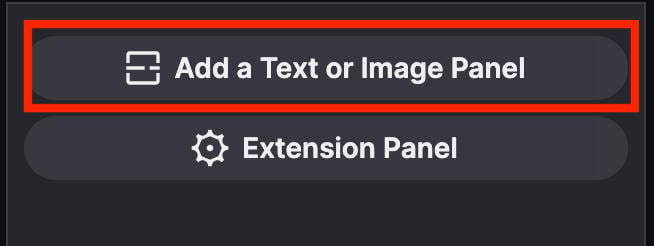
Click Add A Text Or Image Panel.
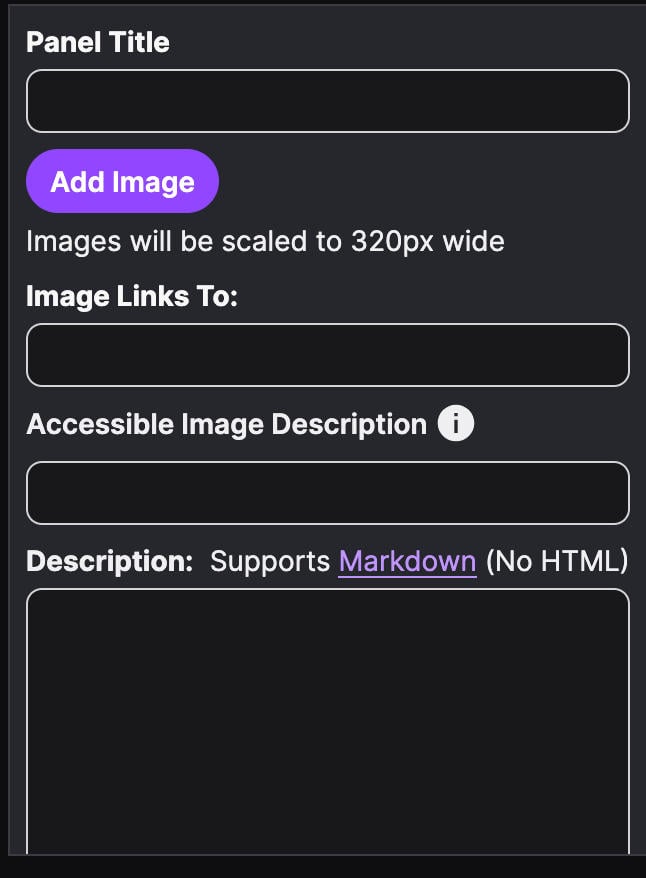
Input your panel title, image, links, alt-text, and a description.
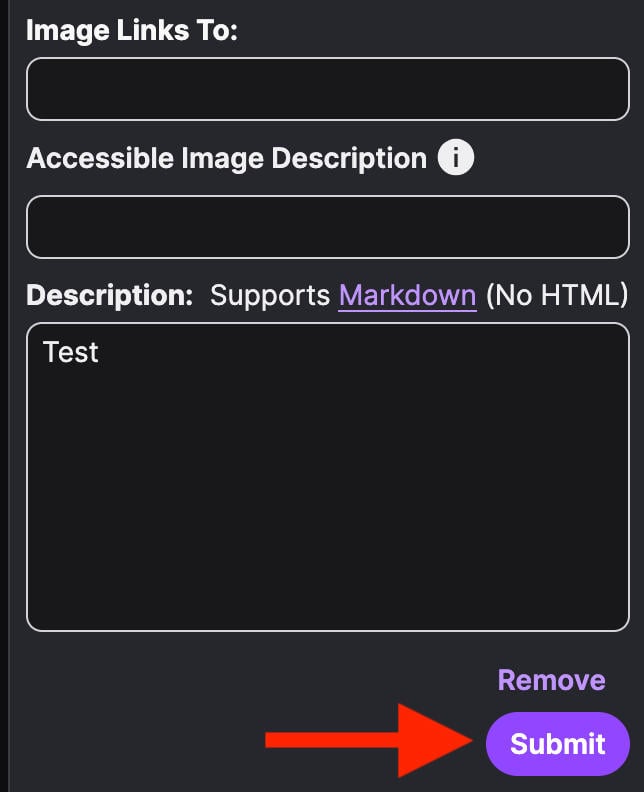
When you’re ready, click Submit.
How To Add A Channel Profile Picture
Your profile picture represents you within your channel, but you don’t have to opt for a selfie if you’re not comfortable.
Many streamers use a channel logo or other design that compliments their channel banner.
Whichever you choose, make sure it measures 800 × 800 px.
Changing Your Profile Picture
From the Twitch homepage, click your profile picture and select Creator Dashboard.
From the left-hand menu, click Settings > Channel.
Click the Brand tab.
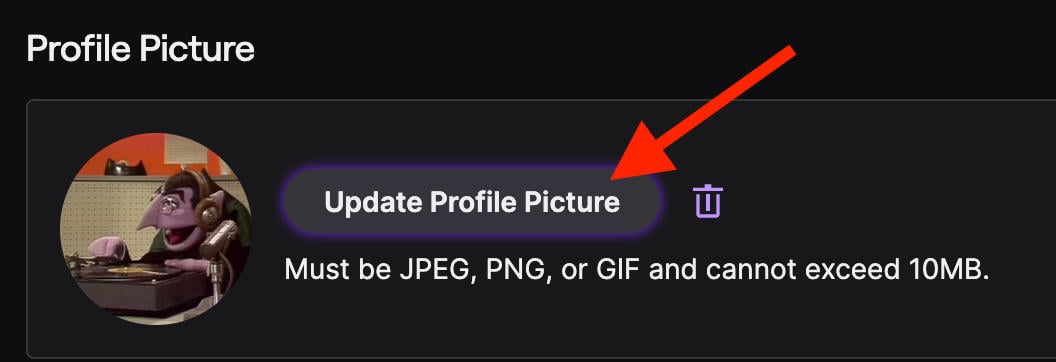
Click Update Profile Picture.
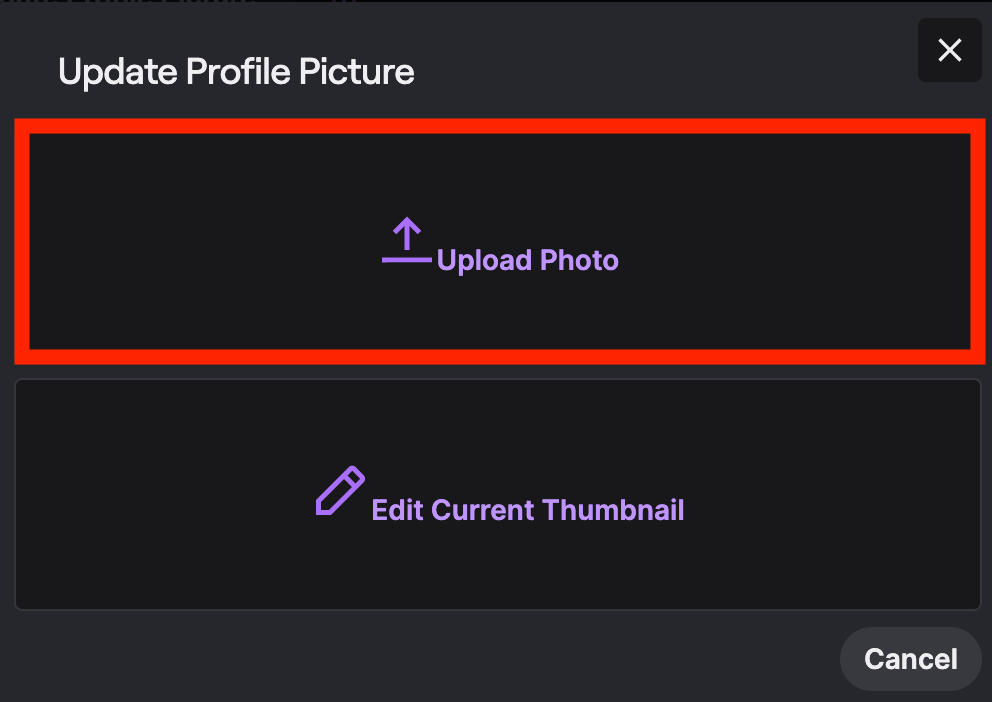
Click Upload Photo and select an image from your computer.
How To Change Your Profile Accent Color
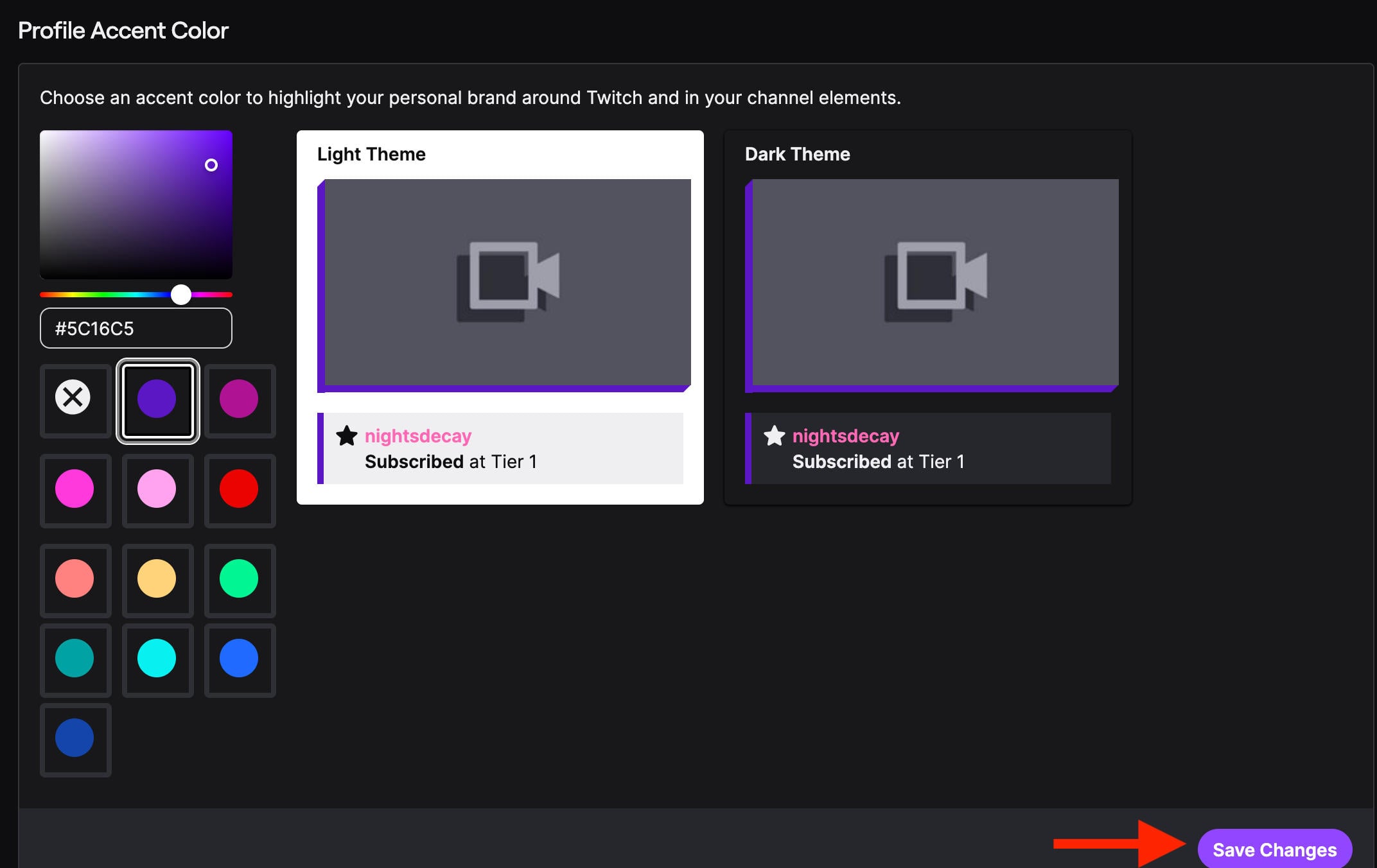
Along with your banner and profile picture, you can select an accent color to tie your channel’s theme together.
From the Twitch homepage, click your profile picture and select Creator Dashboard.
From the left-hand menu, click Settings > Channel.
Click the Brand tab.
Scroll down to Profile Accent Color.
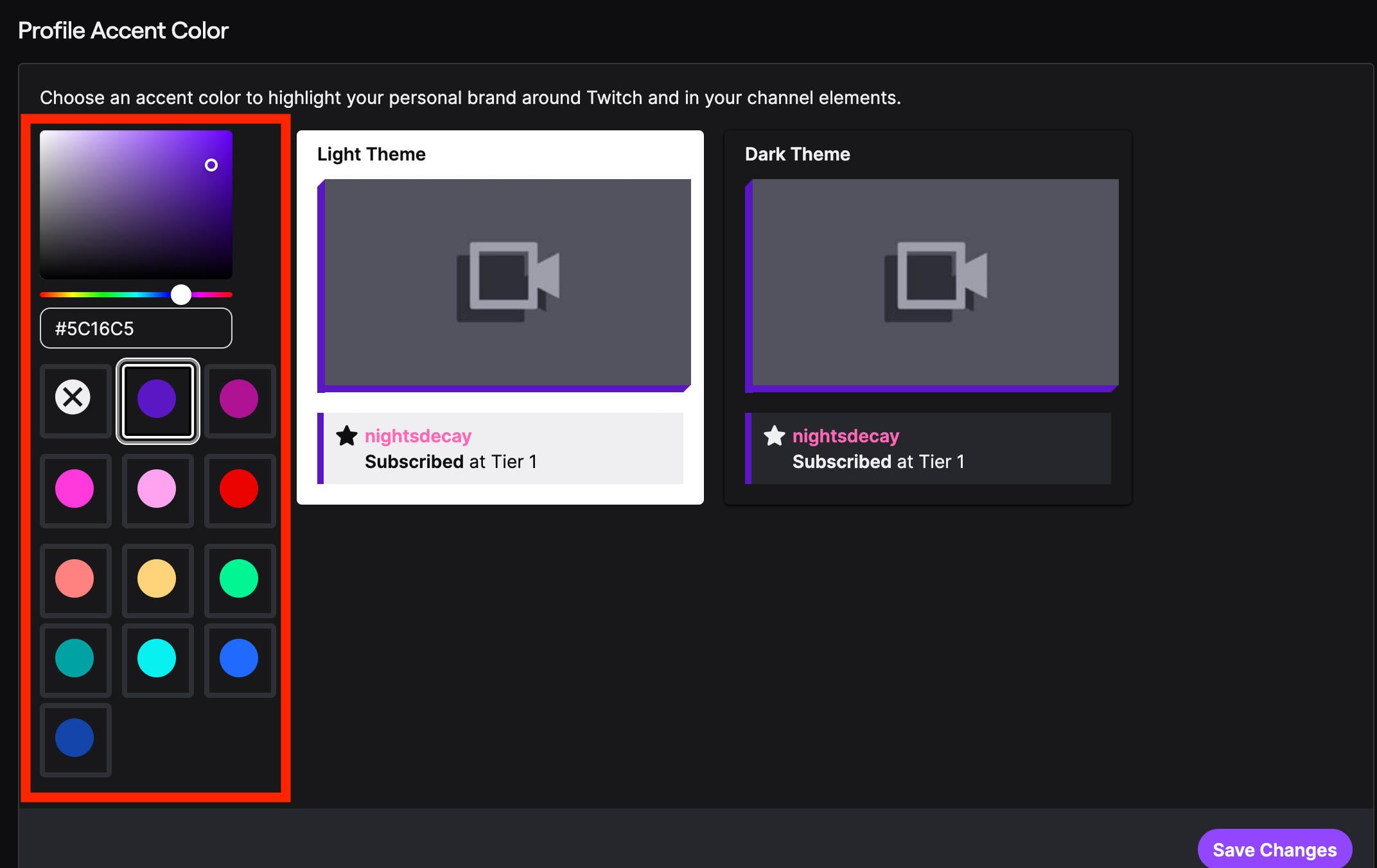
You can choose from preset colors, or a unique shade pulled from your brand kit.
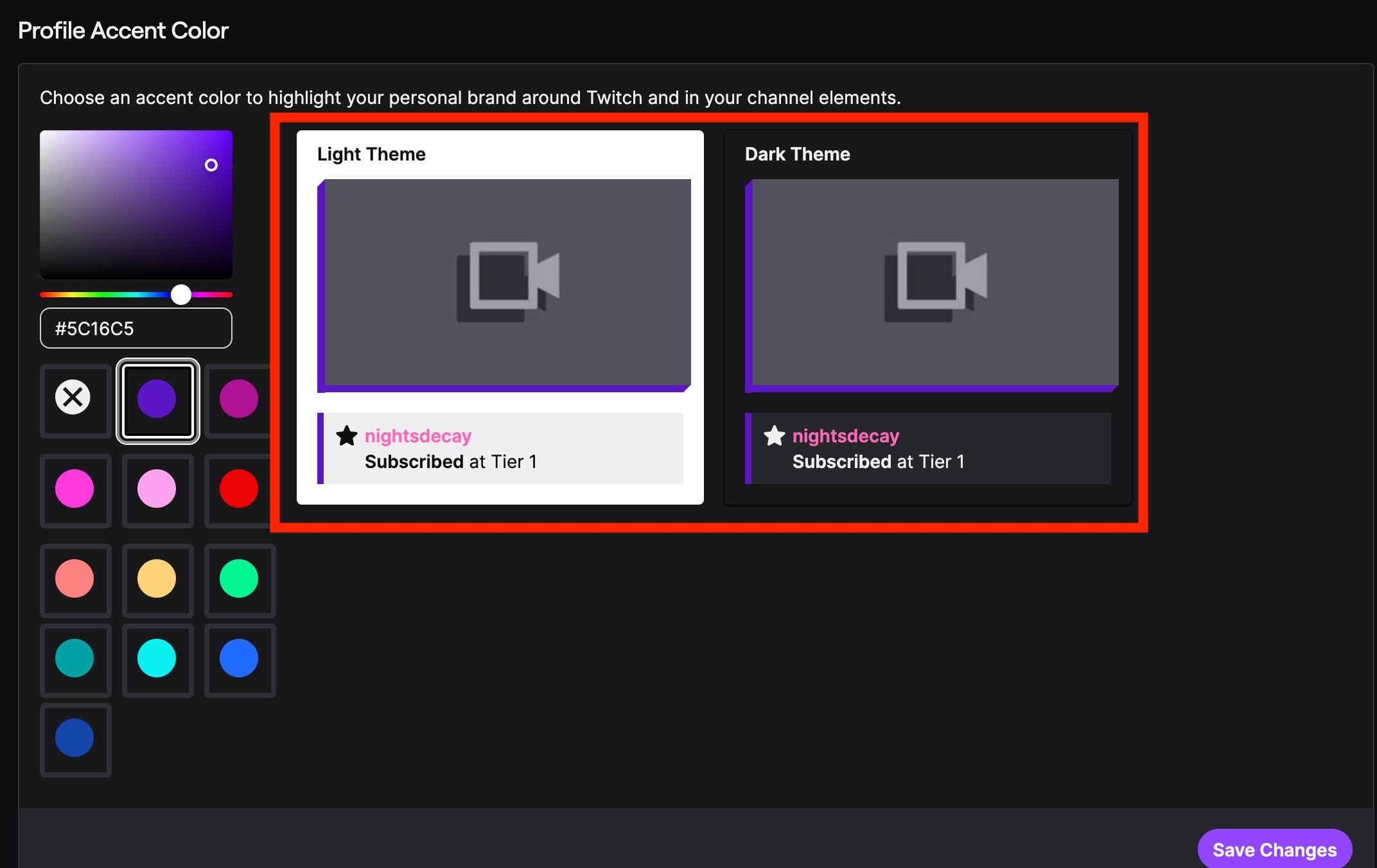
You can also see what your chosen shade looks like with Twitch’s light theme or dark theme - this will change depending on user preferences.
When you’re ready, click Save Changes.
How To Update Your Twitch Username
Your Twitch username is linked to your channel, but also to your account as a viewer.
If you ever want to update your username, you can do so via your Profile Settings.
From the Twitch homepage, click your profile picture and select Creator Dashboard.
From the left-hand menu, click Settings > Channel.
Click the About tab.
Scroll down to Profile Settings.
Click the pencil icon to the right of your username and input your new username.
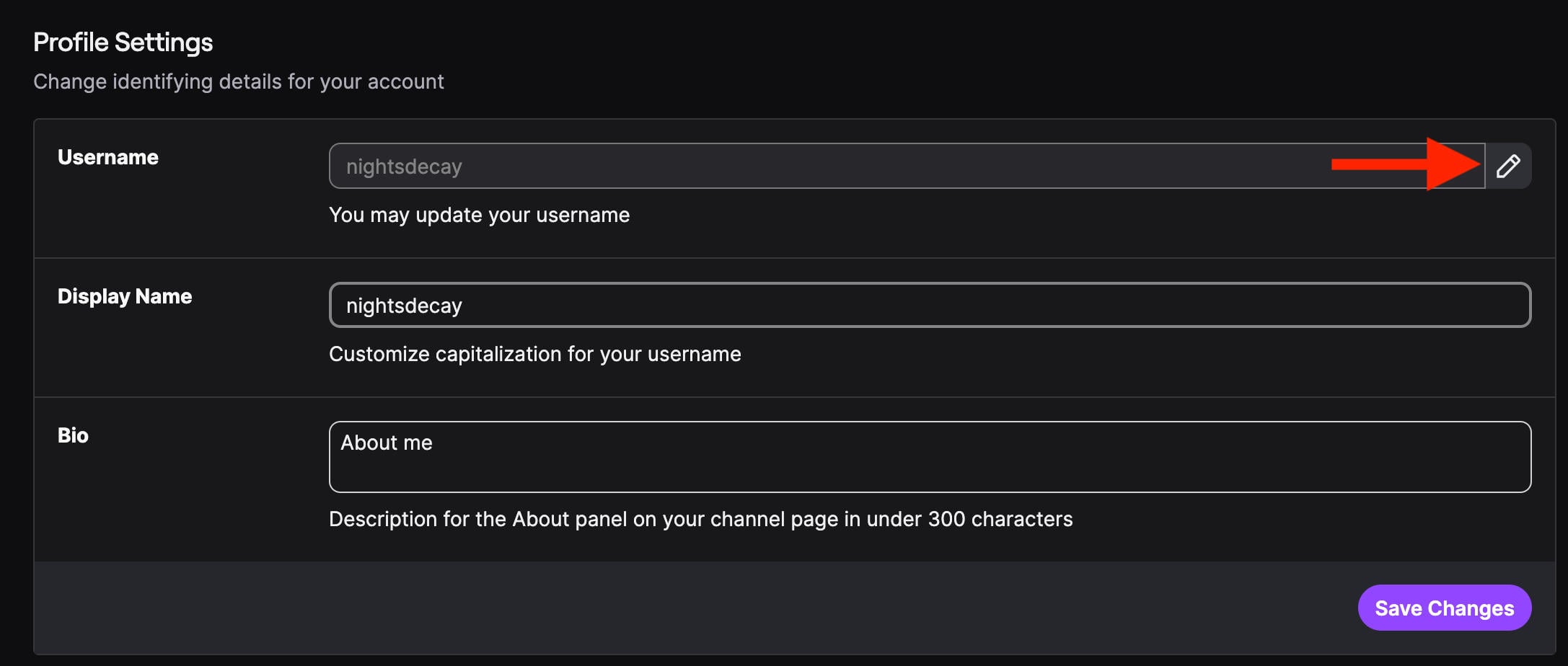
Click Save.
How To Update Your Twitch Display Name
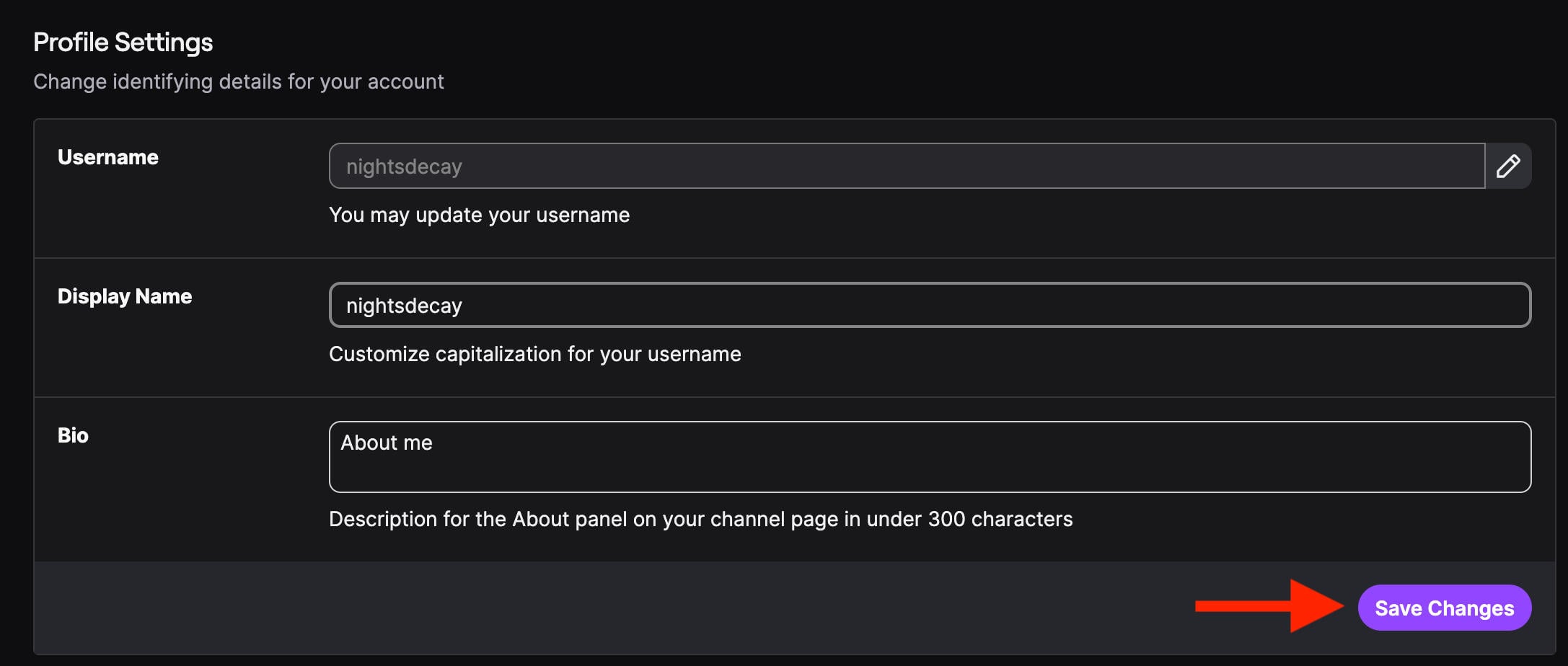
Your display name can be separate from your username, and unlike your username is case sensitive.
You can change your display name via the Profile Settings section.
From the Twitch homepage, click your profile picture and select Creator Dashboard.
From the left-hand menu, click Settings > Channel.
Click the About tab.
Scroll down to Profile Settings.
Input your new display name.
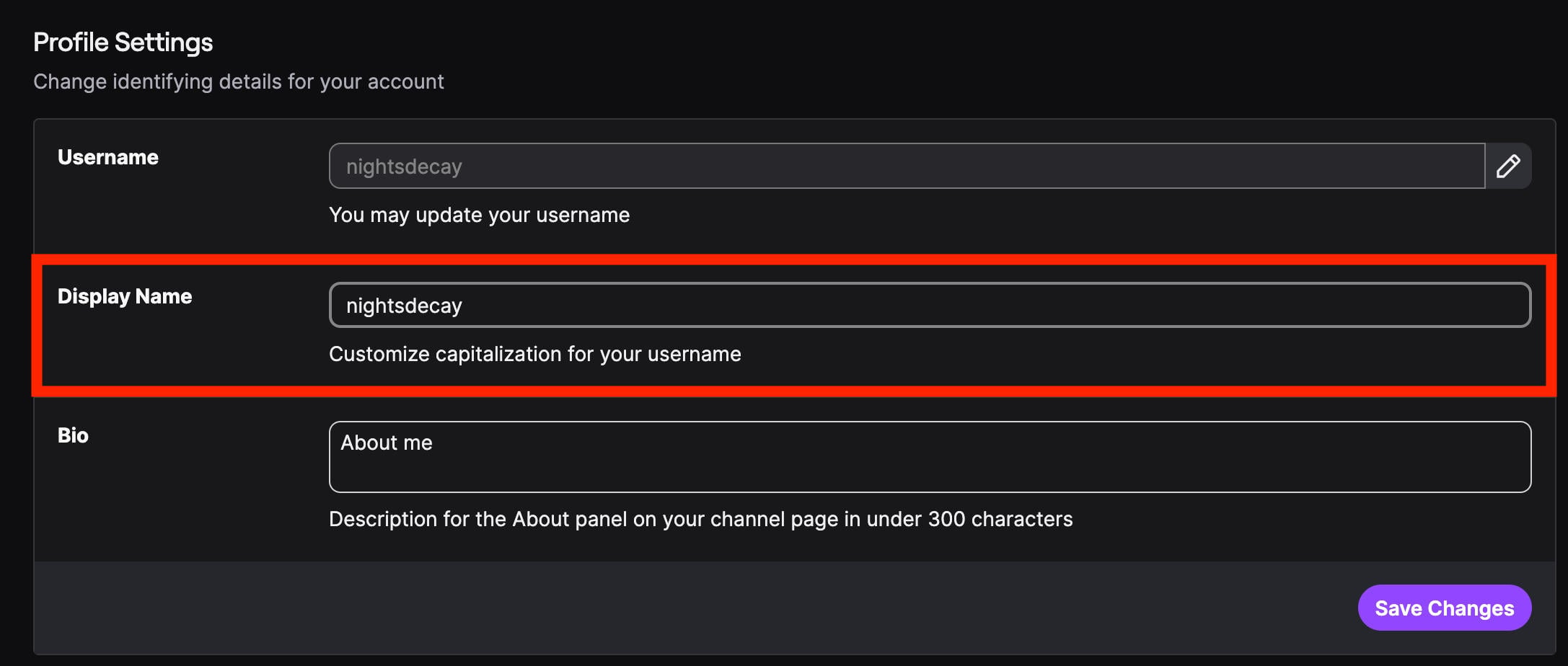
Click Save.
How To Update Your Twitch Channel Bio
Your Twitch channel bio tells viewers what they can expect from your channel.
Keep this brief - the limit is 300 characters. It should include a bit about you, what you stream, and what viewers can gain from your channel.
NOTE: Don’t worry about including your streaming schedule - there’s a special section just for that.
From the Twitch homepage, click your profile picture and select Creator Dashboard.
From the left-hand menu, click Settings > Channel.
Click the About tab.
Scroll down to Profile Settings.
Input your bio.
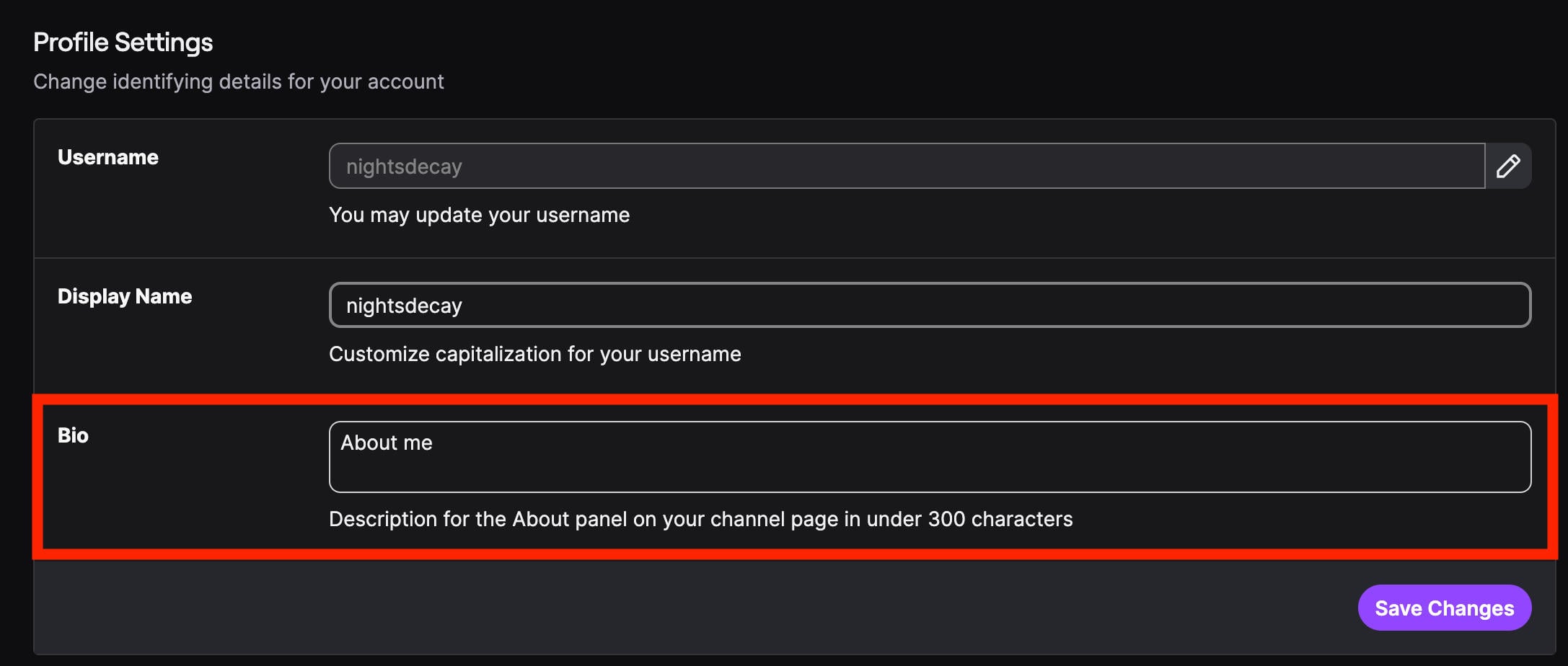
Click Save.
How To Add Links To Your Twitch Channel
You can add up to 5 different social links to your Twitch channel, which will be searchable within Twitch (in case your handles are different than your Twitch username).
From the Twitch homepage, click your profile picture and select Creator Dashboard.
From the left-hand menu, click Settings > Channel.
Click the About tab.
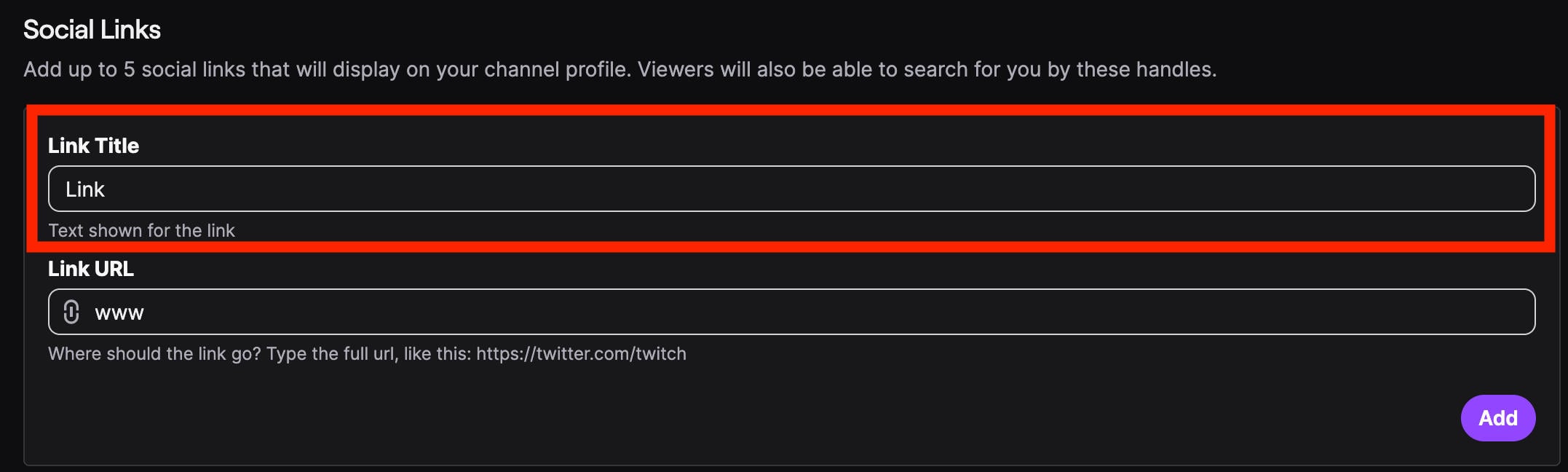
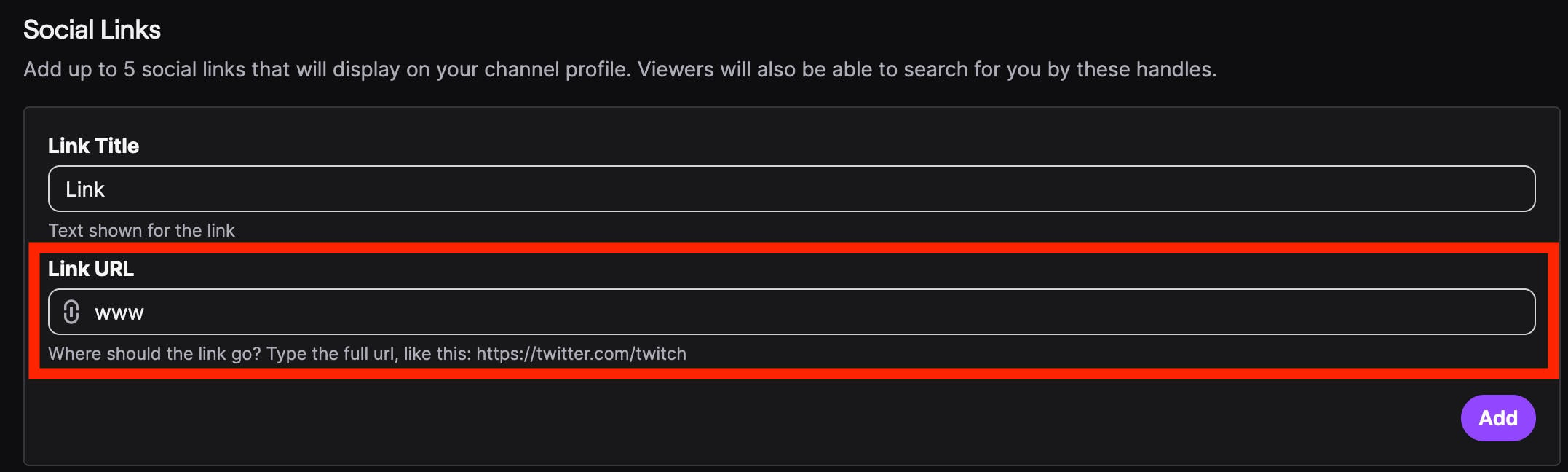
Scroll down to Social Links.
Input the display title you want to appear for the link (i.e Instagram).
Input the link URL in the box below.
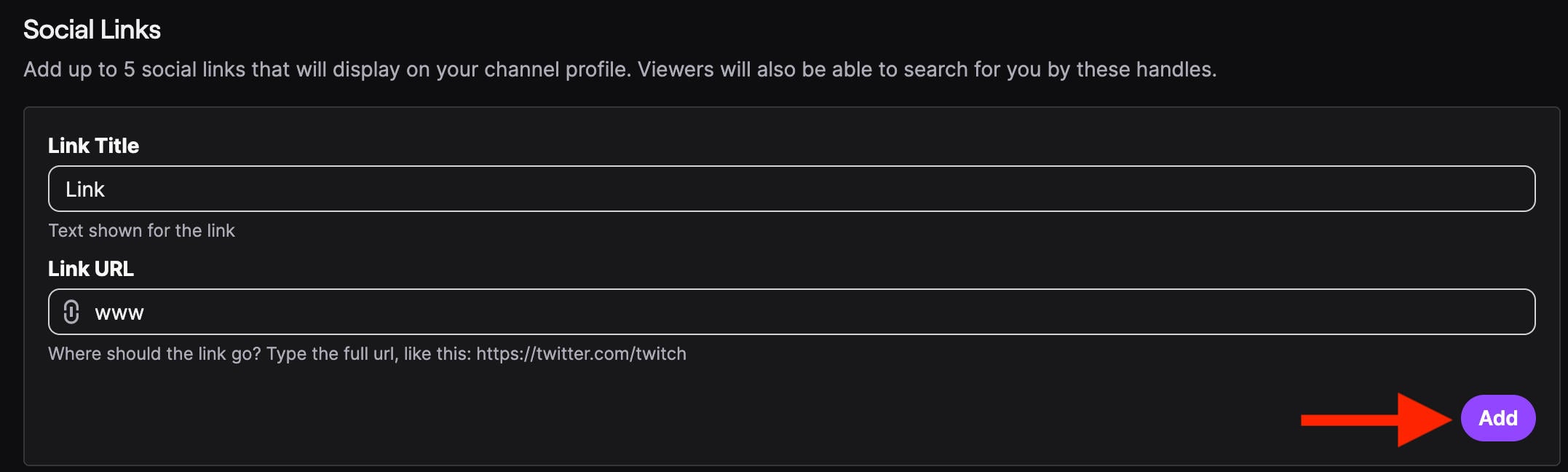
Click Add.
How To Update Your Twitch Streaming Schedule
Your streaming schedule is a key part of your channel. It shows users when they can expect new streams from you, which makes it more likely that they’ll tune in at the right times and follow your channel.
From the Twitch homepage, click your profile picture and select Creator Dashboard.
From the left-hand menu, click Settings > Channel.
Click the Schedule tab.

Under Stream Schedule click Add Stream.
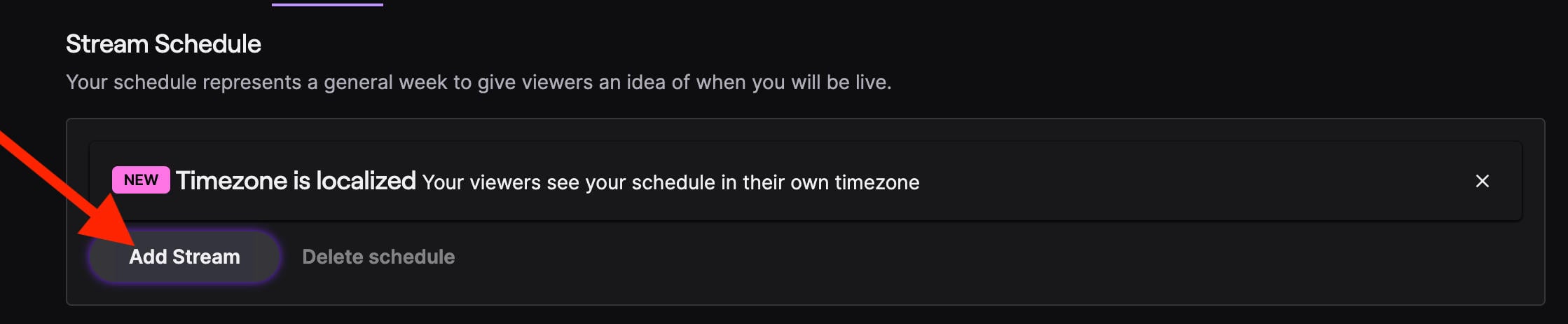
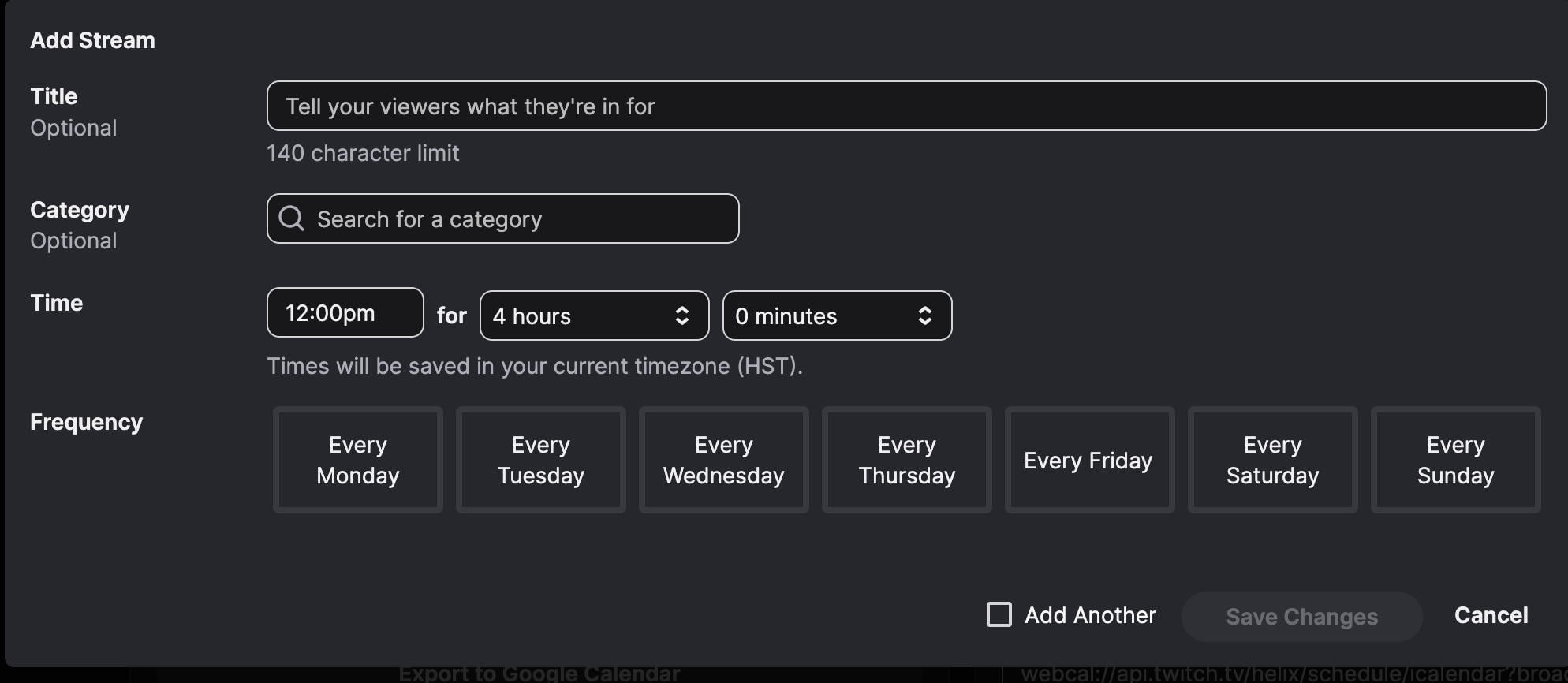
From here you can input the title of your stream (even if it’s general), the category, time and duration, and frequency.
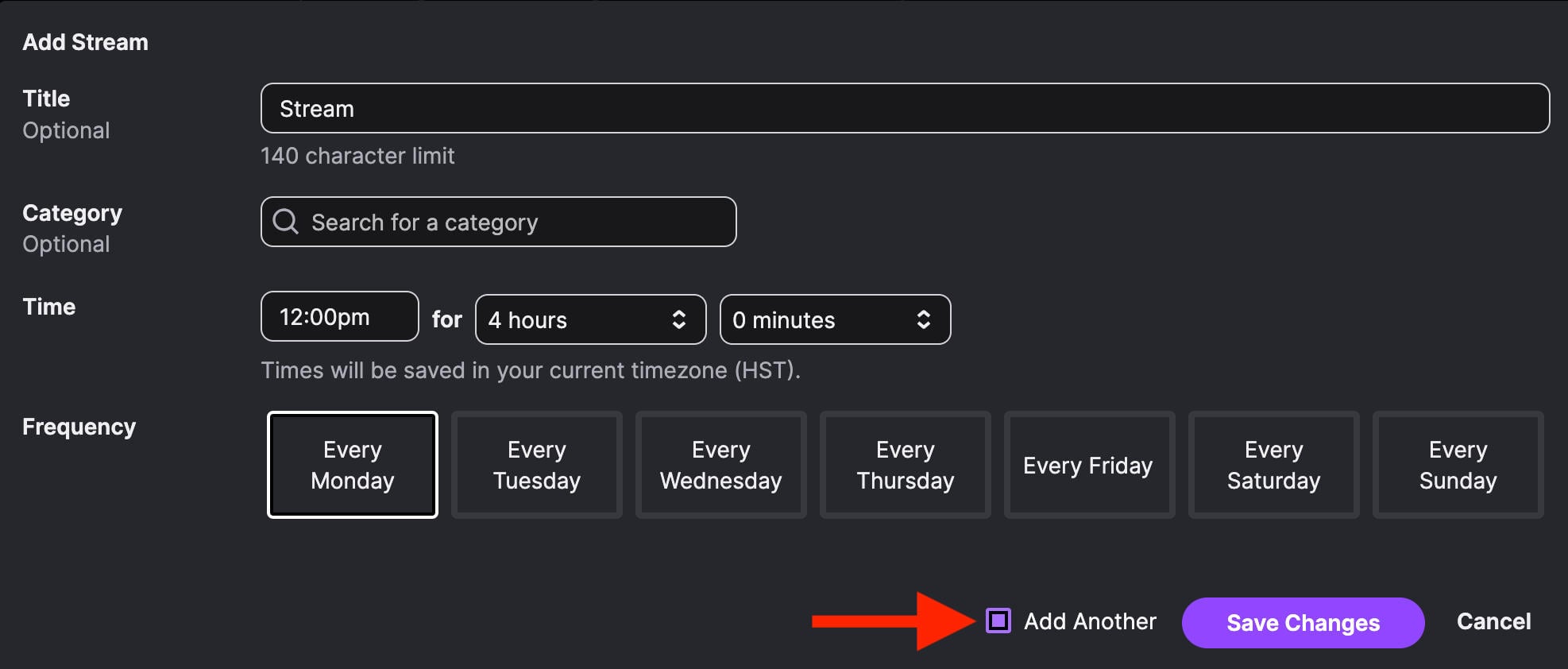
If you want to add multiple streams, check the Add Another box.
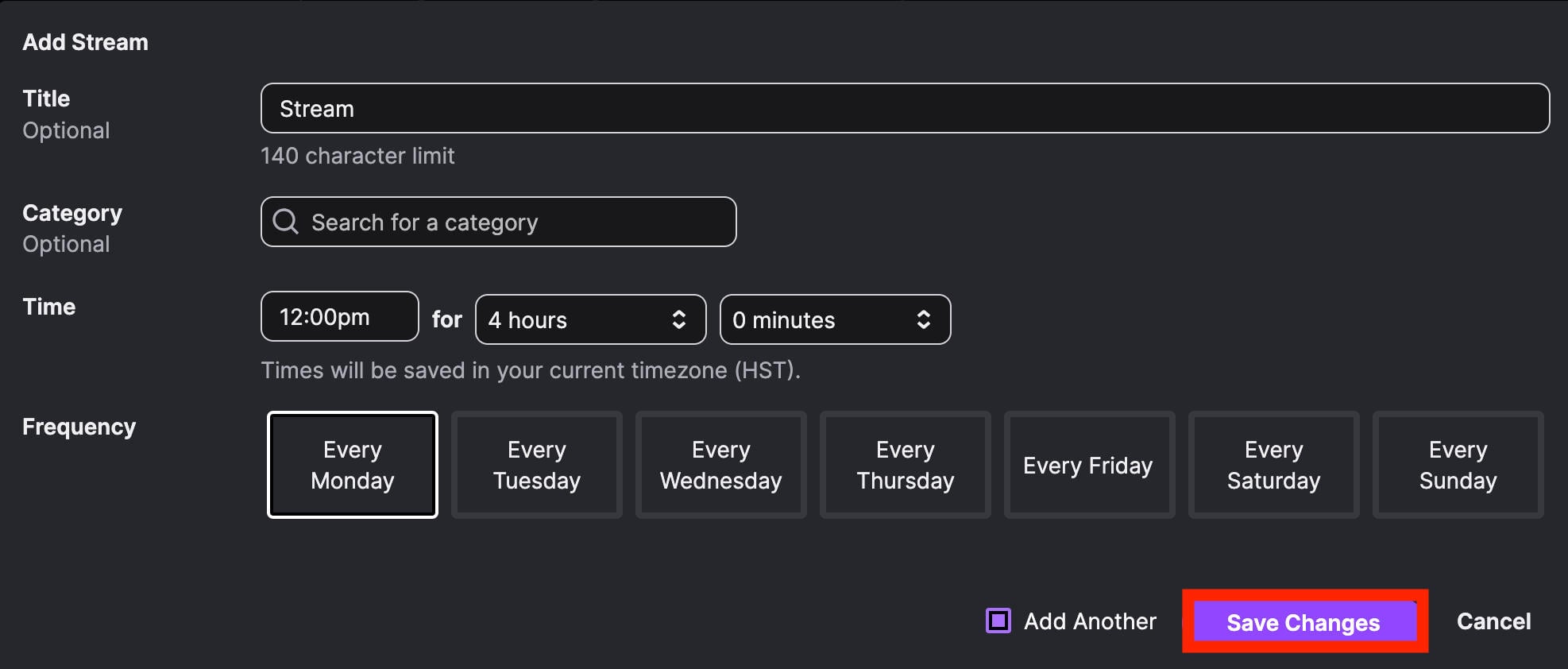
Click Save Changes.
Frequently Asked Questions
What is a good Twitch banner?
A quality Twitch banner will give viewers an immediate idea of the type of channel you run. If you primarily stream Minecraft content, for example, a Minecraft themed banner with information on your social media handles would be idea.
How to make an own Twitch banner?
You can make your own Twitch banner using free, pre-made templates on a site like Canva.
Is 1000 viewers on Twitch good?
1,000 viewers on your Twitch stream is great! It means that 1,000 people found your stream interesting enough to tune in and stick around. Just be sure to maintain their interest by sticking to a consistent streaming schedule.
What are common Twitch banner mistakes?
The top mistakes for Twitch banners include using the default Twitch banner, using the wrong dimensions or a low-resolution, not taking into account where the info box will appear, or using something irrelevant to your channel’s overall vibe.