Whether you want to stream a test run or just want to share the experience with a small group of friends, private streaming appeals to many users.
Unfortunately, Twitch doesn’t offer a direct private streaming option, but there are a few ways to work around it and variety of alternatives to consider.
Today we’ll explore ways you can stream privately on Twitch, how to improve your overall privacy on the platform, and alternative methods for private streaming on platforms like Discord, YouTube, Steam, and Facebook.
Let’s get started!
Key Points:
Can You Live Stream Privately On Twitch?
Technically there’s no private streaming option on Twitch. This is intentional, since the platform has a policy against users streaming adult content and private streams could potentially host content that violates Twitch’s Community Guidelines.
However, there are a few ways that users can stream without announcing it to their followers and the userbase at large.
How Do You Make Your Twitch Stream Private?
So if there’s no private streaming option, how can you stream privately on Twitch?
Luckily there are a few ways around it within Twitch, but if these options don’t appeal to you jump here to learn about alternative platforms that offer true private streaming.
Streaming Without Meta-Data
Let’s be honest - most streamers on Twitch struggle with getting viewers to their stream in the first place, not the reverse.
The platform is known for promoting popular streamers and making it difficult for newbies to break through. So if you don’t currently have a huge follower base, the simplest way to stream privately would be to create a regular stream but without meta data.
This means using a placeholder title and opting out of adding a description, tags, or category.
Then, stream as usual! While this isn’t completely private, the odds of anyone stumbling across your stream are slim unless you have a large following already, in which case one of the alternatives below might be best for you.
Subscriber-Only Streaming
If you have an established account and don’t want to broadcast to every user on Twitch, subscriber-only streaming is another option.
Keep in mind that to use this feature you must be a Twitch Affiliate or Partner and have streamed at least 90 days under this status. You also need to be clear of an Twitch violations in the last 90 days.
If all of this applies to you, great!
To use subscriber-only streaming, visit the Creator Dashboard.
If you’re eligible to use this feature, you’ll see an Audience tab.
Click Audience then click Subscribers. Remove mods and VIPs if you wish.
Stream as usual.
Only your existing subscribers will be able to view the stream. Anyone just stumbling across your channel will have to subscribe to view your current content.
Create A Secondary Account
If subscriber-only streaming isn’t private enough for you, or if your channel isn’t eligible, consider creating a secondary account just for private streaming.
Keep this account as anonymous as possible, with a throwaway username and little to no channel information.
When you do go live, don’t add any meta data like descriptions, tags, or categories, and consider using a gibberish title to avoid appearing in search results.
Share the stream link with your friends and enjoy!
How To Stream On Twitch Without Notifying Anyone
Unfortunately Twitch notifies subscribers about new livestreams by default, unless they have notifications turned off specifically for their account.
There’s no way to stream without sending out notifications, but if you’re streaming just to test your settings, you can use the Go Live Notification feature to add a test message so that users can safely ignore your test content.
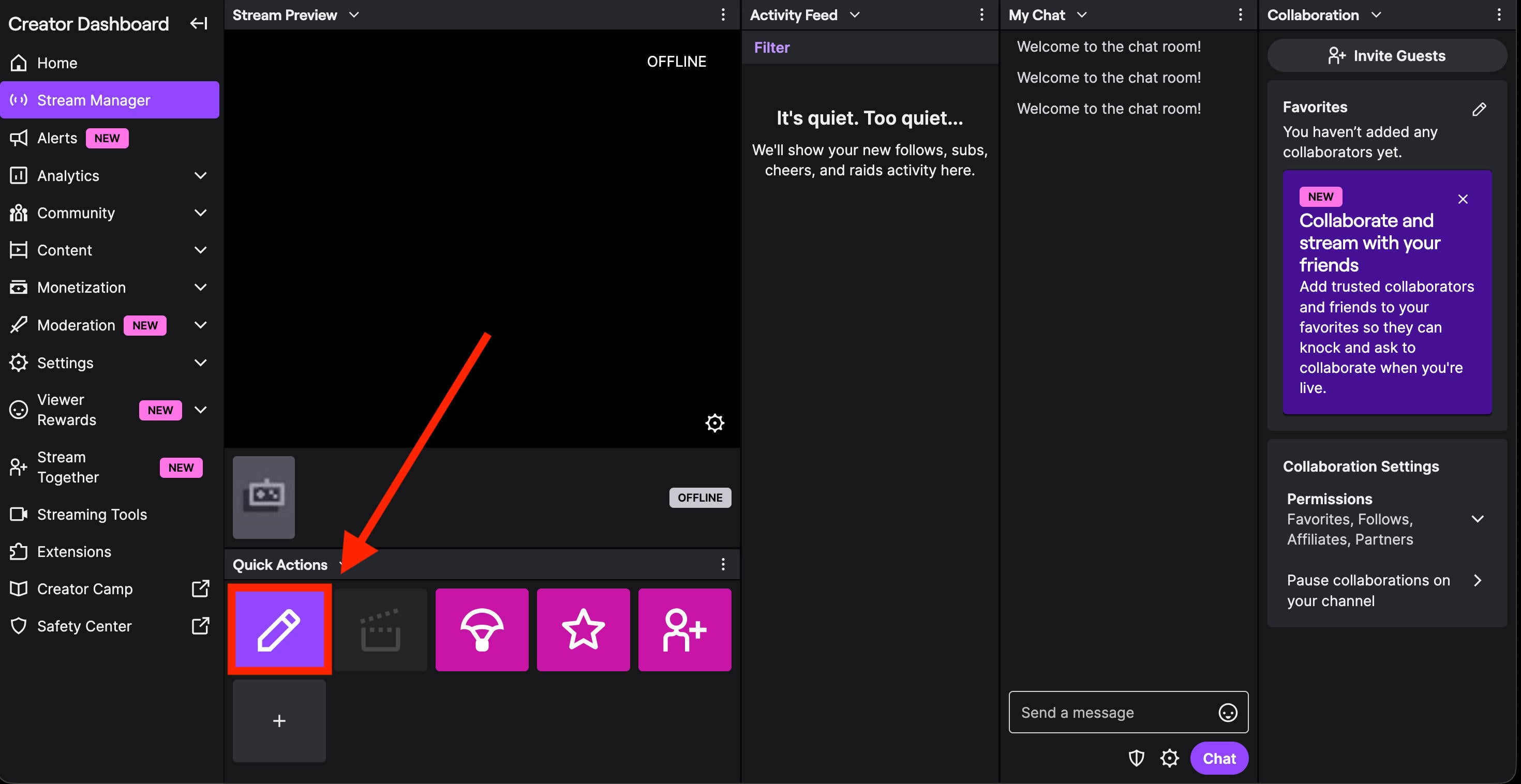
Visit your Creator Dashboard.
Click Stream Manager on the left-hand menu.
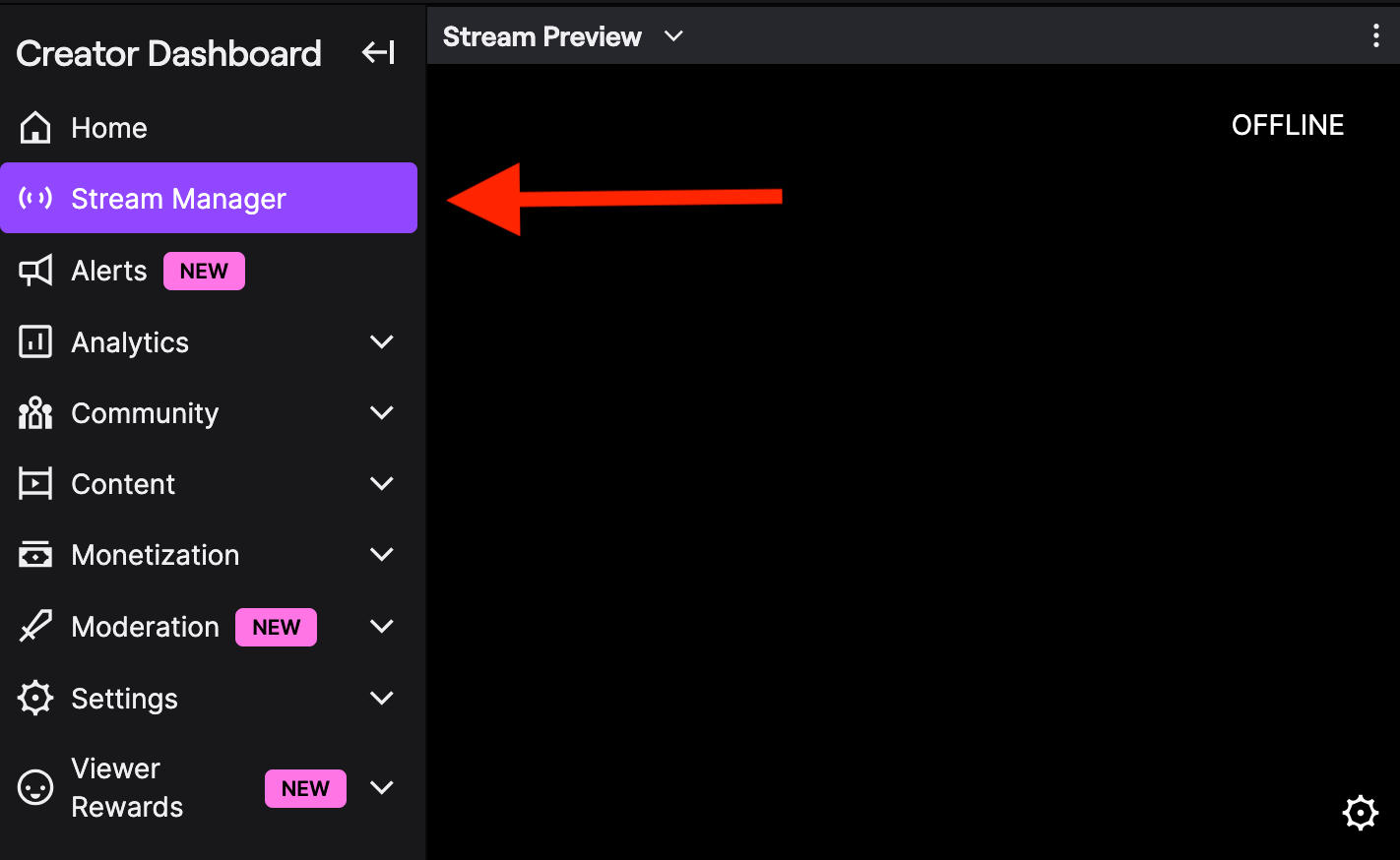
Under the Quick Actions menu, click Edit Stream Info (the pencil icon).
Under Go Live Notification, input your custom notification text to indicate that you’re creating a test stream.
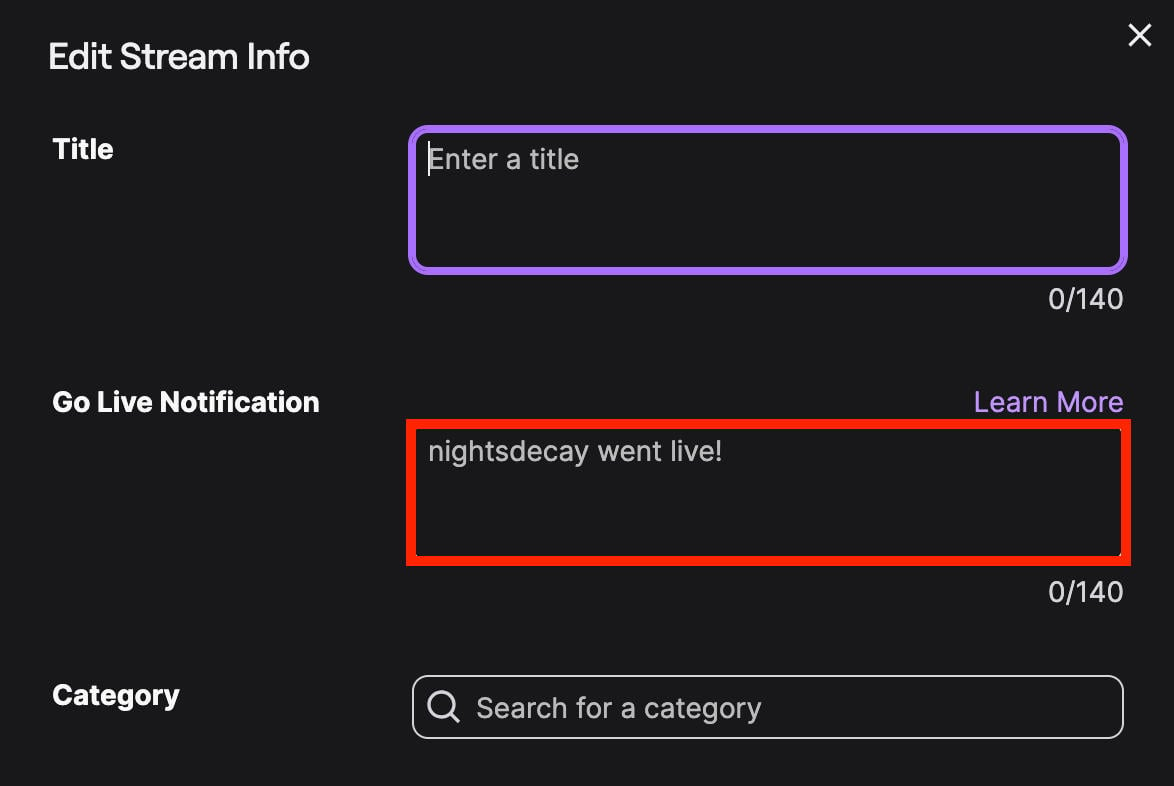
Click Done to save your changes.
Be sure to go back and swap the Go Live Notification to something normal after you’ve finished testing!
Can You Stop Someone From Seeing Your Stream On Twitch?
The only way to stop a specific user from seeing your Twitch stream is to block them.
According to Twitch’s harassment guide, blocking someone will:
• Remove them from your followers.
• Prevent them from following you in the future.
• Prevent them from messaging you.
• Prevent them from watching your livestreams.
• Prevent them from seeing your channel in recommendations.
• Prevent them from subscribing to your channel.
• Prevent them from purchasing gift subs for other users in your channel.
• Filter their messages out of the chats you don't moderate.
How To Block Someone On Twitch
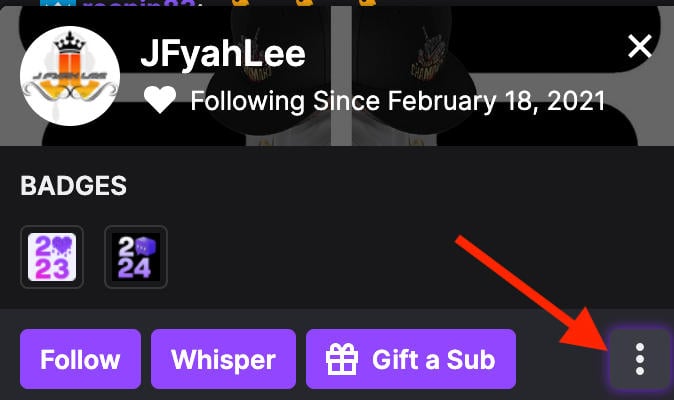
Click the user’s name in the live chat.
Click the three dots on the bottom right corner.
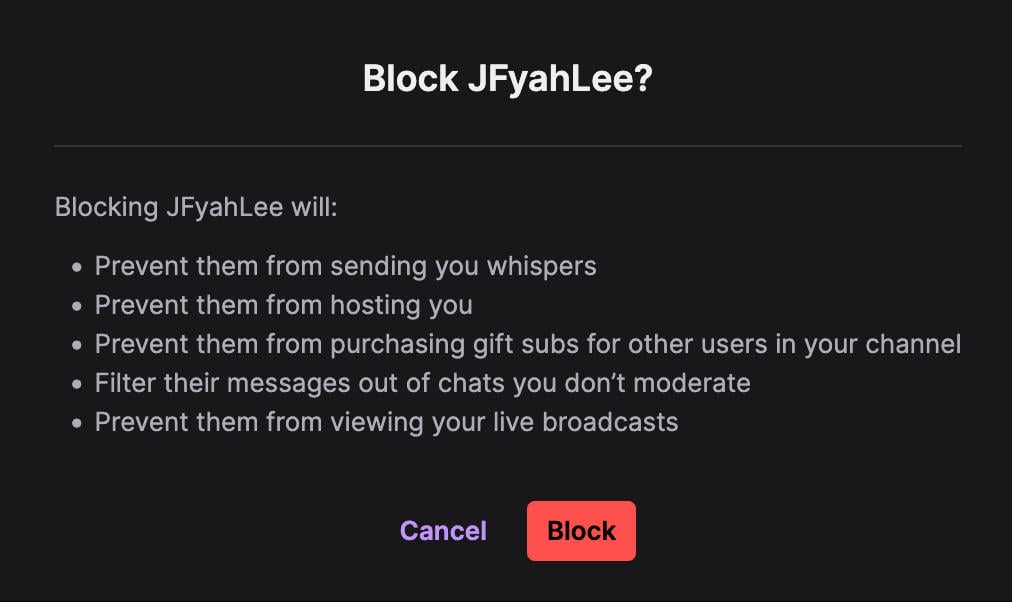
Select Block [username].
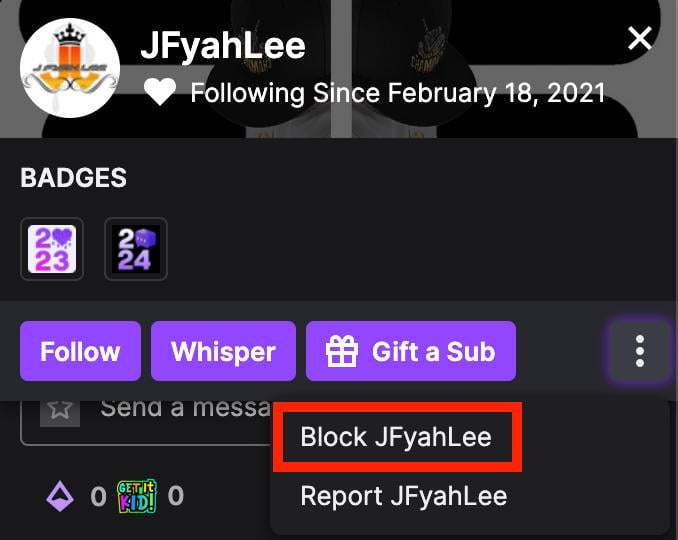
Click Block again to confirm.
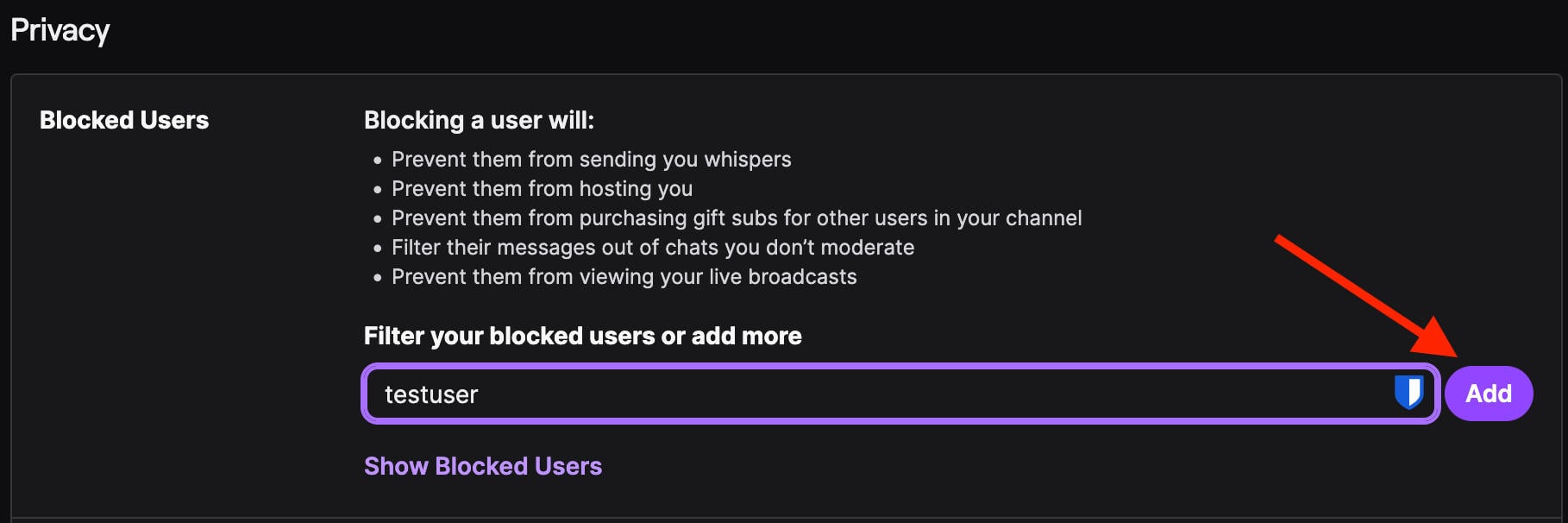
Alternatively, go to Security Settings and scroll down to Privacy.
Input the username of the person you wish to block and click Add.
How To Manage Blocked Users On Twitch
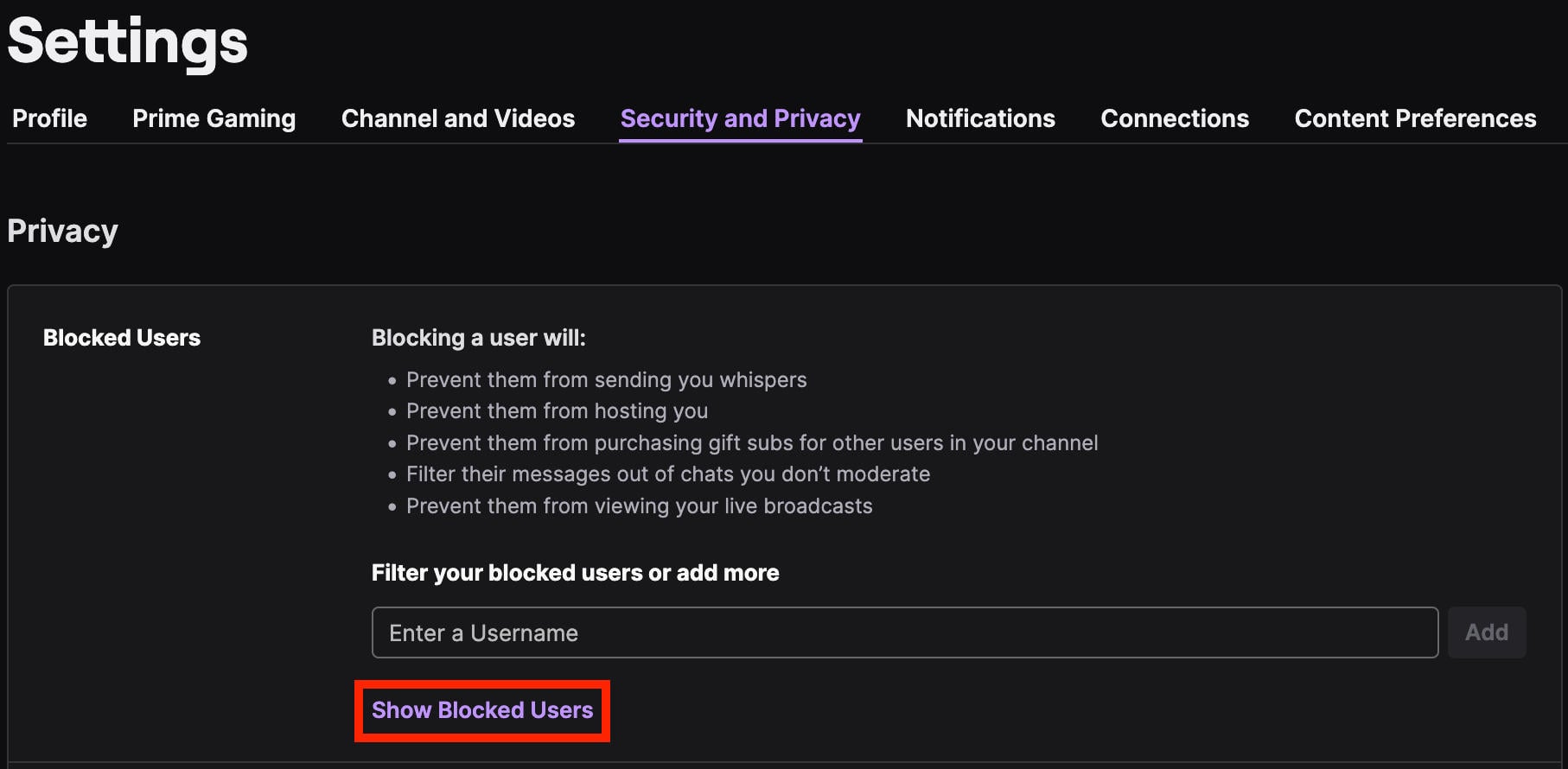
Open your Security Settings page.
Scroll down to Privacy and click Show Blocked Users.
You’ll see the username and date that you blocked them.
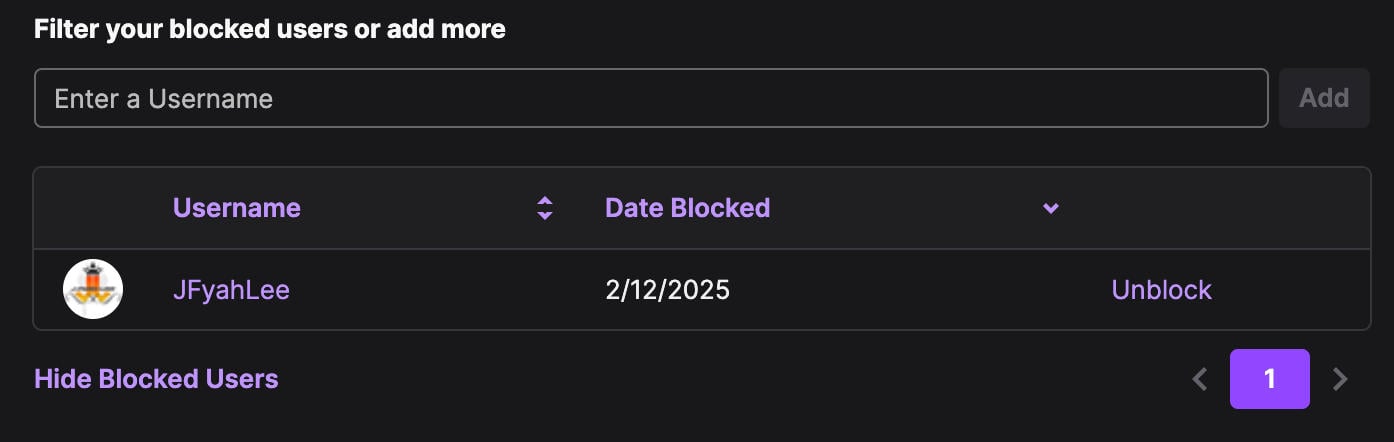
To unblock someone, click Unblock on the right.
How To Stay Anonymous While Streaming

If you’re happy to stream publicly but just want to maintain your privacy and digital safety, there are a few things you can do to stay anonymous on Twitch and other platforms.
Use A Fake Name
While many streamers are happy to share their real full names, others prefer going by first name only or by their handle.
If you want an extra layer of anonymity, consider using a fake first name that sounds real and stick with it.
Use Dedicated Social Profiles
Sometimes dedicated digital sleuths can uncover private details about influencers and streamers based on their follower/following lists and posts that they’ve liked.
To avoid this, use dedicated social profiles specifically for your online persona and ensure that no one from your real life follows you there.
Additionally, be sure not to include location data and turn off tagging where possible to avoid being included in private posts.
Be Mindful Of Details
Even the most innocent details can come together to expose your true identity and even location.
Be mindful of any details you share during stream chats or in post captions, including:
-
Place names
-
Regional landmarks
-
Schools or organizations near you
-
Regional slang
-
Unique names that could give away your location
-
Regional shops or restaurants
-
Upcoming travel plans
…and anything else that could be used to determine where in the world you are.
Pay Attention To Your Setting
Just like the things you say, the surroundings of your stream can give a lot away! It’s usually best practice not to include any windows in the background of your stream, which can be dead giveaways as to your exact location.
However, there are other little details that you might not think are worth worrying about like:
-
Posters or flyers from local events or businesses
-
School paraphernalia
-
Souveniers from nearby locations
-
Photos of friends or family in the background
Twitch Privacy Tips

Along with maintaining anonymity in your stream, Twitch has a variety of settings you can adjust to maintain privacy within your account. Here are a few things to double check…
Two Factor Authentication
Like any other platform, Twitch offers two-factor authentication which you should definitely take advantage of as an added layer of security.
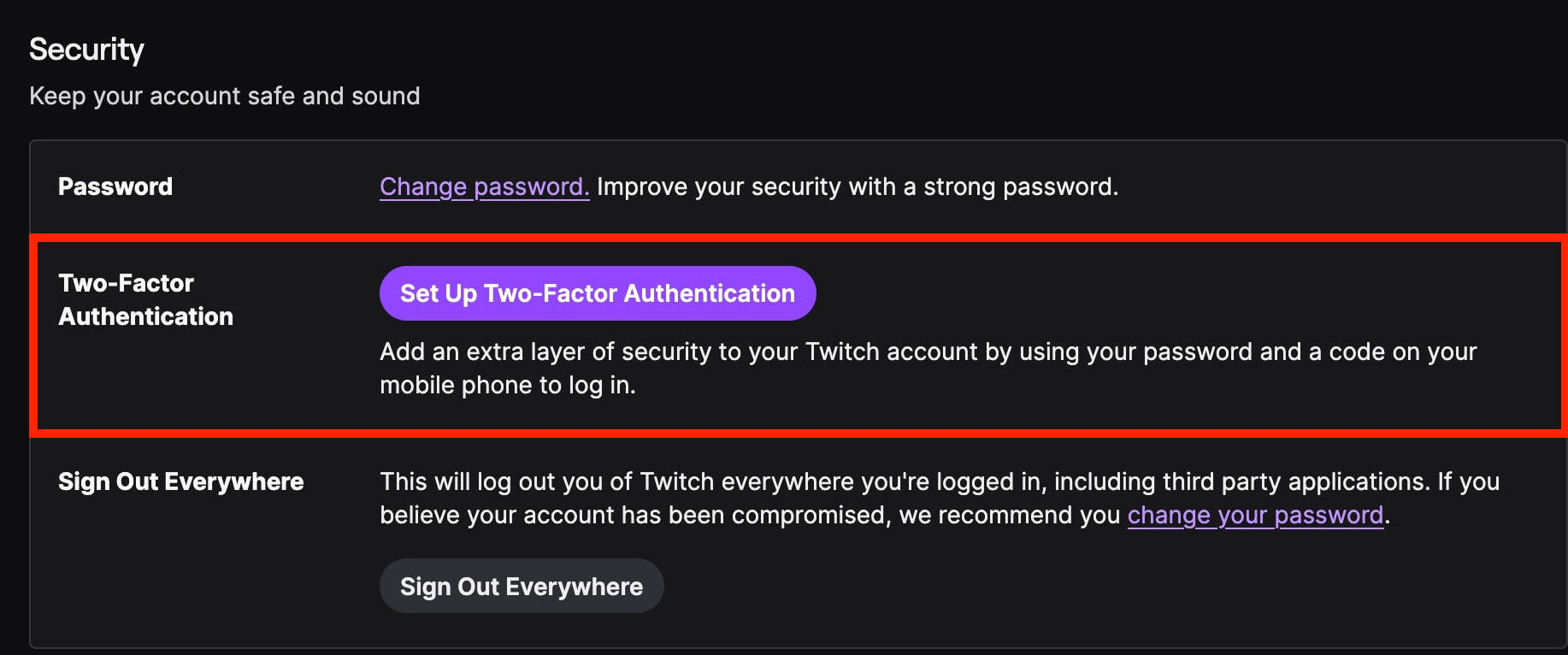
To turn it on, visit your Security Settings page.
Under Security, click Set Up Two-Factor Authentication.
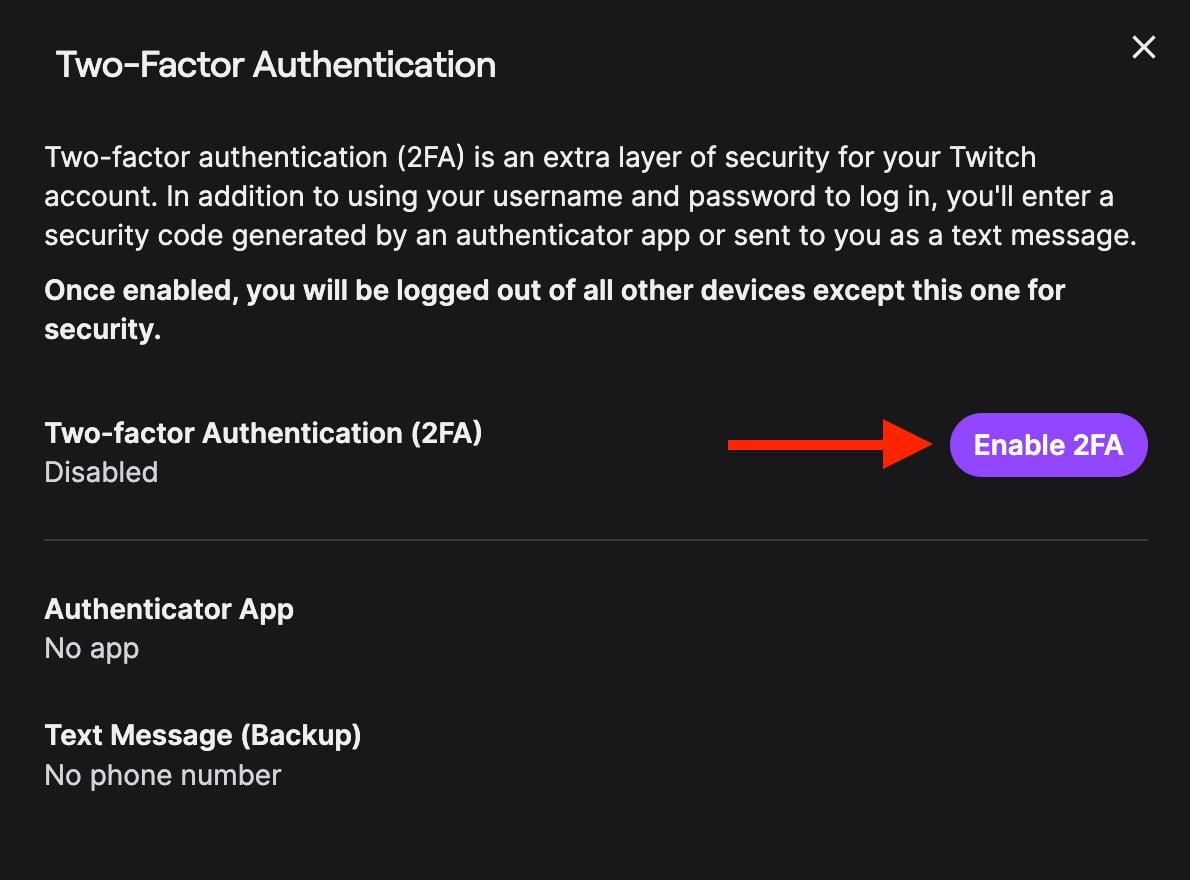
Click Enable 2FA and complete the on-screen instructions.
Adjust Sharing & Interaction Settings
You can also adjust what information Twitch shares about your account, and who can interact with you.
Visit your Security Settings page and scroll down to Privacy.
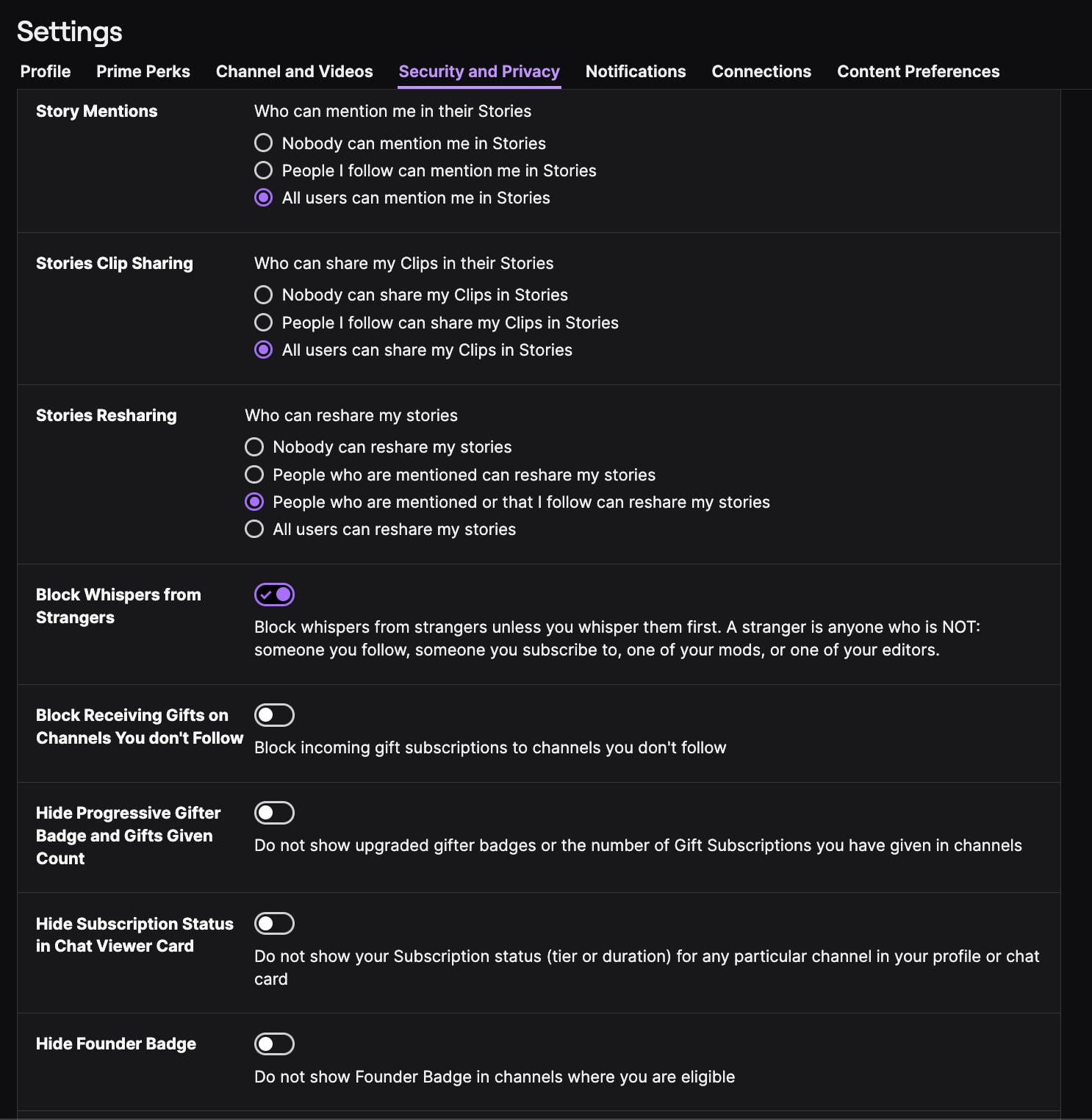
From here, you can adjust:
-
Who can mention you in their Stories
-
Who can share your Clips to their Stories
-
Who can reshare your Stories
-
Whether or not strangers can send you Whispers
-
Whether or not non-followers can send you gifts
-
The visibility of badges
-
The visibility of subscriber status
-
The visibility of your Founder badge
Account Connections
If you’ve linked any third party sites to your Twitch account, you can adjust the connections from here.
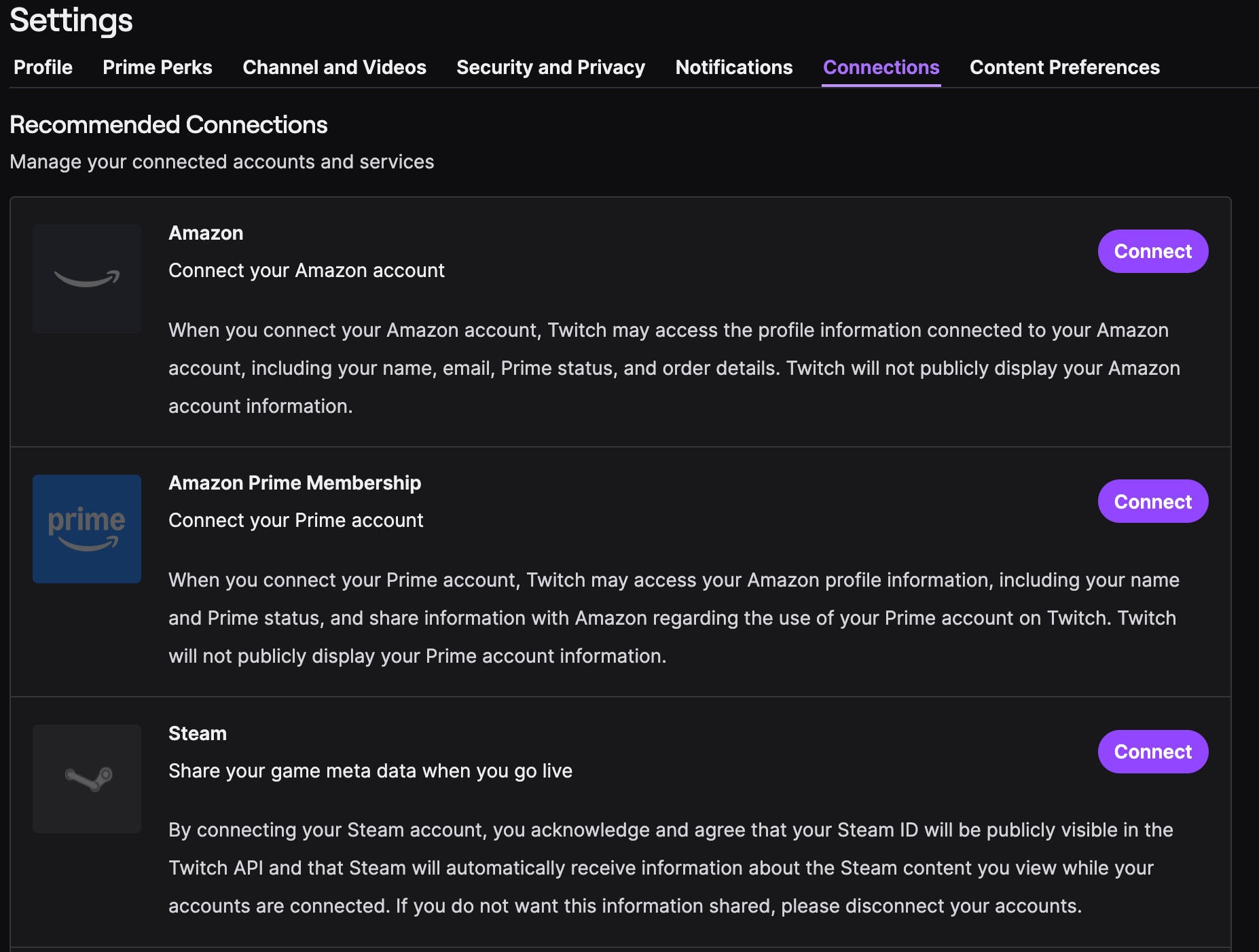
Keep in mind that none of these connections are publicly displayed on your Twitch profile, but if you’d rather keep your accounts separate they’re worth disconnecting.
Content Preferences
Finally, while this isn’t directly related to privacy you can also adjust the types of content you see on Twitch for your own sanity.
Visit your Content Preferences page.
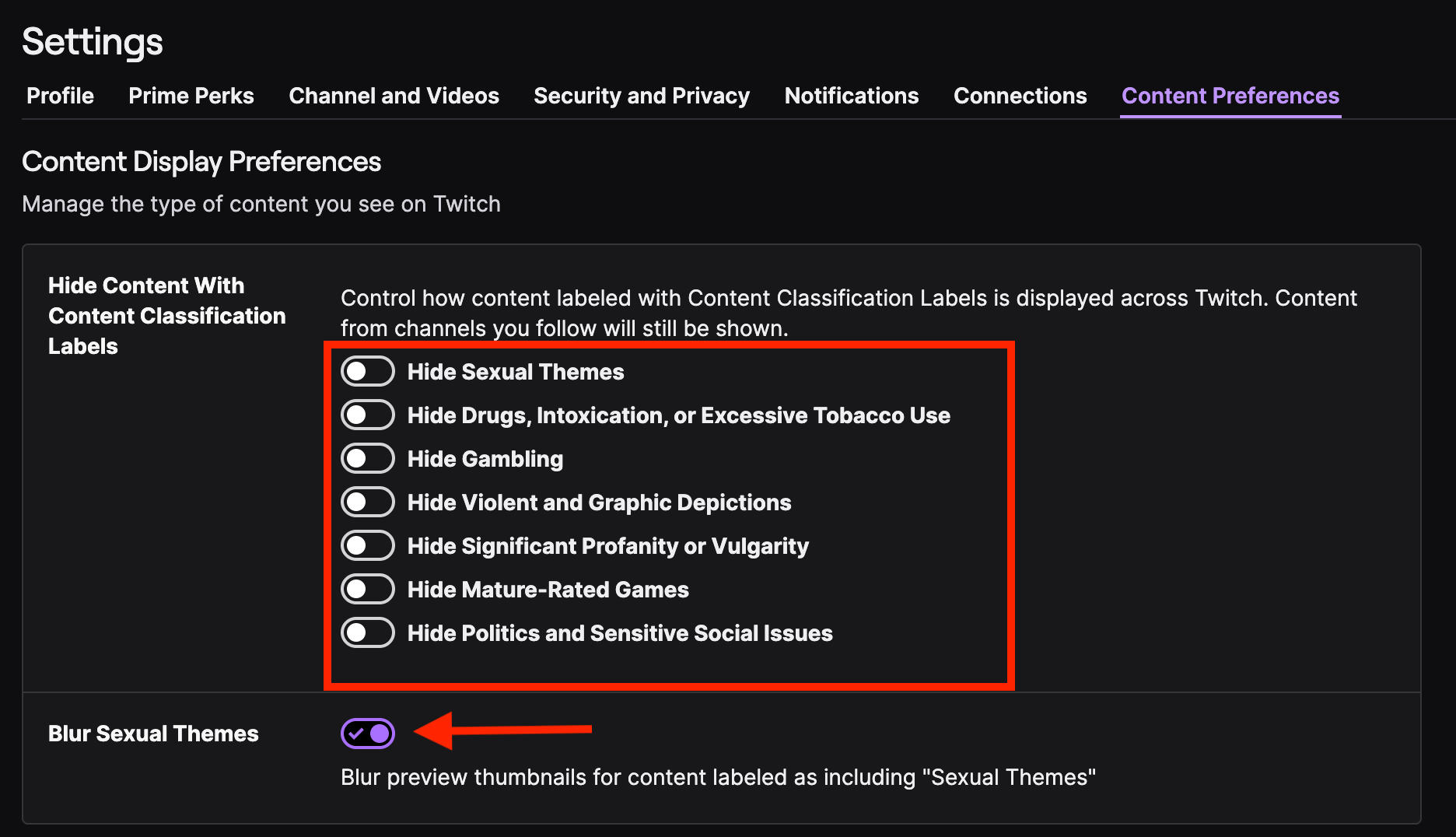
You can toggle any of the following settings ON or OFF:
-
Hide Sexual Themes
-
Hide Drugs, Intoxication, or Excessive Tobacco Use
-
Hide Gambling
-
Hide Violent and Graphic Depictions
-
Hide Significant Profanity or Vulgarity
-
Hide Mature-Rated Games
-
Hide Politics and Sensitive Social Issues
You can also choose to Blur Sexual Themes (this is ON by default).
How To Stream Privately On Discord
To create a private stream on Discord, all you need to do is create a private server and invite a few select friends before streaming.
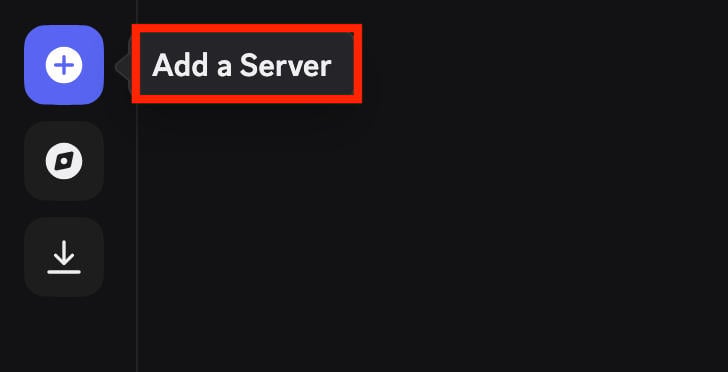
Open Discord and click Add A Server on the left-hand side.
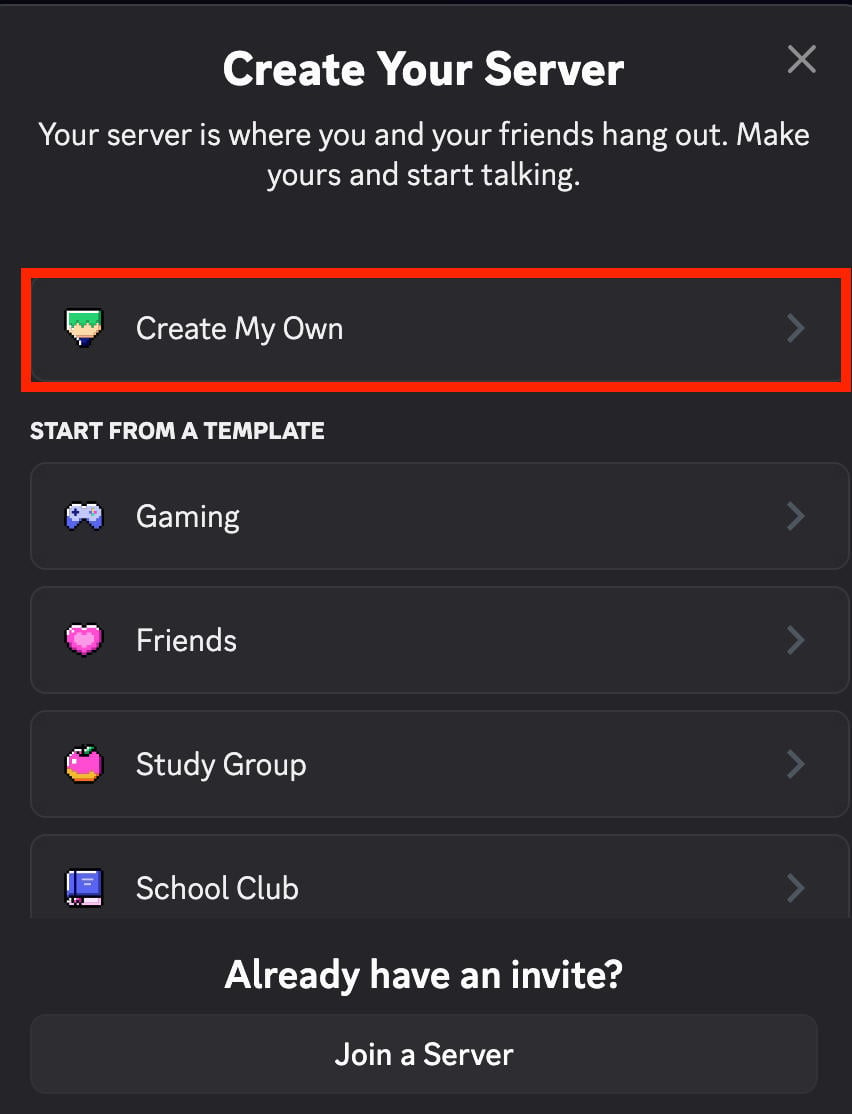
Click Create My Own > For Me And My Friend.
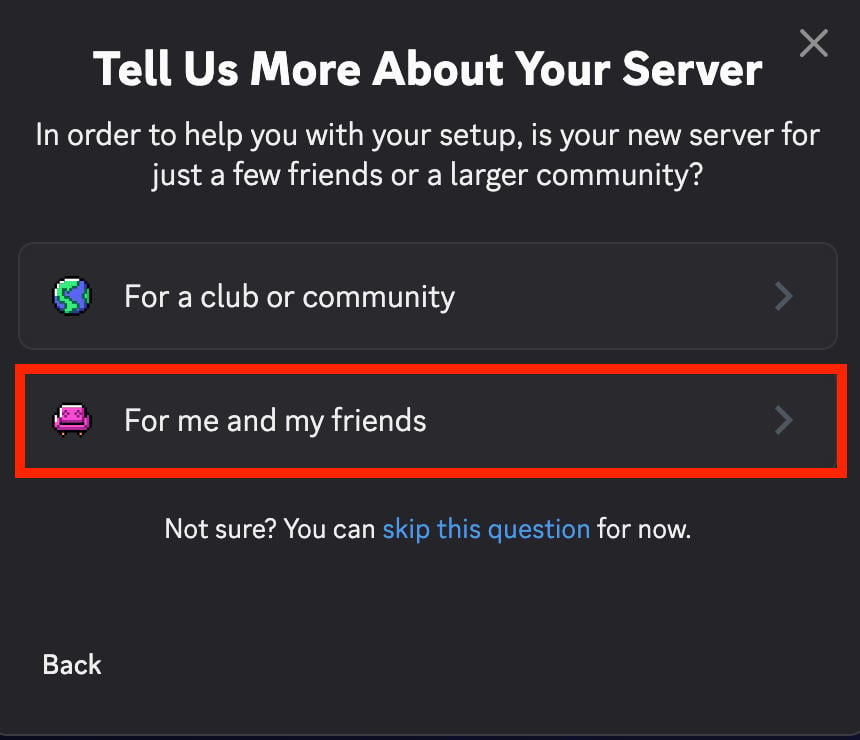
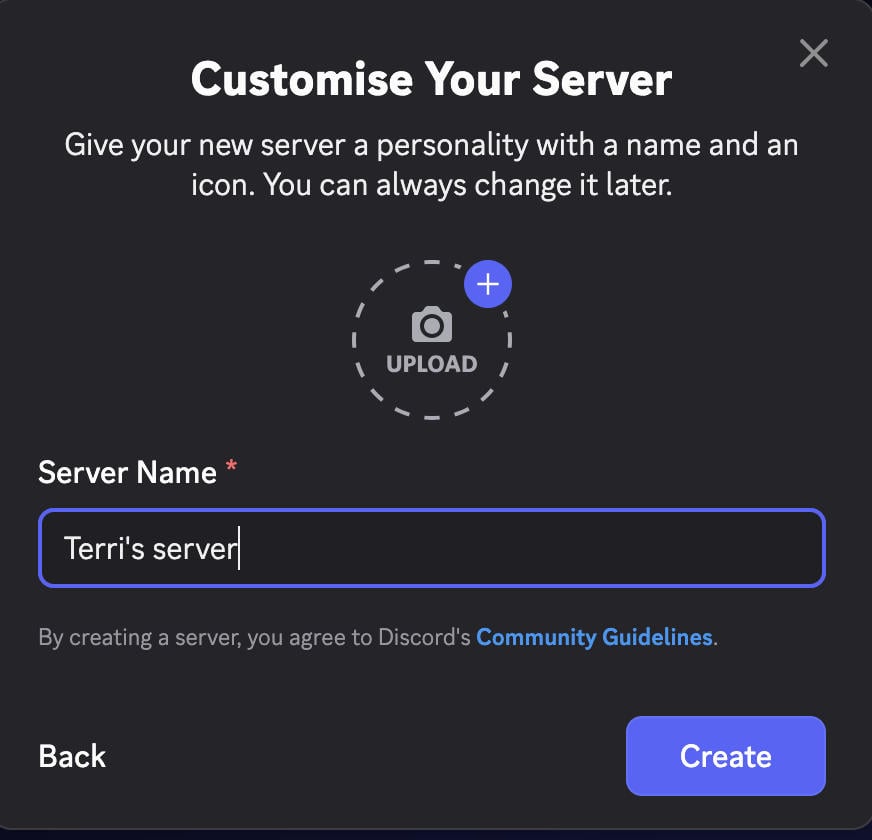
Name your server, then click Create.
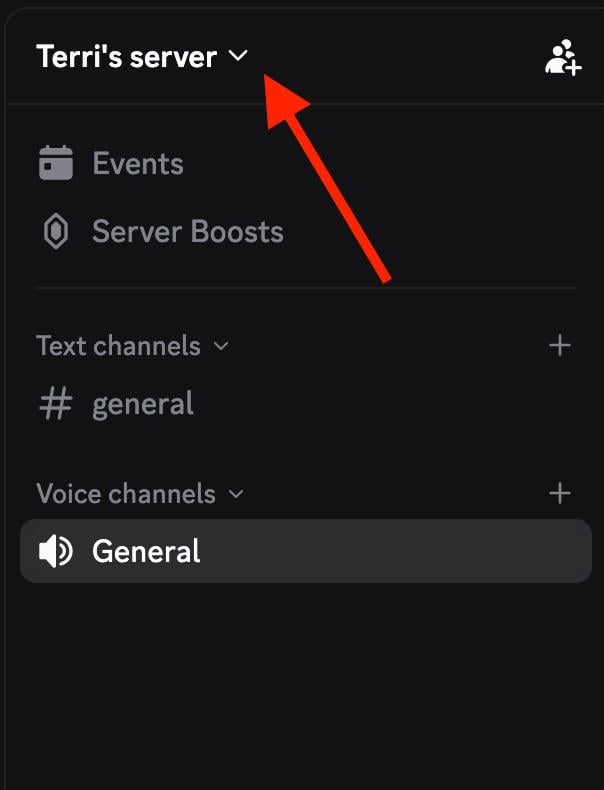
From the server page, click the name on the top left to bring up the server menu.
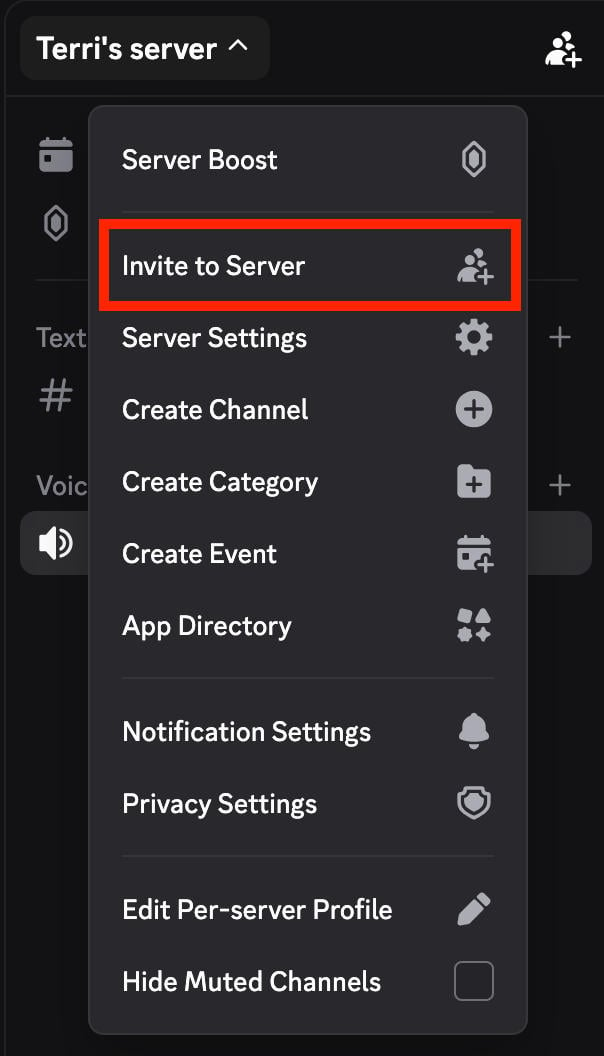
Click Invite To Server and either click Invite to the right of your friends’ usernames or copy and share the invitation link.
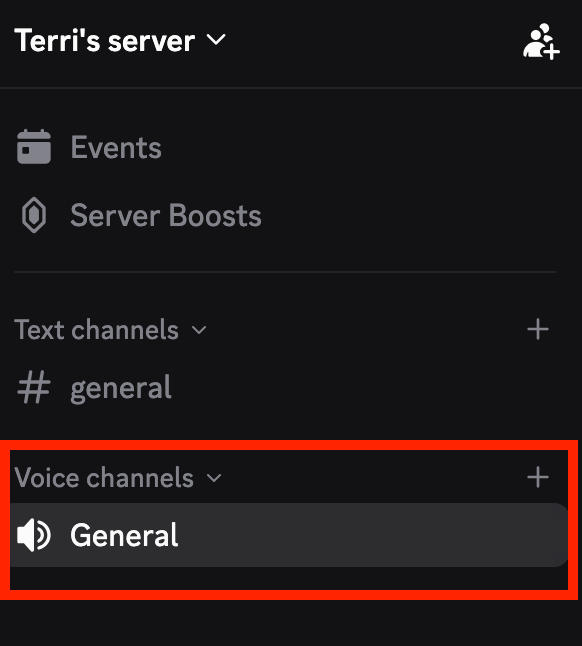
Once your friends have joined and you’re ready to stream, click the Voice Channel to enter it.
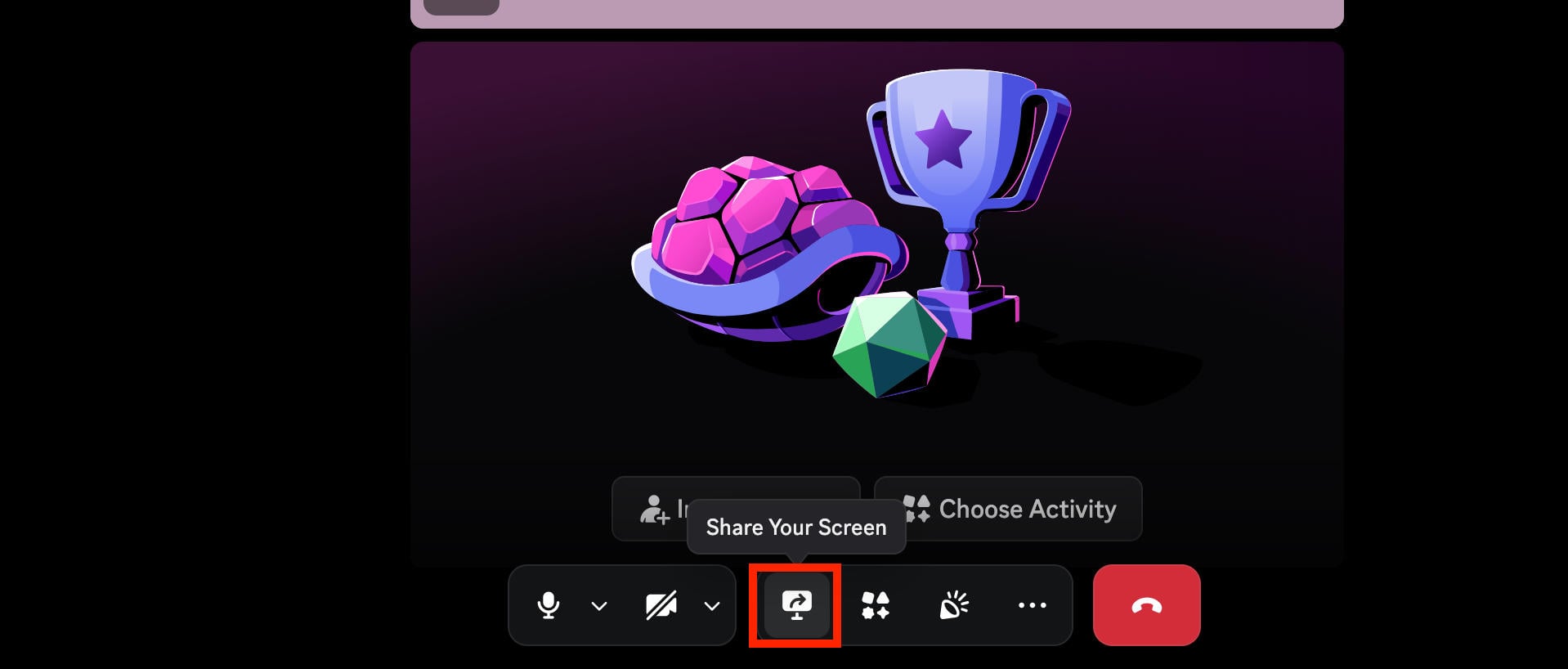
From the voice chat screen, hover over the bottom menu and click Share Your Screen to start streaming.
How To Stream Privately On YouTube
You can also stream privately on YouTube.
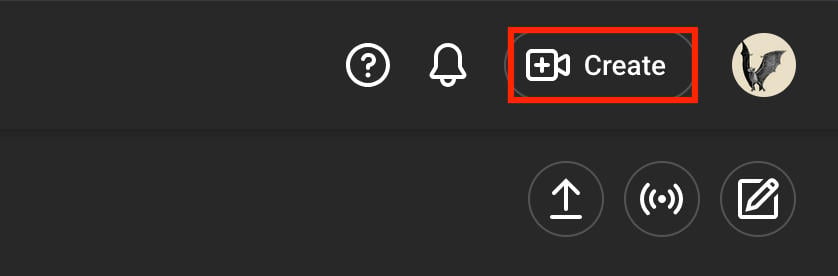
Visit YouTube Studio and click Create on the top right.
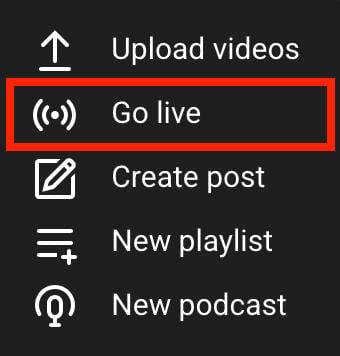
Choose Go Live.
Choose when you want to go live and the type of stream.
Select your audience.
On the panel that shows your stream title, click Edit on the top right corner.
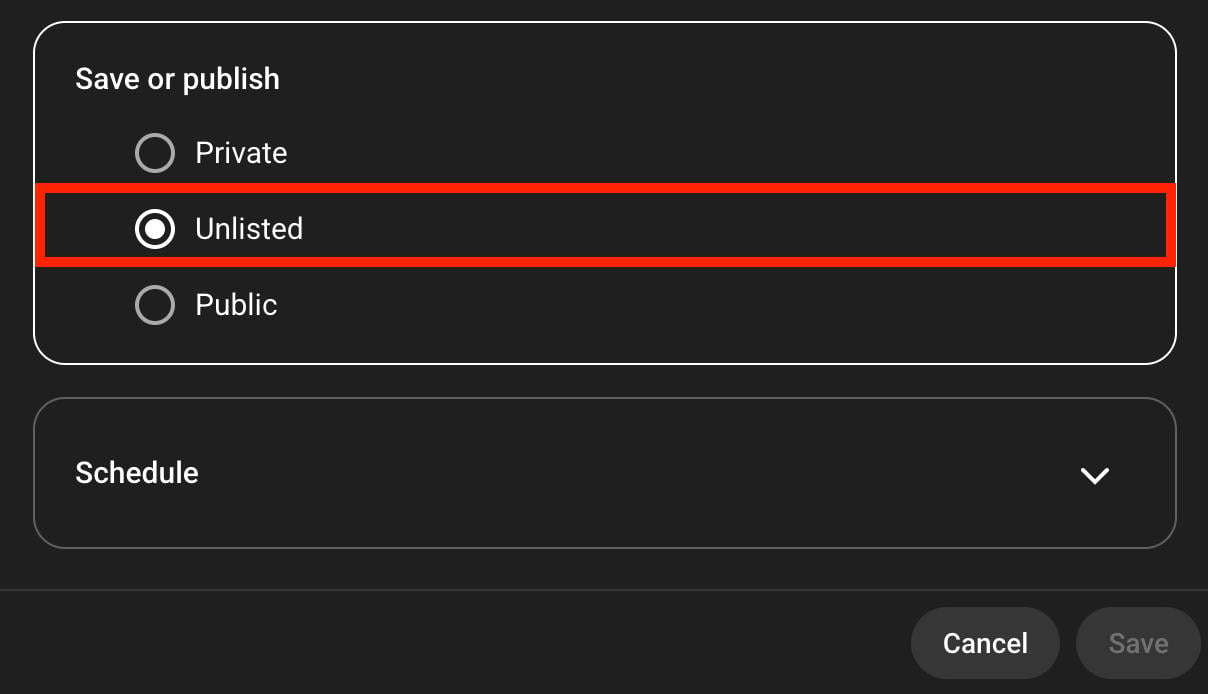
Under Visibility, click Unlisted (if you want to share the stream with friends) or Private (if you don’t want to share it with anyone).
Go live and copy the stream URL if you plan on sharing it with friends.
How To Stream Privately On Facebook Gaming
If you create a dedicated Facebook page for a select number of users, you can go live and stream gameplay or anything else there.
Once you’ve set up your page, make sure you’ve switched into it from the profile menu on the top right.
Go to Facebook Gaming to start streaming.
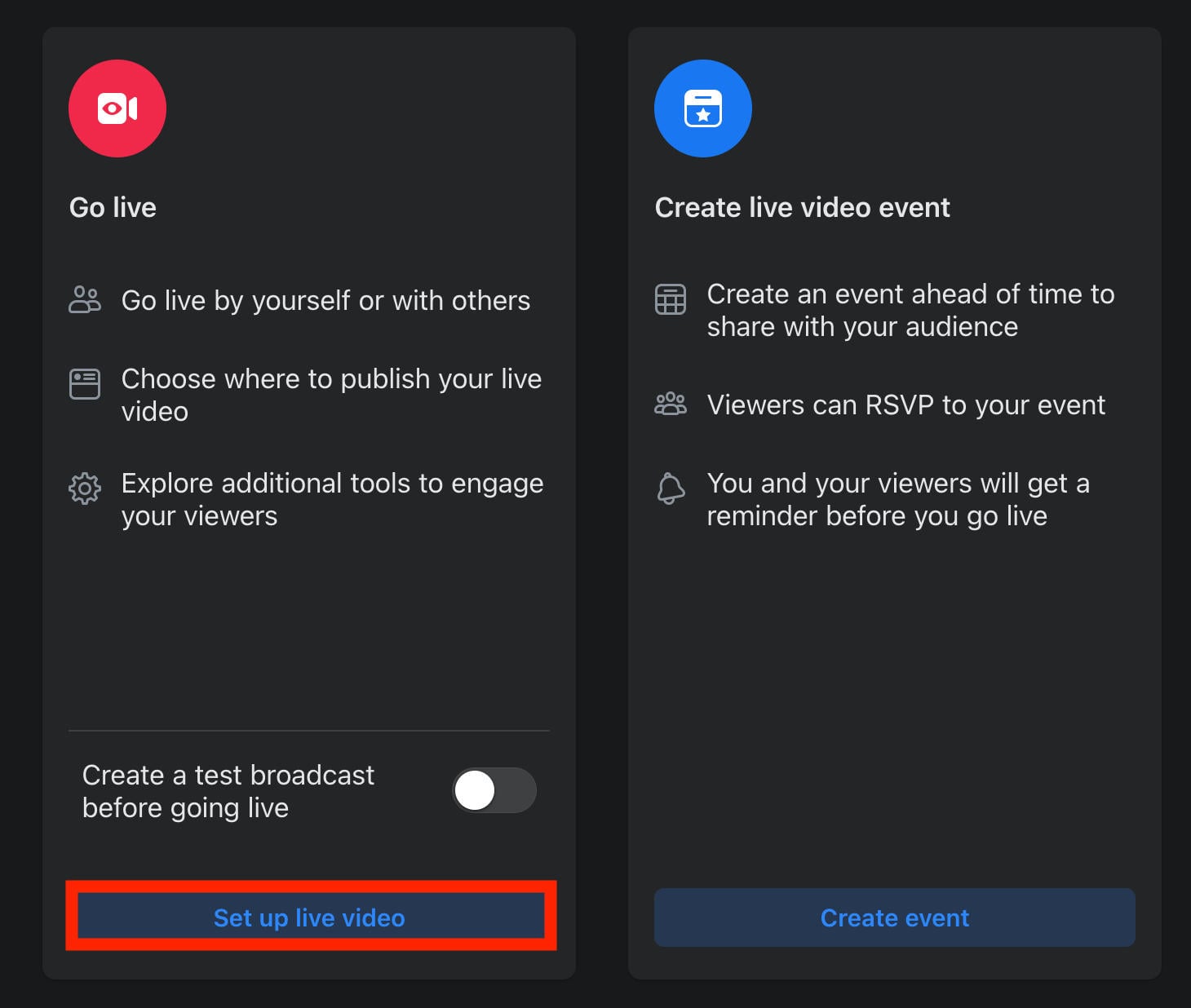
Click Set Up Live Stream on the top right corner.

Click Set Up Live Video.
Under Add Post Details, click Audience Settings.
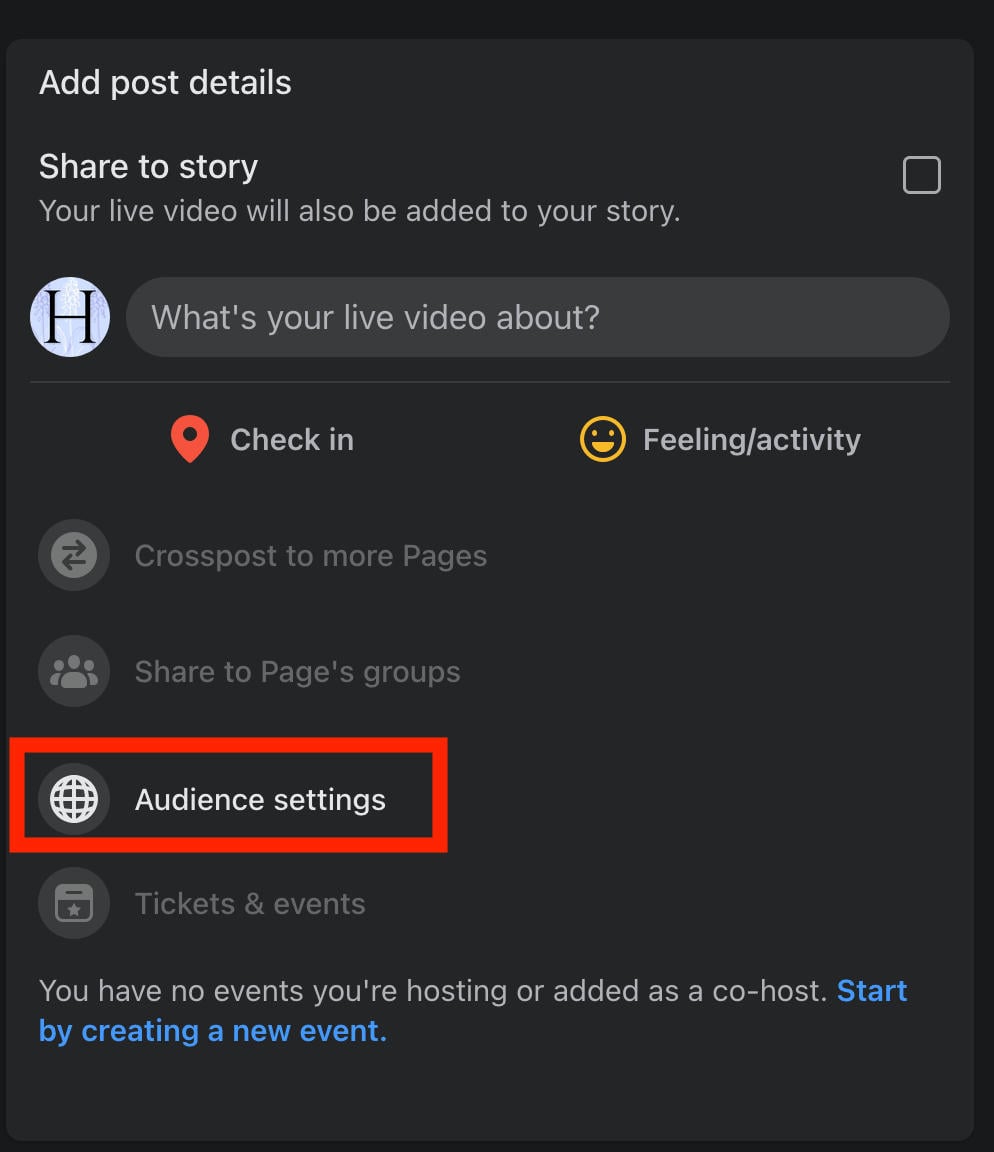
Adjust the age limit and restrict any locations you wish.
When you’re ready, go live and share the link with friends!
How To Stream Privately On Steam
Did you know that you can also stream games on Steam?
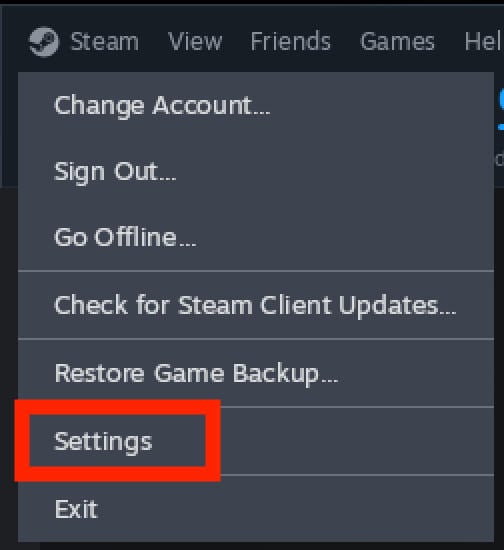
Open Steam and click Steam > Settings on the top menu.
Click Broadcast.
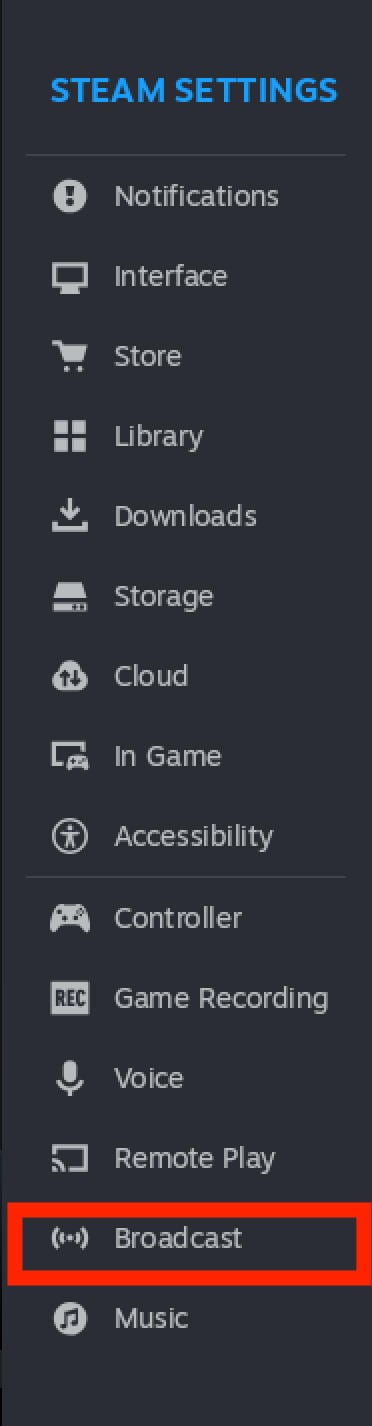
Make sure Privacy Setting is set to Friends Can Request To Watch My Games.
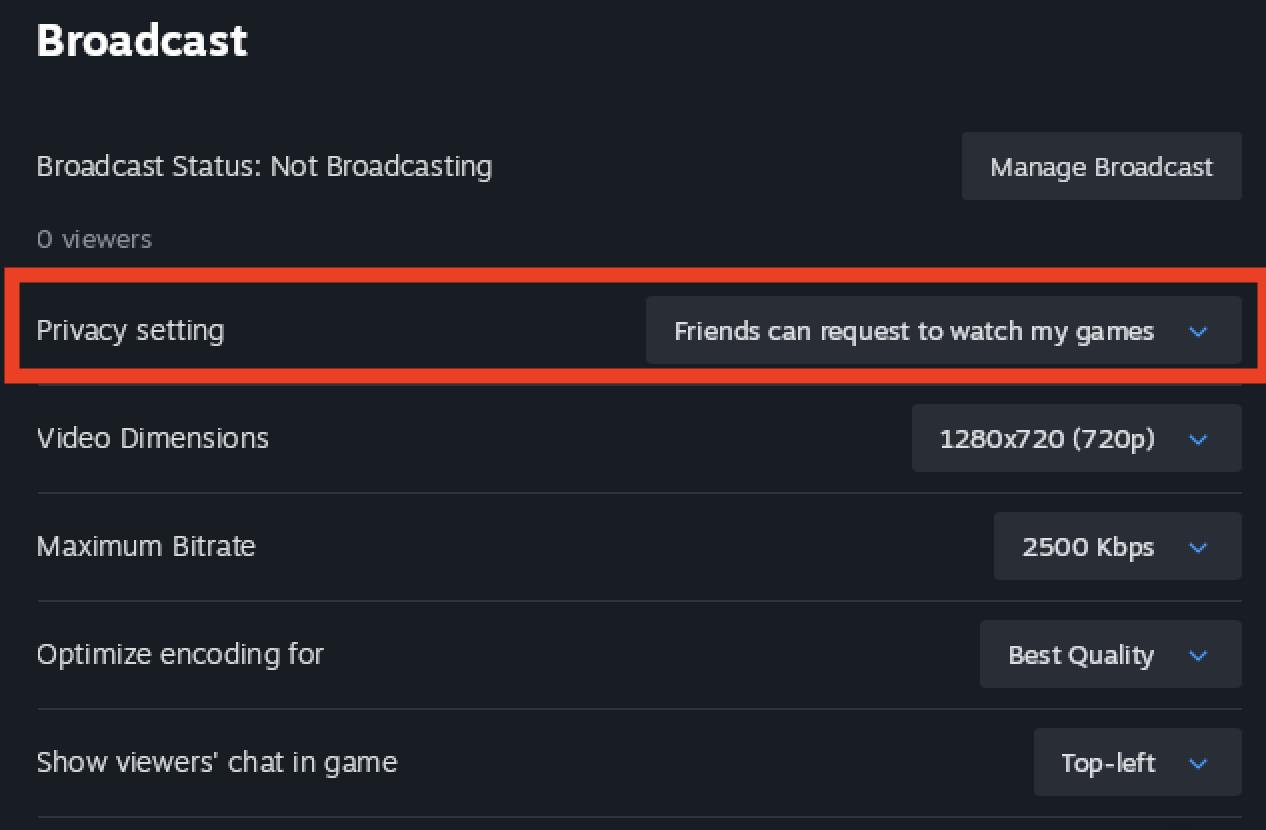
Now when you start playing a game, anyone on your friend list can request to watch you play. You can approve or deny them as the requests come in.
Frequently Asked Questions
Can I do a private live stream?
There are ways to stream without everyone accessing it on Twitch, but if you want a truly private stream consider using YouTube, Discord, or Steam instead.
Does Twitch have password-protected streams?
No, Twitch doesn’t offer password-protected streams.
How to live stream without 50 subscribers?
The 50 subscriber requirement on YouTube is only for mobile live streaming. You can stream without 50 subscribers from your desktop.
Can a Twitch streamer see who is lurking?
No, lurkers are anonymous. The only way to know who’s viewing your stream is if they’re active in chat. Learn more about Twitch lurkers here.
How to live stream without 1000 followers?
TikTok requires 1,000 followers before you can go live. If you want to unlock the feature fast, consider buying TikTok followers to help boost your following.
How to set up a private streaming server?
You can set up a private streaming server on Discord. Learn how here.
Why can some people go live without 1000 followers?
This requirement is region-dependent so you might see certain users who are going live without having 1,000 followers on TikTok.
How many followers do you need to start a live stream?
On YouTube you’ll need 50 subscribers to go live on mobile, but there’s no requirement for desktop. On TikTok you need at least 1,000 followers. Other platforms don’t have a minimum requirement.